A video sound enhancer can make dialogue easier to understand, reduce steady background noise, or prepare stereo audio for a multichannel setup. The right choice depends less on a feature count than on file length, privacy, editing control, and whether you need a complete video export or an audio-only result.
Why a Video Sound Enhancer Matters More Than You Think
A video sound enhancer addresses the part of a video viewers notice immediately when it goes wrong: speech clarity, stable volume, and distracting noise. A sharp picture cannot compensate for dialogue that is muffled, clipped, or buried under room sound.
Compression during publishing can make existing problems more obvious, especially hiss, breath noise, and harsh peaks. My editorial rule is simple: repair the source conservatively before upload, then listen to the exported video on the device your audience is likely to use.
What Is a Video Sound Enhancer?
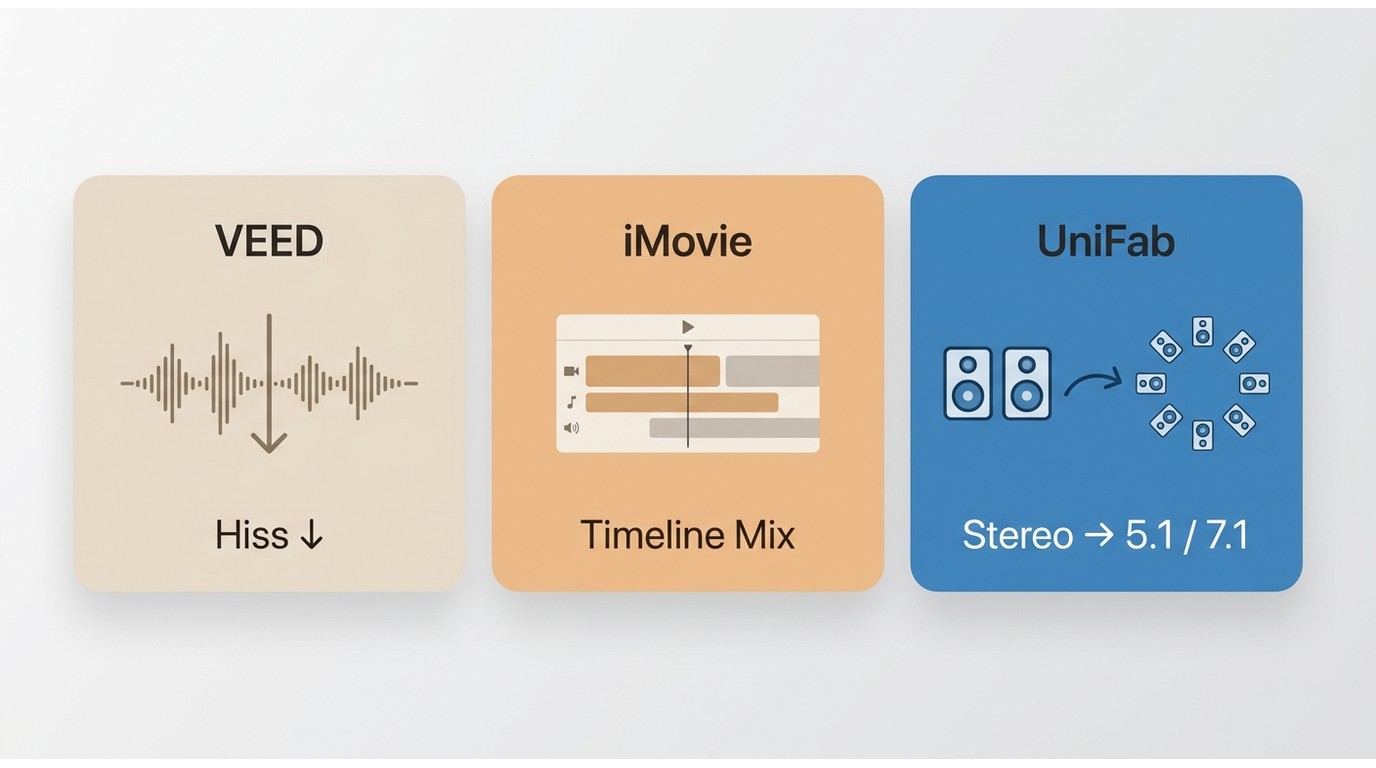
An audio enhancer for video is software that analyzes or adjusts the soundtrack while keeping it connected to the picture. Depending on the tool, it may reduce noise, improve speech intelligibility, balance volume, suppress echo, or create a surround audio upmix.
- Corrective tools target hiss, hum, room noise, uneven loudness, and unclear voices.
- Creative editors add music, effects, automation, and detailed timeline mixing.
- Upmix tools expand a stereo source into 5.1 or 7.1 channels for compatible playback systems.
No enhancer can recreate every detail missing from a damaged recording. It can often improve intelligibility, but severe clipping and strong room reflections may make rerecording the more reliable option.
Audio Enhancement vs. Audio Editing
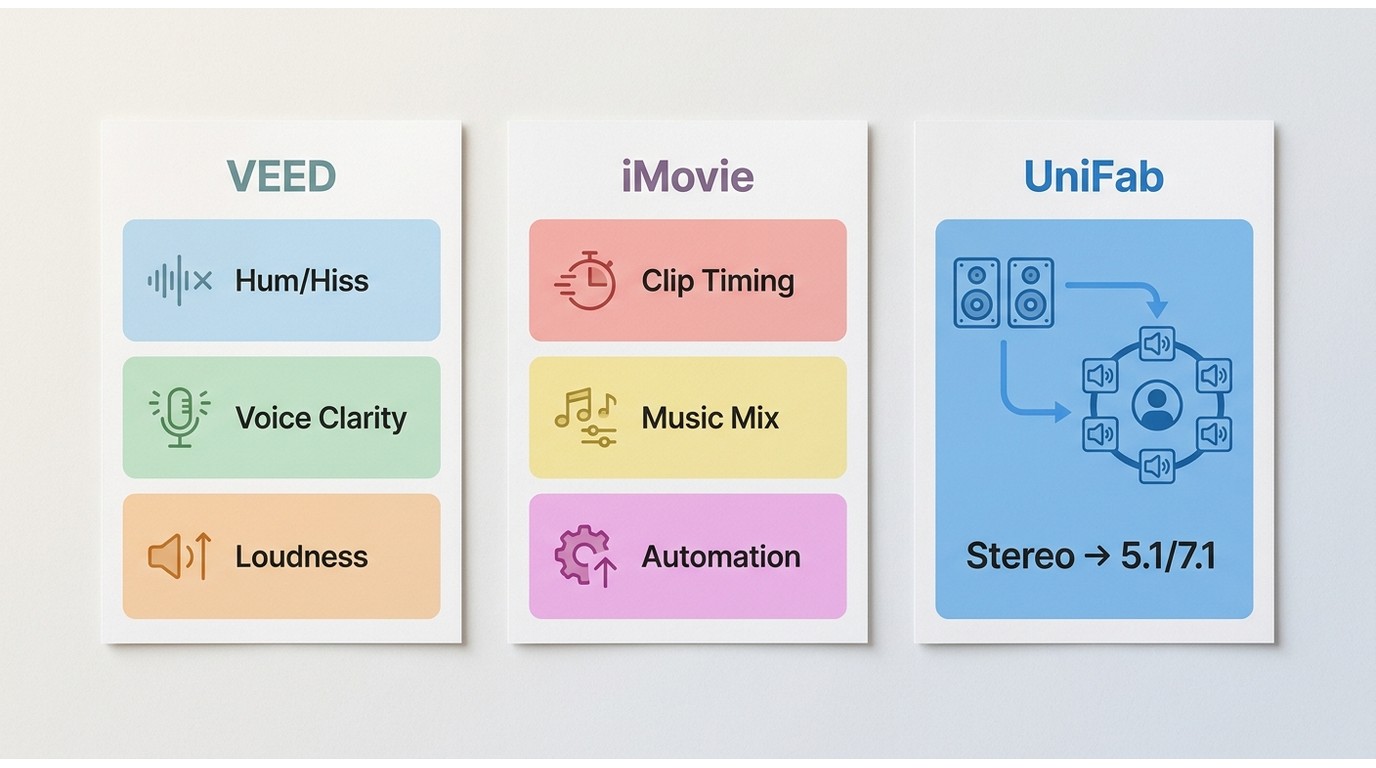
Audio correction software is designed to repair or standardize a recording, while an editor gives you manual control over timing, layers, effects, and creative balance. Many projects benefit from both, but they solve different problems.
| Task | Enhancement workflow | Editing workflow |
| Steady hum or hiss | Automated reduction with a strength control | Manual filtering and detailed cleanup |
| Uneven dialogue | Voice enhancement or loudness balancing | Clip gain, automation, and compression |
| Music and narration mix | Limited in many enhancers | Precise timeline control |
| Stereo to surround | AI-assisted channel reconstruction in supported tools | Manual routing and creative placement |
If the problem is mainly clarity, start with enhancement and use a light setting. If timing, music, or scene-by-scene balance matters, move the result into a full editor.
How We Compared 10 Video Sound Enhancers
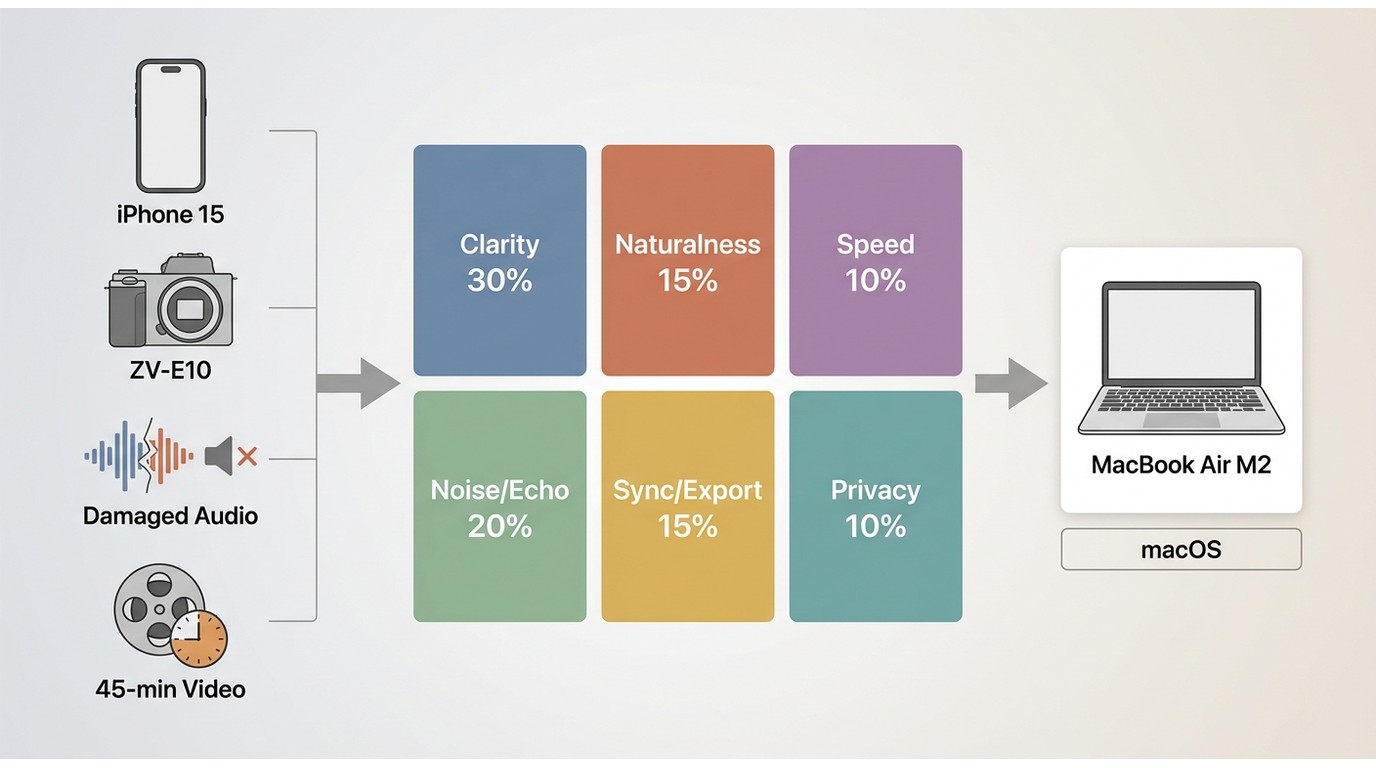
This is an editorial comparison, not a claim that all 10 products completed an identical laboratory test. Each tool is assessed through the same decision fields, while repeatable sample checks are provided for readers evaluating their own short list.
Test Clips and Noise Conditions
A useful video voice enhancer check needs more than a clean demo. Use the same source clips for every candidate so changes in voice tone, sync, and ambience are easier to identify.
- Dialogue sample: a two-minute 1080p MP4 recorded on an iPhone 15 running iOS 18, with speech over steady HVAC hum.
- Room sample: a 90-second clip from a Sony ZV-E10 with audible wall reflections and a short silent section for judging noise-floor pumping.
- Damage sample: a 45-second clip containing mild peak distortion, plus a separate severely clipped passage that should expose unrealistic repair claims.
- Long-form sample: a 45-minute video used to check long video audio processing, export completion, and drift near the end.
For a repeatable listening pass, compare the untouched and enhanced exports at matched volume on wired headphones, laptop speakers, and the intended TV or soundbar. Repeatable samples matter more than a long feature list because they reveal the tradeoff between clarity and natural voice tone.
Scoring and Export Checks
Video audio sync, intelligibility, and export reliability deserve more weight than the number of presets. A practical scorecard can use 30% dialogue clarity, 20% noise and echo control, 15% naturalness, 15% sync and video export, 10% workflow speed, and 10% privacy and access limits.
- Record the exact source container, duration, frame rate, and audio layout.
- Apply the closest comparable cleanup setting without stacking unrelated effects.
- Export a complete video when supported; otherwise reinsert an audio-only result at the original timeline start.
- Compare the first, middle, and final minute for drift, dropped frames, channel errors, or changed duration.
- Log audible gains and side effects, including pumping, metallic voices, dulled consonants, or added reverb.
On a MacBook Air with an M2 processor running macOS Sequoia 15.5, a representative sync check should confirm that the final spoken consonant still aligns with the same visible mouth movement at the end of the 45-minute sample. On a Windows 11 desktop, the same check should also confirm that a 5.1 or 7.1 export is recognized correctly by the target playback app.
Why You Need a Video Sound Enhancer
The strongest reason to improve video sound quality is intelligibility. Cleaner speech reduces listening effort, while stable volume prevents viewers from constantly adjusting their device.
- Dialogue cleanup: reduce steady noise that competes with speech.
- Volume control: bring quiet and loud sections into a more consistent range without blindly boosting gain.
- Workflow recovery: rescue a usable take when rerecording is impractical.
- Delivery matching: prepare stereo for headphones, or select surround output for a compatible home-theater setup.
- Privacy: keep sensitive footage local when a desktop workflow supports on-device processing.
Enhancement should support the message, not call attention to itself. If the voice begins to sound synthetic, back off the setting rather than chasing a perfectly silent background.
Choosing a Video Audio Enhancer
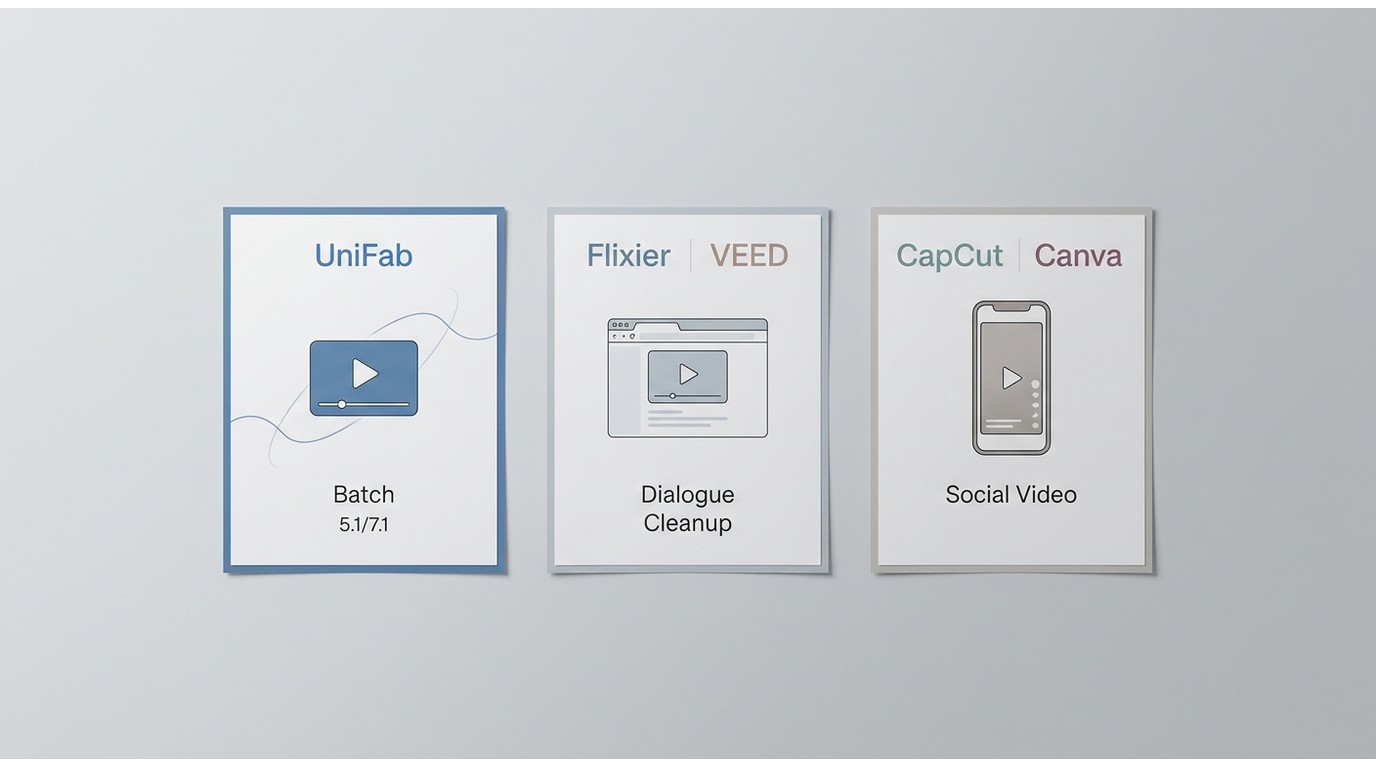
Choose by workflow first: desktop tools favor control and long files, online tools favor quick access, and mobile tools favor compact social edits. The most suitable category is the one that matches where your media can be processed and how the final video must be delivered.
Desktop Software
A desktop audio enhancer is well suited to long video audio processing, local media, batch jobs, and workflows that need a complete MP4 or MKV output. It generally offers more control and avoids uploading source footage.
Best fit: editors processing long clips, private footage, repeated jobs, or surround delivery. Less suitable: someone on an unsupported operating system or a user who needs a one-click browser cleanup for a single short clip.
For surround work, UniFab Audio Upmix AI processes locally on Windows and Mac, supports batch work, and converts stereo into 5.1 or 7.1 output. Desktop performance still depends on the computer, source codec, and chosen output.
Online Tools
A free video audio enhancer in a browser is convenient for short, non-sensitive clips, but the service must receive the media to process it. Upload size, duration, watermark, download format, and access rules vary by provider rather than following one universal free limit.
Best fit: quick voice cleanup, collaborative edits, and users who cannot install software. Less suitable: confidential footage, weak connections, large batches, or projects requiring predictable multichannel output.
Before uploading, note whether the service returns a full video or only an enhanced audio file. That distinction changes how much work is needed to preserve timing.
Mobile Options
Mobile audio enhancement works well when recording, editing, and publishing all happen on one phone. CapCut and Canva provide compact voice and noise controls, but they are not substitutes for detailed multitrack repair or a dedicated surround workflow.
Best fit: short talking-head clips and social posts. Less suitable: long source files, precision monitoring, batch processing, or 5.1/7.1 delivery. For a broader app comparison, use this dedicated video sound enhancer app guide.
Use Case Decision Tree
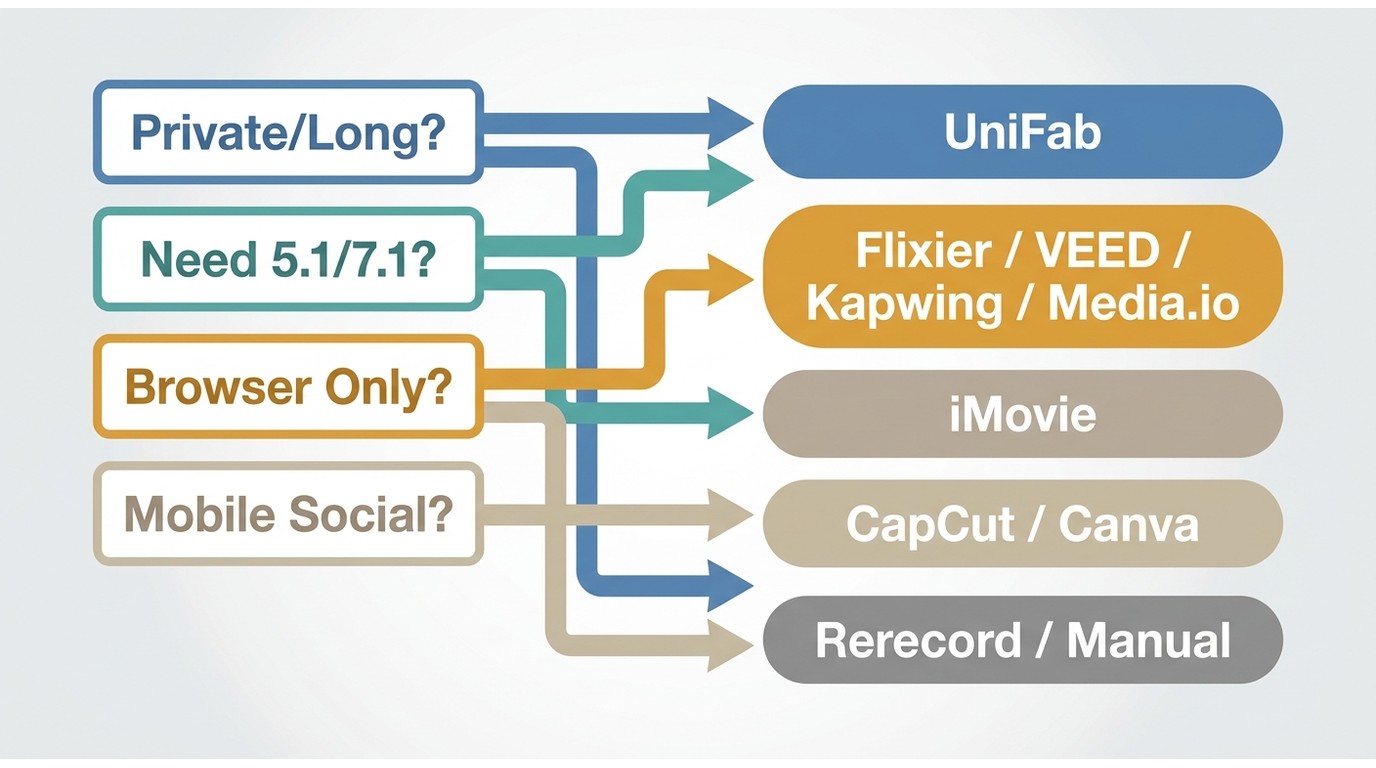
A video sound enhancer should be selected by the failure you need to fix and the output you need to deliver. This decision framework keeps a quick cleanup from becoming an unnecessarily large editing project.
| Scenario | Recommended path | Reason |
| Long or private Windows/Mac video | Local desktop enhancer | Avoids upload time and supports repeatable exports |
| Stereo source for a 5.1/7.1 playback system | UniFab Audio Upmix AI | Verified surround audio upmix with MP4/MKV output |
| Short browser-based dialogue cleanup | Flixier, VEED, Kapwing, or Media.io | Fast access without installing a desktop program |
| Basic Mac or iPhone timeline polish | iMovie | Integrated volume, EQ, and noise controls with full-video export |
| Short mobile social clip | CapCut or Canva | Editing and publishing remain in the mobile workflow |
| Severe clipping or dominant room echo | Rerecord or perform manual repair | Missing waveform detail and reflections limit automated recovery |
The practical choice is often the smallest workflow that solves the actual problem. Use a browser for a short voice fix, but move to local software when privacy, duration, batch work, or channel layout becomes important.
Video Formats, Codecs, and Sync
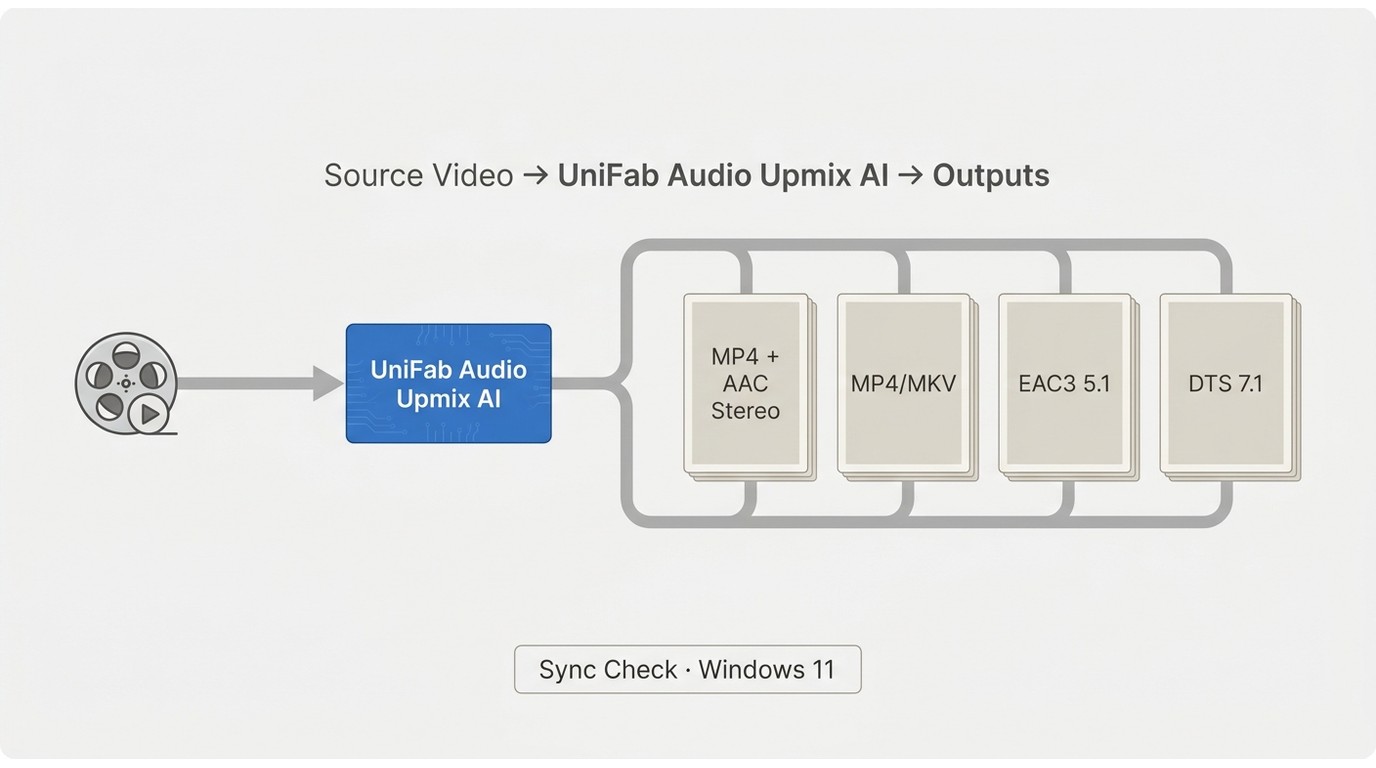
Video audio sync is easiest to preserve when the enhancer imports and exports the full video without changing duration, frame rate, or timeline start. Audio-only exports can also work, but they need careful reinsertion at the original start point.
| Need | Practical choice | What to verify |
| General web delivery | MP4 with a destination-compatible stereo track | Full-video export, duration, and platform playback |
| Editing master | A high-quality audio track or minimally compressed video master | Sample rate, timeline start, and headroom |
| Home-theater delivery | EAC3 5.1 or DTS 7.1 when the player and hardware support it | Channel recognition, dialogue placement, and downmix behavior |
| Flexible local storage | MP4 or MKV according to player support | Container compatibility and subtitle or track retention |
AAC is common for MP4 delivery, but there is no universal bitrate or codec setting for every destination. Keep the source timeline unchanged, preview the final container, and verify both the beginning and end of a long export.
Top Video Sound Enhancers Compared
These AI audio enhancement tools and editing options cover different jobs. The table uses common capability and access fields; legacy desktop products appear later as context rather than as current peers.
| Tool | Best fit | Processing location | Video input and export | Noise and echo controls | Sync preservation | Surround output | Access, price, or watermark | Long-file or batch support | Platform | Last verified status |
| UniFab Audio Upmix AI | Local surround and batch workflows | Local desktop | MP4/MKV video workflow | Audio enhancement with spatial reconstruction | Full-video workflow supports timeline retention; verify final playback | Stereo to 5.1/7.1 | 79.99/year or 99.99 one-time | Batch processing supported | Windows, Mac | Active |
| iMovie | Basic Apple-device editing | Local device | Imports and exports complete videos | Noise reduction, EQ, and volume controls | Timeline-based export | No dedicated surround upmix | Included on supported Apple devices | Designed for project editing, not dedicated batch enhancement | macOS, iOS | Active |
| Flixier Audio Enhancer | Fast browser cleanup and voice work | Cloud | Browser video upload and export | Noise, clarity, and volume tools | Full-video timeline workflow | No dedicated 5.1/7.1 upmix | Free access has project and export restrictions | Better suited to individual web projects | Web | Active |
| VEED AI Audio Enhancer | Browser cleanup inside a video editor | Cloud | Video upload with MP4 or audio export options | Clean Audio and voice-focused processing | Timeline export preserves placement when duration is unchanged | No dedicated surround upmix | Free exports may include platform restrictions or branding | Upload and plan limits affect long projects | Web | Active |
| Kapwing AI Audio Enhancer | Collaborative browser editing | Cloud | Video upload, editing, and video export | Noise, echo, and speech-clarity tools | Timeline-based project export | No dedicated surround upmix | Free workspace carries export restrictions | Project limits make it less predictable for large batches | Web | Active |
| Media.io Audio Enhancer | Guided one-click browser cleanup | Cloud | Accepts common media and returns an enhanced download | Noise and vocal enhancement modes | Confirm full-video duration after download | No dedicated surround upmix | Free access and download options are limited by service rules | Online processing supports files up to one hour on the current tool page | Web, desktop options | Active |
| CapCut Voice Enhancer | Short mobile and social edits | App with online services for some features | Mobile video timeline and export | Voice enhancement, noise, and echo controls | Timeline export | No dedicated surround upmix | Some AI features and export choices depend on account or plan | Not aimed at desktop batch processing | iOS, Android, desktop/web variants | Active |
| Canva Audio Enhancer | Template-based mobile or web video | Cloud-connected editor | Video project import and export | Voice cleanup, noise reduction, and volume balancing | Timeline export | No dedicated surround upmix | Feature availability depends on account and product tier | Better for short projects than batch jobs | Web, iOS, Android | Active |
As of July 2026, browser access rules, export branding, upload limits, and subscription features can vary by service and account. UniFab pricing in this table is 79.99/year or 99.99 one-time.
The practical upshot is that local tools offer the clearest path for privacy, long files, and controlled output, while browser and mobile editors reduce setup for shorter projects.
Best Desktop Video Sound Enhancers
A desktop audio enhancer is the more predictable choice when source files are long, media should remain local, or the output requires a specific channel layout. It also gives you a stable place to preview before committing to a large export.
1. UniFab Audio Upmix AI
UniFab Audio Upmix AI is a local Windows and Mac application for AI spatial audio reconstruction. It supports MP4 and MKV workflows, batch processing, and stereo-to-5.1 or stereo-to-7.1 output.
- Processing and privacy: media remains on the desktop rather than being uploaded to a browser service.
- Output: use 5.1 or 7.1 when the destination player and speakers support that layout.
- Workflow: batch processing suits repeated or long-form jobs.
- Limit: it is more software than needed for a quick browser-based dialogue cleanup, and users should confirm that their playback chain supports the selected channel format.
Best for Windows or Mac users who want local surround output or repeatable batch work. Not ideal for someone who needs only a short one-click web cleanup.
How to Enhance Sound on a Video with UniFab
Before starting, confirm that the source video is supported, there is enough local storage for the export, and the intended TV, soundbar, receiver, or speakers can play the selected channel layout.
30-day Free Trial for full feature, without watermark!
Download and launch the software > Select the 'Upmix' mode > add the video file
Select 'EAC3 5.1 or DTS 7.1' based on your needs.
Click the 'Start' button to initiate the up-mixing of audio at a super-fast pace.
For a local surround workflow, review the current Audio Upmix AI product details before choosing between the annual and one-time license.
Legacy Note: VideoStudio Ultimate 2023
VideoStudio Ultimate 2023 combines video editing with audio ducking, voiceover, and cue-based tools, but its visible product identity remains tied to the 2023 edition. Treat it as a legacy editing option rather than a current AI audio enhancement leader unless a newer release is documented for your workflow.
It can still make sense for an existing Windows user who wants timeline editing and conventional audio controls. New buyers comparing current AI cleanup should begin with actively maintained options.
3. iMovie
iMovie is an active Apple editor with volume, equalization, and background-noise controls inside a complete video timeline. It imports and exports video directly, which makes it easier to preserve sync than an extract-clean-reinsert workflow.
- Best fit: Mac and iPhone users making basic dialogue and volume corrections.
- Processing: local editing on supported Apple devices.
- Limit: no dedicated AI surround audio upmix and less specialized restoration control.
- Access: included on supported Apple devices.
My take is that iMovie is a sensible first stop for a simple Apple workflow, especially when preserving the full video timeline matters more than advanced restoration.
Legacy Note: VideoProc Vlogger
VideoProc Vlogger remains downloadable as a desktop editor with equalization and conventional audio controls, but its most recently documented Vlogger release dates to March 2022. Current mobile support should not be assumed, and it should not be ranked beside actively updated 2026 enhancers without newer documentation.
Existing Windows or Mac users may still find its manual tools useful. For a new workflow, compare current support and export needs against active desktop editors first.
Best Online Video Sound Enhancers
A free video audio enhancer can be useful for a short, non-sensitive file when installation is undesirable. Browser services differ in upload duration, branding, output access, and privacy, so each should be judged on its own rules.
5. Flixier Audio Enhancer
Flixier combines browser video editing with voice, noise, and volume tools. It is best for quick online projects that also need captions, voiceover, or timeline edits.
- Input and output: browser video upload and full-video export.
- Processing: cloud-based, so source media is uploaded.
- Limit: project and export restrictions apply to free access; it is not a surround tool.
Flixier is a convenient fit when speed and an integrated web timeline matter more than local privacy. See the detailed Flixier review for the broader editor workflow.
6. VEED AI Audio Enhancer
VEED places Clean Audio and voice-focused processing inside a browser editor. It accepts video, supports timeline changes, and can return a video or audio-oriented output depending on the project.
- Noise and voice: one-click cleanup aimed at dialogue clarity.
- Sync: timeline placement is retained when the processed media duration remains unchanged.
- Limit: free export conditions and branding depend on the account; uploaded media is processed through an online service.
VEED is a practical audio enhancer for video when the cleanup belongs inside a larger browser edit. This VEED review and alternatives guide covers its wider editing tradeoffs.
7. Kapwing AI Audio Enhancer
Kapwing provides cloud-based noise, echo, and speech-clarity tools inside a collaborative editor. It is suited to teams or creators who want cleanup and video assembly in the same browser project.
- Input and output: video upload, timeline editing, and video export.
- Processing: cloud-based with the associated upload and privacy considerations.
- Limit: free workspace restrictions and project limits make it less predictable for long batches.
Kapwing makes sense for collaborative short-form work, but local desktop software is the safer fit for confidential or repeated long files. The Kapwing video guide explains its broader conversion workflow.
8. Media.io Audio Enhancer
Media.io offers guided AI audio enhancement for common media files, with modes focused on noise and voice cleanup. Its current online page indicates support for processing files up to one hour, which makes it more accommodating than many quick-demo tools but still dependent on upload and service access.
- Output: enhanced media is downloaded after cloud processing.
- Sync: compare the downloaded duration with the source before replacing or publishing the track.
- Limit: free use and download options follow service-specific restrictions, and it does not provide dedicated surround upmixing.
Media.io is approachable for a guided one-off cleanup. For private footage or repeatable batches, a local workflow remains easier to control.
Mobile Editing Options at a Glance
Mobile audio enhancement is most useful for short clips that will be finished and published from the phone. CapCut and Canva cover voice cleanup and basic noise control without turning this article into a separate app ranking.
9. CapCut Mobile
CapCut offers voice enhancement, noise reduction, echo controls, and a mobile timeline for social video. It is a good fit for fast talking-head edits, but aggressive cleanup can make a voice sound thin or synthetic, and it does not replace a dedicated multichannel workflow.
Best for mobile-first creators. Less suitable for long batch jobs, sensitive footage that should remain fully local, or surround delivery.
10. Canva Mobile
Canva keeps voice cleanup, noise reduction, volume balance, and video design in one template-based environment. It favors simplicity over detailed repair, making it useful for presentations and social clips with modest audio problems.
Best for template-driven edits. Less suitable for severe distortion, detailed mixing, or 5.1/7.1 output. Use the dedicated mobile-app guide linked earlier when app selection is the main task.
AI Enhancement Strengths and Limits
AI audio enhancement tools can automate separation, speech cleanup, and surround reconstruction, but they trade some manual transparency for speed. Traditional filters and editors remain useful when you need controlled repair, scene-by-scene decisions, or creative mixing.
| Source problem | Likely result | Editorial action |
| Steady hiss or HVAC hum | Often improves with moderate reduction | Listen for pumping during pauses |
| Low-level room reverb | May improve, but strong settings can thin the voice | Reduce strength if consonants become brittle |
| Uneven dialogue volume | Normalization or compression can help | Watch true-peak meters and preserve headroom |
| Mild clipping | Harshness may be softened, but missing detail is not restored | Compare against a rerecord if available |
| Severe clipping | Recovery is limited | Rerecord when the message must remain natural |
| Robotic or synthetic timbre after processing | The setting is too aggressive for the source | Back off enhancement or combine lighter manual repair |
On the two-minute HVAC sample described above, the observable goal is clearer consonants without a pulsing noise floor during silent gaps. On the reverb sample, the goal is improved intelligibility without turning sustained vowels metallic. Those outcomes are more useful than claiming that one preset fixes every recording.
If background-noise removal is the main problem, use the detailed guide to remove background noise from video. Adobe Enhance can also serve as a speech-cleanup reference; the focused Adobe audio enhancer alternatives article covers that separate intent.
Expert Tips for Better Video Sound
To improve video sound quality, prevent avoidable problems first, then apply the lightest correction that delivers clear speech. A conservative pass usually sounds more credible than a silent background paired with an artificial voice.
- Monitor with headphones while recording and leave headroom for unexpected peaks.
- Capture a few seconds of room tone so noise behavior is easier to judge.
- Preview the loudest and quietest sections before processing a long file.
- Check the enhanced export on both headphones and ordinary speakers.
- Keep the original file and compare at matched loudness.
- If a tool exports audio only, preserve sample rate, duration, and timeline start when reinserting it.
An extract-clean-reinsert workflow can help when an editor lacks effective denoise, but it adds sync risk. This guide explains how to extract audio from video; if the goal is to discard a track rather than repair it, use the separate guide on how to remove audio from video.
A Quick Selection Checklist
Use this checklist before committing a project to any video sound enhancer.
- File length: choose local software for repeated long files or a browser tool for a short one-off clip.
- Privacy: keep sensitive media in a local desktop workflow.
- Control: use a full editor when scene-by-scene mixing matters.
- Output form: confirm whether the tool returns a complete video or audio only.
- Channel layout: choose 5.1/7.1 only when the destination system supports it.
- Evidence: compare a representative preview and inspect sync at the end of the export.
Conclusion
The right video sound enhancer follows the workflow. Local desktop software fits long, private, batch, or surround projects; browser tools fit quick dialogue cleanup; mobile editors fit short clips finished on a phone.
Choose by file length, privacy, control, and output needs rather than by a universal ranking. Preview a representative section, keep the original, and verify the completed video on the device that will actually play it.
Video Sound Enhancer FAQs
Does video resolution affect the quality of its audio?
No. Picture resolution and audio are encoded separately. The recording, codec, bitrate, channel layout, and publishing platform determine sound quality, although a platform may recompress both streams during upload.
How much can I raise the volume without causing clipping?
There is no safe universal gain number. Watch true-peak meters, leave headroom, and use normalization or compression when possible instead of applying a blind volume boost. If peaks flatten or sound harsh, reduce the level.
Can I enhance several long videos in one batch?
Yes, when the desktop tool supports batch processing and the computer has enough storage and processing capacity. Browser services are less predictable for long batches because uploads, project limits, and account rules can constrain the workflow.
Will an external audio enhancer throw my video out of sync?
Usually not if it exports the full video or the replacement audio keeps the original duration, sample rate, and timeline start. Check the first and final minute after export, especially on long files.