Kapwing is a convenient Kapwing Video Converter when editing and conversion need to happen in one browser project. The tradeoff is a short free export limit, cloud upload, and a project-based workflow that is less suited to long, confidential, or repeated multi-file jobs.
What Kapwing Converter Actually Does
This Kapwing converter review finds a browser editor with conversion built in, rather than a dedicated high-volume conversion queue. It works well for a short clip that needs trimming, captions, effects, and a new output format in the same workspace.
Kapwing currently says its converter accepts more than 20 upload formats and names MP4, MP3, GIF, and JPEG as output choices. Treat that as a current snapshot, not an exhaustive promise for every codec or project type.
Formats, Editing, and Browser Workflow
The Kapwing converter MP3 path sits inside the editor: upload media, make optional edits, then choose an export format. That makes online video to MP3 conversion convenient when the source is short and the browser can handle the project comfortably.
- Browser access: no desktop installation is needed for the Kapwing workflow.
- Editing in the same project: trim footage, adjust volume, add captions, or make visual changes before export.
- Cloud workspace: projects can be opened through an account and used for collaboration.
- Mixed import paths: local upload and some URL-based imports are available, although compatibility depends on the source.
For a reproducible browser check, open a short MP4 on a MacBook Air with an M2 chip running macOS 15.5 in Chrome 138. A compatible file should enter the editor and expose its timeline controls; a stalled import points to the file, browser session, or upload path rather than the output choice alone.
My editorial take is simple: choose Kapwing for browser convenience and integrated editing, not because it behaves like a folder-based desktop converter.
Convert Video to MP3 with Kapwing
The Kapwing video to MP3 workflow takes five steps: prepare an authorized source, upload it, review the timeline, choose MP3, and download the completed export. URL import can fail for some sources, so a local file is the more predictable starting point.
Before you begin: use media you own or are authorized to process, sign in to a Kapwing account, use a current browser, and keep the original source file available in case a URL import fails.
Five-Step Browser Workflow
Open Kapwing and start a project. Sign in before exporting.
Upload the source video. Drag in a local file, select one from the device, or use an available import option. If a video link will not load, return to an authorized local copy rather than repeatedly retrying the source URL.
Review the timeline. Select the clip and make any necessary trims or audio adjustments before conversion.
Choose the export option. Open Export Project, select MP3 when it is available, and start the export.
Download the completed MP3. Wait until processing finishes, then save the result and play it once before closing the project.
If your main goal is to convert video link to MP3 from YouTube, use the dedicated YouTube-to-MP3 guide for source-specific guidance. For broader file-based choices, the video-to-MP3 converter guide keeps that comparison separate from this Kapwing review.
Kapwing Free Limits and Pricing
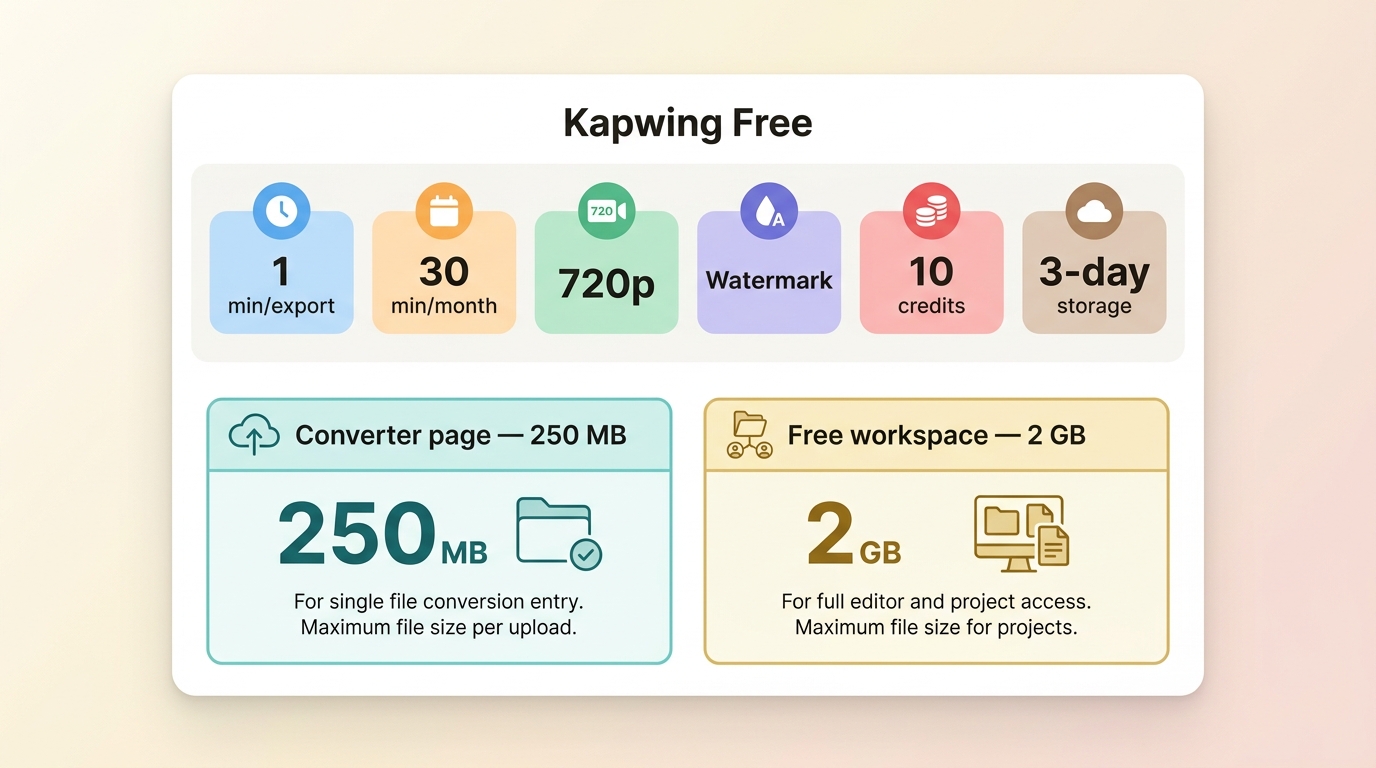
The Kapwing free converter is useful for brief projects, but Kapwing free limits become restrictive quickly. As of July 2026, the Free plan allows 1-minute finished-video exports and 30 export minutes per month, with 720p output, a watermark, 10 credits, and three-day project storage.
| Free-plan item | Current allowance or limit |
| Finished-video export length | 1 minute |
| Monthly export time | 30 minutes |
| Export resolution | 720p |
| Watermark | Included |
| Credits | 10 |
| Project storage | 3 days |
| Upload context | The converter tool page states 250 MB; the general Free plan lists a 2 GB upload allowance |
The two upload figures belong to different entry points. The practical reading is that the applicable cap can depend on whether you use the standalone converter page or the broader account workspace.
For one short clip, these limits may be enough. For longer edits, repeated exports, or a large source, the limits affect the workflow before editing features do. Readers comparing a wider set of no-cost tools can use the free Video Converter guide rather than turning this page into a general ranking.
Is Kapwing Safe for Uploaded Files?
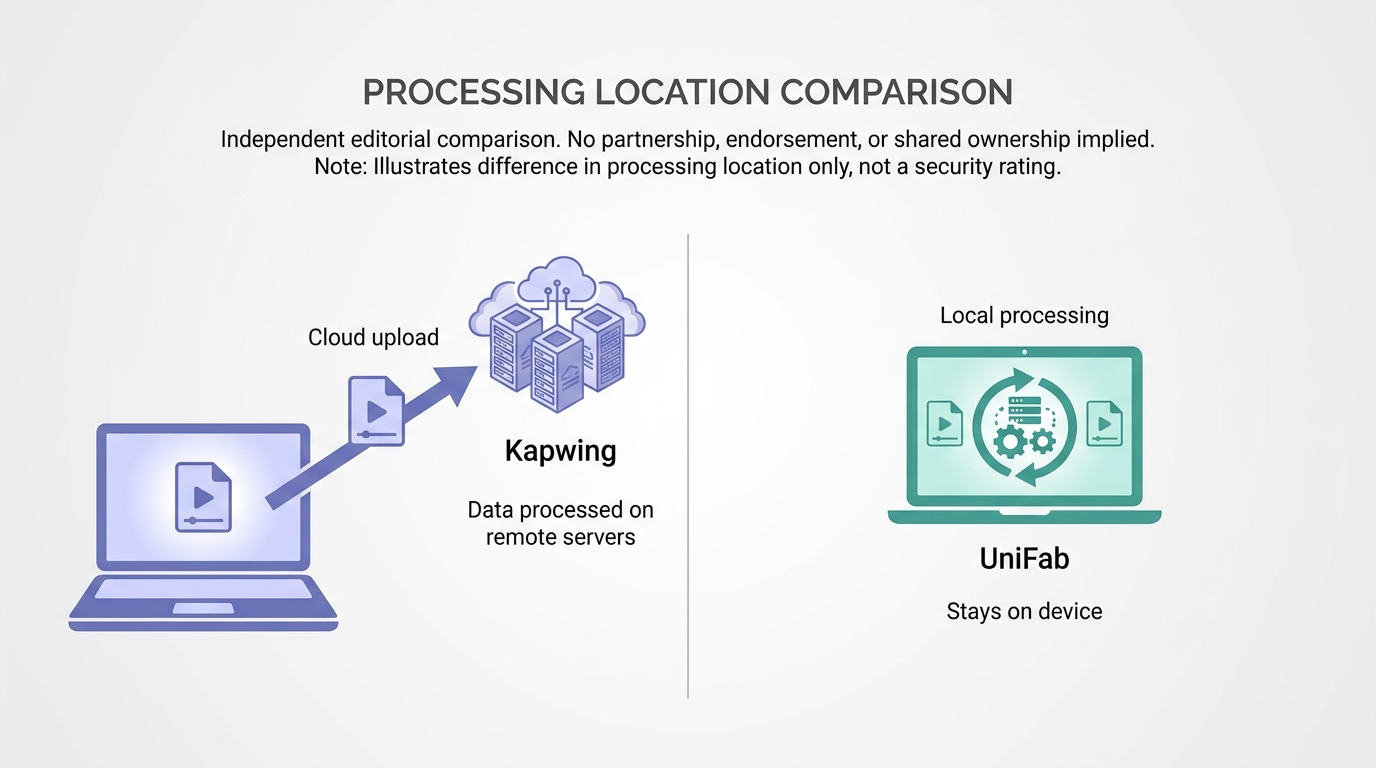
Kapwing is a cloud service, so the relevant question is whether uploading the file fits your privacy needs. Routine, non-confidential media may suit the browser workflow; confidential footage or large local archives are better kept on the device.
Cloud processing is not the same as saying an uploaded file is inherently unsafe. It does mean the source leaves the computer for processing and depends on the account, connection, and service workflow.
- Suitable for: collaborative browser projects, quick edits, captions, and short media that can be uploaded.
- Less suitable for: confidential client material, unstable connections, large files, or work that must remain local.
A local workflow can reduce exposure for sensitive media. This MOV-to-MP4 walkthrough shows how an offline conversion path differs without turning the safety decision into a blanket judgment about Kapwing.
Kapwing Pros and Cons
The Kapwing Video Converter earns its place through convenience and integrated editing, while its main limitations come from cloud dependence and the Free plan. The balance favors occasional short projects more than repeated conversion work.
| Strengths | Limitations |
| Runs in a browser without desktop installation | Free finished-video exports are limited to 1 minute and include a watermark |
| Combines trimming, captions, effects, and conversion | Upload allowances can differ by workflow |
| Supports account-based projects and collaboration | Performance depends on the browser, connection, and available memory |
| Offers MP3 alongside current video and image outputs | The project-based process is less convenient than a folder queue for many files |
The practical upshot is that the same browser design creates both the appeal and the constraint. It cuts setup time, but it also makes long or repeated jobs more sensitive to connectivity and browser resources.
Kapwing Reliability and User Feedback
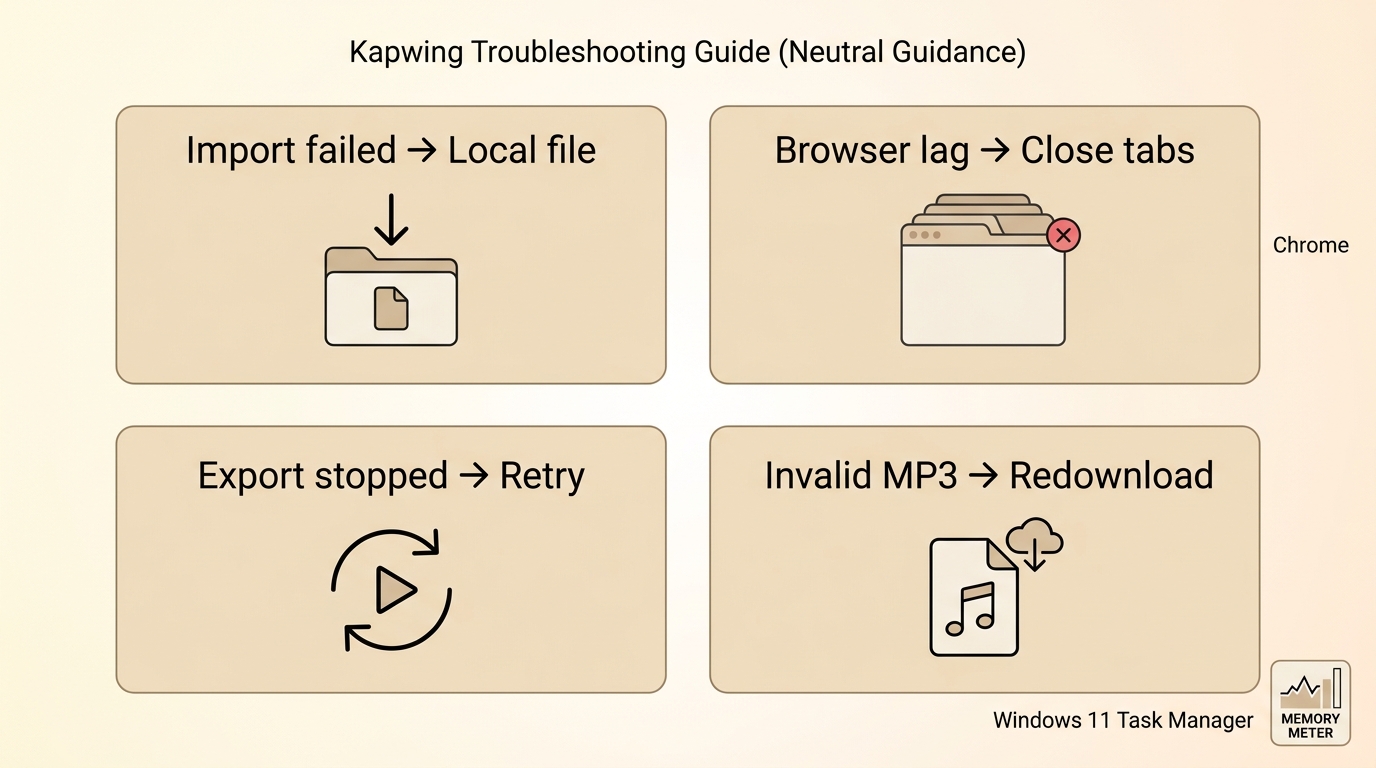
Kapwing feedback is mixed in a familiar way: users value the accessible editor and caption tools, while community discussions also describe intermittent export failures, browser crashes, and lost progress. A live rating is less useful than knowing which failure pattern matches the current project.
The Kapwing Trustpilot profile can provide a changing sample of user comments, but its score should not be treated as a fixed product specification.
Common Failures and Practical Fixes
Most conversion problems can be narrowed down by separating source import, browser resources, export processing, and the downloaded file itself.
| Symptom | Likely cause | First fix | When to switch workflows |
| MP3 export is grayed out after a URL import | The source did not import fully or the project state did not expose audio export | Upload an authorized local file, refresh the project, and try a supported current browser | Switch when the same local source repeatedly works elsewhere but not in the browser project |
| Browser lag or memory error | The project is straining available browser memory or competing tabs | Close other tabs, restart the browser, shorten the timeline, and retry | Switch for long, high-resolution, or deadline-sensitive work that repeatedly exhausts resources |
| Export stops before completion | Connection interruption, project state, or temporary processing failure | Keep the source, reopen the project, and run one clean export | Switch when multiple clean retries fail or the source is too large for dependable browser processing |
| Downloaded MP3 will not play | Incomplete download, damaged export, wrong extension, or player compatibility | Confirm the file size, download again, try another player, then re-export from the original source | Switch if a fresh export from the original repeatedly produces an invalid file |
On a Windows 11 24H2 PC with 16 GB of RAM in Chrome 138, a practical diagnostic is to watch Task Manager during a longer export. Rapidly rising browser memory followed by an unresponsive tab points to resource pressure, while a stable tab with a failed source import points elsewhere.
My judgment is that occasional friction matters less on a disposable short clip. On a long or deadline-sensitive project, repeated browser failures are a workflow problem, not a minor inconvenience.
Audio Quality When Exporting MP3
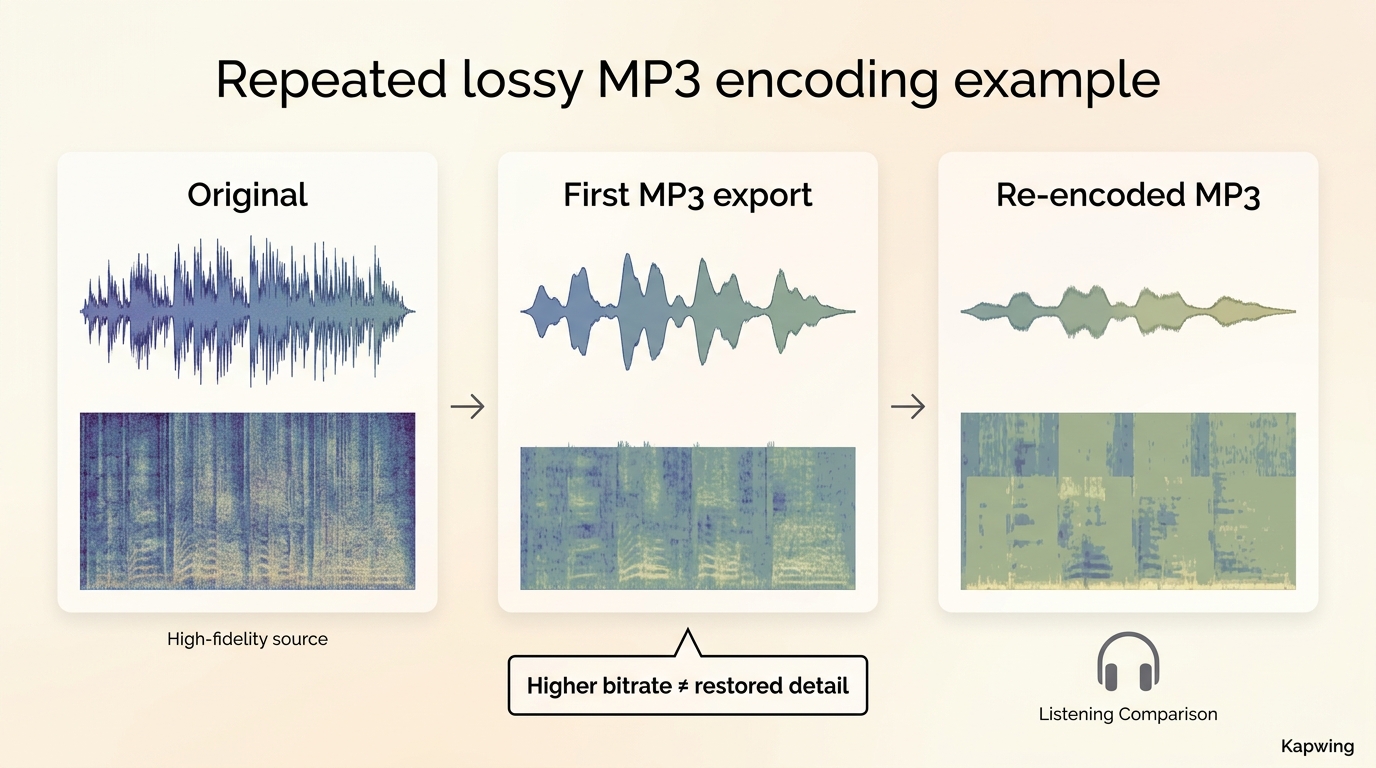
Kapwing MP3 quality depends first on the source. MP3 is lossy, so converting already compressed audio can introduce another generation of loss, and selecting a higher bitrate cannot restore detail that was absent before export.
For speech, a moderate bitrate can keep voices intelligible without creating an unnecessarily large file. Music benefits from a higher bitrate, especially when the source contains dense instruments or sharp high-frequency detail. Keep the original source when the audio may need future editing or archival use.
On an iPhone 15 running iOS 18.5, a useful listening check is to compare the exported MP3 and source through the same headphones at matched volume. Speech should remain clear; softened cymbals, smeared ambience, or extra harshness indicate generation loss rather than missing loudness.
Bitrate and Generation Loss
A bitrate setting controls how much data the MP3 uses, not how much source detail can be recreated. Repeatedly converting MP3 to MP3 compounds loss, so return to the original video when a new export is needed.
- Speech and notes: prioritize intelligibility and file size.
- Music and mixed sound: use a higher bitrate when the source supports it.
- Editing or archiving: retain the original source and avoid treating an MP3 export as the master copy.
The key quality decision is made before export: start from the cleanest authorized source available and avoid unnecessary rounds of transcoding.
Kapwing vs UniFab for Conversion
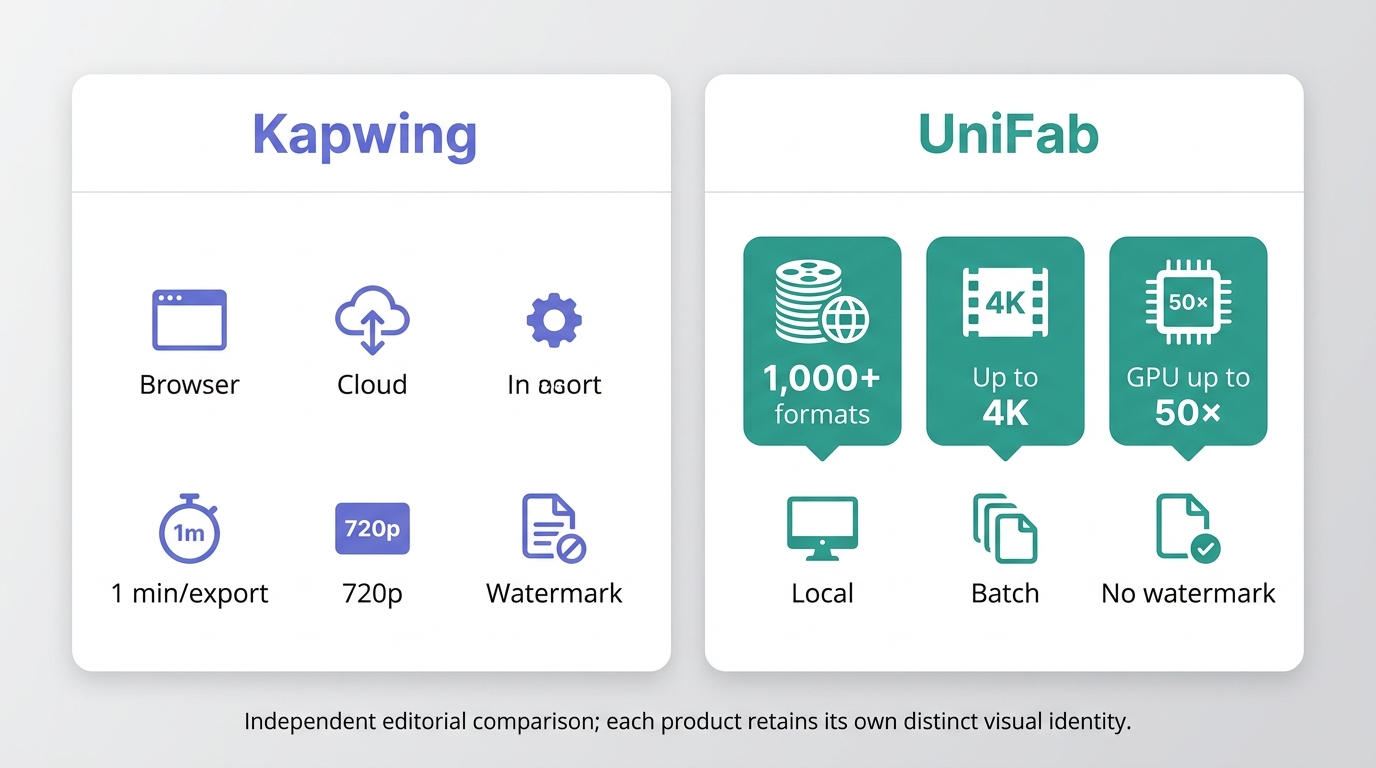
The Kapwing vs offline converter decision comes down to workflow. Kapwing favors no-install browser editing and collaboration; UniFab Video Converter favors authorized local files, broader format needs, longer projects, and repeated or multi-file conversion on Windows or Mac.
Side-by-Side Conversion Comparison
| Converter | Workflow | Current free export limit | Upload context | Watermark | Documented output formats | Batch workflow | Processing location | Hardware acceleration | Verified maximum output | Best fit | Not ideal for |
| Kapwing | Browser project with editing and export | 1-minute finished-video export | 250 MB on the converter page; 2 GB listed for the general Free plan | Included on Free exports | MP4, MP3, GIF, and JPEG currently named | Project-based rather than a dedicated folder queue | Cloud | Not a local GPU conversion workflow | 720p on the Free plan | Short browser edits and collaboration | Confidential files, unstable connections, and repeated long jobs |
| UniFab Video Converter | Installed desktop converter for Windows and Mac | $0 product | Local file and folder import | No watermark | 1,000+ formats | Multi-file processing | Local device | NVIDIA, AMD, and Intel support, with an official claim of up to 50× acceleration | Up to 4K | Privacy-sensitive, long, broad-format, or repeated conversion work | No-install browser edits and real-time cloud collaboration |
Neither workflow wins every scenario. Kapwing removes installation and keeps editing collaborative, while UniFab keeps files on the device and provides a folder-oriented multi-file path. UniFab still requires installation and is not designed as a live cloud collaboration space.
For readers choosing beyond these two workflows, keep the broader comparison on the linked guide rather than treating one product as a universal answer.
Convert Video to MP3 Locally
For authorized local files, UniFab Video Converter offers a desktop alternative when upload privacy, long projects, or repeated conversions matter more than browser access.
Best Video & MP3 Converter
- 1000+ Formats Supported
- Full Features Access for Free
- Built-in Editing Functions
- Efficient Batch Conversion
UniFab Video Converter
Best Video & MP3 Converter
- 1000+ Formats Supported
- Full Features Access for Free
- Built-in Editing Functions
- Efficient Batch Conversion
UniFab Video Converter for Mac
- Install and open UniFab Video Converter on Windows or Mac.
- Add the authorized local file or folder.
- Choose MP3 and the settings appropriate for speech or music.
- Select an output folder and start conversion.
- Play the resulting file and retain the original source for future edits.
The local workflow supports 1,000+ formats, multi-file processing, no-watermark output, and supported GPU acceleration. It is less suitable when the goal is a quick no-install edit or real-time cloud collaboration, and installing a desktop application adds setup that a browser tool avoids.
For nearby format tasks, use the focused MP4-to-WAV guide or the MKV-to-MP4 converter guide instead of expanding those workflows here.
Kapwing Converter FAQs
These answers focus on diagnostic questions that are not fully resolved by the main workflow.
Why Is Export as MP3 Grayed Out?
A source-specific URL import or an incomplete project state can leave MP3 unavailable. Upload an authorized local file, refresh the project, and try a current supported browser. If the local file works, the original import path was the likely cause rather than a general account limit.
Why Will the Downloaded MP3 Not Play?
Confirm that processing finished, check that the file has a plausible size and an .MP3 extension, download it again, and try another player. If it still fails, re-export from the original source instead of transcoding the damaged download.
Does Kapwing Support Batch Conversion?
Kapwing documents a project-based browser workflow rather than a dedicated folder queue. That can handle individual projects, but users processing many files may find a local multi-file converter easier to manage.
Can Kapwing Convert a Video Link?
Kapwing can import some video URLs, but compatibility varies by source and project. Use content you own or are authorized to process. If the link fails, upload a local source; use the dedicated YouTube guide for YouTube-specific questions rather than forcing that workflow through this review.