To convert MP4 to WAV, select the MP4, choose WAV with PCM settings that match your source or destination, then convert and save. A browser tool suits a small, non-sensitive file; local software is usually more practical for private, large, recurring, or batch work.
Convert MP4 to WAV in Three Steps
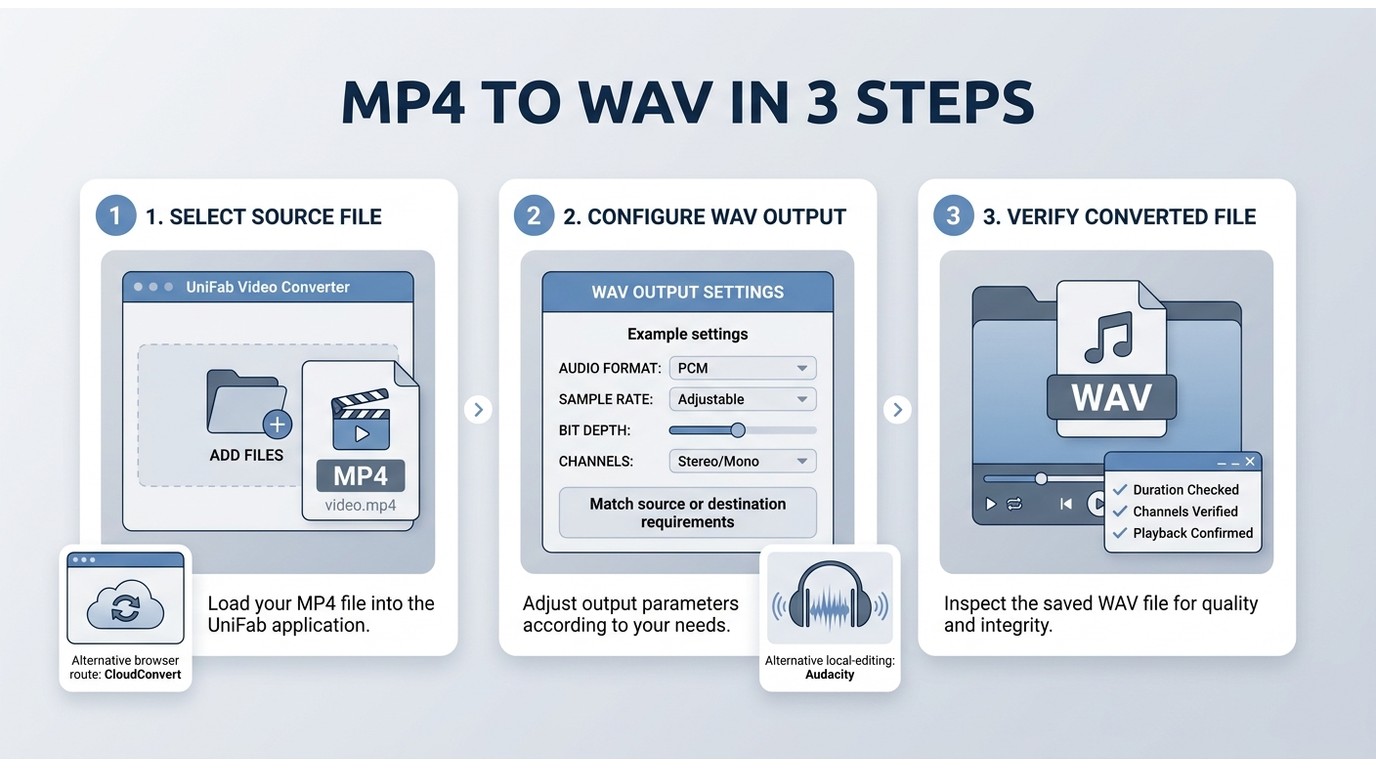
Any MP4 to WAV converter follows the same basic path: add the source, choose WAV settings, and save the decoded audio as a separate file.
- Select or upload the MP4. Use a local app for sensitive footage or a browser service when the file is small and upload time is acceptable.
- Choose WAV and PCM settings. Match the source sample rate when known, or use the setting required by your editor, podcast platform, or broadcast workflow.
- Convert and save. Keep the source MP4 until you have checked the WAV for duration, channels, and audible artifacts.
My rule is simple: file size, privacy, and batch volume decide the route. Use UniFab Video Converter for local recurring or batch jobs, Audacity when editing follows extraction, CloudConvert for a small browser task, VLC for an occasional desktop conversion, and FFmpeg when another tool rejects the container.
Process media you own or are authorized to edit. When uploading to an online service, follow its terms and privacy policy and avoid confidential material unless its handling policy fits your requirements.
What MP4-to-WAV Conversion Actually Does
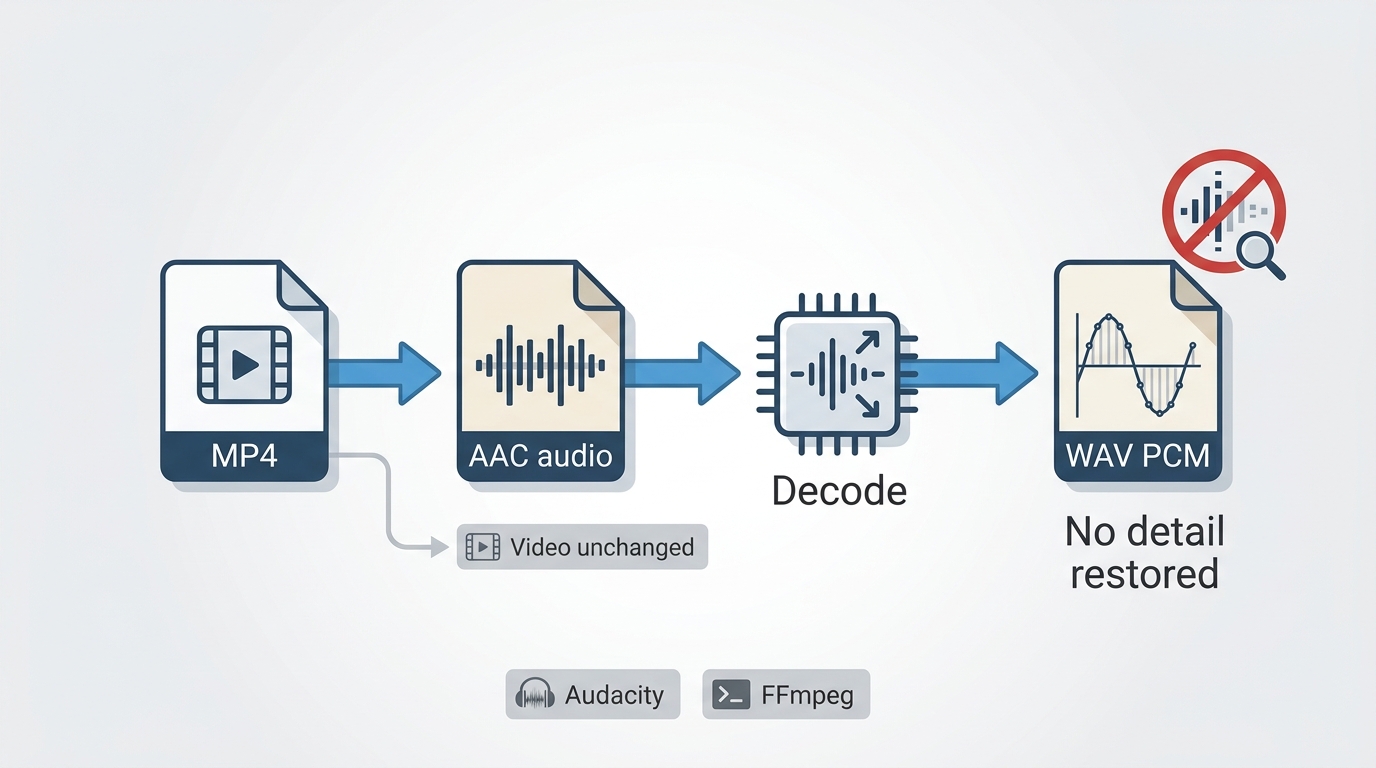
MP4 audio extraction decodes the audio track inside the video container and writes those decoded samples into a WAV file; the original MP4 remains unchanged.
Many MP4 files contain compressed AAC audio. Exporting to WAV avoids another lossy encoding step, which is useful for editing, but it cannot recreate detail that the source codec already discarded. MP4 to WAV quality therefore depends on the source track and the chosen PCM settings, not on the WAV extension alone.
WAV is worthwhile when an editor, transcription workflow, or delivery specification expects PCM audio. If you first need to prepare another container, the separate MOV to MP4 workflow explains that conversion without turning this article into a general format guide.
MP4 vs WAV at a Glance
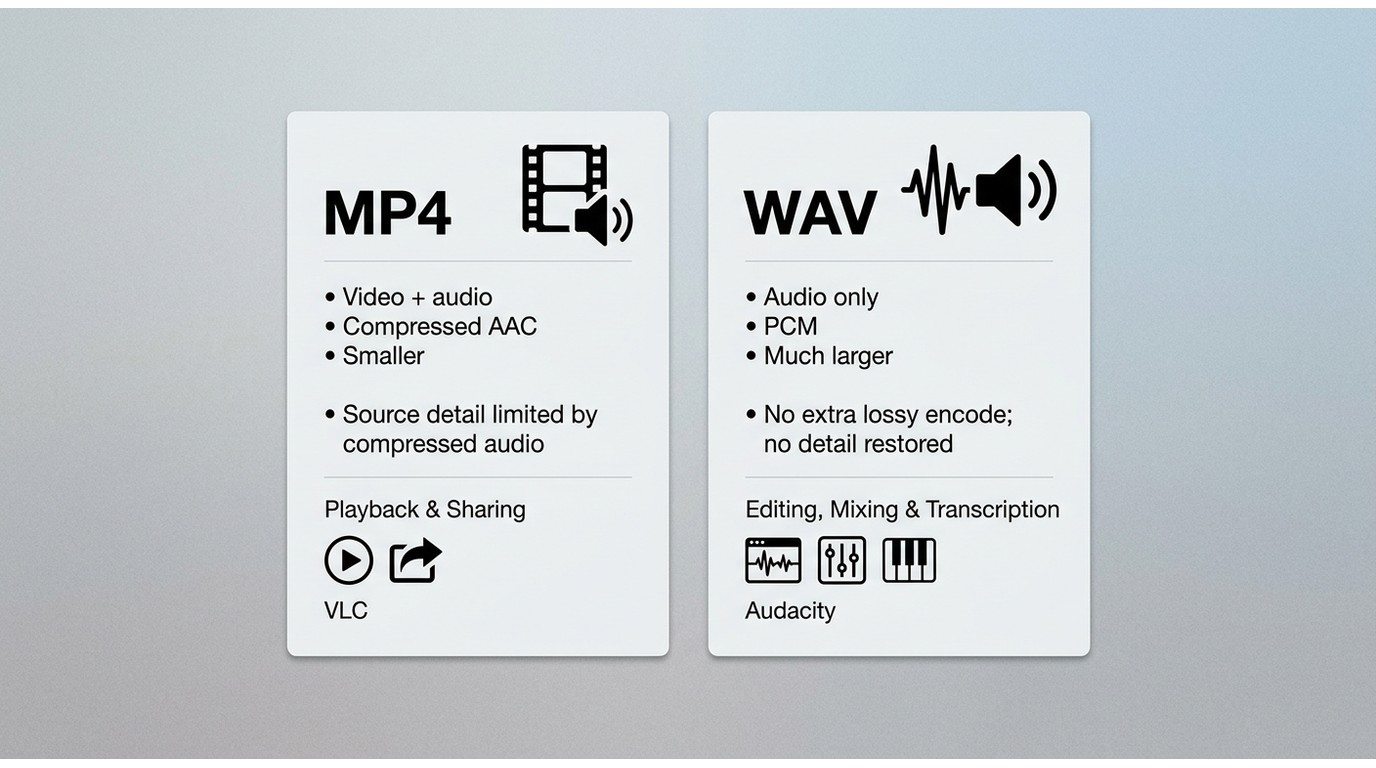
MP4 is a multimedia container, while WAV is an audio file format commonly used for PCM audio. Converting between them changes the workflow and file size, not the detail already present in the source.
| Aspect | MP4 source | WAV output |
| Primary role | Stores video plus one or more audio tracks | Stores audio without the video track |
| Common audio | AAC or another compressed codec | PCM selected during export |
| File size | Usually smaller | Usually much larger |
| Editing | May require decoding inside an editor | Widely accepted by audio editors and DAWs |
| Quality effect | Sets the available source detail | Avoids an additional lossy encode but restores no missing detail |
| Typical use | Video playback, sharing, and delivery | Editing, mixing, transcription, and audio handoff |
The practical takeaway is that WAV gives editing software a straightforward PCM file. It is not an audio enhancer, and a larger output should not be mistaken for newly recovered fidelity.
When WAV Is the Right Output
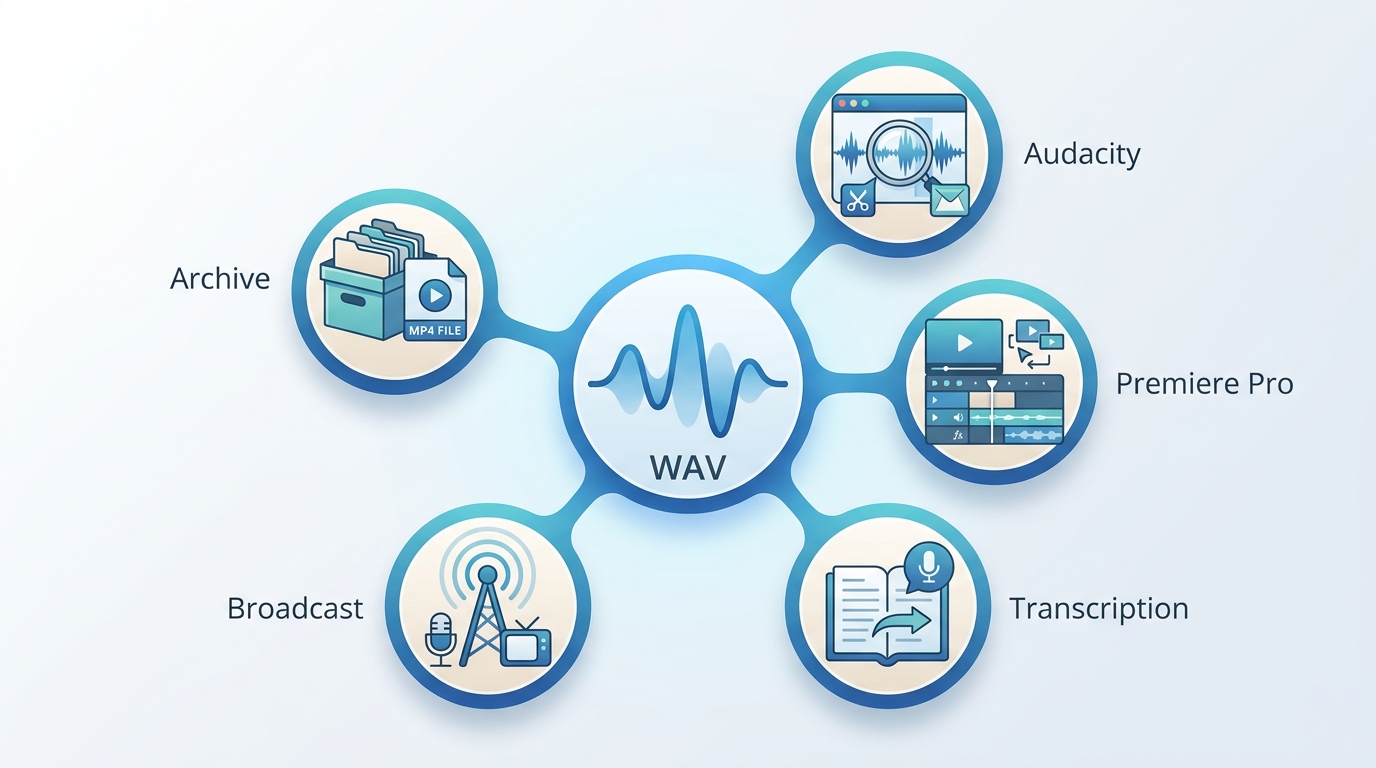
Convert MP4 to WAV when the next stage needs editable PCM audio, a defined WAV sample rate, or a clean audio-only handoff.
- Podcast and interview editing: extract dialogue before trimming, leveling, or mixing.
- Video post-production: send an audio-only file to an editor or sound mixer.
- Transcription: provide a predictable audio file when the service accepts WAV.
- Broadcast or client delivery: follow the requested sample rate, bit depth, and channel layout.
- Archival derivatives: create an editable working copy while retaining the source MP4.
I would not convert merely to make a file “sound better.” The worthwhile reason is compatibility or editing headroom, because a WAV export cannot reverse compression already present in the MP4 audio.
Online or Desktop: Match the Workflow
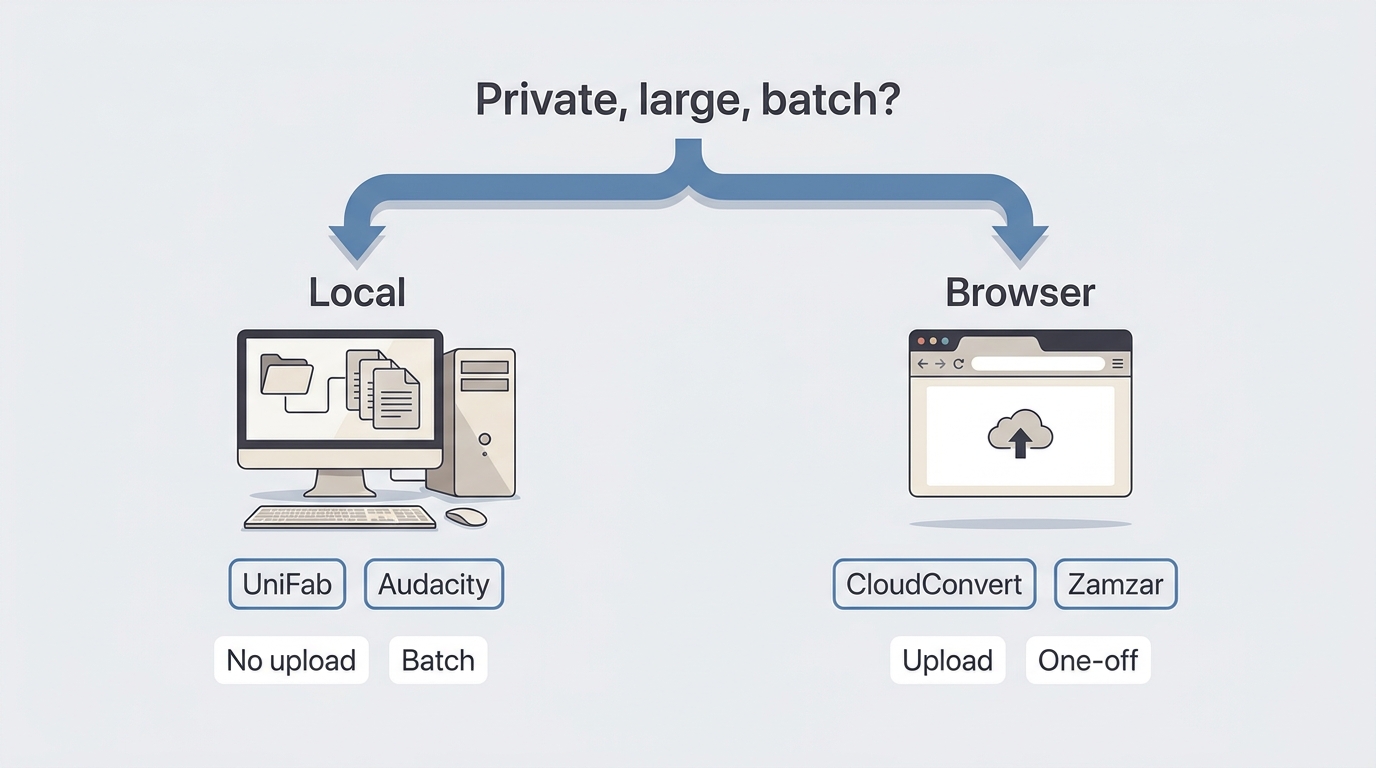
For offline MP4 to WAV work, local software avoids uploads; browser tools trade that local control for convenience on small one-off files.
| Decision point | Browser converter | Local desktop tool |
| Processing location | Usually a remote server | On the computer |
| Upload time | Part of the total job | No media upload |
| Privacy | Depends on the service policy | Media stays on the device during conversion |
| Batch volume | Often constrained by service limits | Better suited to recurring queues and folders |
| Installation | None | Required |
| Audio controls | Varies by service | Often easier to reuse across a batch |
A browser route is a good fit for a small, non-sensitive file. A batch MP4 to WAV workflow is better handled locally when repeated uploads, queues, or confidentiality would slow the job. Local software is less suitable when installation is restricted or the task is a single tiny file.
6 MP4-to-WAV Converters Compared
The six options below cover local, editing-first, and browser workflows. A free MP4 to WAV converter can be useful, but processing location, setup, limits, and batch handling matter more than a generic quality label.
1. UniFab Video Converter
UniFab Video Converter handles offline MP4 to WAV conversion on Windows and Mac, with whole-folder import, shared output settings, simultaneous batch work, and batch audio extraction.
UniFab – A Powerful All-in-One Converter
- 100% Free with full features
- 1000+ Formats Supported
- Export without Watermark
UniFab Video Converter
UniFab – A Powerful All-in-One Converter
- 100% Free with full features
- 1000+ Formats Supported
- Export without Watermark
UniFab Video Converter for Mac
It is a good fit for recurring local jobs, private source files, and folders that need one set of output settings. It is less suitable for someone with one tiny file who cannot or does not want to install desktop software. Its limits also include no mobile app workflow and more setup than a browser tab.
2. Audacity
Audacity is an editing-first option: with optional FFmpeg support enabled, it can import MP4 audio and export WAV with a selected sample rate and PCM subtype.
It suits users who plan to trim, mix, normalize, or inspect the waveform after conversion. It is less convenient for a no-setup batch workflow because MP4 import may require the FFmpeg component and each project adds editing-oriented steps.
3. Wondershare UniConverter
Wondershare UniConverter is a Windows and Mac desktop converter with batch handling and media-editing tools in the same application.
It fits users who want conversion and basic editing in one desktop interface. It is less appropriate when a browser-only route or an open-source editor is preferred.
4. CloudConvert
CloudConvert MP4 to WAV conversion runs through a browser and exposes audio options before processing, making it convenient for a small file when an upload is acceptable.
As of July 2026, its current conversion and privacy pages describe server processing and file-handling controls, but the practical limit depends on the account and current service flow. It is a good fit for a non-sensitive one-off conversion and less suitable for confidential or upload-heavy work.
5. Zamzar
Zamzar provides a browser-based conversion path with a simple upload, format selection, and download flow.
It works for a quick small-file task, but its MP4-to-WAV pages display inconsistent free-limit messages, so this guide does not present one fixed allowance. It is not a strong fit for confidential media or predictable high-volume batches.
6. Online Audio Converter
Online Audio Converter is a browser option for extracting audio and selecting WAV alongside other output formats.
It suits an occasional non-sensitive file when installation is undesirable. It is less suitable when local processing, whole-folder import, or a documented batch workflow is required.
Converter Features, Privacy, and Limits
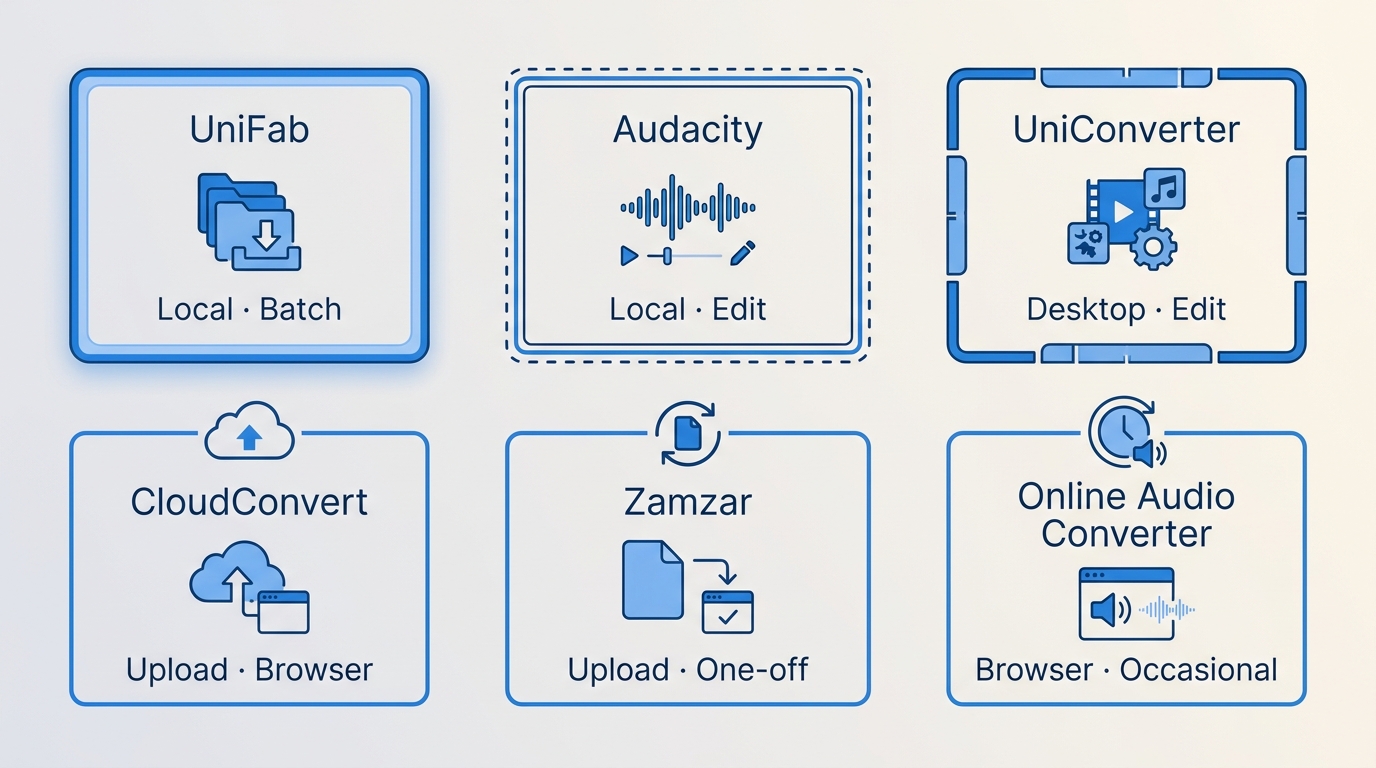
This comparison focuses on workflow facts rather than subjective speed or sound scores. With the same source and PCM settings, tool choice mainly affects handling, privacy, setup, and reliability.
| Converter | Processing location | Upload required | Privacy or deletion disclosure | Batch conversion | Whole-folder import | Sample rate and bit-depth controls | FFmpeg setup required | Verified current limit | Good fit | Not ideal for |
| UniFab Video Converter | Local Windows or Mac app | No | Files stay on the computer during conversion | Yes | Yes | Audio output controls available | No | No upload limit; device storage applies | Private, recurring, or batch work | One tiny file or users unable to install software |
| Audacity | Local desktop app | No | Files stay on the computer during editing and export | Editing-oriented rather than folder-oriented | No direct whole-folder workflow | Project rate and PCM export subtype | Usually for MP4 import | Device memory and storage apply | Conversion followed by editing | Fast no-setup batch queues |
| Wondershare UniConverter | Local Windows or Mac app | No | Local conversion workflow | Yes | Batch file import | Audio settings available | No | Device storage and license tier apply | Desktop conversion plus basic editing | Browser-only or open-source workflows |
| CloudConvert | Remote server | Yes | File handling described in its privacy and conversion controls | Multiple-file workflows depend on account limits | No local folder processing | Visible audio options before conversion | No | Account and current service limits apply | Small non-sensitive one-off files | Confidential or upload-heavy jobs |
| Zamzar | Remote server | Yes | Service policy governs uploaded files | Service-plan dependent | No local folder processing | Limited visible control in the simple flow | No | Free-limit messages are inconsistent | Simple occasional conversions | Predictable high-volume batches |
| Online Audio Converter | Remote server | Yes | Service policy governs uploaded files | Browser workflow supports multiple selections in some flows | No local folder processing | Basic audio controls available | No | Current service flow and browser constraints apply | Occasional non-sensitive files | Private folders or repeatable local batches |
The evidence points to a workflow choice, not a universal winner. I use privacy and repeat volume as the first filter, then check whether the job needs editing controls or merely a quick export.
Timing a One-Hour Podcast Conversion
For a one-hour podcast, total time is shaped by local decoding or by upload, server queue, processing, and download stages; those extra network stages do not improve audio fidelity.
Exact seconds from the previous version are not repeated because the underlying records were not available for verification. A reproducible comparison should use the same MP4, computer, connection, PCM settings, date, and saved logs. The useful expectation is qualitative: large online jobs add transfer and queue time, while local jobs decode directly to PCM.
Convert MP4 to WAV: Three Practical Methods
These methods cover local batch conversion, editing-first conversion, and a browser route. Choose one based on privacy, volume, and the work that follows.
Method 1: UniFab for Local Batch Conversion
A UniFab batch MP4 to WAV workflow keeps the source files local and applies shared audio settings across a queue or imported folder.
- Install and open UniFab Video Converter on Windows or Mac.
- Add one MP4, several files, or a whole folder.
- Select WAV as the output and set the audio options needed by the destination workflow.
- Choose an output folder and review the shared settings.
- Start the queue, then check a finished WAV for duration, channel layout, and playback.
UniFab – A Powerful All-in-One Converter
- 100% Free with full features
- 1000+ Formats Supported
- Export without Watermark
UniFab Video Converter
UniFab – A Powerful All-in-One Converter
- 100% Free with full features
- 1000+ Formats Supported
- Export without Watermark
UniFab Video Converter for Mac
This is the route I would choose for private interviews, repeated weekly work, or a folder that needs consistent settings. For a single small file, installing an app may be more effort than the task warrants.
Method 2: Audacity with FFmpeg Support
The Audacity MP4 to WAV path is useful when the audio will be edited immediately after import.
- Install Audacity and enable its optional FFmpeg support if MP4 import is unavailable.
- Open or import the MP4 so Audacity loads the audio track.
- Set the project or export sample rate to match the source or required destination.
- Choose Export Audio, select WAV, and choose the required PCM subtype.
- Save the file and listen at the beginning, middle, and end before editing further.
Audacity is a good fit when waveform editing, trimming, or level changes come next. It is less convenient for a quick folder-wide job because setup and project handling add steps.
Method 3: CloudConvert in a Browser
The CloudConvert MP4 to WAV method is the shortest browser route for a small file that is suitable for upload.
- Open the MP4-to-WAV converter and select the source file.
- Confirm WAV as the output format.
- Open the audio options and choose the required settings when the destination has a specification.
- Start the conversion, wait for processing, and download the WAV.
- Check the result, then follow the service controls for uploaded files.
Use this route for a non-sensitive one-off file. For confidential recordings or repeated large uploads, local processing is the more predictable workflow.
Choose Sample Rate, Bit Depth, and Channels
Set the WAV sample rate, WAV bit depth, and channels from the source and destination requirements; higher numbers do not restore missing source detail.
- Sample rate: match the source when known. For a common video workflow, 48 kHz is a practical choice when the destination expects it.
- Bit depth: 16-bit PCM suits many delivery tasks; 24-bit can provide editing headroom when further level or effects work is planned.
- Channels: preserve stereo when the source and destination need it, or choose mono for a single-channel voice workflow when appropriate.
My default recommendation is to match the source rate, use 48 kHz for video-centered work, and choose 24-bit when later editing benefits from the extra headroom. Upsampling a compressed source does not add lost detail.
Common MP4-to-WAV Problems and Fixes
Most failures come from a missing audio track, an unsupported codec or container variation, mismatched settings, or an incomplete online transfer.
- The WAV is silent: confirm that the MP4 contains an audio stream, then try a converter that can decode that codec.
- The output sounds processed or different: compare it with the source, match the source rate and channels, and retry with a second tool before assuming the source changed.
- The file is too large for the next app: split a long recording or use a WAV-compatible large-file variant supported by the destination.
- Stereo became mono: inspect the channel setting before export and verify the result in an audio editor.
- An online job stalls: retry on a stable connection or switch to local software to avoid another upload.
VLC can be a useful alternate route, but reports of artifacts should be treated as a pain signal rather than a universal defect. If its output differs audibly from the source, compare another decoder. The related VLC conversion guide covers its broader Convert/Save workflow.
FFmpeg Command for Difficult MP4 Files
When a file plays normally but another converter rejects it, FFmpeg can decode the audio stream directly to PCM WAV.
Command: ffmpeg -i input.MP4 -vn -c:a pcm_s16le output.wav
Replace the filenames, run the command on media you are authorized to process, and inspect the console for audio-stream errors. This fallback is also useful after container preparation; separate guides cover MPG to MP4 and M4V to MP4 tasks.
Choosing the Right Converter
Choose by scenario: local batch and private work point to UniFab, editing-first work points to Audacity, and a small non-sensitive one-off file can suit CloudConvert or another browser service.
- Private, recurring, or folder-based work: UniFab keeps processing local and supports shared settings across batches. It is not the right fit when software installation is unavailable or the job is a single tiny file.
- Editing immediately after extraction: Audacity combines MP4 import through FFmpeg support with waveform editing and PCM export.
- Small one-off browser task: CloudConvert, Zamzar, or Online Audio Converter reduces setup, provided upload handling fits the material.
- Codec or container trouble: FFmpeg provides a direct fallback when a graphical tool cannot decode the source.
The decision should remain proportionate. No converter improves detail already lost in the source; the real gains come from a workflow that matches privacy, file volume, settings, and the next editing step.
MP4-to-WAV Questions Answered
These quick answers cover four issues that are easy to check without repeating the full methods above.
Can Audacity open an MP4 without FFmpeg support?
Usually not. MP4 audio import commonly depends on Audacity's optional FFmpeg support. If the file does not open, enable that component, restart Audacity, and retry the import before choosing WAV and a PCM subtype under Export Audio.
Can I convert MP4 to WAV on a Mac?
Yes. Mac-compatible routes include UniFab Video Converter, Audacity with FFmpeg support, and browser converters such as CloudConvert. Choose a local app for private or repeated jobs and a browser route for a small non-sensitive file.
Why is the WAV file much larger than the MP4?
WAV commonly stores decoded PCM audio, while the MP4 often contains compressed audio. PCM needs much more space. The larger size supports editing and compatibility, but it does not mean that detail lost in the source codec has returned.
What happens to the video track when I convert MP4 to WAV?
The converter exports the audio as a separate WAV file and leaves the original MP4 unchanged. The WAV contains no video, so keep the source MP4 if you still need the picture or the original container.