If you need a free online video watermark remover, confirm full-download access and upload limits before uploading: a free preview or partial download will not meet your needs if you want to export a complete 4K video. Free online watermark removers can handle simple static marks, but moving overlays, file caps, and export paywalls often decide whether the job finishes.
A one-off edit can quickly turn into a hunt through previews, credits, and signup screens, especially when you do not want another subscription for a single clip. A free label matters only when it covers a complete export of your actual video. The practical route is to test the hardest frames first, inspect the service limits, and then choose between a free online watermark remover and a desktop workflow. That sequence protects both your time and the composition you meant to keep.
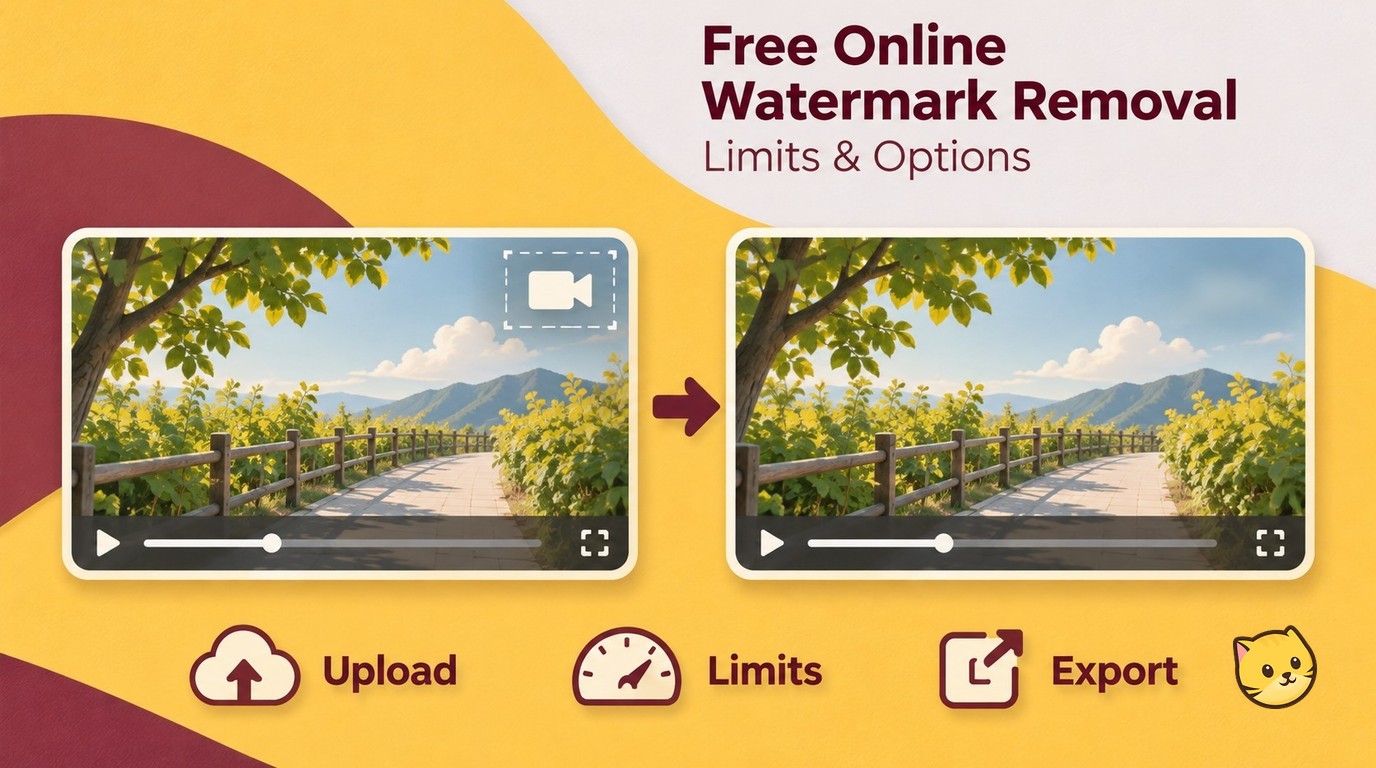
Free Online Video Watermark Removal: Upload to Export
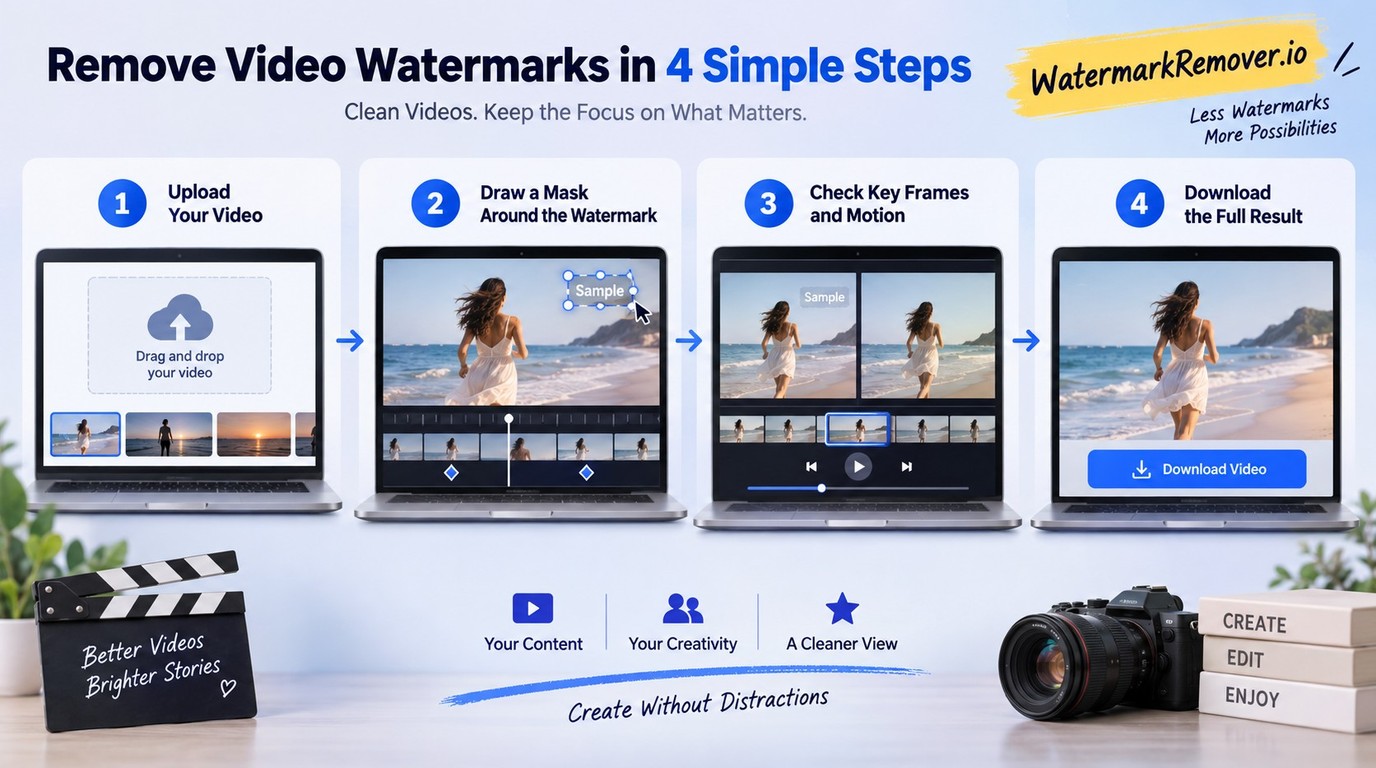
Remove a watermark online by uploading an authorized short clip, selecting or tracking the mark, previewing difficult frames, and exporting only after the entire result passes inspection. Start with a representative sample because automatic detection can miss early frames, movement, faces, or textured backgrounds.
Work through the job in this order:
- Confirm your rights and choose a short clip containing the hardest scene.
- Upload it, then mark the fixed or moving watermark accurately.
- Preview key frames before exporting the complete video.
1. Confirm ownership and choose a representative clip
Use footage you own or are authorized to modify. If the watermark came from an editing app, social platform, stock library, client review system, or AI generator, the right to view the clip does not automatically include the right to remove its label. When you still have the original project, a clean export from that project is usually better than reconstructing pixels after the fact.
Choose a sample that contains the watermark at its hardest: over a face, along a moving edge, across textured fabric, or during a lighting change. Test the most difficult passage first. Automatic detection is a starting point, not evidence that the complete repair will look natural.
2. Upload the video and mark the watermark area
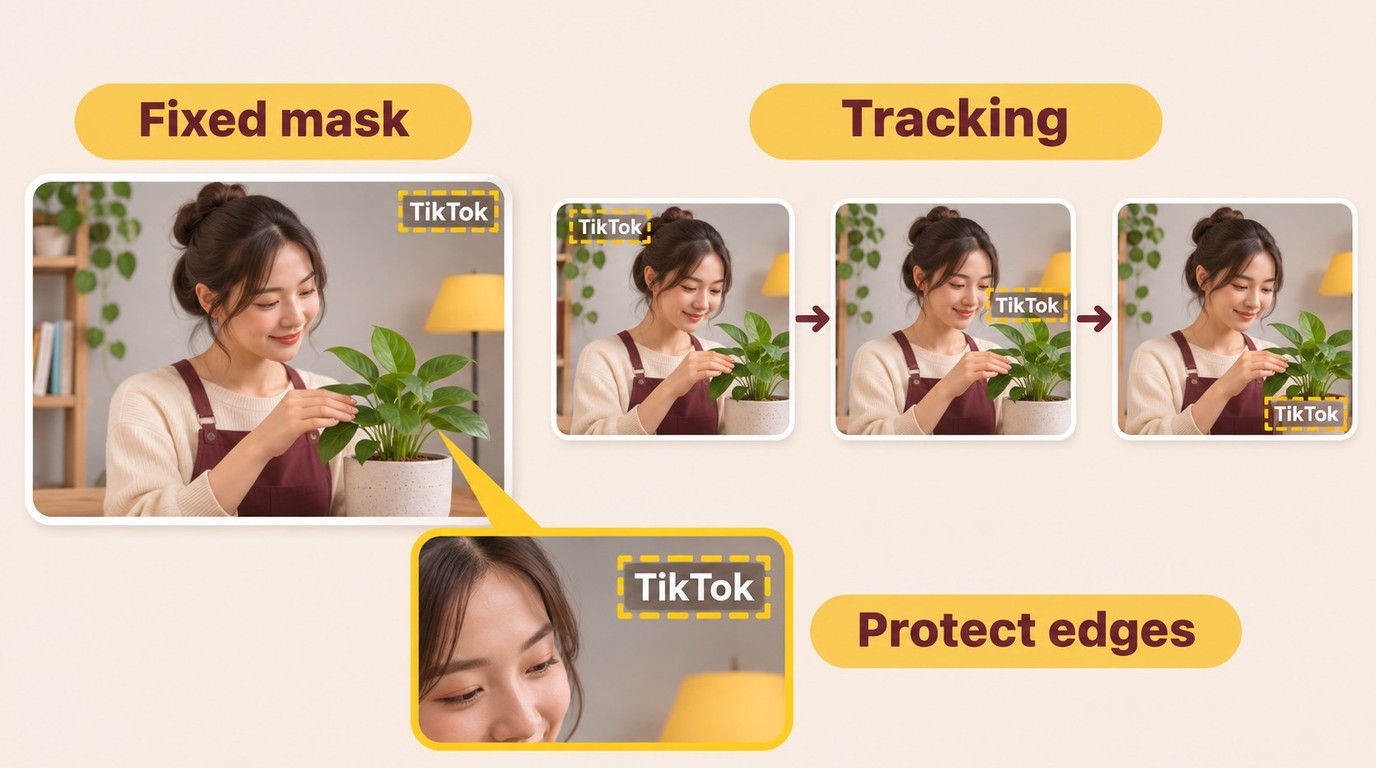
Upload the sample in a format the service accepts, then choose automatic detection or draw a manual mask. A fixed corner logo often needs one stable selection. A moving TikTok-style mark needs tracking or several keyframes, because a static box will clean one position and miss the next.
On an iPhone, Android device, or tablet, upload a short, compatible local clip through the browser and keep the tab open during processing. After downloading, find the video in Files or Downloads and check its audio and duration.
Keep the mask close to the mark without cutting into nearby eyes, fingers, captions, or object edges. For multiple marks, use separate tight selections and inspect the combined repaired area for joined patches or distorted edges. Cropping preserves the remaining pixels but changes framing; blur and overlays hide the mark rather than rebuild the background. Frame-aware filling is the better match for a small mark over a predictable background, while a manual mask gives you more control when the automatic outline drifts.
3. Preview difficult frames, then export the result
Inspect the opening frames, the midpoint, the last seconds, and any shot where the watermark crosses motion or a detailed edge. As one Reddit user in r/SoraAi put it, "All the ones I've seen have spotty removal with it still visible especially at the start of the video." That is why a clean thumbnail or middle frame is not enough.
Watch the preview at normal speed and pause on transitions. Look for a faint logo, smeared texture, warped motion, color flicker, or a patch that stays still while the camera moves. Export the full file only after those frames hold up, then check the downloaded video's duration, audio, resolution, and aspect ratio. A successful preview is useful; a complete, playable export is the real finish line.
Process only video you created, licensed, or have permission to edit. Keep personal-use copies personal and follow the service's terms.
What ‘Free Online’ Really Means Before You Upload
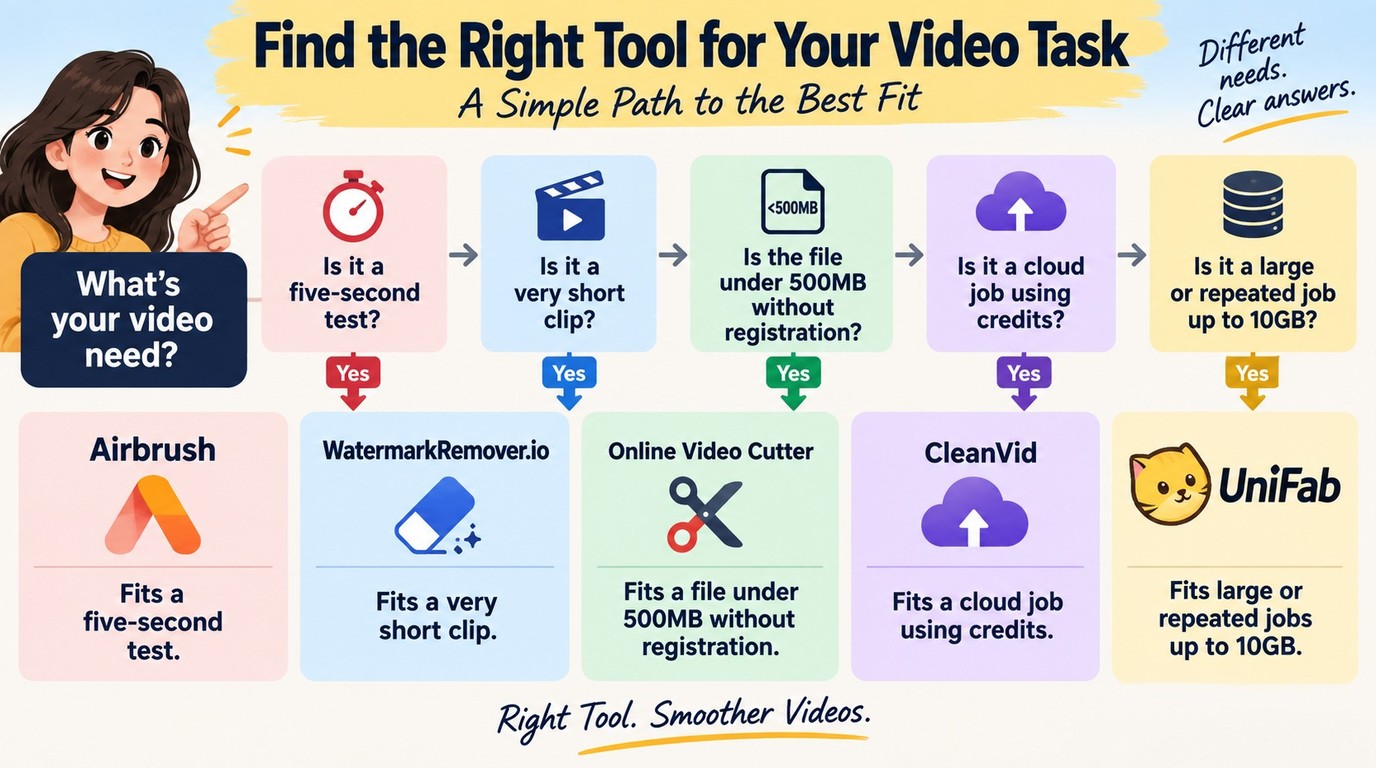
Before trusting a free watermark remover, check whether it exports the full video, accepts your file size and duration, preserves the resolution you need, and requires credits or a subscription. Also check how long the upload remains on the service, because browser convenience means sending the video to another system. Watermark Remover AI-Fabcloud also uploads video for cloud processing through its Windows or macOS interface; installation does not keep this module's processing offline.
Check export, duration, file-size, and access limits
The word “free” covers several different offers: a five-second download, a short-duration cap, a low file ceiling, a small credit balance, or a preview that stops before full export. A free preview does not mean you can download the complete video for free. Accepting 4K input does not establish that the service exports a complete 4K video. As one Reddit user in r/AIAssisted put it, "Most of the ones I've seen online are paywalled in some way. Not against paying but I just need it once or twice and I often forget to cancel subscriptions so I'd rather not sign up to another one."
Free Online vs. Desktop Watermark Removal at a Glance
| Workflow | Access and mode | File or duration | Input or output detail | Processing |
|---|---|---|---|---|
| Airbrush | First five seconds free | Under 200MB; under 10 min | Input: below 4K | Browser upload |
| Online Video Cutter (123apps) | No registration; blur or crop | 500MB | MP4 default; 30+ exports | Browser processing |
| CleanVid | Credits; BOX or FULL FRAME | 300MB; 15 min | Up to 2K | Cloud; 24-hour retention |
| WatermarkRemover.io | No-signup trial | 2 min | 1920×1920 maximum | Browser upload |
| Watermark Remover AI-Fabcloud | Beta; previous order required; no credit consumption | Up to 10GB | Output: up to 4K; MP4/MKV | Cloud; fixed marks; Windows/macOS interface |
Limits and access terms as of November 2026.
Airbrush's download allowance is explicit: You can download the first 5 seconds of your video preview at no cost. To download the entire video, additional credits are required.
The practical difference appears at export. For a large file with a fixed watermark, consider the cloud-based desktop workflow below.
My editorial cutoff is straightforward: if a service will not export the whole clip at the resolution you need, its free preview has not completed the task. Check this boundary before uploading a private client file or waiting through a long processing queue.
Match the removal mode to the watermark and background
Automatic detection suits a clear, high-contrast mark that stays in one region. Manual masking is more reliable when the mark touches a face, subtitle, hand, or patterned surface. Tracking and keyframes are necessary when the mark changes position; cropping is acceptable only when the lost border does not damage composition. Online Video Cutter (123apps) conceals pixels with blur or removes part of the frame by cropping; neither method reconstructs the covered background. A Sora watermark remover needs a selection that follows the moving mark, including its position in difficult opening frames.
Reconstruction still has limits. As one Reddit user in r/SoraAi put it, "Most “watermark removal” tools online leave visible artifacts — which is expected, since they’re essentially trying to blur or patch over the watermark." The useful response is not to assume every AI mode is equivalent. Pick the method whose flaw is least visible in your actual scene.
When Watermark Remover AI-Fabcloud Fits the Job
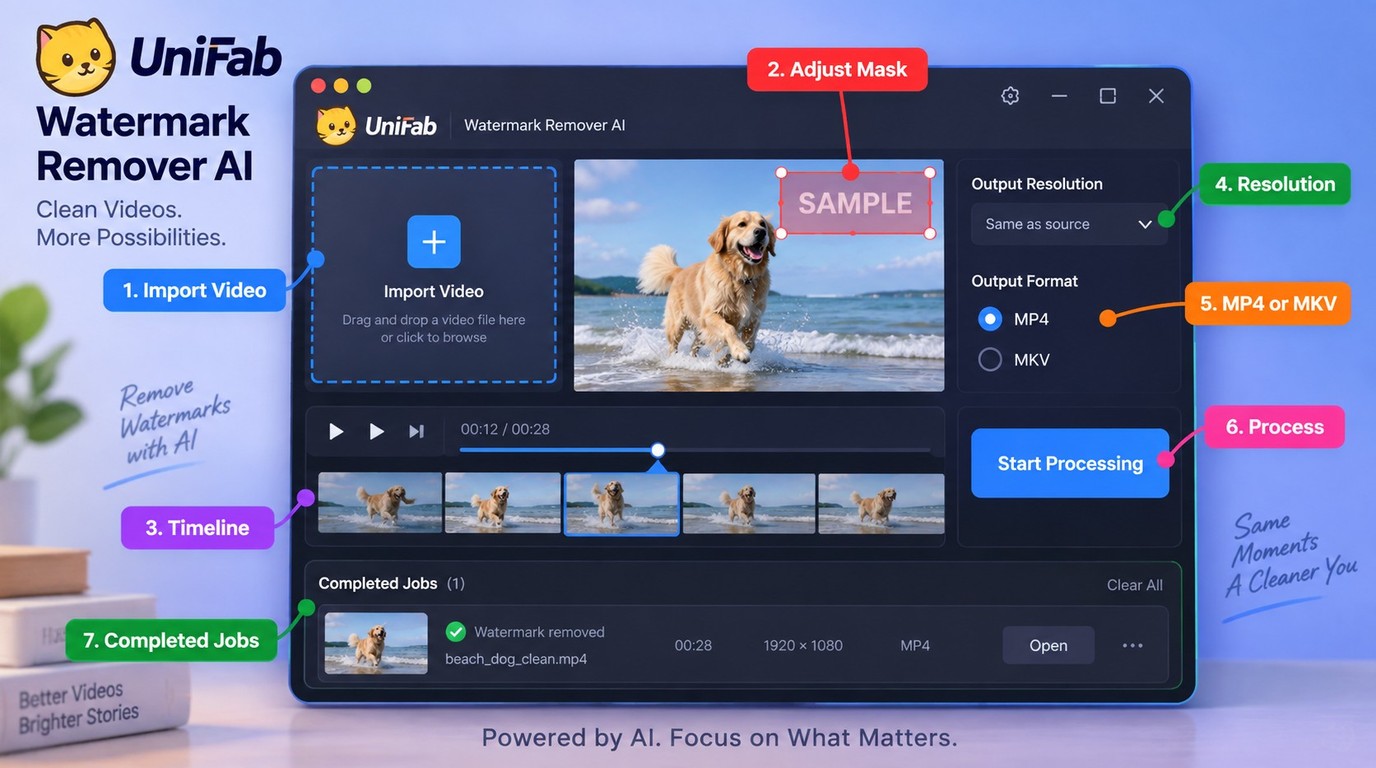
Watermark Remover AI-Fabcloud uses a Windows or macOS desktop interface but uploads video for cloud processing. It supports fixed watermarks, not moving marks or full-frame semitransparent overlays; for those unsupported marks, obtain a clean export from the original project. Use the official Watermark Remover AI-Fabcloud entry point to install the application and preview a short fixed-watermark sample.
Choose a desktop workflow for large or repeated jobs
For large or repeated fixed-watermark jobs, choose this workflow when you can install the application and meet its account requirement. During beta, Watermark Remover AI-Fabcloud does not consume FabCloud credits and requires an account with a previous order.
Remove the watermark and export
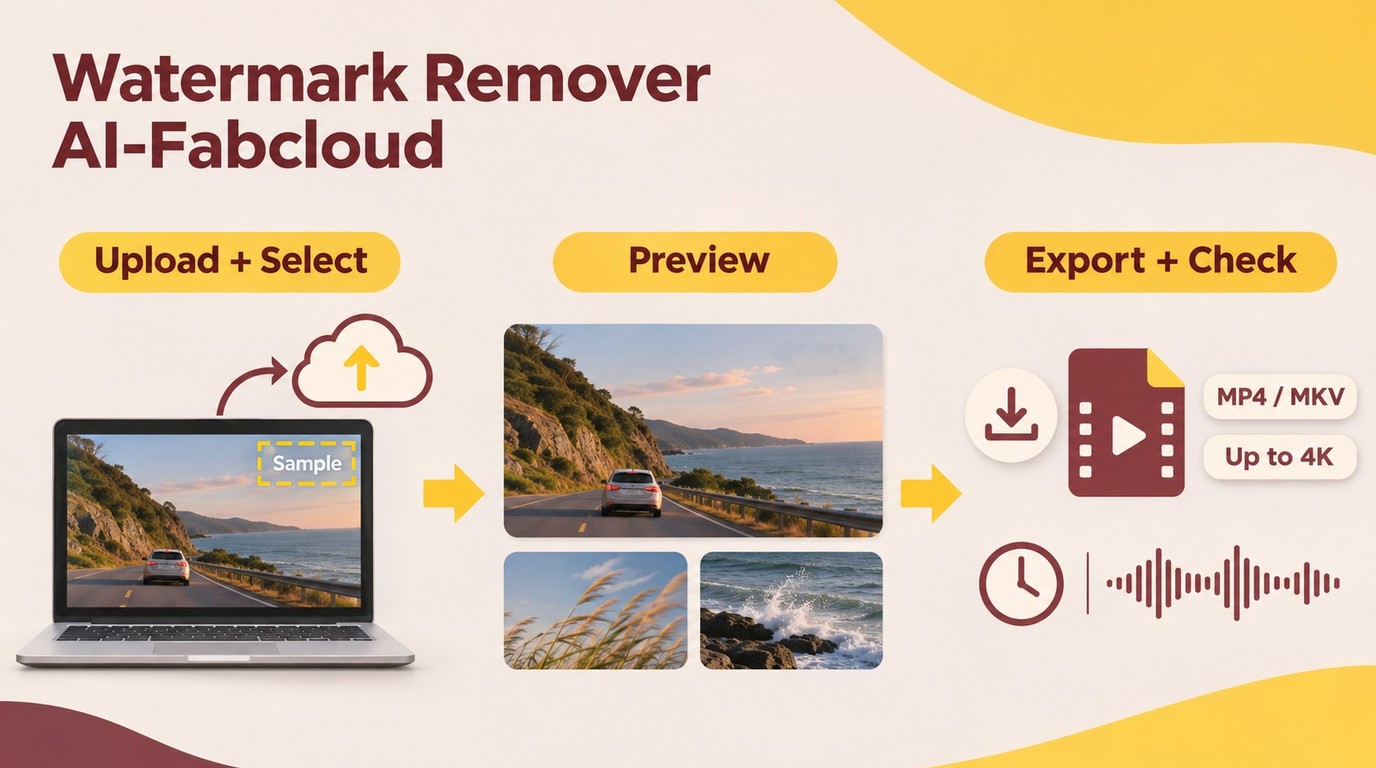
The desktop workflow stays short:
- Open Watermark Remover AI-Fabcloud.
- Import a video with a fixed watermark and upload it for cloud processing.
- Mark the fixed watermark area and check that the selection covers it across the timeline.
- Preview difficult frames, then choose the output settings.
- Start processing and save the result; use batch download for completed jobs.
Once the fixed-watermark sample looks right, process the complete file and confirm that the downloaded result includes the full duration and audio.
FAQ About Free Online Video Watermark Removal
These quick answers cover moving marks, opening-frame residue, overlapping selections, and upload handling.
Can I remove a moving watermark without cropping?
A tracked mask or frame-aware fill can retain the full frame, though reconstruction may leave visible artifacts. A TikTok watermark remover needs to follow the shifting mark, so inspect each location and the opening frames before export. If you still have the original project, exporting from it avoids reconstruction artifacts.
Why is the watermark still visible in the first frames?
The mask may miss the watermark's opening position or stop matching it after a shot transition. Inspect the first frames and each change in position, not just a clean preview still. Removing file metadata does not erase a visible watermark embedded in the video frames. Adjust the selection before exporting, or use a clean export from the original project.
Can I remove several overlapping watermarks from one clip?
Use separate tight selections for each mark, then inspect where the repaired areas meet for smeared texture or distorted moving edges. If a Gemini logo overlaps another watermark, check the combined repair rather than each selection alone. Check the first, middle, and final frames for residual edges, then export a short result before processing the full video. A clean export from the original project preserves detail hidden beneath overlapping marks.
What happens to my video when I upload it?
A cloud-based remover sends your video to the service for processing; a desktop interface does not by itself keep processing local. Upload safety depends on the service's retention policy and the sensitivity of your footage. For your own editing project, remove an editable ending card inside the project before export when possible; that avoids a cloud upload and preserves quality.
Your permission to edit must also cover any template assets, music, and branding in the video.