If the only copy of your own TikTok has a moving logo over a face, caption, or subtitle, choose a TikTok watermark remover by the source you still have: use the link to obtain a clean authorized copy, crop a clear edge, or repair a saved file with AI.
The awkward case is not a random repost; it is often an owned clip whose clean master is gone. My rule is to treat watermark removal as a last-mile repair, not the first choice, because a clean source preserves more real detail than any reconstruction. If you need to remove a watermark from a video, the working link, the watermark's motion, and the sensitivity of the footage should decide the route. This guide moves from that decision to export checks, then shows where a desktop workflow fits.
Start Here: TikTok's Download Limit and 3 Removal Methods
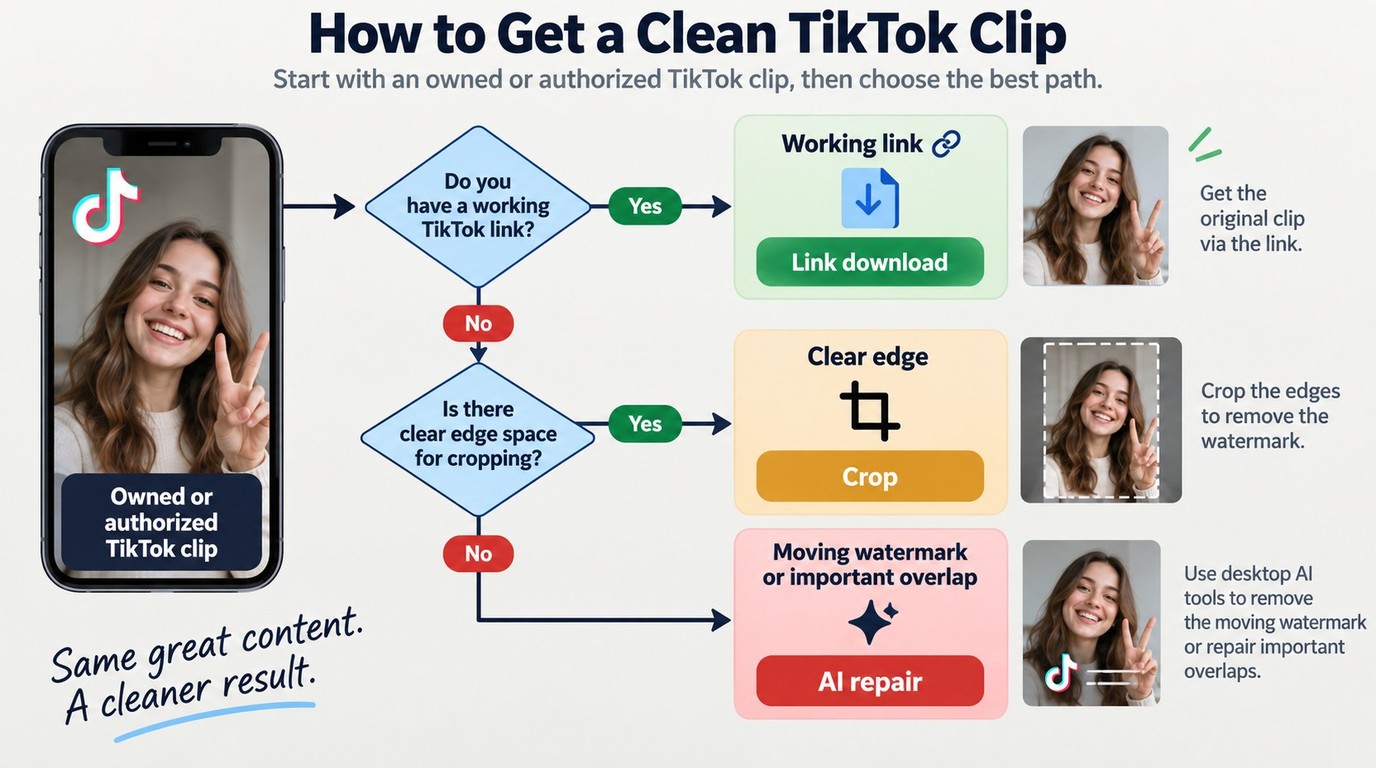
Use the original TikTok link when it remains accessible and you have permission to save the clip. If you have only a saved video, crop when the logo stays outside the subject; use AI removal when the mark moves or crosses important detail. The lowest-damage path starts with the source, not with a favorite tool.
Please note: Use download or watermark-removal tools only for videos you own or have permission to edit, and follow TikTok's Terms of Service plus the service provider's terms. Keep saved copies for legitimate personal or authorized use. Removing a mark does not transfer copyright or permission to redistribute someone else's work.
TikTok's video-download controls let creators decide whether other people may download a post. That official setting governs availability; it is not a clean-master export for later editing.
Download From the TikTok Link When You Own the Clip
Start with the link because it can avoid painting over pixels that are already covered in a saved copy. The method suits an owned post, a client-authorized clip, or another video for which you have explicit permission.
As one Reddit user in r/TikTok put it, "I recorded a video of my baby using TikTok, posted it as a story and saved it. How do I remove the watermark so I can repurpose the video?" That is a source-recovery problem before it is an editing problem.
- Confirm that you own the clip or have permission to save and edit it.
- Open the TikTok post and copy its link from the Share menu.
- Paste the URL into a reputable link-based service whose terms and privacy policy you accept.
- Download one result, then compare its motion, audio, and dimensions with your saved copy.
This route is best for a one-off clip with a working link. It is not suitable for private, deleted, restricted, or unlicensed posts, and a third-party service should not receive sensitive material without a clear reason.
Crop Only When the Watermark Stays Clear of the Subject
Cropping is the most predictable repair because it does not invent image detail. It works when the logo remains near an edge and enough empty space surrounds the subject.
- Scrub through the full clip and note every watermark position.
- Set one crop that excludes all marked areas without cutting faces, captions, or products.
- Reframe the subject for the required vertical or horizontal aspect ratio.
- Export a short preview and inspect the first, middle, and final frames.
Choose cropping for a static corner mark and generous edge space. Avoid it when TikTok's moving watermark switches corners or when the original composition already fills the vertical frame; the price of removal would be a tighter, weaker shot.
Use AI Removal for a Saved Clip or Moving Watermark
AI removal is the practical route when the URL is gone and cropping would cut useful content. It estimates the background under the marked area, so the result still needs human review.
- Keep an untouched copy of the saved video.
- Import the file into a remover that accepts local video.
- Mark each watermark position across the timeline, including corner changes.
- Process a short representative segment before committing the full clip or batch.
- Inspect faces, subtitle edges, hair, fabric, and fast motion before export.
This method fits moving overlays, saved clips, and repeated jobs. My caution is specific: reconstruction can hide a logo, but it cannot recover the exact pixels that the logo replaced.
Free Online, Crop, and Desktop AI Methods Compared
Match the method to the file you have, the location of the watermark, and the number of clips. A free online watermark remover favors convenience, cropping favors predictability, and desktop AI favors controlled work on saved files. None removes the need to inspect the result.
Choose by Source, Motion, Privacy, and Volume
| Method | Required input | Moving mark | Main tradeoff | Best fit |
| Link download | Accessible, permitted URL | Avoids editing | Service privacy and quality | One-off linked clip |
| Crop | Saved file with edge space | Poor fit | Smaller frame | Static corner mark |
| Desktop AI | Saved local file | Handles changing regions | Possible fill artifacts | Repeated or complex cleanup |
The practical choice becomes clear in a concrete scene. For a short owned clip where the watermark jumps from a lower-left caption to an upper-right face, cropping sacrifices composition, while a link-based copy is preferable if the post remains accessible. If the link is gone, AI removal is the workable repair, followed by frame-by-frame review.
Quality and trust matter as much as the price label. As one Reddit user in r/socialmedia put it, "Every site I've tried drops the video quality way down. The originals look smooth, the downloads come out choppy. On top of that, most of these tools are loaded with ads and sketchy pop ups." For sensitive family, client, or unreleased footage, I would keep the file out of an unfamiliar web uploader and use a workflow with clear account, storage, and deletion terms.
For a single public, permitted clip, the link route saves time. For a fixed edge mark, crop. For a local file with a moving overlay or a queue of clips, desktop AI provides the more manageable timeline-based workflow, but it is not automatically the cleanest result.
Quality, Privacy, and Output Checks Before You Export
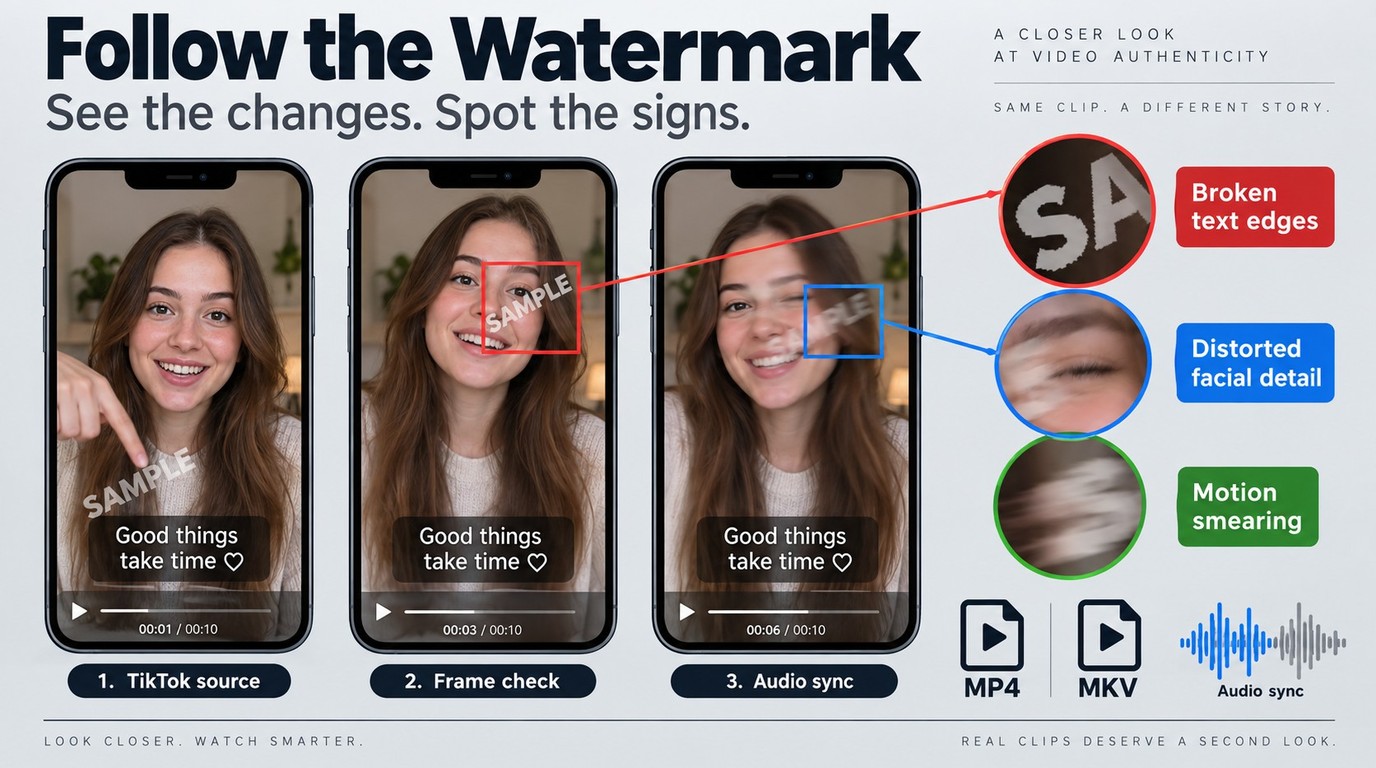
A watermark is not successfully removed just because the logo disappears. Accept the export only when motion looks natural, text and faces remain intact, audio stays synchronized, the file opens in the target editor, and the handling of uploaded footage matches your privacy needs.
Check Motion, Detail Loss, Upload Risk, and Format
Use the same short clip from the comparison: a moving mark crosses a caption, then a face. My acceptance test gives those transition frames more weight than a clean-looking still image, because temporal errors are what viewers notice in motion.
- Compare the processed file with the untouched source at matching timestamps.
- Watch the repaired area at normal speed and frame by frame.
- Check caption strokes, eyes, hair, fingers, patterned clothing, and textured walls.
- Confirm that speech, music, and cuts remain synchronized through the full clip.
- Verify the exported dimensions, duration, and MP4 or MKV compatibility in your editor.
- Delete web uploads when the service offers deletion controls you understand.
Do not use the resolution label as a quality verdict. A file can keep the same pixel dimensions while compression softens detail or an AI fill smears motion. If the output is worse than the source, return to the link route, loosen the crop, reduce the selected repair area, or split the job into shorter tracked regions.
Editor-added marks need a different source-first check, as shown in our Filmora watermark removal guide, because re-exporting an original project can preserve more detail than repairing a flattened final file. The same principle applies here: recover first, reconstruct second.
Using UniFab for Saved TikTok Videos
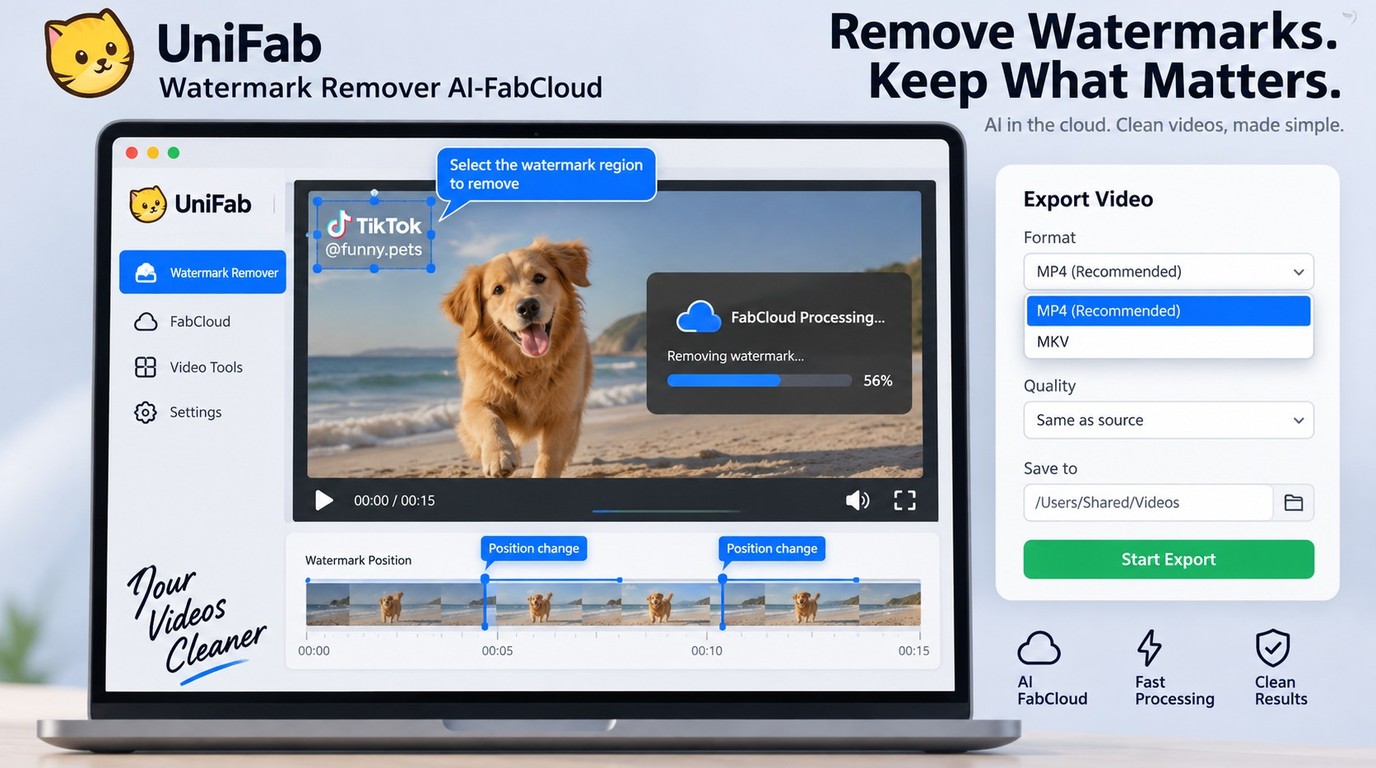
UniFab Watermark Remover AI makes sense when the TikTok video already exists as a local file and the watermark moves, covers useful detail, or appears across several clips. It is not a TikTok link downloader and does not grant reuse rights. I would place it after source recovery and cropping, where its timeline-based repair has a clear job.
Check Compatibility, Credits, and File Limits
Watermark Remover AI-FabCloud supports Windows and macOS, accepts files up to 10GB, handles batch tasks, exports MP4 or MKV, and supports output up to 4K. The app provides the working interface, while each Watermark Remover task uses FabCloud credits.
As of September 2026, the 600-credit FabCloud plan costs $20 per month or $199.99 per year. The 1,000-credit plan costs $30 per month or $299.99 per year, and new accounts receive 30 credits.
The main fit is a saved-file workflow, not URL retrieval. If an authorized TikTok link still works, obtain the cleanest source first and use UniFab only when the local file needs repair. Jobs also consume credits rather than using a one-time desktop license; start with a short representative segment so the selected region and output settings are settled before a longer task.
Batch support matters when repetition becomes the bottleneck. As one Reddit user in r/DataHoarder put it, "The quality is much lower than downloading from the page I mentioned, which is tedious, as downloading videos in bulk is a headache because you have to paste them one by one and wait." UniFab can queue saved files, but the same limitation applies to each: complex faces, small text, or moving textures can show fill artifacts, so preview those frames and adjust the selected region before final export.
Process and Export a Saved Clip
The workflow is short, but the preview step should not be skipped.
- Open UniFab on Windows or macOS and select Watermark Remover AI-FabCloud.
- Add the saved TikTok file; add more local clips if you need a batch.
- Mark the watermark area and follow each position change on the timeline.
- Process a short segment with FabCloud credits and inspect the repaired motion.
- Refine the selected area when faces, captions, or textures show artifacts.
- Export as MP4 or MKV, then perform the quality checklist from the previous section.
UniFab fits you when the clean source is unavailable, cropping would damage the frame, and several local files need the same disciplined review. It is not the right first step for a working TikTok link or a clip whose watermark sits safely outside the subject. For the saved-file case, open UniFab, use the 30-credit new-account allocation on a representative segment, and approve the motion before processing the rest.
TikTok Watermark Remover FAQ
CapCut, copyright, and cross-platform reach are separate questions from the mechanics of removal. The useful editorial line is consistent: protect the clean source, inspect reconstructed frames, and never treat technical cleanup as permission to republish.
Can CapCut remove a moving TikTok watermark?
CapCut can crop a frame, cover an area, or keyframe an overlay as the watermark changes position. Those options work when the covered area contains simple background detail. When the logo crosses a face, subtitle, or textured object, cropping can damage composition and a cover can remain visible. A moving TikTok mark therefore needs timeline review; CapCut is an editor, not a guarantee that hidden pixels will be reconstructed cleanly.
Can ChatGPT remove a TikTok watermark?
In this workflow, ChatGPT is useful for comparing source recovery, cropping, and dedicated TikTok watermark remover options, but process and export the saved clip in a video tool. Apply the same ownership, permission, and frame-quality checks before publishing the result.
Is it legal to remove a TikTok watermark before reposting?
Removing a watermark and obtaining permission are different acts. If you own the clip or have authorization, editing it for an approved use is different from republishing another creator's work. TikTok's Intellectual Property Policy and US Terms of Service still apply, while copyright exceptions vary by jurisdiction and use. Do not redistribute or monetize a cleaned file without the rights needed for that use.
Does removing the TikTok watermark improve reach on Reels or Shorts?
A clean frame can stop a moving logo from covering captions or faces, but it does not guarantee more reach on Instagram Reels or YouTube Shorts. Treat watermark removal as a presentation and compatibility decision, not an algorithm promise. The stronger reason to use a clean authorized master is that it preserves composition, readable text, and brand consistency across platforms.
Bottom Line: Match the Method to the Source
Use one rule: recover the clean authorized source from a working link, crop only when the mark stays outside the subject, and use AI removal when a saved file has a moving overlay that cannot be cropped safely. My final check is always the repaired motion, not the missing logo. Rights, privacy, and usable detail still matter after the watermark is gone.