If a paid remover leaves a soft patch, the problem is usually method choice, not price alone. To remove a watermark from a video without wrecking quality, match the treatment to the mark: crop an edge logo, cover a simple static area, or track and reconstruct a moving mark, then preview the full clip before export.
A useful editorial test is whether the result preserves composition, motion, and texture rather than merely erasing a logo. That is why a free online watermark remover may suit a short corner mark but fail on hair, hands, smoke, or a moving Sora label. This guide starts with a four-step workflow, then separates the platform-specific cases and the point at which a controlled desktop workflow becomes the better fit.
How to Remove a Watermark from a Video in Four Steps
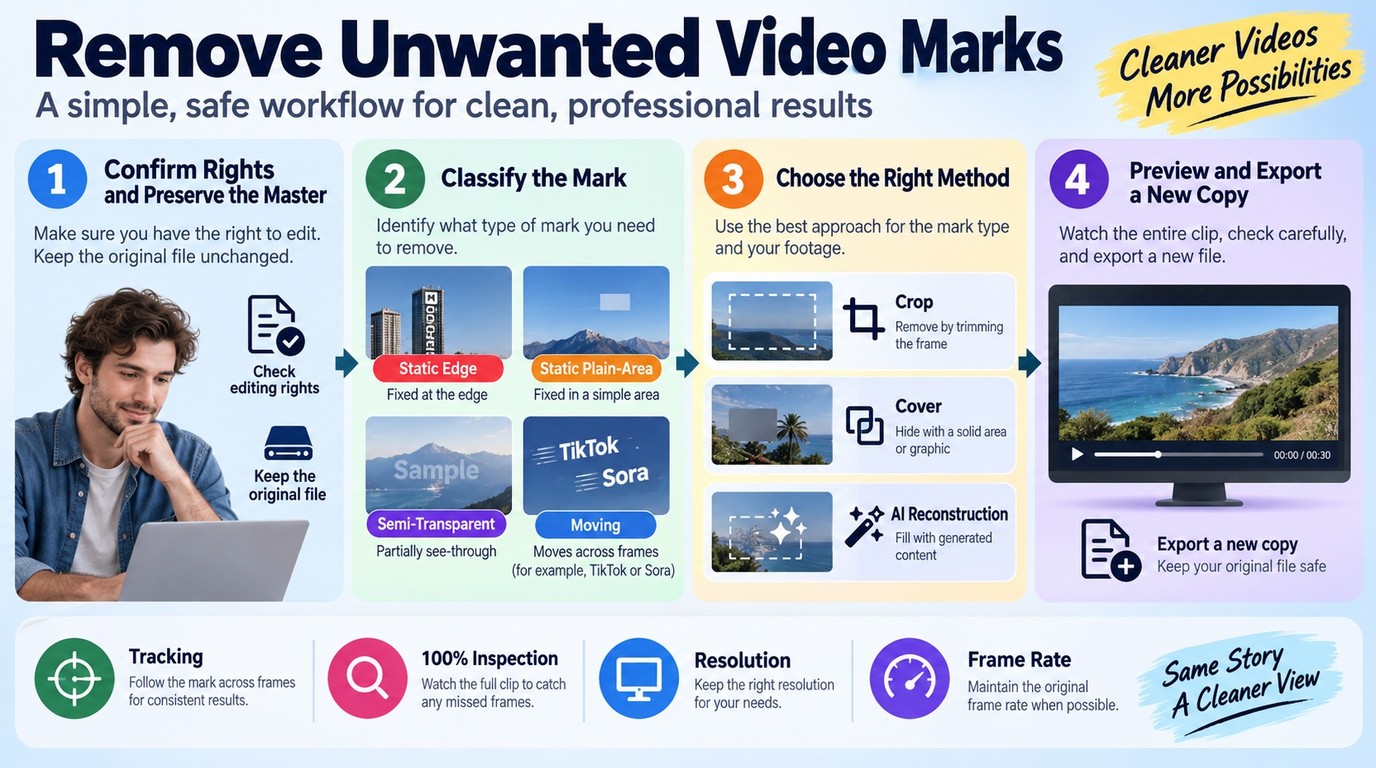
The safest workflow is to confirm that you may edit the footage, classify the watermark, choose the least destructive method, and inspect the whole result before export. A clean frame is not enough; the background, motion continuity, and original composition must also remain acceptable.
Rights reminder: Edit only footage you created, licensed, or have permission to modify. Follow the source platform's Terms of Service, keep required creator or AI disclosures, and do not redistribute someone else's work as your own.
Step 1: Confirm Your Rights and Identify the Watermark Type
Start with the original project or clean master whenever it exists. That route preserves more detail than rebuilding pixels after export, and it avoids needless changes to the frame. Duplicate the source file before editing so the original remains intact.
Next, scrub through the entire timeline and classify the mark:
- Static edge logo: cropping may work if the subject has breathing room.
- Static mark over a plain area: a cover, blur, or cloned patch can be enough.
- Semi-transparent mark: reconstruction must preserve the texture underneath.
- Moving mark: the mask needs tracking and frame-by-frame inspection.
The practical judgment is visual, not binary. If the logo disappears but the crop cuts a hand or changes a vertical composition into an awkward frame, the edit has failed. The deciding question is whether the repaired frame still preserves the intended subject and aspect ratio.
Steps 2–3: Choose Crop, Cover, or AI Reconstruction and Mark the Area
Choose the smallest intervention that fits the footage. Crop only when the watermark sits near an expendable edge. Use a cover or blur when a visible patch is acceptable, such as a replaced lower-third. Use AI reconstruction when the mark overlaps textured scenery, a face, fabric, or other detail that should continue naturally.
Then draw a tight mask around the mark. Avoid swallowing clean pixels, because a larger selection gives the tool more image area to invent. For a moving watermark, add tracking points at direction changes and review the mask whenever it crosses a new surface. A watermark that moves from sky to hair needs more than one uniform reconstruction setting.
Online tools can handle a short, non-sensitive clip, but check the upload ceiling, duration limit, export resolution, privacy terms, and whether payment appears only after processing. A local editor is the safer fit for confidential client footage because the file does not need to be handed to a third-party cloud service whose storage and retention terms have not been verified.
Step 4: Preview the Full Clip and Export a Clean Copy
Preview at normal speed, then inspect difficult frames at 100% scale. Look for flicker, repeated texture, edge wobble, blur that follows the old logo, and abrupt changes in grain. Pay special attention when hands, faces, subtitles, smoke, or fast camera movement pass through the repaired area.
Export a new copy rather than overwriting the master. Keep the source resolution and frame rate unless the delivery format requires a change, then compare the first, middle, and last sections of the exported file. The final acceptance test is simple: the repaired area should stop drawing attention without sacrificing the shot around it.
How to Handle TikTok, Sora, Gemini, and CapCut Watermarks
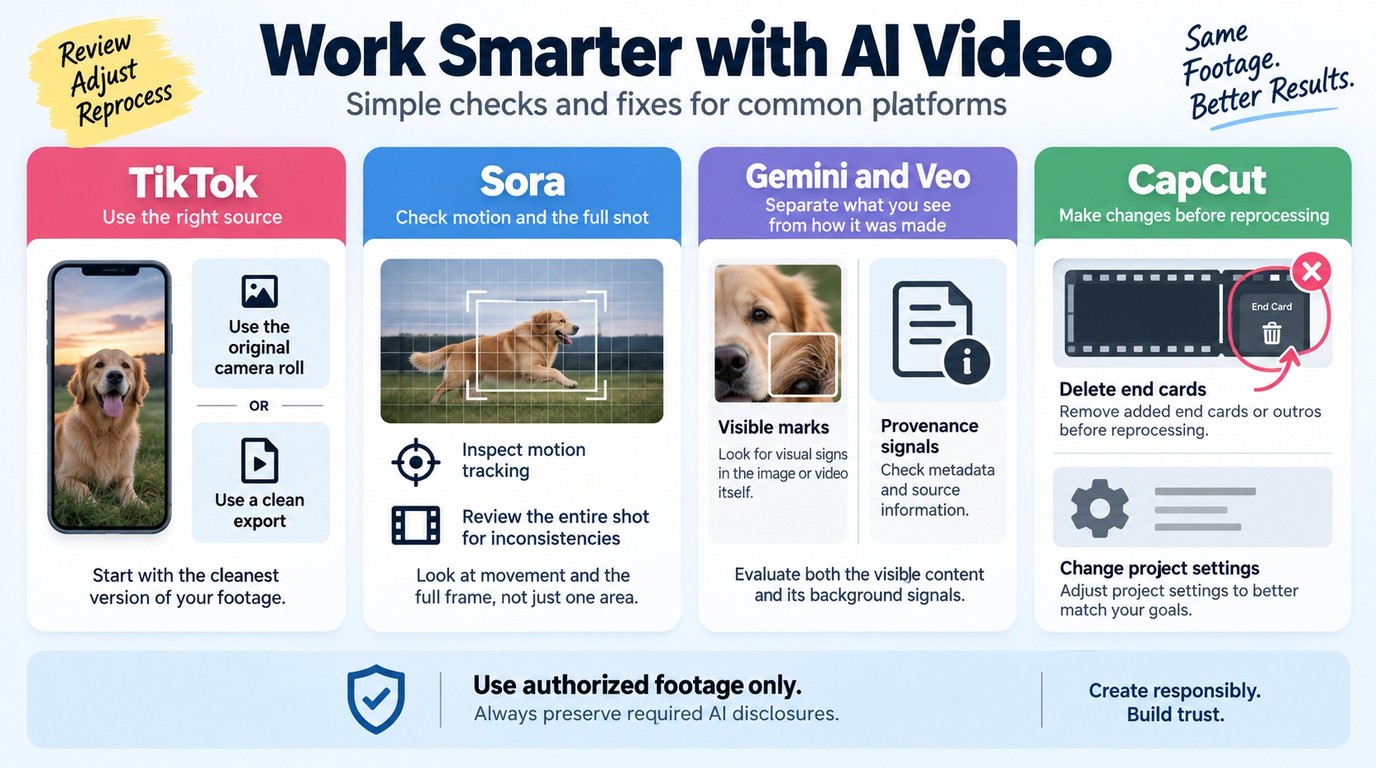
Start with an official clean export of your own project when the platform provides one. If it does not, confirm your rights and disclosure duties, estimate the visible damage from cropping or reconstruction, and choose local or upload-based processing according to the footage's sensitivity and the job's scale. The platform name is only the entry point; those decisions determine the method.
Platform note: Use these steps only for your own or authorized material, and follow each service's Terms of Service. Removing a visible mark does not transfer ownership, cancel attribution duties, or make an AI-generated clip eligible for uses the platform forbids.
TikTok: Start with a Clean Export of Your Own Video
For a TikTok video you created, return to the camera roll, editing timeline, or original export before trying a TikTok watermark remover. Reposting the clean source protects both quality and composition because it avoids cropping the moving TikTok label or rebuilding pixels around it.
If the original is gone, map every position the watermark occupies. A crop that works in one corner can cut into the subject when the mark switches sides. Choose a tool by its tracking control, export resolution, upload policy, and preview access, not by an unsupported “best” label. A browser tool can suit a few non-sensitive clips; private footage or a larger batch favors local processing. Reuse rights still come from ownership or permission, not from the absence of a watermark.
Sora: Track Moving Marks Without Smearing the Scene
A Sora watermark remover needs motion-aware masking because a moving mark crosses different textures over time. Removing the visible label does not change the clip's origin, so retain any disclosure or provenance information required for publication and use the technique only for authorized editing.
Track the mark through the full shot, split the mask when it crosses a face or detailed object, and compare the repaired texture on both sides of each transition. As one r/SoraAi poster wrote about a two-minute clip, an automatic remover “kept blurring other aspects in the video.” That is the key failure to watch: the mask may follow the logo while the reconstruction damages unrelated pixels. Preview one representative clip before committing a batch, and keep unpublished footage in a local workflow when upload-based processing is not appropriate.
Gemini and Veo: Separate the Visible Mark from Provenance Signals
A visible Gemini or Veo logo is part of the picture, while provenance can also include metadata or platform-level signals outside those pixels. Editing the visible mark does not erase the content's origin, change its license, or remove the need to disclose AI generation where a marketplace, client, or platform requires it.
Use an official unmarked export when your account and project permit one. Otherwise, apply a tight tracked mask to authorized footage, preserve a record of the source, and inspect transitions around faces, text, and fine patterns. For repeated or confidential work, avoid sending each source through an upload service. The responsible goal is a clean composition, not a false claim that the footage was captured or created by another process.
CapCut: Remove End Cards and Template Marks Before Reprocessing
CapCut marks are often better handled in the project than after export. Delete a removable end card, adjust the template or export setting available to your account, and render again before sending the video through a second remover.
If a baked-in mark remains in authorized footage, crop only when it sits on an expendable edge, cover it when a visible patch is acceptable, and use tracked reconstruction when it crosses textured or moving detail. Preview the full clip before export. When editing a TikTok clip in CapCut, start from your clean source rather than importing a watermarked repost.
When Free Tools Fall Short: UniFab for Large, Private Jobs
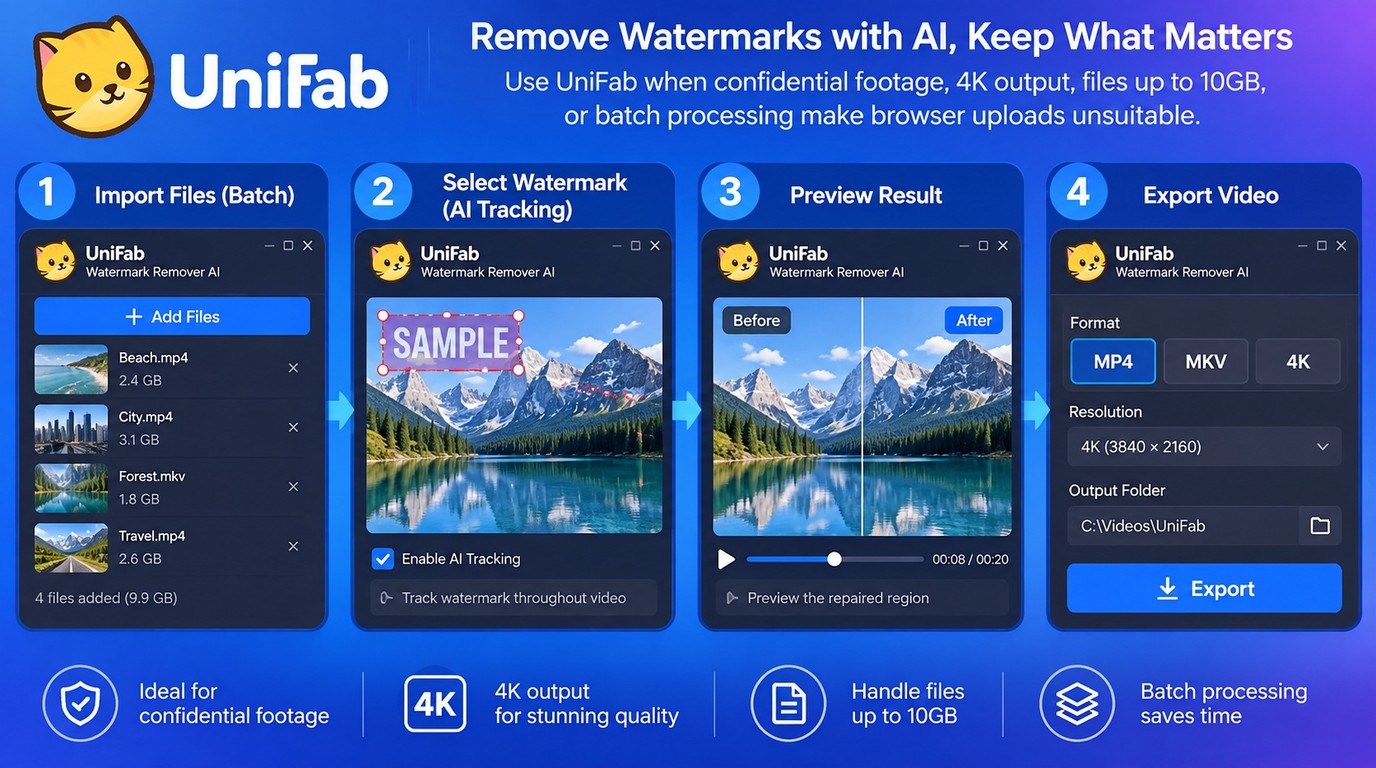
A free watermark remover is a reasonable fit for a short, non-sensitive clip with a simple static mark. UniFab's Watermark Remover AI is the installed option for larger, confidential, high-resolution, or repeated jobs, while a crop or browser tool remains the lighter choice for a simple one-off clip.
A browser service may accept a file before revealing an export charge or credit limit. Free is not the same as suitable; before uploading, weigh file size, privacy, resolution, task count, and whether the processed file is actually available to download.
A Local Workflow for 4K, 10GB Files, and Batch Processing
In the installed Windows and macOS workflow described here, source files are processed on the device rather than uploaded to a browser service. No cloud storage or retention policy applies to those source files; they remain governed by your device, project-folder, and backup practices. UniFab supports files up to 10GB, 4K output, batch jobs, and MP4 or MKV export. The trade-offs are installation, hardware-dependent processing time, and two output containers that do not cover every delivery workflow; the three-use evaluation allowance provides a way to check fit before purchase.
Use it in four steps:
- Add one video or queue the authorized files as a batch.
- Mark each watermark area and adjust tracking where the mark moves.
- Preview the repaired region, especially across texture and motion changes.
- Choose MP4 or MKV, keep the required resolution, and export a new copy.
Keep the job in your existing editor when a crop or cover preserves the frame. Use a browser remover for a short, non-sensitive one-off within its stated limits. The installed route earns its setup cost when confidential footage, high resolution, or repeated jobs make uploads and one-file workflows impractical.
Watermark Removal Options at a Glance
| Option | Best fit | Processing | Main limit |
| Crop | Static edge mark | Local editor | Changes framing |
| Cover or blur | Simple static area | Local or online | Leaves a patch |
| Free online AI | Short, non-sensitive clips | Cloud upload | Credits or artifacts |
| UniFab | 4K, 10GB, batch jobs | Local desktop | MP4/MKV; installation |
UniFab specifications are from UniFab's official product information, as of September 2026.
The practical split is straightforward: use an official clean export first, crop or cover a simple edge mark, choose a browser tool for a short non-sensitive clip, and use local processing when privacy or scale rules out uploading.
Video Watermark Removal FAQ
Settle rights, visible damage, processing privacy, and job scale before processing the file. The selection box is the easy part; permission, credible repaired frames, and an appropriate local or cloud workflow are what keep the result usable.
Is It Legal to Remove a Watermark from a Video in the United States?
It depends on ownership, permission, purpose, and the role of the mark. Removing a mark from your own footage or an authorized asset is different from concealing copyright-management information on someone else's work. The U.S. Copyright Office's DMCA overview covers copyright-management information under Section 1202. Platform Terms of Service and marketplace disclosure rules can add separate obligations. For a commercial or disputed use, get advice on the specific facts rather than treating a clean export as proof of permission.
Can ChatGPT Remove Watermarks from Videos?
ChatGPT can explain workflows and help you choose between cropping, covering, or reconstruction, but a complete video job needs a tool that can process frames, track motion, preview artifacts, and export the result. Image editing on a single frame does not solve continuity across a moving clip. Use a dedicated video editor or watermark-removal module, then inspect the full timeline rather than judging one still image.
Is a Cracked Watermark Remover Safe to Use?
No unofficial cracked package is a sensible editing shortcut. If you are evaluating HitPaw Watermark Remover, use only the official installer and published license terms; the same malware, update, and support risks apply to any cracked copy. Modified installers can carry malware, steal project files or credentials, break updates, and leave you without a valid license or support path. That risk comes from the altered distribution, not from the legitimate product whose name appears in the search. Download software from its official publisher, scan the installer, and use a legitimate license or clearly stated free access.
My editorial rule is simple: remove a visible mark only when your rights are clear, required attribution remains intact, and the repair harms less of the frame than it fixes. Then choose browser or local processing according to footage sensitivity and job scale; if those conditions are not met, return to the clean source or leave the mark in place.