Five free AI subtitle generators can produce usable captions, but “free” does not mean the same thing across tools. The practical differences are reusable SRT export, watermarks, account rules, upload allowances, and cloud privacy. No single tool leads every workflow.
My editorial rule is simple: if you need captions for reuse in another editor or platform, export ownership matters more than decorative text styles.
What Free Subtitle Tools Actually Include
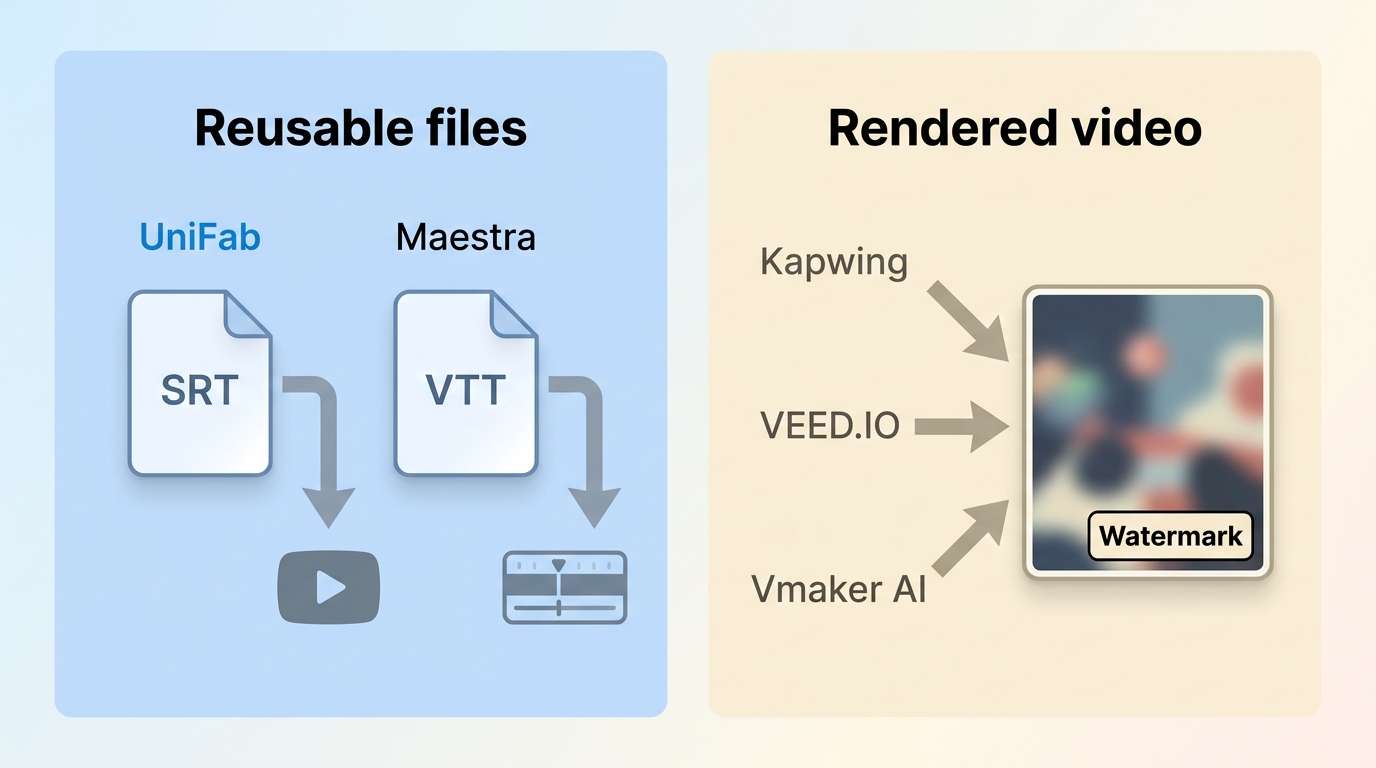
Free subtitle limits usually affect minutes or credits, output type, watermarks, signup, and upload size. A subtitle generator no watermark claim may refer to an SRT file, while the downloadable video still carries branding.
- Allowance: A tool may offer credits, a short sample, or a capped video duration.
- Reusable output: A standalone SRT download can move into YouTube, an editor, or an accessibility workflow; burned-in captions stay attached to the rendered video.
- Watermark: Check the actual free output, not just the editing preview.
- Signup and uploads: Account requirements, file size, duration, and cloud processing can add friction.
- Privacy: Check whether the tool processes media on your device or uploads it to a cloud service.
For a typical MP4 workflow, upload the video, select the source language, generate and correct the captions, then choose either a separate SRT file or a captioned video. If reusable captions matter more than decorative styling for your next editing step, see our guide to creating a reusable SRT file; if the final deliverable is a video, the process for adding subtitles to a video attaches captions to the final video. Upload only video and audio you own or are authorized to use, follow applicable copyright rules and service terms, and remain responsible for the content and final captions.
A Simple MP4-to-Subtitle Workflow
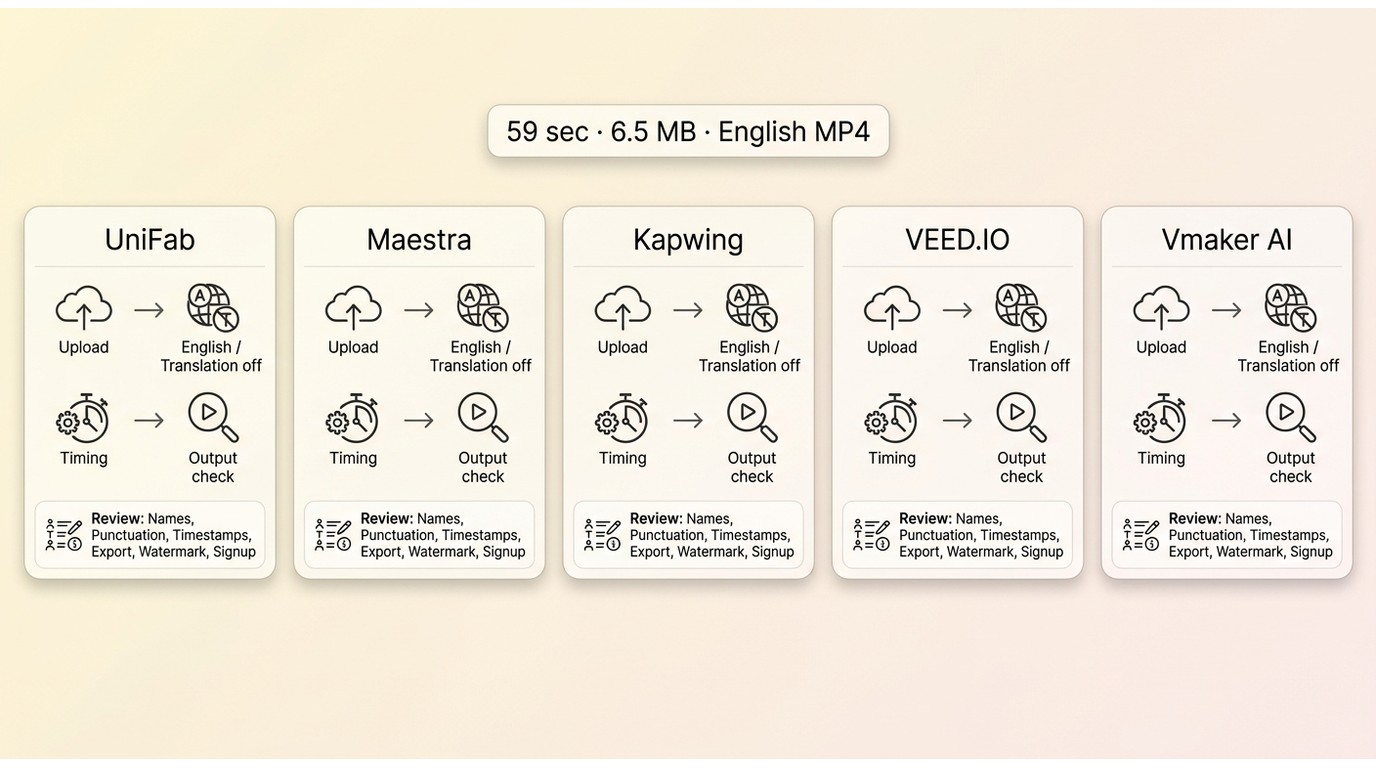
A simple workflow starts with a supported MP4 containing clear spoken audio. Select the source language, and enable translation only when a second-language output is needed.
Generate the captions, review the text and timing, and confirm whether the required deliverable is a separate subtitle file or a captioned video.
Prepare Your Video and Source Language
Start with a supported video that has clear dialogue and the correct audio track. Cleaner speech generally requires less caption correction, while noise, music, and overlapping speakers can increase editing work.
- Upload the MP4 without unnecessary editing or compression changes.
- Select the spoken source language and leave translation off unless you need a second-language version.
- Start automatic caption generation using the available model or mode.
- Wait until the captions are editable and confirm which free output is available.
- Check names, punctuation, timestamps, cue splitting or merging, readable line lengths, export type, watermark status, and account requirements.
Before exporting, play the video with the captions enabled and correct any text or timing issue that changes the meaning.
Check Text, Timing, and Output
Review the generated captions against the spoken audio, then confirm that the available output fits the next step in your workflow.
- Text accuracy: Correct names, technical terms, punctuation, and words that change the meaning.
- Timing: Align each cue with the speech and fix captions that appear too early or remain too long.
- Cue structure: Split or merge captions where needed and keep line lengths readable.
- Output type: Confirm whether the workflow provides a reusable subtitle file, a rendered video, or both.
- Workflow limits: Check account requirements, credit rules, watermarks, and export restrictions before completing the project.
Quick Comparison of Free Plans
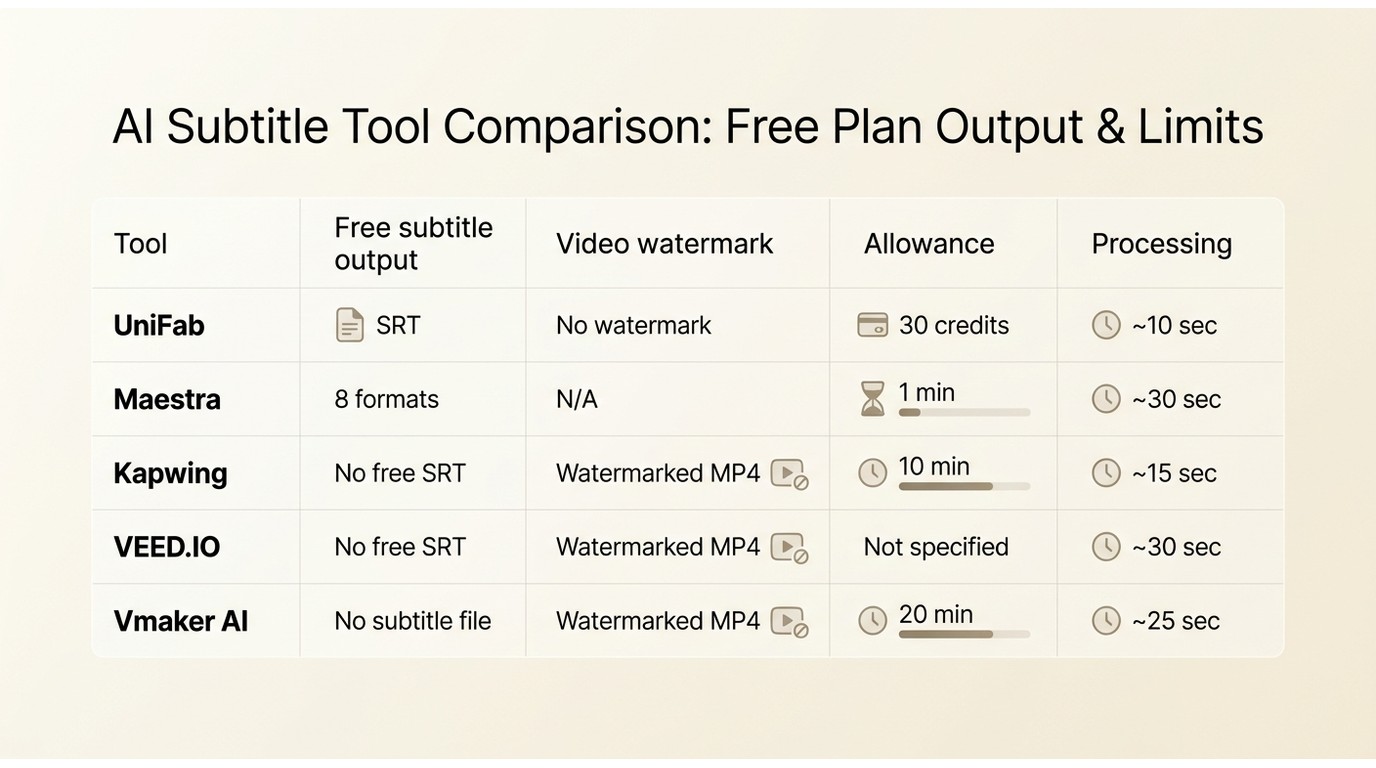
The comparison separates a standalone subtitle file from a rendered video. That distinction is the fastest way to avoid choosing a polished editor that cannot deliver the output you actually need.
- Subtitle Generator AI-Fabcloud: Completed tasks can be downloaded as SRT files from the task panel, and the service supports 30+ caption languages. It focuses on reusable caption files rather than rendered-video editing.
- Maestra: Its browser workflow emphasizes broad language coverage and multiple professional subtitle formats, making it relevant when format variety is the main requirement.
- Kapwing Subtitle Generator: Kapwing allows up to 10 minutes of free auto-subtitling. Free rendered-video exports are limited to four minutes at 720p and carry a watermark.
- VEED.IO: Its browser editor combines automatic captions with styling and aspect-ratio presets for rendered-video workflows.
- Vmaker AI: Vmaker advertises 75+ caption languages. Its free rendered videos carry a watermark, and its workflow centers on visual captions for social video.
Refreshed third-party plan details in this section are as of October 2026.
Five Free Subtitle Generators Compared
Each free AI subtitle generator below is compared by the output it delivers, not by feature count alone. The numbering is for navigation, not a scored ranking. The useful question is whether its free workflow matches your next editing step.
1. UniFab Subtitle Generator AI Cloud
Subtitle Generator AI-Fabcloud is a browser tool for generating and downloading SRT captions.
Its published offer includes 30 starting credits, support for 30+ languages, SRT output, and a vendor accuracy claim of up to 98% on suitable audio. UniFab's Trustpilot profile reflects the broader service rather than subtitle accuracy.
Subtitle Generator AI-Fabcloud processes uploads on servers and saves completed tasks for fifteen days. After generation, users can review the captions and download the SRT file from the task panel.
Suitable for: readers who want a simple cloud workflow and a standalone SRT download. Limitations: the output is centered on SRT rather than a broad professional format set, and server processing may not fit sensitive footage unless the workflow has organizational approval. The desktop AI Subtitle Generator uses Local + Cloud hybrid processing and consumes FabCloud credits.
2. Maestra
Maestra fits workflows where language breadth and subtitle export formats matter more than a long free allowance. Its current product page advertises 125+ languages and a one-minute sample.
The editor offers SRT, SCC, CAP, TTML XML, VTT, STL, TXT, and SBV, along with confidence cues that help editors find uncertain words. Readers comparing live captions can also review this free AI caption generator overview.
Playback-speed controls support line review, but signup is required to save or export. Maestra's Trustpilot profile reflects the broader service rather than subtitle accuracy.
Suitable for: editors prioritizing 125+ languages and a wide format list. Not ideal for: a project longer than the one-minute sample when the budget must remain at zero.
3. Kapwing Subtitle Generator
Kapwing is a video subtitle generator built around editing and visual presentation. It makes more sense for social clips than for a reader whose main requirement is a reusable caption file.
Kapwing offers up to 10 minutes of free auto-subtitling. The comparison above summarizes the four-minute, 720p limit and watermark on free rendered-video exports. Styling tools cover fonts, colors, borders, and animation.
The free workflow does not provide standalone SRT, VTT, or TXT export. For a broader look at the editor, see the Kapwing workflow review.
Suitable for: short-form video that needs styled, burned-in captions. Not ideal for: editors who need clean subtitle files or watermark-free video without an upgrade.
4. VEED.IO
VEED.IO combines automatic captions with a browser editor and useful canvas presets. Its free path favors editing convenience, while reusable subtitle files and clean exports remain restricted.
Caption generation and video export are separate steps in the browser workflow. The aspect-ratio presets are helpful when one project needs horizontal, square, and vertical versions.
The VEED.IO review and alternatives guide covers the wider editor. VEED.IO's Trustpilot profile reflects the broader service rather than subtitle accuracy.
Suitable for: creators who want browser editing and layout presets. Not ideal for: a no-cost workflow centered on standalone subtitle files or an unbranded final video.
5. Vmaker AI
Vmaker AI supports 75+ caption languages and offers visual caption treatment with many text styles and animation presets. The current free workflow permits a downloadable video with a watermark.
Timeline zoom, text splitting, and merging help with timing cleanup, but the free path does not deliver a reusable subtitle file.
Vmaker AI's Trustpilot profile reflects the broader service rather than subtitle accuracy.
Suitable for: visual captions and shareable social video. Not ideal for: anyone who needs a standalone SRT download or a free video without a watermark.
The Right Tool for Each Workflow
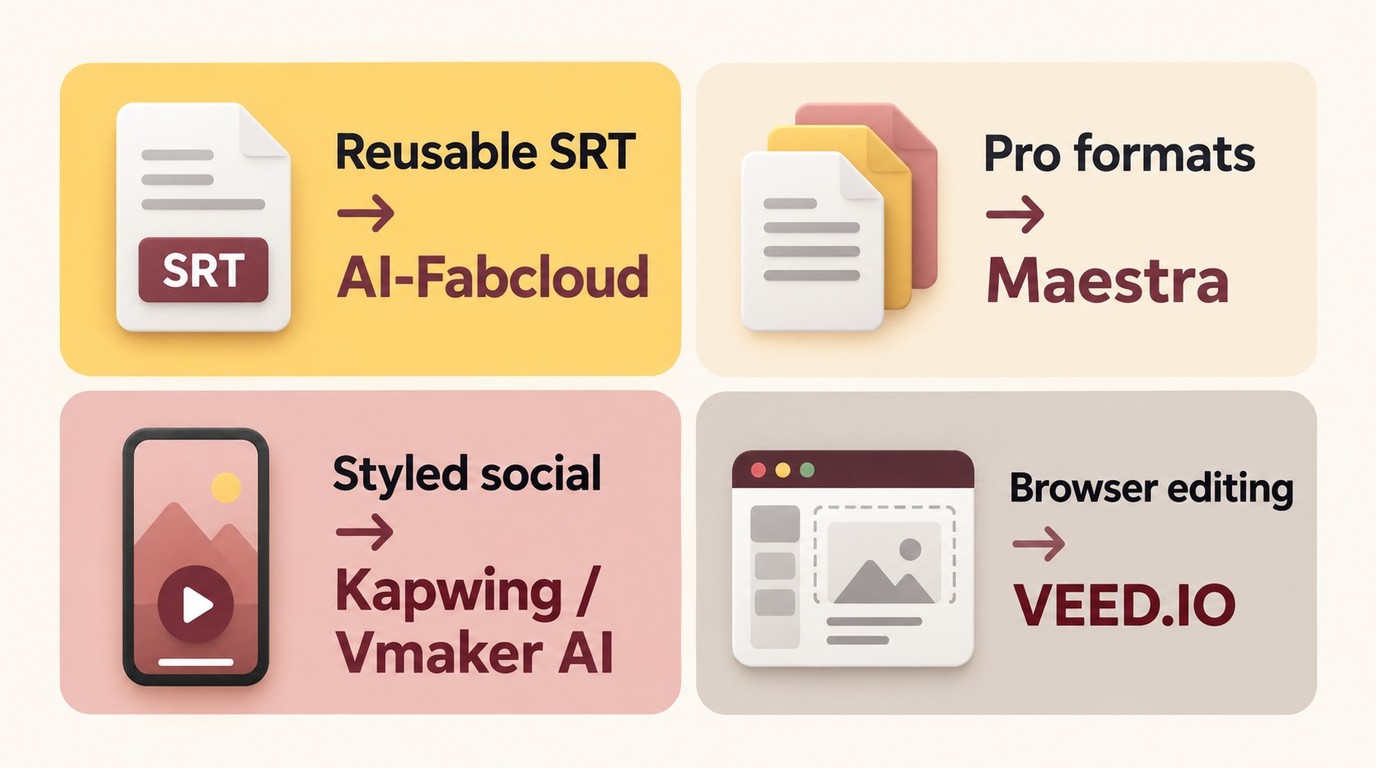
The right choice changes with the deliverable. I would start with the file you must hand off, then consider styling, language breadth, and privacy.
Standalone Subtitle Files
UniFab is SRT-focused, which fits editors who need a reusable SRT file, while Maestra fits editors who need more subtitle export formats. UniFab is less suitable for multi-format delivery; Maestra is less suitable when the one-minute sample is too short.
Styled Social Video
Kapwing and Vmaker AI are practical choices when the final deliverable is a styled video rather than a caption file. They are less suitable when a watermark or lack of reusable subtitle export blocks the next editing step.
Professional Export Formats
Maestra has the broadest listed format set in this comparison. It is a strong fit for caption interchange workflows, but the short sample allowance makes it a poor fit for longer no-cost projects.
Privacy-Sensitive Projects
A private subtitle workflow should begin with deployment and retention policy, not feature count. Browser-local tools process media on the device, while cloud tools upload it for server processing. Subtitle Generator AI-Fabcloud processes uploads on servers and saves tasks for fifteen days. For sensitive footage, use the official UniFab workflow documentation to select an organization-approved mode. The desktop AI Subtitle Generator uses Local + Cloud hybrid processing and FabCloud credits.
Local control is an alternative category, not a sixth ranked product. It can suit teams with strict data handling rules, but it may demand more setup, hardware, and technical ownership than a cloud tool.
Final Recommendations
No universal winner emerges from these five tools. UniFab and Maestra fit subtitle-file workflows, Kapwing and Vmaker fit styled social captions, and VEED.IO fits browser editing with layout presets.
The practical takeaway is to choose by deliverable: reusable subtitle file, rendered social video, professional interchange format, or a separately approved local workflow. Even capable AI-generated subtitles still need human review when names, accessibility, translation, or client delivery raise the cost of an error.
Translation is useful as a secondary tool feature, but readers planning multilingual video delivery can use an online video translator rather than treating this comparison as a translator ranking.
Free Subtitle Generator FAQs
Is a browser subtitle tool suitable for confidential videos?
Browser-local tools process media on the device, while cloud tools upload it for server processing; a desktop product may also combine local and cloud processing. Subtitle Generator AI-Fabcloud uses server processing, and the desktop AI Subtitle Generator uses Local + Cloud hybrid processing with FabCloud credits. For sensitive footage, I would favor a workflow approved by your organization and suited to the project's access and retention requirements.
Can free tools handle noisy audio and overlapping speakers?
They can generate a draft, but correction work rises with noise, crosstalk, accents, music, and specialized terms. Improve the source audio when possible, identify speakers manually, and review every line that affects meaning.
Can I upload an MP4 and download captions separately?
Yes, if the free subtitle generator for MP4 accepts the file and includes separate SRT or VTT export. MP4 input support does not guarantee caption-file ownership; some tools provide a rendered video instead.
Why can processing times vary between uploads?
Duration, file size, network upload speed, server load, device resources, audio complexity, language selection, and translation can all change processing time. If generation stalls, confirm that the upload completed, then retry the task in a supported browser.
What happens when a video exceeds the free allowance?
The upload may be blocked, transcription may stop at the allowance, credits may be required, or export may become restricted. Split the project only when that approach preserves timing and fits the service terms.
When should AI-generated subtitles get a human review?
Review is essential for names, technical terms, overlapping speakers, translated captions, accessibility-critical media, and client deliverables. Check punctuation, timestamp alignment, cue splits and merges, and readable line lengths before publishing. Automated output is a starting point; the final editor remains responsible for accuracy, timing, and meaning.