
AI video background remover software now ranges from local desktop tools to metered browser services, but the right choice depends on more than a one-click demo. Start by separating automatic AI matting from chroma key, then compare free limits, transparent video export, processing location, and the workflow that fits your footage.
The practical takeaway is simple: choose local video processing for private desktop work, an online video background remover for quick clips, or an integrated editor when background replacement is one step in a larger production.
Choosing AI Video Background Removal Software
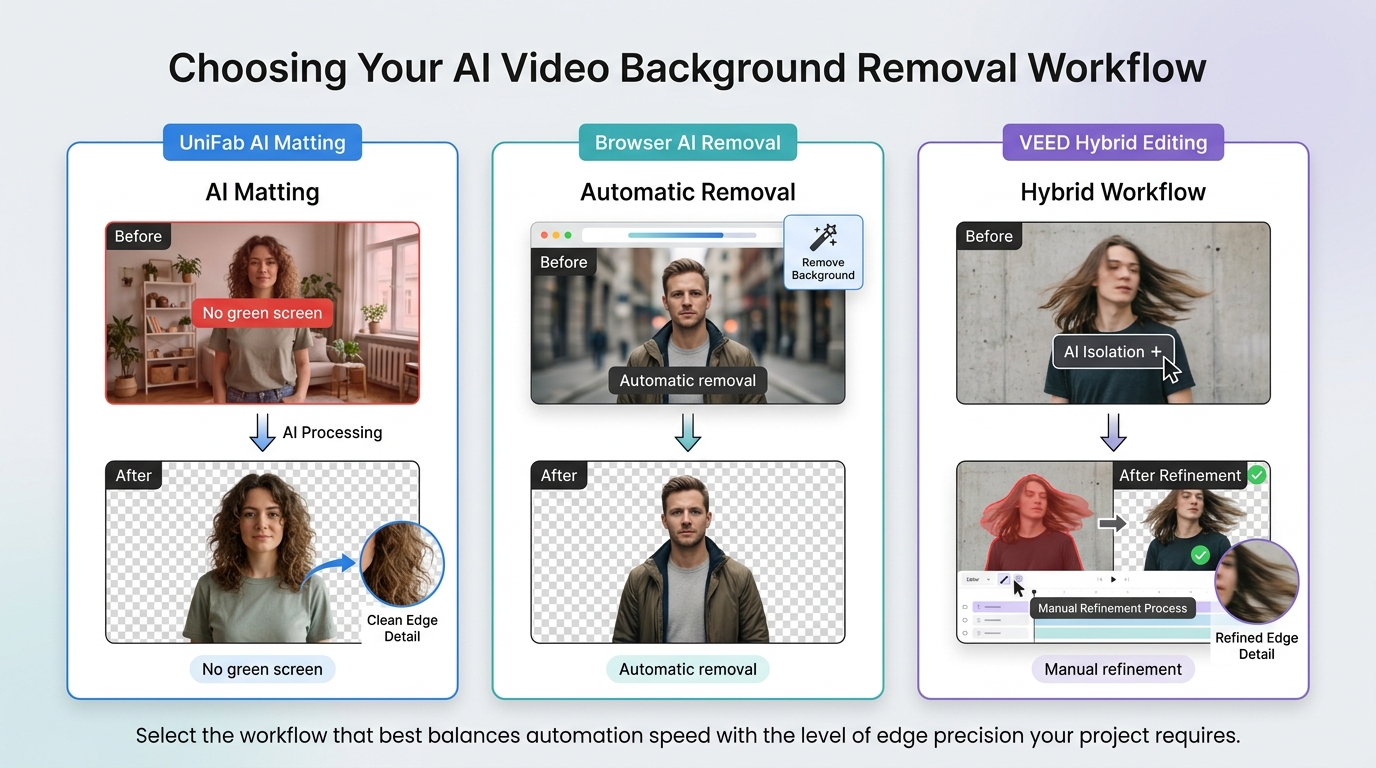
A useful background removal software comparison should judge output stability and restrictions, not the length of a feature list. Check whether the tool follows fine hair and motion across frames, where it processes files, what the free allowance covers, and whether it exports transparency or a composited background. If you need an iPhone or Android workflow, compare free mobile background-removal apps before choosing desktop-only software.
- Edge stability: Inspect wispy hair, semi-transparent fabric, motion blur, and low-contrast clothing.
- Output type: Confirm whether transparent video export uses an alpha-capable MOV or WebM, rather than an ordinary MP4 with a new background.
- Access limits: Separate a free preview from a full export, and note watermarks, credits, duration caps, file limits, and paid AI features.
- Processing location: Browser video background removal can run locally, in the cloud, or as a hybrid workflow. The free tool at unscreen.io processes video locally in the browser. EchoWave performs on-device analysis followed by server compositing; that workflow includes server processing.
- Cleanup controls: Look for Edge refinement or manual masking when automatic results need correction.
Test Clips and Scoring
For a fair AI video background removal test, run the same portrait, fine-hair, fast-motion, low-contrast, and 4K clips through every candidate. Equal source clips expose frame-to-frame flicker and export restrictions that product-page checklists can hide.
- Use one short clip for each difficult condition, including fine hair, quick movement, low contrast, compressed footage, and 4K input.
- Record processing time from import to usable export, while noting whether a cloud queue or local hardware affects the wait.
- Inspect Edge stability, holes in the subject, background remnants, motion trails, and visible compression.
- Log the actual output container, transparency support, resolution, watermark or credit trigger, and available cleanup controls.
- Repeat the export with a replacement color or image to confirm that the editor produces the format your project requires.
My editorial preference is to weight the representative stress clip more heavily than a long capability list. A remover that stays consistent on your real subject is a better fit than one with extra templates but unstable edges.
AI Matting, Chroma Key, or Hybrid
Automatic AI matting separates a subject from ordinary footage, while an AI green screen remover may refer either to automatic segmentation or to assisted chroma key. Chroma key still expects a controlled colored backdrop; hybrid editors combine both methods with manual refinement.
- AI matting: Suitable for existing footage without a prepared backdrop.
- Chroma key: Suitable when the footage was shot against an evenly lit green or blue screen.
- Hybrid workflow: Suitable when automatic separation needs hand cleanup around props, transparent materials, or rapid motion.
10 AI Video Background Removers
These video background replacement tools qualify because automatic subject separation is central to the workflow. Each entry also states a fit and a limitation, so the ranking does not treat every browser service or desktop app as interchangeable.
1. UniFab: Best for Local Desktop Processing
UniFab Video Background Remover AI is a Windows desktop option for local video processing. It applies automatic video matting without a green screen and offers preset replacement colors, including green-screen output.
The current product page describes unlimited free use, no watermark, no video-length limit, and preserved source resolution, but it does not document a transparent alpha export or batch processing for this module. Its module update is dated September 29, 2026.
Best fit: UniFab Video Background Remover AI suits Windows users who prefer files to remain on the computer and want a straightforward preset-color replacement workflow.
A browser workflow better suits a quick no-install task. UniFab requires Windows and local installation, uses the computer's hardware for processing, and does not document transparent MOV or WebM export; use the official product page above for its supported Windows workflow. Edit only footage you are authorized to use and follow applicable terms.
2. Videoleap: Best for iOS Background Replacement
Videoleap's Cutout feature is available on iOS and separates a subject for background replacement within the editor. It does not support transparent video export, so it fits projects that will be completed with a replacement background in the app.
Best fit: iPhone and iPad users creating a finished video with a replaced background.
Key limitation: projects that require an alpha-capable transparent video file need a different export workflow.
3. Picsart: Best for Creative Background Replacement
Best fit: creators who want fast visual restyling after removal.
Not ideal for: buyers who need predictable free allowances or a documented transparent container.
4. Descript: Best for Integrated Editing
Descript is most useful when AI video background removal belongs inside a broader editing process that also covers arranging scenes, captions, and spoken content.
Descript accepts MP4, M4V, and MOV input and can create a transparent cutout inside the editor. Finished videos with a replacement background export as MP4 or GIF; the in-editor transparent layer should not be treated as a documented alpha-video export.
Best fit: talking-head and presentation projects already edited in Descript.
Not ideal for: users selecting primarily by transparent format, metered removal cost, or granular matting controls.
5. Fotor: Best for Short 4K Clips
Fotor is a browser-based 4K video background remover for portrait footage, with MP4 and MOV input up to 60 seconds, 30 FPS, and 500 MB. It supports preset colors, a chosen color, or an uploaded image as the replacement.
The page advertises watermark-free output, but it does not specify the maximum export resolution or the exact free quota.
Best fit: short portrait clips that fit the documented upload limits detailed in the Fotor background remover guide.
Not ideal for: long-form footage or teams that need a transparent format clearly named in advance.
6. Media.io: Best for Simple Online Exports
Media.io accepts MP4 and MOV files in a browser and offers automatic portrait-focused removal with transparent WebM export.
The documented workflow centers on automatic separation and transparent export.
Best fit: users who specifically need transparent WebM from an online tool.
7. GStory: Best for Fast Social Content
GStory accepts MP4, WebM, MOV, M4V, MKV, and GIF uploads up to 5 GB and two hours. It offers gift credits after signup and transparent or solid-color background choices.
Best fit: quick experiments where a preview can confirm suitability.
Not ideal for: production teams that need contract-level output specifications before upload.
8. VideoBGRemover: Best for Pay-As-You-Go Use
VideoBGRemover is an online automatic service with unlimited preview uploads and a free preview for each video. Full-length, HD, transparent, and custom-background exports use prepaid credits instead of a subscription.
It accepts MP4, MOV, WebM, and GIF, supports videos up to 120 minutes, and offers transparent WebM, MOV ProRes 4444, image sequences, animated formats, and composited MP4. Replacement choices include solid colors, stock or uploaded images, and video backgrounds.
Best fit: occasional professional jobs that need predictable pay-as-you-go access or several alpha-output choices.
Not ideal for: frequent long projects, because per-minute processing can become expensive.
9. Cutout.Pro: Best for Transparent MOV Output
Cutout.Pro automatically removes backgrounds online and gives registered users a free five-second 360p preview. Paid credits are required for longer output, and the default transparent delivery is an alpha-capable MOV.
Inputs include MP4, WebM, MOV, and GIF up to 2 GB and 4K input. It can replace the background with a solid color, uploaded image, or uploaded video, then export the composited result as MP4.
Best fit: short jobs that specifically need transparent MOV or a quick visual replacement.
Not ideal for: people expecting a full free export or needing a clearly stated maximum paid export resolution.
10. VEED: Best for Creator Workflows
VEED combines automatic removal with a browser editor for text, layouts, stock media, and generated scenes. The remover can be tried once at no charge, after which continued use requires Pro.
Replacement options include brand colors, uploaded images, stock media, and generated image or video scenes. A transparent layer is available, but the public page does not name its final export container or publish file and duration caps.
Best fit: creators who want removal, captions, layout, and publishing assets in one online workspace.
Not ideal for: privacy-sensitive uploads or alpha-delivery pipelines that require an explicitly documented container.
AI Remover Specs and Free Limits
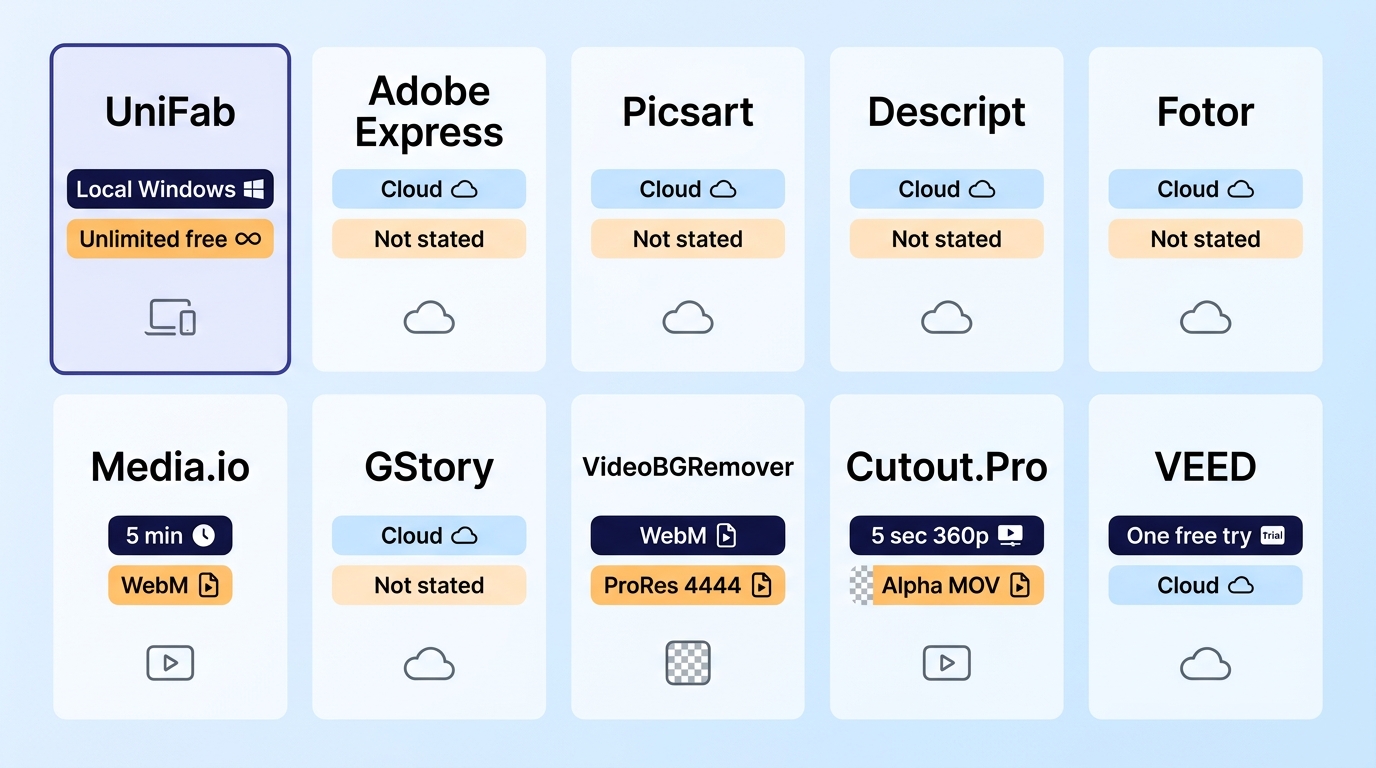
A free video background remover may provide a preview, credits, a time allowance, or a restricted export rather than unrestricted production use. The tables below compare each tool's primary workflow and final deliverable; preview access, audio, watermarks, and full-export rights remain separate conditions.
| Tool | Primary workflow | Export deliverable |
| UniFab | Windows desktop; local AI matting | Preset-color composited video |
| Videoleap | iOS Cutout and background replacement | Replacement-background video; no transparent export |
| Picsart | Browser AI removal and creative replacement | Composited video with color or image |
| Descript | Editor-based removal and scene design | MP4 or GIF after background replacement |
| Fotor | Browser portrait removal and replacement | Composited video with color or image |
| Tool | Primary workflow | Export deliverable |
| Media.io | Browser portrait removal | Transparent WebM |
| GStory | Browser automatic removal | Transparent or solid-color video |
| VideoBGRemover | Browser pay-as-you-go removal | Alpha WebM/MOV or composited MP4 |
| Cutout.Pro | Browser automatic removal and replacement | Alpha MOV or composited MP4 |
| VEED | Browser creator editor with automatic removal | Composited export; alpha container not specified |
Third-party workflow and export terms in these tables are summarized as of October 2026.
The free local-browser tool at unscreen.io exports silent WebM. A free preview, an internal transparent layer, and a finished export with audio are different deliverables.
Standard MP4 normally carries a replacement background after compositing, not an alpha channel. For a full walkthrough of MOV, WebM, and compositing choices, use the guide to how to make video background transparent.
Readers focused specifically on free methods can compare the dedicated free video background removal options.
Removing a Video Background in UniFab
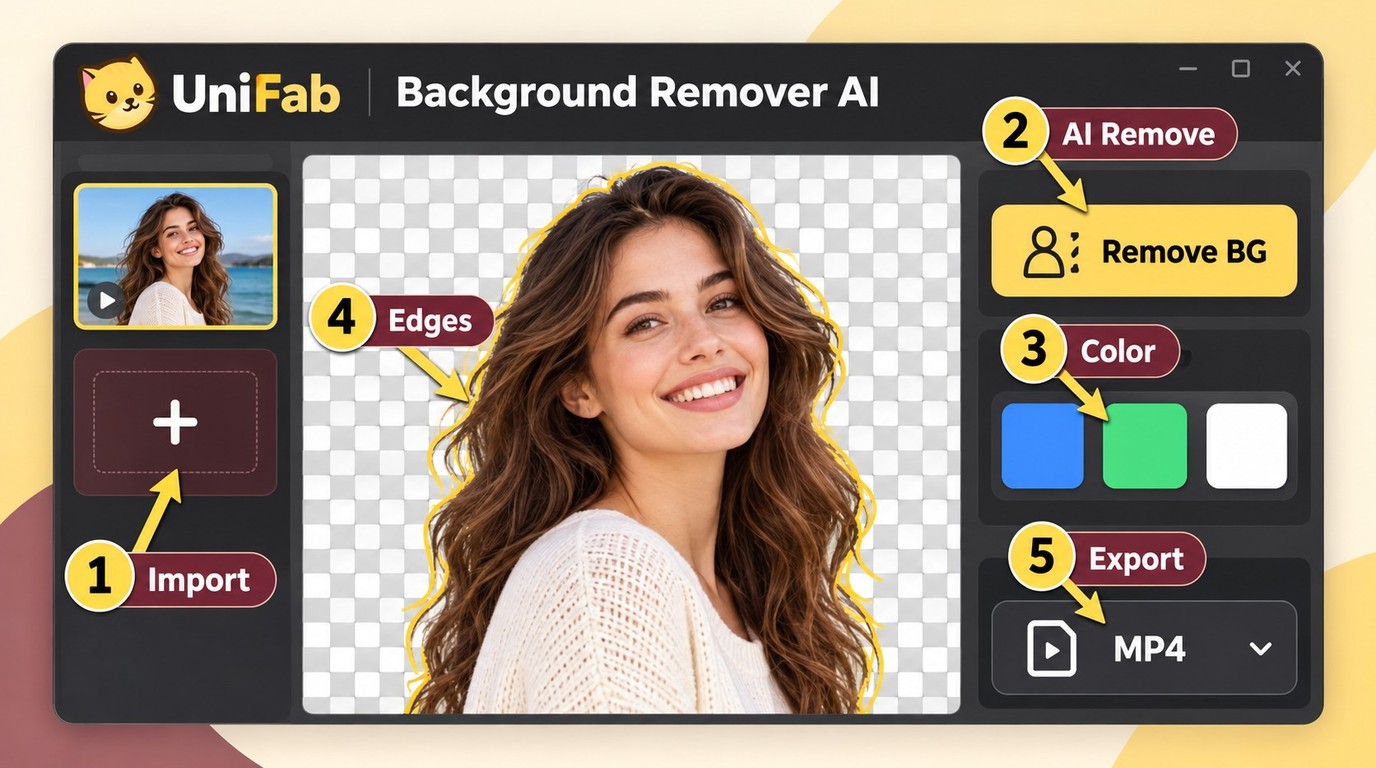
UniFab keeps AI video background removal inside a concise Windows desktop workflow for removing a background from video: import the clip, run automatic separation, choose a replacement color, inspect the edges, and export. Processing time depends on the clip, resolution, hardware, and subject complexity.
- Download and install UniFab on a supported Windows computer.
- Open Background Remover from the main workspace.
- Import the video and choose the clip that represents the final project.
- Run automatic processing so the software separates the foreground subject.
- Select a preset background color and preview difficult areas such as hair, hands, and motion blur.
- Export a short check before committing the full clip.
I would accept the install when private footage or repeated desktop work makes local processing more valuable than browser convenience.
AI Removal vs. Green Screen
An AI green screen remover is the easier choice for footage that already exists, while a controlled green-screen shoot gives an editor more predictable separation when lighting, wardrobe, and backdrop can be planned.
| Decision factor | Automatic AI removal | Green screen |
| Setup | Works with ordinary recorded footage | Needs a colored backdrop and controlled lighting |
| Difficult edges | May flicker on hair, blur, and low contrast | Can produce clean keys when the screen is evenly lit |
| Existing clips | Practical for footage that cannot be reshot | Useful only when the backdrop was present during recording |
| Control | Fast automatic start, with controls varying by tool | More manual adjustment for demanding compositing |
Chroma key can also remove wanted foreground details that share the keyed color; subject-aware selection or local masking can preserve those areas.
The sensible split is to use AI for speed and existing footage, then choose chroma key when the shoot can be controlled and Edge precision justifies the setup. A separate green screen editor comparison covers that workflow in detail.
Cleaner Edges and More Stable Results
A 4K video background remover has more image detail to analyze, but resolution alone does not prevent unstable edges. Fine hair, fast motion, compression, low contrast, and changing light can make a cutout shimmer between frames.
- Test the hardest moment first: use a short segment with hair movement, hands crossing the body, or a similar-colored background.
- Reduce avoidable blur: clearer source frames give the model a stronger boundary to follow.
- Preserve contrast: clothing that merges into the background can create holes or disappearing edges.
- Avoid repeated compression: block artifacts around the subject may be mistaken for the boundary.
- Use cleanup controls when available: feathering, Edge refinement, and manual masks can stabilize isolated problem areas.
- Check a sequence, not one frame: a good still can hide flicker that appears during playback.
My recommendation is to export a short representative clip before choosing a plan or processing a long file. That small check reveals more about temporal consistency than a polished sample made from easy footage.
Conclusion
The strongest AI video background remover software choice depends on processing location, verified limits, output format, and the rest of the editing workflow. No single tool leads every scenario.
- Choose UniFab when local Windows editing and preset-color replacement match the job; it requires installation, supports Windows rather than Mac, and does not document an alpha-output format.
- Choose Videoleap for an iOS Cutout workflow with background replacement when transparent video export is not required.
- Choose Picsart, Fotor, Media.io, GStory, Cutout.Pro, or VideoBGRemover when browser convenience matters, then match the service to your clip length, free allowance, and transparency requirement.
- Choose Descript or VEED when removal must sit beside captions, layout, and broader editing rather than operate as a separate task.
For a wider category view beyond this ten-tool AI shortlist, the video background remover comparison covers additional workflows. Choose the tool that passes your hardest sample clip and produces the exact deliverable your next editor or platform expects.
Frequently Asked Questions
Can MP4 Preserve a Transparent Video Background?
Standard MP4 normally does not preserve an alpha channel. Use an alpha-capable MOV or WebM for transparent video export, then create an MP4 after compositing a solid color, image, or video behind the subject.
Is Browser Processing Safe for Sensitive Footage?
A browser interface may process video locally on the device, in the cloud, or through a hybrid workflow that combines on-device analysis with server processing. For sensitive footage, choose a workflow that explicitly keeps the source on the device, such as UniFab's local Windows desktop workflow; cloud and hybrid services also involve their storage and retention terms.
Can I Process Multiple Clips Without Extra Credits?
Batch support and AI credits are separate limits. A video background remover no watermark may still meter minutes or full exports, so use the tables to distinguish previews, time allowances, credits, and desktop access before planning multiple clips.
Why Do Hair Edges Flicker Between Frames?
Hair flicker usually comes from fine detail changing between frames, especially with motion blur, compression, low contrast, or uneven lighting. Test a short moving sequence and favor tools with stable temporal processing or manual Edge cleanup.
Do These Tools Work for Live Video Calls?
The tools in this comparison primarily process prerecorded clips. For live camera feeds, use the conferencing app's real-time background feature.
Will a free video background remover keep my audio?
Not necessarily. The free local-browser tool at unscreen.io exports silent WebM, so that export does not retain the source audio. Free access, audio retention, watermark removal, and commercial-use permission are separate conditions.