A TikTok subtitle generator turns your video's speech into timed text. If you need captions for a TikTok post, use the app's Creator captions; if you need an editable file, use an SRT generator. A free subtitle generator must deliver the output your project needs.
I would treat a blocked export as unfinished work. A transcript on a screen still leaves you without a usable file. Below, I'll separate TikTok publishing from subtitle-file handoff, then show where to check the result.
Choose Between TikTok Captions and a Downloadable SRT
Use TikTok captions when you want spoken words displayed on your post. Choose a separate SRT when you need timed text to correct, share with an editor, or reuse outside the app. Downloading an SRT does not put visible captions into your video.
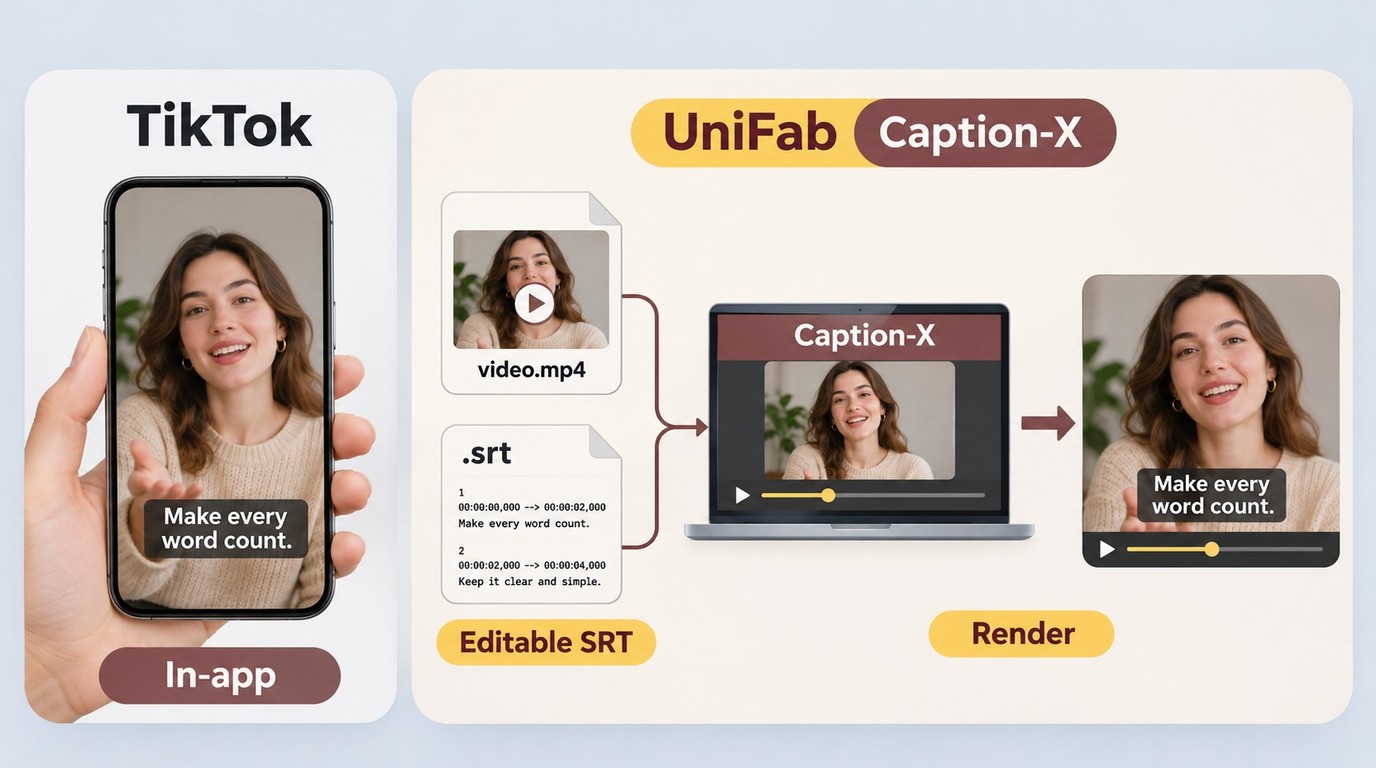
“Captions” has several meanings here. Speech captions follow the dialogue; a post caption is the written description beside your video. Viewer caption settings control how existing captions appear during playback. They do different jobs.
| Workflow | Where It Starts | Result | Editing Boundary |
|---|---|---|---|
| Creator captions | TikTok preview | Captions on your TikTok video | Line edits, font, and color |
| Auto-generated captions | Posting options | Captions on eligible videos | Language choice; edits after posting |
| SRT workflow | External subtitle generator | Separate timed-text file | Compatible editor for rendered video |
TikTok documents the native-caption controls in its accessibility guidance for creators.
The practical split is publication versus handoff. Native captions suit an in-app post; an SRT suits a project where someone still needs to edit the text or render it into the picture. SRT stands for SubRip Subtitle: a text file containing caption text and start/end times.
Free generation is useful only when the export fits. One r/VideoEditingTips poster wanted a tool to “let me export it without a paywall.” I would judge a free AI subtitle generator by that finished output, rather than its first preview.
Settle the export type before uploading. Then compare your source file with the upload-size limit and distinguish subtitle downloads from video exports. A text file has no video image on which to place a watermark; that tells you nothing about a separate video-rendering plan.
Before either route, prepare a video you own or are authorized to use, with discernible speech. Know the spoken language and decide whether you need a TikTok post or a subtitle file. Readable captions help you follow speech without sound; they are no guarantee of more views.
How to Add Subtitles With TikTok Creator Captions
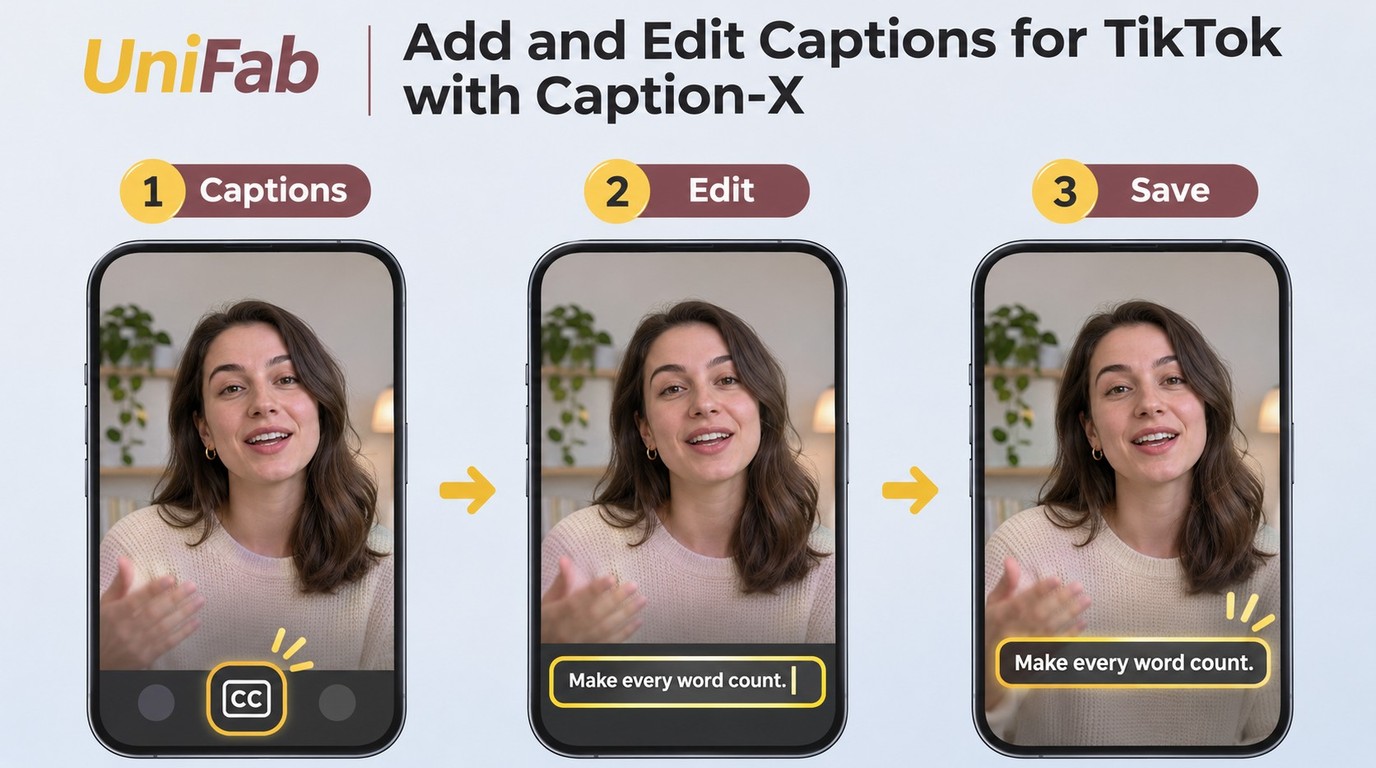
To add Creator captions, open your video in TikTok's preview, select Captions, and let the app transcribe the speech. Review the lines and appearance before saving and posting. This is the creator workflow, rather than the setting viewers use to show captions.
Generate Creator Captions From the Video Preview
Your source audio needs to carry the words you want captioned. Play the clip before you begin, especially if music overlaps the speaker or the video contains a quiet introduction. Listen for names and technical terms that will need close attention during review.
- Open TikTok and record or upload your video. Use the source clip with the spoken audio you want transcribed, then continue to the video preview.
- Select Captions in the preview. Let TikTok process the speech and display the generated text. Check that the dialogue has been captured before you spend time styling it.
Generation gives you a draft to review. I would correct a speaker's meaning before changing the font: a readable wrong word still misleads the viewer. Keep the original audio available as your reference rather than correcting from memory.
Correct Words and Check Caption Placement
- Review and correct each caption line. Compare the text with the audio, including names, numbers, and words that reverse a sentence's meaning. Watch the captions against the speech to spot lines that appear at the wrong moment.
- Adjust the available font style and color. Preview the text over both bright and dark shots. Keep it clear of faces, demonstrations, and areas covered by the app's controls or banners.
- Save, replay, and then post. Reopen the captioned preview and confirm that the corrections remain. Read it on your phone at normal playback speed before committing to the post.
Saving deserves a separate look. A creator in r/tiktokcreatorclub wrote that “all of my edits have NOT been saving at ALL!” That is an individual experience, rather than proof that the feature has stopped working. It is a good reason to inspect the saved result before publication.
Placement needs the same care as spelling. Watch a busy shot and a quiet shot; text that reads well against a plain wall might disappear against clothing or scenery. Use the phone preview to judge visibility instead of assuming a fixed pixel margin will fit every screen and interface overlay.
This mobile workflow covers the creator task without inventing a matching desktop button. If you're dealing with overlapping caption layers or need more control over placement, adding captions on TikTok involves checking the final display as well as the transcript.
How Auto-Generated Captions Differ
Auto-generated captions follow a separate official route. For eligible uploads, TikTok lets you set the video language under More options on the posting screen. After publication, open the captions on your video, choose Edit captions, make the corrections, and save.
Keep those controls distinct. The posting-screen language choice belongs to auto-generated captions; the preview-screen Captions control belongs to Creator captions. For an in-app publishing task, I would finish the native caption review before adding an external file workflow.
How to Download an SRT With Caption-X
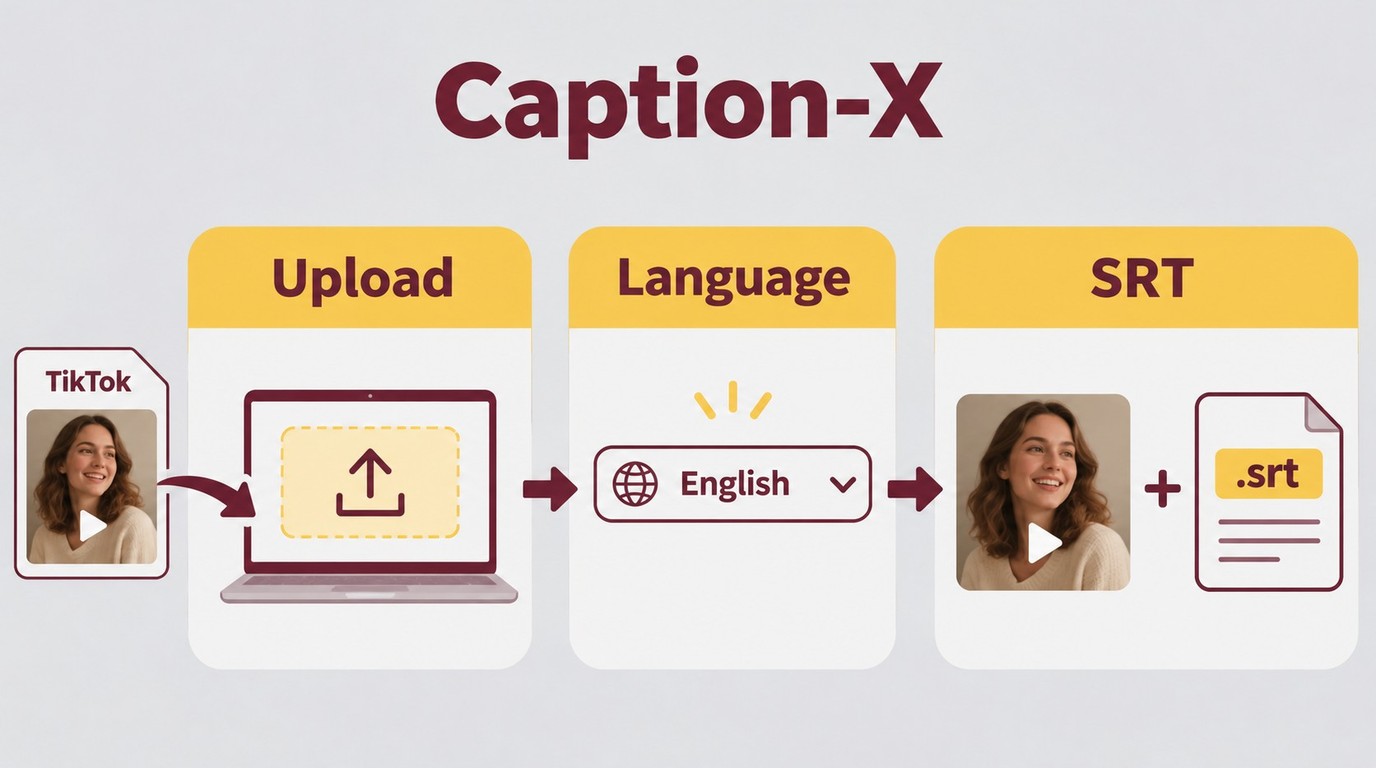
To get an SRT from Caption-X TikTok Caption Generator, upload a source file, generate its captions, and save the download. As of November 2026, the free web uploader accepts MP4 or MP3 files up to 25 MB. It suits a small clip needing timed text; a larger source falls outside that uploader's stated limit.
- Upload your file to Caption-X TikTok Caption Generator. Choose an MP4 video or MP3 audio file within the upload limit. Use the source that matches the edit you intend to caption.
- Set the caption language and generate. Use the language selector to match the speech, then select Generate Captions & Download SRT. The result is a subtitle file, rather than a captioned video export.
- Save the downloaded SRT. The page provides an automatic download and a Download Again control. Put the file beside its matching source clip so the editor receives the correct pair.
Follow the applicable platform and tool terms, and process only content you own or are authorized to use. You remain responsible for how you use that content.
Review the SRT Before the Editing Handoff
Open the downloaded file before handing it over. A poster in r/VideoEditingTips put the need plainly: “i just need timecodes + text, i’ll fix the wording myself.” An SRT gives you those pieces, but you still need to compare its words and timing with the clip.
The free webpage and Caption-X's separately offered editor plugin are different entries. Do not assume the uploader includes the plugin's styling or animation features. I would use this route for a subtitle-file handoff, with rendering left to a compatible editor.
For visible text in the final picture, adding subtitles to a video includes importing and rendering the subtitle track. The downloaded SRT is the handoff, not that finished video.
When UniFab Subtitle Generator Fits an SRT Workflow
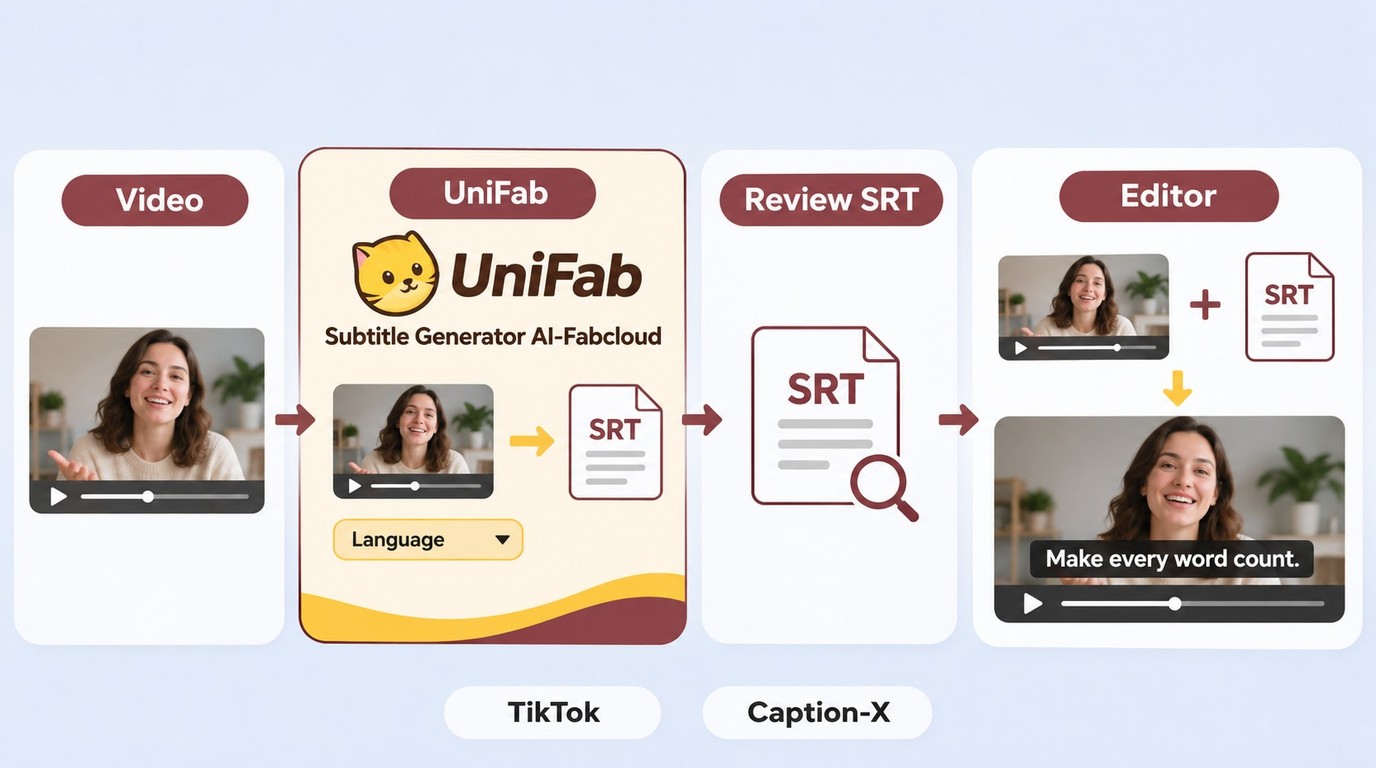
Subtitle Generator AI-Fabcloud fits you if you need a separate subtitle file on Windows or macOS for correction and an editing handoff. It outputs downloadable SRT files, so you can keep the timed text with your source footage rather than leave the transcript inside a posting screen.
I would use this file-based workflow when a collaborator needs to review the wording before the video is finished. The SRT gives that person text and timing to work with. Keep it beside the corresponding source clip, and identify the revision when you return a corrected copy.
The audio-track language selection helps you match the transcription task to the speech. For a project that starts with a high-resolution source, support extends to 4K video. That describes the source footage; the subtitle output remains a text file, not a new video-resolution setting.
The SRT still needs layout and rendering in a compatible editor to become visible captions in your finished video. Carry the source clip and subtitle file into that editing stage together, keeping the original timing intact. This is the fit distinction I would make: subtitle-file preparation here, finished picture captions in the edit.
You can start that file workflow with Subtitle Generator AI-Fabcloud and retain the downloaded SRT for the next editing pass.
TikTok Subtitle Generator FAQ
Creating captions, translating text, and showing captions during playback are separate tasks. These answers cover the file handoff and account questions that remain after generation.
Can I Upload an SRT or VTT File Directly to TikTok?
Answer: Use a compatible editor to render file-based subtitles into your video before uploading; the TikTok creator workflow described above uses its own caption controls. An SRT or VTT is a separate timed-text file, rather than a captioned video. Match the file format to your editor's import support, then preview the exported video. Renaming an .srt extension to .vtt is not a format conversion. I would keep the editable subtitle file even after rendering, so later wording changes do not require starting over.
Does Selecting a Language Translate My TikTok Subtitles?
Answer: Selecting the spoken language tells a transcription tool what speech to recognize; translation changes that text into another language. They are different operations. For example, choosing English for an English voice track does not request Spanish subtitles. If your audience needs another language, use a translation workflow and review that translated text against the meaning of the original. I would give names, idioms, and technical instructions particular attention before publishing.
Do I Need to Sign In to TikTok Through a Subtitle Generator?
Answer: No TikTok account sign-in is needed for the Caption-X source-file upload described here. Uploading your own MP4 or MP3 is separate from granting access to a social account. If another service connects directly to TikTok, distinguish its own login from a TikTok authorization screen and read the requested permissions. For this file-based task, I would keep the source-file handoff separate from account publishing; generating text does not require the generator to post the video for you.
How Do I Turn On Captions While Watching TikTok?
Answer: On a post that contains captions, open Share, choose Captions, and turn on Show captions. That controls playback of existing captions; it does not generate a subtitle file or edit the creator's wording. If you're preparing your own post, return to the creator workflow instead. I would call the task complete when viewers can read the published captions, or when your editor has the reviewed subtitle file, depending on the output you set out to make.