For your own upload, YouTube Studio is the starting point: generate automatic captions, correct them, and publish the track. If you need a YouTube subtitle generator that delivers a separate file, a free subtitle generator is useful when its allowance covers your whole video.
Consider a hypothetical ten-minute tutorial ready for upload. You need captions through the last sentence, not a preview that stops halfway. I consider a correct, synchronized ending a better sign of a finished job than a convincing opening screen. Here is the route from an automatic draft to a published track, with file-based options when you need them.
How to Generate and Publish Captions in YouTube Studio
For a video you manage, YouTube Studio lets you review automatic captions, publish corrections, or upload a prepared subtitle file. Automatic captions are a draft to check, even when they are already visible on the video.
Have the right channel open before you begin. You need permission to edit the video, an uploaded video, and the correct video-language setting. Use the final edit: captions timed to an earlier cut will drift after an introduction or scene is removed.
Missing the menu is a different problem from missing captions. One Reddit poster in r/NewTubers wrote, “However, there is no Subtitle section on the left, nor anywhere else.” That describes their navigation problem, not a removal of the feature. Work in Studio for the channel that manages the upload.
Generate and Review the Automatic Caption Track
YouTube generates the automatic track; you do not upload an SRT to start that process. Its automatic-captioning guidance explains that processing takes time and that speech recognition needs review.
- Sign in to YouTube Studio with the channel that manages your video.
- Select Subtitles, then select the uploaded video.
- Find the automatic caption track for the video's default language. If it is not ready, allow processing time.
- Review the words and timestamps against the playback, checking names, sentence breaks, and the beginning and end.
For the hypothetical tutorial, I would judge the draft by whether it preserves the instructions accurately. A mistaken “do” instead of “don't” matters more than a missing comma. Check technical terms against your script, and check words where music or another speaker overlaps the narration.
An absent track needs diagnosis, not repeated uploads. YouTube lists processing delays, unsupported languages, poor audio, long opening silence, and overlapping speech among the reasons automatic captions fail to appear. Check the language setting and listen to the source audio. With multiple language audio tracks, the automatic captions use the default language; selecting a different soundtrack is not a request to generate every language's captions.
Publish Corrections or Upload a Prepared Caption File
Corrections need their own publishing step. YouTube's caption editor creates a revised track when you edit automatic captions.
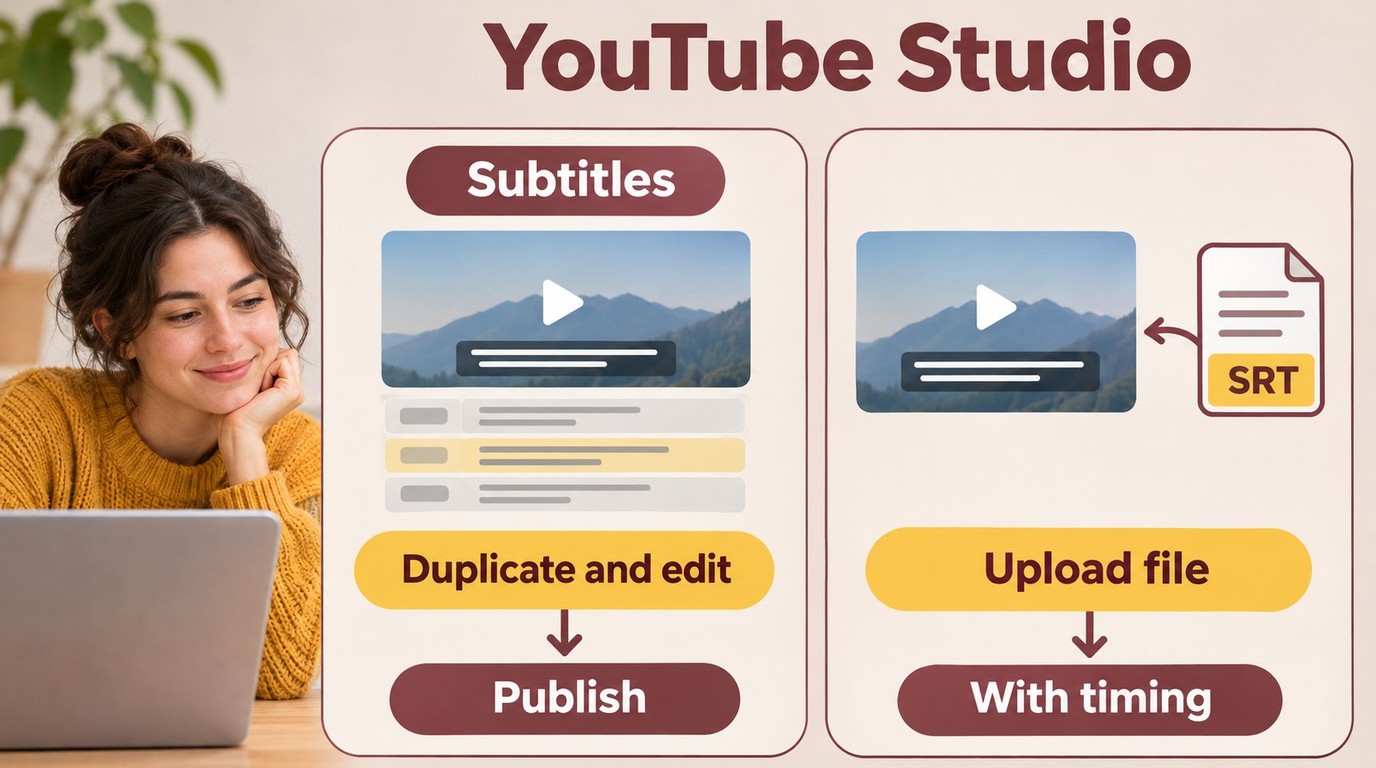
- In the video's subtitle-language row, select Edit; for automatic captions, choose Duplicate and edit and continue into the draft.
- Correct the text and adjust timestamps where speech and captions do not line up.
- Select Publish, then check the captions on the video.
I would keep working timing intact while fixing spelling. Replay the affected passage after a timestamp change so that a correction does not introduce a new gap.
A prepared SRT takes the file-upload route instead. YouTube's subtitle-upload workflow accepts files with timing information:
- In Studio, select Subtitles and your video, then add the subtitle language if needed.
- Under Subtitles for that language, select Add, then Upload file.
- Choose With timing, then Continue.
- Select your prepared caption file and Save.
- Replay the video with that language selected, checking that the intended track appears.
Auto-sync is a separate option for a transcript without finished timing. The transcript must match the spoken language and use a language supported by YouTube's speech recognition. YouTube discourages this route for videos over an hour or with poor audio. For the ten-minute tutorial, a clean same-language script is a useful starting point, but added or omitted narration still needs correction.
Free Browser Generators: Caption X and Choppity Compared
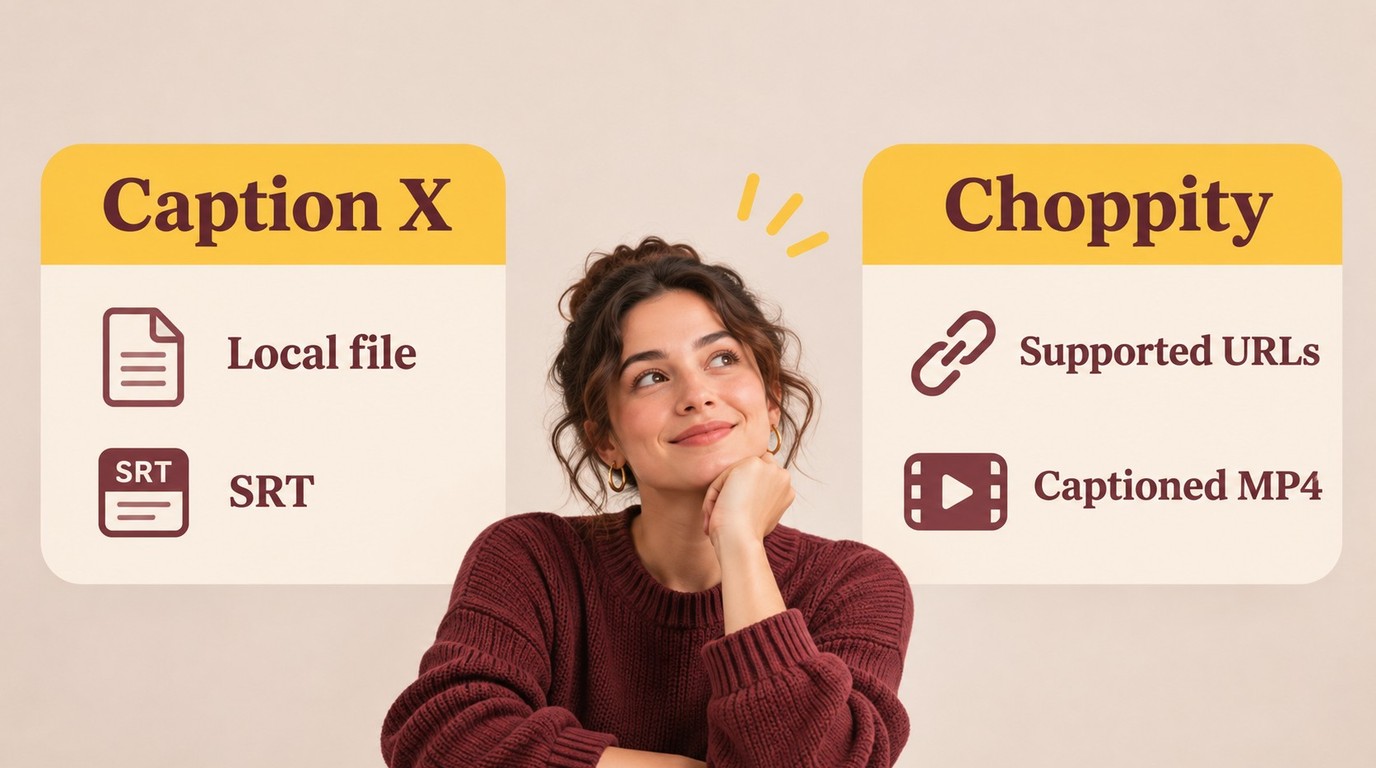
Caption X fits small local files that need an SRT; Choppity adds supported video-link input and captioned-video output. For a free AI subtitle generator, the useful allowance is the one that reaches your required download.
Choose by Input, Export, and the Free Limit
| Tool | Free allowance | Input | Output | Fit and trade-off |
|---|---|---|---|---|
| Caption X | First 5 SRT files; account required | Audio or video; 25 MB maximum | SRT | Small-file drafts; size and account limits |
| Choppity | Subtitle generation up to 30 minutes | File or supported URL; uploads up to 10 GB | SRT, VTT, captioned MP4 | More output choices; free generation has duration cap |
Allowances and outputs: each listed tool's official page, as of November 2026.
I would choose Caption X for a small file and Choppity when the input or output calls for it. Neither allowance establishes which tool recognizes your narration better.
Caption X provides a browser-based file-to-SRT workflow. The downloadable text file is its strength for Studio uploads; it does not put styled words into the video picture. The free allowance includes the first five SRT downloads with an account, rather than just an on-screen transcript preview.
- Upload an audio or video file within the size limit and sign in with the required account.
- Select the spoken language for same-language transcription, then generate subtitles.
- Download the SRT and correct its text and timing before publishing.
It suits occasional, small-file work. Our hypothetical tutorial's length alone does not establish whether it fits: inspect the actual file size before uploading. A video export above the limit needs another input route; counting minutes is not enough.
Choppity supports a video file or a supported URL, then offers separate subtitle files or a burned-in MP4. That output choice suits you when the same project needs selectable captions and text visible in the picture. Its free-generation description covers the hypothetical ten-minute tutorial, but not a video beyond the stated duration cap.
- Provide your video file or a supported video URL.
- Choose the spoken language, generate captions, and review the wording and timing.
- Choose SRT or VTT for a subtitle file, or captioned MP4 for text embedded in the video.
Treat free generation and video export as separate decisions. If you need MP4, inspect that export option for charges or branding before rendering; do not infer its terms from a free transcript preview. For Studio, a separate SRT avoids turning editable text into permanent pixels.
Process only videos you own or are authorized to use, follow the platform's and tool's applicable terms, and take responsibility for your content permissions.
What Makes an SRT File Ready for YouTube?
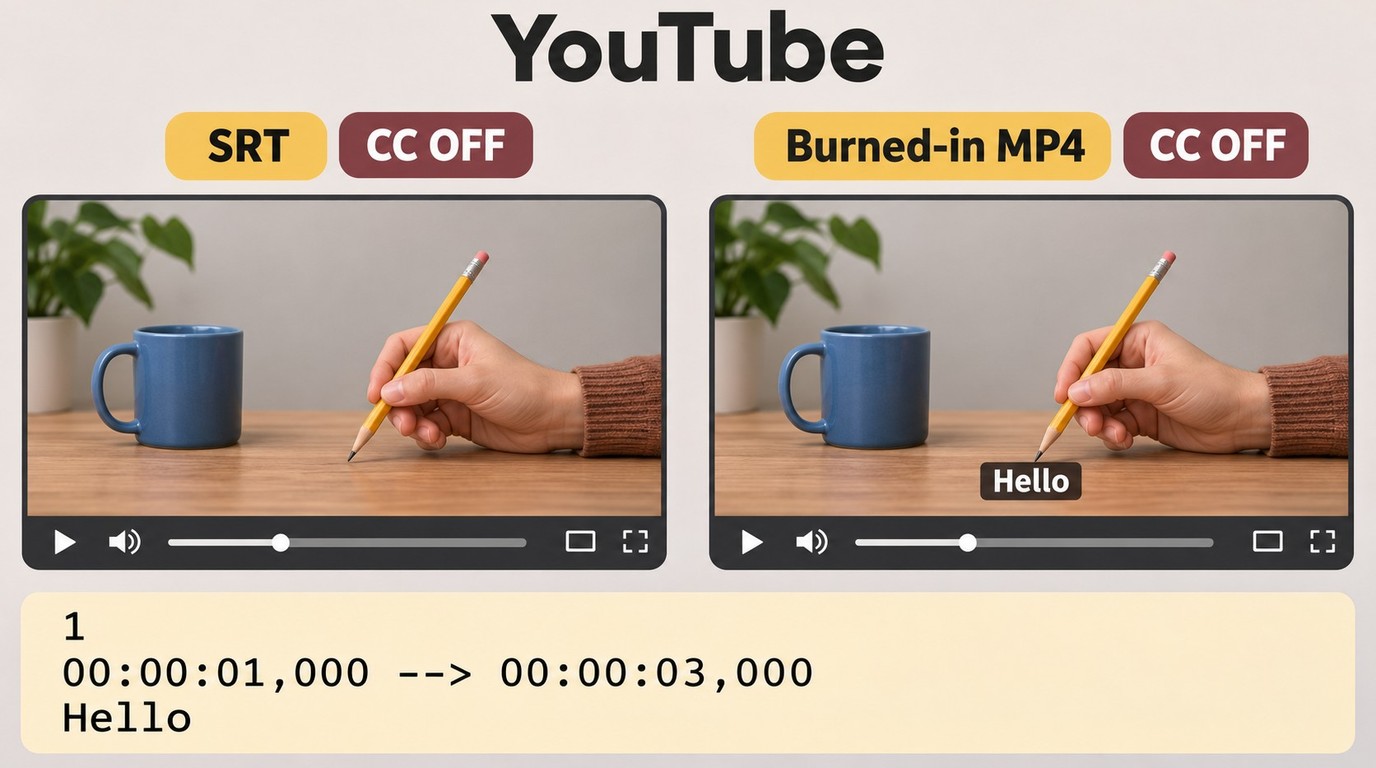
YouTube accepts basic SRT files in plain UTF-8, containing caption text and valid timing information. It ignores SRT style markup, so fonts, colors, and animations from a generator's preview do not transfer with that file.
A rough timed draft is still useful. One Reddit poster in r/VideoEditingTips asked, “is there ANY tool that can generate a rough SRT i can just clean up instead of building from scratch?” I would accept that draft as the start of editing, not the end of publishing.
Timed Text and Burned-In Captions Serve Different Purposes
An SRT remains a text track. YouTube's supported-caption formats distinguish basic SRT from formats with additional styling support; VTT does not promise full preservation of a web editor's design either.
Use these acceptance checks on the final tutorial:
- The
.srtfile contains numbered cues, start and end timestamps, and caption text. - The text is saved as UTF-8, rather than a word-processing document renamed
.srt. - The beginning, middle, and ending match the final video's speech.
- Names, punctuation, and line breaks remain readable during playback.
The ending check catches a draft that stops early. Keep the subtitle file paired with the exact video cut it describes.
Burned-in captions serve a different purpose: the words become part of the image. When you add subtitles to a video, that approach preserves their visual design, but viewers cannot switch those pixels off. Choose a separate track for selectable captions; choose embedded text when its appearance is part of the edit.
When UniFab Subtitle Generator Fits Your Workflow
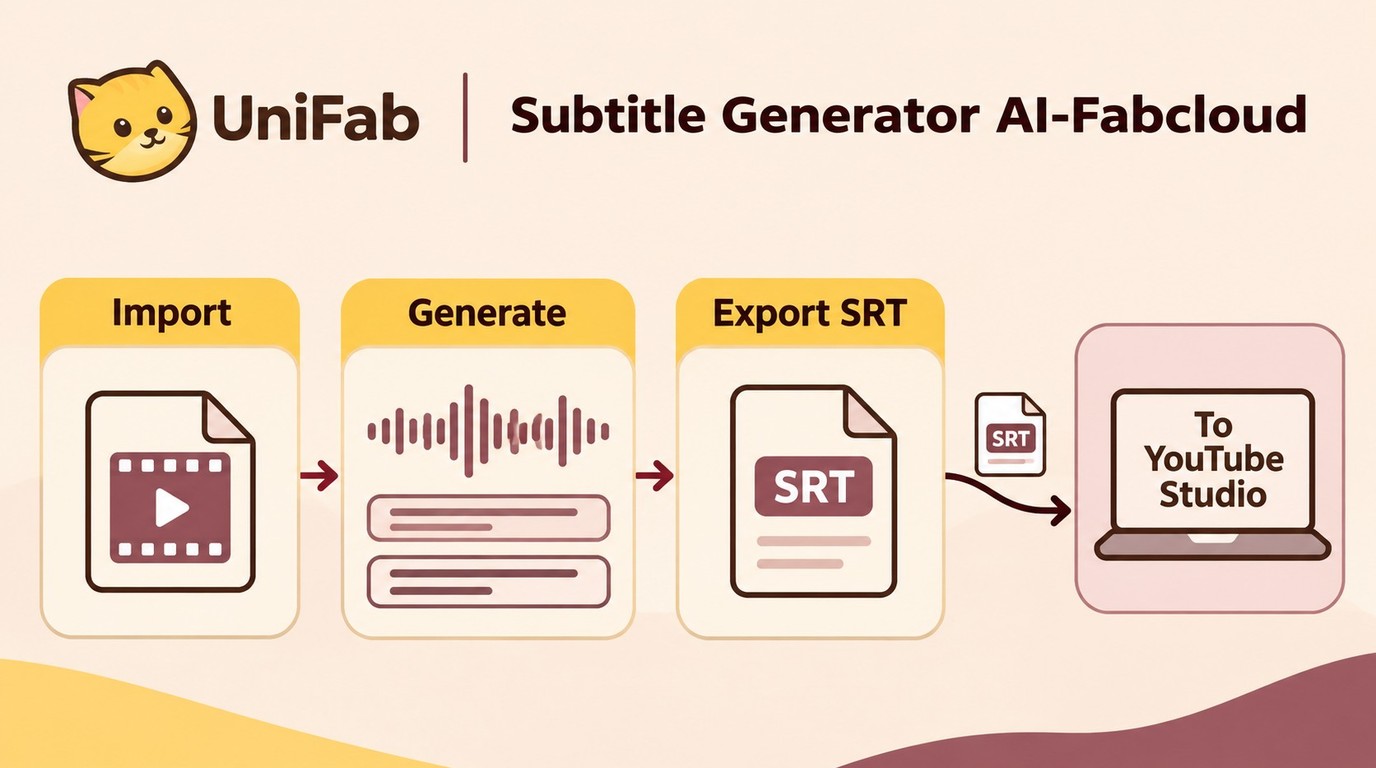
Subtitle Generator AI-Fabcloud supports video up to 4K on Windows and macOS and exports editable SRT subtitle files. I would use that file for corrections before publishing.
- Import your video in the Subtitle Generator module.
- Generate captions from the imported video.
- Export the SRT for review.
Video-resolution support is not a subtitle-accuracy score. Audio-track language selection chooses the input, not a translation.
Export is SRT-only, so finish with Studio's file-upload route. New accounts receive 30 FabCloud credits; cloud tasks use credits.
Begin this SRT workflow with Subtitle Generator AI-Fabcloud.
YouTube Subtitle Generator FAQ
Video access, translation, and extension permissions are separate questions. A subtitle file does not give you editing access to another channel, and selecting an audio language does not translate its speech.
Can I Generate Subtitles for Someone Else’s YouTube Video?
Q: Can I create captions without managing the channel?
A: You cannot edit that video's Studio caption track without the relevant channel permissions. For a separate project, work from a video file the owner supplies or an input the tool supports. Retrieving an existing caption track is different from transcribing the audio again: existing captions might include speaker labels or sound descriptions absent from a fresh speech-to-text draft. I would ask for the existing track first when preserving those details matters.
Can I Generate English Subtitles from Speech in Another Language?
Q: How do I turn non-English speech into English subtitles?
A: Transcribe the source language correctly, then translate the text while preserving its cue times. Japanese speech needs Japanese recognition before an English translation; choosing an English audio-track label is not that process. When you translate YouTube videos, review names, meaning, and reading speed in the translated track. A sentence that fits its original timing might become harder to read in English. Keep the source transcript available for corrections.
Do Subtitle Extensions Need Access to My YouTube Account?
Q: Do I need a browser extension for these workflows?
A: No extension is required for Studio or the browser file-upload workflows described here. An extension's account access is defined by its requested permissions, not by the phrase “subtitle generator.” If you choose one, read the permission request and distinguish access to a page from permission to manage your channel. I would avoid granting channel-management access for a task that only needs an uploaded file.
Choose a Workflow You Can Finish
For a video you manage, Studio completes the caption-publishing task; a file generator fits when you need a separate editable track. For the hypothetical ten-minute tutorial, choose an allowance that covers the full input and the output you actually need. I would call the job finished when the captions are corrected, synchronized through the ending, and visible on the published video. Keep the distinction between a selectable subtitle track and text embedded in the picture clear throughout the edit.