To translate video to English, use caption translation for on-screen text or a file translator for English subtitles and dubbed audio. If you’re trying to understand a Spanish lesson without paying for unnecessary editing, the distinction matters: YouTube captions help you watch; file translation produces a separate deliverable.
I would judge a translated lesson by whether you can follow its instructions, not whether its voice sounds convincing. A fluent sentence can still change the meaning. That is why I separate the English script from its presentation. Below, I’ll walk through file translation, show the shorter YouTube route, and explain where a Windows translation app fits.
Choose English Subtitles, a Transcript, or Dubbing
Choose English subtitles to read along, a transcript to work with the text, or dubbing to hear English speech. Translating captions does not change the spoken audio, and translating a transcript does not automatically create timed subtitles.
| Output | What Changes | Keeps Original Speech? | Best Fit |
|---|---|---|---|
| English subtitles | Timed text on screen | Yes | Watching with captions |
| English transcript | Written text | Audio stays unchanged | Reading or editing |
| English dubbing | Spoken audio track | New English track | Listening in English |
Source: YouTube’s Help Center explains caption controls, subtitle files, and automatic dubbing; Google Translate Help covers written text and image text. As of November 2026.
For a Spanish lesson, I would keep the original speech and add subtitles when pronunciation matters. Use a transcript for notes, or English dubbing when you need to listen without watching the screen. Lip sync changes how a talking face looks; it does not establish translation accuracy.
The budget question is concrete. One Reddit poster in r/machinetranslation wrote, “I want an app or website that, for example, takes a video and adds subtitles (CC) from Spanish to English, and so on”. That request needs translated captions, not necessarily a new voice.
Take the file workflow below if you need a reusable English version of your own lesson. For viewing an existing upload, jump to the YouTube section. Text already printed inside the picture needs image recognition, covered in the final FAQ.
Translate a Video to English With Vozo
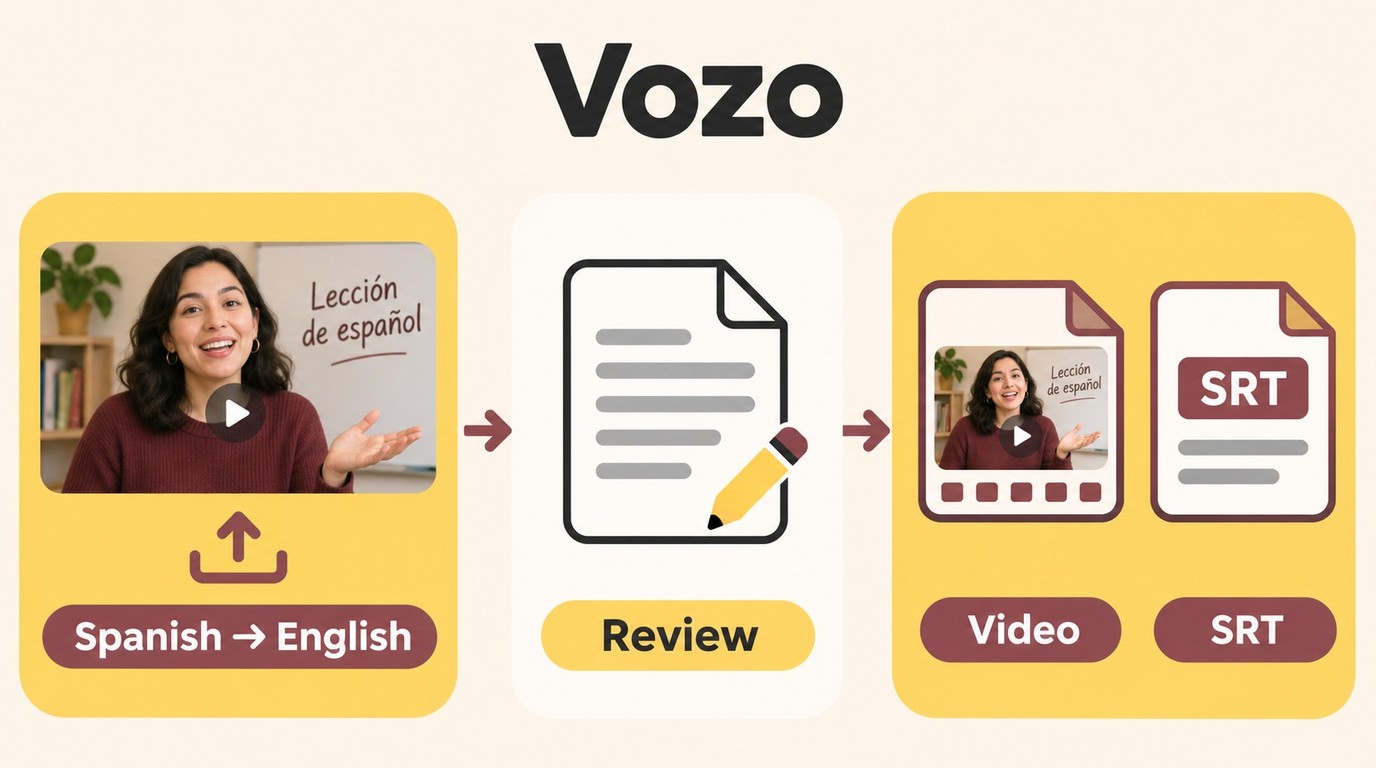
Vozo Video Translator provides an upload, language-selection, script-review, and export workflow for creating an English version of a video. Choose translated subtitles or dubbed audio for the result you need; lip sync is optional.
Prepare a Vozo account, your own lesson video or one you have permission to upload, and enough processing allowance for the task. You also need a supported source language and access to the intended export features. Allow room for the downloaded result. Keep the original file unchanged so you can return to it during review.
Upload Your Video and Set English as the Target
- Upload the lesson to Vozo Video Translator. Confirm the source language against what the speaker actually says. For our Spanish lesson example, select Spanish rather than assuming the detected language is correct. The same check applies to Japanese, French, Hindi, Chinese, or another source language offered in the selector.
- Set English as the target and choose your output. Use the subtitle option when you want the original speech with English text. Choose dubbed audio when you need spoken English. Confirm that your account includes the selected output before processing the full lesson.
The practical choice is whether your audience needs to read or listen. For a language lesson, subtitles preserve the teacher’s pronunciation. For an instructional lesson heard while following a demonstration, a dub removes the need to keep reading the screen. Neither format fixes an incorrect translation.
A short excerpt makes review manageable. I would choose a passage containing the lesson’s key terms before committing to the full recording. Treat that excerpt as a quality check within your allowance, rather than splitting a long video to evade an account limit.
Review the Script, Then Export the English Version
- Generate the English script and correct it in Vozo’s review stage. Compare the text with the source speech. Fix names, quantities, units, and sentences where a negative changes the instruction. If the source transcript mishears a word, resolve that error before polishing the English. Then prepare the dubbed version if needed, and apply optional lip sync when the speaker’s face makes timing important.
- Preview the result and export the deliverable. Check caption timing, speaker changes, and audio against the picture. Download the translated video for playback. Vozo also offers SRT export: choose that separately when you need an editable subtitle file, subject to your account’s export access. Save the download somewhere you can find alongside the original lesson.
Reviewing the script earns its place before voice polishing. A Reddit poster in r/AI_Agents put the priority plainly: “Accuracy is the priority over editing features.” I would approve a checked passage before generating the whole dub; a confident voice makes a wrong instruction easier to overlook.
Export format also changes what you can revise later. An SRT file holds timed text, so you can correct a subtitle without rewriting the source video. A rendered video is the playback copy. Keep the editable subtitle file when you expect terminology changes, and reopen the downloaded video to confirm it contains the English output you selected.
Vozo fits a file-based project that needs script editing and an English export. It adds account and processing requirements that a watch-only caption setting does not. For a longer lesson, the quota and export questions are covered in the FAQ; for watching a lesson already on YouTube, use the shorter route next.
Process only content you own or have permission to translate, follow applicable platform terms and law, and keep the result within your authorized personal use. You remain responsible for the content and any redistribution.
Use YouTube Auto-translate for English Captions
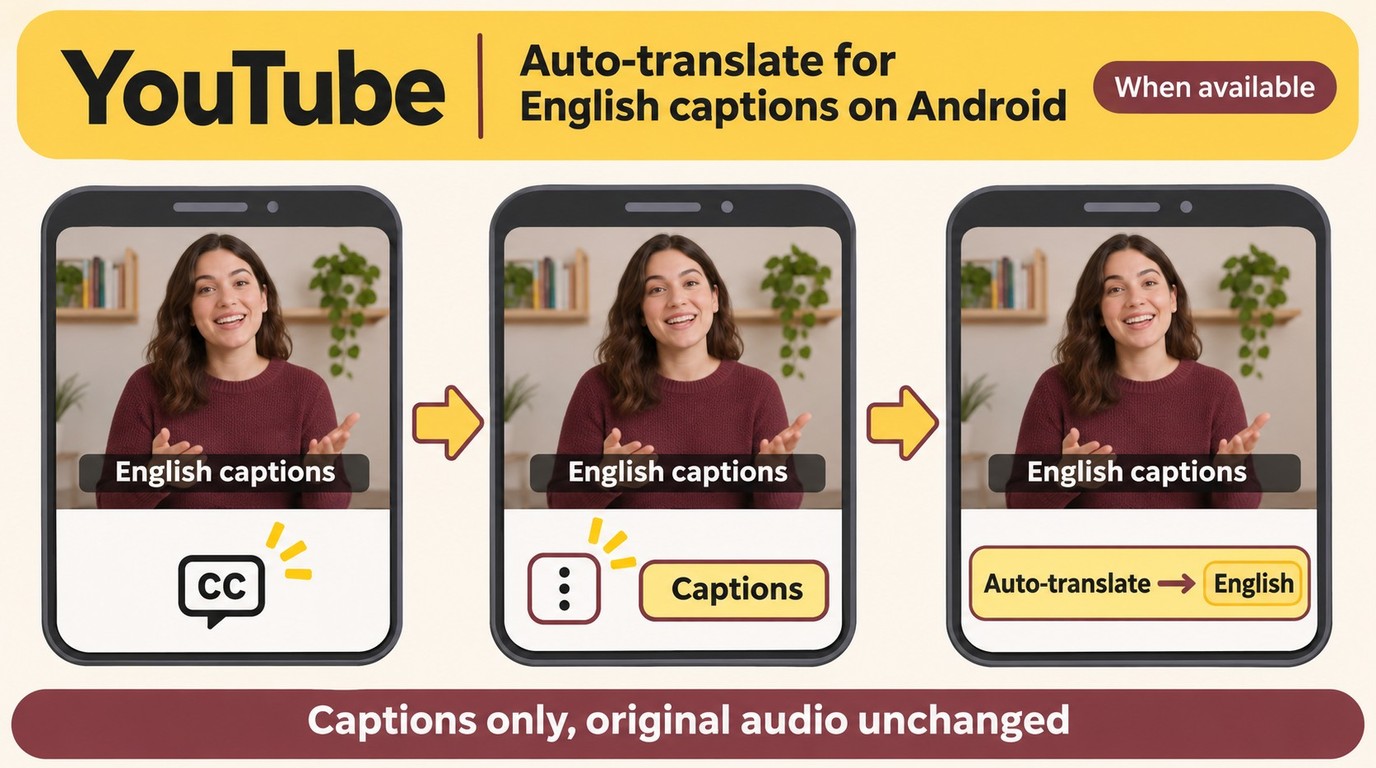
YouTube Auto-translate displays English captions when the video has a caption track and the translation option is offered. It changes the text during playback, rather than exporting a new English video or generating an English voice.
For the Android YouTube app:
- Open the lesson and turn on CC. Tap the player to reveal the controls, then enable captions.
- Open the caption-language menu. Use the player’s More menu and select Captions.
- Choose English. Select an existing English track if listed; otherwise select Auto-translate, then English, when offered.
For watching a captioned Spanish lesson, I would use this route instead of creating a separate file. It keeps you in the player. It is enough for reading along, but it does not give you an editable English script or a dubbed video for another player.
When Captions or an English Audio Track Are Missing
An absent CC control means captions are unavailable for that video. There is then no caption track for this workflow to translate. If CC appears but the language option does not, do not assume another device has the same menus; the steps above describe Android.
English speech is a separate feature. YouTube’s automatic dubbing creates audio tracks for eligible creators and videos, and viewers select from the tracks available on that upload. Turning on English captions does not request a new dub. If English audio is absent, subtitles remain text, even when the translation reads naturally.
For your own lesson, a reviewed subtitle track also gives viewers a clearer starting point than an uncorrected transcript. Keep the goals distinct: use the player to understand an existing upload, and the file workflow to prepare an English deliverable.
UniFab Video Translator AI: Windows Support and Limits
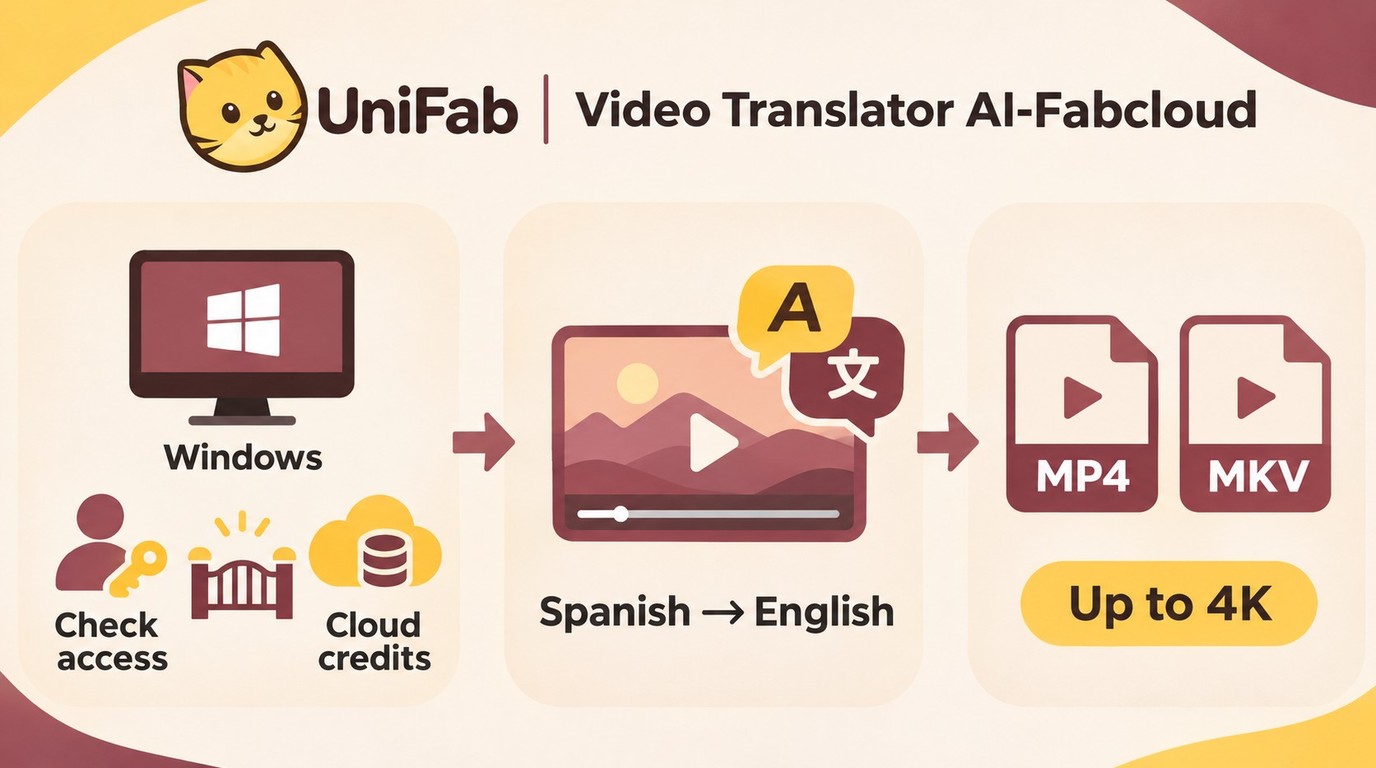
Video Translator AI-Fabcloud supports video translation on Windows in 23 languages, with MP4 or MKV video output up to 4K. Access remains subject to the account’s translation availability, beta restrictions, system requirements, and cloud credits.
Spanish and English are among the supported languages, so the lesson example falls within that language scope. MP4 and MKV describe the video deliverable, while the resolution ceiling concerns output size; translation itself does not sharpen the picture. I would choose this route for a compatible video workflow, rather than for a separate subtitle download, which is not supported.
Availability is the practical boundary. Beta restrictions, system-requirement issues, credit issues, and translation-unavailable states apply to this feature; use the account’s availability message and system guidance to establish your setup’s status. As of November 12, 2026, FabCloud lists plans from USD 199.99 per year and 30 cloud credits for new accounts; pricing and credit offers can change.
Explore the UniFab tools and FabCloud options for the Windows workflow you intend to use.
FAQs About Translating Videos to English
Google Translate can translate transcript text or words in a clear screenshot, but neither route automatically produces a timed, dubbed video. A free full-length export requires enough input-duration allowance, processing credits, and export access; a ‘start free’ label does not establish all three.
Can Google Translate turn a whole video into English?
Google Translate’s text input helps when you already have a transcript. Paste a complete sentence rather than disconnected words, then review the English in context. That gives you translated text, not a timed subtitle file or a newly dubbed video. For an Arabic lesson script, for example, this route is useful for reading the explanation. If you need captions matched to the lesson’s timing, the text still needs a subtitle workflow. I would use text translation for notes, rather than treat its spoken playback as a finished video soundtrack.
Can I translate a 40-minute video into English for free?
Not from a “start free” label alone. A 40-minute class has to fit the tool’s input-duration limit, available credits, and export access. Free processing and free downloading are separate questions. Before uploading the whole class, identify whether the allowance covers the complete English result you need, including subtitles or audio. A smaller sample helps you judge the translation; it does not establish that the full class fits the allowance. The free video translator comparison distinguishes options for projects where those limits determine the choice.
How can I check whether an English translation is accurate?
Ask whether an English-speaking viewer would perform the same action as the original speaker intended. That is a stronger acceptance test than fluent grammar. For the lesson example, compare the exercise instructions, technical terms, quantities, and warnings against the source, then ask someone who understands the source language to resolve uncertain passages. A passage fails review if a missing negative reverses the instruction, even when the English sounds natural. For teaching material, I would keep that passage marked for correction instead of guessing from the English alone.
Can I translate subtitles that are burned into the picture?
Yes, you can translate the visible words, but they are image content rather than a selectable subtitle track. A clear screenshot works with Google Translate’s image-text feature. Small or blurred lettering makes recognition less reliable, so compare the recognized text with the frame before trusting its translation. This helps you understand a caption or slide; it does not automatically replace the lettering throughout the video. If you need an English version of the entire lesson, image-text translation is an extra editing task alongside speech translation.