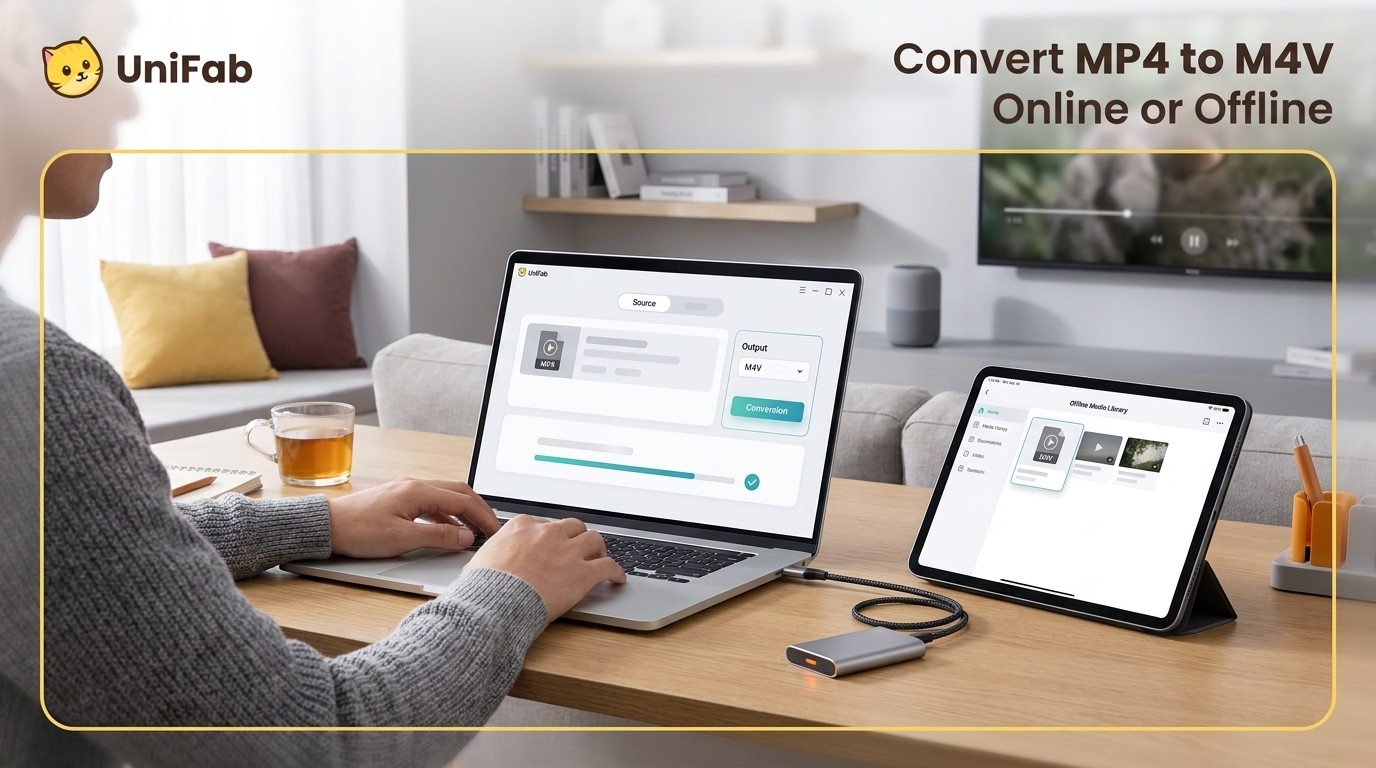
If an M4V file is much smaller than the MP4 you started with, that change alone does not prove quality loss. MP4 to M4V can mean a simple filename change, a container remux, or a full re-encode, and each path produces a different result.
I treat renaming as a compatibility test, not a conversion method. It leaves the existing streams unchanged, while re-encoding changes the codec or bitrate and can affect quality. A Reddit editor described a 22 GB game video becoming a 5.5 GB M4V with no obvious fidelity loss. Size alone is weak evidence. This guide identifies the streams, tests the rename option, and then chooses online or local conversion only when the container is not enough. The goal is playback where you need it, not a new suffix for its own sake.
MP4 vs. M4V: What Actually Changes?
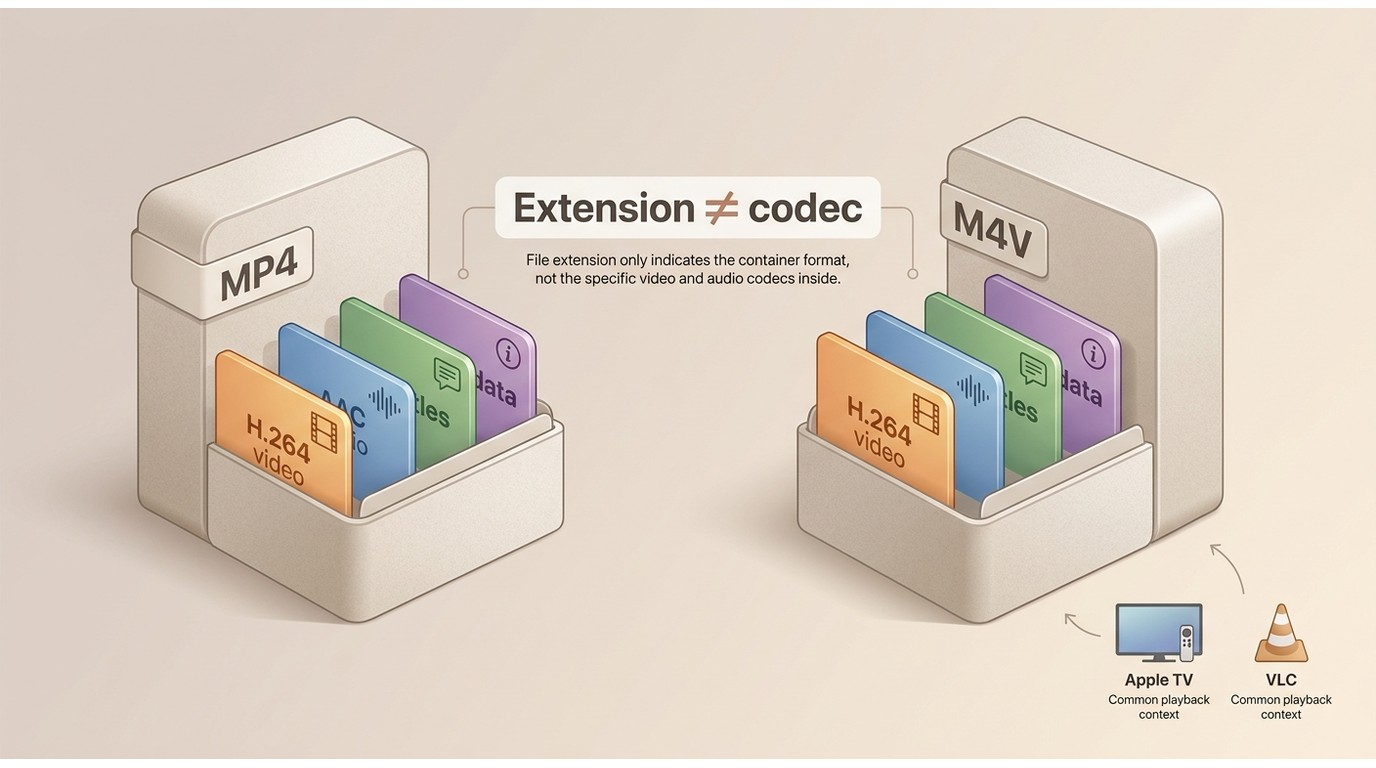
The practical difference between MP4 and M4V is usually the filename extension and the playback expectations around it, not a guaranteed change in video quality. Both can use common MPEG-4 video and AAC audio streams. Compatibility depends on the exact codec, audio track, subtitles, metadata, and whether the file is protected.
Container, Codec, and Extension in Plain English
A container is the wrapper that holds video, audio, subtitles, chapters, and metadata. A codec is the method used to compress each stream, such as H.264 for video or AAC for audio. The extension, .mp4 or .m4v, is the label that helps an operating system and an app decide which player to try.
That is why two files with different endings can contain nearly identical media. A label change does not turn H.264 into another codec, add subtitles, or repair an incompatible audio track. If you need a broader compatibility check, a video format converter guide explains the same container-versus-codec distinction across more formats.
A user in r/handbrake asked why HandBrake outputs .m4v. The question shows that the extension can be unfamiliar even when the underlying media is ordinary.
When Renaming .mp4 to .m4v Can Work
Renaming can work when the target app already supports the streams inside the MP4 and only expects the M4V extension. It is a fast first check, but it performs no compression, size reduction, or codec conversion.
On Windows, show file extensions in File Explorer, make a copy of the original, and change only the suffix. Then open the copy in the target player and seek through it. If playback fails, the issue is probably a stream or metadata mismatch rather than the spelling of the extension.
Compatibility, DRM, and the Apple Connection
M4V is strongly associated with Apple libraries, but an ordinary, unprotected M4V can also play in VLC, many desktop players, and some smart TVs. Protected store downloads are a separate category: the extension does not make them interchangeable with a normal video file.
The Apple connection matters mainly when a library, Apple TV workflow, or older device uses stricter profile rules. A HandBrake user described setting MP4 and receiving an .m4v output. Another found that an M4V export kept E-AC3 audio but dropped the Atmos flag. Those examples point to the real check: inspect the streams and test the destination device.
How to Convert MP4 to M4V Online
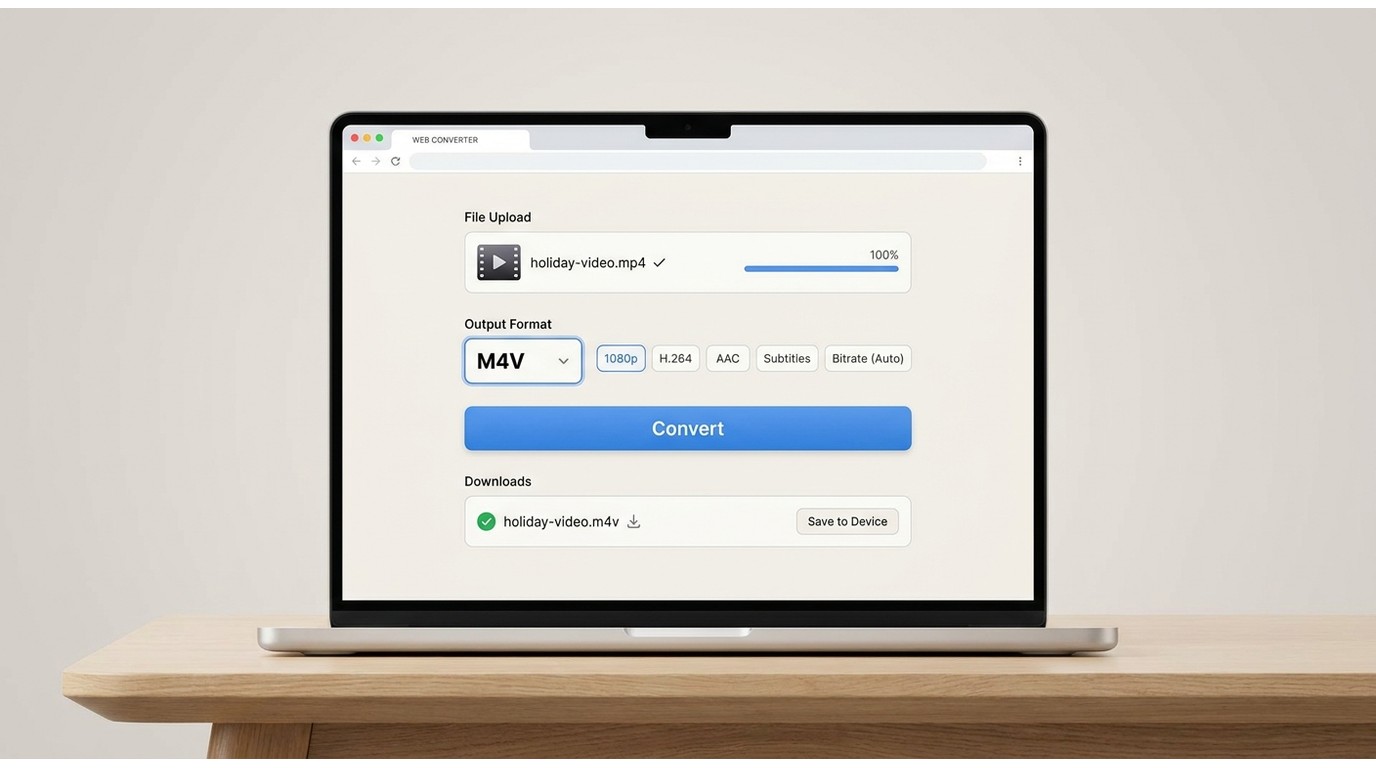
For one modest, non-sensitive file, a browser converter is usually the shortest route: upload the MP4, choose M4V, download the result, and test it. The trade-off is that your file leaves the computer, and the service may impose limits on size, retention, or available settings.
Before you upload: Use only footage you own or are authorized to process. Read the service's privacy and deletion terms, check its file-size limit, and confirm that M4V is a real output option rather than a renamed download.
Before You Upload: Check Size, Privacy, and Output Controls
Have the source file ready locally and note its resolution, frame rate, audio tracks, subtitles, and approximate size. A browser service may accept an MP4 but offer only a narrow set of video and audio choices. If the file contains client footage, family material, or unreleased work, local processing is the more controlled path.
A Five-Step Browser Workflow
- Open a converter that lists MP4 as an input and M4V as an output.
- Upload the authorized MP4 and wait for the service to finish reading it.
- Select M4V, then review resolution, codec, bitrate, frame rate, audio, subtitles, and metadata controls.
- Start the conversion and download the result to a known folder.
- Play the M4V on the intended device, seek through several points, and check sound, subtitles, duration, and chapter behavior.
The fourth step is where many “conversions” quietly become re-encodes. If the site changes the codec or bitrate, a new file size is expected. If it offers no stream controls, treat the result as a convenience copy and keep the original MP4.
Convert MP4 to M4V Locally with UniFab Video Converter
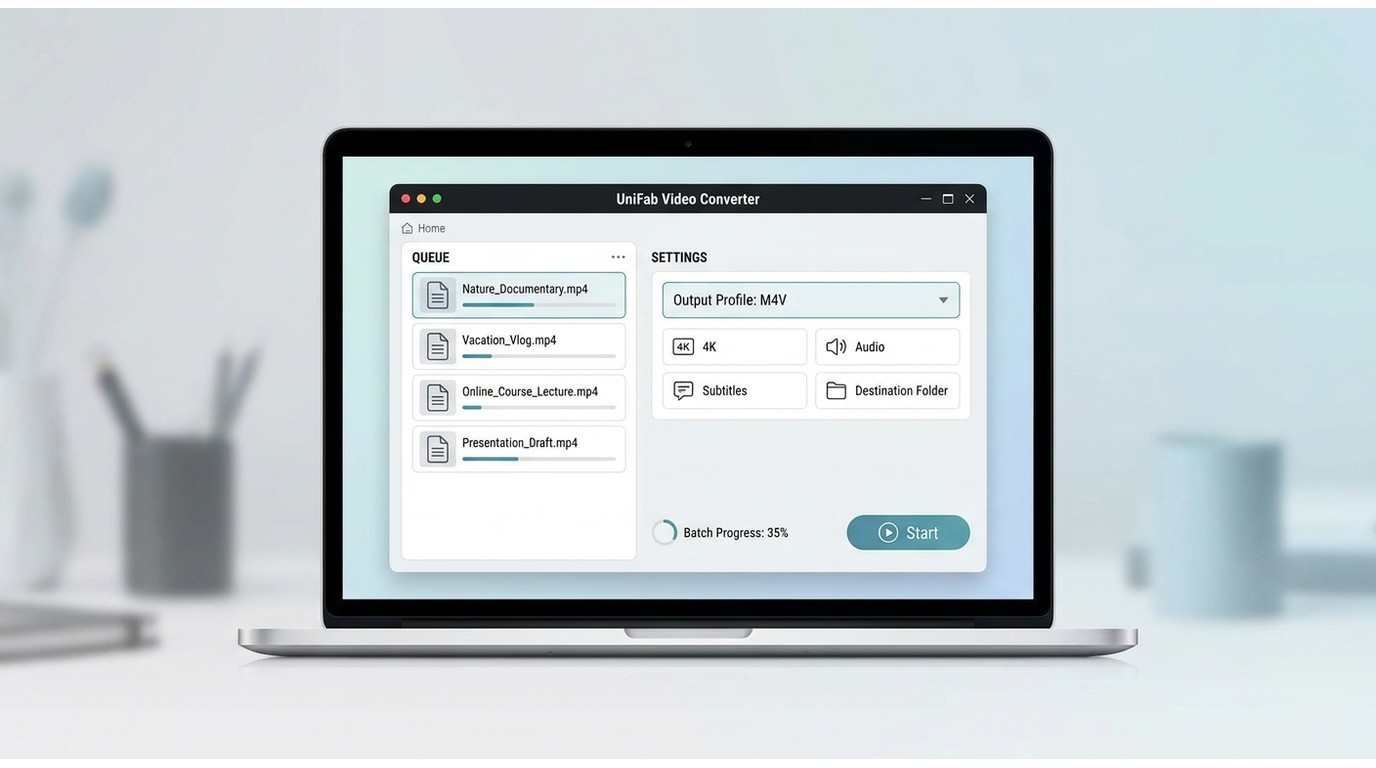
UniFab Video Converter is a Windows and Mac app for 1,000+ format conversions, up to 4K output, batch jobs, and GPU acceleration up to 50×. Local conversion fits large, private, 4K, or multi-file jobs because files stay on the computer and settings remain visible.
When a Desktop Converter Is the Better Fit
Choose desktop processing when upload limits or cloud retention would interrupt the job. I favor it for a repeated 4K or batch profile, not a small clip that only needs a new label.
Steps in UniFab Video Converter
- Install and open UniFab Video Converter on Windows or Mac.
- Add one or more MP4 files from your local storage.
- Choose an M4V-compatible profile and set the video, audio, subtitle, and destination options.
- Start the conversion and let the app process the files locally.
- Open the finished M4V files and verify playback, tracks, duration, and metadata before deleting the originals.
That sequence keeps the decision task-led. If the streams are already compatible, use a rename or remux. If they are not, select a profile that matches the target device instead of assuming that the M4V label solves it.
Settings for 4K, Batches, and Faster Local Processing
UniFab lists Video Converter with up to 4K output and batch processing. It supports 1,000+ format conversions, no watermark, an integrated editor, and GPU acceleration for NVIDIA, AMD, and Intel hardware up to 50×. As of September 2026, it lists the converter at $0 with no watermark. That pricing policy has applied since December 2024.
These specifications matter for larger jobs, not a simple label change. They do not guarantee that every source reaches 4K or that GPU throughput will match across computers.
Will Quality Change? Rename, Remux, and Re-encode
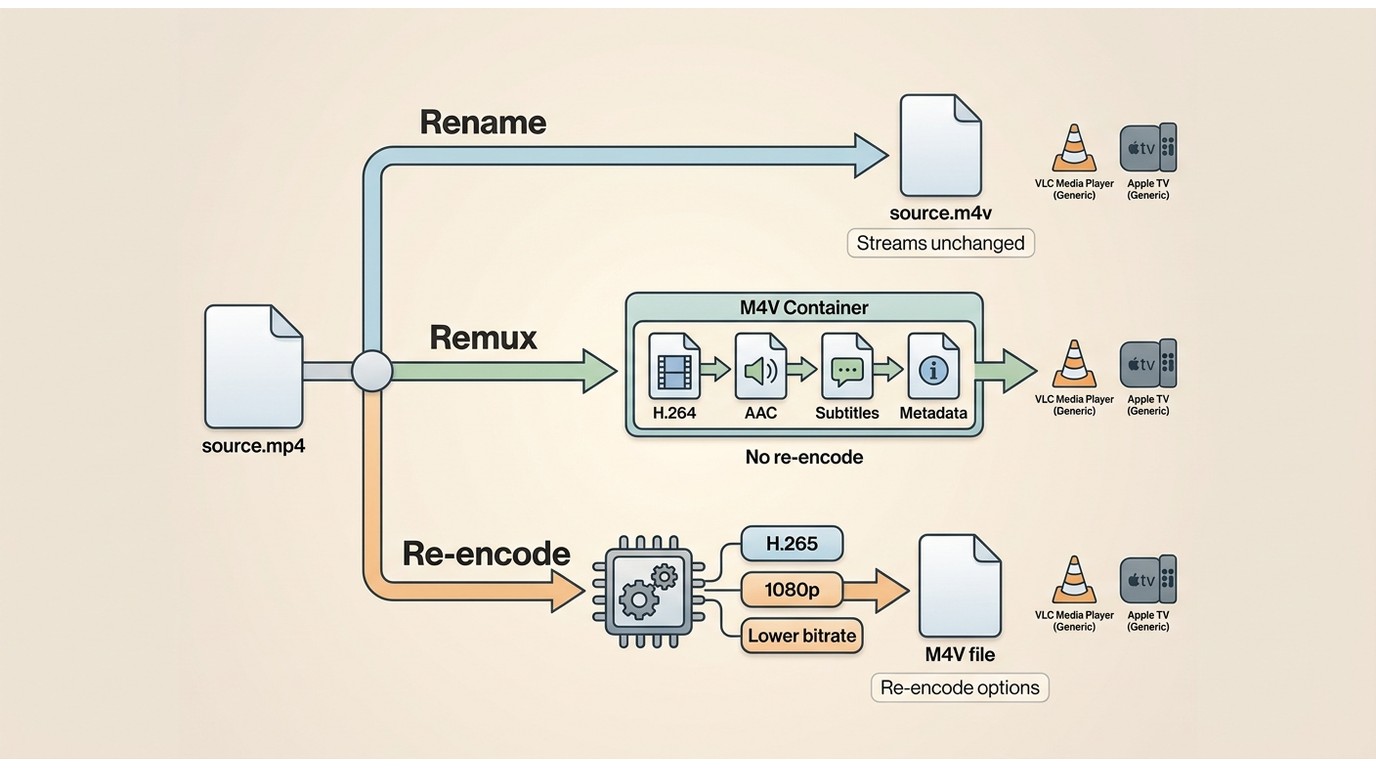
MP4 can become M4V without visible quality loss when you only rename the file or remux compatible streams into another container. Quality changes when you re-encode, and the deciding variables are the codec, bitrate, resolution, frame rate, and audio settings, not the extension itself.
Rename: The Media Streams Stay the Same
Renaming leaves every stream untouched. It is lossless because no media processing occurs, but it cannot fix an unsupported codec, missing audio format, or damaged index. Keep the original, change the copy's extension, and test the destination app before doing anything more involved.
The same shortcut comes up in editing workflows. A user in r/AfterEffects asked, “I know M4V is Apple's MP4. Can I just change the file ending from .mp4 to .m4v?” For a compatibility test, yes. If the destination needs different streams, no.
Remux: Change the Container Without Re-encoding
A remux places the existing video, audio, subtitle, and metadata streams in a different container. Because the streams are copied rather than recompressed, visual quality stays the same and the process is usually quick. The catch is compatibility. If the target container cannot hold a selected subtitle format, chapter structure, or multichannel audio flag, something may be dropped or altered.
The Atmos example is useful here. A Reddit HandBrake user made the difference concrete: “If I saved it as Format: MKV, it retains E-AC3+Atmos, 6 ch. If I saved it as Format: MP4 (Default MP4 Extension: m4v), it is only E-AC3, 6 ch.” M4V is not automatically worse. The container choice can change which stream features survive.
Re-encode: Match the Target Device or Reduce File Size
Re-encoding decodes the source and compresses it again. It is the right move when the target device rejects the original codec or when you need a smaller file. It also standardizes resolution and audio. It can reduce quality, but a smaller file is not proof. A Reddit editor described 22 GB becoming about 5.5 GB with no obvious fidelity change. Codec and bitrate choices can produce a large size difference.
Use the target device as the anchor. Keep the source resolution when the screen can display it. Avoid lowering bitrate more than the scene requires. Check fast motion and fine text after conversion. If the goal is editing rather than playback, preserve an intermediate with the tracks and metadata your editor expects. A related M4V-to-MP4 guide covers the reverse compatibility problem.
Check Audio, Subtitles, Metadata, and Editing Compatibility
Before you call the job finished, verify the parts that a filename cannot reveal:
- Video codec, profile, level, resolution, and frame rate
- Audio codec, channel count, language, and passthrough behavior
- Subtitle format, language tracks, chapters, and metadata
- Import into the target editor, library, smart TV, or Apple TV workflow
One more practical warning: a successful conversion can still expose an editing problem later. A user moving an MKV-derived file into Premiere described container changes that had worked before but later caused trouble. Treat the final application, not the extension, as the acceptance test.
Online vs. Offline vs. Rename: Which Method Fits?
Rename is the quickest option when the streams already meet the target app's requirements. An online converter suits one modest, non-sensitive file. A local converter suits large, private, 4K, or batch work where control justifies an install.
Decision Table by File and Workflow
| Scenario | Rename only | Online converter | UniFab local converter |
| Compatible streams | Fastest first check | Usually unnecessary | Optional verification |
| One modest file | Works if compatible | Convenient, no install | More settings available |
| Large or 4K source | No size change | Upload burden and limits | Local, up to 4K |
| Private or batch job | Not a conversion | Policy and limit checks | Local batch processing |
Source: UniFab Video Converter official product page for the local-processing capabilities noted above; the other cells are workflow guidance.
Table note: the method changes the workflow; codec and stream choices still determine playback and quality. I would not install desktop software for one compatible clip because renaming changes no streams. For a large private batch, I favor local conversion because it avoids upload and repeats one profile across files.
Frequently Asked Questions
These questions cover the edge cases that remain after choosing a method: player support, track retention, and adjacent containers. They are quick checks, not replacement steps for the workflows above.
Does VLC Play M4V Files?
VLC commonly plays ordinary M4V files when their video and audio codecs are supported. If VLC refuses the file, inspect the streams and protection status; changing .mp4 to .m4v will not repair an unsupported codec or a damaged file.
Why Won't an M4V File Play on Windows or a Smart TV?
Check in this order:
- Confirm the file is not a protected download.
- Inspect the video codec and profile.
- Check audio support.
- Verify that the extension is visible and correct.
- Test whether the file itself is incomplete.
Smart TVs often accept fewer audio and subtitle combinations than desktop players.
Can M4V Keep Subtitles and Multiple Audio Tracks?
It can, provided the target container and selected settings support those streams. Confirm each subtitle language, audio track, channel layout, and chapter after conversion. If a track matters, use a remux or a profile with explicit passthrough options rather than accepting a silent default.
Can the Same Workflow Convert MOV or MKV to M4V?
Yes. The same rename, remux, or re-encode decision applies, but the source streams may differ. A MOV or MKV can be remuxed when its video, audio, and subtitle streams fit the M4V target; otherwise, convert the incompatible streams. For MOV-specific cases, the MOV-to-MP4 conversion guide gives useful compatibility context.
Will M4V Work in Apple TV and Video-Editing Libraries?
Sometimes, but the extension is only one requirement. Apple TV and editing libraries also evaluate codec profile, audio format, subtitles, chapters, metadata, and protection status. Import a short test file first, then convert the full batch once the library accepts the complete stream combination.
Bottom Line: Choose by File Size, Privacy, and Control
Start with a copy and try renaming when the streams already fit. Use an online converter for one modest, authorized file when convenience wins. Choose local conversion when privacy, 4K output, batch processing, or precise settings justify it.
The extension is a label, not a quality guarantee, so let the target player's stream support decide the final format.