Introduction
The quick takeaway: if matching your footage to green screen software feels confusing, use chroma key software for an evenly lit, solid-color backdrop or AI removal for ordinary footage with visible subject separation, then narrow your choices by device.
This guide compares 11 green screen software tools for Windows, Mac, Android, iOS, and the web, covering their removal methods, pricing, and workflow tradeoffs. I recommend choosing by your existing footage and device rather than treating the list as a universal ranking.
TL;DR: For free AI background removal on Windows, use UniFab Video Background Remover AI. For professional chroma keying, use Adobe Premiere Pro. For mobile, use KineMaster. For browser-based editing, use Kapwing or Veed.IO.
What Green Screen Editor Software Actually Does in 2026
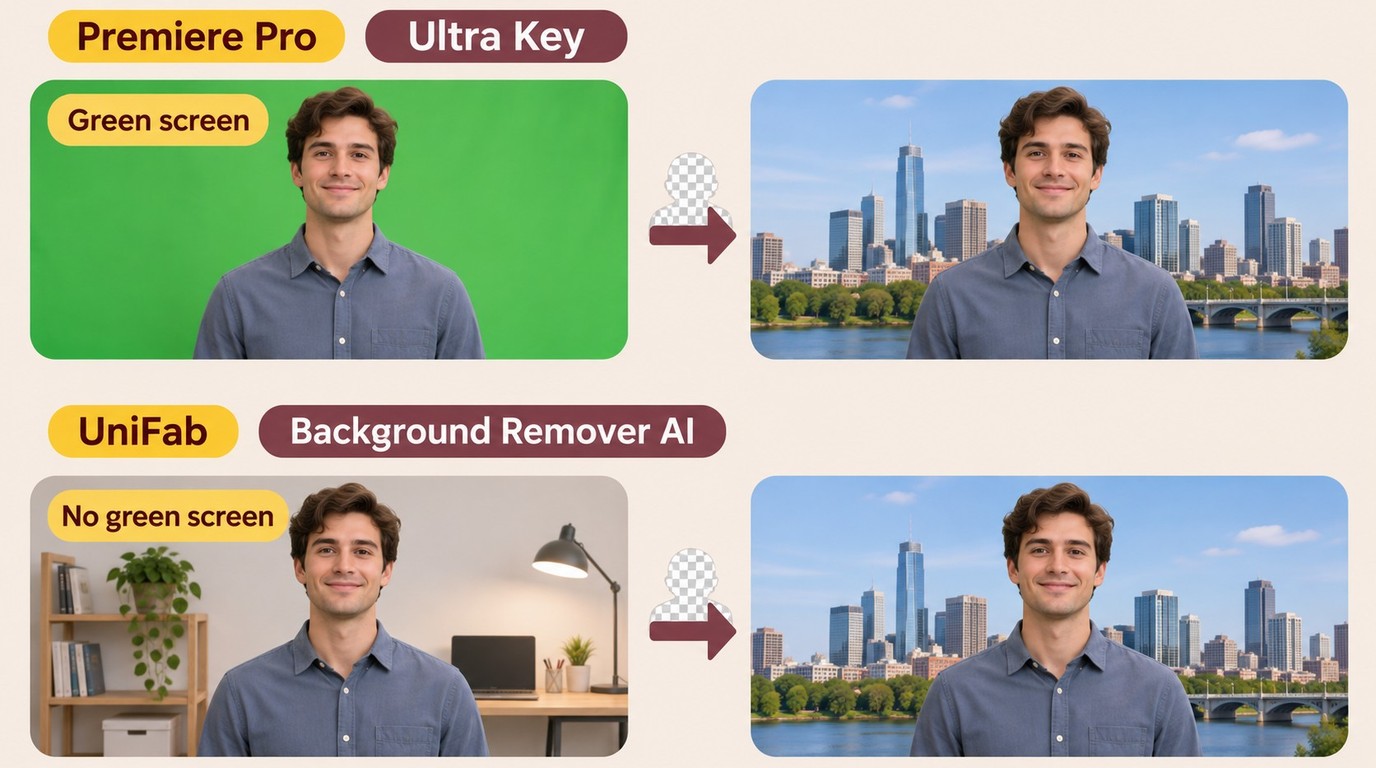
A green screen editor uses chroma keying to detect and remove a specific color range from your footage, then replaces it with a new image, video, or transparent layer. Traditional workflows need a physical green screen, even lighting, and careful spill suppression. Modern AI-based tools like UniFab Video Background Remover AI do not require a physical screen: a trained model separates the subject from ordinary backgrounds, such as rooms or outdoor scenes, when the subject is visually distinguishable.
The practical difference: traditional chroma key provides direct control over the selected color and matte on an evenly lit backdrop, while AI matting offers a way to separate subjects in footage shot without that setup. Most creators now combine both—AI for quick social content, chroma key for product spots and commercial work.
Seven Criteria for Choosing Green Screen Software
Picking the right green screen editor isn't just about features—it's about matching the tool to your workflow, skill level, and output requirements.
For occasional video background removal, a dedicated AI tool can provide a simpler workflow than a full chroma-key suite.
- AI background removal — If you don't own a green screen, prioritize tools with AI matting (UniFab, Kapwing, Veed). These remove backgrounds from ordinary footage without chroma key setup. For live green-screen streaming, OBS Studio applies chroma key to a camera source. For recorded clips, choose an editor that lets you preview and refine the result before export.
- Stock media library — Built-in royalty-free backgrounds, music, and overlays cut production time dramatically. Filmora, WeVideo, and InShot lead here.
- OS and format compatibility — Check support for your video codecs (H.264, H.265, ProRes) and device (Windows, macOS, iOS, Android, or browser). Final Cut Pro for Mac runs on macOS; EaseUS Video Editor is Windows-only.
- Pricing model — Free with no watermark (UniFab, iMovie, OpenShot), subscription (Adobe, Filmora, Kapwing), or one-time purchase (Filmora perpetual, Do Ink). Final Cut Pro for Mac costs $299.99 as a one-time purchase; Apple Creator Studio includes Final Cut Pro and other apps for $12.99 per month or $129 per year (as of November 2026). Calculate the real 12-month cost.
- Ease of use — Beginners benefit from drag-and-drop interfaces (Filmora, Clipchamp). Professionals need node graphs and keyframing (After Effects, Premiere Pro).
- Chroma key precision — Look for advanced controls: color spill suppression, edge feathering, matte cleanup, and key garbage masks. Premiere Pro's Ultra Key and Final Cut Pro's Keyer are the benchmark.
- Additional editing features — Multitrack timeline, motion tracking, audio ducking, color grading, and export presets round out a complete editing workflow.
Green Screen Software Compared: 11 Video Editors
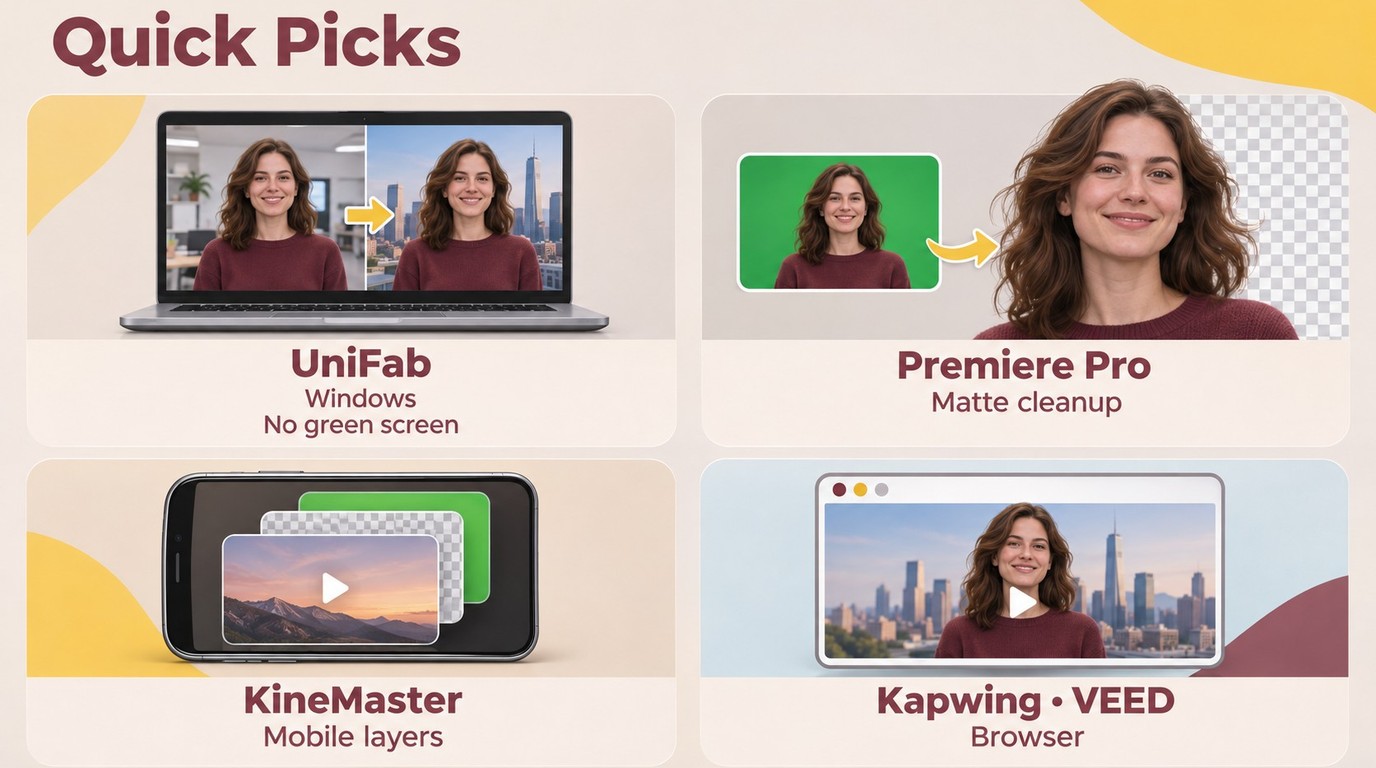
| Tool | Platform | Removal method | Best fit |
|---|---|---|---|
| UniFab Video Background Remover AI | Windows | AI subject separation | Recorded footage without a green screen |
| Adobe Premiere Pro CC | Windows, macOS | Ultra Key color keying | Professional timeline editing and matte cleanup |
| Wondershare Filmora | Windows, macOS | Chroma key | Beginner-to-intermediate recorded projects |
| EaseUS Video Editor | Windows | Chroma key | Basic Windows editing |
| iMovie | macOS, iOS | Green/blue-screen keying | Simple Apple-device composites |
| Kapwing | Web | Chroma key; paid AI removal | Browser-based social clips |
- VEED: A web editor with chroma key and AI background removal for training and social videos.
- WeVideo: A web editor with chroma key for cloud-based team and classroom projects.
- KineMaster: An Android and iOS editor with Chroma Key and AI-powered Magic Remover for mobile layered editing.
- Green Screen by Do Ink: An iPhone and iPad chroma key app for classroom projects.
- InShot: An Android and iOS editor with Picture-in-Picture chroma key for quick social edits.
Green Screen Editor for PC and Mac
1. UniFab Video Background Remover AI
UniFab Video Background Remover AI is a free Windows tool that uses AI video matting to remove backgrounds and unwanted elements in one click. It skips the physical green screen entirely—ideal for creators shooting in home offices, cafés, or locations where a chroma setup isn't practical. For footage with visible subject separation, AI matting can isolate the foreground without selecting a backdrop color; preview hair and moving edges before export.
Best for: Creators who want AI-powered one-click background removal without watermarks.
Price: Free, no watermark
Supported Platforms: Windows
Key Features
- Remove video backgrounds automatically with one click
- Replace backgrounds with preset colors or custom images
- AI matting for subject edges; preview blurred areas before export
- Trim clips for the perfect final cut
- Customize output quality, container format, and codec
How to Use UniFab Video Background Remover AI
Start with UniFab installed on Windows, a recorded clip, and an optional replacement image.
- Add your clip: Open Video Background Remover AI and add the video you want to process.
- Apply AI removal: Let the tool separate the foreground subject from the background.
- Choose a replacement: Select a preset background color or add your own image.
- Preview the result: Inspect hair, moving edges, and foreground objects against the replacement background.
- Export: Choose the output quality, container format, and codec, then export the finished video.
2. Adobe Premiere Pro CC
Adobe Premiere Pro CC is a subscription video editor trusted by professionals for its Ultra Key effect, deep color spill suppression, and tight Creative Cloud integration with After Effects. It's still the reference standard for broadcast and commercial work in 2026.
Best for: Professional editors, filmmakers, and media teams needing advanced chroma keying and tight After Effects handoff.
Price: Free trial. Subscriptions from US$22.99/month (single app) or US$89.99/month (All Apps).
Supported Platforms: Windows, macOS
Pros
- High dynamic range adjustment for vibrant, broadcast-grade visuals
- User-friendly timeline and clip inspector despite depth
- Color management tools rival dedicated grading software
- Extensive tutorial ecosystem and active user community
Cons
- Steep learning curve for non-editors
- Subscription cost adds up for solo creators
3. Wondershare Filmora
Wondershare Filmora is a drag-and-drop editor with clean chroma keying, a deep stock media library, and plenty of templates. It's the easiest path from beginner to intermediate without jumping into Premiere Pro.
Best for: Novice to intermediate editors, YouTubers, and social creators wanting fast results without a long learning curve.
Pricing: Free trial available. Filmora 16 Basic costs $49.99 per year; Advanced is offered at a promotional $59.99 per year; Perpetual costs $79.99 one-time and covers Filmora 16 updates. Future major upgrades are separate. AI-credit allowances and Creative Assets subscriptions have separate terms. Filmora, Kapwing, and WeVideo annual-plan prices listed here are as of November 2026.
Supported Platforms: Windows 7–11, macOS 10.15–14
Pros
- Speed control, motion tracking, and keyframing built in
- Trial before buying
- Intuitive media library
- Chroma keying is truly one-click
- Clean, uncluttered project layout
Cons
- The Perpetual license covers Filmora 16 updates, not future major upgrades
- Trial exports carry watermarks
4. EaseUs Video Editor
EaseUs Video Editor is a Windows-only editor with basic chroma key, a friendly interface, and unlimited export length. It handles most consumer video formats and hardware imports without fuss.
Best for: Beginner Windows users who want simple editing plus a workable chroma key without subscription lock-in.
Price - Free version available - Monthly: US$17.97 - Yearly: US$49.95 - Lifetime: US$79.95
Supported Platforms: Windows 7, 8, 10, 11
Pros
- Clean, beginner-friendly layout
- No export duration cap
- Built-in voiceover recording
- DVD burning and direct social upload
- Decent effects and transition library
Cons
- Editing controls feel shallow on complex footage
- Overlay and effect parameters are limited
5. iMovie
iMovie is Apple's free editor, bundled with macOS and iOS. Its green screen effect is one click and surprisingly solid for a free tool, and the cross-device continuity between iPhone, iPad, and Mac is still unmatched.
Best for: Casual editors, beginners, educators, and Mac users who want free, simple chroma keying.
Price: Free
Supported Platforms: macOS, iOS
Pros
- Seamless editing continuity across iPhone, iPad, and Mac
- Clean interface with a short learning curve
- Solid basic effects, filters, and titles
- 13 built-in artistic filters
- One-tap share to social platforms
Cons
- Apple ecosystem only
- Two-track video limit constrains complex projects
- No motion tracking or multicam
Green Screen Editor Online
6. Kapwing
Kapwing is a browser-based green screen video editor with an intuitive chroma key tool and an auto background remover on paid plans. It's the fastest path from raw clip to publish-ready social content without installing software.
Best for: Individuals and small teams making memes, short-form social, and quick multimedia projects without installing editing software.
Price: Free version available. Pro costs $16 per member per month billed annually or $24 per member per month billed monthly. Business costs $50 per member per month billed annually or $64 per member per month billed monthly. Free exports are limited to 720p, four minutes per finished video, and 30 exported minutes per month.
Supported Platforms: Web (all browsers and OS)
Pros
- Remove backgrounds of many colors, not just green/blue
- Adjust saturation, hue, and brightness after keying
- One-click subtitle generation
- Runs entirely in the browser
- Beginner-friendly layout
Cons
- No dedicated mobile app
- Advanced AI features are gated behind paid plans
7. Veed.IO
Veed.IO is a full-featured online editor with chroma key, AI background removal, animated effects, and built-in webcam recording. It runs in any modern browser without a download.
Best for: Content creators, marketers, and educators producing short-form video and training content on the web.
Price - Free version available - Basic: US$25/month - Pro: US$38/month - Business: US$70/month
Supported Platforms: Web (Windows, Mac, Chromebook, Android, iOS)
Pros
- Easy background replacement workflow
- Built-in green screen webcam recording
- Strong for training and tutorial videos
- Custom background image support
- High-quality export options
Cons
- Requires a live internet connection
- Free plan is restrictive—Pro is effectively required
8. WeVideo
WeVideo is a cloud-based green screen video editor with chroma key, a large stock library, and device-agnostic editing. It's built around team workflows and school deployments.
Best for: Individuals and small businesses who want cloud-based video editing with polished output.
Price - Free version available - Power: US$9.99/month - Unlimited: US$15.99/month - Professional: US$39.99/month - Business: US$73.99/month. Annual billing options: Power, $59.88 annually ($4.99/month equivalent); Unlimited, $95.88 annually ($7.99/month equivalent); Professional, $239.88 annually ($19.99/month equivalent); Business, $443.88 annually ($36.99/month equivalent). Education plans are separate.
Pros
- Cloud storage for media
- Background removal and replacement
- Cross-platform editing from any device
- Intuitive interface for mixed video and photo projects
- Rich stock media library
Cons
- Free plan caps at 5 minutes/month with watermark
- 1080p/4K export requires a paid plan
Green Screen Editor Apps for Android and iPhone
9. KineMaster
KineMaster is a professional-grade mobile editor with a multi-track timeline, Chroma Key, Magic Remover for AI background removal, and a deep effects library. It's the closest thing to desktop editing on a phone or tablet.
Best for: Mobile video editors, vloggers, and social creators who want desktop-class controls on Android or iOS.
Price - Free version available - Monthly: US$8.99 - Yearly: US$44.99
Supported Platforms: iOS, Android
Pros
- Predefined audio EQ and auto volume leveling
- Full HSV color control
- Smart text defaults speed up titling
- Layer blending modes for creative compositing
- Granular playback speed control
Cons
- Learning curve demands prior editing experience
- Chroma key lacks precise color picker
10. Green Screen by Do Ink
Green Screen by Do Ink is a lightweight iOS app purpose-built for chroma keying, especially in classrooms. It's one of the simplest ways to introduce chroma key to students or kids.
Best for: Educators, students, and hobbyists making quick chroma key videos on iPad or iPhone.
Price: US$4.99 one-time
Supported Platforms: iOS only
Pros
- Drop in hand-drawn elements and animated artwork
- Prop Library from Do Ink integrated
- Trim and assemble clips in-app
- Multi-track audio blending
- Precise chroma key, cropping, and masking tools
Cons
- Interface is tailored for younger users
- Basic editing features only—not for advanced projects
11. InShot
InShot is a popular mobile video editor with a Picture-in-Picture chroma key, AI effects, and a rich assortment of filters, music, transitions, and voiceover tools. Its chroma key sits inside the PiP workflow rather than as a primary feature.
Best for: Social media creators and vloggers needing a quick mobile editor with basic chroma key capability.
Price: Free with in-app purchases from US$3.99/month or US$17.99/year.
Supported Platforms: iOS, Android
Pros
- Strong assortment of editing tools for mobile
- Narration and audio layering built in
- Precise motion control for stickers and text
- Extensive visual effects library
- Chroma key for PiP objects
Cons
- Easy to overspend on in-app purchases
- Occasional reports of data loss—back up projects
AI Background Removal and Chroma Key Serve Different Footage
| Factor | AI Background Removal | Traditional Chroma Key |
|---|---|---|
| Setup | No physical screen required | Green/blue screen plus even lighting |
| Edge detail | Inspect fine hair and low-contrast boundaries | Refine the matte and suppress color spill |
| Moving subjects | Inspect segmentation across consecutive frames | Inspect motion blur and color separation |
| Cleanup controls | Automatic subject separation; edge refinement varies by tool | Color selection, matte refinement, and spill cleanup |
| Cost | Free tools and paid plans | Backdrop, lighting, and free or paid software |
| Best use case | Creator content, remote interviews, social | Commercials, film VFX, broadcast |
Our take: AI background removal separates a subject from the background; chroma key removes a selected color range and gives the editor direct control over the key and matte. I recommend AI removal for ordinary footage with a clearly separated subject, and chroma key for an evenly lit solid-color backdrop when you need manual matte control. For the full picture on UniFab's editing suite, see our UniFab review.
Fix Green Fringes, Rough Edges, and Faded Subjects
Start with a clip in your editor and a contrasting replacement background beneath it so edge problems are visible. In a chroma-key editor, adjust one control at a time and preview the subject in motion.
- Green fringes around hair or shoulders: Apply spill suppression gradually. If you can reshoot, move the subject farther from the screen and light the backdrop evenly to reduce reflected green light.
- Broken or jagged hair edges: Reduce aggressive matte cleanup and use gentle edge refinement or feathering. Scrub through moving sections so a smooth still frame does not hide flickering edges.
- A faded or partly transparent subject: Narrow the selected color range or lower color tolerance. Use a protective foreground mask to retain clothing, a desk, or props that share the backdrop color. In an AI-removal workflow, use an editor with foreground masking if objects you need are excluded.
- Patchy removal on uneven or compressed footage: Start from the original, higher-quality clip rather than a repeatedly compressed copy. For a reshoot, smooth out shadows and bright spots on the screen instead of widening the key until foreground detail disappears.
Preview the composite against both light and dark backgrounds, then review the exported clip for edge flicker and lost foreground detail.
Conclusion
These eleven green screen software options span free Mac editors, browser tools, mobile apps, and professional chroma key workflows. The right pick depends on three answers: (1) do you have a physical green screen or need AI matting, (2) which OS do you edit on, and (3) is this a one-off project or an ongoing workflow worth subscribing for.
For ordinary footage with a clearly separated subject, I recommend UniFab Video Background Remover AI as a free, watermark-free Windows option for AI subject separation and background replacement rather than traditional color keying. Professionals should stay on Premiere Pro or Final Cut Pro. Mobile-first creators should pick KineMaster or InShot. Browser-only workflows should use Kapwing or Veed.IO.
Use these tools only for lawful personal purposes and with footage you are authorized to process. Follow applicable law and each tool's terms, take responsibility for securing content permissions, and do not redistribute content without authorization.
FAQs about Green Screen Editor
Is there a free green screen editor with no watermark?
Yes. UniFab Video Background Remover AI is free on Windows with no watermark. iMovie is free on macOS and iOS. OpenShot is free and open-source across Windows, Mac, and Linux, with no watermarks. Most other free tiers (Kapwing, Veed, WeVideo) either watermark exports or cap resolution until you upgrade.
What is the best free green screen software for beginners?
For Windows beginners working with an ordinary background, UniFab Video Background Remover AI offers AI subject separation without a physical green screen. For Mac beginners with a solid-color backdrop, iMovie offers a simple green screen workflow. Browser users can use Kapwing's free tier for basic chroma key, with exports limited to 720p, four minutes per video, and 30 exported minutes per month.
How much does professional green screen software cost?
Final Cut Pro for Mac is available for $299.99 as a one-time purchase or through Apple Creator Studio, a multi-app subscription costing $12.99 per month or $129 per year. Filmora 16 Basic costs $49.99 per year, Advanced is offered at a promotional $59.99 per year, and Perpetual costs $79.99 one-time for Filmora 16 updates, with future major upgrades separate. UniFab Video Background Remover AI is free.
Can green screen software remove backgrounds of colors other than green?
Yes. Most modern tools support blue screen keying and custom color pickers. Keep the selected key color distinct from clothing and foreground objects, or those areas may also disappear. AI-based tools like UniFab and Kapwing separate the subject from the background without requiring a selected backdrop color. Traditional chroma key still works best with green or blue because those colors are least common in human skin tones.
Why does my keyed video show a black background?
A black background can mean there is no layer beneath the keyed clip, or the exported file does not preserve transparency. For a finished composite, place your replacement background beneath the foreground clip. To make a video background transparent in the exported file, use an alpha-capable export format and a player or editor that preserves its alpha channel.
Does green screen software work on mobile devices?
Yes. KineMaster (iOS, Android), InShot (iOS, Android), and Green Screen by Do Ink (iOS) all support chroma keying on mobile. KineMaster includes both Chroma Key for selected-color removal and Magic Remover for AI background removal.