Speech-to-text software works well when its input, output, platform, and privacy model match the job. The practical takeaway is to choose live dictation for writing, meeting transcription for conversations, file tools for recordings, and a subtitle workflow for video rather than trusting one headline accuracy claim.
Speech-to-Text Software Explained
Speech recognition software turns spoken language into text, but the category includes several distinct workflows. AI speech-to-text software may listen live, process a saved recording, join a meeting, create captions, or send transcript data through an API.
Dictation and Transcription Solve Different Tasks
Dictation software writes as a person speaks, usually into an active text field. Transcription software processes a conversation or recorded file and may add timestamps, speaker labels, summaries, or subtitle timing.
My editorial rule is simple: start with the material you have and the output you need. A polished meeting assistant is a poor match for hands-free computer control, while a keyboard microphone cannot replace video speech to text with synchronized captions.
What Speech-to-Text Software Does
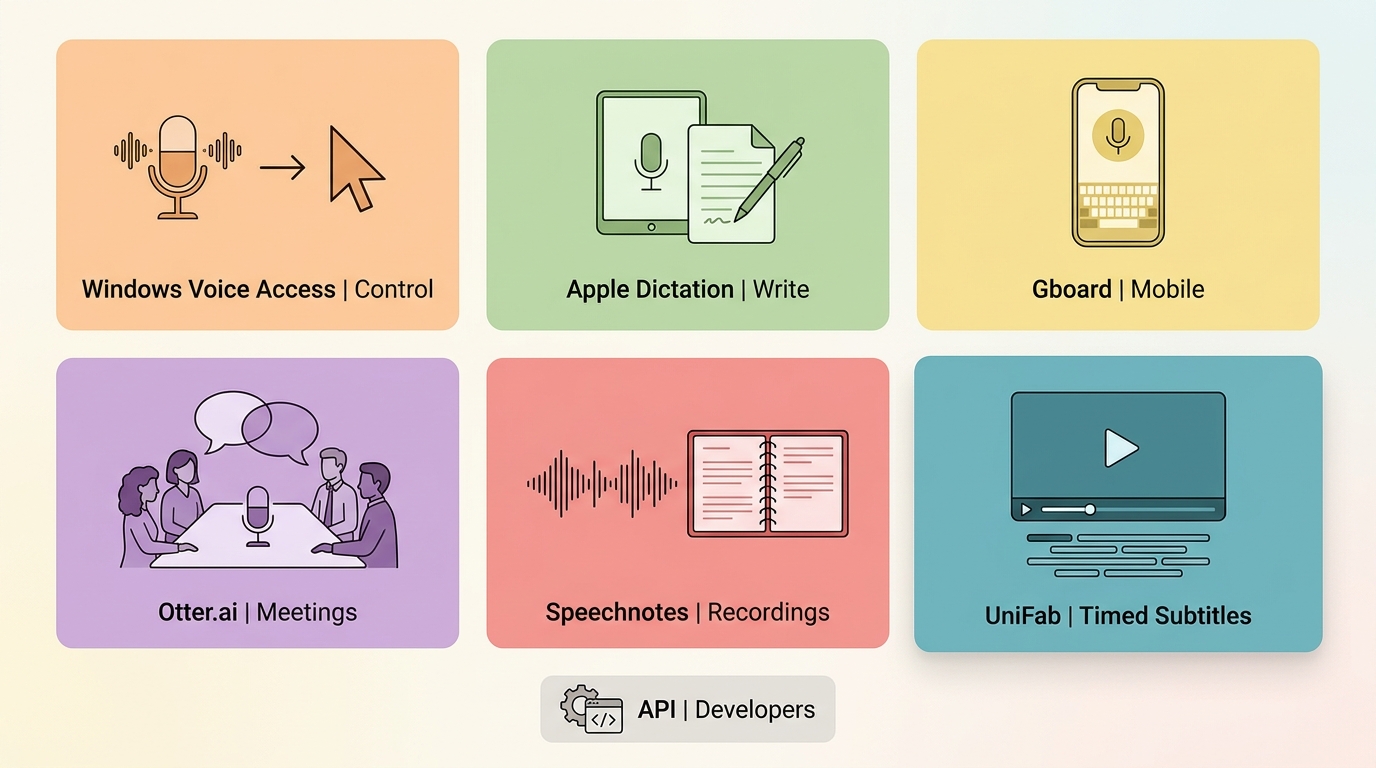
These tools serve six common jobs: live writing, hands-free control, meeting notes, recorded-media transcription, video subtitles, and developer integration. Matching the task first prevents paying for features that do not solve the actual problem.
Live Dictation and Hands-Free Control
Real-time speech to text is useful for drafting messages, notes, and documents. Accessibility dictation software goes further by supporting commands for navigation, selection, correction, and computer control.
- Writing: Look for punctuation commands, correction tools, and support inside the apps where you work.
- Accessibility: Prioritize reliable navigation, command discovery, and a workflow that does not require frequent keyboard input.
- Mobile entry: A keyboard-based microphone is often sufficient for short messages and forms.
Meetings, Recordings, Video, and APIs
Recorded-media and meeting products accept different sources than live dictation tools. Meeting assistants emphasize speakers and collaboration; file services emphasize uploads and exports; subtitle tools preserve timing; APIs let developers add transcription to another product.
That distinction matters more than feature count. A service that produces a readable meeting summary may still be unsuitable when the deliverable is an editable SRT file or verbatim transcript.
Choosing the Right Speech-to-Text Tool
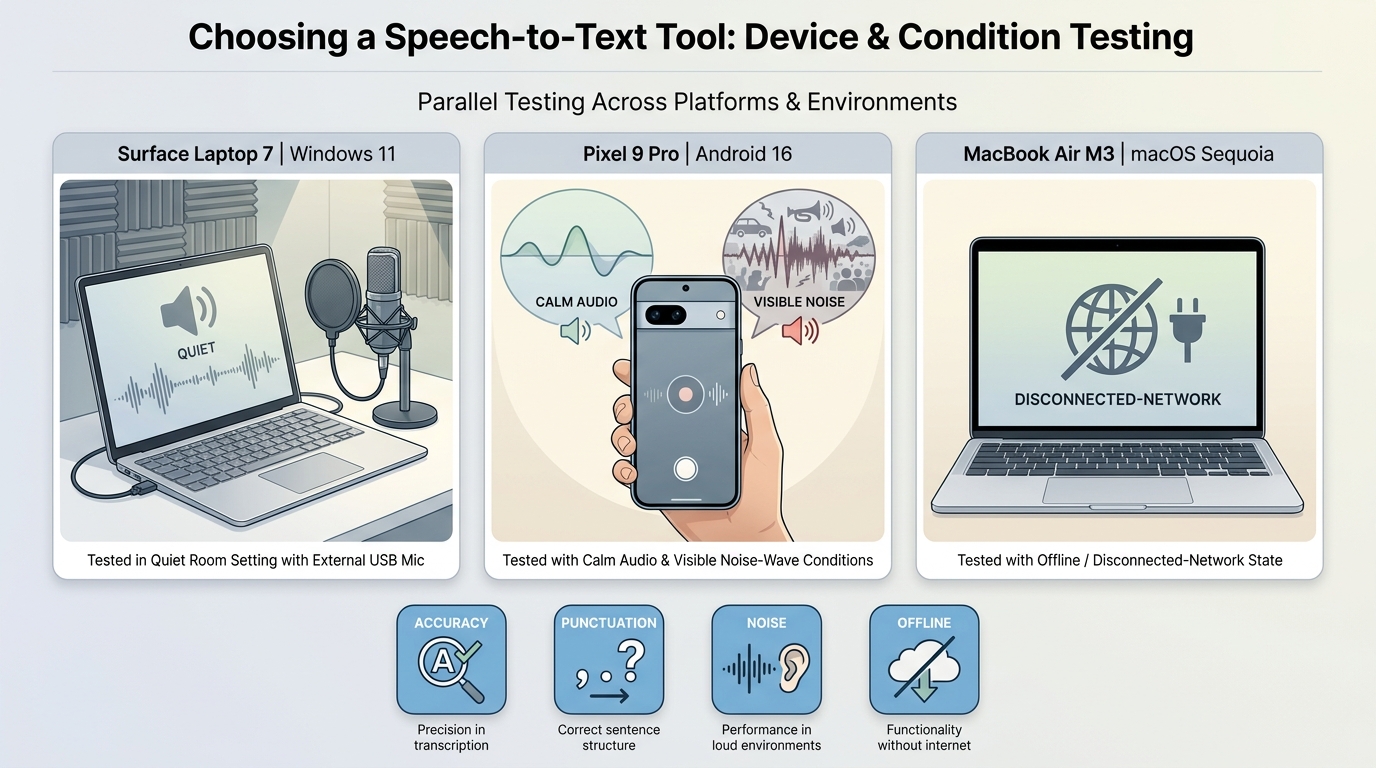
Accurate speech to text depends on the speaker, microphone, noise, vocabulary, and scoring method. Compare tools with the same sample and review privacy, offline behavior, formats, limits, and integrations before treating accuracy as meaningful.
Evaluation Standards for This Comparison
This comparison uses current product positioning and support documentation for task, platform, connectivity, and workflow claims. Vendor accuracy percentages are not ranked against one another because they may use different audio, speakers, noise conditions, and error calculations.
A reproducible Windows check can use a Surface Laptop 7 running Windows 11 24H2, the same USB microphone, and one fixed script. Record substitutions, missing punctuation, command failures, and correction effort across three repetitions instead of reporting one flattering percentage.
Accuracy, Accents, Noise, and Vocabulary
The strongest choice is the tool that handles your own accent, room, and terminology with the least correction. Custom vocabulary and speaker separation can matter more than a vendor's broad accuracy claim.
For a repeatable mobile check, use a Pixel 9 Pro running Android 16 and dictate the same paragraph once in a quiet room and once with steady background audio. Compare proper nouns, punctuation, and correction steps; do not generalize one sample into a universal result.
Privacy, Cloud Processing, and Offline Use
Offline speech to text reduces dependence on a connection and can keep more processing on the device, but availability varies by operating system, language assets, and feature. Cloud tools may offer collaboration and larger-file workflows, with different retention and account controls.
On a MacBook Air M3 running macOS Sequoia 15.5, a practical offline check is to download any required language assets, disconnect the network, dictate a fixed passage, and confirm which editing commands still work. This verifies the configured device rather than assuming every language behaves alike.
- For confidential audio, review retention, model-training settings, encryption, sharing permissions, and meeting-bot behavior.
- For travel or unstable connections, confirm that the exact language and function work without the network.
- For regulated work, follow the organization's approved data-handling process before uploading recordings.
Platforms, Formats, Limits, and Integrations
Dictation software for Windows may type into apps but not accept recordings. File transcription may accept audio but not provide SRT subtitle export. Check platform, input, export, session limits, and destination apps as separate fields.
If the main need is a synonym-focused overview, the related guide to talk-to-text software covers that narrower wording without changing the decision framework here.
Speech-to-Text Options at a Glance
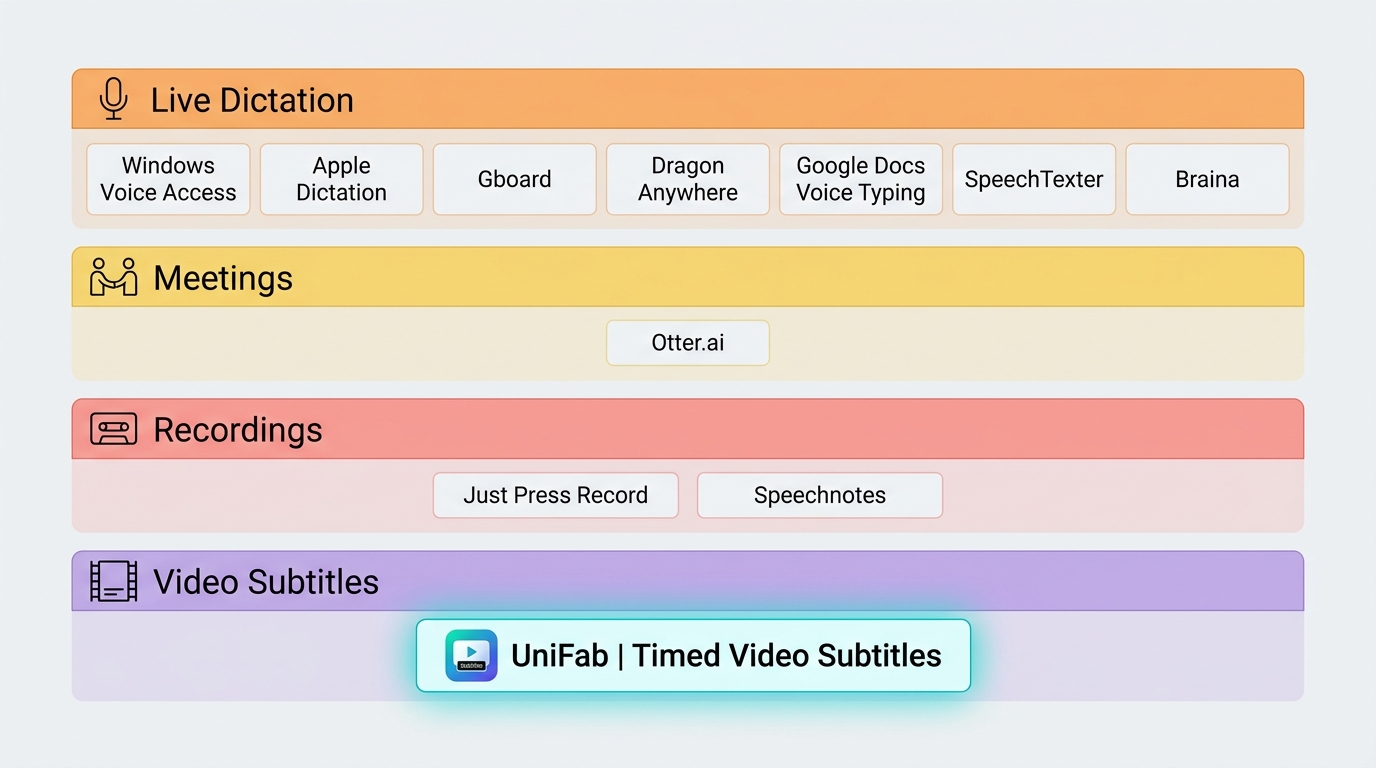
The table compares workflow fit rather than declaring a universal winner. Pricing and plan details are current as of July 2026; exact allowances can differ by account, platform, and billing choice.
| Option | Primary task | Good fit | Platforms | Input | Connectivity | Cost model | Key limitation |
| Windows Voice Access and Voice Typing | PC control and live text entry | Windows 11 accessibility and drafting | Windows 11 | Live microphone | Feature and language dependent | Built in | Not a recorded-file or subtitle workflow |
| Apple Dictation | Live dictation | Apple users who want built-in text entry | Mac, iPhone, iPad | Live microphone | On-device availability varies | Built in | Specialized vocabulary may need more correction |
| Gboard | Mobile voice typing | Short messages and form entry | Android and iOS | Live microphone | Varies by device and language | No separate charge | Limited file-transcription workflow |
| Dragon Anywhere Mobile | Connected mobile dictation | Sustained professional dictation | Android and iOS | Live microphone | Online | Subscription | Not a desktop meeting or subtitle product |
| Otter.ai | Meeting transcription | Teams that need speaker-aware notes | Web and mobile | Meetings and supported recordings | Cloud | Free tier and subscriptions | Meeting-bot workflow can be excessive for solo dictation |
| Google Docs Voice Typing | Browser dictation | Drafting directly in Google Docs | Supported desktop browsers | Live microphone | Online | Included with Google Docs | Does not replace uploaded-file transcription |
| SpeechTexter | Lightweight voice typing | Quick browser or supported Android dictation | Web and Android | Live microphone | Generally online | Free access | Limited controls for complex file workflows |
| Just Press Record | Recording and transcription | Apple-device recording and synchronization | Apple ecosystem | Recorded audio | Feature dependent | App purchase | Not a cross-platform meeting suite |
| Speechnotes | Live dictation and file transcription | Users who want a simple web workflow | Web and supported apps | Live speech and supported files | Online for core web services | Free and paid capabilities | Allowances differ between features |
| Braina | Windows dictation and assistant controls | Windows users who want voice commands | Windows with mobile companion use | Live microphone | Feature dependent | Free and licensed plans | Not designed around meeting bots or video subtitles |
| UniFab Subtitle Generator AI | Video subtitle creation | Editable, synchronized subtitles from video | Windows and Mac | Video project | Hybrid with FabCloud credits for AI-intensive work | Credit and license based | Not intended for operating-system control or quick note dictation |
The practical split is clear: built-in Windows and Apple tools suit live entry, Otter centers on meetings, Dragon Anywhere Mobile targets sustained mobile dictation, and UniFab addresses video subtitle projects. None of those categories should be judged by the same feature checklist.
10 Speech-to-Text Tools Compared for 2026
The ten main options below cover built-in dictation, mobile keyboards, connected professional dictation, meeting notes, browser drafting, recording, and Windows assistant workflows. AI-native meeting products, local-model apps, uploaded-file platforms, subtitle tools, and APIs remain separate categories.
1. Windows Voice Access and Voice Typing
For speech to text Windows 11 users get two distinct built-in paths: Voice Access supports PC control and text authoring, while Win+H Voice Typing focuses on entering text in an active field.
Microsoft is replacing Windows Speech Recognition with Voice Access on Windows 11 22H2 and newer. This is the most relevant starting point for accessibility and dictation software for Windows, but it does not process a saved interview or create subtitles.
Good fit: Windows 11 users who need hands-free navigation, commands, or quick text entry. Less suitable: uploaded recordings, meeting summaries, and subtitle exports.
2. Apple Dictation
Apple Dictation is a convenient built-in option for entering text on supported Apple devices. On current Mac systems, dictation can continue without a duration timeout and stops after 30 seconds of silence.
On-device and offline behavior depends on the device, language, and downloaded assets. It is a sensible first check for Apple users, though specialized formatting and technical vocabulary may justify a dedicated product.
Good fit: everyday notes and drafts within the Apple ecosystem. Less suitable: team meeting analysis or complex recorded-file production.
3. Gboard
Gboard provides real-time speech to text through the mobile keyboard, making it practical for messages, searches, and short-form entry on Android and iOS.
Language support and offline behavior vary by device and configuration, so broad language totals and universal accuracy percentages are not useful buying evidence. Test the microphone button in the apps and language you actually use.
Good fit: quick mobile entry. Less suitable: long recordings, speaker labels, or structured subtitle delivery.
4. Dragon Anywhere Mobile
Dragon Anywhere Mobile is a connected mobile dictation service for users who want sustained voice-driven document creation. The cited product is not a combined desktop-and-mobile package and requires internet access.
Its professional-dictation focus makes more sense for lengthy drafting and specialized vocabulary than for casual messages. Desktop Dragon products should be evaluated separately.
Good fit: mobile professionals who dictate substantial text. Less suitable: offline work, meeting-bot notes, and video captions.
5. Otter.ai
Otter.ai is built around meeting transcription, speaker-aware notes, collaboration, and recorded conversation workflows rather than ordinary keyboard dictation. It supports six transcription languages.
The meeting assistant and team features can save coordination effort, but they may be unnecessary for a person who simply wants to speak into a document. For sensitive meetings, review bot behavior, retention, sharing, and account controls before use.
Good fit: recurring meetings and shared notes. Less suitable: private offline dictation or a minimal text-entry tool.
6. Google Docs Voice Typing
Google Docs Voice Typing is a free browser-based choice for drafting and editing directly in Google Docs. Supported commands and languages vary, so test the exact browser and account workflow.
It is easy to try when the destination is already a Google document. It is not a general uploaded-audio service and does not create timed subtitle files.
Good fit: browser drafting in Google Docs. Less suitable: recorded interviews, meetings, or video captions.
7. SpeechTexter
SpeechTexter is a lightweight browser dictation option with Android availability where supported. It focuses on voice typing and custom punctuation commands rather than a large media-production workflow.
Current platform and language support should be checked in the configured device, without relying on an unsupported universal accuracy percentage.
Good fit: quick browser or Android voice entry. Less suitable: enterprise controls, multi-file management, and team review.
8. Just Press Record
Just Press Record combines recording, transcription, editing, and synchronization within the Apple ecosystem. It is closer to a personal recording workflow than a cross-platform dictation or meeting platform.
That focus is useful when the original audio matters alongside the transcript. Current pricing and language coverage should be evaluated in the store listing for the reader's region.
Good fit: Apple users who want recordings and transcripts together. Less suitable: Windows teams or browser-based collaboration.
9. Speechnotes
Speechnotes offers both free and paid capabilities across live dictation and supported file-transcription services. Keeping those workflows separate resolves the misleading idea that every feature has the same allowance.
It can suit users who want a straightforward web interface, but imports, exports, and usage limits should be compared feature by feature.
Good fit: simple web dictation and occasional file work. Less suitable: buyers who need one uniform allowance across all functions.
10. Braina
Braina combines Windows dictation and assistant-style voice commands with companion mobile use. It belongs in a Windows productivity comparison, but its meeting and subtitle capabilities should not be inferred from its assistant positioning.
Current plan details and any performance claims need direct product verification, so this comparison does not repeat the stale annual price or unsupported accuracy figure from the earlier article.
Good fit: Windows users interested in voice commands and text entry. Less suitable: modern meeting-bot collaboration or video-to-SRT production.
Video Speech-to-Text and SRT Subtitles
Video speech to text needs timing, caption editing, and export choices that ordinary dictation tools do not provide. Treat it as a separate production workflow, especially when the deliverable is synchronized subtitles rather than a plain document.
When Video Needs a Different Workflow
Start by checking three prerequisites: the tool must accept the source video, identify speech clearly enough for editing, and produce the subtitle or finished-video output required by the publishing platform.
For general caption editing after transcription, the guide to adding text to video covers the separate styling and placement stage.
UniFab Subtitle Generator AI
UniFab Subtitle Generator AI is positioned for video-based subtitle generation, editing, and translation on Windows and Mac, not for hands-free operating-system control or quick note dictation.
AI-intensive work uses FabCloud credits. Its subtitle workflow supports SRT handling, while finished video output is listed as MP4 or MKV; this keeps subtitle files and rendered video containers in their correct roles rather than describing MP4 or MKV as verified inputs.
Good fit: users who need editable, synchronized subtitles from a video project. Less suitable: live document dictation, meeting bots, or computer navigation.
Best Video Speech to Text Software
- Auto detect video language and generate subtitles with AI
- Translate subtitles into 30+ languages
- Reach global audiences
Subtitle Generator AI - FabCloud
Best Video Speech to Text Software
- Auto detect video language and generate subtitles with AI
- Translate subtitles into 30+ languages
- Reach global audiences
Subtitle Generator AI for Mac - FabCloud
Video-to-SRT Workflow
Keep the process short and verify the required import and export fields before starting a large project.
- Import the authorized video project and select the spoken language.
- Generate the transcript, then review names, punctuation, line breaks, and timing.
- Export or save the subtitle workflow in SRT when supported, or render the captioned video in the required output container.
I would not choose a live dictation app for this job simply because it recognizes speech well. Subtitle timing and delivery format are part of the requirement, not optional extras.
Final Recommendations by Use Case
Choose by scenario, not by rank. The most common buying mistake is selecting a highly rated product that cannot accept the source material or produce the required output.
- Windows 11 control and typing: Start with Voice Access for control and Voice Typing for text entry.
- Apple built-in dictation: Try Apple Dictation before adding a dedicated service.
- Free browser drafting: Google Docs Voice Typing is a direct fit when the destination is a Google document.
- Mobile keyboard entry: Gboard is practical for short text in supported apps and languages.
- Sustained mobile professional dictation: Evaluate Dragon Anywhere Mobile with your vocabulary and connection requirements.
- Meetings and shared notes: Otter.ai fits collaborative conversation workflows, subject to privacy review.
- Private or offline work: Test the exact on-device language and feature before relying on it away from a connection.
- Technical vocabulary: Run a fixed sample containing names, acronyms, and domain terms, then compare correction effort.
- Accessibility: Favor command coverage and dependable navigation over a generic accuracy claim.
- Video-to-SRT output: Use a video subtitle workflow such as UniFab rather than a keyboard dictation tool.
Speech-to-Text Software FAQs
Is Windows 11 speech-to-text free to use?
Yes. Windows 11 includes Voice Access for supported PC control and text authoring, plus Win+H Voice Typing for entering text. They solve different jobs and do not replace uploaded-file transcription or subtitle software.
Can speech-to-text software work without an internet connection?
Some functions can work locally or partly on-device, but offline availability depends on the operating system, language, downloaded assets, and feature. Test the exact configuration before relying on it for travel or confidential work.
Is cloud transcription appropriate for confidential audio?
It can be, if the organization's policy allows it and the service's retention, encryption, model-training, sharing, and meeting-bot controls meet the requirement. Local processing may be preferable when uploading is not approved.
Which tools handle accents and technical terms more reliably?
No single product is reliable for every speaker and vocabulary. Compare the same sample, microphone, noise level, names, and technical terms, then choose the option that requires the fewest meaningful corrections.
Can I transcribe an MP4 and export SRT subtitles?
Yes, when a video-focused tool explicitly accepts the MP4 source and supports SRT export. Live dictation apps usually do not provide subtitle timing. UniFab is separated here as a video subtitle workflow, with MP4 and MKV identified as finished-video outputs rather than assumed inputs.