If renaming .mp4 to .m4a left you with an unusable file, the extension was never the real conversion. To convert MP4 to M4A, extract the audio into an M4A container. Copy a compatible AAC or ALAC stream to avoid another encode; otherwise, encode a new AAC or ALAC track.
Renaming changes the label, not the media structure, which is why the file may stay unusable. A practical rule is simple: the right MP4-to-M4A converter comes after the codec check, not before it. This guide follows that decision through Windows, macOS, online tools, and FFmpeg, then closes with a practical fit rule.
What MP4-to-M4A Conversion Does to Audio Quality
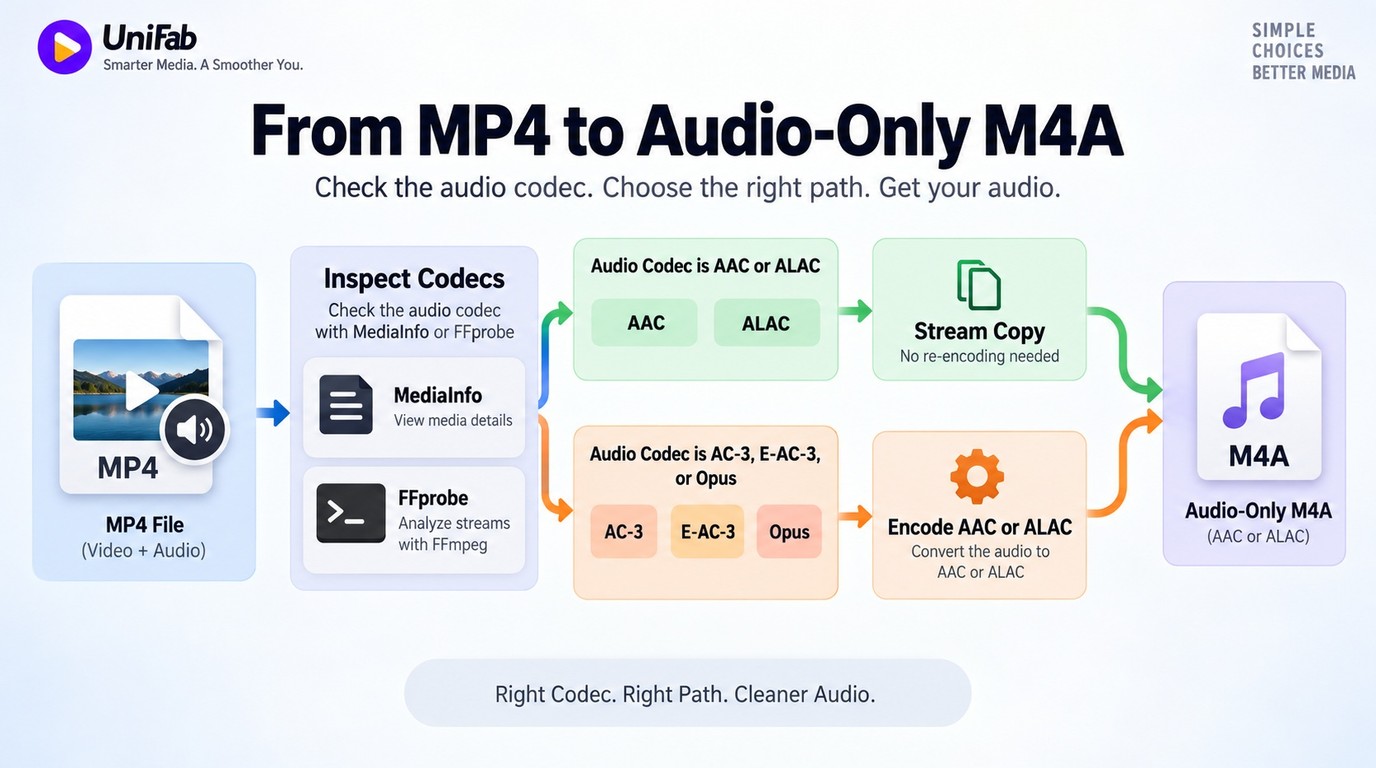
Converting an MP4 to M4A preserves the original audio quality only when the existing audio stream can be copied unchanged. If the source codec is incompatible, the converter must encode it, and raising the output bitrate cannot restore detail already missing from a lossy source.
MP4 Is a Multimedia Container; M4A Is Audio-Only
MP4 is a container that can hold video, audio, subtitles, and metadata. M4A is the audio-focused MPEG-4 container, commonly used with AAC or ALAC. The resulting M4A keeps an audio track and discards the MP4's video track; changing the filename alone does neither.
Check the Source Codec Before Choosing Settings
Codec inspection tells you whether extraction can be a clean container change. MediaInfo provides a graphical view, while this FFprobe command reports the first audio stream's codec, sample rate, and bitrate:
ffprobe -v error -select_streams a:0 -show_entries stream=codec_name,sample_rate,bit_rate -of default=noprint_wrappers=1 input.mp4
AAC or ALAC can usually be placed in M4A without another encode. Audio such as AC-3, E-AC-3, or Opus normally needs conversion to AAC or ALAC for broad M4A compatibility. For an uncompressed editing handoff instead, an MP4-to-WAV workflow trades smaller files for PCM compatibility.
Stream Copy vs. Re-encoding
Stream copying moves the existing compressed audio packets into the new container. Re-encoding decodes those packets and creates a new audio stream, which can add loss when the target is AAC. As one Reddit user in r/CutAndFrame put it, “The thing people mess up is usually the quality settings and accidentally re-compressing stuff.”
The practical rule is narrow but useful: copy compatible AAC or ALAC; encode incompatible audio once from the original MP4. Keep the source sample rate unless a playback or delivery requirement calls for something else.
How to Convert MP4 to M4A on Windows, Mac, or FFmpeg
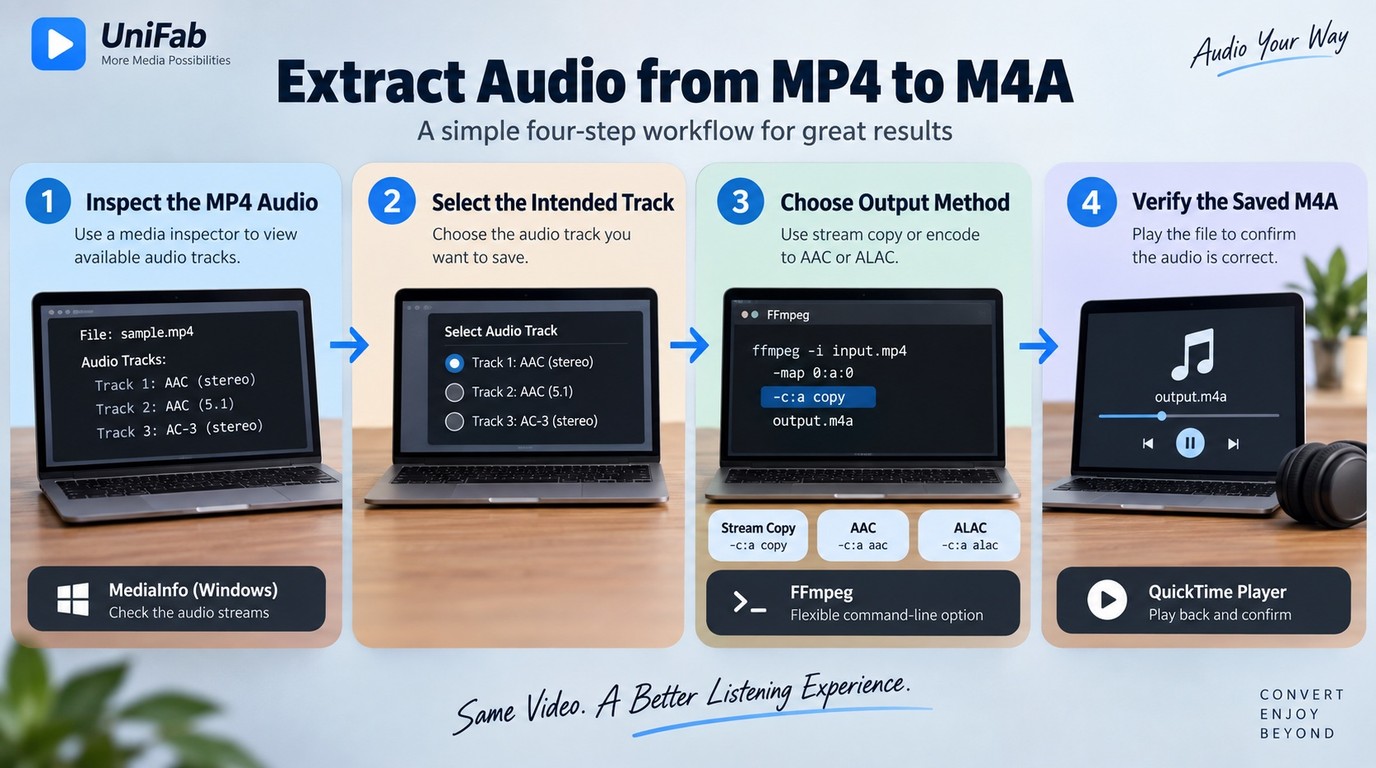
Windows users can create M4A with a local desktop converter, macOS users can use QuickTime Player for a simple AAC export, and either platform can use FFmpeg for explicit copy or encode control. The shared workflow covers source inspection, output selection, conversion, and verification.
Usage note: Process only files you own or have permission to use. If a file came from an online service, follow its terms and personal-use rules; these instructions cover ordinary, playable media and not protected or unauthorized material.
Before You Start: Check the Audio Track and Output Folder
Preparation prevents most failed or wasteful conversions:
- Play the MP4 and confirm that the intended audio track is present.
- Inspect the audio codec before choosing copy or encode.
- Select a destination with enough free space and clear filenames.
- Keep the source file until the M4A passes a playback check.
If the MP4 has several language or commentary tracks, note the correct stream before conversion. A converter that silently selects the first track can produce a valid M4A with the wrong audio.
The Four-Step Conversion Checklist
Use this sequence with any desktop or online interface:
- Import the MP4 and select the intended audio track.
- Choose M4A as the output container.
- Select stream copy for compatible audio, or AAC or ALAC encoding when needed.
- Save the file, then check its duration, sound, tags, and destination name.
That last check matters. A completed progress bar proves that a file was written, not that the correct track and metadata survived.
Windows: Use a Local Desktop Converter
A local GUI is the clearest Windows route when you do not want shell commands. The controls vary, but the path is consistent:
- Add the MP4 to the converter.
- Open the audio output list and choose M4A.
- Select Copy, AAC, or ALAC according to the source codec.
- Choose the destination folder and preserve the base filename.
- Start conversion and play the saved M4A before deleting anything.
This method suits you if you want visible track selection or several queued files. It is less precise than FFmpeg when you need scripted stream mapping.
macOS: Export Audio with QuickTime Player
QuickTime Player is the shortest Mac path for a playable MP4 when AAC output is acceptable:
- Open the MP4 in QuickTime Player.
- Choose File > Export As > Audio Only.
- Name the M4A, select a folder, and save it.
As of September 2026, Apple's QuickTime Player guide describes Audio Only as an Apple MPEG-4 audio file with an AAC track. QuickTime suits one-off AAC exports, but it does not expose codec choice or stream-copy controls and is inefficient for large batches.
FFmpeg: Copy or Encode a Single File
FFmpeg gives you the clearest quality decision. When the first audio stream is compatible with M4A, copy it without re-encoding:
ffmpeg -i input.mp4 -map 0:a:0 -map_metadata 0 -vn -c:a copy output.m4a
If that command fails because the source codec does not fit M4A, encode to AAC:
ffmpeg -i input.mp4 -map 0:a:0 -map_metadata 0 -vn -c:a aac output.m4a
I would choose ALAC over AAC only when the workflow requires a lossless output after extraction: ALAC avoids another lossy generation, but it cannot recover detail already discarded by a lossy source.
Batch Jobs: Preserve Names, Folders, and Metadata
Batch work is where shell choice becomes part of the method. As one Reddit user in r/ffmpeg wrote, “I'm trying to convert 1620 songs to .m4a. I tried this command after opening cmd in the correct folder, but it gives me error 'I was unexpected at this time'?.” A Unix loop pasted into Windows Command Prompt will not behave like Bash.
At a Windows Command Prompt, %F handles files in the current folder:
for %F in (*.mp4) do ffmpeg -i "%F" -map 0:a:0 -map_metadata 0 -vn -c:a copy "%~nF.m4a"
Inside a .bat file, change %F to %%F. On macOS or Linux, use a Bash loop:
for f in *.mp4; do ffmpeg -i "$f" -map 0:a:0 -map_metadata 0 -vn -c:a copy "${f%.mp4}.m4a"; done
For subfolders, use Get-ChildItem -Recurse in PowerShell or find in Bash, and keep output beside each source to reduce filename collisions. Run a small sample first; one wrong stream selector scales into a library-wide mistake.
I would choose FFmpeg over a desktop GUI only when explicit stream mapping or repeatable folder automation is the deciding requirement; otherwise, the extra shell syntax creates more failure points than it solves.
Online or Local: Choose the Right MP4-to-M4A Converter
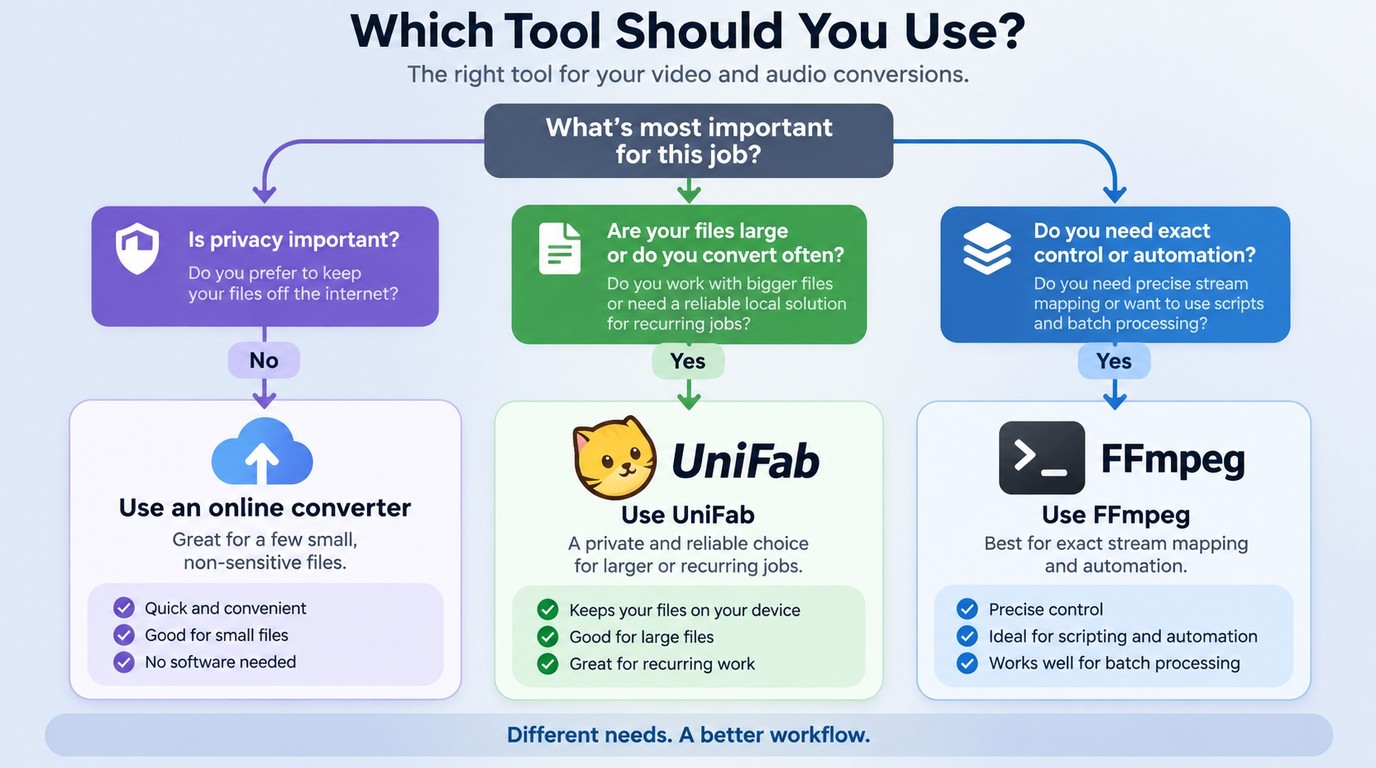
Use an online converter for a few small, non-sensitive files. Choose a local GUI for private or recurring work, and FFmpeg for exact stream mapping or automation.
Use an Online Converter for Small, Non-Sensitive Files
Online video converter tools require four actions: upload, choose M4A, convert, and download. They suit disposable clips, but uploads and service-defined limits make them a weak fit for large, client, or unreleased files.
Use UniFab Video Converter for Local and Repeat Work
UniFab Video Converter is a local Windows and macOS app that handles MP4 sources up to 4K, supports batch jobs across more than 1,000 format conversions, uses NVIDIA, AMD, and Intel GPU acceleration up to 50×, and costs $0 without a watermark under the policy effective since December 2024.
The tradeoff is installation and local disk use. It also lacks FFmpeg's command-level scripting and is not practical on a locked-down computer.
Match the Method to File Size, Privacy, and Volume
| Method | Use when | Processing | Quality control | Batch fit |
| Online converter | A few small, non-sensitive files | Remote service after upload | No guaranteed stream-copy control; use a local converter when preserving a compatible AAC or ALAC stream is required. | Service limits apply |
| Local desktop | Private or recurring jobs | On your device | GUI codec settings | Strong |
| FFmpeg | Scripted copy or encode | On your device | Explicit commands | Strong with scripts |
For client or unreleased footage, a local GUI is generally the more defensible choice because it removes the upload step. Choose FFmpeg when automation matters more than interface comfort.
MP4-to-M4A FAQ
After conversion, the useful questions concern device access, privacy, codec support, and what a reverse conversion would actually do. These answers stay focused on the M4A you created rather than repeating the extraction steps.
Can I Convert MP4 to M4A on an iPhone or Android Phone?
Yes. A mobile browser can use an online converter, while a local media-conversion app can keep the job on the phone. Choose an app only if it explicitly lists M4A output and shows the target codec; for private recordings, local processing is the safer fit.
Is an Online MP4-to-M4A Converter Safe for Private Files?
Do not upload a private MP4 unless the service gives clear retention, deletion, and access terms that match your needs. A local converter keeps the source on your device, so it is the more defensible choice for client work, personal archives, and unreleased media.
Should I Convert the Extracted M4A File to MP3?
Convert M4A to MP3 only when an older player, editor, or delivery system requires MP3. If the M4A contains AAC, making an MP3 creates another lossy generation; keep the M4A as the archive and make an MP3 compatibility copy when needed.
What Does M4A-to-MP4 Conversion Do Instead?
M4A-to-MP4 moves in the opposite direction: it packages audio into an MP4 workflow rather than extracting audio from video. It does not restore the original video track. If a publishing service requires video, the MP4 also needs a visual track such as a still image or video clip.
Why Will an M4A File Not Play Correctly After Conversion?
Start by separating codec trouble from file damage or metadata trouble. As one Reddit user in r/audacity described, “When I try to save that file as MP3, WAV, M4A, etc. and replay the newly created file, it adds a bit of white noise.” Diagnose from the original MP4, not from the failed output:
- Play the source and confirm the noise or dropout is absent.
- Inspect the M4A codec and test it in another current player.
- Recreate the file as AAC if the first player does not support ALAC.
- Rewrite or remove problematic tags if audio plays but the library sorts it incorrectly.
Return to the original source for every retry. The durable decision rule is still the same: inspect the track, copy compatible audio, encode only when necessary, and keep private or repeated work local.