To learn how to convert an M4A to an MP3, use Apple Music on Mac or a local desktop converter on Windows; reserve a reputable browser service for one non-sensitive file. Re-encoding means decoding the existing audio and encoding it again as MP3. Keep the original until playback checks pass.
Voice memos make the mismatch easy to recognize: the recording is intact, but an older editor or player expects MP3. My call is that Apple Music or VLC and a browser converter are different routes, not interchangeable buttons. The local apps keep the file on the device, while the browser path requires an upload, so privacy and batch size decide the choice. The sections below apply that distinction to Windows, Mac, mobile handoffs, and a conditional local batch option.
How to Convert M4A to MP3: Pick a Route and Follow the Steps
How to convert an M4A to an MP3 depends first on whether the file can leave your device. For one ordinary file, a browser converter can be a convenient path. For private recordings or a folder of files, use a local desktop app; a batch-capable option such as UniFab belongs on that path only after one representative M4A converts successfully.
Before You Start: Check the Source File and Protect the Original
Confirm that the file really ends in .m4a, note its duration, and decide where the new MP3 will live. A separate output folder is safer than converting in place. A copy of the source gives you a recovery path if tags, artwork, or the last seconds of audio do not survive.
As one Reddit user in r/musichoarder put it, “Most of my music files have been ripped using iTunes using the Apple Lossless format. I want to convert them to MP3's while retaining the originals.” That is the right default, even for a one-file job.
Convert Locally on Windows with a Desktop App
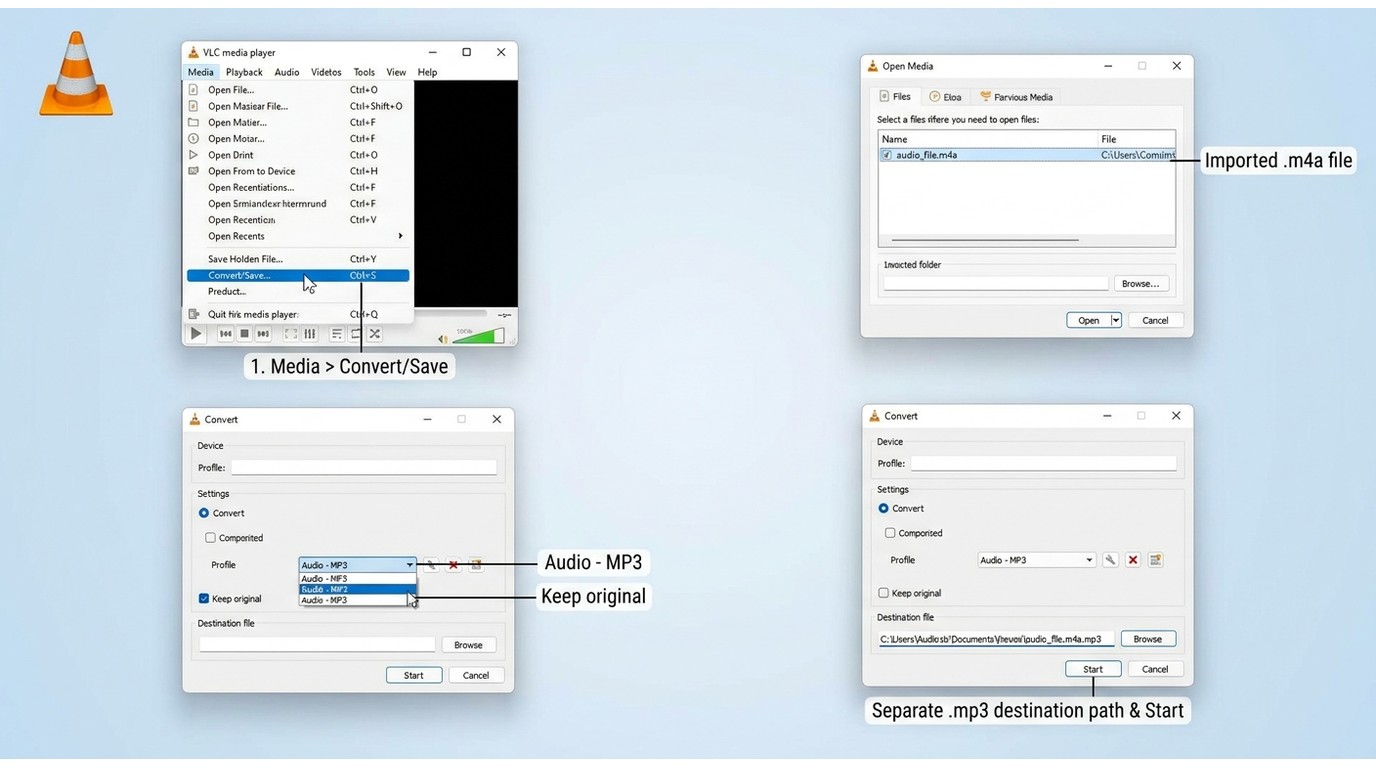
Windows 11 does not provide a dedicated native M4A-to-MP3 workflow comparable to Apple Music on Mac. A local desktop converter such as VLC keeps the file on your computer while giving you a clear output path.
- Open VLC, choose Media > Convert/Save, and add the M4A file.
- Select Convert/Save, then choose an Audio - MP3 profile.
- Set a destination filename that ends in
.mp3; do not point it at the source file. - Start the conversion and wait for the new file to appear.
- Play the result from beginning to end, then compare its duration with the M4A.
The practical point is not that VLC is the only Windows choice. It is that a local workflow makes the privacy decision explicit and avoids treating a file extension as if it changed the audio inside.
Use an Online Converter for a Small, Non-Sensitive Job
Browser conversion is convenient when you have one ordinary recording and no reason to keep the process offline. It is a poor fit for private interviews, unreleased work, client audio, or a large folder.
Please note: Upload only files you own or are authorized to process, read the service's terms and privacy/deletion policy, and keep any resulting copy for your lawful personal or work use. You are responsible for the material you submit.
- Choose a service that uses HTTPS and explains how uploaded files are handled and deleted.
- Upload the M4A, select MP3, and choose a sensible quality setting.
- Start the conversion, download the result, and save it outside the browser's temporary folder.
- Use the service's delete control when one is provided, then verify playback locally.
Do not create an account or install extra software unless the job actually requires it. A browser route is a convenience decision, not a privacy upgrade.
Verify the MP3 Before Removing or Archiving Anything
Check the full duration, the opening and closing seconds, file size, tags, artwork, and compatibility in the player or editor that prompted the conversion. Also check bitrate, the amount of audio data stored per second; a higher setting usually creates a larger file. Keep the M4A until every check passes.
The last check matters because a Reddit user in r/musichoarder described a real failure mode: “the last second of the track is often lost during the conversion.” A safer practice is a short sample listen at both ends before any source cleanup.
| Check | Local desktop | Browser converter |
| File upload | Not required | Required |
| Internet during conversion | Usually not required | Required |
| Private recordings | Preferred route | Use only after policy review |
| Batch jobs | Better fit | Limits vary |
| Suitable use case | Sensitive or repeated work | One-off, non-sensitive file |
Reader-facing takeaway: the file leaves your device only in the browser route, so that is the first decision to make.
How to Convert M4A to MP3 on Mac
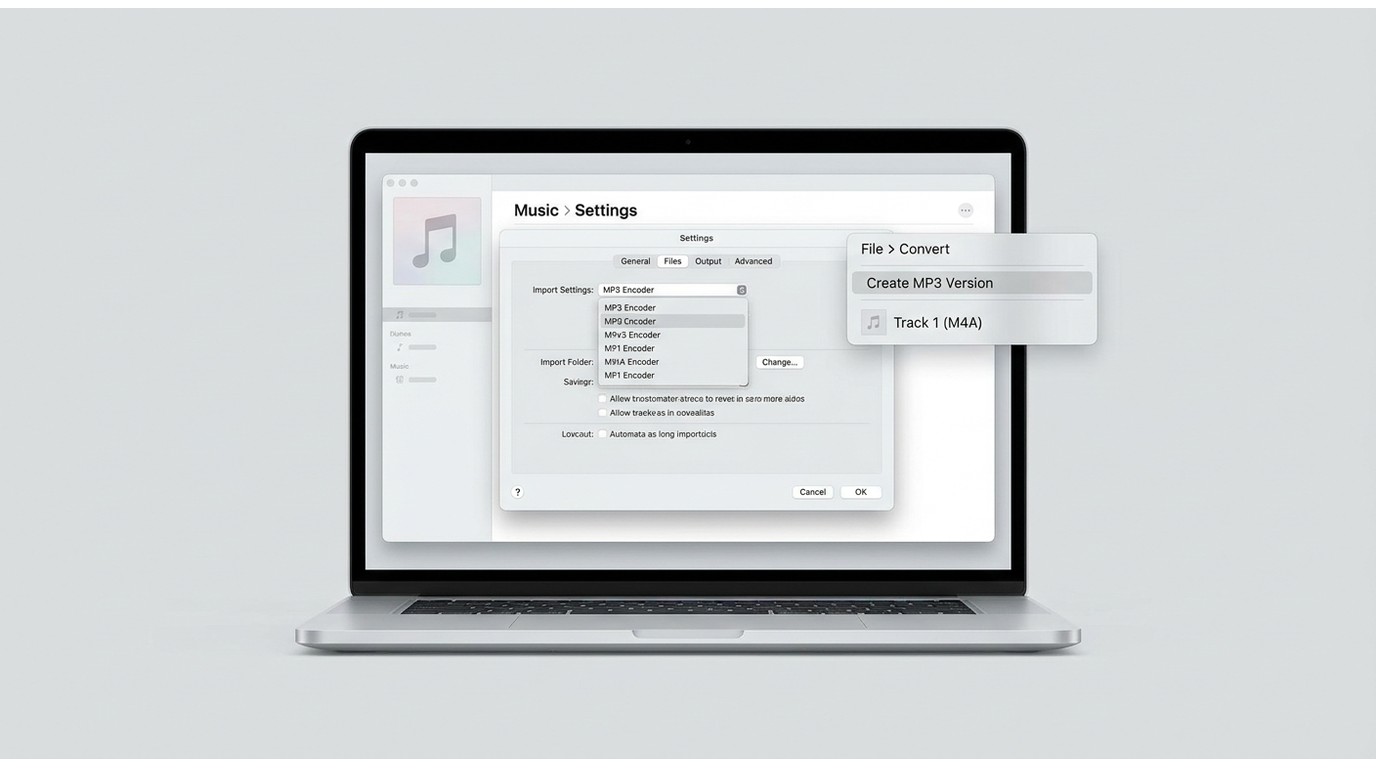
For a Mac M4A to MP3 conversion, Apple Music can create an MP3 copy while leaving the imported M4A in place. The key is to set the MP3 encoder first, then use Create MP3 Version rather than replacing the source.
Set MP3 as the Import Format in Apple Music
Open Music > Settings > Files > Import Settings. Choose MP3 Encoder, select the quality option that fits the target player, and confirm the setting before importing or converting.
Apple documents this route in its Mac support instructions, and the copy-versus-replace distinction is the part worth remembering: changing the import preference does not rewrite files that already exist.
Create the MP3 Copy
- Import the M4A into Music if it is not already in your library.
- Select the track, open File > Convert, and choose Create MP3 Version.
- Wait for the second entry to appear, then use Show in Finder to reveal its location.
- Keep the M4A entry and move only the MP3 copy to the app or device that needs it.
This is the cleanest Mac route when the goal is compatibility without replacing the source.
Locate, Rename, and Verify the Output
The MP3 normally appears beside the original in the Music library or its Finder folder. Rename it only after checking the extension, duration, playback, tags, and artwork. If artwork is missing, treat that as a metadata task rather than repeating the audio conversion.
How to Convert M4A to MP3 on iPhone or Android
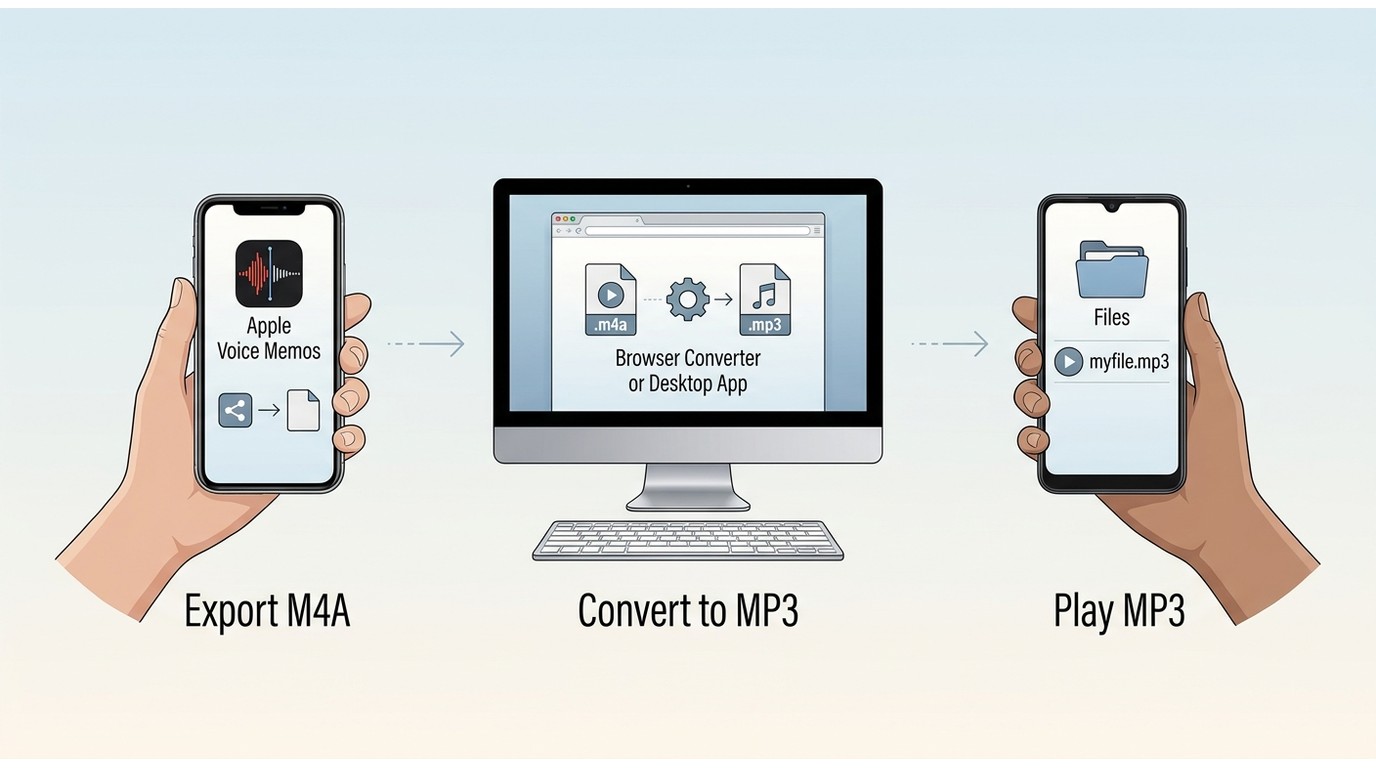
An M4A to MP3 iPhone workflow starts by exporting a Voice Memos recording to Files; on Android, first locate the M4A in the Files app. Use an on-device browser route for an ordinary one-off file, but transfer private recordings or repeat jobs to a Mac or Windows computer for local processing.
iPhone: Export the Recording to Files First
In Voice Memos, tap Share > Save to Files, choose a folder, and confirm that the .m4a file is visible in Files. From there, you have two sensible paths:
- For a non-sensitive recording, open a reputable converter in Safari, upload the file from Files, choose MP3, and save the result back to Files.
- For a private recording or batch, move the M4A to a computer. On Mac, use Apple Music's Create MP3 Version; on Windows, use VLC's Convert/Save with an Audio - MP3 profile. Save to a separate folder and verify playback.
- Play the saved MP3 on the phone before deleting any duplicate.
An iPhone M4A-to-MP3 request usually hides a file-management problem: Voice Memos can export the source, but it does not by itself guarantee an MP3 output.
Android: Convert a Downloaded M4A or Transfer It to Desktop
Use the Files app to confirm the downloaded M4A and its folder. A browser tool can handle an ordinary one-off file if its privacy terms are clear. For private audio or recurring work, transfer the file to a desktop converter instead of choosing an unverified app by its store title alone.
Set a separate output folder, convert one file, and play the result. If the MP3 works in the target player or editor, repeat the process for the rest.
Move the MP3 into the App That Needs It
Use Share, Save to Files, or the app's import command to hand the MP3 to an editor, older player, cloud drive, or messaging app. Check that the destination accepts the file and that the audio starts and ends correctly before removing the mobile copy.
Where UniFab Fits in a Private Batch Conversion Workflow
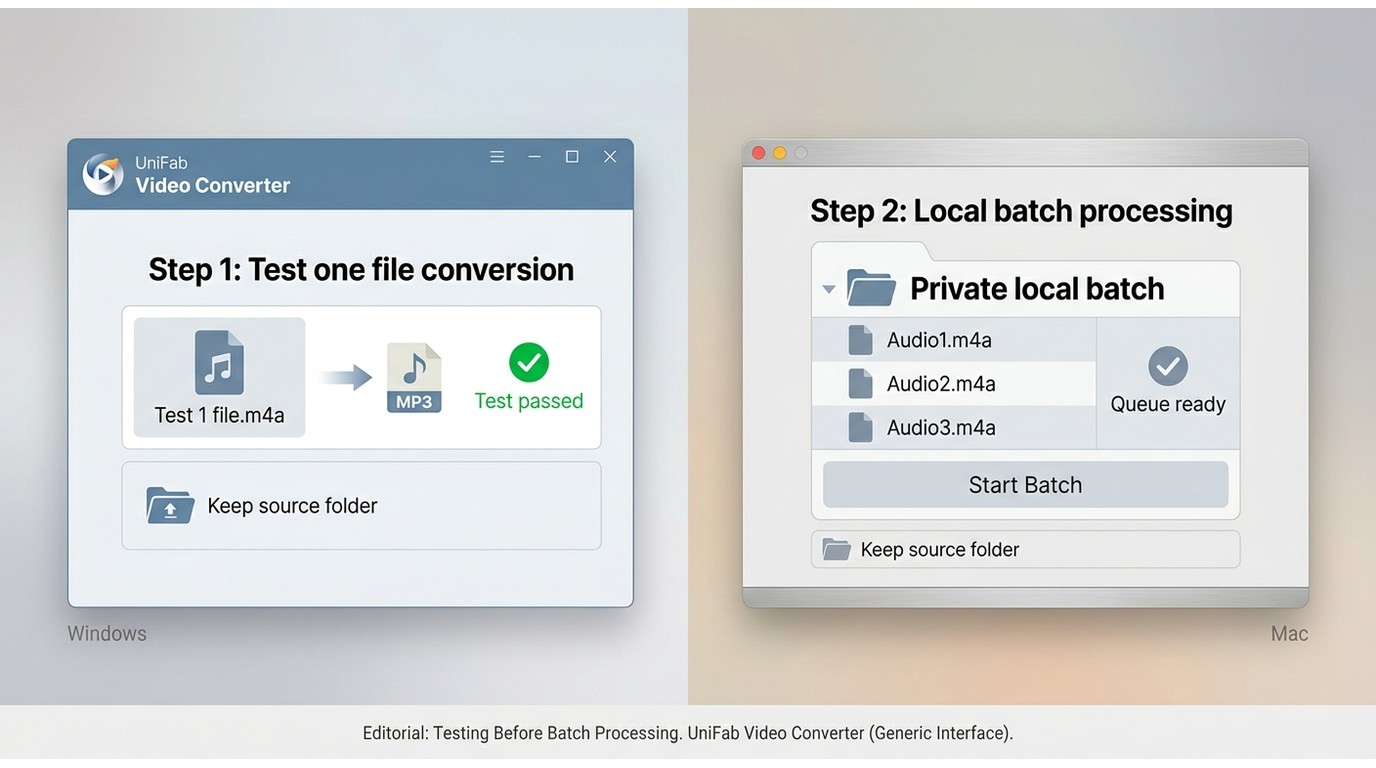
For an M4A to MP3 file batch, UniFab's Video Converter supports local, repeatable processing on Windows and Mac. Its published input list does not name M4A, so test one file before committing the folder. Because the input remains unconfirmed, compatibility must be established with a representative file before any batch is prepared.
Verified Strengths for Local, Repeatable Conversion Jobs
As of August 24, 2026, UniFab Video Converter is a local Windows and Mac app listed at $0, with batch processing, GPU acceleration up to 50x, 1000+ output formats, and no watermark; its published input list does not name M4A, so test one file before committing a folder.
Confirm M4A Input Support Before You Commit a Batch
Open the current format list, try one representative M4A, and confirm that the app exposes the expected audio output before preparing a folder. If the file is rejected, return to Apple Music, the Windows local route, or a browser tool that clearly accepts M4A.
Video-container support does not by itself confirm an audio-only M4A workflow.
Use a Sample Batch and Keep the Source Folder Untouched
Duplicate or lock the source folder, test files with different durations, choose a new destination, and compare duration and tags on the sample. Only then expand the batch. A local batch workflow is worth considering when you have recurring jobs, but the sample remains the proof point for compatibility.
M4A to MP3 FAQ: Quality, File Size, Metadata, and Errors
Readers asking how to change M4A to MP3 on Mac usually need either the Apple Music steps above or help with a grayed-out command. Across devices, most conversion problems come from a mismatch between the source codec, the method used to encode audio, the selected MP3 bitrate, and the destination app. The fastest fix is usually to return to one known-good file, preserve the M4A, and change one setting at a time.
Does converting M4A to MP3 reduce audio quality?
It can. MP3 conversion re-encodes the audio, and a lossy source, one compressed with some detail discarded, cannot gain detail simply because the new file uses a larger setting. Choose a bitrate that suits the destination rather than selecting the highest option by habit. If the source is already compressed, keeping the original is the quality reference.
Why can the MP3 be larger than the original M4A?
File size follows duration and bitrate, not the extension alone. An MP3 made with a higher bitrate can exceed the size of an M4A. This is especially likely when the original uses efficient AAC (the audio codec commonly stored inside many M4A files) compression. If the output is unexpectedly large, lower the quality setting for a short test and compare the result before converting the whole folder.
How do I keep metadata and album artwork?
Tags often transfer, but embedded artwork is less consistent across converters. As one Reddit user in r/AdobeAudition put it, “The Album/Artist metadata etc. is retained, but the Album Artwork is not.” Convert a sample, inspect the tags and cover image, and use a tag editor or manual artwork step if the destination requires it.
Why is Create MP3 Version grayed out on Mac?
First select a local track in Music and confirm that MP3 Encoder is active under Import Settings. If the item is still cloud-only, unavailable, or subject to a restriction that prevents local conversion, the command may remain unavailable. Download or import an ordinary local copy, then try the command again.
Does Windows 11 include a built-in M4A-to-MP3 converter?
Windows 11 does not include a dedicated converter comparable to Apple's Music workflow. Use a local desktop app such as VLC, or transfer the file to a Mac. The choice is less about finding a magic Windows setting and more about keeping the original, selecting an appropriate bitrate, and verifying the resulting MP3.
My final rule does not change with the device: conversion is a routing decision, not a file-extension trick. Apple Music or VLC fit work that should stay local, while a browser converter is a convenience choice for one non-sensitive file. I would not convert in place, because missing artwork or a truncated ending is easier to recover from when the M4A remains untouched. Verify one MP3 first, then expand to the rest of the batch.