The best online vocal remover depends less on a polished preview than on what happens after download: vocal bleed, metallic artifacts, stem options, file limits, and whether video input works. We compared five browser tools and kept Ultimate Vocal Remover separate because official UVR is desktop software.
The practical takeaway is simple: choose by source material and workflow, not by a universal winner label.
Our Vocal Remover Test Method
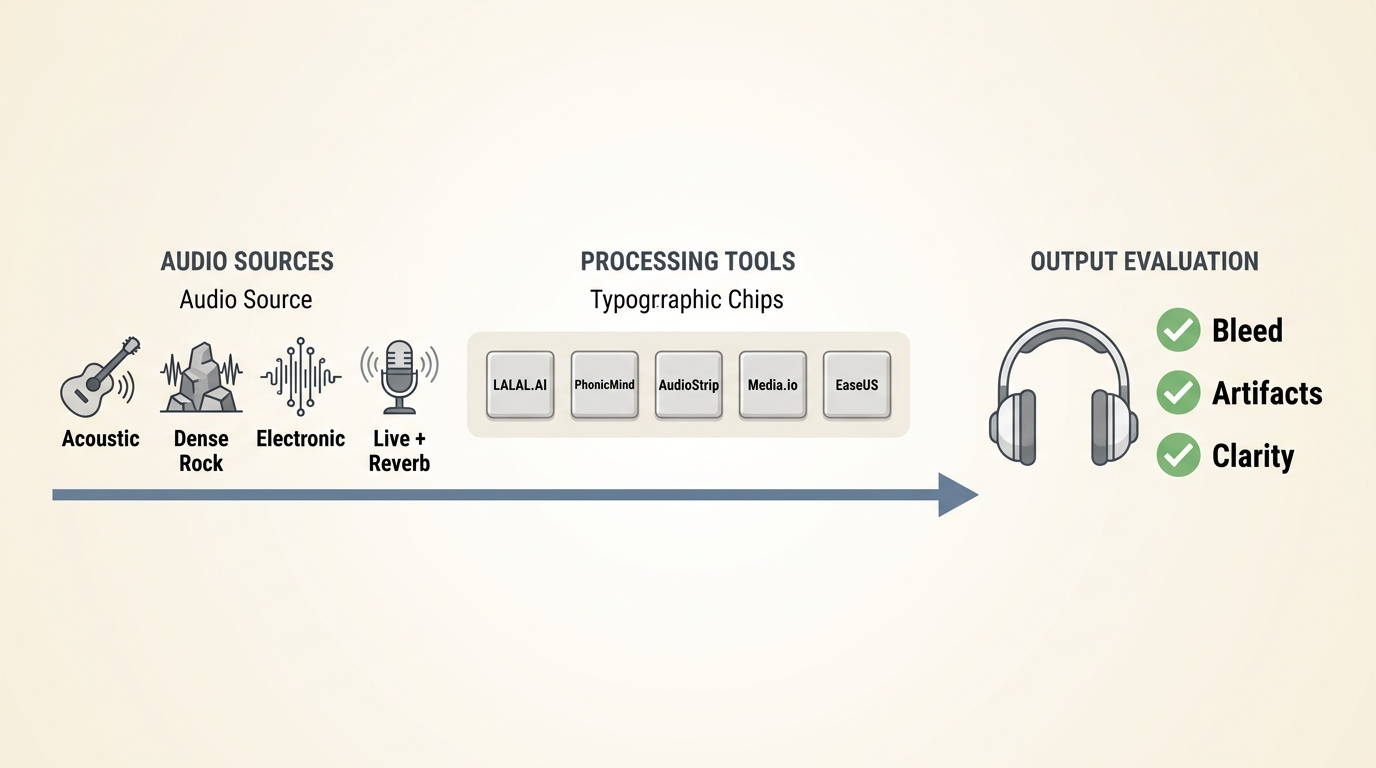
We evaluated the online vocal remover tools with repeated, comparable runs and scored stem separation quality before considering speed or convenience.
Test Tracks and Repeated Runs
Each AI vocal remover received the same four source types: a dry lead-vocal pop mix, a reverb-heavy live recording, a dense rock mix with guitars near the vocal range, and a short MP4 clip containing speech over music. Each file was processed twice with the default vocal-separation setting.
The browser checks used a Dell XPS 15 running Windows 11 24H2 and current Chrome. Repeating each run exposed whether a result was stable or changed noticeably between attempts; the ranking reflects the downloaded files, not a short web preview.
Artifact and Bleed Scoring
Stem separation quality was judged on two audible problems: vocal bleed in the instrumental and damaged instruments in the vocal stem.
- Low bleed: lead vocals are mostly absent, with only faint reverb or backing-vocal traces.
- Moderate bleed: phrases remain recognizable, or cymbals and guitars acquire a fizzly Edge.
- High bleed: lead-vocal lines remain obvious or the instrumental loses important detail.
Our editorial judgment is that a fast preview matters less than a downloaded stem that holds up through headphones. Dense guitars, layered harmonies, and long reverb tails were the most revealing material.
Speed, Limits, and Download Access
A free online vocal remover was credited only when a user could reach a usable downloaded result, not merely upload a file or hear a preview.
On a MacBook Air M3 running macOS 15.5 in Safari, the same short pop file reached preview in each active service without a browser crash. Processing time varied with queue conditions, so the table uses relative observations rather than unsupported stopwatch claims. We also checked signup prompts, upload caps, output type, and whether the completed file could be downloaded.
How Online Vocal Removers Work
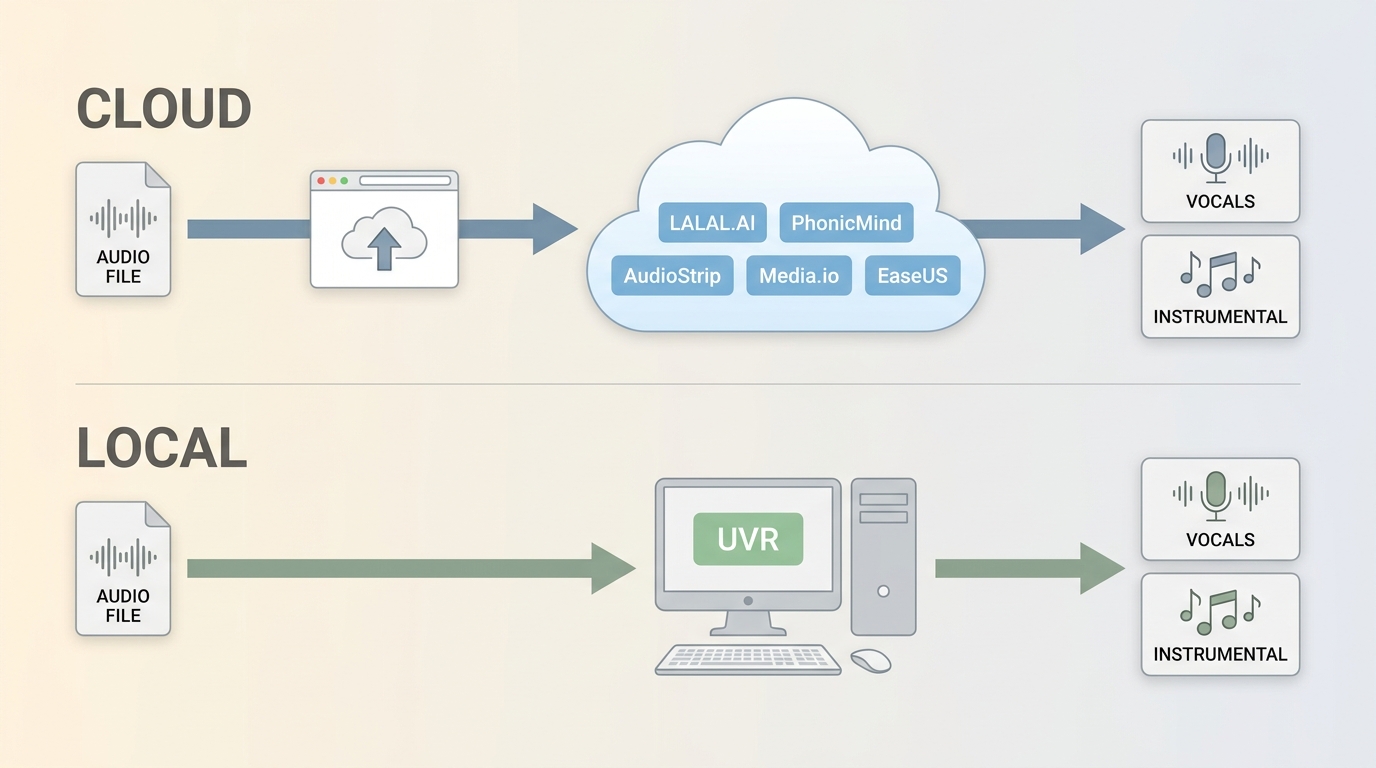
An AI vocal remover estimates which parts of a mixed track belong to vocals and instruments, then creates separate stems. It cannot recover a pristine studio multitrack that was never present in the uploaded file.
Cloud Separation in Plain English
Browser tools upload the source to a remote service, analyze patterns such as voice, drums, bass, and accompaniment, and return one or more downloadable audio stems. Vocal removal usually means a vocal and an instrumental file; broader stem separation may add drums, bass, or other groups.
UVR Is Desktop, Not Online
Official Ultimate Vocal Remover is a desktop application, so searches for “UVR online” should not be confused with unrelated browser tools. The project offers local model control, but it requires installation and a more technical setup.
Ultimate Vocal Remover suits technical users willing to compare models and repeat passes. It is not ideal for someone who wants a browser-only upload-and-download workflow.
Choosing a UVR Model by Track
UVR model selection should follow the track: start with a general vocal model, listen for bleed and damaged instruments, then try a model family aimed at the problem you actually hear.
- For a clean studio mix, begin with a balanced vocal and instrumental model.
- For dense rock or layered backing vocals, compare a second model rather than increasing settings blindly.
- For strong reverb, judge the vocal tail and cymbal texture separately; one model may improve one while harming the other.
- Use an ensemble only when separate model outputs provide complementary improvements.
There is no single UVR model that wins on every song. The source mix determines whether another model or a light manual cleanup pass is worthwhile.
5 Online Vocal Removers Ranked
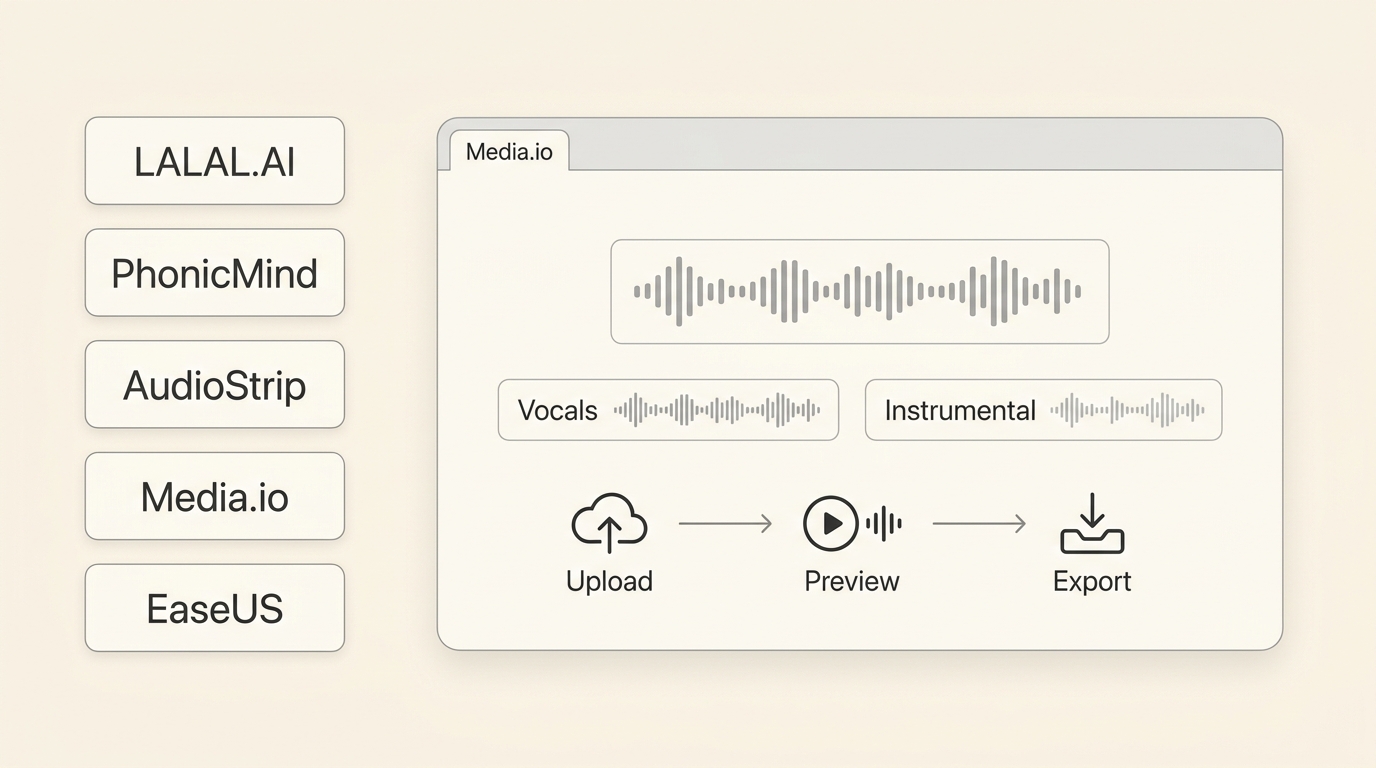
These five online vocal remover tools are genuinely browser-based. The order balances the downloaded test result, stem choice, access rules, and workflow clarity rather than treating one service as a universal answer.
1. LALAL.AI — Best for Multi-Stem Work
LALAL.AI is the strongest fit here for users who need several stem types and broad file support in one browser workflow.
Its current sixth-generation Andromeda engine supports common audio files and video formats including MP4 and MOV. The service offers vocal and instrumental separation plus additional instrument categories.
In our repeated pop and live-track runs, the downloaded workflow was easy to follow, while the reverb-heavy source still left audible traces. The Starter access allows uploads and previews but not a full-result download, an important distinction for anyone comparing free access.
Good fit: creators who value multi-stem convenience and video input.
Less suitable: users who need a completed download without moving beyond Starter access, or who expect dense mixes to separate without cleanup.
2. PhonicMind — Best for Four-Stem Splits
PhonicMind is a focused option for vocals, drums, bass, and other instruments without an oversized workflow.
The official uploader lists MP3, AAC, WMA, FLAC, WAV, and AIFF files up to 100 MB. A preview is available without signup, while exporting the complete stems is separate from that preview access.
On the dense rock sample, the four-stem layout was convenient, but vocal residue and high-frequency texture required closer listening than on the dry pop mix. It suits remix preparation; users seeking repair-level control may outgrow the browser workflow.
3. AudioStrip — Simple No-Signup Option
AudioStrip remains a simple browser option when the priority is a quick vocal and instrumental split with minimal setup.
The landing workflow was reachable without an upfront account prompt during our check. Its public page does not present the same depth of current limits and retention detail as the better-documented services, so it should not be described as an unrestricted free champion.
Our compressed pop file produced a usable practice instrumental with faint ghost vocals.
Good fit: a low-friction first attempt.
Less suitable: confidential uploads, batch work, or projects that need several separate instruments.
4. Media.io — Best for Simple Browser Workflows
Media.io provides a guided browser workflow for separating a vocal from backing music, with preview controls that are easy to understand.
The live page describes common music and audio uploads rather than promising broad direct video support. In the MP4 check, the safer route was to extract the audio first, process that file, and return the selected stem to the video editor.
On a Lenovo ThinkPad T14 running Windows 11 24H2 in Edge, the short audio sample moved from upload to preview without a page error, and the interface exposed vocal and backing-music downloads. Free credits are associated with signup or login, so free availability should not be confused with unrestricted full-result access.
Good fit: occasional browser work with a guided interface.
Less suitable: users who want model controls, predictable video acceptance, or a local confidential-file workflow.
5. EaseUS — Best for Beginners
EaseUS offers a straightforward no-account start and clearly states a free limit of 10 minutes or 100 MB per file.
The basic upload, preview, and download sequence is easy to follow. Official descriptions of MP4 support are inconsistent, so the audio-extraction route is more dependable than assuming every MP4 or MOV file will be accepted.
The dry vocal test was usable for a practice track, while the live mix retained more ambience.
Good fit: first-time users working within the stated limit.
Less suitable: people who need detailed model choices or a video-first export workflow.
Quick Comparison Table
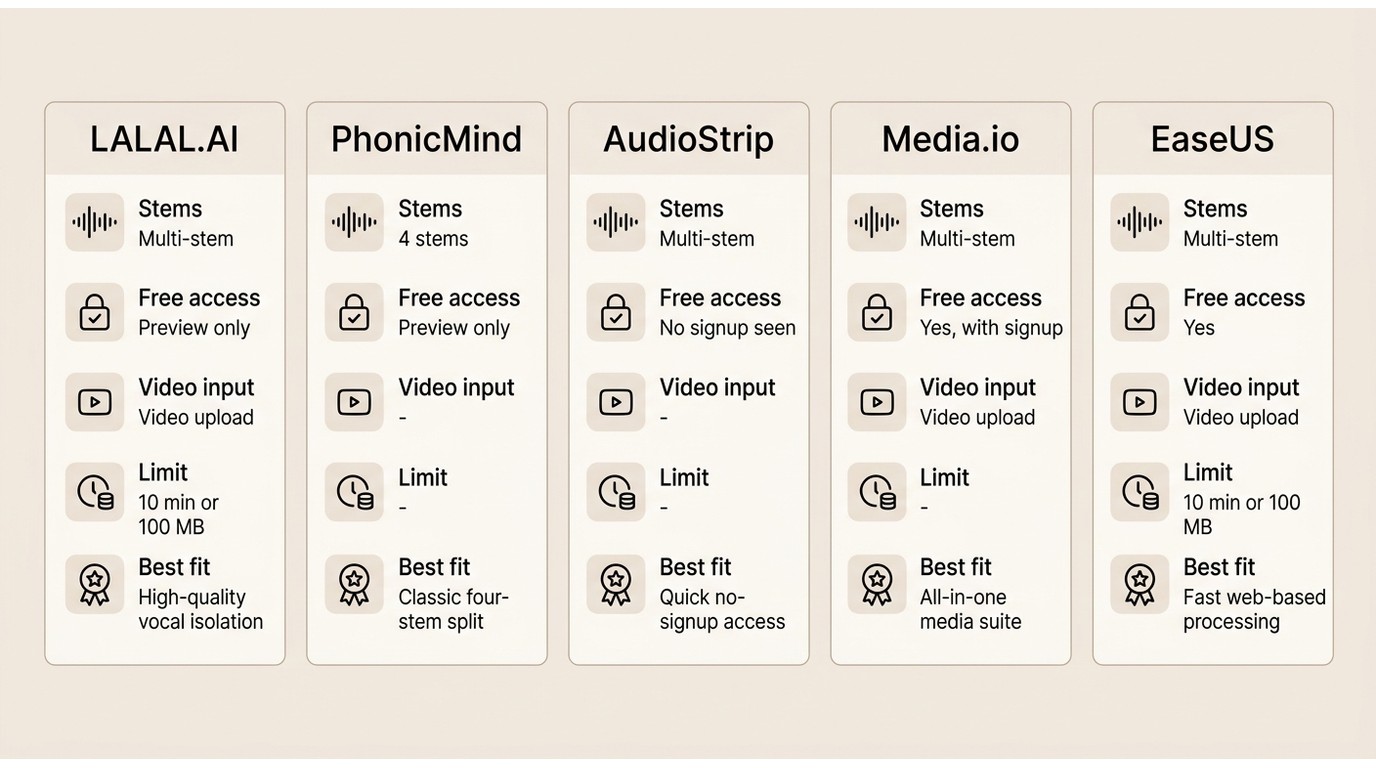
The table turns the best online vocal remover question into a workflow decision. Time-sensitive access rules and limits are stated as of July 2026.
| Tool | Tested separation result | Input audio formats | Direct MP4 or MOV input | Downloaded output type | Available stems | Full result downloadable on free access | File size or duration limit | Signup requirement | Privacy or retention note | Best fit |
| LALAL.AI | Low bleed on dry pop; reverb traces on live mix | MP3, OGG, WAV, FLAC, AIFF, AAC, M4A | Yes: MP4, MOV, AVI, MKV, M4V | Audio stems; video may retain its source container | Vocals, instrumental, drums, bass, guitars, piano, synth, strings, wind, voice/noise | No; Starter provides preview, not the full download | Files up to 200 MB; Starter includes 10 relaxed-queue minutes | Starter account | Cloud upload; retention detail was not prominent in the upload flow | Multi-stem and video input |
| PhonicMind | Useful four-stem split; moderate residue on dense rock | MP3, AAC, WMA, FLAC, WAV, AIFF | No direct video input listed | Separate audio stems; .stem.MP4 export is listed | Vocals, drums, bass, other | No; the no-signup offer is a preview | Up to 100 MB | No signup for preview | Cloud upload; no retention period shown in the uploader | Simple four-stem remix prep |
| AudioStrip | Usable practice instrumental; faint ghost vocals on compressed audio | Browser audio upload | No video support confirmed | Vocal and instrumental audio | Two-way split | Download was available in the checked flow | No cap displayed in the checked upload screen | No upfront signup prompt in the checked flow | Cloud upload; review terms before confidential use | Quick, low-setup experiments |
| Media.io | Clear preview on simple audio; limited control for difficult mixes | Common audio and music files | Not listed on the live remover page | Vocal or backing-music audio | Vocals, backing music; interface also presents drums and BGM options | Not included without the required free-credit account step | Credit-based access; no public cap shown on the remover page | Signup or login for free credits | Cloud upload; no retention period shown on the remover page | Guided occasional use |
| EaseUS Vocal Remover | Clean enough on dry pop; more ambience remained on live audio | Common audio formats | Inconsistent official messaging; audio extraction is safer | Separated audio stems | Vocal and instrumental | Yes within the stated free limit | 10 minutes or 100 MB per file | No account required to start | Cloud upload; check retention terms for sensitive files | Beginners and short files |
The practical split is clear: LALAL.AI offers the broadest stem and video-input range, PhonicMind keeps four-stem work simple, AudioStrip minimizes setup, Media.io prioritizes guidance, and EaseUS makes its basic limit easy to understand.
Using Online Removers With MP4 Video
A vocal remover for MP4 may accept the video directly, or it may require an audio-first workflow. The finished download is often an audio stem rather than a complete edited video.
Uploading MP4 and MOV Files
Before uploading, confirm that the service explicitly accepts MP4 or MOV and note whether it returns video or audio. LALAL.AI lists direct video formats; the other tools in this comparison are safer to treat as audio workflows unless their current uploader accepts the file.
- Make a working copy of the video and identify the audio track you want to change.
- Try the MP4 or MOV in the selected service only when that format is listed or accepted by the uploader.
- If the upload is rejected, extract the audio without changing the original video file.
Audio-Only Tools and Remuxing
To remove vocals from video with an audio-only tool, extract the soundtrack, separate the target stem, and remux the processed audio with the original picture. This is different from deleting all audio from a video.
- Upload the extracted audio and choose vocals, instrumental, or the relevant stem.
- Preview the complete section where speech, singing, and music overlap.
- Download the processed audio stem.
- Place that stem under the original video and export a new MP4 in a video editor.
A dedicated song-level workflow can go deeper, but this bounded process is enough to judge whether an MP4 vocal remover fits the five services compared here.
Previewing and Saving Results
Listen past the intro before saving. Check reverb tails, backing vocals, cymbals, and the point where the vocal first enters; a clean opening can hide later artifacts.
On an iPhone 15 running iOS 18.5 in Safari, selecting a short audio file and reaching a preview was practical, but saving and remuxing were easier on desktop because the audio and video files needed to be managed together.
Why Online Vocal Removers Are Popular
Online vocal remover tools are popular because they remove installation and model setup from occasional stem-separation jobs.
They work well for practice instrumentals, rough remix ideas, podcast edits, and quick comparisons across devices. The main advantage is speed of access, not a promise that cloud processing will outperform a configured desktop workflow on difficult material.
For a wider look at browser and desktop choices, this free vocal remover software comparison covers the broader category without turning this page into a second all-platform roundup.
The Real Limits of Online Vocal Removal
Source material matters more than marketing labels. Reverb, backing-vocal overlap, dense guitars, compression, and live ambience can defeat otherwise capable separators.
- Residual vocals: consonants, reverb tails, and backing voices may remain in the instrumental.
- Fizzly high frequencies: cymbals and bright guitars can acquire unstable texture after separation.
- Server limits: upload caps, queues, previews, and download rules can interrupt a repeatable workflow.
- Confidential uploads: unreleased or client material leaves the local machine when sent to a cloud service.
- Track dependence: a tool that handles a dry pop vocal may struggle with a live or heavily layered mix.
No separator should be expected to produce artifact-free stems from every source. If the first result contains obvious bleed, compare another model or service before applying aggressive cleanup.
Desktop Alternative: UniFab Vocal Remover AI
UniFab Vocal Remover AI is a measured desktop alternative for repeated, large, or confidential jobs that benefit from a local-file workflow.
For content you own or are authorized to process, UniFab Vocal Remover AI runs on Windows and Mac, supports MP4 and MKV workflows up to 4K, and supports batch processing. Local processing avoids sending the working file to a vocal-removal website.
Best Vocal Remover Software
- Effortlessly remove vocals from songs
- Extract audio from video, or isolate vocals and instruments with advanced AI.
- UniFab offers a free vocal remover AI that's simple, fast, and watermark-free.
UniFab Vocal Remover AI
Best Vocal Remover Software
- Effortlessly remove vocals from songs
- Extract audio from video, or isolate vocals and instruments with advanced AI.
- UniFab offers a free vocal remover AI that's simple, fast, and watermark-free.
UniFab Vocal Remover AI
Good fit: creators handling repeated video jobs, larger local libraries, or material that should remain on the workstation.
Less suitable: someone who wants a one-off browser upload with no installation.
UniFab also provides a separate option to upmix stereo audio to surround sound, but that is a different post-production task from vocal separation.
Conclusion
The best online vocal remover is the one that matches the source track, required stems, download rules, and privacy needs.
Choose LALAL.AI for broad multi-stem and direct video input, PhonicMind for a focused four-stem split, AudioStrip for a low-setup attempt, Media.io for a guided workflow, or EaseUS for short beginner projects. UVR remains a desktop choice for model testing, while UniFab fits local MP4 or MKV batch workflows.
The editorial verdict is that no single separator wins on every recording. Compare downloaded results on the hardest passage, then choose the workflow that creates the least cleanup for that source. This broader vocal remover comparison covers desktop, online, and other form factors.
Online Vocal Remover FAQs
Does Ultimate Vocal Remover have an official browser version?
No. Official Ultimate Vocal Remover is desktop software. A page using “UVR online” wording may be a different browser service, so check the project identity rather than assuming it is the official UVR application.
Why do ghost vocals remain after AI separation?
Ghost vocals usually come from overlapping frequencies, reverb, backing vocals, or heavy compression. Try a cleaner source, another model, or a second service, then compare the same difficult passage instead of judging only the intro.
Is it safe to upload unreleased music to an online remover?
A cloud upload exposes the file to the service's storage and processing terms. For unreleased, client, or confidential material, review retention and model-training terms first; a local workflow reduces that exposure.
Can I publish or monetize a track after removing vocals?
Technical processing does not grant copyright or distribution rights. Publishing, monetizing, sharing, or publicly performing the result depends on your rights and permissions for the source material and applicable law.