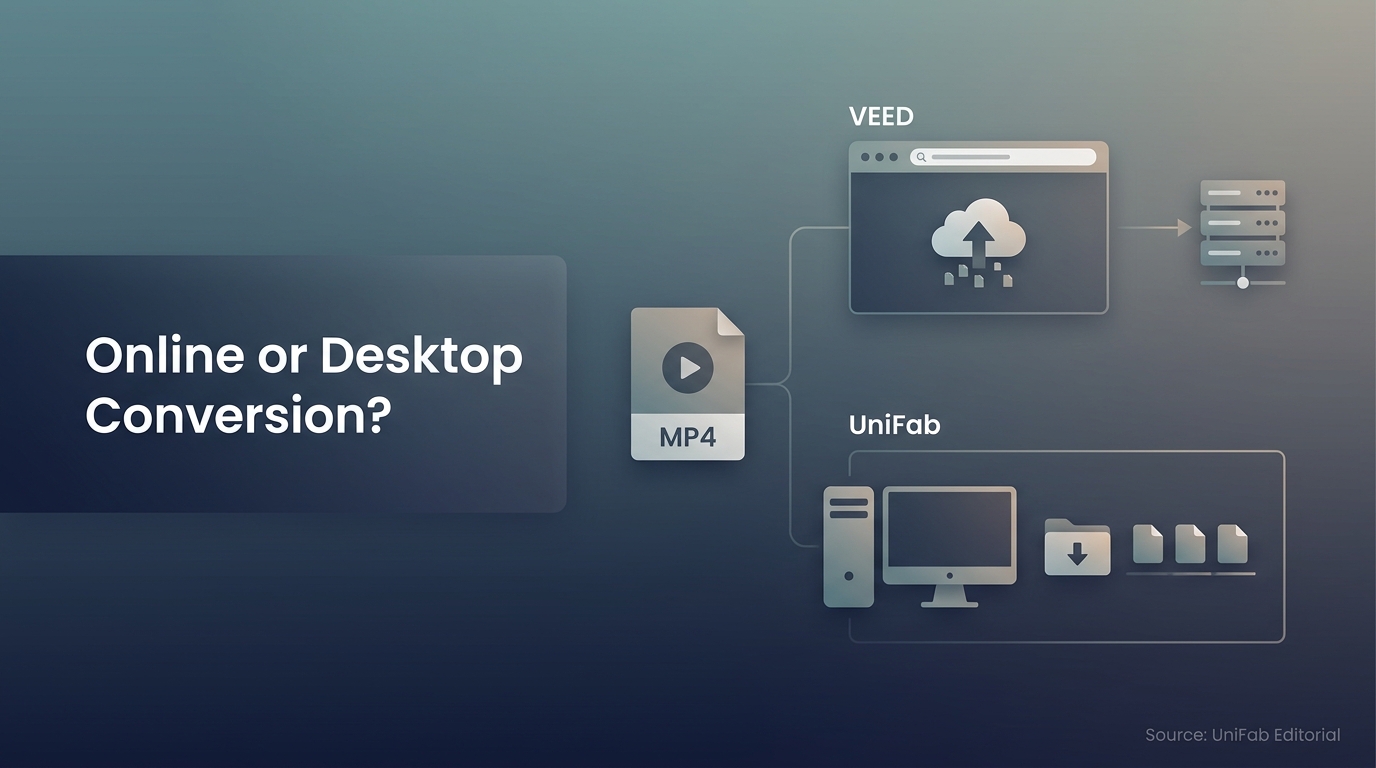
To convert a file with VEED Video Converter, upload it, choose the output format, click Convert File, and use Download to save the finished result. VEED Video Converter is an online tool for turning uploaded files into MP4, MP3, and other common outputs; it suits quick jobs with a stable connection.
If you need a VEED converter to create and save a usable MP4 or MP3, the sections below cover conversion, the final Download step, the standalone converter’s free no-account access, and when a local desktop workflow fits the job better.
What VEED Video Converter Does in the Browser
VEED Video Converter accepts a source file through a web browser, converts it to the selected output format, and provides a Download button to save the finished file. It is designed for common, relatively direct conversions where avoiding a desktop installation matters more than maintaining a local processing queue.
The Browser-Based Conversion Model
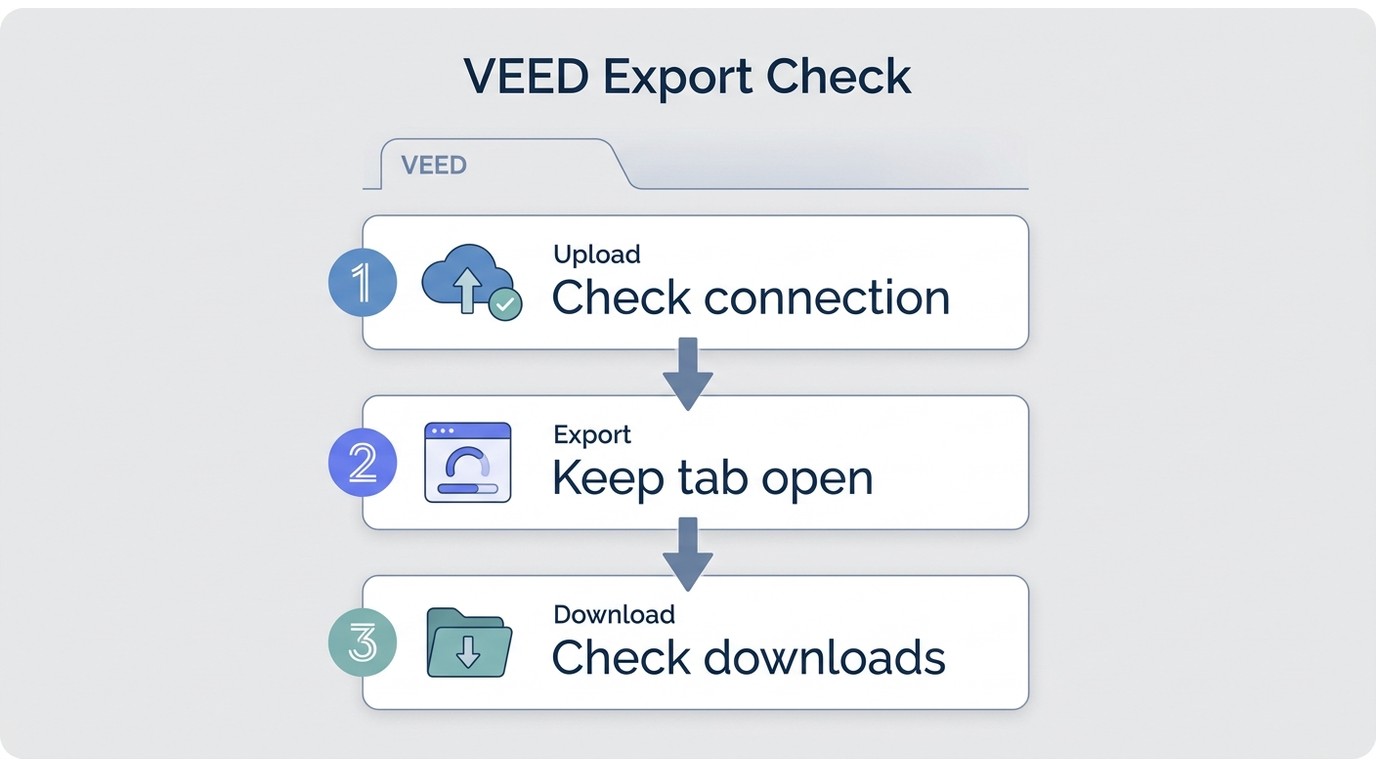
VEED’s standalone converter accepts a file and output format, converts it with Convert File, and saves the result to your device with Download. In an editor project, the separate stages are upload, project processing, export, and browser download. Export prepares the edited result, while Download saves the completed file to your device.
That distinction matters when an editor project stalls. A completed upload does not mean the export is ready, and a completed export does not mean the browser has saved the file. Identifying the unfinished stage is more useful than restarting the whole job without a diagnosis.
Formats and Adjacent Editing Actions
VEED surfaces common video and audio choices such as MP4, AVI, MOV, MKV, WMV, FLV, MP3, WAV, and AAC. Its wider editor can also trim, crop, resize, add captions, and clean up audio. Those actions can accompany conversion, but they are separate decisions that may increase project time and create another chance to alter quality.
Who the Online Workflow Suits
VEED's uploaded-file browser workflow fits one-off files, routine formats, non-sensitive footage, and a dependable connection. It is less comfortable when the upload is large, the source is private, or several files must run in sequence. VEED is therefore a practical convenience tool for the right job, not a universal replacement for local conversion.
VEED Video Converter Works in 3 Steps
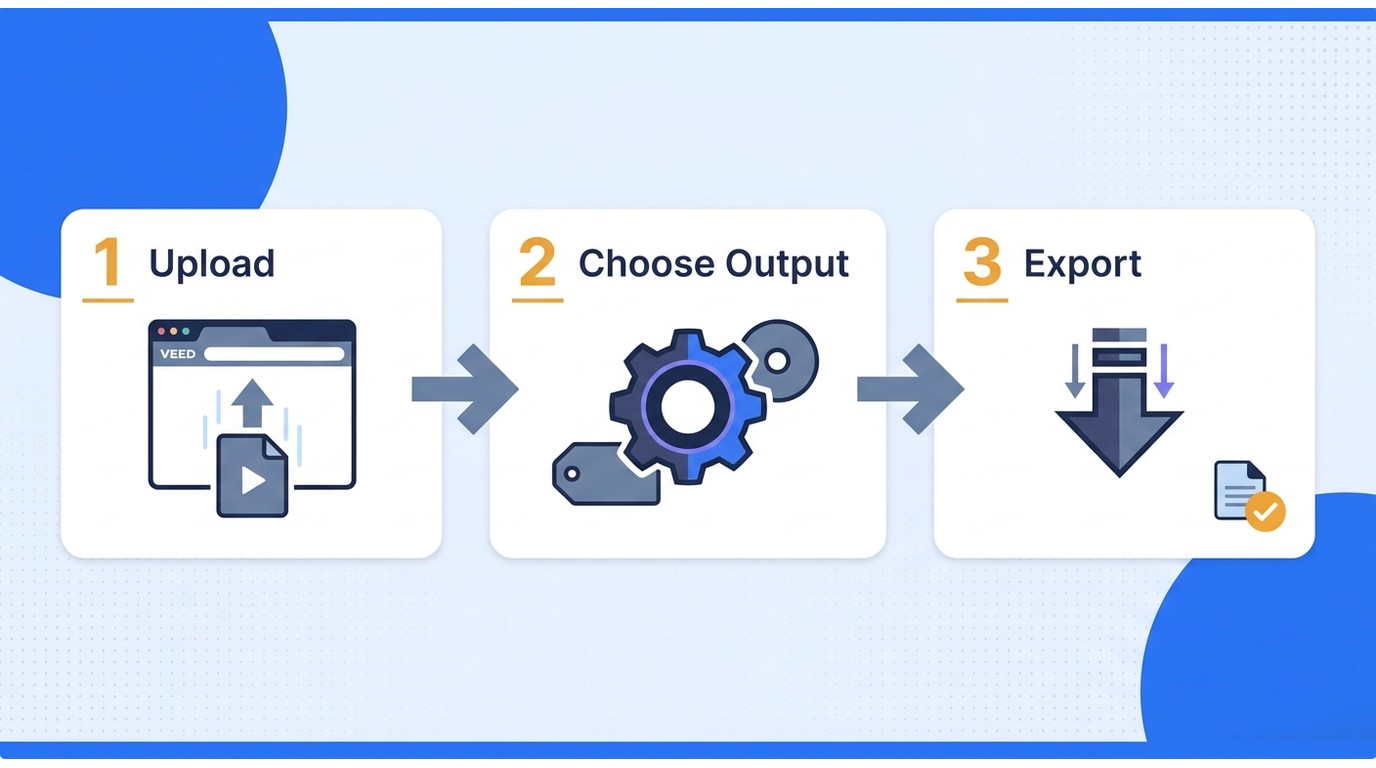
Before using the VEED IO Video Converter, prepare the source file, confirm the required output, and use a current browser with enough local storage for the finished download. Then upload the file, select the output format and click Convert File, and click Download when the conversion is complete.
Use responsibly: Use VEED only for lawful personal use with files you own or are authorized to process. Follow VEED's terms and applicable law, and do not convert or redistribute unauthorized content; doing so may be illegal.
Before You Start: File, Browser, and Connection
Check the source filename and extension first. Decide whether the destination needs video, such as MP4, or audio only, such as MP3. Keep the browser tab open, use a stable connection, and confirm that the device has room for both the source and final file.
For compatibility work, identify the playback destination before choosing settings. A file meant for a phone, presentation, editing app, or social platform can need a different resolution or format. This small decision prevents the common mistake of completing a conversion and discovering that the target app still rejects it.
The Three-Step Workflow
- Upload the source video. Open the VEED Video Converter, select the file, and wait until the upload indicator completes. If the file does not become ready, troubleshoot the connection or browser before changing output settings.
- Choose the output and convert the file. Select MP4, MP3, or another available target, then click Convert File. Set resolution or compression only when the destination requires it; extra changes can add encoding time or reduce quality.
- Download and inspect the result. Click Download to save the converted file. Confirm the filename, extension, playback, and audio before closing the browser tab.
The practical checkpoint is the finished file. Open the download locally and inspect the part that matters most, whether that is picture clarity, audio presence, duration, or compatibility.
Convert Video to MP4, MP3, or Audio with VEED
Use MP4 when you need a broadly compatible video, MP3 when you need a compact audio-only file, and another audio format when the destination has a specific quality or compatibility requirement. The upload path stays similar; the important choice is what media the final file must retain.
Convert a Video to MP4
For a VEED Video Converter to MP4 job, select MP4 as the output format and retain the source resolution unless the destination requires a smaller frame size. MP4 is commonly accepted by browsers, phones, presentation tools, and social platforms, which makes it a sensible compatibility target rather than a promise of higher quality.
Container and codec are related but different. MP4 is the container that holds the streams; the codec describes how the video or audio is compressed. Re-encoding can change image quality even when the filename still ends in .mp4. If the source is MOV, the same decision framework applies when you convert MOV to MP4: preserve the dimensions when possible and avoid unnecessary repeated conversions.
Extract MP3 from a Video
A VEED video to MP3 converter removes the visual track and produces an audio-only file. Choose MP3 when the result needs broad playback support for speech, music, a voice note, or a podcast-style edit. Because the picture is discarded, keep the original video until you have checked that the downloaded audio is complete.
Do not confuse extraction with improvement. Converting compressed audio to a higher setting cannot restore detail that was absent from the source. For spoken content, clarity and a manageable file size usually matter more than selecting the highest available setting.
Choose Another Audio Format
The VEED video to audio converter workflow may expose alternatives such as WAV or AAC. WAV can suit an editing handoff where a larger uncompressed or lightly processed file is acceptable. AAC is widely used inside modern video and mobile workflows, while MP3 remains useful when compatibility is the priority.
Choose the format required by the next app, not the one with the most impressive label. For example, an editor may request WAV even though MP3 would be smaller. If the receiving audio tool specifies WAV, see the guide to converting MP4 to WAV.
Reduce Quality Loss During Conversion
Quality loss usually comes from scaling down resolution, lowering bitrate, changing codecs, or encoding the same file more than once. Start from the cleanest source, keep the original frame rate and dimensions unless there is a delivery reason to change them, and avoid routing an already compressed export through another converter.
After downloading the file, inspect the picture, audio, and any edited captions rather than relying only on the preview.
A conservative workflow is usually the better one: conversion should solve a compatibility problem with the fewest additional transformations. More settings do not automatically create a better result; each setting needs a delivery purpose.
VEED’s Free Converter Works Without an Account
As of September 2026, VEED’s standalone Video Converter is free to use and does not require an account. It converts an uploaded file and provides a Download button for saving the result.
Optional editor projects follow a separate workflow, with their own project and export settings.
Standalone Conversion and Editor Export
The standalone converter ends with a direct file download, while optional editor projects use a separate export workflow.
This is the point many comparisons blur. Converting and downloading a file in the standalone tool and exporting a finished editor project are different workflows. The finished file is the milestone that matters when a deadline depends on the download.
Watermark and Account Boundaries
Watermark, account, and export conditions associated with optional editor features should not be applied to the standalone conversion path. For an editor project, select the intended export settings before a long edit and inspect the saved output afterward.
Use the standalone converter for a direct format change and download. Use the editor when the job also needs captions, trimming, or layout work, with its project settings treated separately.
Browser Export Reliability
One r/VEED_Community user wrote, "The file is fully uploaded and edited, but when I click ‘Export,’ nothing happens—no progress bar, no error message, and no download option." That account describes one stalled workflow, not a universal VEED failure, but it illustrates why the four stages must remain separate.
If upload succeeded, begin troubleshooting at export. Identify whether the Export button is unresponsive, processing is still in progress, the completed result was blocked by browser download controls, or the page shows a sharing link instead of a saved file. Keep the tab active while processing; for an unresponsive button, restarting the browser or disabling an interfering extension may help. If processing completed, inspect the browser's downloads panel and permissions before repeating the conversion. If you received a sharing link, return to the completed result and choose the file download option.
When a Local Desktop Converter Fits Better Than VEED
When a job moves from one quick export to private footage, repeated files, or 4K delivery, VEED's upload-based workflow can make transfer time and processing location more important. The video to audio converter VEED provides remains convenient for a quick browser job, while local software fits better when on-device processing, batch queues, or 4K control dominate.
Private or Large Source Files
UniFab processes source files locally on Windows and Mac; local processing is also possible within a web browser.
The VEED workflow described here uses an uploaded file, while UniFab keeps the working file on the computer; other browser converters may process files locally without a server upload. For confidential client footage, family recordings, or slow upstream connections, process authorized files on your device when possible, follow applicable law and platform terms, and do not redistribute files you are not permitted to share.
Batch and Repeated Conversion Jobs
A one-file browser conversion is easy to understand. In repeated VEED conversions, each upload, format choice, conversion, and download becomes part of the workload. A desktop queue is more suitable when several files need the same target format or when the job must continue without repeatedly managing browser projects.
This is a workload-shape decision, not a claim that desktop software wins every conversion. For a single moderate file, installation can be unnecessary overhead. For a weekly batch, repeating the online handoff can become the overhead.
4K, Quality Control, and GPU Processing
4K sources increase file size and make unnecessary re-encoding more costly in time and image detail. A desktop tool can expose persistent output settings and keep the source and processing on the same computer, while VEED's upload-based workflow depends more heavily on upload speed and its online processing path. Changing a file's format does not create detail missing from the source, and output up to 4K is distinct from AI upscaling. If the actual goal is a smaller delivery file, the decision may be to convert 4K to 1080p rather than preserve 4K by default.
The sharp distinction is control, not a vague speed promise. A local workflow lets the computer, source, and queue remain together. The practical benefit becomes clearer as files grow or settings repeat.
A Quick Browser-versus-Desktop Decision Rule
- Use VEED for one-off files, common outputs, and no-install access.
- For confidential files, choose a workflow that processes them on your device.
- Use a desktop queue for a collection of files that share one output target.
- Keep 4K on your device when transfer time or output control dominates.
- Do not use either workflow to convert or redistribute unauthorized content; doing so may be illegal.
UniFab Video Converter for Local, Batch, and 4K Jobs
UniFab Video Converter runs on Windows and Mac; the comparison below shows how its installed workflow differs from VEED’s browser conversion.
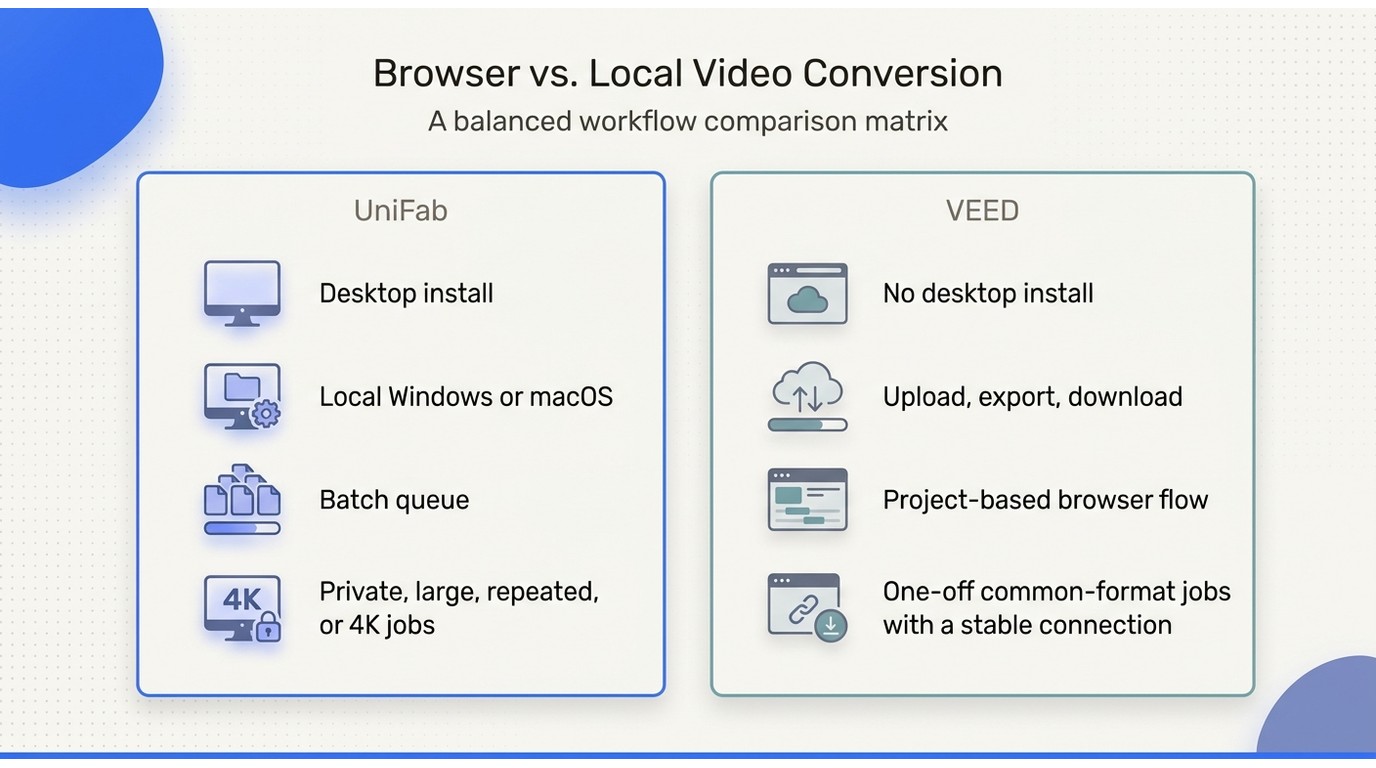
VEED Browser Conversion vs. UniFab Local Conversion
| Decision Factor | VEED | UniFab |
| Workflow | Standalone conversion and download | Local batch queue |
| Processing Location | Uploaded-file workflow | Local Windows or Mac processing |
| Typical Task | One-off browser job | Repeated local jobs |
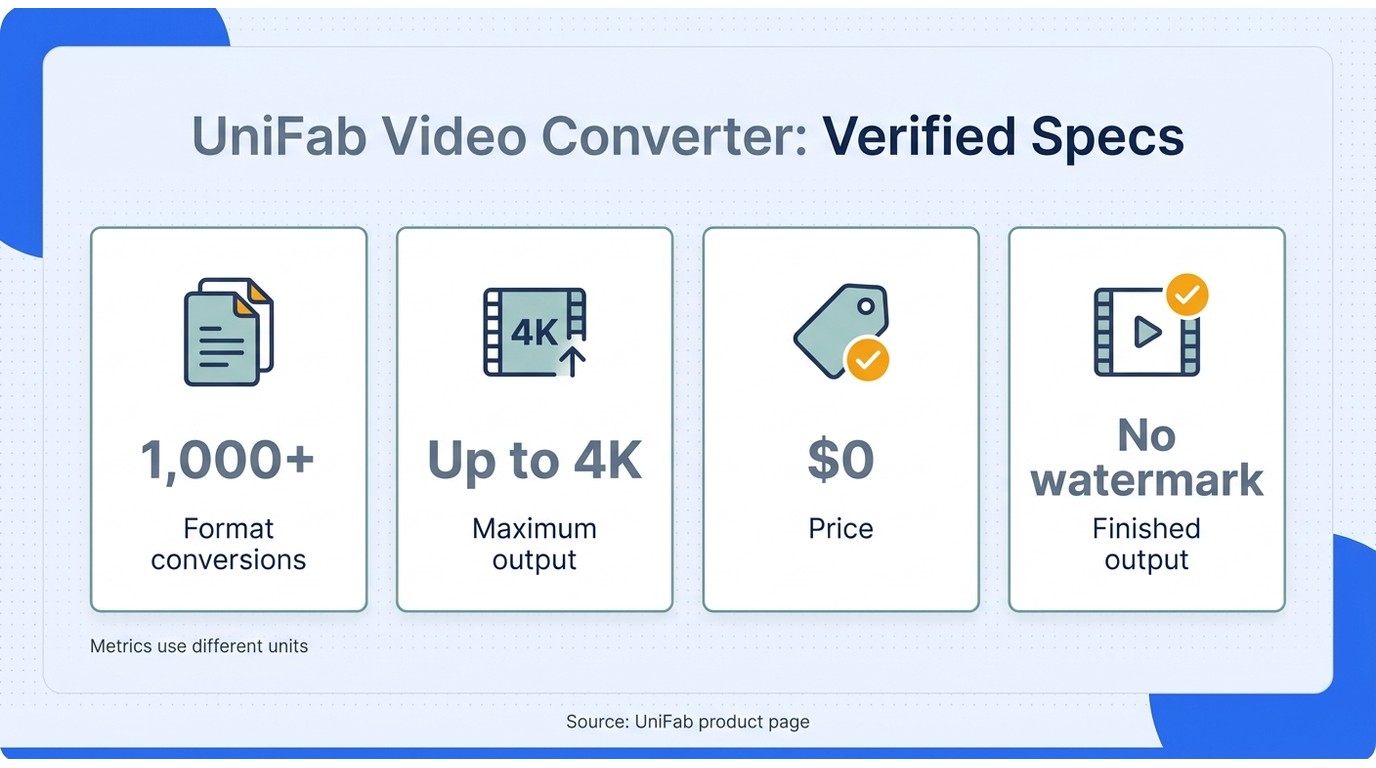
| Output Focus | Common video and audio conversion | 1,000+ format conversions; up to 4K |
Choose VEED for a quick conversion without installation, or UniFab when local processing and a repeatable batch queue fit the job better.
Focused Desktop Capabilities
UniFab processes source files locally and can place multiple files into a batch conversion queue. It supports inputs including MOV, MP4, AVI, MPEG, WMV, F4V, MPG, TS, and FLV, then converts across more than 1,000 format combinations with output up to 4K.
UniFab Setup and Local Output
Install UniFab Video Converter on Windows or Mac, add the source file, choose the output format, and save the converted file to local storage.
Choose a Workflow for Your Files
UniFab requires installation and uses local storage and computing resources for source files, queued jobs, and exports. Install UniFab Video Converter, choose the output format, and save the result on your device.
VEED Video Converter FAQ
The remaining questions mostly concern mobile access, stalled downloads, terminology, and accounts. The VEED video to MP3 converter follows the standalone workflow described above: upload the file, select MP3, click Convert File, then click Download. These answers focus on the point where each issue occurs so you can change the right part of the workflow.
Can You Use VEED Video Converter on an iPhone or Android Phone?
Answer: VEED's browser model can be opened on a current mobile browser, but the experience depends on the file picker, available storage, browser memory, and whether the device keeps a long conversion active. Mobile suits short, straightforward jobs; a desktop is easier for large sources or repeated conversions.
Why Does a VEED Export Finish Without Showing a Download?
Answer: If processing is complete but no file appears, open the browser's downloads panel, check the site's download and pop-up permissions, and reopen the completed result before uploading the source again.
Is Converting a Video the Same as Downloading It from VEED?
Answer: No. Conversion creates the selected output format, while Download saves the finished file to your device. In an editor project, Export prepares the result, but a hosted sharing link opens an online version and is not a locally saved MP4 or other media file. In this guide, downloading means saving your own authorized file, not obtaining third-party media from another service.
Do You Need an Account to Use VEED Video Converter?
Answer: No. VEED's standalone Video Converter is free to use and does not require an account. Optional editor projects are a separate workflow and may use account-based features.