An online subtitle generator turns speech into timed text, but you need the complete export to finish your video. Choose a free subtitle generator for an editable SRT or captioned MP4; use YouTube Studio when your immediate goal is captions on a YouTube upload.
I would judge a caption tool by the file you leave with. Getting a transcript on screen is a frustrating stopping point when the download sits behind a paywall. I'll walk through source preparation, correction, and export, then explain where each finished result belongs.
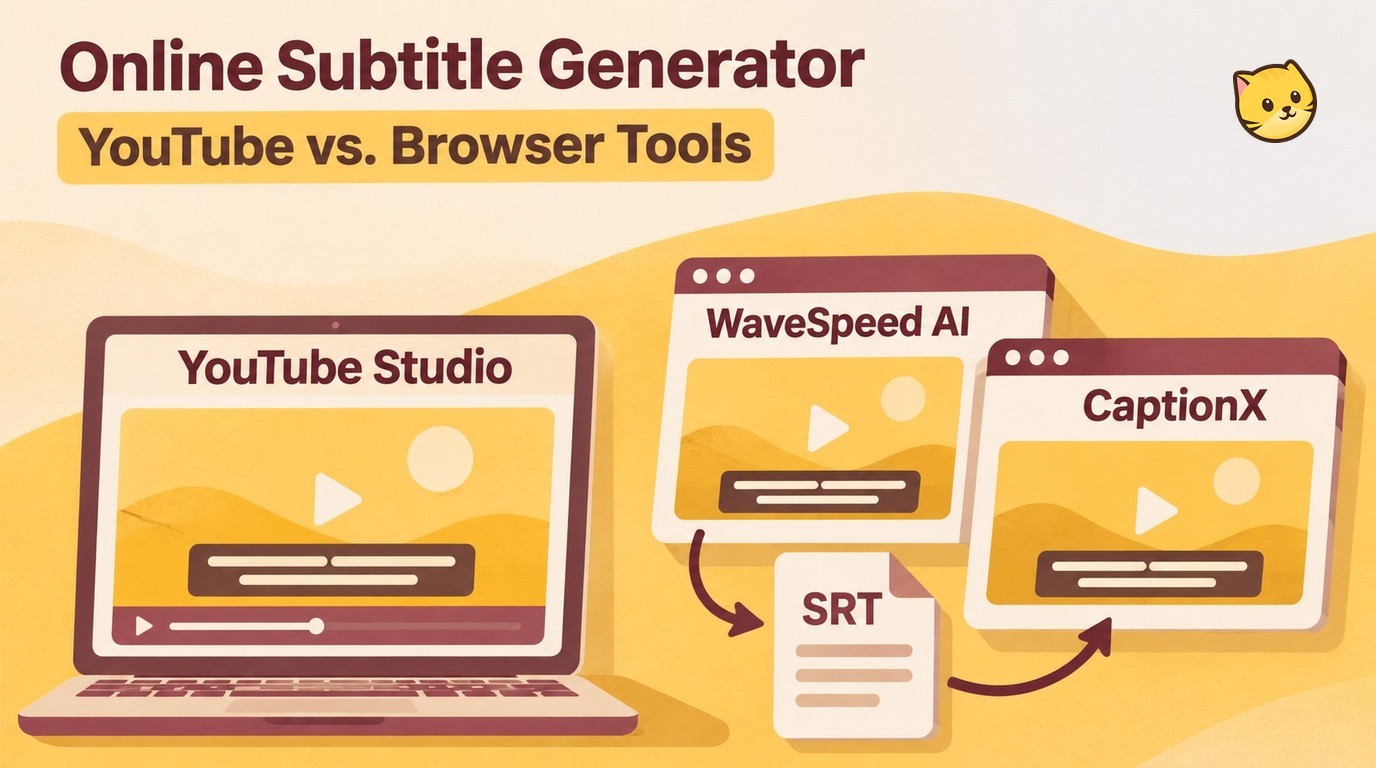
Free Subtitle Generators: Export Limits and Best Fits
Choose a browser tool for a subtitle file or captions embedded in the picture; choose YouTube Studio for a selectable track on your channel. The best free subtitle generator for your project is the one whose export covers your actual deliverable.
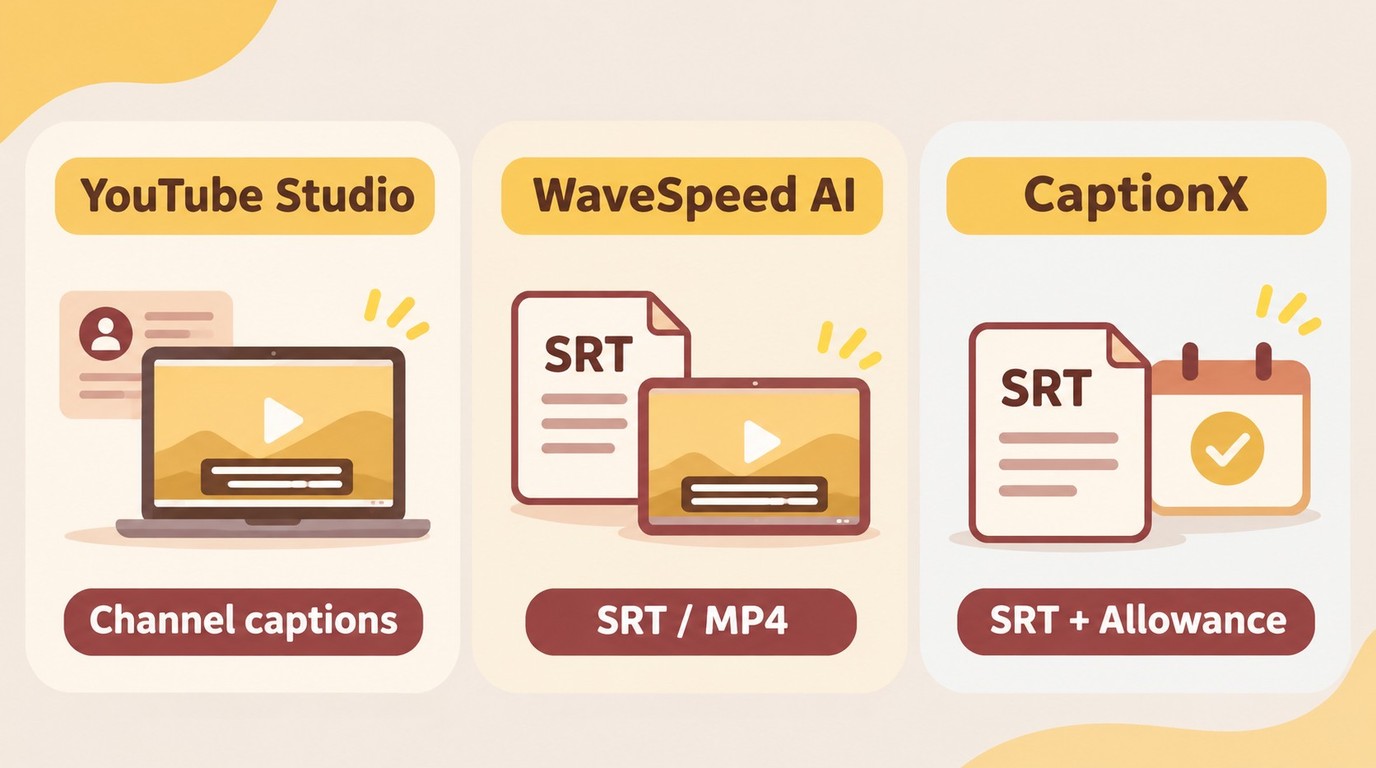
Start with your source file, its size and duration, the output you need, and whether processing on your device matters. A short interview and a full workshop put different demands on a browser.
As one Reddit poster in r/VideoEditingTips put it, they wanted to “export it without a paywall or infinite friction.” That describes an export problem, not a transcription problem.
Access conditions as of November 2026
| Tool | Access conditions | Input | Output | Fits |
|---|---|---|---|---|
| WaveSpeed AI Subtitle Generator | Advertised free; no account | Device-selected audio or video | SRT, VTT, TXT; captioned MP4 | Editable files or visible captions |
| CaptionX Free Subtitle Generator | First 5 SRT files; account required | Audio or video; 25 MB maximum | SRT | Small-file subtitle delivery |
| YouTube Studio | YouTube account; managed video | Hosted video or caption file | Selectable YouTube caption track | Publishing on your channel |
The YouTube row follows YouTube Help's caption guidance.
I would keep a YouTube-only project in Studio when its automatic captions cover the spoken language and you can correct the track there. They aren't guaranteed to appear immediately, and recognition still needs review. An independent file makes more sense when you also deliver to an editor or another platform.
WaveSpeed's page advertises on-device recognition and watermark-free downloads, without minute or file caps. Your browser still needs enough memory for the job; that claim doesn't guarantee arbitrary file sizes. CaptionX suits small SRT jobs within its allowance, while its burned-in video workflow is separate. Neither route removes the need to proofread.
Generate and Export with WaveSpeed AI Subtitle Generator
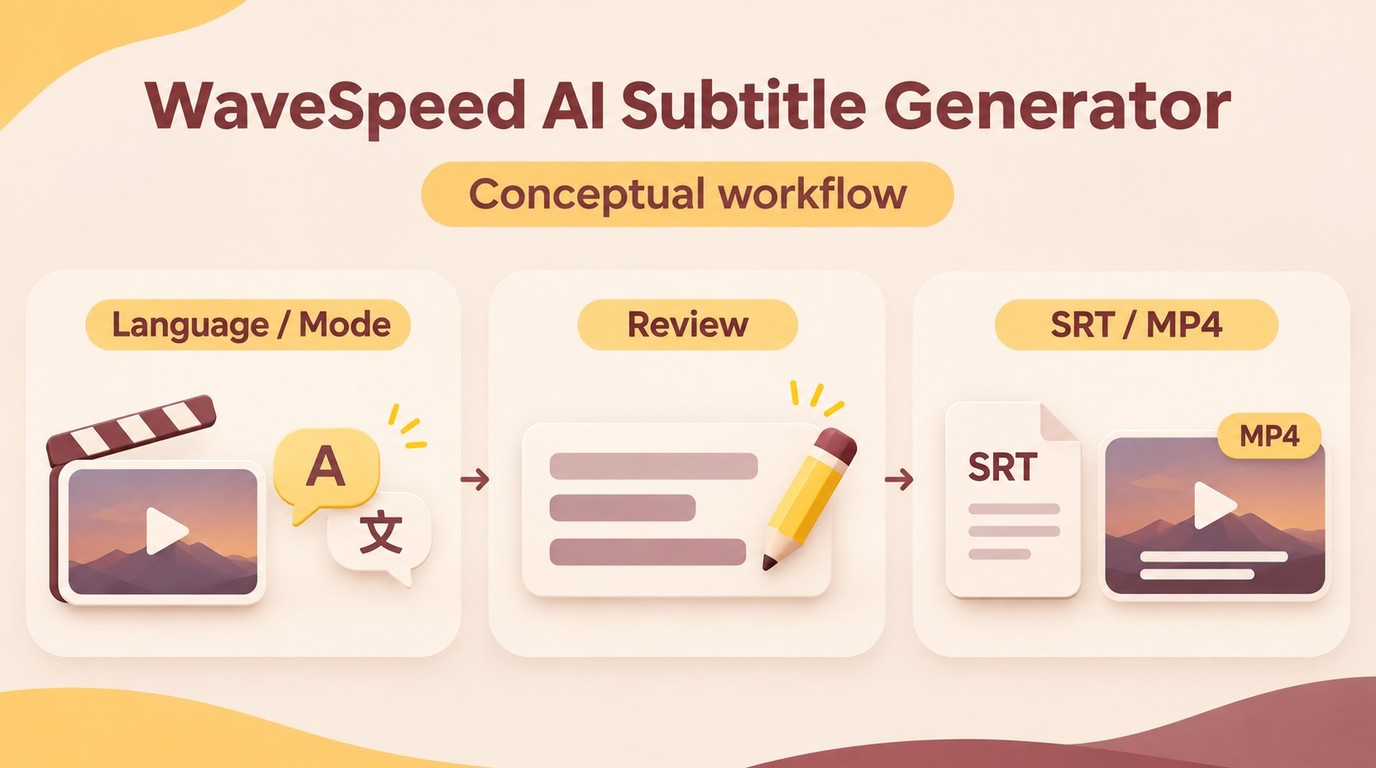
In WaveSpeed AI Subtitle Generator, choose your file and spoken language, generate captions, correct them, and download your output. I would confirm that a representative excerpt exports successfully before committing the full project.
You need an accessible source file, a browser with room to process it, and somewhere to save the result. Keep an internet connection for the initial speech-model download. On-device recognition doesn't mean the first session starts offline.
An excerpt should include the difficult material. Pick a passage with a name, a speaker change, or background music rather than the clean opening sentence alone. The goal is to expose the correction work early, not to produce an accuracy score.
Prepare your source file and speech language
- Open WaveSpeed AI Subtitle Generator and choose your source. Use its file picker for a supported video or audio file, such as MP4 or WAV. Confirm that the selected file contains the final edit.
- Set Spoken language and Quality. Choose the language actually being spoken and select Fast or Accurate. Treat recognition quality as a processing choice; it isn't a substitute for checking the transcript.
Listen to the source before generating anything. If the file contains commentary and a separate dialogue track, identify which track the transcription should follow. Prepare a source with the intended audio when necessary; don't assume that every browser tool exposes a track-selection menu.
Lock the video edit first. Cutting an introduction after subtitle generation shifts later cues relative to the picture. If another person will finish the video, agree on the exact source version and file name before you start.
A generated transcript should describe the recording, not repair its meaning. Keep unusual names and specialist terms in a reference note so you can correct them consistently later.
Generate captions and correct words and timing
- Select Generate subtitles. Keep the source available and let processing finish before judging missing passages.
- Correct the words and cue timings. Read against the audio, then adjust caption boundaries on the timeline. Split or merge cues where a sentence break makes the text easier to follow.
Review meaning before appearance. Check names, negatives, prices spoken aloud, and technical terms: an omitted “not” changes more than a missing comma. Compare overlapping speech with the recording rather than guessing what the second speaker meant.
Timing needs a separate pass. Read with the sound on to catch late entrances, then watch a section muted to see whether each caption stays visible long enough. A cue that crosses a scene change deserves attention even when its words are correct.
One r/VideoEditingTips poster wrote, “the accuracy and editing workflow haven’t always been great.” My practical response is to judge the correction workload on the excerpt. Clear speech alone won't reveal how a tool handles the hard parts of your recording.
Download an SRT or a captioned video
- Download the deliverable. Choose SRT for editable timed text, VTT for a compatible web-caption workflow, or TXT for a transcript. Use Download video with captions when the words must appear in the picture.
- Play the saved result against the final source. Inspect the beginning, a middle passage, and the ending. Confirm that the last spoken line is present and the file remains synchronized.
An SRT preserves text and timing for later changes. It doesn't put visible letters into an MP4 by itself. A captioned video does, so review its font, contrast, position, and line breaks before delivery; changing those later requires another video export.
When you add subtitles to a video, keep the editable subtitle file alongside the rendered copy. That leaves you a practical correction path.
For YouTube delivery, the handoff is:
- Open the existing video's Subtitles settings in YouTube Studio and select the language.
- Choose Upload file, select With timing, and upload the SRT.
- Save the track and preview it on the video.
Use plain UTF-8 for YouTube's basic SRT support. YouTube does not recognize SRT style markup, so a caption's font in the browser editor won't carry into the selectable track.
Process only material you own or are authorized to use, follow the applicable tool and platform terms, and take responsibility for its use; keep any personal backup for lawful personal use.
With that export complete, the next question is whether your recurring work calls for dedicated subtitle-file delivery, audio-language selection, or batch downloads.
When UniFab Subtitle Generator AI-Fabcloud Fits
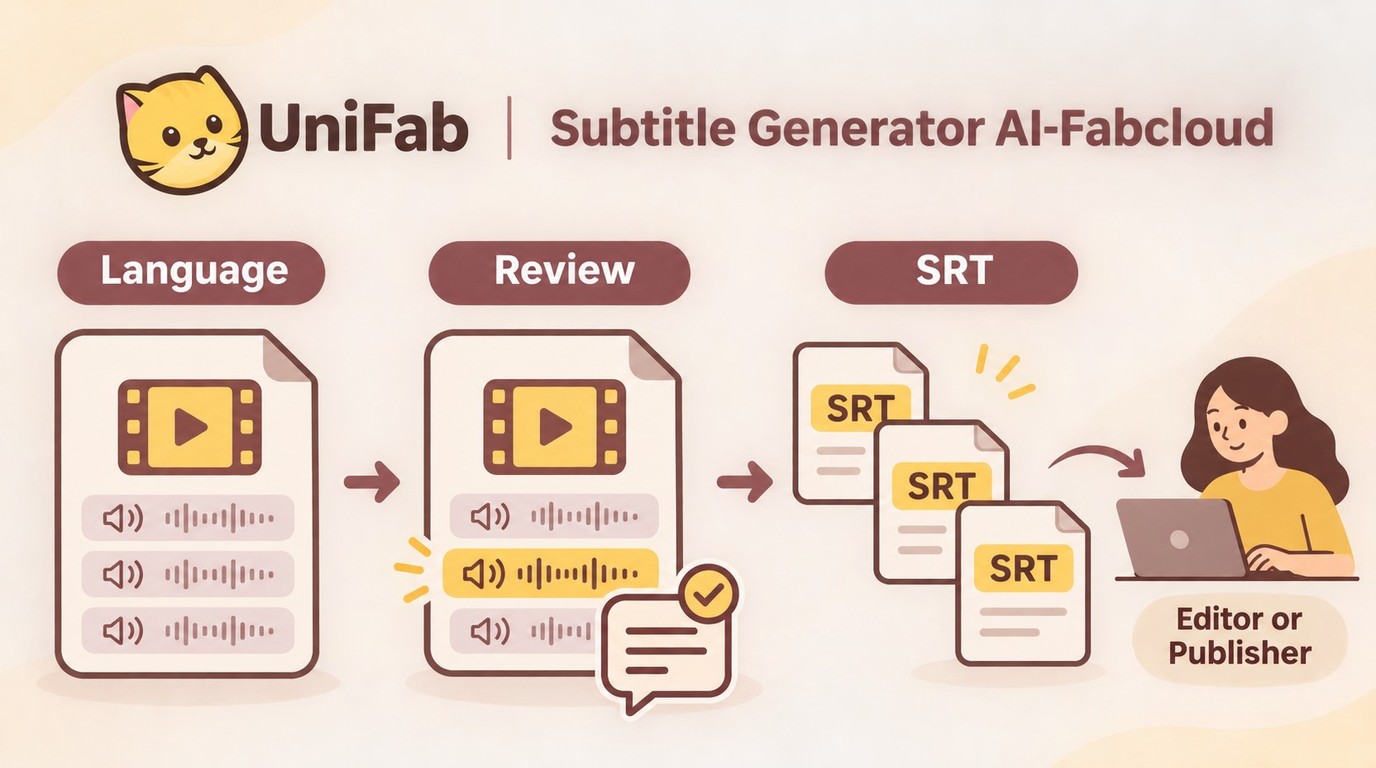
UniFab Subtitle Generator AI-Fabcloud fits you if you need downloadable SRT subtitles, audio-track language selection, and batch downloads for subtitle-file delivery. Those capabilities support an editable handoff when the video and its subtitle text need to remain separate.
I would choose it for that handoff rather than for a promise about picture quality. The SRT travels with the video into the next editing or publishing stage, while the text remains available for corrections. Audio-track language selection helps you target the intended speech when a source offers language choices.
Batch downloads also serve a concrete delivery need: collecting available subtitle outputs. They describe the download stage, so plan transcription and review around each recording's actual dialogue rather than treating downloading as the entire job.
An SRT carries text and timing, not the finished font and placement of captions embedded in the picture; continue into your video editor for that rendering step. Keep the subtitle file as your editable copy.
For this subtitle-file workflow, start with the Subtitle Generator AI-Fabcloud entry page.
Online Subtitle Generator FAQ
Translation, script alignment, device resources, and client-data handling change how you should approach subtitle generation. These questions address those choices without adding another transcription workflow.
Can I translate a video into English subtitles?
Yes, with a tool that explicitly supports translation into English. Transcription writes the spoken language; translation changes it. The browser workflow above includes a Translate captions to English option, so set the source speech language correctly before choosing that output. For Japanese dialogue, Japanese is the source and English is the subtitle target. I would review names, idioms, and shortened lines with someone who understands the original. An English-looking transcript isn't enough to establish that the translation preserves meaning.
Can I create timed subtitles from an existing script?
Yes, but the script still needs alignment with the recording. YouTube's Auto-sync accepts a transcript in the spoken language when that language is supported by its speech recognition. Its guidance discourages this route for poor audio or videos over an hour. For those cases, use manual timing. Start from what was actually said: a shooting script with deleted lines won't match the final dialogue. I would remove those differences before alignment, then inspect speaker changes and pauses afterward.
Can I use a subtitle generator on a phone or Chromebook?
Browser access is possible, but completing a long project is a separate question. Available memory and the browser's ability to process your file determine whether the device suits that job. Try the representative excerpt on the device you intend to use, keep the working tab available, and save the exported file somewhere you can find it. I would move a long edit to a computer if managing the timeline or recovering downloads becomes awkward. A mobile-friendly page doesn't guarantee desktop-like editing space.
Is it safe to upload client footage or connect a YouTube account?
Use the client's approved data-handling workflow and inspect account permissions. For confidential footage, confirm upload consent, retention, and whether the service uses submitted media for training. On-device recognition and open-source licensing are separate properties; neither label settles the other's meaning. I would favor a recognizable provider with documented handling and official Google authorization when a connection is needed. Keep a Google password out of an unfamiliar tool's own form, and grant access that matches the task.
Choose Your Subtitle Workflow
Use an independent subtitle file when you need editable text, a captioned video when the words must stay visible in the picture, and YouTube Studio when your immediate destination is your channel. I would settle that delivery choice before processing a full recording, because it determines whether the export actually finishes your job. Whichever route you choose, review the words and timing against the final video.