If an MP4 will not play on an older TV or DVD player, convert MP4 to MPG with the MPEG profile, resolution, and audio settings required by that device. Use a browser converter for one small, non-sensitive file; use desktop software for large files, batches, or private footage.
I treat the destination manual as the decision point, not the .mpg suffix. One r/techsupport case ended with an MPG file that still failed in a DVD player because it was not DVD-compliant MPEG-2. I would move a folder of files to local processing when each upload adds friction. Another r/techsupport request involved videos above 1 GB and a preference to avoid a MB/GB limit. Below, I start online, then show the offline route and playback settings.
MP4 vs. MPG: What Changes During Conversion
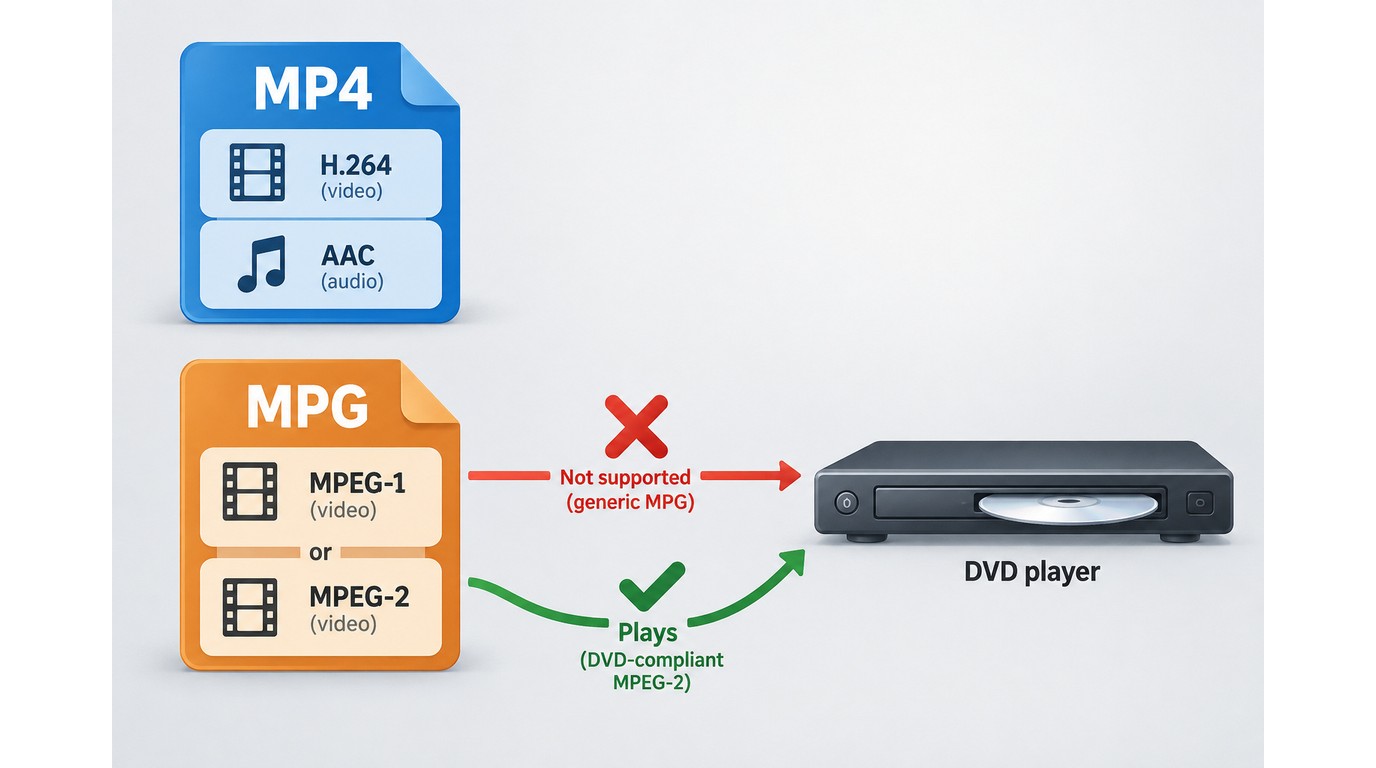
MP4 and MPG are containers, while the video and audio inside them are encoded with codecs. Converting to MPG is useful when legacy playback hardware or DVD-authoring software expects an MPEG-1 or MPEG-2 stream rather than a modern MP4 combination. The practical reason to convert is usually a legacy player, TV, or DVD-authoring requirement; the .mpg extension alone does not guarantee that the embedded stream will play.
Containers, Codecs, and the MPEG Naming Problem
An extension is a label, not a compatibility certificate. MP4 commonly carries newer video and audio combinations, while an MPG file may contain MPEG-1 or MPEG-2. A player can recognize .mpg yet reject the stream, resolution, frame structure, or audio codec inside it.
That distinction explains a costly mistake. As one r/techsupport poster put it, "None of the converters would convert to MPEG-2, only MPG." The disc failed in the DVD player. Selecting an MPG output did not establish a DVD-compliant profile.
When MPG Is the Right Target Format
Choose MPG when a device manual, disc-authoring program, broadcast workflow, or legacy editor explicitly asks for it. If the destination is modern software, keeping the MP4 source is usually more efficient. The reverse MPG-to-MP4 workflow is often more useful for bringing old footage into current editors.
My practical verdict is narrow: I would convert for a named compatibility requirement, not because MPG is inherently better, and keep the original MP4 until the derivative passes a real playback test. That follows the DVD case above: the extension matched, but the MPEG-2 profile did not.
How to Convert MP4 to MPG Online in Three Steps
Rights reminder: Convert only video you own or are authorized to process. Review the converter's Terms of Service before uploading content, especially work files, client footage, or personal recordings.
For a single small, non-sensitive MP4, a browser converter can handle MP4 to MPG without installation. It works only when you select the MPEG-1 or MPEG-2 profile, resolution, and audio settings that match the destination device; a generic MPG button is not enough.
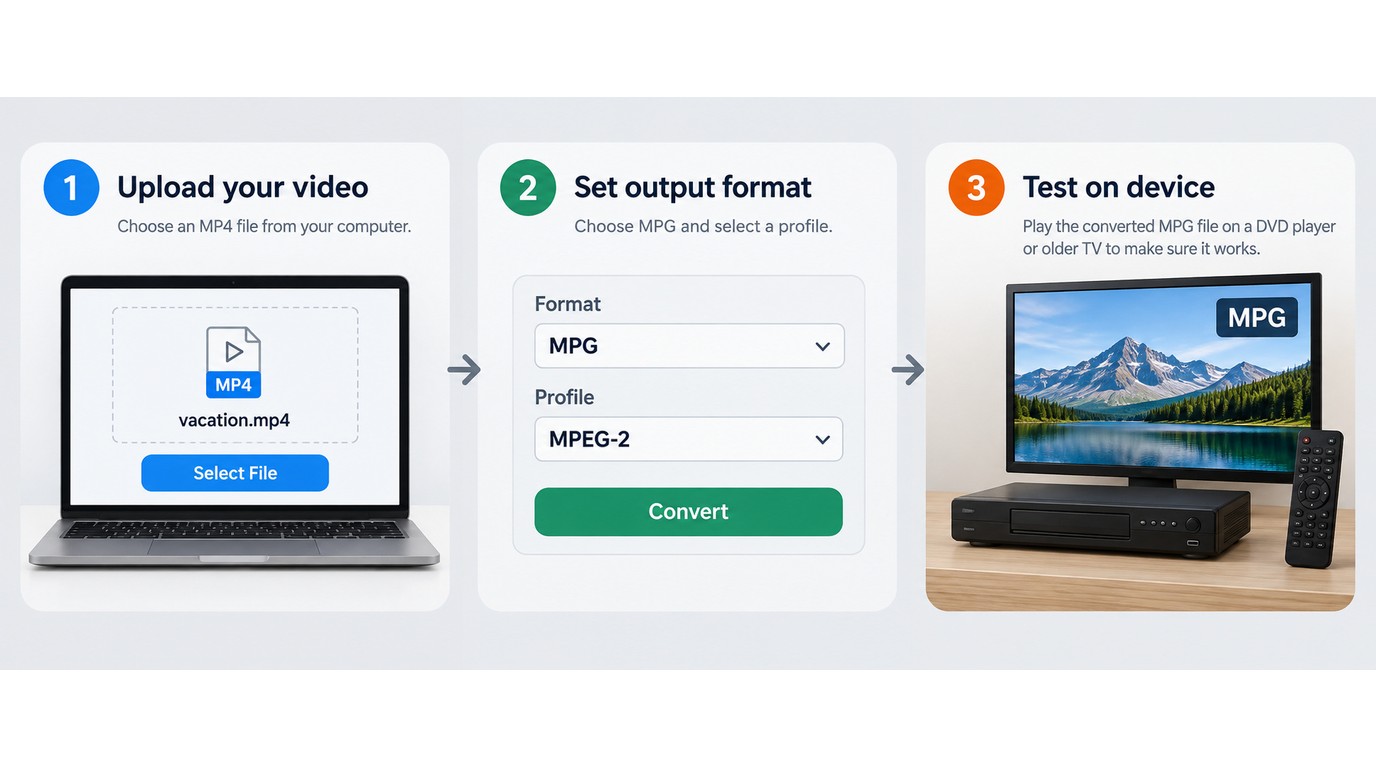
Check the destination device first, then use this sequence:
- Upload the MP4 file.
- Select MPG and the required MPEG profile.
- Convert, download, and test the output.
Before You Start: Check the File and Playback Target
Read the TV, DVD player, or authoring software manual before opening a converter. Note whether it asks for MPEG-1 or MPEG-2 and which resolution it accepts. Check its audio or storage limits. Also check the MP4's size and your connection stability. Decide whether the footage is appropriate for a remote upload.
An online tool suits a single, non-sensitive clip. It is a weaker fit when the upload is large, the connection is unstable, or the file contains material that should remain on your computer.
Step 1: Upload the MP4 File
Open the browser converter and choose the MP4 from local storage. Wait for the upload to complete before changing output controls or closing the tab. If the service presents a file-size or daily-use limit, stop rather than splitting a long video into avoidable fragments.
Step 2: Select MPG and the Correct MPEG Profile
Choose MPG as the container, then inspect the advanced settings. If the target is a DVD-oriented workflow, look for a DVD-compliant MPEG-2 profile instead of assuming the generic MPG choice is sufficient. Match the device manual rather than selecting the largest resolution available.
Step 3: Convert, Download, and Test the Result
Start the conversion and save the finished MPG to a new folder. Play it from beginning to end on a computer, then test it on the actual destination device. Check video, audio, aspect ratio, motion, and seeking before deleting the MP4 or committing the file to disc.
Conversion is not the same as DVD authoring. If you need a DVD-Video disc, an authoring application must still create the required disc structure and menus.
When an Online Converter Is the Wrong Fit
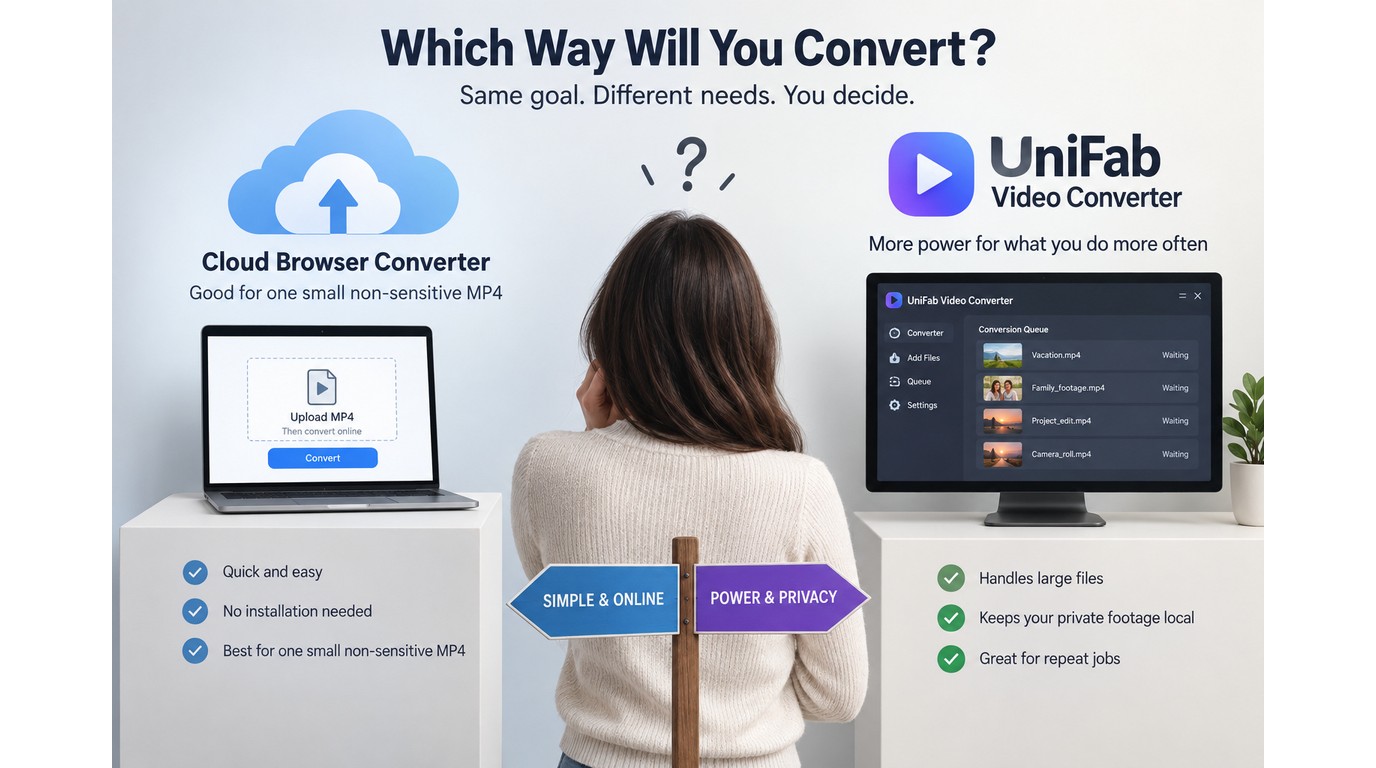
Use an offline MP4-to-MPG converter when the source is large, the job repeats, or the footage should stay on your computer. Local processing removes the upload step and supports batch queues, while your computer still needs enough storage and compatible hardware. Choose the browser route for one small clip when setup matters more than queue control; choose local software when transfer limits, privacy, or repeated uploads would dominate the job.
Large Files and Repeated Uploads
Upload time becomes part of every browser conversion, and service limits vary. The practical pain is captured by a user converting videos for a TV: "The video's are above the 1gb, so preferably not a mb/gb limit." A file over 1 GB is not automatically unsuitable for the web. It does make connection speed, timeouts, and platform limits much more important.
Repeated jobs magnify that cost. Uploading the same class of footage day after day adds transfer time before encoding even starts. For an archive or production queue, local processing removes that repeated network stage.
Batch Queues and Local Privacy
Desktop software can queue several files and process them from local storage. That suits camera folders, event footage, and recurring delivery work where consistent settings matter across the batch. It also keeps private media off a third-party upload server.
Local conversion still has costs: the application needs installation space, the source and output both consume disk capacity, and processing depends on the computer's hardware. Convenience is therefore workload-specific, not a universal win for either route.
Online vs. Offline: A Quick Fit Check
| Decision factor | Online converter | Offline desktop converter |
| Setup | No installation | App installation |
| Large files | Limits may apply | Uses local storage |
| Batch jobs | Often constrained | Built for queues |
| Privacy | Requires upload | Processes locally |
| Good fit | One small file | Large or repeat jobs |
I would choose local processing for a folder of files because every browser job repeats the upload stage. The 1-GB r/techsupport request shows where web limits become material. For a one-off clip, the browser avoids setup. For recurring work, local software turns the workflow into a controlled queue. If conversion needs extend beyond MPG, the same workload criteria matter when choosing a broader video format converter.
How to Convert MP4 to MPG with UniFab Video Converter
UniFab Video Converter is a $0 desktop app for Windows and Mac. It converts MP4 to MPG locally, supports batch processing, outputs up to 4K, and adds no watermark. Installation, storage, and compatible hardware remain part of the trade-off. Process only media you own or have permission to convert.
- Add one MP4 or a group of files.
- Choose MPG and match the target device's profile.
- Start conversion, then verify playback on that device.
What to Know Before Installing
Because files stay on the computer, the local batch workflow suits private clips and repeat jobs better than repeated uploads. The application's 4K output ceiling is not a DVD recommendation; for legacy playback, the device manual should determine the profile and resolution.
Step 1: Add the MP4 Files
Install and open Video Converter, then add one source MP4 or a batch. Check an unfamiliar device profile with one file first; add the group only after that sample plays correctly.
Step 2: Choose MPG and Adjust the Output
Select MPG, then choose the MPEG profile, resolution, frame behavior, aspect ratio, and audio options required by the destination. A higher value can reduce compatibility rather than improve it.
Step 3: Start the Batch Conversion and Verify Playback
Choose an output folder with enough space and start the conversion. NVIDIA, AMD, and Intel GPU acceleration is supported. Processing still depends on the source, settings, and hardware. The practical gain is a repeatable local queue with one output profile, not a universal speed promise.
I would pick this local path over a browser converter for recurring work because UniFab combines batch processing with local files, while the browser route in the table still requires an upload for each job. Its 4K ceiling is a capacity detail, not a reason to send DVD-bound footage at 4K.
Test the first MPG on the TV, DVD player, or authoring application before running a large folder. This brief check is more valuable than discovering a codec or aspect-ratio mismatch after the whole queue finishes.
MPG Settings for DVD Players, TVs, and Video Quality
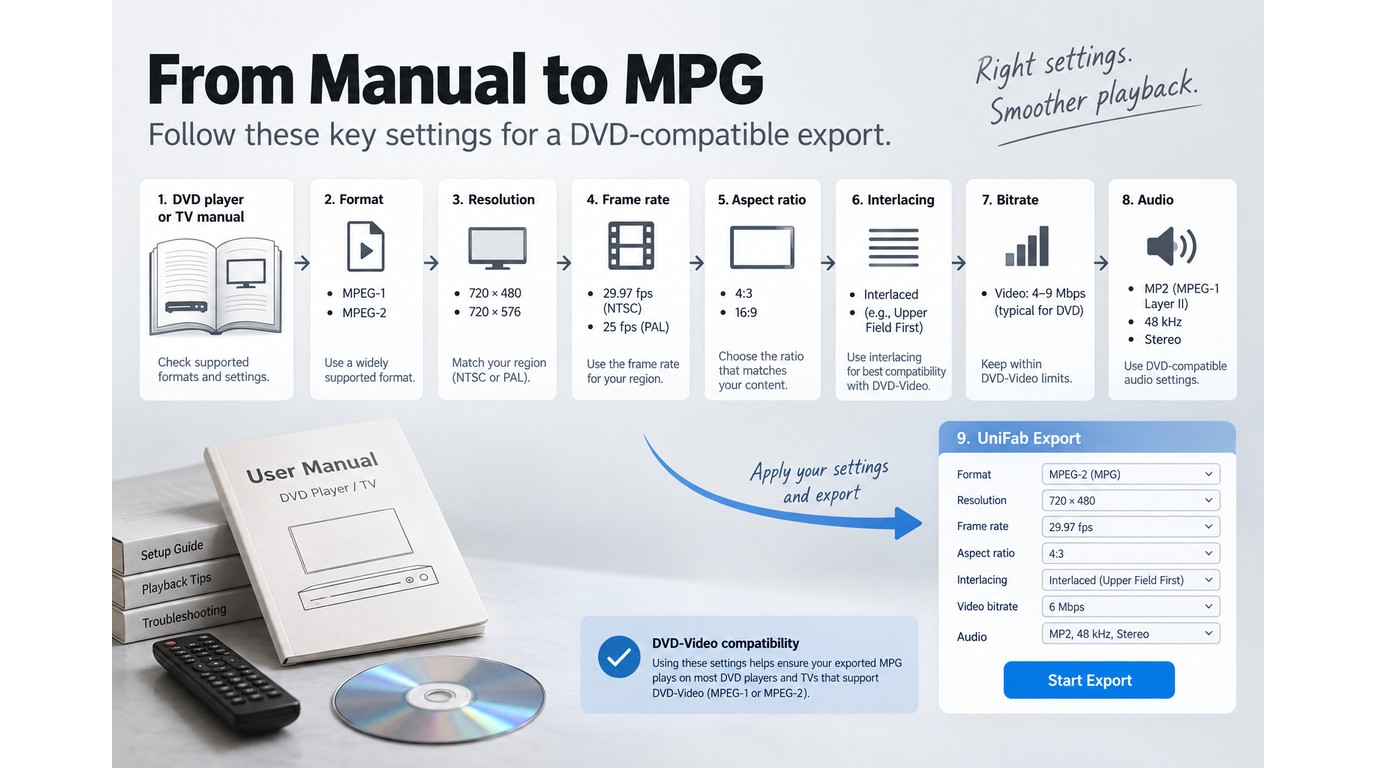
Before exporting MPG, let the playback target set every major parameter: MPEG-1 or MPEG-2, resolution, frame rate, aspect ratio, interlacing, bitrate, and audio. A device manual or authoring specification is a better guide than the highest quality preset. An .mpg extension can hide a stream the player cannot decode.
Choose MPEG-1 or MPEG-2 by Playback Target
Use the MPEG version named by the device or authoring software. DVD-oriented workflows generally call for a DVD-compliant MPEG-2 profile, while some older devices accept other MPG combinations. For a DVD target, the manual-matched profile is safer than a 4K export. 4K describes the converter's output ceiling, while the device profile determines what it can accept. An .mpg filename alone does not establish that compliance.
For a DVD-Video project, confirm both the encoded stream and the authoring stage. Copying an MPG file onto a blank disc is not equivalent to building a disc that a standalone DVD player can navigate.
Match Resolution, Frame Rate, and Aspect Ratio
Start with the manual's resolution. One DVD/USB manual shared in r/techsupport lists 720×480/576 among its supported video dimensions. That shows why a source's original size may not be the correct export target. Match the source cadence when the player allows it. Avoid a frame-rate change unless the target format requires one.
Aspect ratio needs a separate check. A file can contain the right pixel dimensions but still display too narrow or too wide if its display metadata is interpreted incorrectly. Test faces, circles, or known geometry on the actual screen rather than trusting the computer preview alone.
Preserve Interlacing When the Source Requires It
Interlaced footage stores motion differently from progressive video. Converting it to progressive output without deliberate deinterlacing can create missing motion, combing, or smearing.
The failure is concrete in one Sony Handycam discussion.
"The video is 50i (interlaced). On the PC, it is read as 25 fps, and the video looks perfect. But when I convert the video using any program or transfer it to my phone, it becomes 25 fps progressive, and the frames look missing."
Preserve interlacing for a compatible interlaced target, or use a deliberate deinterlacing step for progressive playback.
Balance Bitrate, File Size, and Audio Compatibility
MPG output can be larger than the MP4 source because older encoding methods may need more data to hold similar detail. Bitrate, duration, resolution, and audio settings drive file size; the extension does not. A larger MPG is therefore not proof of better picture quality.
Choose a bitrate range supported by the destination and leave enough room for the complete program. Then test audio on the actual player. A video stream may work while an unsupported audio codec produces silence.
Test Before Burning or Converting a Full Batch
Export a short sample that includes motion, speech, music, and a scene where geometry is easy to judge. Then run this check:
- Play the sample on the destination device.
- Confirm picture, sound, aspect ratio, and motion.
- Seek forward and backward to check navigation.
- Burn or batch-convert after the sample passes.
I use the sample-first approach as the decision rule. A target-device playback check can expose codec, interlacing, or aspect-ratio failures before a full batch. Compatibility is demonstrated by the target device, not implied by a filename or a quality slider.
Frequently Asked Questions
These quick answers cover decisions outside the main online and desktop workflows. Inspect the encoded output, not just the extension.
How do I convert MP4 to MPG on Windows or Mac without an online file-size limit?
Use a desktop converter that processes files locally. On Windows or Mac, this avoids an upload for each source and suits files above 1 GB, repeat jobs, and private footage. The offline section covers storage trade-offs, while the UniFab section shows the local steps. Keep enough disk space for both source and MPG.
Which settings preserve quality, aspect ratio, interlacing, and audio?
Follow the destination manual. Select MPEG-1 or MPEG-2, resolution, frame rate, aspect ratio, interlacing, bitrate, and audio to match it. A higher value can reduce compatibility. The MPG settings section explains geometry checks, interlaced footage, file-size trade-offs, and audio testing on the actual player.
Will an MPG file play on a DVD player or TV, and do I need DVD-compliant MPEG-2?
An MPG file plays only when its encoded stream matches the player's profile. DVD-Video usually needs DVD-compliant MPEG-2 plus proper authoring; the .mpg suffix alone is not enough. Follow the manual and test a short sample on the TV or DVD player before burning a disc or running a full batch.
Why is the MPG file larger than the original MP4?
Older MPEG encoding may use more data to retain similar detail, so MPG can be larger than MP4. Bitrate, duration, resolution, and audio settings control size. See the bitrate section before lowering quality, and judge the result on the target device rather than by file size alone.
Can VLC Handle MP4-to-MPG Conversion?
Yes. VLC can transcode MP4 into an MPEG-based output, but its profile controls are easy to mismatch with legacy hardware. After conversion, inspect the codec and test the MPG on the destination device. For repeated jobs, a purpose-built desktop converter may offer a more direct queue.