A stream-copy remux leaves the copied video and audio bitstreams unchanged. Lossy transcoding re-encodes media and can reduce quality even when resolution and frame rate match the source. Check the codecs first, then choose a local, Apple-supported, command-line, or online workflow based on file size and privacy.
My practical rule is simple: decide whether the file needs a new container or a new codec before choosing software. That prevents unnecessary re-encoding and makes the rest of the workflow much easier to judge. Process only footage you own or are authorized to use, and make sure the intended use is permitted.
Choose the Right MOV-to-MP4 Path
The right way to convert MOV to MP4 depends on codec compatibility, device, file size, and whether processing should stay local. A free MOV converter can be enough for a small job, while local MOV conversion is usually the better fit for large or sensitive footage.
| Scenario | Recommended path | Where to continue |
| H.264 or HEVC video with MP4-compatible audio | Try a stream-copy remux to convert without quality loss | Remux when the codecs already fit MP4; Method 6 |
| Simple Mac conversion | Use an Apple-supported export workflow | Method 2 or Method 3 |
| Windows 11 or cross-platform desktop job | Use UniFab, VLC, HandBrake, or FFmpeg | Methods 1, 4, 5, or 6 |
| Large files, private footage, or batch queues | Process locally without uploading | Methods 1, 5, or 6 |
| Small, non-sensitive, one-off file | Use cloud upload or local browser processing | Method 7 |
| Android or a device where software cannot be installed | Process locally in a browser, or move the file to a desktop | Method 7 or a local desktop method |
Remux when the codecs already fit MP4
To remux MOV to MP4, copy compatible video and audio streams into a new container without changing their encoded data. This is the cleanest route when the source already uses a codec combination accepted by MP4.
Check both streams, not just the filename. H.264 video may be suitable for stream copy, but an incompatible audio track can still require audio conversion. Method 6 shows the inspection and selected-stream commands for copying the first video stream and optional first audio stream; preserve additional compatible tracks through explicit mapping.
Pick a path for your device and file size
For MOV to MP4 on Mac, use Apple's documented export options or iMovie. For MOV to MP4 on Windows 11, a desktop GUI or FFmpeg is more direct. A browser converter can either upload the file to a cloud service or process it locally; consider upload time and retention for cloud tools, and codec support and device memory for local browser processing.
What is the MOV format?
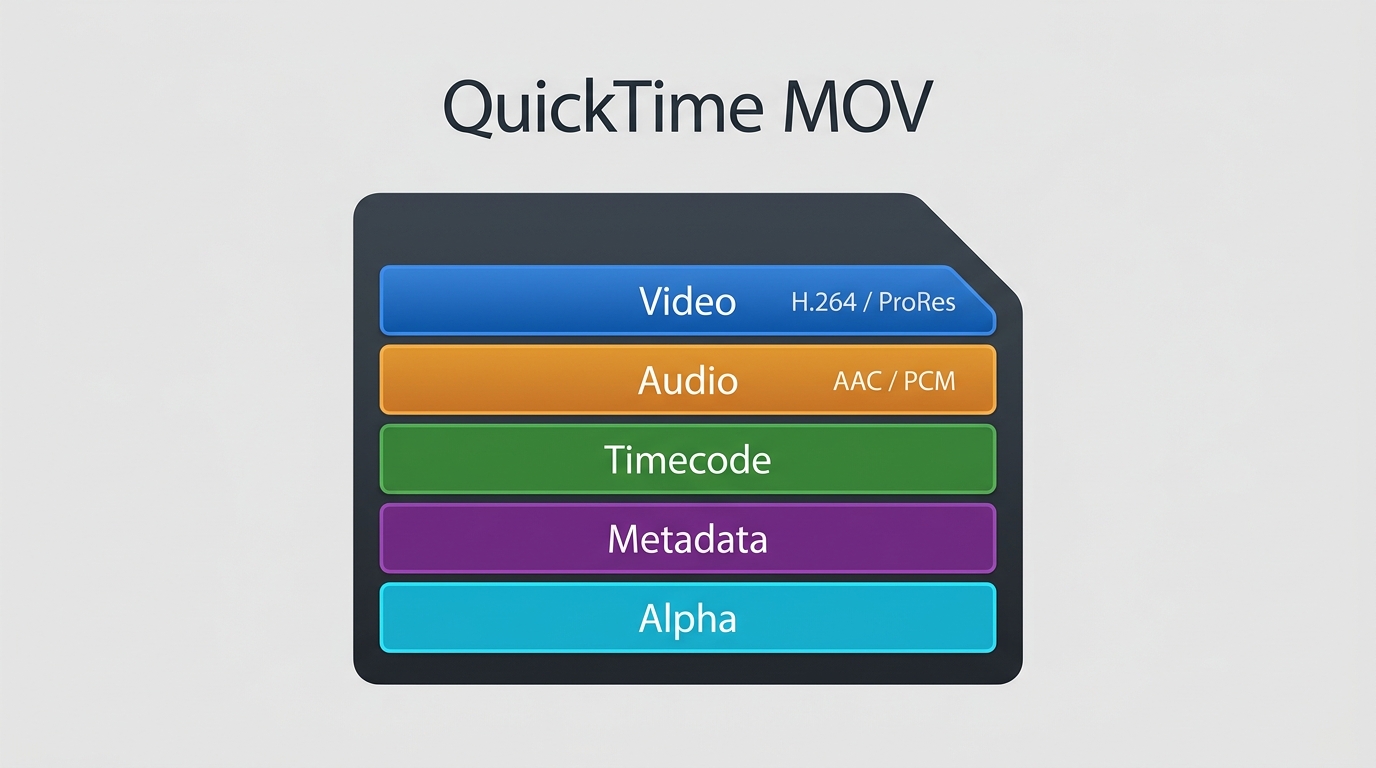
MOV is Apple's track-based media container. Its main value in this decision is that it can hold delivery codecs such as H.264 as well as editing-focused media, so the filename alone does not reveal whether a simple remux will work.
Strengths of MOV files
MOV quality depends on the codecs inside, but the container is well suited to editing workflows that need multiple audio tracks, timecode, metadata, high bit depth, or transparency.
- Common in camera, phone, screen-recording, and editing exports.
- Can hold production-oriented video and multiple media tracks.
- Can preserve alpha-channel workflows that a conventional MP4 delivery file may not support.
The practical advantage is flexibility: keep the MOV master when the project still needs editing data, then create an MP4 copy for delivery.
Weaknesses of MOV files
MOV compatibility varies because two files with the same extension can contain very different codecs. Large editing masters may also be inefficient for email, browser playback, or routine sharing.
- Some Windows apps and web services reject the contained codec even when they recognize the MOV container.
- Editing-focused codecs can produce files that are much larger than delivery-oriented MP4 exports.
- Converting an alpha-channel MOV to an ordinary MP4 can discard transparency.
What is the MP4 format?
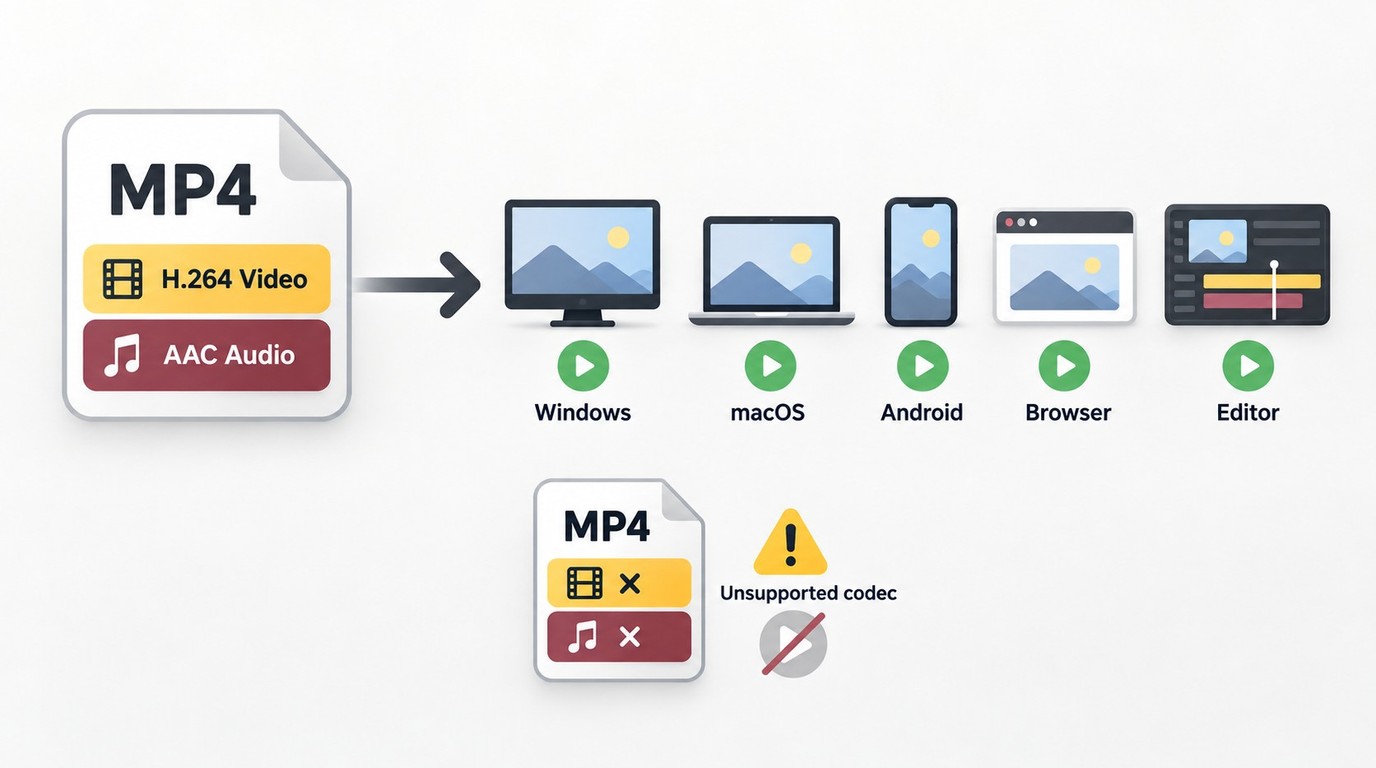
MP4 is a delivery-focused container widely used for playback, sharing, and web distribution. It works well when paired with compatible video and audio codecs, but changing the container does not automatically make every source stream playable.
Strengths of MP4 files
MP4 compatibility is strongest when the file uses a broadly supported combination such as H.264 video and AAC audio. That makes it a practical target for browsers, presentation software, mobile playback, and many editing apps.
- Broad device and application support.
- Suitable for progressive web playback and routine uploads.
- Efficient delivery sizes when the output codec and quality target are chosen carefully.
Weaknesses of MP4 files
MP4 limitations become important with 10-bit, HDR, editing codecs, multiple production tracks, or transparency. The container can support more than basic H.264, but the receiving app may not.
I treat MP4 as a delivery target, not an automatic replacement for the source master. If a project depends on alpha, edit-friendly media, or preserved production metadata, keep the original MOV alongside the converted file.
Why convert MOV to MP4?
MOV to MP4 conversion is mainly about making a file easier to play, share, upload, or store. The benefit comes from the final codec-and-container combination, not from the .MP4 extension by itself.
Compatibility across platforms
MOV compatibility can fail when an app recognizes the container but not the video or audio stream. A well-formed MP4 with supported codecs is more likely to open on Windows, macOS, mobile devices, browsers, and presentation software.
For a reproducible check on a Windows 11 24H2 PC, inspect the file with a media-information utility before conversion, then open the output in both the target editor and the system player. If both picture and sound load, the delivery combination fits that workflow.
Storage and bandwidth efficiency
MOV file size is determined mostly by codec, bitrate, frame rate, resolution, and duration. Converting a production codec to a delivery codec can reduce size substantially, while remuxing compatible streams changes overhead rather than the encoded picture.
Avoid promising one compression percentage for all files. Compare the output against the source at the intended viewing size, and keep the original when the converted file is a delivery copy rather than a new master.
Smoother sharing and uploads
An MP4 upload is often easier for websites and collaboration tools to process when it uses a supported video-and-audio pair. A smaller delivery file can also shorten transfer time, although the result depends on the chosen quality settings.
If the real task is broader sharing rather than conversion, keep that workflow separate: create one suitable MP4 here, then follow a workflow for sending videos without losing quality instead of repeatedly recompressing the file.
Container vs codec: what conversion changes
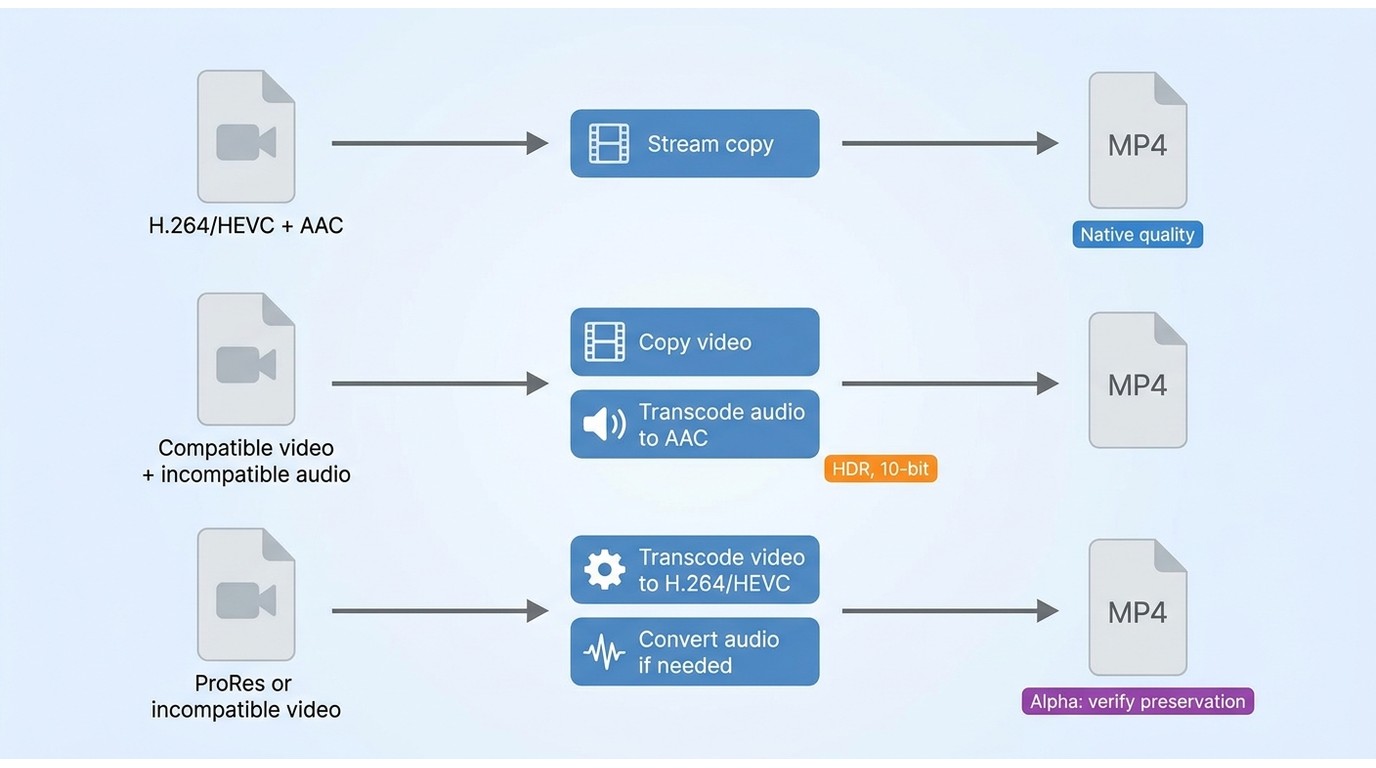
To convert without quality loss, separate the container decision from the codec decision. A stream-copy remux changes the wrapper while leaving the copied bitstreams unchanged; transcoding decodes and re-encodes at least one stream, so it can reduce quality even when the output resolution and frame rate match the source.
Check codecs before choosing a method
A codec check is more reliable than choosing a MOV to MP4 converter by brand name alone. Inspect the source video and audio, identify the receiving app, then choose remux or transcode.
| Source streams | Action | Quality result | Playback caveat |
| H.264 video + AAC audio | Remux selected streams | Copied bitstreams stay unchanged | Test the destination app |
| HEVC video + AAC audio | Remux if HEVC is supported | Copied bitstreams stay unchanged | MP4 does not add HEVC support |
| H.264 or HEVC + incompatible audio | Copy video; transcode audio | Video unchanged; audio re-encoded | Map only accepted tracks |
| ProRes or another editing codec | Transcode video and audio as needed | Depends on output settings | Keep the editing master |
| Alpha-capable video | Keep an alpha-capable master | Avoids discarding transparency | Conventional MP4 may lose alpha |
For stream copy, explicitly map the video and optional audio tracks accepted by the destination. Preserve additional tracks only through explicit compatible mapping.
On a MacBook Air with Apple silicon running macOS 15, the useful verification sequence is to inspect the codec, create the candidate MP4, and review the file's resolution, frame rate, color information, and audio tracks while keeping the source files. The observable goal is matching media properties, not a faster progress bar.
Preserve 4K, HDR, 10-bit, and alpha
4K MOV conversion should retain source resolution and frame rate unless you deliberately want a smaller delivery version. HDR and 10-bit sources also need an output codec, pixel format, and app workflow that preserve their color information.
- 4K: match the source dimensions and avoid selecting a lower-resolution preset.
- Frame rate: preserve the source rate unless variable timing is causing sync trouble.
- HDR and 10-bit: use a 10-bit encoder and pixel format where supported. Treat HDR10, HDR10+, and Dolby Vision separately: HDR10 uses static metadata, while HDR10+ and Dolby Vision require their respective dynamic metadata paths and compatible playback support.
- Alpha: do not force transparency footage into a conventional MP4 if the alpha channel is required.
A workflow that retains HDR10 does not automatically retain HDR10+ or Dolby Vision metadata. My recommendation is to keep the HDR master and create a separate compatible delivery copy when the destination cannot preserve the source HDR format.
With iPhone 15 Pro footage on iOS 18, check the clip's HDR and frame-rate details in Photos before export, then compare those fields in the converted file. If the destination reports an 8-bit standard-range file when the source was HDR, the chosen preset changed more than the container.
7 ways to convert MOV to MP4
These seven MOV to MP4 converter methods cover local batch work, simple Apple workflows, free desktop apps, command-line remuxing, and browser conversion. Choose by file characteristics, destination requirements, and whether local or uploaded processing fits the footage.
Method 1: UniFab for local batch conversion
Video Converter from UniFab is a free Windows and Mac desktop tool for local MOV conversion and folder queues. It can remux compatible streams without re-encoding, transcode when the destination needs a different codec, and export up to 4K without a watermark. NVIDIA, Intel, or AMD hardware encoding may be used for compatible tasks.
Best fit: repeated desktop conversions, folders of MOV files, large footage, and users who want a graphical workflow. For a single already-compatible clip, a lightweight stream-copy route may be more direct; Video Converter is better suited to a graphical folder queue.
Video Converter requires installation on Windows or Mac; use the official installer linked in Step 1. Output is capped at 4K, so create a source-matched 4K delivery copy and retain any higher-resolution master.
- Install Video Converter, open the Converter module, and add one MOV file or a folder.
- Choose MP4, then match the source resolution and frame rate. Select an output codec that the destination supports.
- Start the queue, open the result, and verify picture, audio, duration, and color behavior in the target app.
If the source needs a separate visual cleanup or upscale after the format decision, Video Enhancer AI covers that different task. Do not add enhancement merely to change the container.
Method 2: Apple-supported Mac options
For MOV to MP4 on Mac, use an Apple-supported workflow rather than assuming QuickTime Player's Export As command creates an MP4. Apple's current paths include a filename-extension shortcut for a compatible H.264 MOV file, iMovie, Final Cut Pro, or Compressor.
Best fit: Mac users who already work in Apple software and need a simple, documented export. Not ideal for: large cross-platform batches or users who need a transparent stream-copy decision.
- If the MOV contains compatible H.264 media, Apple's documented shortcut may allow changing the filename extension to .MP4, but this does not transcode or repair incompatible streams.
- Use iMovie for a simple consumer export.
- Use Final Cut Pro or Compressor when the project needs controlled export settings or an editing workflow.
The key distinction is whether the media streams remain unchanged or are re-encoded. Check the resulting codec and file behavior instead of judging by the new extension.
Method 3: iMovie on Mac and iPhone
iMovie offers a free MOV converter path on Apple devices when the clip also needs trimming, titles, or a straightforward share export. It re-encodes, so source and output properties must be compared when quality preservation matters.
Best fit: a small number of Mac or iPhone clips that need light editing. Not ideal for: scripted batches, stream-copy remuxing, or footage whose HDR, 10-bit, or frame-rate requirements are not supported by the chosen export.
- On Mac, create a project and select Create Movie.
- Choose the MOV clip, select Import Selected, then use Add to Movie.
- Make any required trim or title changes, select Share, and choose Export File with the closest suitable resolution.
- On iPhone, use the available project and sharing controls rather than the Mac menu names.
- Inspect the exported MP4's resolution, frame rate, color behavior, and audio before treating it as the delivery copy.
For 4K iPhone footage, do not assume that selecting 4K preserves HDR, bit depth, and frame rate. Those are separate checks, and the intended playback app is part of the decision.
Method 4: VLC Media Player
VLC can convert MOV to MP4 on Windows, macOS, and Linux through its Convert/Save or Convert/Stream workflow. It is useful when VLC is already installed and the file needs a conventional transcode.
Best fit: occasional cross-platform conversion with a familiar free app. Not ideal for: users who need detailed batch management, predictable stream copy, or careful HDR and 10-bit controls.
- Open VLC and choose Convert/Save on Windows or Convert/Stream on macOS.
- Add the MOV file and choose an MP4-compatible profile.
- Set a destination ending in .MP4 and start the conversion.
- Play the output and confirm that both video and audio work in the destination app.
If VLC is part of a broader playback or scaling workflow, this VLC upscaling guide covers that separate topic without expanding it here.
Method 5: HandBrake
HandBrake is a free, open-source transcoder for Windows, macOS, and Linux. It provides useful quality, frame-rate, audio, and queue controls, but it is a transcoding tool rather than the first choice for a no-reencode remux.
Best fit: users who want a free GUI, repeatable presets, or queue-based conversion. Not ideal for: pure stream copy, transparency preservation, or users who do not want to choose encoding settings.
- Open the MOV source.
- Select an MP4 preset close to the source resolution and frame rate.
- Review video quality, frame-rate behavior, audio tracks, and color requirements. For HDR, match the source bit depth with a compatible 10-bit encoder and treat HDR10, HDR10+, and Dolby Vision as separate metadata paths that also require destination support.
- Choose the output path, add more files to the queue if needed, and start encoding.
The detailed HandBrake Video Converter review covers the app beyond this MOV-specific workflow.
Method 6: FFmpeg
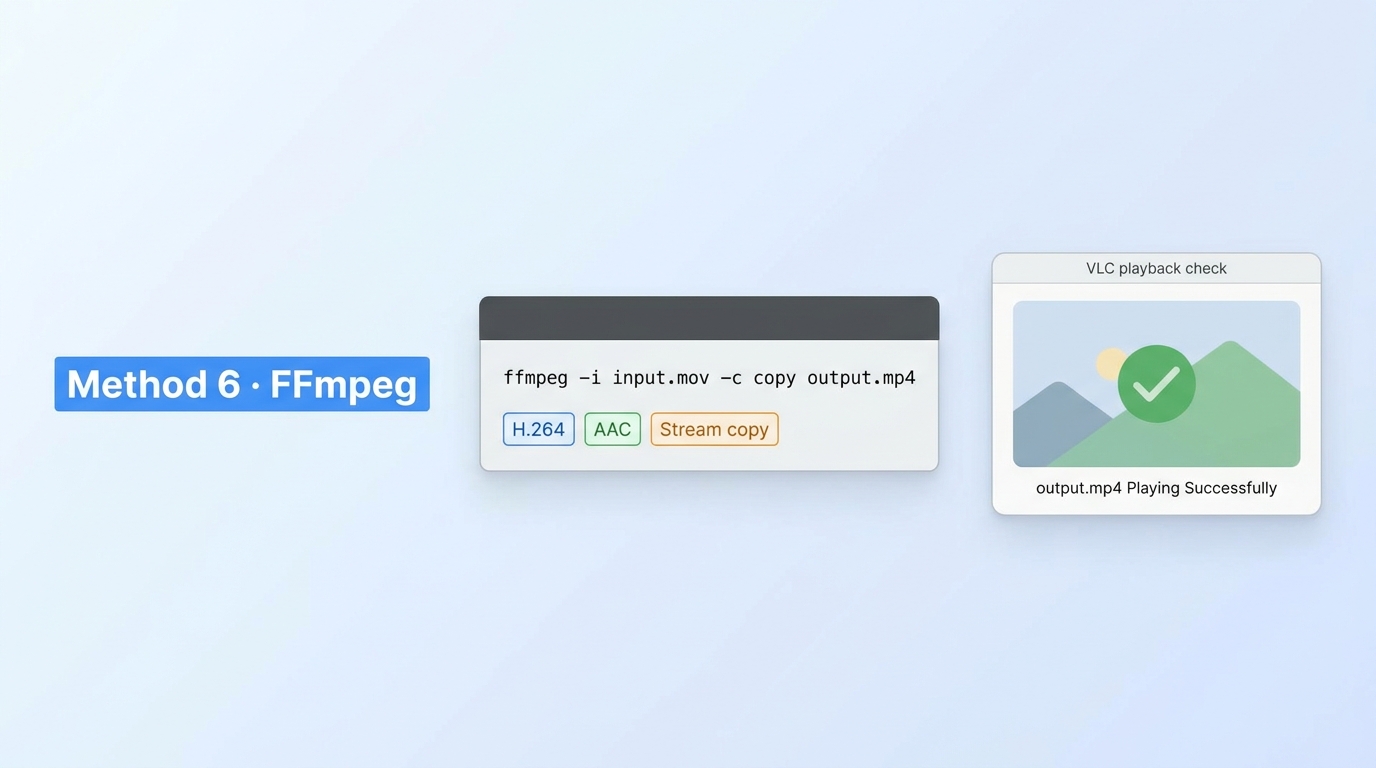
FFmpeg is the most direct way to inspect streams, remux MOV to MP4, or build a controlled transcode. The inspection step comes first because stream copy works only when the contained video and audio fit the target MP4 workflow.
Best fit: codec inspection, loss-preserving remuxes, custom audio handling, and scripted batches. Not ideal for: users who prefer a graphical interface or do not want to validate command-line output.
- Inspect the source with ffprobe -v error -show_streams input.mov.
- If the first video and optional first audio streams are MP4-compatible, remux them: ffmpeg -i input.mov -map 0:v:0 -map "0:a:0?" -c copy output.MP4.
- If video can be copied but audio cannot, copy the first video stream and encode the optional first audio stream: ffmpeg -i input.mov -map 0:v:0 -map "0:a:0?" -c:v copy -c:a AAC output.MP4.
- If the source uses an editing codec such as ProRes, choose a deliberate H.264 transcode: ffmpeg -i input.mov -map 0:v:0 -map "0:a:0?" -c:v libx264 -crf 20 -c:a AAC output.MP4. CRF 20 is an example setting, not a guarantee of identical quality.
- Keep the source and compare selected track counts, duration, playback, and sync in the target player or editor.
These examples select the first video stream and optional first audio stream, excluding other tracks. Preserve additional audio, subtitle, or data tracks only by mapping each required MP4-compatible stream explicitly.
For batch MOV conversion, place tested settings in a script only after one representative file passes review. That prevents a wrong preset from being repeated across a whole folder.
Method 7: Online converters
An online MOV converter can use either cloud-upload processing or local browser processing. Cloud services receive the source file, while browser-local tools such as OpenReplay process supported media on the device without uploading it.
Best fit: cloud conversion for a small, non-sensitive file, or local browser conversion when software cannot be installed and the file fits the browser's codec and memory limits. Not ideal for: recurring batches, limited connections, unsupported codecs, or large files that strain upload time or device memory.
- Choose a cloud provider such as CloudConvert, Convertio, or FreeConvert, or a local browser converter such as OpenReplay.
- For a cloud service, review its upload, retention, privacy, and account terms. Allowances and account rules vary, as the CloudConvert review illustrates.
- For local browser processing, confirm that the browser supports the source codec and that the device has enough memory for the file.
- Select MP4, avoid changing resolution or frame rate unless intended, and inspect the result before deleting or moving the source.
Adobe Express accepts videos up to one hour and files up to 1GB as of October 2026. Use a cloud service for a small, non-sensitive file when uploading is acceptable, a local browser route when avoiding an upload matters, and a desktop queue for large archives or repeated conversions.
MOV-to-MP4 methods compared
This comparison summarizes the decision points without repeating the seven workflows. The desktop summary focuses on operating systems and conversion routes, while the browser summary distinguishes cloud uploads from processing on the local device.
| Method | Operating systems | Conversion route |
| Video Converter | Windows and Mac | Free local remux or transcode |
| Apple-supported Mac options | Mac | H.264 extension change or export |
| iMovie | Mac, iPhone | Export transcode |
| VLC Media Player | Windows, Mac, Linux | Profile-based transcode |
| HandBrake | Windows, Mac, Linux | Queue-based transcode |
| FFmpeg | Windows, Mac, Linux | Selected-stream remux or transcode |
| Browser route | Processing location | MOV-to-MP4 workflow |
| Cloud upload | Provider's servers | Upload, convert, download |
| Local browser | User's device | Browser remux or transcode |
My editorial takeaway is that FFmpeg offers the clearest codec-level decision, HandBrake offers the most approachable free queue, and UniFab fits users who want a local graphical batch workflow on Windows or Mac. None is the right fit for all seven scenarios.
Troubleshooting MOV-to-MP4 problems
Most MOV conversion problems come from incompatible audio, timing behavior, color-depth changes, transparency loss, or an output setting that does not match the destination app. Diagnose the stream that failed before repeating the conversion.
Fix audio-only imports and sync drift
An audio-only import usually means the editor accepts the audio stream but not the video codec. Sync drift more often points to variable frame rate, irregular timestamps, or a conversion that changed timing behavior.
- Confirm that the original media is fully downloaded; a .mov.icloud item may be an iCloud placeholder rather than a complete MOV file.
- Inspect the source and output video and audio codecs.
- Test the MP4 in both a player and the target editor.
- If the video codec is rejected, transcode it to a supported delivery codec.
- If sync drifts gradually, compare duration and frame-rate mode, then use a controlled constant-frame-rate export only when the destination requires it.
On Windows 11, place the source and output on separate timeline tracks, align the first frame, and inspect a point near the end. A growing offset suggests timing conversion rather than a simple starting delay.
Handle 10-bit, HDR, and transparency
10-bit, HDR, and alpha-channel footage needs more than an MP4 extension. The selected codec, pixel format, metadata handling, and destination application must all support the property you want to preserve.
- If HDR becomes flat or washed out, compare color-transfer and range information; when the destination requires standard dynamic range, use a controlled HDR-to-SDR conversion rather than raising saturation.
- If 10-bit becomes 8-bit, choose a 10-bit encoder and pixel format. HDR10 uses static metadata, HDR10+ uses dynamic metadata, and Dolby Vision requires a compatible Dolby Vision metadata path.
- If transparency disappears, keep the alpha-capable MOV master or use a delivery format that supports alpha in the target workflow.
- If an editor rejects an otherwise playable file, use a codec profile the editor supports instead of repeatedly changing containers.
This is where I would keep the MOV master. Forcing MP4 is not safer when it removes a property the project still needs.
Reduce oversized outputs without guessing
An oversized MP4 usually reflects a high bitrate, an inefficient preset for the target, unnecessary resolution, or an output codec choice. Change one variable at a time and compare a representative scene.
- Confirm the required resolution and frame rate.
- Choose a delivery codec supported by the destination.
- Use a quality-based setting rather than copying an arbitrary bitrate from another file.
- Review motion, gradients, text, and dark areas in a short sample.
- Apply the accepted settings to the full file or batch.
Do not downscale 4K merely to solve a format problem. If the real goal is a 4K-to-1080p delivery copy, treat that as a separate resolution decision, and keep the source master.
Conclusion
The most dependable MOV to MP4 workflow starts with codec inspection. Remux compatible streams first; transcode only when the destination requires a different codec, smaller delivery file, or corrected timing.
Use an Apple-supported option for a simple Mac job. Choose HandBrake or VLC for a free desktop GUI, FFmpeg for inspection and stream copy, and Video Converter for repeated Windows or Mac conversions involving large or sensitive files. For browser-based conversion, use a local browser tool when device memory and codec support are sufficient; choose a cloud service only when upload time, retention terms, and privacy are acceptable.
MOV-to-MP4 FAQ
Can MOV become MP4 without quality loss?
Yes, when the contained video and audio streams are compatible with the intended MP4 workflow. A stream-copy remux leaves those encoded streams unchanged. If either stream must be transcoded, quality depends on the selected output settings.
What is the best way to convert MOV to MP4 without losing quality?
The codec-first approach in How to Convert MOV to MP4 Without Losing Quality: 7 Practical Methods also answers a common follow-up: Which free method works on Mac or Windows? Check the codecs first. Remux compatible video and audio streams with FFmpeg; transcode only when the destination requires a different codec. For a graphical workflow, use an Apple-supported export option or iMovie on Mac, or choose VLC or HandBrake on Mac or Windows.
What settings preserve 4K, HDR, and 10-bit?
Match the source resolution and frame rate, then use a 10-bit encoder and pixel format supported by the destination. HDR preservation also requires a compatible path for HDR10 static metadata, HDR10+ dynamic metadata, or Dolby Vision metadata. A 4K preset alone does not preserve HDR.
Should an alpha-channel MOV stay MOV?
Usually, if transparency is still required. A conventional MP4 delivery workflow may not preserve the alpha channel, so keep an alpha-capable master and create a separate delivery file only when the destination no longer needs transparency.
Why does converted audio drift out of sync?
Variable frame rate, irregular timestamps, or a frame-rate change can create gradual drift. Compare source and output timing, then use a controlled constant-frame-rate export only if the destination app requires it.
Are online converters suitable for large files?
Cloud converters become less practical as file size grows because upload time, service allowances, retention terms, and privacy enter the workflow. Local browser conversion avoids uploading the source but depends on browser codec support and available device memory. For repeated large-file batches, a desktop or command-line workflow provides more direct control.