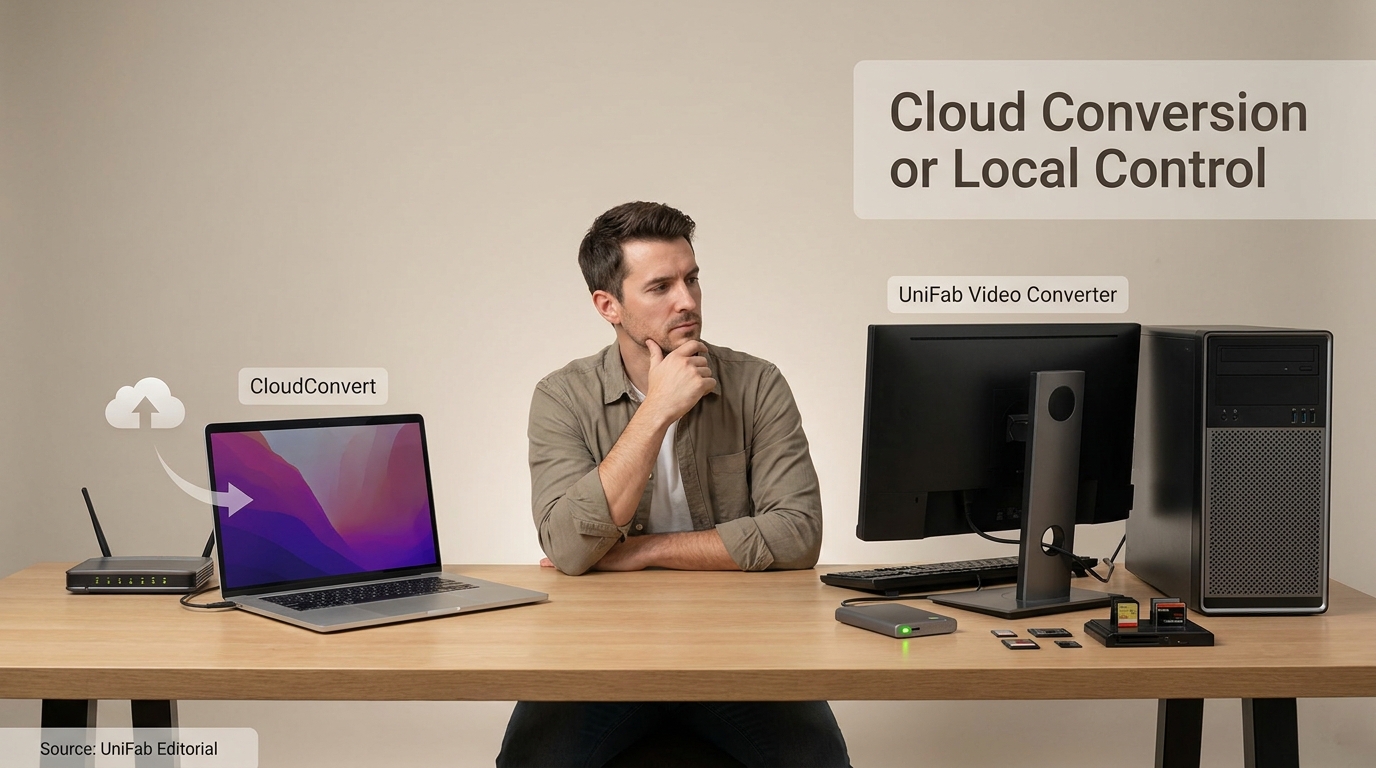
CloudConvert is a convenient browser-based converter for occasional, low-risk files when you need a usable output without installing software. It handles video, audio, images, and documents online, but for large videos, upload time can outweigh that convenience. If you are asking “is CloudConvert safe?”, consider file sensitivity before uploading.
This CloudConvert review moves from the five-step workflow to safety, credits, and the point where local control becomes more practical.
How CloudConvert Works: Prerequisites and 5 Steps
The service is browser-based: it uploads a source file, processes it on remote servers, and returns the converted output. Before starting, you need the source, a target format, a stable connection, enough local storage, and the right to process the material.
What CloudConvert Is and What It Converts
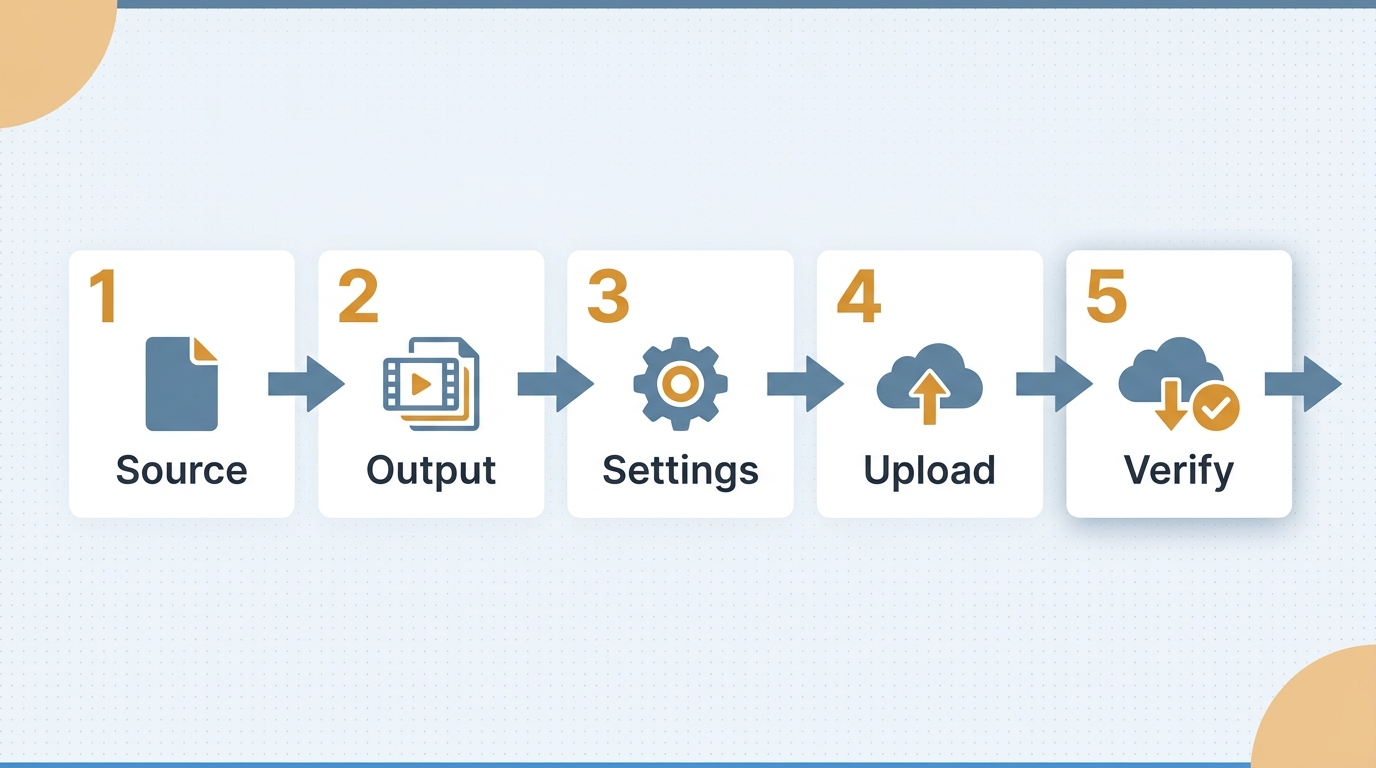
What is CloudConvert used for? The browser converter handles documents, images, audio, video, archives, and other file categories without requiring a desktop installation. Its basic model is simple: select a file, choose an output, adjust relevant settings, convert, then download. The conversion runs online, so the source is transferred to CloudConvert for remote processing.
That simplicity is useful for a one-off task on a managed computer or a device where installing software is inconvenient.
Prerequisites Before You Upload
Check these items before the file leaves your device:
- Source file: Keep the original until the output has been verified.
- Target requirement: Confirm what the destination app, device, or website accepts.
- Connection: Allow for both the initial upload and final download.
- Storage: Leave room for the converted copy beside the source.
- Sensitivity: Remove unnecessary personal metadata from confidential material.
- Usage rights: Process files you own or are authorized to handle, and follow the service terms and applicable copyright rules.
The practical point is not to make every upload sound dangerous. It is to recognize that remote conversion changes who temporarily holds the file and where the work happens.
Convert a File in Five Steps
Work through the conversion in this order:
- Select the source file. Open the service and choose a local file. Connected storage may also appear as a source option, depending on the workflow and permissions you grant. In an API workflow, the input can also be a direct file URL that resolves to the file itself, not a streaming-site watch page. Do not use file conversion to obtain copyrighted media without authorization; that may be illegal and violate platform terms.
- Choose the output format. Let the receiving app or device determine the target. Converting MOV to MP4 makes sense when MP4 is the accepted delivery format, not simply because MP4 is familiar.
- Review conversion settings. Check resolution, dimensions, codec, audio, quality, and aspect-ratio controls that apply to the selected formats. Leaving defaults untouched can produce a technically valid file that still looks or sounds wrong.
- Start the conversion. The browser converter first uploads the source, then processes it remotely. A large video on a slow upstream connection may spend more time transferring than converting.
- Download and verify the result. Download the output locally or save it through connected Google Drive or Dropbox storage. Open the output before deleting anything. Check playback, audio sync, image proportions, visible artifacts, and compatibility with the destination.
This verify-before-delete habit is the most important step in the sequence. A completed status confirms that a file was produced; it does not prove that the output matches your intended use.
Is CloudConvert Safe and Legit? The Practical Risk Check
This is a functioning commercial service, but legitimacy and confidentiality are different questions. Lunaweb GmbH operates CloudConvert with an ISO 27001-certified information security management system, encrypted transfers, and isolated processing containers. It can suit ordinary personal files while still being the wrong processing model for unreleased work, regulated records, credentials, or client-owned media.
Why Online Conversion Creates a Privacy Decision
An online converter cannot process a local file until that file reaches its servers. Its privacy policy states that processing files are automatically deleted within 24 hours at the latest, with a manual delete control available sooner. API export links remain available for 24 hours, while a downloaded local copy or a file saved to connected storage remains in the destination you chose. That retention limit reduces exposure time, but it does not turn a remote upload into local processing.
The concern is concrete, not theoretical. A Reddit poster in r/privacy asked whether it was safe to use CloudConvert for a MOV-to-AVI conversion. The right answer depends less on MOV versus AVI than on what the video contains and what a disclosure would cost.
A Safety Checklist Before Uploading
- Confirm the address is CloudConvert.com before selecting a file.
- Avoid uploading passwords, identity documents, medical records, or confidential client assets.
- Remove location, author, or device metadata when it is not needed.
- Keep an untouched local backup until the converted file passes inspection.
- Delete the remote job after downloading when the interface provides that control.
- Review the output for hidden metadata as well as visible quality.
When Local Processing Is the Safer Fit
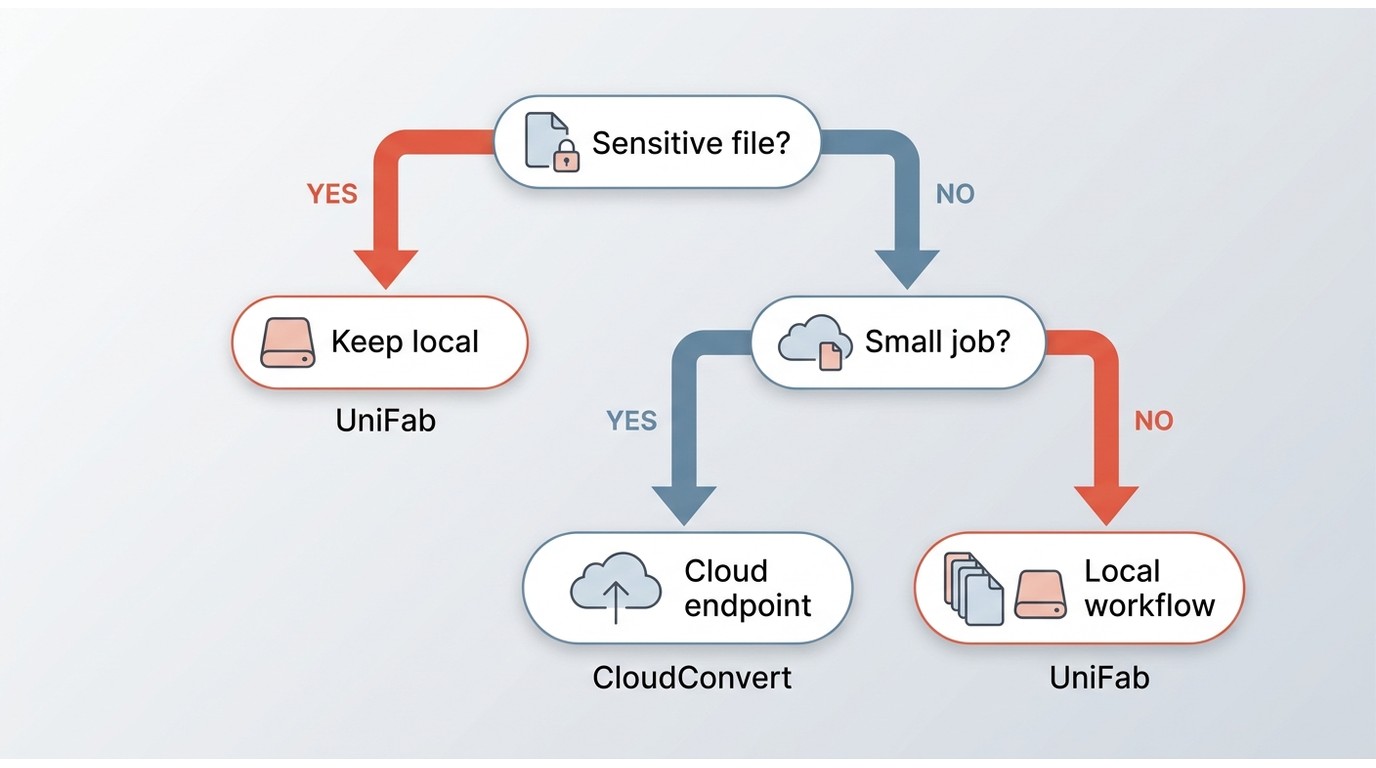
Keep the conversion on your computer when the file is sensitive, subject to a client agreement, difficult to upload again, or part of a recurring production workflow. Local software still requires sensible device security and backups, but it avoids sending the source to a conversion server. For sensitive or repeated video work, local processing is the relevant alternative. For that path, UniFab Video Converter runs on Windows and macOS and keeps the video workflow on the computer. If exposure would be costly, convenience should not decide the workflow.
Is CloudConvert Free? Pricing, Credits, and Workflow Limits
CloudConvert pricing includes free access, but repeated or heavier use can run into credit, conversion, or workflow limits. The free plan has defined caps for daily credits, file size, processing time, and concurrent tasks, listed below. Cost should include transfer time and repetition, not just the amount shown on a pricing page.
What Free Access Is Designed For
Free access fits occasional conversions where the file is modest, the connection is dependable, and a browser workflow avoids unnecessary installation. For a recurring video pipeline, daily credits and processing-time limits can add workflow friction even when individual files fit the size cap.
CloudConvert lists the following free-plan limits as of September 2026:
| Limit | Free plan |
| Daily credits | 10 conversion credits |
| Maximum file size | 1 GB |
| Maximum processing time | 5 minutes |
| Concurrent tasks | 5 |
How Credits and Paid Options Affect Repeat Use
The service combines free access with credit-based options for heavier use. Conversion charges combine a base credit cost with processing time; only successful conversions are charged. Package credits do not expire, while subscription credits reset monthly.
A Reddit user reported seeing a conversion-credit exhaustion message on both a computer and a phone.
The Hidden Cost of Upload-Heavy Video Jobs
Upload time is easy to ignore because it is not labeled as a fee. A slow upstream connection, a failed transfer, or a second download after changing settings can turn a short conversion into a long task. For video, file size magnifies that friction, and repeated jobs add the same transfer overhead each time.
A Simple Cost-and-Frequency Decision Rule
- Occasional small file: Browser convenience usually wins.
- Large file on fast internet: Either model can work; sensitivity becomes decisive.
- Large or repeated video batches: Local processing removes recurring uploads and credit tracking.
CloudConvert vs. UniFab: Which Video Workflow Fits?
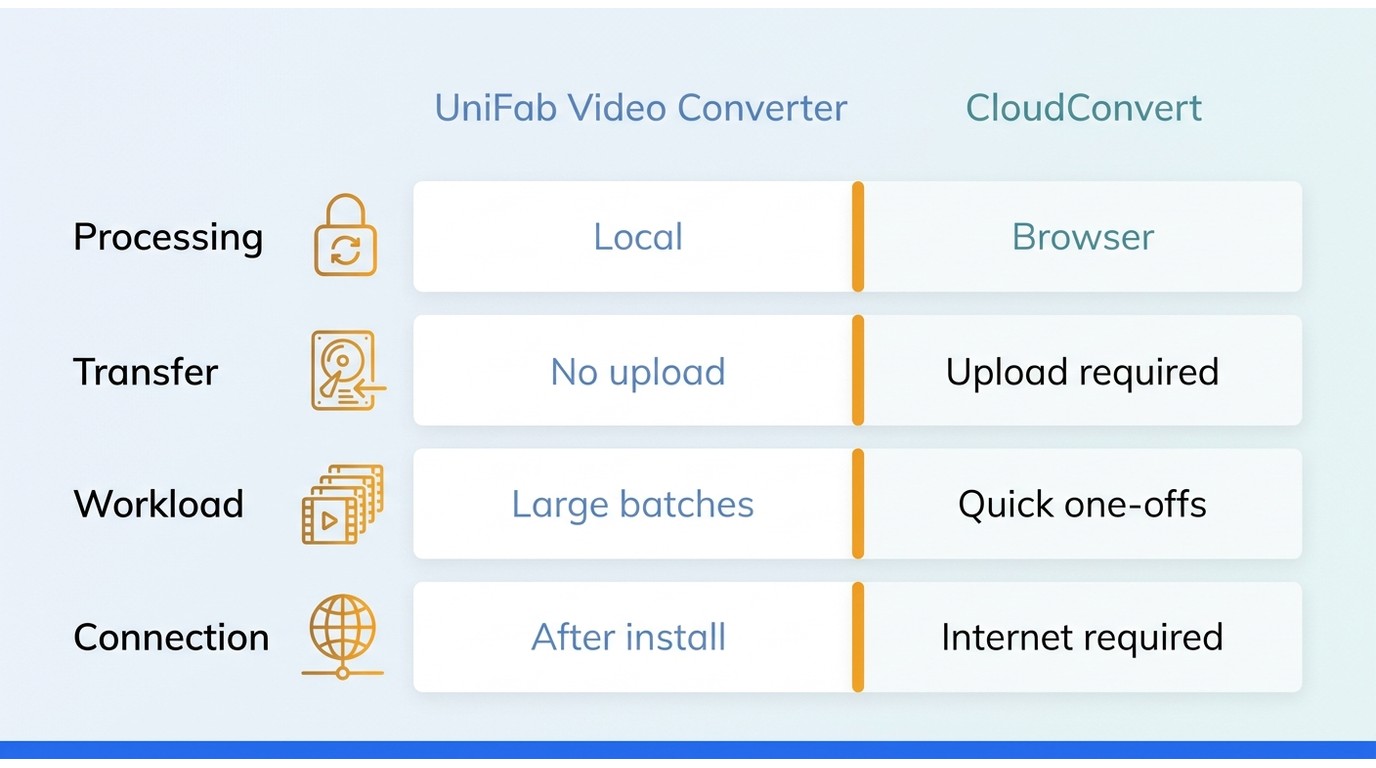
CloudConvert suits occasional, non-sensitive mixed files. Local video software suits sensitive files or recurring video batches.
Choose CloudConvert for Occasional Browser Convenience
The browser service fits small mixed files when installation is undesirable. Its category range includes documents and archives that a video app does not handle.
Choose UniFab for Local, Repeat Video Work
UniFab's Video Converter runs locally on Windows and macOS and supports batch video conversion.
Test one representative file in the desktop app before starting a full batch to confirm the output settings.
Browser Tasks and Local Video Work
CloudConvert provides a lightweight route for browser-only tasks or locked-down devices because it requires no desktop installation and handles documents, fonts, spreadsheets, and archives. For recurring video work, UniFab focuses on local batch conversion on Windows and macOS.
Decision Table: Cloud Service or Local Desktop
| Decision factor | CloudConvert | UniFab Video Converter |
| Processing location | Remote cloud service | Local Windows or macOS app |
| File categories | Video, audio, images, documents, archives | Video files |
| Installation | None | Desktop app required |
| Transfer workflow | Upload, convert, download | Process locally |
| Repeat video work | Uploads and credits recur | Local batch conversion |
I recommend CloudConvert for mixed one-off jobs and UniFab for repeated local video batches.
CloudConvert FAQ
Here are quick answers to common CloudConvert questions.
Who Owns the Service?
The website is operated by Lunaweb GmbH, a company based in Germany. That company identity is separate from similarly named mobile apps and from third-party sites that embed or link to conversion services.
Is the Website the Same as the Cloud Converter Android App?
No. The Google Play app named Cloud Converter is listed as a WebHubCode product, while the website is operated by Lunaweb GmbH. Similar names do not establish shared ownership, so check the developer and domain before granting file or storage access.
Can CloudConvert Convert MOV to MP4 or MP4 to MP3?
Yes. For MOV to MP4, the How to Convert MOV to MP4 guide covers compatible codecs and output settings. For MP4 to MP3, MP4-to-MP3 conversion extracts audio only, so check the selected bitrate and audio channels.
Can File Conversion Change Video Quality, Audio, or Aspect Ratio?
Yes. A different codec, bitrate, resolution, frame size, or audio setting can change quality. This can happen even when the filename extension looks correct. Choose a codec accepted by the destination, preserve the intended resolution and aspect ratio, use enough bitrate for the desired fidelity, and check audio sync and channels. Lower resolution or bitrate can reduce file size, but it can also remove visible detail. One r/techsupport poster described a rectangular PNG becoming horizontally stretched and warped during ICO conversion. For video, inspect the result in the destination app for stretching or other proportion errors.
Bottom Line: Match the Converter to the File
Use the browser converter when the file is low-risk, the job is occasional, and browser access matters more than transfer time. Use local video software when the source is sensitive, large, or part of a repeated batch. The decisive question is not whether a converter recognizes the extension. It is whether the processing location matches the file’s risk and the frequency of the work.