Getting audio out of Kapwing Video Converter takes more than finishing the edit: you still need an available MP3 export and a saved, playable file. I recommend its video to MP3 workflow for short clips that need editing; for repeated file jobs, a conversion queue is the more direct route.
The five-step process below covers the export and download, followed by plan limits, file privacy, audio quality, and the choice between a browser project and local conversion.
What Kapwing Converter Actually Does
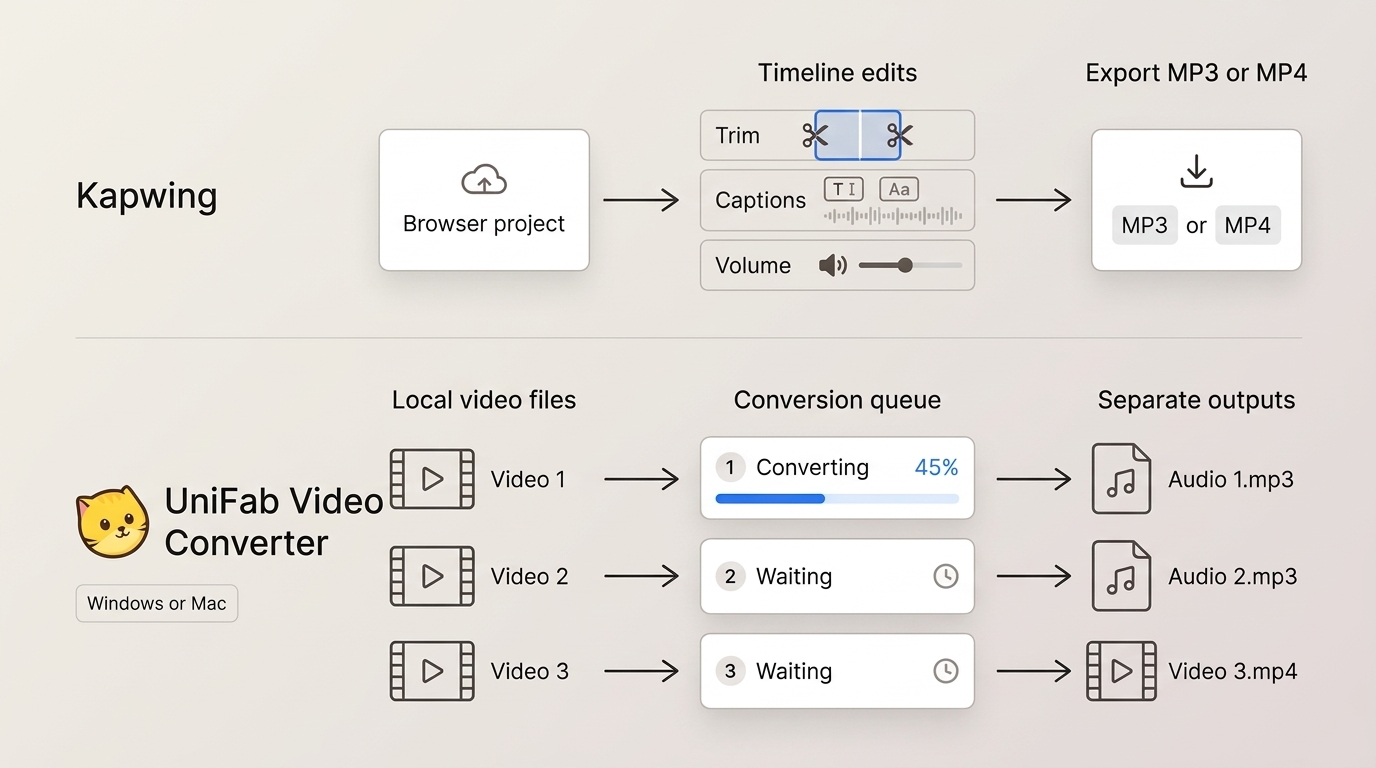
The Kapwing converter combines browser editing with file conversion. It suits a clip that needs trimming, captions, or volume changes before export; a dedicated video-to-MP3 converter handles a different job, turning separate source files into separate outputs without building an editing project.
Kapwing advertises more than 20 output types, including MP4, MOV, WebM, GIF, MP3, and AAC. Its pricing matrix instead lists MP4, PNG, JPG, MP3, and GIF. Those lists describe outputs, not a count of upload formats. Use the export choices offered for your particular project.
Formats, Editing, and Browser Workflow
The editor puts conversion at the end of a timeline workflow. Add a compatible source file, make the edits you need, then choose an output. MP4 keeps a watchable video, MP3 saves audio, and GIF creates an animation. A filename alone does not establish that its contents will import successfully.
- Setup: Kapwing runs in a browser without a desktop installation.
- Editing: trimming and volume adjustments affect the exported audio; captions and visual effects serve a video export.
- Workspace: account-based projects support shared editing.
A MOV-to-MP4 conversion changes the video-file format; it does not itself produce an audio-only download. For audio extraction, keep the source in the editor and choose MP3 at export.
Harper Seven recommends the browser project when an edit improves the clip you actually need. A short talk with an unwanted introduction is a good fit: trim the introduction, then save the useful audio.
Convert Video to MP3 with Kapwing
The Kapwing video to MP3 workflow ends with a download to your device. Prepare the source, import it, review the timeline, select MP3 when offered, and save the finished audio. Keep the original. It is your fallback if an import or export fails.
Before you begin: use media you own or are authorized to access and convert, within platform terms and applicable law. Sign in to your account, use a current browser, and keep an authorized local original available.
URL import also requires an available account option and a compatible source. For authorized YouTube-to-MP3 conversion, a visible link alone does not establish import access. If that option is unavailable, upload your authorized original instead.
Five-Step Browser Workflow
Open Kapwing and start a project. Sign in before exporting so that the project uses your account's available options.
Upload the source video. Drag in a local original or select it from your device. Wait for the import to finish before working on the timeline.
Review the timeline. Select the clip, trim unwanted sections, and adjust audio levels. Listen to the beginning and end so the saved audio starts and stops where intended.
Choose the export option. Open Export Project and select MP3 when offered. Inspect the project's export allowance before committing to a long edit, then start processing.
Download the completed MP3. Wait for processing to finish, save the file to your device, and play it once before closing the project. For video exports, also inspect the saved picture and text placement.
MP3 Saves Audio; MP4 Keeps the Picture
MP3 stores audio only; MP4 can hold both video and audio. Choose MP3 to listen to a talk without watching it, and keep MP4 when slides, demonstrations, or on-screen text carry the meaning. The Kapwing MP4 to MP3 converter uses the same project workflow: import your MP4, keep the audio you need, and select MP3 at export. The endpoint is a saved audio file on your device, separate from the watchable original.
Kapwing Free Video Converter Limits and Pricing
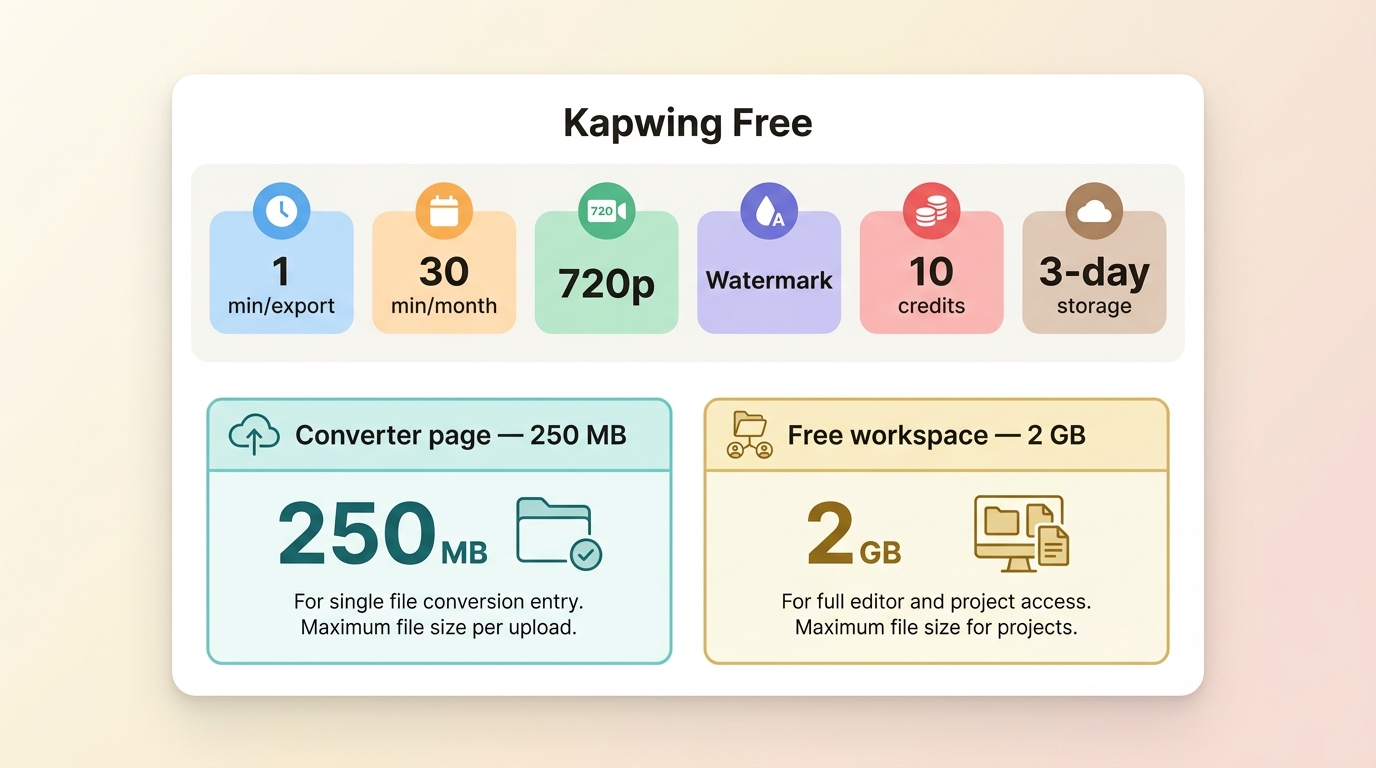
The Kapwing Free Video Converter is useful for short edits, but its published video limits deserve attention before you build a long timeline. The pricing page and converter FAQ give different duration and upload figures. Neither video-duration figure establishes an audio-only MP3 limit.
| Free-plan item | Pricing-page allowance |
| Finished-video length | Up to 4 minutes |
| Video resolution and watermark | 720p; video watermark |
| Monthly video exports | 30 video-export minutes |
| Upload size | 2 GB |
| Project storage | 3 days; 5 GB storage |
| Credits | 10 |
Kapwing pricing and converter FAQ, as of October 2026.
The converter FAQ lists one-minute finished-video exports and 250 MB uploads. These figures conflict with the pricing page's four minutes and 2 GB; the difference does not establish separate rules for different entry points. For an MP3 project, inspect its export allowance before a long edit.
Kapwing Pro documents 6 GB uploads and up-to-4K video exports. Those are video and upload specifications, not audio-quality settings. A larger video export resolution will not improve an MP3.
Historical graphic from July 2026: the pricing page now lists four-minute video exports and 2 GB uploads, as shown in the table above.
I would settle the available export allowance before editing a long interview. For no-cost video conversion, saving the finished file matters more than reaching an edit screen: a workable choice must accept your source and deliver the output you need.
Is Kapwing Safe for Uploaded Files?
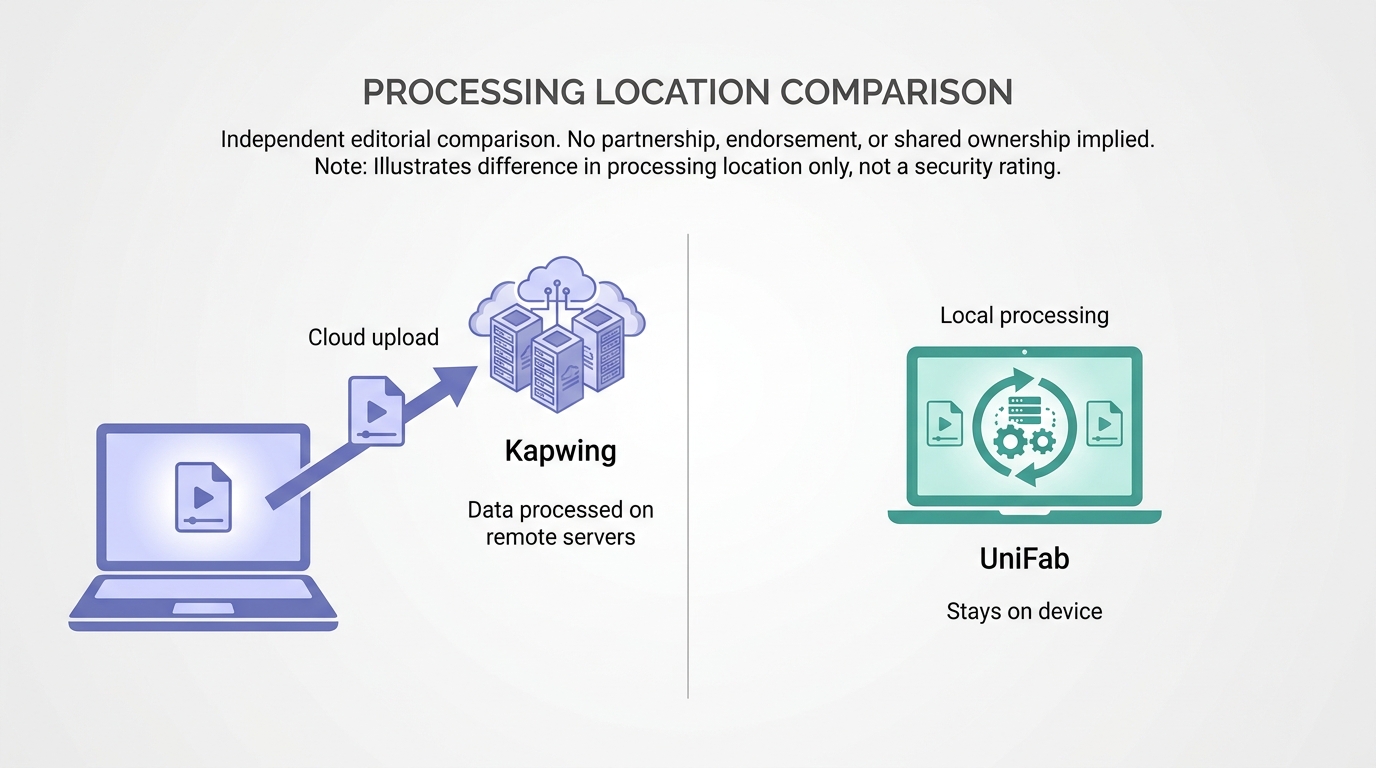
Kapwing processes uploaded media in a cloud workspace. Free workspace projects are unlisted and viewable by anyone with the link; an unlisted link is not access control for named recipients. Free project storage lasts three days. Keep the source locally and download the completed export.
Client footage needs an explicit sharing decision. Review workspace permissions before uploading it, and obtain approval for a cloud workflow when the material is confidential. Avoid putting sensitive names or information into a project intended for broad link sharing.
A cloud upload is not automatically unsafe, and a desktop application is not automatically secure. Processing location is the concrete difference: uploaded project media leaves your device, while a local-file workflow keeps the conversion on that device. Browser access alone does not tell you where processing happens.
Project storage is a working space, not your archive. Save the original and finished file in folders you control, and keep the project link separate from any file you intend to distribute.
Kapwing Pros and Cons
Kapwing's strongest fit is a short clip that benefits from editing before conversion. Its browser access removes installation, while the project workflow adds upload and export stages. The tradeoff becomes more noticeable when many separate files need the same treatment.
- Strength: trimming, captions, and conversion share one workspace.
- Strength: shared projects support collaborative editing.
- Tradeoff: cloud work needs a working connection and appropriate sharing settings.
- Tradeoff: Free-plan video limits constrain the finished video, not merely the source you upload.
A quick edited clip is a sensible browser task. A folder of recordings is a different workload. For either one, leave time to download and inspect the final file before a deadline.
Kapwing Reliability and User Feedback
Kapwing reviews show both editing convenience and delivery frustrations. G2 displays 3.9 out of 5 from 40 reviews as of October 2026. Individual comments describe particular experiences; they do not measure the probability that your next export will succeed.
- G2 reviewer, 2026: praised easy drag-and-drop handling and straightforward export.
- G2 reviewer, 2024: valued keeping media together and reusing components across videos.
- G2 reviewer, 2026: reported frustration with videos failing to export.
- G2 reviewer, 2025: described an export stuck at “one minute remaining” for hours.
The older comments describe those reviewers' experiences at the time. The Kapwing Trustpilot profile offers another set of user comments, separate from the G2 rating above.
Common Failures and Practical Fixes
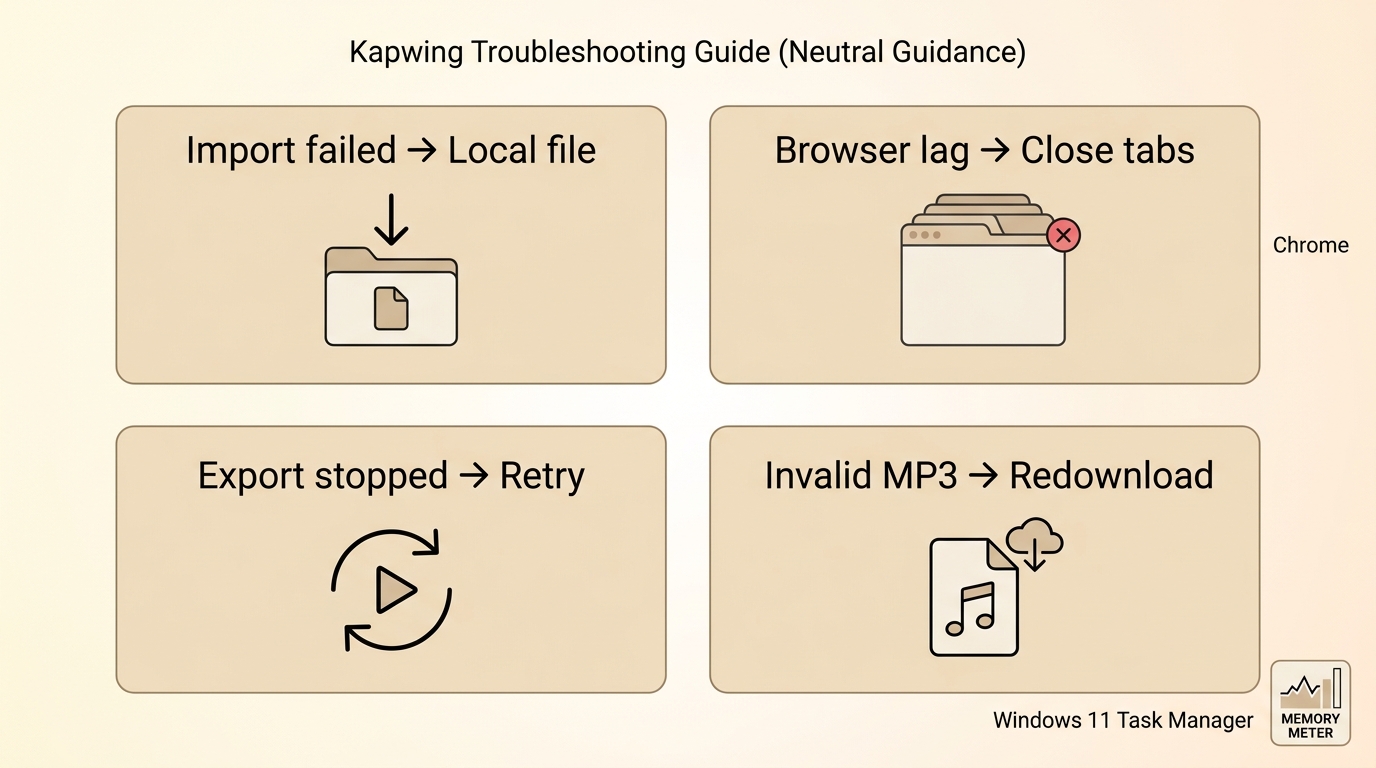
Import, browser resources, and export processing need different fixes. Identify the stage that stopped first. Repeating an import will not resolve a plan-entitlement issue, and restarting an export will not repair a source that never finished loading.
| Symptom | Possible cause | First action |
| Link will not import | Account entitlement; incompatible source; incomplete import | Inspect import options; upload an authorized local original |
| Browser lags or freezes | Memory pressure; competing tabs | Close tabs; restart browser; shorten timeline |
| Export stalls | Connection interruption; project state; processing failure | Keep source; reopen project; retry a clean export |
Kapwing's cofounder announced in April 2025 that direct YouTube import required a paid plan. Treat that announcement as historical context for an entitlement check, rather than a universal current rule. Inspect the options available in your account. A successful local import does not establish permission to import a URL.
Browser memory pressure has a visible symptom: resource use rises and the tab becomes unresponsive. Close competing tabs and retry with a shorter timeline. A responsive editor with a failed import points toward the source or import path instead.
I would change workflows after repeated clean export attempts fail on a deadline-sensitive recording. Keep the original so that switching does not require reconstructing the source. For a disposable short clip, one clean retry is a reasonable first response.
Audio Quality When Exporting MP3
A Kapwing MP3 export is lossy. It cannot restore detail missing from the source, and exporting already compressed audio introduces another encoding generation. Start from the cleanest original. A larger output file does not necessarily contain better sound.
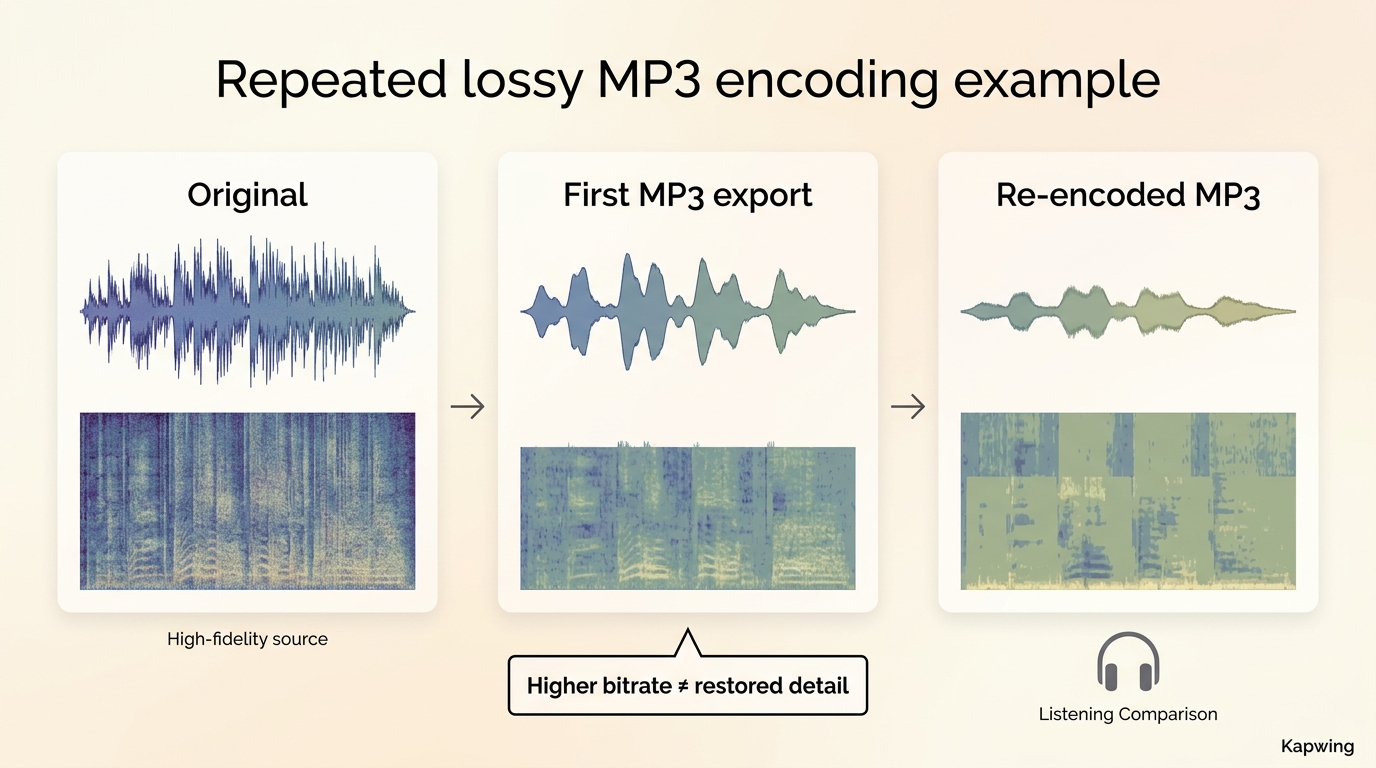
Speech needs clear words; music also exposes softened cymbals, smeared ambience, and harsh high frequencies. Compare the original and saved MP3 through the same headphones at matched volume. Listen to a busy passage as well as a quiet one so that loudness does not disguise the difference.
Bitrate and Generation Loss
Bitrate controls the data used by the MP3 encoder, not the amount of detail it can recover. Return to the original video for another export rather than converting the last MP3 again. Each unnecessary encoding pass risks further loss.
- Speech and notes: prioritize intelligibility and a practical file size.
- Music: choose a higher bitrate when the available export settings offer it.
- Editing or archiving: keep the original; converting an MP4 source to WAV does not restore detail already lost.
A compatible stream copy, such as an MKV-to-MP4 container change, preserves the encoded stream while changing its container. Encoding to MP3 is lossy, so that preservation does not apply to an MP3 export.
The Kapwing audio converter is a useful delivery step for listening copies. Keep the source as your editing master, and make fresh listening copies from it when the edit changes.
Kapwing vs UniFab: Cloud Editing or Local Conversion
Kapwing cloud editing suits a shared clip that needs changes before export. UniFab local conversion suits repeated authorized-file jobs on Windows or Mac. I recommend the shared project for coediting and the local queue when the job is converting separate files.
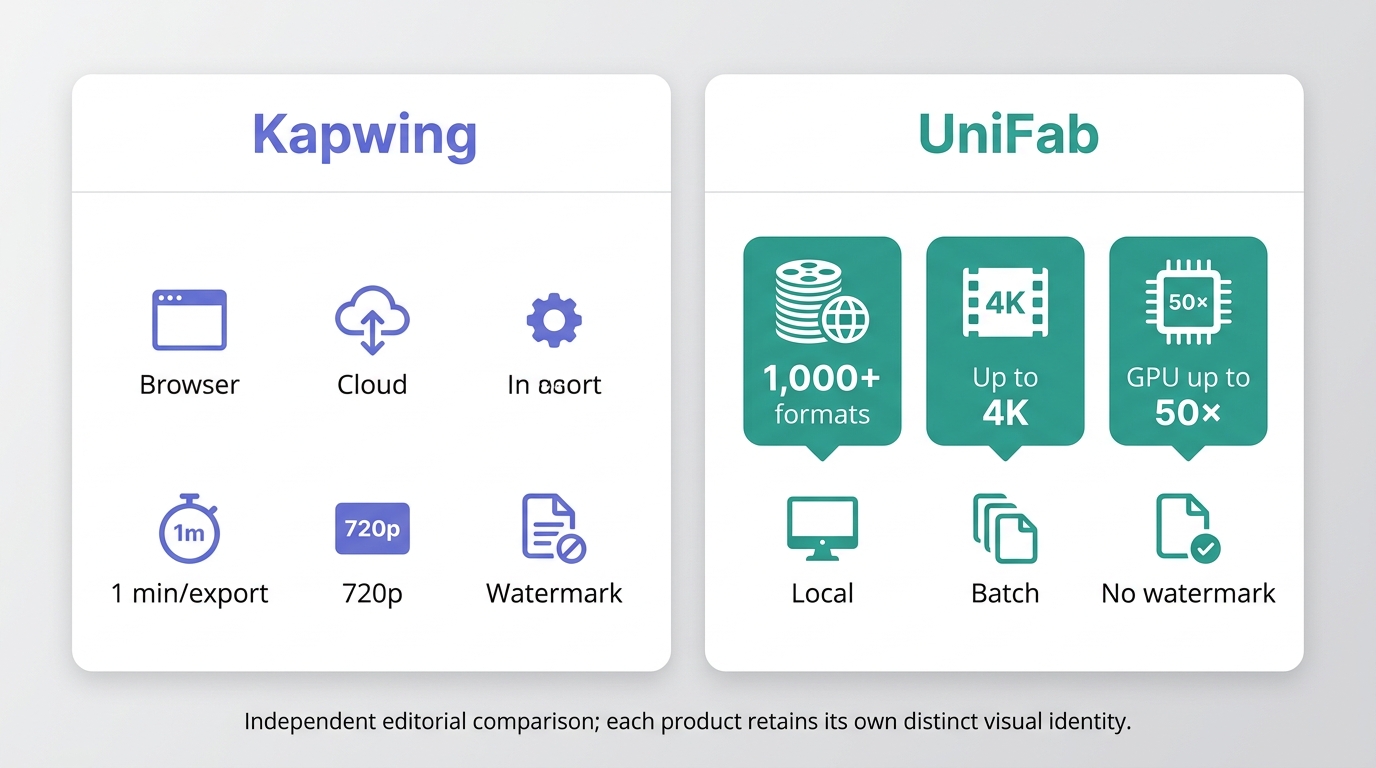
Side-by-Side Conversion Comparison
Kapwing requires no desktop installation. Its cloud workspace brings editing and conversion together, so collaborators work on a project rather than exchange successive source copies. Choose that route when someone else needs to adjust the timeline or captions before the final export.
A long recording still needs time to upload, process, and download in Kapwing. For a short clip, browser access is convenient. For private material, decide whether sharing an uploaded project fits the job before you start. Keep your original available throughout the edit and save the finished file separately.
UniFab's Video Converter processes local files in batches. Installation is required; use the official Video Converter page for the installer. It does not provide real-time cloud collaboration; choose a shared browser workspace for coediting. Its strength is keeping repeated conversions in a local queue.
Convert Video to MP3 Locally
For an authorized-file conversion in Video Converter:
Best Video & MP3 Converter
- 1000+ Formats Supported
- Full Features Access for Free
- Built-in Editing Functions
- Efficient Batch Conversion
UniFab Video Converter
Best Video & MP3 Converter
- 1000+ Formats Supported
- Full Features Access for Free
- Built-in Editing Functions
- Efficient Batch Conversion
UniFab Video Converter for Mac
- Add your files or a folder.
- Select MP3 and available output settings.
- Choose a destination.
- Convert the files.
- Play the saved audio.
For shared edits, choose Kapwing. For a local batch, choose the desktop queue.
Kapwing Converter FAQs
Why Is Export as MP3 Grayed Out?
An incomplete import or unsuitable project state can leave MP3 unavailable. Inspect import completion, account options, and export controls, then try an authorized local original in a current browser. Local import success does not determine URL-import entitlement; inspect that account option separately.
Why Will the Downloaded MP3 Not Play?
Confirm that processing finished, check that the file has a plausible size and an .MP3 extension, download it again, and try another player. If it still fails, re-export from the original source instead of transcoding the damaged download.
Does Kapwing Support Batch Conversion?
Kapwing organizes editing and export around projects. Exporting assets from a project is different from adding a folder to a multi-file conversion queue. For repeated separate-file jobs, a local queue keeps the outputs separate without requiring a shared editing timeline.
Can Kapwing Convert a Video Link?
Kapwing supports some URL imports. Its cofounder announced a paid-plan requirement for direct YouTube imports in April 2025. Inspect your account's import option, or upload an authorized local original. Convert only content you own or are authorized to convert, under applicable terms and law.