Finding a Filmora watermark after finishing an edit is frustrating, but the cleanest way to remove Filmora watermark output is to reopen the original WFP project with the appropriate official export access and re-export. If only a watermarked MP4 remains, pixel editing will trade image quality, privacy, time, or cost.
Start by identifying why the mark exists. If Filmora added it because the export lacked the required license, subscription, paid export right, or other authorization, use the official license and re-export route. Use the editing workflows below only for content you own or are authorized to edit, for lawful personal use consistent with applicable law and platform terms. Do not use cropping, covering, recording, object removal, browser processing, desktop tools, or UniFab to evade Filmora licensing, subscriptions, paid export requirements, or technical protections; a license-generated export watermark requires official entitlement and re-export.
Filmora Watermark Options Start With Your Source File
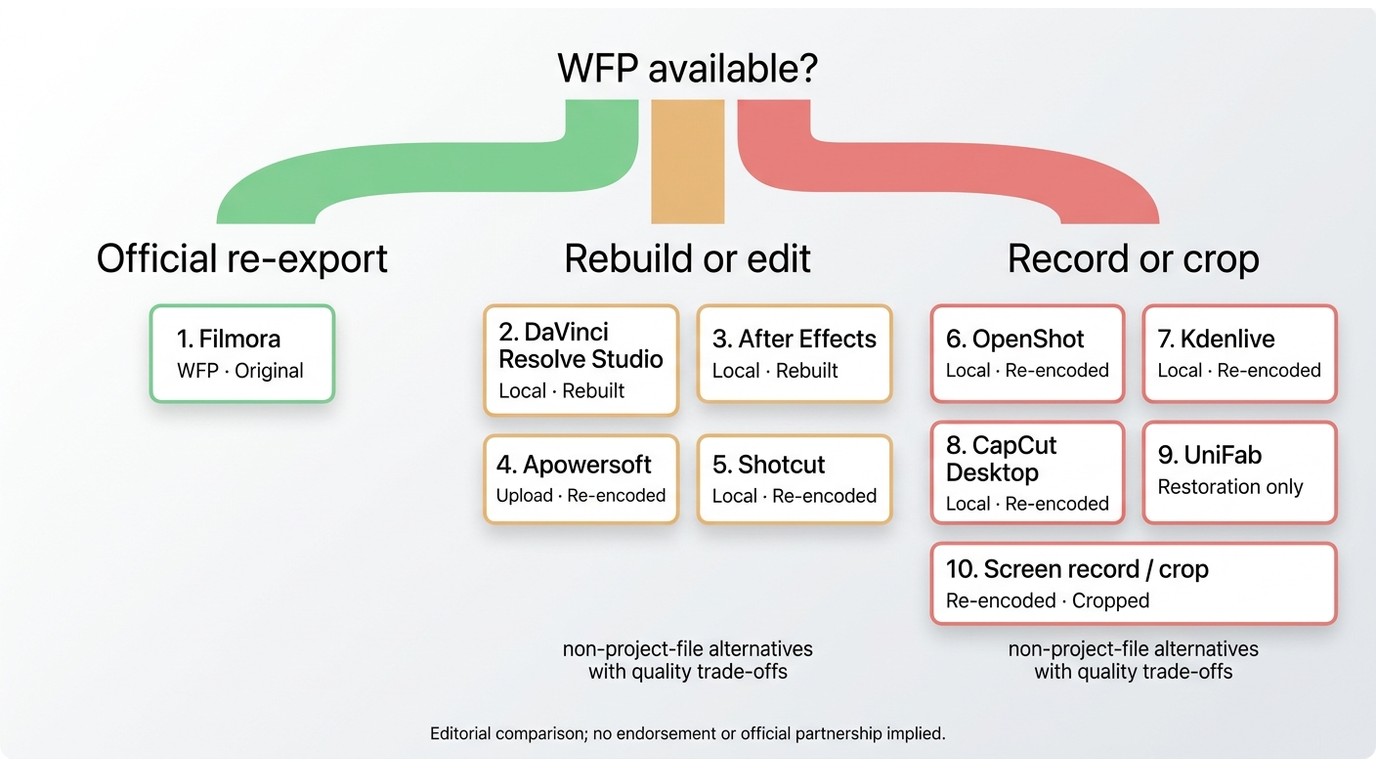
Filmora watermark removal is primarily a source-file decision: a WFP project file preserves the editable timeline, while a watermarked MP4 contains rendered pixels that must be cropped, covered, reconstructed, or re-recorded. That distinction matters more than the number of tools available. Buying Filmora later does not alter an already watermarked MP4; reopen the original WFP for a clean re-export, or rebuild the edit from original media if the project file is gone.
Start With Your Source File
- You still have the WFP project file: activate the Filmora entitlement linked to the project version, reopen the project, and re-export. This is the most reliable route to Filmora without watermark artifacts.
- You have only a watermarked MP4: first confirm that you are authorized to alter the mark. A later purchase does not change the rendered pixels in that file. Reopen the original WFP and re-export when possible; if the WFP is lost, rebuild the edit from the original media. Editing an exported file cannot recover the untouched pixels underneath a rendered overlay.
- You are planning a future project: verify export conditions before editing, then choose a watermark-free video editor whose current terms match your workflow.
Compare Quality, Privacy, and Cost
I would start with authorization and WFP access. If either points to an official re-export, stop there. For an authorized source overlay, avoid a route that removes important frame area or sends sensitive footage to an unclear server.
| Route | Required source | Role | Quality trade-off | Upload decision |
| Official Filmora re-export | Original WFP project | Resolves license-generated export marks | Preserves timeline and full frame | Standard Filmora account use |
| Crop or cover | Authorized source video | Removes frame area or hides overlay | Cropping or visible cover | Can remain local |
| Source-overlay reconstruction | Authorized source video | Rebuilds selected overlay area | Artifacts on motion or texture | Can remain local |
| Browser processing | Authorized small clip | Blurs or reconstructs selected area | Export limits and artifacts | Upload required |
| Screen recording | Authorized playback | Records playback, not removal | Re-encoding and possible crop loss | Can remain local |
| Future-project editor | Original media for new edit | Prevents future watermark conflicts | Does not repair existing MP4 | Usually local |
The practical takeaway is simple: preserve the project when possible, and treat MP4 editing as a compromise rather than a substitute for a correctly authorized export.
1. Re-export With Official Filmora Access
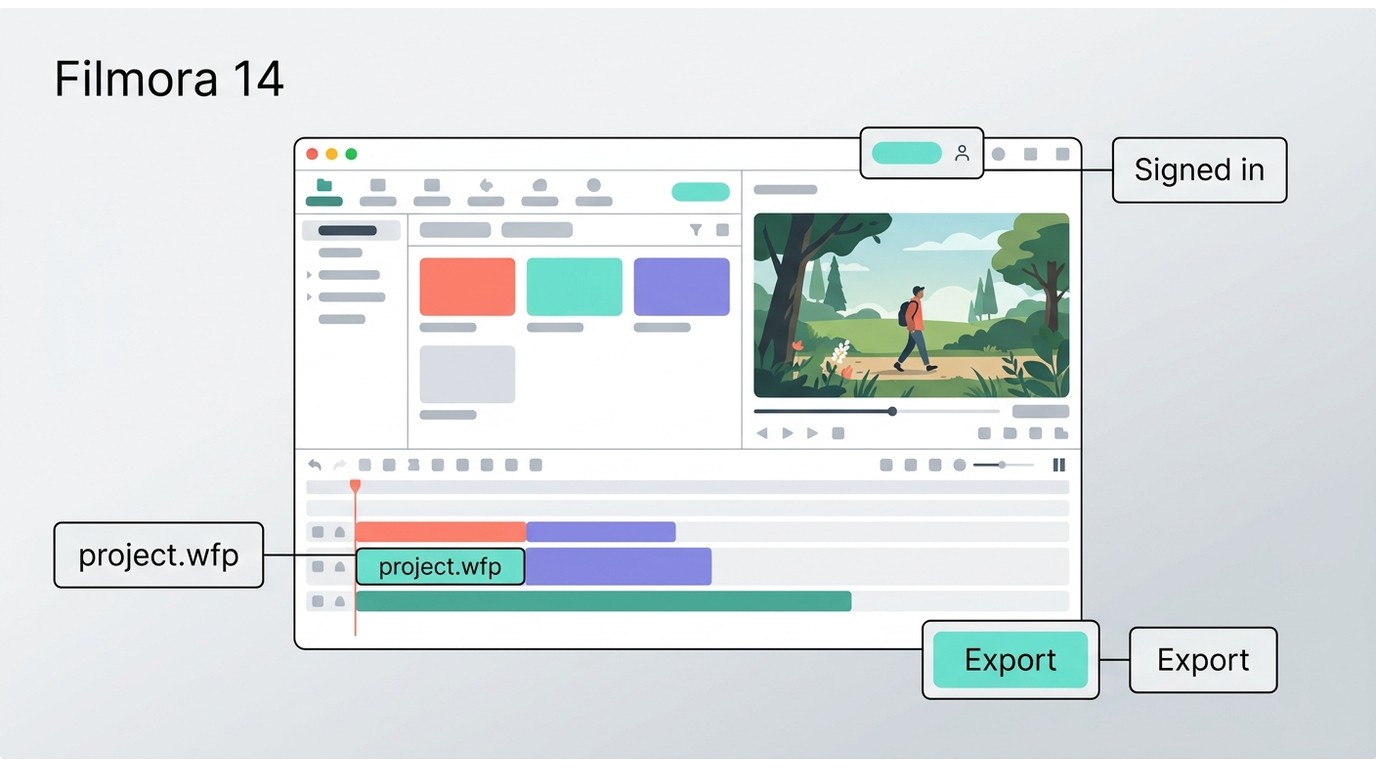
A Filmora license re-export is the cleanest fit when the WFP project still exists. It resolves a license-generated export mark without cropping, covering, or reconstructing the picture. Filmora also describes version-dependent export access through a Wondershare ID (WSID) and referral rewards for qualifying accounts. Sign in and use the export entitlement or reward displayed for your account; not every account receives the same access.
Current Filmora Pricing
As of September 2026, the displayed US offers are:
| Offer | Displayed price | Access structure |
| Basic | $49.99 per year | Annual subscription |
| Advanced | $59.99 per year | Annual subscription |
| Perpetual | $79.99 one-time | Filmora 16 updates; platform-specific |
The Perpetual offer covers updates within Filmora 16 and excludes future major-version upgrades. Subscription commitment and billing frequency are separate terms. Optional asset offers and renewal terms are also separate from the displayed base price, and a crossed-out amount does not establish a renewal price.
Re-export Steps
- Open Filmora and sign in with the Wondershare account that holds the relevant entitlement.
- Confirm that the displayed export entitlement, version-dependent WSID access, or referral reward covers the Filmora version used for the project.
- Open the original .wfp project rather than importing the already-exported MP4.
- Check fonts, linked media, effects, and the export frame before rendering.
- Export a short preview and confirm that the Filmora watermark is absent.
- Export the full project and review the entire file.
My editorial judgment is firm here: preserving the WFP file is more dependable than repairing a flattened MP4 because it keeps the original composition, timing, and source pixels available.
2. Crop or Cover Authorized Source Overlays
Use cropping or covering only for ordinary overlays in content you own or are authorized to edit, for lawful personal use consistent with applicable law and platform terms; do not redistribute the result without permission. These edits do not recreate the original image underneath the overlay. Do not use them to evade Filmora licensing, subscriptions, paid export requirements, or technical protections. If Filmora generated the watermark because the export lacked the required entitlement, stop and re-export the original WFP through the official route.
Crop the Watermark Out
- Import the authorized clip into an editor.
- Select the clip and open the crop controls.
- Move the frame boundary past the marked area.
- Reposition the remaining image so the subject stays balanced.
- Preview the full clip, then export at the intended aspect ratio.
Using a crop to remove a watermark from video suits an Edge-positioned ordinary overlay when losing part of the frame is acceptable. It is a poor fit when text, faces, or important motion sit near the Edge, and it should never be described as lossless.
Cover It With an Overlay
- On an authorized source clip with an ordinary overlay, add a blur, mosaic, lower-third, or other legitimate cover on a track above the clip.
- Resize the overlay to cover the marked region without blocking key content.
- Track or keyframe the overlay if the camera or mark moves.
- Review every scene transition before export.
An overlay suits casual clips where a visible cover can become part of the design. It hides pixels rather than recovering them, so I would not use it for a clean master or a composition with a busy lower frame.
3. Filmora Object Removal Is for Authorized Source Overlays
Filmora's AI Object Remover can reconstruct a selected region when the feature is available in the reader's version and plan. Use it for authorized ordinary overlays, not to avoid the export entitlement that created a Filmora license watermark.
Object Removal Steps
- Import the authorized video and place it on the timeline.
- Select the clip and open the available AI Object Remover control.
- Brush over the marked region without extending far into clean detail.
- Analyze the affected frames and preview the reconstructed area.
- Refine the selection if edges shimmer or textures repeat.
- Export a short test before processing the full video.
This option fits authorized ordinary overlays over simple backgrounds. Complex motion, detailed textures, large overlays, or objects crossing the selection can leave visible artifacts, so the correct standard is a careful preview rather than a promise of perfect reconstruction. It cannot replace the Filmora entitlement and WFP re-export required for a license-generated watermark.
4. Screen Recording Re-encodes, Not Removes
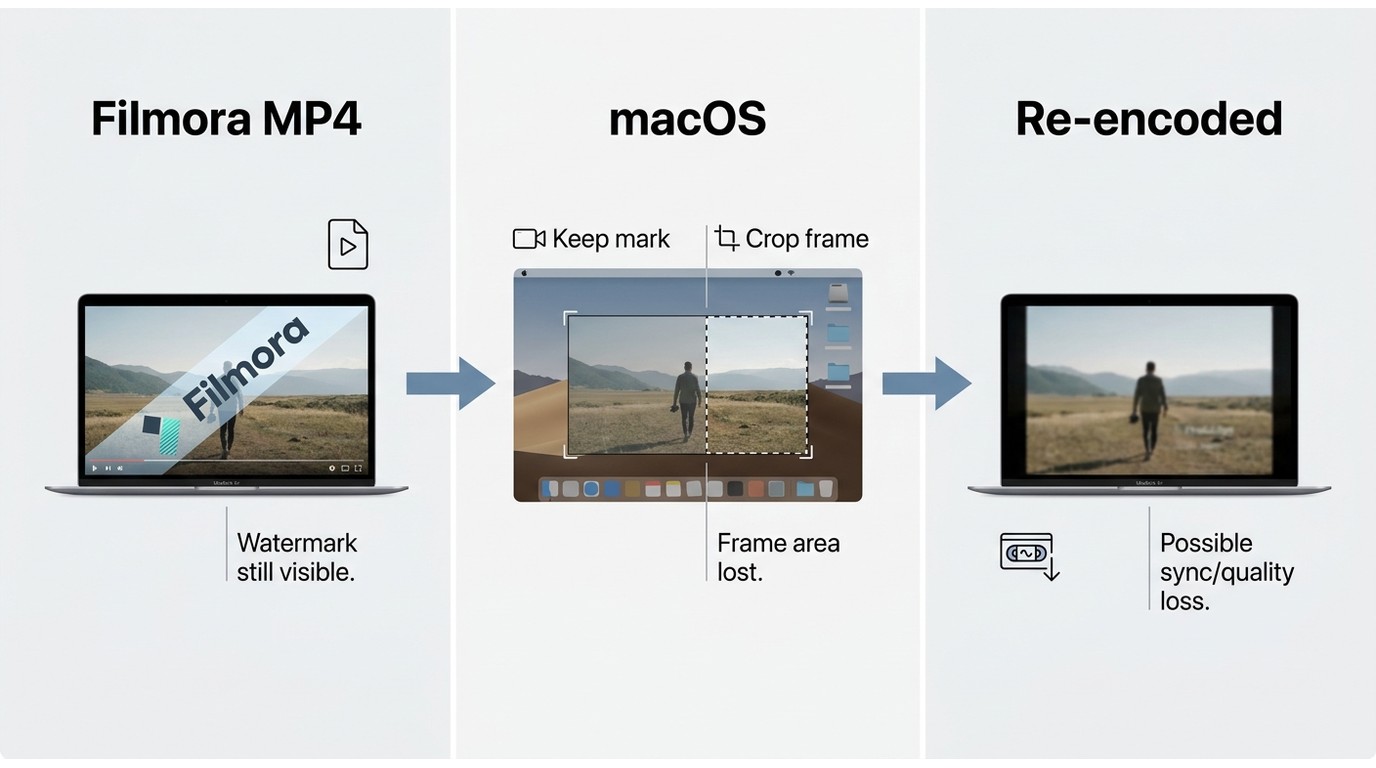
Screen recording does not remove an ordinary overlay or a license-generated mark from a watermarked MP4. Even when you are authorized to record the playback, it captures what is visible and compresses it again; excluding the marked region means cropping away part of the displayed picture.
What Screen Recording Can and Cannot Do
- It can capture an authorized playback area when no editable source remains.
- It cannot reveal pixels hidden beneath a rendered watermark.
- It may change sharpness, frame pacing, color, or audio synchronization through re-encoding.
- It may expose notifications, cursor movement, or desktop content if the capture is not controlled.
As explained in the VideoProc Converter review, recorder features do not change this limitation. I consider screen capture a poor fit whenever delivery quality matters.
5. DaVinci Resolve Studio Requires Appropriate Feature Access
Object Removal is a DaVinci Resolve Studio capability, not a confirmed feature of the free edition. Confirm Studio access before using this workflow on an authorized ordinary overlay; a license-generated Filmora watermark still requires the relevant entitlement and re-export from the original project.
Studio Object Removal Requirements
This source-overlay reconstruction workflow is suited to experienced users who already have Studio and are editing an authorized ordinary overlay. It does not replace Filmora export rights, and Object Removal requires Studio access.
Use Blackmagic's current system guidance for the installed release instead of relying on generic RAM or GPU minimums. Performance depends on clip length, resolution, motion, and the hardware in use.
DaVinci Workflow
- Create a project and import the authorized source clip containing the ordinary overlay.
- Place the clip on the Edit timeline and move to the Color page.
- Create a node and draw a Power Window around the marked area.
- Track the window when the frame or covered subject moves.
- Apply the available Studio Object Removal effect and run scene analysis.
- Build a clean plate where the shot provides enough surrounding detail.
- Inspect the result frame by frame, then render a short test.
My deciding factor is background consistency: a static wall may reconstruct cleanly, while moving fabric, hair, grain, or camera shake usually demands more masking and manual review.
6. Complex Source Overlays Need Careful Frame Review
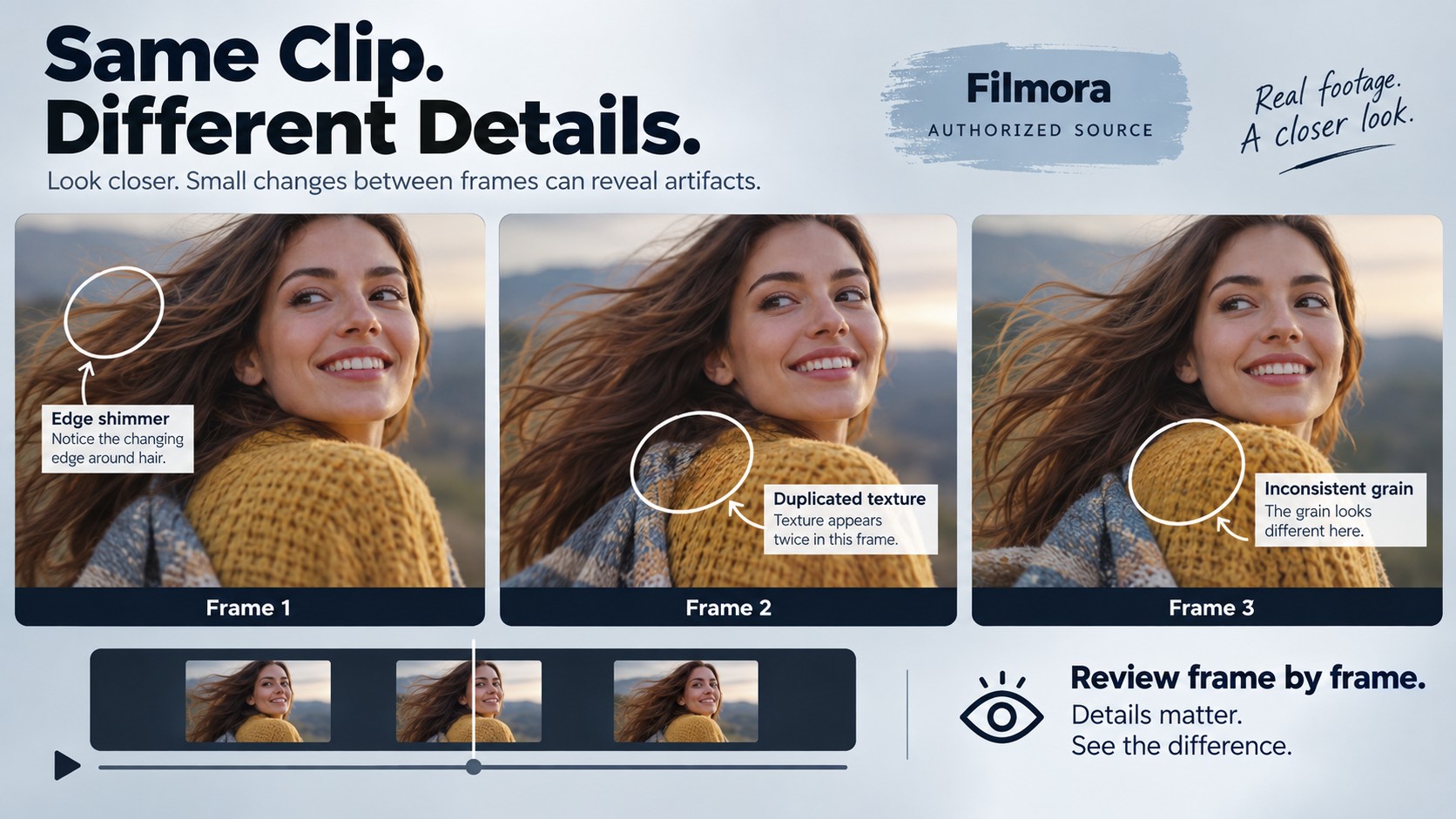
When an authorized ordinary overlay crosses textured or moving areas, pixel reconstruction can leave visible inconsistencies across frames. If the mark came from a Filmora export without the required entitlement, stop here and return to the original WFP for an official re-export.
Texture and Motion Can Reveal Fill Artifacts
Hair, fabric, grain, shadows, camera movement, and objects crossing the selected area can expose repeated textures, Edge shimmer, or unstable fill. Reconstruction works more predictably when nearby frames contain consistent background detail.
Review the full affected sequence frame by frame rather than judging one still image. If the fill remains distracting or removes important detail, preserve the original and choose a less destructive edit.
7. Browser Processing Requires an Upload Decision
An online video watermark remover is convenient for a small, non-sensitive clip, but upload privacy and export limits matter as much as the removal result. Use browser processing only for video you are authorized to edit.
Active Online Options
Apowersoft remains an active browser example.
| Check | Why it matters |
| Active product page | A live upload and export flow is more useful than an old review page. |
| Retention policy | It explains whether uploaded files are stored and for how long. |
| Output resolution and format | A convenient upload can still return a smaller or recompressed file. |
| Preview quality | Blur, texture repetition, and Edge flicker should be visible before download. |
| Service-added watermark | Some tools may place their own branding or restrict the unmarked export. |
Browser Workflow
- Open Apowersoft's browser-based watermark-removal page.
- Read the upload, retention, and export conditions.
- Upload a short authorized clip rather than the full master first.
- Select the ordinary overlay area and run the available process.
- Inspect the preview for blur, flicker, and lost detail.
- Download the test and compare its resolution, duration, and audio with the source.
What to Check on Mobile
A mobile watermark remover may process on the device or upload the clip to a server. Before granting photo-library access, check file retention, app permissions, output resolution, export branding, and whether a short test can be deleted from the service.
Use a short, non-sensitive clip, deny unnecessary permissions, and compare the downloaded file's frame size and visible artifacts with the original before uploading valuable footage.
8. Desktop Tools Require Separate Export and Privacy Checks
For an ordinary overlay in footage you own or are authorized to edit, desktop tools still require separate checks for processing location and export limits. A Filmora license-generated export watermark requires official entitlement and re-export instead. Wipit by iMobie is available for Windows and macOS. Remove Logo Now by SoftOrbits is also available; its current method hides marks with blur, while a non-blur mode is described as a future feature.
What to Verify Before Installing
- Active status: confirm that the official product page, installer, support material, and release information are current.
- Processing location: distinguish fully local work from a desktop shell that uploads clips to a server.
- Format support: confirm that the source and required export formats are supported.
- Preview quality: test motion, texture, edges, and audio synchronization on a short clip.
- Export limits: check resolution, duration, batch restrictions, and service-added branding.
- Security: avoid unofficial installers and download mirrors with unclear ownership. Using stolen registration codes is illegal and should not be attempted.
I would prioritize a current official installer and a usable preview over a long feature list. Preview an authorized short clip before choosing a desktop tool, especially when texture or motion crosses the marked area; for a Filmora license-generated export watermark, return to official re-export.
9. Compare Editors for Future Projects
Switching editors prevents a future export problem; it does not repair a completed Filmora timeline or an existing watermarked MP4. A WFP stores the edit and links to media; it is not a playable video file. Keep the WFP, linked footage, recorded voice, fonts, effects, and project-version information together. This route fits creators who can restart from those source assets before substantial editing work is locked in; rebuilding in another editor is not a lossless transfer of the existing timeline.
Verify Export Watermark Conditions
| Editor | What to verify before starting |
|---|---|
| Shotcut | Export preset, codec support, source-media import, and required effects |
| OpenShot | Timeline performance, export settings, and effect coverage |
| Kdenlive | Platform build, proxy workflow, export profile, and project complexity |
| DaVinci Resolve | Which effects belong to Studio and whether the hardware suits the intended workflow |
| CapCut Desktop | Template, feature, account, and regional conditions; do not assume every free export is unmarked |
A watermark-free video editor should be verified with a short export before the main edit begins. Switching is well suited to a new project; rebuilding from source media after a complex Filmora edit may require recreating effects, fonts, transitions, and timing.
10. UniFab Watermark Remover AI and Authorized Editing
UniFab Watermark Remover AI is limited to authorized ordinary-overlay editing. It cannot replace Filmora export rights or guarantee exact recovery of pixels hidden by a rendered mark.
Authorized Source Overlays and Filmora Export Rights
A Filmora license-generated watermark requires the relevant entitlement and a new export from the original WFP project, not pixel editing.
Keep the Original Project and Source Media
Keep the original WFP and source files unchanged before making any destructive pixel edits.
Filmora Watermark Removal Best Practices
The most reliable Filmora watermark removal checklist starts before export: keep the project, confirm authorization, protect private footage, and review the whole output instead of trusting a single preview frame.
- Preserve the WFP project and source media. Keep fonts, linked files, effects, and version information together.
- Confirm the reason for the mark. A license-generated Filmora export watermark should be resolved through the correct entitlement and re-export, not a pixel-editing tutorial.
- Edit only authorized footage. Use crop, cover, or reconstruction workflows only for content you own or are authorized to edit, for lawful personal use consistent with applicable law and platform terms. Do not redistribute the result without permission.
- Avoid unauthorized software and credentials. Unofficial installers and stolen registration codes create security and legal problems without protecting the project.
- Prefer local processing for sensitive footage. If an upload is necessary, read retention and deletion terms first.
- Review the complete result. Check edges, motion, text, audio sync, frame size, and compression artifacts.
Preserving the project file is the strongest practical habit because it keeps the editable evidence needed for a legitimate Filmora license re-export. Repairing a flattened MP4 starts after that flexibility has already been lost.
Conclusion: Choose by Source File
If the WFP project file still exists, use the appropriate Filmora entitlement and re-export. If only a watermarked MP4 remains, first confirm that the mark is an authorized ordinary overlay, then choose a workflow with an acceptable balance of quality, privacy, effort, and cost.
Crop and cover methods change presentation, reconstruction tools can leave artifacts, online services require an upload decision, and screen recording simply re-encodes what is visible. Filmora license-generated export watermarks are resolved through the relevant Filmora entitlement and re-export from the original project. UniFab Watermark Remover AI is limited to authorized ordinary-overlay editing; it cannot replace Filmora export rights or guarantee exact recovery of hidden pixels.
Filmora Watermark FAQs
Why does the Filmora watermark cover my entire video?
An export-generated Filmora watermark is different from a mark already embedded in imported media. Inspect the original media first. If Filmora added the mark during export, sign in with the entitled account, reopen the WFP project, and export it again.
Does a Filmora perpetual plan include future major versions?
No. The displayed Perpetual offer covers updates within Filmora 16 but excludes future major-version upgrades. The entitlement is also platform-specific, so confirm that the account and operating system match the WFP project before re-exporting.
Can a higher-resolution export recover pixels lost to cropping?
No. Increasing the output resolution does not restore frame area removed by cropping or recover the exact original pixels hidden by an overlay. Preserve the uncropped source and compare the edited result by its visible edges, text, faces, and motion rather than resolution alone.
What should I protect before uploading a Filmora clip?
Keep the local original and upload a non-sensitive copy whenever possible. Limit photo-library permissions, review the service's retention and deletion terms, and check whether it stores a copy or adds export branding before submitting valuable footage.
Does paying monthly mean I can cancel after one export?
Not necessarily. Payment frequency and subscription commitment are separate terms. An annual plan billed monthly remains an annual commitment rather than a month-to-month plan, so review the selected offer’s commitment and cancellation terms before purchasing.