
If CapCut still stamps a logo or ending card on your export, the correct fix depends on where the mark lives. To remove a CapCut watermark, delete a separate ending clip, use CapCut’s available no-watermark template export, or reconstruct a logo already baked into the video frame.
Paying for Pro and still seeing a mark can look like a settings failure, but the mark may come from a template rather than the ending clip. A practical rule is to identify whether the mark is separate or embedded before choosing a tool. If you need to remove watermark from video without damaging the frame, that diagnosis matters more than the tool. The sections below move from CapCut’s built-in controls to crop-free reconstruction and larger-file options.
Identify the CapCut Watermark Before You Remove It
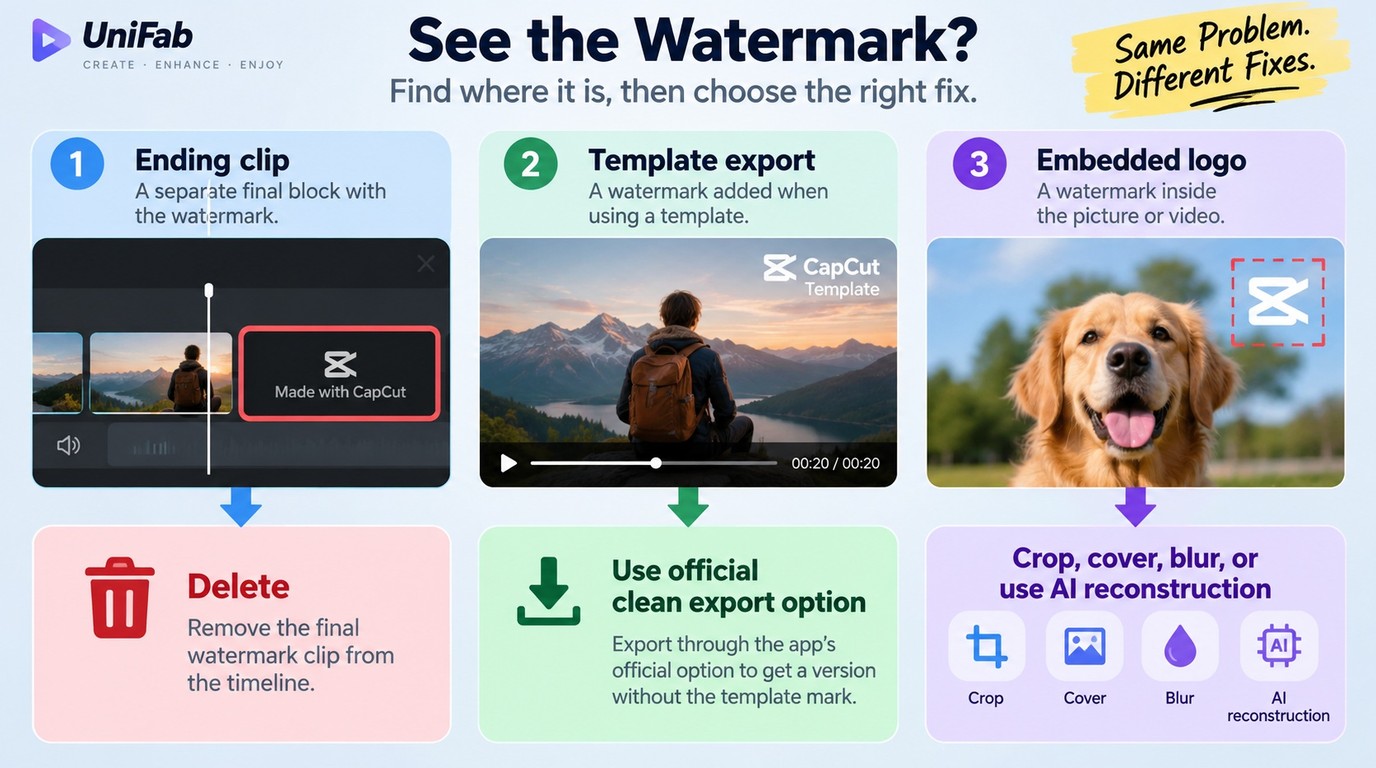
Check where the mark appears and whether it occupies its own timeline segment. An ending clip can be deleted, a template mark depends on the export route, and an embedded logo requires editing the affected pixels.
Match the CapCut Watermark Type to the First Fix
| Watermark type | Where it appears | First fix | Main risk |
| Ending clip | Separate final timeline segment | Delete that clip | Removing the wrong segment |
| Template/export mark | During template use or export | Use CapCut’s offered clean export | Option may differ by account |
| Embedded corner logo | Inside affected frames | Crop, cover, blur, or reconstruct | Lost framing or visible fill |
| Moving embedded mark | Across changing backgrounds | Frame-aware reconstruction | Flicker or texture mismatch |
The table prevents the most common category error: treating every visible logo as the default ending card. One r/CapCut user described that confusion plainly: “I am new to capcut and was wondering why the watermark keeps showing up in the middle of my edit. As far as I am aware, Capcut videos have the watermark pop up in the screen at the end of peoples’ edits.” A mark in the middle of the picture is not a removable final clip.
Pause on a frame where the logo is visible, then scrub backward and forward. If the mark stays attached to a separate final block, use the timeline method. If it remains in the same corner of every frame, it is embedded. If it appears only after a template export, inspect the export choices and account state before changing the edit itself. The same source-versus-pixels distinction also matters when you remove a Filmora watermark.
The practical takeaway is that tool choice comes second. Identify the source of the mark first, or a one-tap deletion can turn into an unnecessary crop or a quality-damaging fill.
How to Remove the Ending Clip and Template Watermark in CapCut

Delete a CapCut ending watermark directly from the timeline before export. For a template watermark, use the no-watermark export path shown by the current template and account; if that option is absent, do not treat cropping as an equivalent fix.
Rights reminder: Remove marks only from videos you own or are authorized to edit, keep the result for personal use unless you have distribution rights, and do not redistribute someone else’s footage. Follow CapCut, TikTok, and other applicable platform terms, and do not use workarounds to evade subscription, account, regional, or access restrictions.
Delete the CapCut Ending Clip on the Timeline
The ending card is the easiest case because it is a separate piece of the project rather than part of the recorded image. Confirm that the last segment contains the CapCut logo, then remove that segment without touching your final shot.
- Open the project in CapCut and move the playhead to the end of the timeline.
- Select the final clip that displays the CapCut logo or ending card.
- Tap or click Delete for that selected segment.
- Scrub through the last few seconds to confirm your own footage still ends where intended.
- Export the project and watch the final seconds of the saved file.
If the logo appears throughout the video instead of in the last segment, stop. Deleting timeline material will not remove an embedded mark and may cut actual content.
Export a Template Video Without the Template Watermark
Template marks are tied to the template workflow, so the relevant control usually appears during export rather than on the main timeline. The exact wording and route can differ by template, account, device, or app build.
- Open the template through CapCut and replace its media placeholders with material you are authorized to use.
- Preview the full edit and note whether the mark appears before export or only in the saved result.
- Open Export and choose the no-watermark option if CapCut presents one for that template.
- Complete only the official CapCut or TikTok flow shown on screen; do not use an account or region workaround to expose a missing option.
- Save the result, then inspect the beginning, middle, and end of the file before deleting the project.
An active subscription does not prove that every template will expose the same export choice. As one r/VideoEditing user put it, “Even though I have an active Pro subscription and I’m logged into my Pro account, I can’t use or download templates without a watermark showing up. I’ve already contacted CapCut support three times but haven’t received any reply so far.” That is a template or account-state problem, not evidence that the ending clip was deleted incorrectly. If the clean export option is unavailable, switch templates or use another authorized export route instead of reworking the timeline.
Check the Export Before You Start Over
Do not rebuild the edit until you have separated an export problem from a timeline problem. A short inspection often reveals which layer is responsible.
- Confirm that CapCut is signed into the account that holds the relevant plan.
- Reopen the last timeline segment and verify that the ending card is gone.
- Export a short draft and check whether the mark appears only in the saved file.
- Compare a blank project with the same template to isolate template-specific behavior.
- Look for overlays, stickers, or imported logos that may resemble a CapCut watermark.
- Update or reinstall only after the account, template, and timeline checks are complete.
This order protects the edit. If a clean blank project exports correctly but one template does not, changing the whole timeline is unlikely to solve the actual problem.
How to Remove an Embedded CapCut Watermark Without Cropping
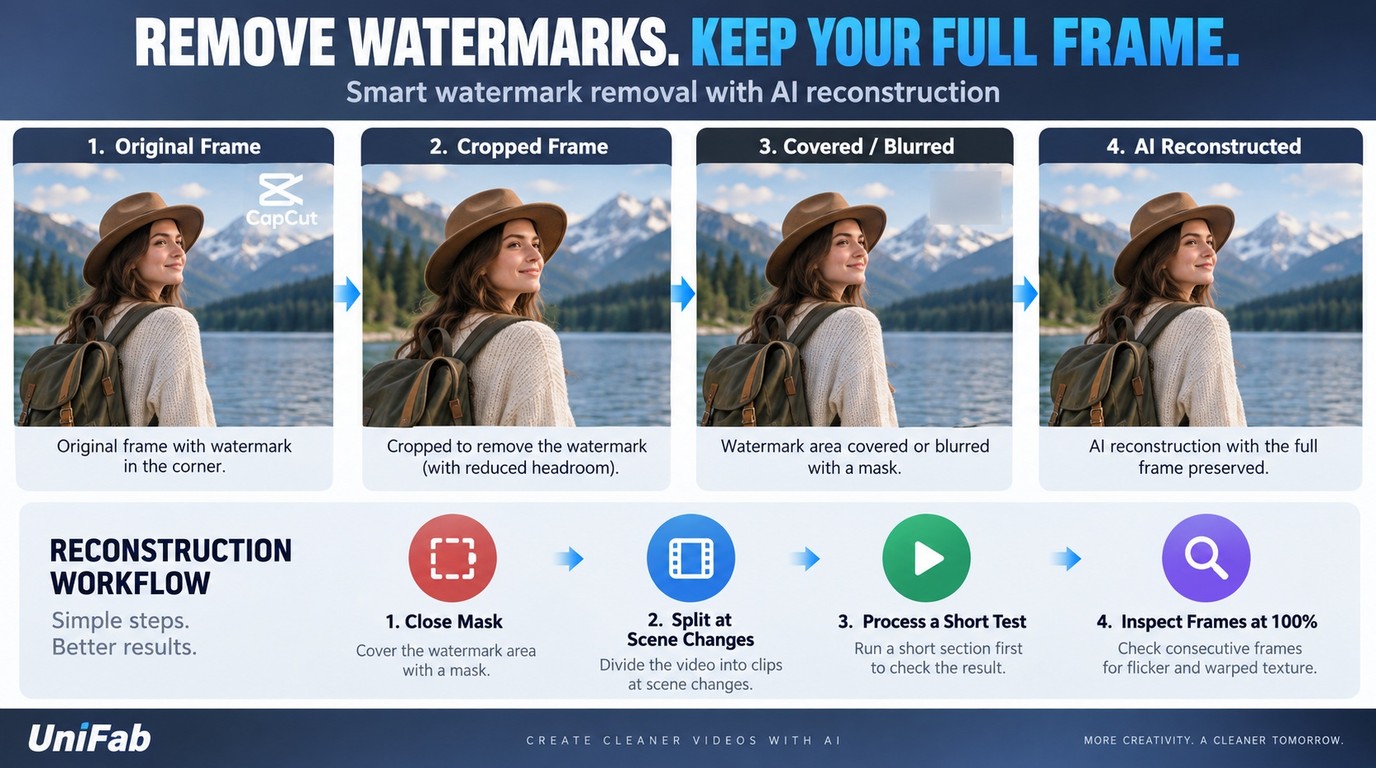
An embedded corner watermark can be removed without cropping by covering a static area, blurring it, or reconstructing the background across affected frames. Choose the least destructive method that preserves the subject, subtitles, aspect ratio, and visible texture.
If cost is the deciding factor, start with the editor’s crop, cover, or blur controls; for a short, non-sensitive clip, a free video watermark remover can be a fallback, but upload limits and reconstruction quality vary.
Crop Only When the Frame Has Safe Margins
Cropping works when the mark sits outside the meaningful composition. It is a poor choice when a face, caption, product, or stabilizing margin is close to the same edge.
Before committing, crop a duplicate of the clip and compare four points: the subject’s headroom, captions, horizon or vertical lines, and the final aspect ratio. A 16:9 frame can quickly feel cramped after a corner crop, especially when the source was already composed tightly. If the edit will be reframed for vertical video later, preserve extra edge space now.
A clean frame is not a clean result if cropping weakens the composition. When cropping changes what the shot communicates, move to a cover, blur, or reconstruction method.
Cover or Blur a Static Mark
A cover is useful when the logo stays in one place and the background is visually simple. Place a graphic, caption, color patch, or duplicated background area over the mark, then track it only if the camera moves.
Blur is less distracting on soft backgrounds, but it can look like a smudge on brick, hair, text, foliage, or patterned fabric. Review the transition into and out of every shot. A mask that looks acceptable on one frame may reveal the logo or wobble when an object crosses the corner.
Use this method for short clips where a small, intentional design element fits the composition. It is not ideal when the mark crosses a face, a hand, moving text, or a detailed product surface.
Use AI Reconstruction for Moving or Detailed Backgrounds
AI reconstruction replaces the marked region with pixels inferred from nearby frames. It protects the original frame dimensions, but it still needs a quality check because motion, occlusion, shadows, and repeating textures can produce flicker or smeared edges.
- Start from the highest-quality authorized source available rather than a compressed repost.
- Mask the watermark closely, leaving a small border for clean blending.
- Split the clip when the camera angle, background, or watermark position changes.
- Run reconstruction on one short section before processing the entire video.
- Review at full size for flicker, warped lines, repeated texture, and objects crossing the mask.
- Reduce the mask or process the difficult shot separately when artifacts remain.
Preserving a 4K frame does not guarantee preserved detail. The practical rule is that 4K describes the output canvas, not whether the reconstructed patch is invisible. Compare several consecutive frames at 100% view, not a single paused image, because temporal instability is the failure viewers notice first.
Free Online Tools vs. UniFab for CapCut Watermarks

A free online video watermark remover is enough for a short, non-sensitive, one-off clip with a simple static mark. For larger files, repeated cleanup, sensitive footage, or marks over changing detail, compare the file cap, processing route, and reconstruction limits before choosing a service. UniFab Watermark Remover AI-Fabcloud is part of FabCloud and is the Windows and macOS option assessed below.
| Option | Good fit | Main limits | File handling |
| Free online tool | Small one-off clip | Upload caps; variable reconstruction | Browser upload |
| UniFab Watermark Remover | Larger repeated projects | 10GB cap; MP4/MKV output | Windows or macOS |
Online tools minimize setup, but uploads can be slow and the service must receive the footage. That makes them a weak default for unreleased client material. They also tend to expose fewer controls when a moving subject crosses the marked area.
When UniFab Watermark Remover AI-Fabcloud Fits the Job
UniFab Watermark Remover AI-Fabcloud is available on Windows and macOS, supports files up to 10GB at up to 4K, and outputs MP4 or MKV. Use that scope for a file within the stated limits; moving backgrounds still need the same frame-by-frame inspection described above.
FabCloud plans for UniFab Watermark Remover start at $20 per month or $199.99 per year for 600 credits; new users receive 30 credits.
The limits matter. A separate CapCut ending card does not need UniFab, so delete it in CapCut. Files above 10GB need to be divided into sensible project segments, and any required format beyond MP4 or MKV needs a separate conversion step. Detailed moving backgrounds may still need a smaller mask and a second pass; keeping a 4K frame does not promise an invisible fill.
Choose UniFab's Watermark Remover when the mark is truly embedded and the source fits those boundaries. For a short ending card, the built-in delete action remains the cleaner decision.
CapCut Watermark Removal FAQ
Most CapCut watermark failures come from confusing account status with watermark type. Use the mark’s source, position, movement, and the rights attached to the footage to choose the next step.
Why Does CapCut Still Add a Watermark After I Paid for Pro?
Payment alone does not identify the cause. Check that you are signed into the correct account, confirm whether the mark belongs to a specific template, and distinguish it from a separate ending clip. One r/CapCut user wrote, “Since I offloaded the app and signed back in it no longer allows me to make videos without the watermark even though I pay $15 a month. Have they removed the watermark removal feature?” That sequence points to account or feature state before it points to the timeline.
Can I Save a CapCut Template Without Sharing It to TikTok?
Use the export choices CapCut displays for that template and account. If a direct no-watermark save option is available, choose it. If the interface offers only an official TikTok-linked route, do not use unofficial account or regional workarounds; select another template, export with the mark, or edit the project with assets whose permitted export path matches your needs.
Can CapCut Remove a TikTok Watermark?
CapCut can edit an imported TikTok video, but the TikTok logo is already embedded in the frames. Crop only if the corner is expendable. Otherwise use a tracked cover, blur, or reconstruction mask, and remove the mark only when you own the video or have permission to republish it. Removing the logo does not transfer rights to the footage or music.
Why Do Free Online Watermark Removers Fail on Moving Backgrounds?
A moving background gives the tool less stable information for rebuilding the covered pixels. Hair, hands, captions, shadows, water, and patterned surfaces can cross the mask from frame to frame, creating flicker or a soft patch. Test a short section, keep the mask tight, and inspect consecutive frames at full size before processing the complete video.
Is It Legal to Remove a Watermark From a Video You Do Not Own?
Removing a watermark does not create permission to reuse the work. Platform-term issues and copyright permission are separate questions: an export method can conflict with a platform’s rules, while reposting or selling someone else’s footage can infringe the owner’s rights. Limit removal to content you own or are authorized to edit, do not redistribute material without permission, and follow the rules that apply to the specific project and location.
Bottom Line: Match the Fix to the Watermark Type
Use CapCut itself for a removable ending clip or an officially offered template export. When the mark is embedded, choose crop, cover, blur, or reconstruction according to its position and the background motion, then inspect the result across consecutive frames. External processing is justified by an embedded mark and a larger workflow, not by a final card that takes one timeline deletion.