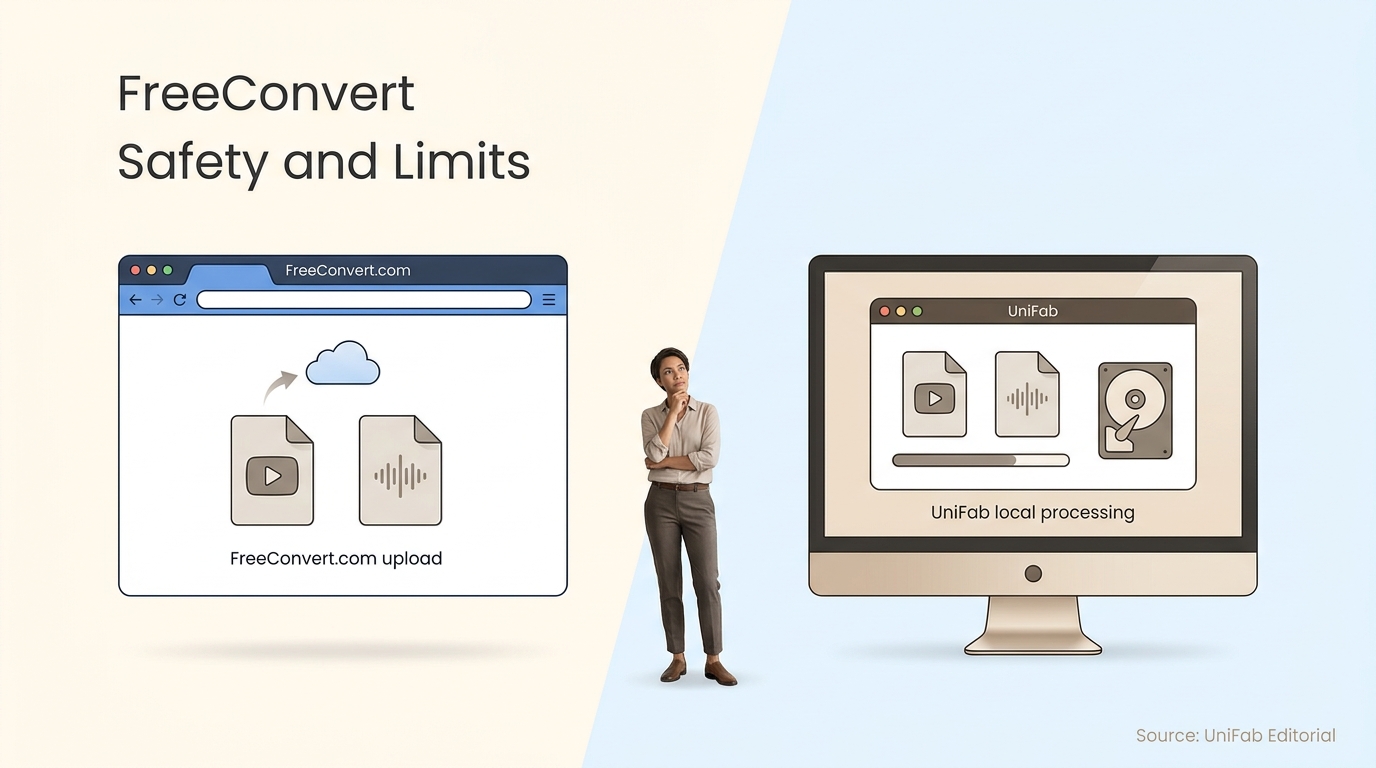
Searching FreeConvert usually means FreeConvert.com, a browser-based converter for documents, images, audio, and video. It is convenient for ordinary one-off files, but safety depends on choosing the correct service and accepting cloud upload, ads, a 1 GB free ceiling, and other usage limits.
Here is the editorial rule I use: confirm the product identity first, then decide whether the file belongs in a cloud workflow. The same name covers a browser service, an Android app, a Workspace add-on, and an unrelated site, so their policies cannot be mixed. I consider that trust boundary more important than a long feature list. This review applies the rule to FreeConvert MP3, MP4-to-MP3, and MOV-to-MP4 jobs before comparing a local option.
What Is FreeConvert, and Which Result Do You Need?
FreeConvert usually refers to FreeConvert.com, the browser service that uploads a file, converts it on remote servers, and returns a download. The same name also appears on a separate Android app, a Google Workspace add-on, and an unrelated ecommerce calculator site, so their policies and capabilities should not be treated as interchangeable.
FreeConvert.com, the Android App, and Other Same-Name Results
For the web converter, check that the address is freeconvert.com. The similarly named Google Play result is a separately published Android app with its own ads, in-app purchases, permissions, offline claims, and data-safety disclosure. The Google Workspace Marketplace add-on is another distinct route focused on Google Drive files and account permissions.
FreeConvert.ai is not a file converter. It provides ecommerce calculators, despite sharing the head term. A privacy statement, limit, or feature from one of these products should not be transferred to another.
What the Browser Converter Handles
The browser service lists more than 1,500 conversion types across video, audio, images, documents, ebooks, and archives. It runs in a modern browser on desktop or mobile, with optional controls that vary by tool, such as codec, quality, bitrate, resolution, or trimming.
The practical advantage is reach: there is no desktop installation for a quick conversion. Once the service identity is clear, the next question is whether the source file should leave the device.
Prerequisites Before You Upload
Check five things before selecting a converter:
- Confirm the domain or app publisher.
- Keep the source within the applicable size limit.
- Decide whether the file is suitable for cloud upload.
- Allow enough time for upload, conversion, and download.
- Choose the required output format before changing advanced settings.
That sequence prevents the most common category error: evaluating conversion quality before establishing the trust boundary.
Is FreeConvert Safe? Privacy, Ads, and Free-Tier Limits
The web converter can be a reasonable choice for ordinary, non-sensitive files, but “safe” needs two separate answers. A clean downloaded file addresses malware risk; it does not answer who processes an uploaded source, how long it remains online, or what trackers and app permissions are involved.
Malware Risk Is Not the Same as Upload Privacy
A poster in r/pdf described the first concern precisely: “I converted some PNGs into a PDF with freeconvert.com now I’m worried it could have a virus?” Scanning a download and keeping the browser updated are sensible precautions, but the more useful question comes before conversion: would disclosure of the source file cause harm?
Tax records, contracts, unreleased client media, medical documents, and private family footage deserve a stricter threshold than a public meme or a disposable audio clip. A file-based safety threshold is more useful than a brand-wide verdict: convenience is not a good reason to upload material that should stay local.
Encryption, Deletion, Trackers, and App Permissions
The service states that transfers use 256-bit SSL encryption and that files are deleted automatically after a few hours. Those measures protect transfer and limit storage time, but they are not the same as end-to-end processing that keeps the source off a remote server.
Trackers are a separate concern. A poster in r/IsItBullshit wrote, “I feel like this website is weird because it uses trackers.” That observation does not establish malicious behavior, but it is a valid reason to review browser permissions and avoid sensitive uploads. The Android app needs its own assessment because its Google Play listing describes separate collection and sharing practices.
The Limits Behind the Word Free
As of August 2026, the website lists a 1 GB ceiling for free file conversion and presents upgrade prompts for larger or heavier use. Tool-specific daily, batch, queue, or time limits may also affect a workflow, while ads add friction even when the conversion succeeds. Its Trustpilot page also contains recurring-charge complaints, so anyone entering payment details should read the renewal terms and save the receipt.
Historical comments show why limits should be checked at the point of use rather than assumed. A 2022 r/MacOS post described “a restriction of 25 uses every 24 hours” for repeated CBR-to-PDF work. That number should not be treated as the current rule for every converter, but it illustrates the difference between an occasional free job and a recurring batch workflow.
How to Use FreeConvert for MP3 and MP4-to-MP3 Files
To make a FreeConvert MP3 file, open the correct audio converter, add an MP4 or another supported source, choose MP3 settings, convert, download, and verify the result. The verification step matters because a finished download can still have the wrong duration, timing, quality, or metadata.
Before You Start: Source, Rights, and Audio Settings
Before uploading: Follow FreeConvert’s terms and convert only files you own or are authorized to use. You are responsible for copyright and other rights in the source file.
Prepare a local source file, a stable connection, enough time for the upload, and a playback app for checking the result. Decide whether you need a smaller MP3 for broad compatibility or a less compressed audio format for editing; this MP4-to-WAV guide explains the latter workflow.
Avoid changing every advanced control at once. Start with the default output, then adjust quality, channels, or trimming when the use case requires it.
Convert to MP3 in Five Steps
- Open the MP3 converter on FreeConvert.com and confirm the domain.
- Select Choose Files, then add the authorized MP4, WMA, or other supported source.
- Set MP3 as the output and adjust the available audio options if needed.
- Start the conversion and keep the tab open while the file uploads and processes.
- Download the MP3, play the beginning and end, and compare its duration with the source.
My quality threshold is not “conversion completed”; I treat the job as finished only when the downloaded audio plays correctly in its destination app, matches the source duration, and retains the metadata the next app needs.
Check Timing, Quality, and Metadata After Conversion
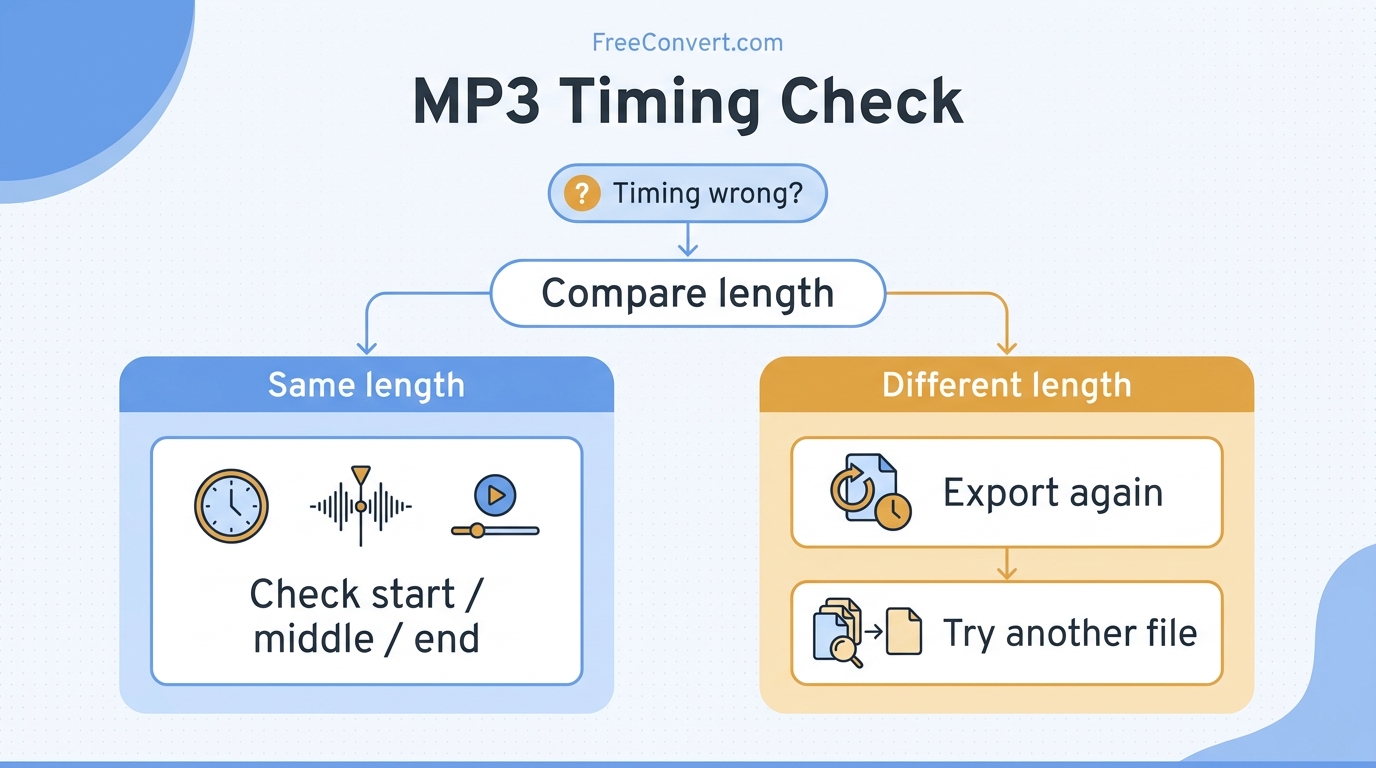
One r/audio poster wrote, “The problem is that when it converted the WMA to MP3 it threw the timing out by 4 minutes.” A single case does not prove a general defect, but it points to checks that are easy to skip.
If duration or synchronization is wrong, work through these in order:
- Compare the source and output durations.
- Play several points near the beginning, middle, and end.
- Re-export a damaged or oddly timestamped source before converting again.
- Repeat with default settings before changing quality controls.
Also confirm the filename, title, artist, and cover art if another app depends on metadata. For speech, check that voices remain clear; for music, listen for clipping or obvious high-frequency loss.
When the Browser Workflow Is a Good Fit
The browser workflow fits an occasional, reasonably sized, non-sensitive file when installing an app would take longer than the job. It is less suitable for confidential media, unstable connections, repeated batches, or large high-resolution video. After confirming the service identity, let the file's sensitivity and workload decide the route.
FreeConvert MOV-to-MP4 vs. UniFab for Larger Video Jobs
Use FreeConvert MOV-to-MP4 for a small, ordinary file when browser access matters. For private footage, repeated batches, or 4K output, UniFab Video Converter keeps processing on Windows or Mac, but it requires installation and excludes mobile and Linux.
FreeConvert MOV-to-MP4: The Short Browser Workflow
- Open FreeConvert’s MOV-to-MP4 tool.
- Add an authorized MOV file within the applicable limit.
- Select MP4 and change settings only when necessary.
- Convert and download the result.
- Check playback, resolution, audio, and duration.
For more options, see MOV-to-MP4 methods.
Where UniFab Fits: Local Batch Conversion
UniFab Video Converter is a Windows and Mac desktop app that processes MOV and MP4 locally, batches files, and exports up to 4K. Its core video conversion costs $0, adds no watermark, and has followed that policy since December 2024.
The limits are straightforward: installation is required, with no iPhone, Android, or Linux version. Local work also uses the computer's CPU or GPU and needs disk space for both source and output files. Its value is control, not a promise that every desktop job is faster.
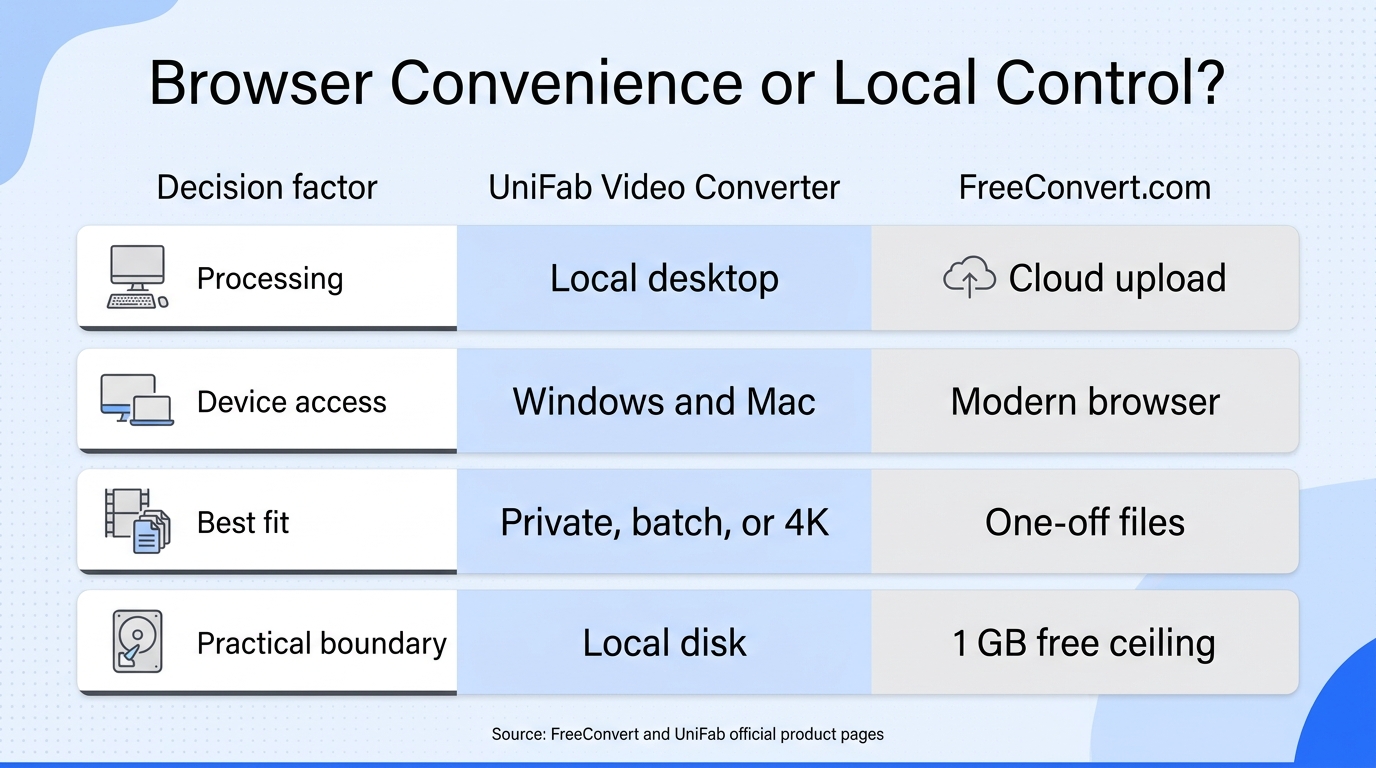
Decision Framework: Browser Convenience or Local Control?
| Decision factor | FreeConvert.com | UniFab Video Converter |
| Privacy path | Cloud upload | Local desktop |
| Device access | Modern browsers | Windows and Mac |
| Workload fit | One-off files; 1 GB free ceiling | Private, batch, or 4K video |
Table note: FreeConvert’s official site and UniFab’s official Video Converter page, as of August 2026.
Use FreeConvert for small, ordinary files. Choose local UniFab for private footage, repeated batches, or 4K video. On phones, Chromebooks, or Linux, use a compatible browser.
FreeConvert FAQ
The remaining questions are edge cases that can change the route before conversion begins. Confirm the exact service first, then use file size, access method, timing behavior, privacy, and output needs to choose the workflow.
Can FreeConvert Handle a File Larger Than 1 GB?
Not within the website’s stated free file-size ceiling. A larger source may trigger an upgrade path, and cloud conversion also adds upload and download time. For a 2 GB MOV or a recurring set of large videos, local processing avoids that transfer stage but requires enough disk space for the source and output.
Does FreeConvert Work on an iPhone?
FreeConvert.com works through a compatible mobile browser, so an iPhone does not need the separately listed Android app. The website and that app are distinct products with different policies and capabilities. Mobile conversion still uploads the source, so it best suits smaller, non-sensitive files on a stable connection rather than large video jobs.
Why Can Converted Audio End Up With the Wrong Timing?
The source may contain damaged timestamps, variable timing, or a codec combination that the output handles differently. Compare the source and MP3 durations, then play several points across both files. If the gap is consistent, re-export the source with fresh timestamps and retry with default settings before changing bitrate or channel controls. The useful result is synchronized audio, not merely a completed status message.
Can the Service Access Files You Upload?
The service must receive and process the file on remote systems to perform a browser conversion. Its site states that transfers use 256-bit SSL encryption and that files are deleted automatically after a few hours, but those measures are not the same as keeping the source on the device. The practical boundary remains file-based: use cloud conversion for ordinary material and keep confidential documents or private footage local.
Should I Choose MP3 or WAV for Extracted Audio?
Choose MP3 when smaller files and broad playback compatibility matter. Choose WAV when the audio will be edited or preserved with less compression, accepting a larger file. For spoken notes or everyday listening, MP3 is usually sufficient; for repeated editing, WAV avoids adding another lossy stage. The format decision should follow the next step in the workflow, not habit.
Which FreeConvert Workflow Fits You?
Start by confirming that the website, Android app, add-on, or same-name service is the product whose policies you reviewed. Then choose the browser service for an ordinary one-off file when cloud upload is acceptable and the size limit fits. Choose local conversion for sensitive footage, large sources, repeated batches, or 4K video, while allowing for installation, computer load, and disk use. This keeps convenience from overruling privacy or workload. The final scenario rule is simple: verify the identity first, then decide where the file should be processed.