The best AI video translator for an hour-long project must cover your full deliverable, not just a sample. For video translation, choose subtitle exports for editable text, dubbing for translated speech, and lip sync for visible presenters; eligible YouTube creators also have a built-in publishing route.
I see the long-video problem as a completion problem: an attractive sample still leaves the rest of the recording untranslated. My view is that a successful preview is not a finished deliverable. That distinction matters when you need several language versions of the same course or interview. I’ll connect those needs to five tools, the work behind their allowances, and the official YouTube publishing branch.
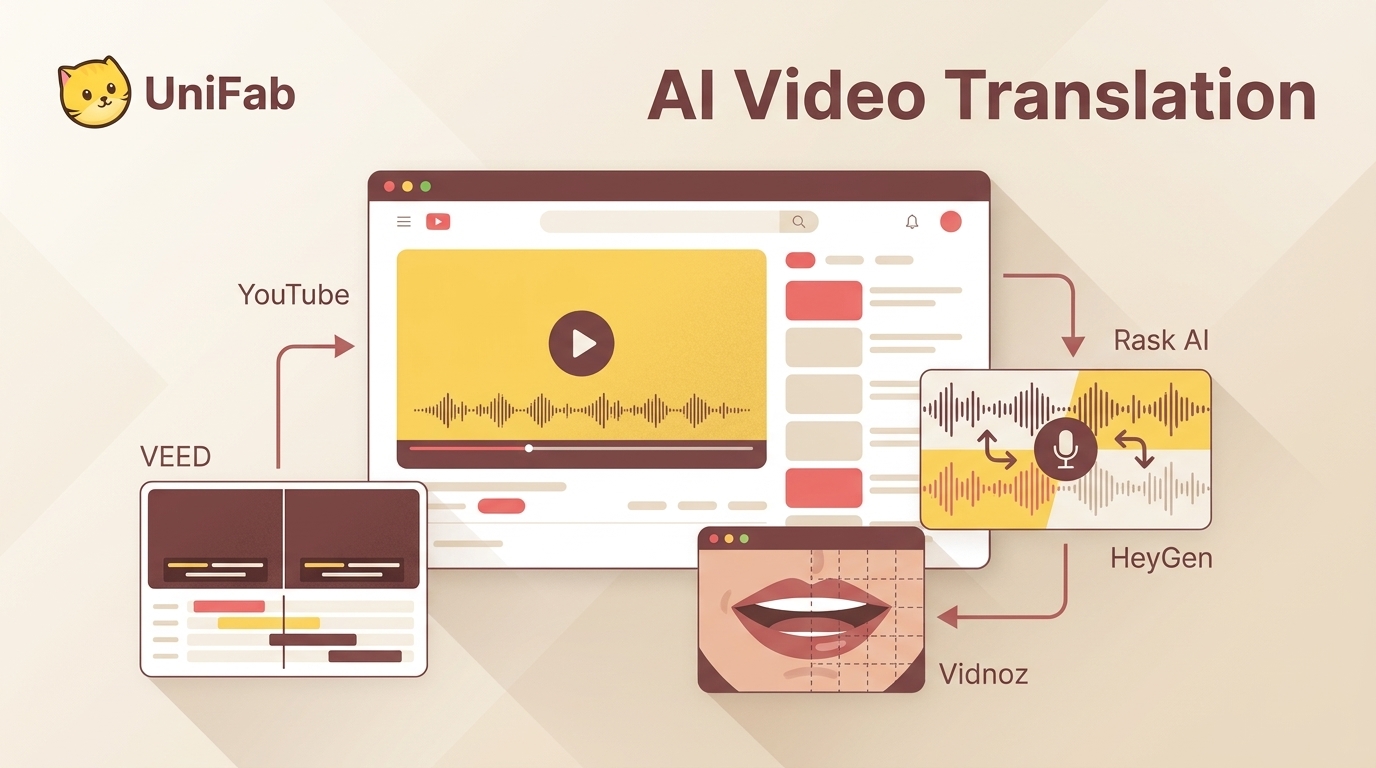
Choose Your Output Before Choosing a Video Translator
Choose translated subtitles when viewers need readable text, dubbing when they need speech in another language, and lip sync when a visible speaker’s mouth movements matter. These are different deliverables. A tool that produces one does not automatically satisfy the others.
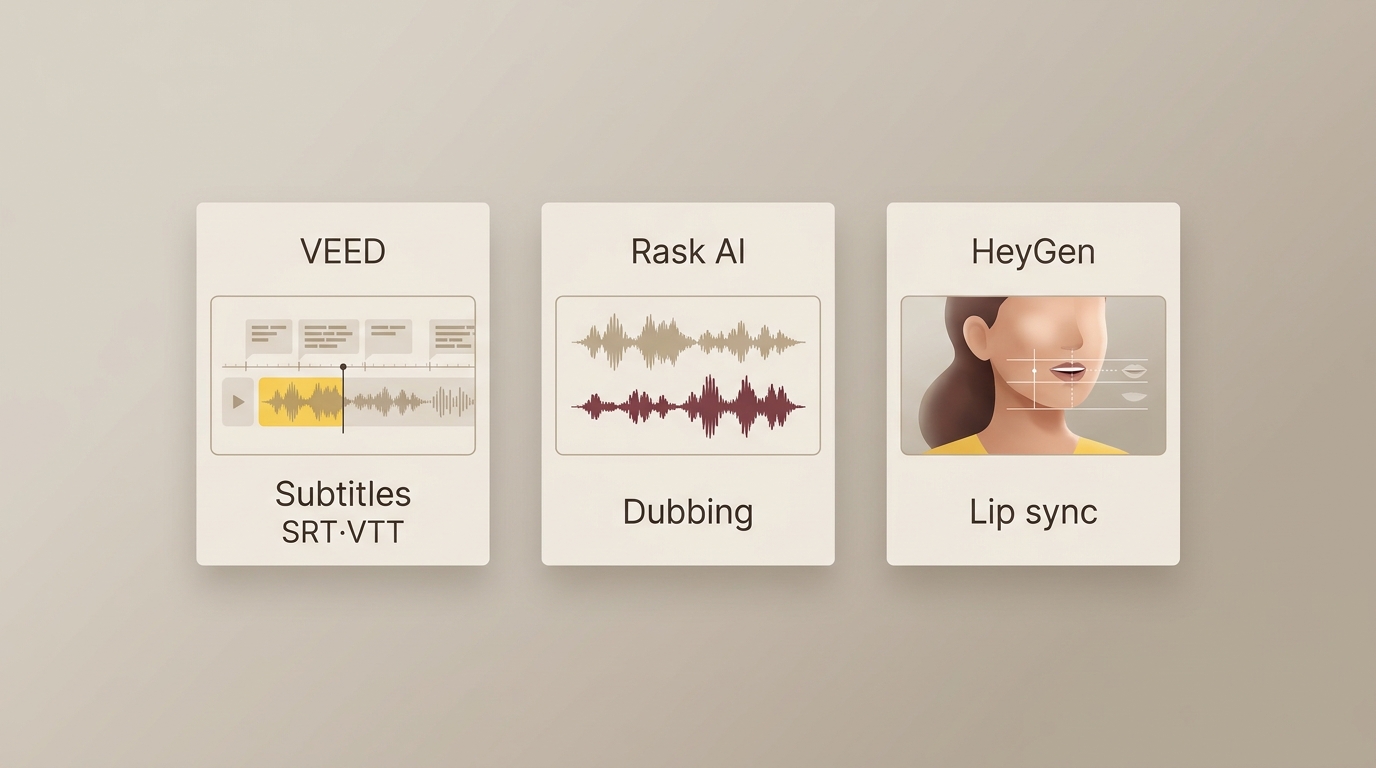
Start with a usable video, clear source speech, the correct source language, and a named target language. Decide where the result will go. A course platform expecting an SRT file needs something different from a social account expecting a finished video with translated speech.
As one Reddit user in r/machinetranslation put it, “I want an app or website that, for example, takes a video and adds subtitles (CC) from Spanish to English, and so on”. The request is for captions, not a replacement voice. Adding a dubbing workflow would introduce work that this particular deliverable does not require.
Subtitles, Dubbing, and Lip Sync Solve Different Problems
Subtitles preserve the original performance while adding translated text. Separate SRT or VTT files let you revise wording and timing without permanently printing captions onto the picture. Burned-in subtitles travel with the video, but the viewer cannot switch them off as a separate track.
Dubbing replaces or supplements the spoken language. For a training video, that lets learners listen while following a demonstration. For an interview, speaker changes and the delivery of questions need attention alongside the translated words.
Lip sync addresses the visible performance. One Reddit user in r/aitubers described the mismatch: “Audio only sound fine but look off once you watch the face closely.” Listen to the dub, then watch the face. A correct sentence and a convincing mouth movement are separate checks.
I would choose editable captions for a text-first course and review lip sync for a presenter-led ad. A larger language catalog does not settle either choice. Likewise, a 4K source file does not establish the resolution of the translated export; the final delivery setting is a separate requirement.
4 AI Video Translators Compared by Workflow
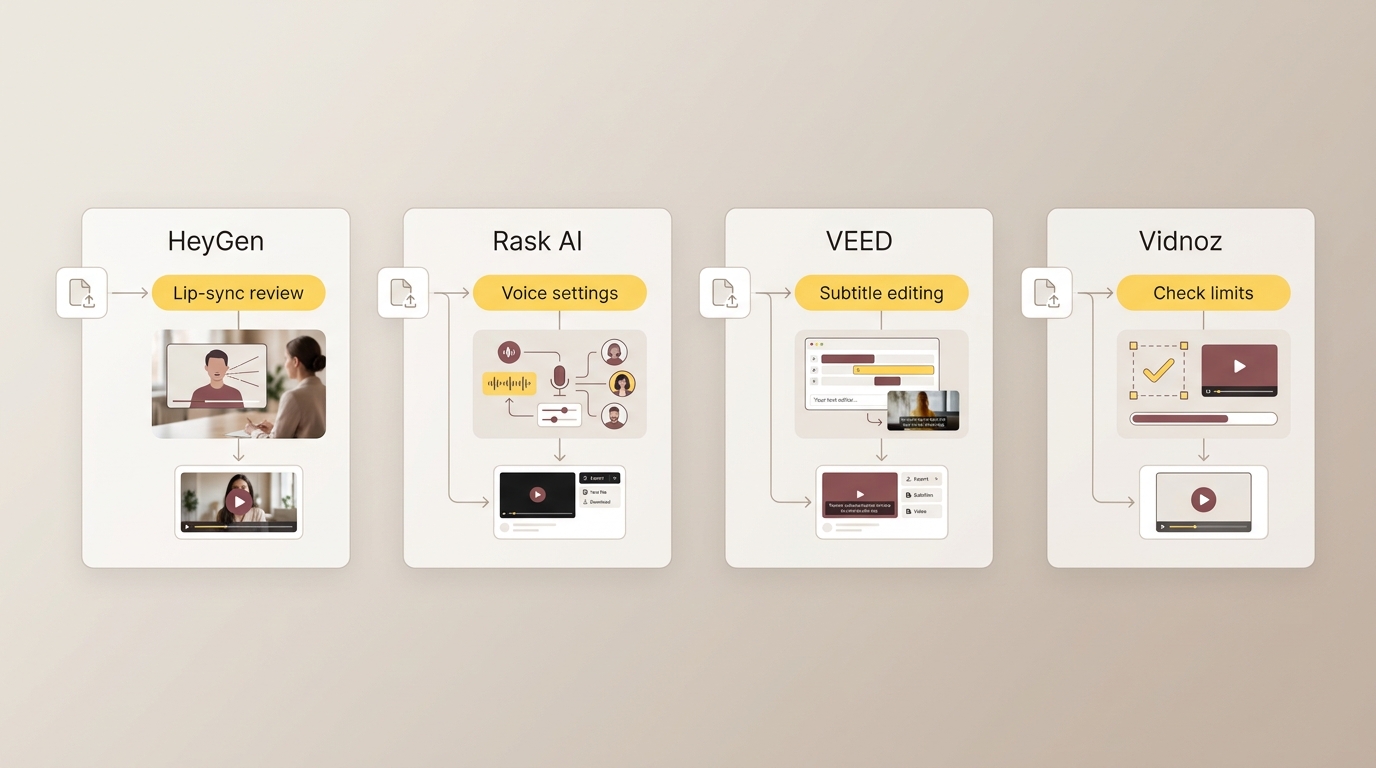
HeyGen suits on-camera localization, Rask AI suits multi-speaker dubbing with segment review, VEED suits subtitle-first editing, and Vidnoz suits short translation samples. Four tools are compared here; a fifth Windows workflow appears in its own section below. These are scenario choices rather than a single quality ranking.
Comparison Scope - Date: November 10, 2026 - Comparison type: Published specifications, not a performance benchmark - Platform: Browser workflows - Tools: HeyGen, Rask AI, VEED, Vidnoz
| Tool | Published language scope | Output | Good fit | Trade-off |
|---|---|---|---|---|
| HeyGen | 175+ languages and dialects | Dubbed video, subtitles | On-camera localization | Lip sync needs visual review |
| Rask AI | 135+ dubbing languages | Dubbed video, SRT, TXT | Multi-speaker review | VoiceClone: 57 languages |
| VEED | 125+ subtitle languages | Video, SRT, VTT, TXT | Subtitle-first editing | Subtitle totals differ from voice coverage |
| Vidnoz | 140+ languages | Dubbed video, subtitles | Short translation samples | First 90 seconds free; uploads up to 500 MB |
Published feature descriptions from each listed tool’s official site, as of November 2026. Language totals cover different features, not measured translation quality.
For a course needing caption files, I would favor subtitle editing over a larger dubbing catalog. For an on-camera interview, the voice and visible performance deserve the closer look.
HeyGen: On-Camera Localization
HeyGen brings translated speech, subtitles, and lip sync into the same workflow. That combination fits a presenter-led explainer or localized ad where the face stays on screen. Its Edit & Review stage gives you a place to proofread the translated script before finalizing.
- Upload the video to HeyGen or provide its link.
- Choose the target language and translation options.
- Open Edit & Review, check the script and playback, then finalize.
I would shortlist it for a visible presenter, rather than treating lip sync as a necessary purchase for an audio-led lecture. The trade-off is review work: watch close-ups and fast speech before accepting the result. It is a less direct fit when the entire assignment is an editable caption file.
Rask AI: Multi-Speaker Dubbing and Review
Rask AI fits interviews and training sessions where different speakers need distinct voices and wording needs revision. Its browser workflow includes line-by-line review and video or transcript exports. Voice cloning covers a smaller language set than dubbing, so preserving a speaker’s voice requires a separate language check.
- Upload the recording to Rask AI.
- Select source and target languages, then choose the voices.
- Correct the relevant segments and export the video or text.
I would favor those segment controls for a panel discussion with specialized terms. A simple caption-only assignment makes less use of its dubbing controls. Do not assume that finding a target in the dubbing menu also means the original voice is supported there.
VEED: Subtitle Translation in a Browser Editor
VEED fits a caption-led workflow because translation sits inside a browser editor with downloadable subtitle formats. You can keep translated text separate or place captions in the video. Voice translation is another output option, with its own coverage rather than the subtitle catalog’s full scope.
- Upload to VEED and generate the source transcript under Subtitles.
- Translate the subtitles and correct wording and timing.
- Export the required subtitle file or captioned video.
For a course whose captions will change later, I would keep a separate subtitle file. That avoids rebuilding the picture for each text correction. VEED’s subtitle-language count is less useful for choosing a voice-preservation workflow; assess that feature directly instead of carrying the caption number across.
Vidnoz: Short Translation Samples
Vidnoz fits an initial sample when you want to hear translated speech or inspect subtitles before planning a full project. Its free access has the duration and upload boundaries shown above. Those boundaries suit a preview, rather than establishing coverage for a long recording.
- Upload a supported video to Vidnoz.
- Set the original and output languages and the desired options.
- Review the translated result, including the voice and captions.
I would use a representative excerpt containing a speaker change or difficult term, rather than a silent opening. A sample dominated by an intro tells you little about the lecture that follows. For a full interview, the amount processed and the final export still need to match the whole assignment.
Free Access, Usage Limits, and the Cost of a Finished Video
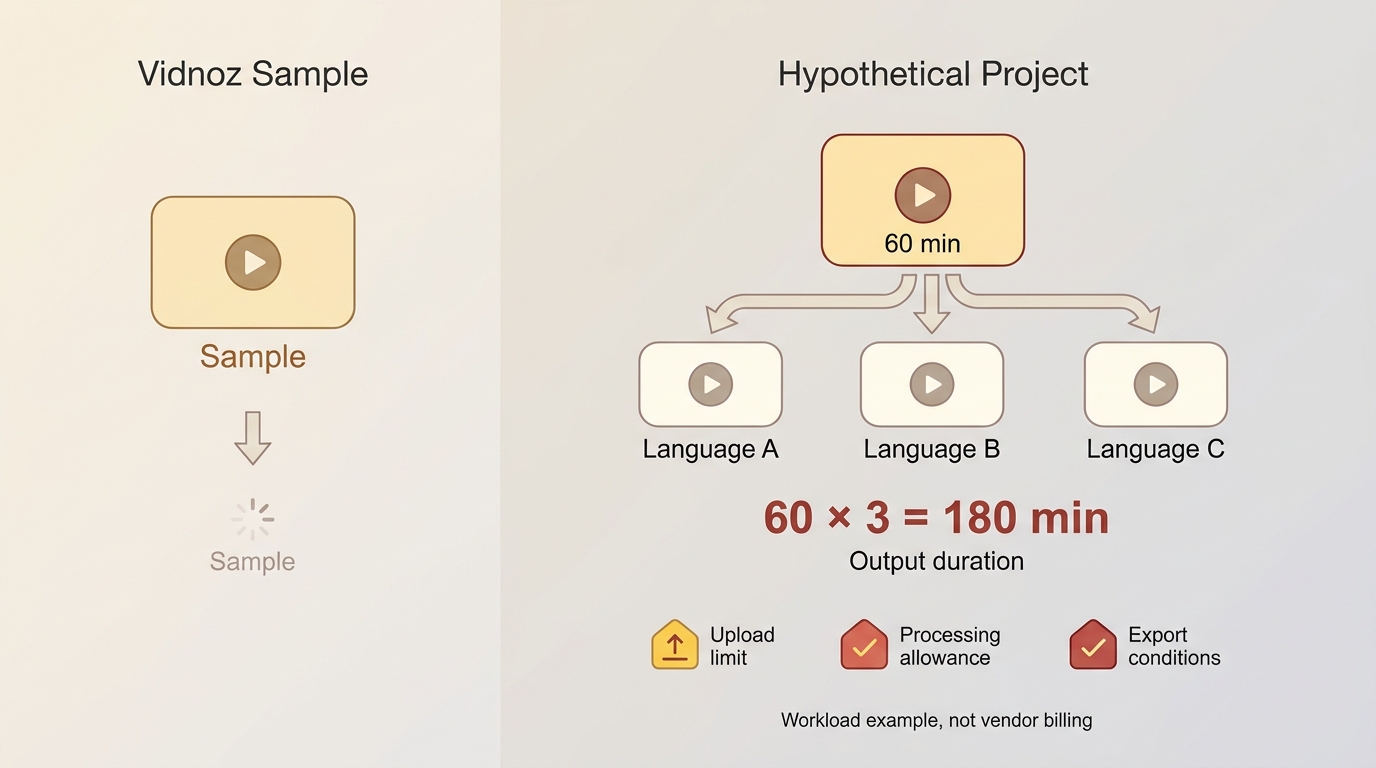
Free access covers your project only when its duration, language versions, features, and export conditions match the finished assignment. A preview allowance and a full-length delivery allowance are different things. I would budget for the versions you need to publish, including the work to review them.
A Reddit user in r/software captured the practical concern: “my videos are about an hour long.” That length changes the purchase decision. The relevant question is whether the entire recording can reach an acceptable export, not whether the opening sounds convincing.
Separate Sample Access from Full-Length Delivery
A short sample is useful for judging pronunciation, captions, and speaker transitions. It is not a substitute for processing the rest of a course. Put a difficult passage into the sample, with a name or term that matters to the audience.
Different limits stop different parts of the job. An upload ceiling governs whether the source enters the service; a processing allowance governs how much gets translated; export conditions govern what you can take away. Reaching the editor does not, by itself, settle the delivery question.
For a short social clip, a sample-sized allowance could cover the intended video. For a recorded workshop, it is a screening tool. The free video translator comparison covers additional options when the available no-cost workflow is the main constraint.
Count Target Languages and Revision Work
A hypothetical 60-minute video translated into three target languages represents 180 target-language minutes: 60 × 3. That is a workload example, not a vendor’s billing formula. It makes the size of a multilingual assignment visible before you commit to it.
Corrections belong in that plan too. Ask whether regenerating a segment, preserving a voice, or adding lip sync draws on the same allowance as the first translation. Distinguish a text correction from a new rendering task. A service that permits script editing still needs a clear route from the corrected text to the finished audio.
I would settle terminology on the first language version before commissioning the remaining versions. Otherwise, a mistaken product name travels through every export. Keep review time on the schedule alongside processing time; neither an upload button nor a credit balance does the listening for you.
Check Export Resolution, File Format, and Batch Scope
Write the required output into the project handoff. Specify the video resolution and container, whether captions must remain separate, and which spoken languages are required. An MP4 does not, by its extension alone, tell you its resolution or caption arrangement.
Batch support needs the same precision. Accepting several files, downloading several results, and translating a set of videos into several languages are different operations. If you are localizing a course library, confirm the operation you need rather than assuming that “batch” covers the whole job.
For an editor, a reusable subtitle file might be the essential deliverable. For a client presentation, it might be a reviewed video ready to play. Those requirements decide whether an allowance produces useful work or an intermediate result you still need to rebuild.
How to Review and Publish Dubs in YouTube Studio
YouTube Studio automatic dubbing fits eligible creators who need translated audio on their YouTube videos. Enable the available feature on a computer, require manual review, and preview each dub before publication. This is a platform publishing route rather than a promise of an independent translated video file.
For a long course already published on YouTube, I would consider this branch when the channel and language are eligible. It reduces the need to manage a separate video for each language. If your assignment instead requires an editable script-to-dub workflow or a file for another platform, the tool comparison addresses that different need.
Set Up an Eligible Video and Review Settings
Eligibility comes before setup. YouTube lists videos exceeding 120 minutes as ineligible for automatic dubbing; source-language and channel access also matter. Speech needs to be present, and the original video language needs to be correct. There is no setting here that forces an ineligible video through.
- Sign in to YouTube Studio on your computer.
- Open Settings → Channel → Advanced settings.
- Enable Allow automatic dubbing when the option is available, and select Manually review dubs before publishing.
- Save the settings, then upload or select the eligible video with its correct original language.
Manual review keeps the translated version from becoming a publication decision you did not make. For a course, choose someone who understands the target language to review names and instructions. Hearing fluent speech is not enough to judge whether an instruction retained its meaning.
If the setting is absent, use a workflow available to your channel and intended deliverable. Repeating the same upload does not create feature access. Keep the original video and any reviewed translation assets organized so you can use them in the publishing route you choose.
Preview the Dub, Then Publish or Choose Another Route
Review the generated language before making it public. YouTube provides preview and transcript-review controls, but automatic dubs cannot be directly edited. That distinction matters when a sentence needs rewriting rather than approval.
- Open Content in desktop YouTube Studio and select the video.
- Open Languages and choose the relevant language.
- Select that language in the preview player and listen; use the audio options to review its transcript.
- Open the language’s audio menu and choose Publish when approved, or Unpublish for a published dub that needs withholding.
I would listen at speaker changes and technical explanations, then check the rest before approval. The controls give you a publishing decision, not a line editor. Experimental lip sync is restricted to qualifying channels, videos, and languages; it is not a universal setting.
Multi-language audio is a separate option for uploading an existing dubbed track. It does not generate the translation. The upload requires a supported audio-only file roughly matching the video’s length, so plan for that asset if you produce the dub elsewhere.
For a multi-language course, keep the publication status of each dub with your review notes. Approving one language does not approve the others. This makes the platform route useful when its controls match your review process, while leaving file delivery to a workflow designed for that task.
When UniFab Video Translator AI Fits a Windows Workflow
Video Translator AI-Fabcloud fits you if you want a Windows desktop entry point and a translated video file. It supports 23 languages and up to 4K MP4 or MKV output, so you can match a file-based handoff.
Select the video and source audio track, choose the target language, then run translation and save the result. Processing uses FabCloud credits in the cloud; the Windows interface is not offline translation. New accounts receive 30 cloud credits for watermark-free use. FabCloud access starts at USD 199.99 per year.
I would choose this route for Windows file delivery, with cloud processing included in the plan. Start that workflow from the official product page.
Frequently Asked Questions
Language-pair quality, device access, and publishing permissions can change which workflow fits your project. I would resolve those questions on a representative clip and the device you intend to use, rather than infer them from a language total or a desktop screenshot.
How Should I Assess Hindi-to-English Translation?
Answer: Choose a short Hindi passage with the accent, names, and background noise present in the full recording. Ask a reviewer fluent in both languages to compare the English meaning with the source. Inspect numbers, negation, and technical terms, then check subtitle timing or spoken delivery. Correct a mistaken source transcript before judging its translation. I would reject a sample that sounds fluent but changes an instruction; fluency is not a substitute for meaning.
Can I Translate a Video From an Android Phone?
Answer: A browser workflow offers a route without a desktop installation, but browser access and a native Android app are different things. Use the browser editor’s upload, editing, and export controls on your intended phone before assigning it a full project. Pick a small representative file, complete an export, and open the result on the phone. That confirms a usable mobile path rather than just a page that loads. A desktop-only client does not become an Android app through account access.
Will Windows Translation Software Work on My Mac?
Answer: Windows support does not establish a Mac version. Choose a confirmed macOS application or a browser service when the project must stay on your Mac. Also distinguish the editing device from the processing location: a browser interface and a desktop interface can both submit work to the cloud. I would verify the intended export on the Mac, especially when a later editing stage needs a separate subtitle file rather than captions already placed in the picture.
What Permission Do I Need to Translate and Publish?
Answer: Use video you own or have permission to translate and publish, and obtain the speaker’s permission before cloning their voice. Translation does not grant republication rights. For a client project, include the intended languages, voice use, and publication destinations in the authorization. Follow each third-party service’s terms, and take responsibility for the legality of your inputs and intended translation and publishing uses. Keep personal-use material private unless you also hold permission to distribute it.
Choose the Workflow That Matches Your Deliverable
Choose a subtitle editor for editable text, a dubbing workflow for translated speech, and visual review when a presenter’s mouth movements matter. Eligible YouTube creators have a platform publishing route; a file handoff calls for the required export instead. I would settle the deliverable, review its meaning and performance, then budget the complete set of languages and revisions. A convincing sample starts that decision; a reviewed, usable final result completes it.