If a YouTube video is in a language you cannot follow, start with its captions or audio tracks. For YouTube video translation, choose translated captions to read along or an available translated audio track to listen; neither option requires a separate video file.
I would stop searching the caption menu once the video has no source captions: that calls for a different input, not another language setting. The missing-transcript problem leaves you without text to translate. I’ll cover the player controls, an audio-capture alternative, and the creator’s publishing route. Then I’ll explain when video translation software fits a separate file task.
Translate Captions and Audio in the YouTube Player
Use the YouTube player to translate an available caption track or select an existing audio track in your language. Caption translation changes the text you read; it does not generate a spoken dub.
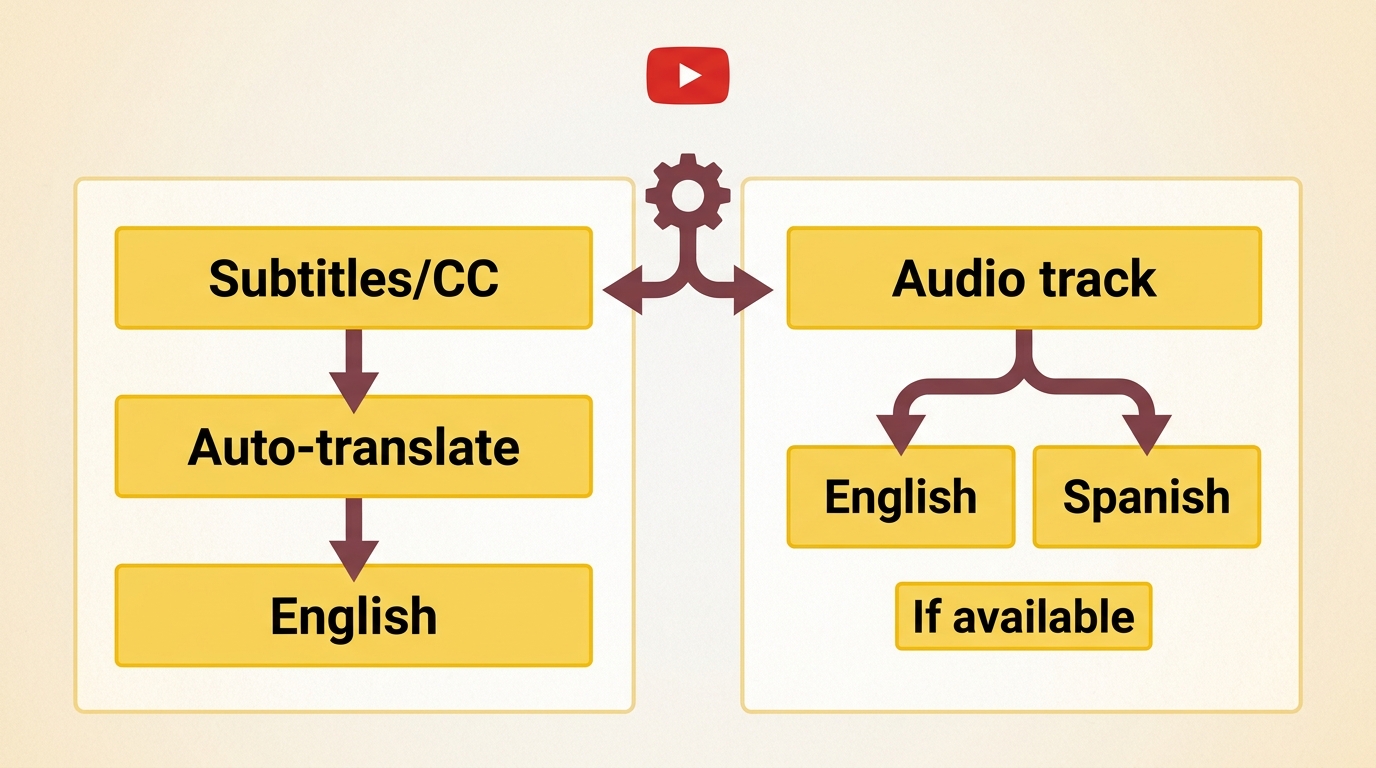
You need a playable video and either source captions or a suitable audio track. A translated title alone does not establish either. Use this table to match the result you want to the feature that delivers it.
| Goal | YouTube Feature | Requires | Result |
|---|---|---|---|
| Read another language | Translated captions | Source captions and target-language option | On-screen text |
| Listen in another language | Alternate audio track | Available target-language audio | Translated playback |
| Publish translated subtitles | Studio subtitle tracks | Creator access and translated text | Published caption track |
Source: YouTube Help explains caption controls, caption language selection, audio tracks, and subtitle publishing, as of November 2026.
For watching, stay in the player if it already gives you readable text or understandable speech. Studio serves a different job: publishing a track for your audience.
Check Captions and Choose a Target Language
Start with a working caption track. On a desktop browser, follow this sequence:
- Open the video in the YouTube player and start playback.
- Turn on CC. If captions appear, check which language is selected.
- Open Settings → Subtitles/CC and select your target language if it is listed.
- Otherwise, choose Auto-translate, when available, and select the target language.
- Resume playback and check whether the translated lines appear at the right moments.
On a phone, the caption controls sit in the player’s menu; labels and placement differ from desktop. The same prerequisite remains: captions must be available.
For a Hindi video you want to read in English, choose English as the target rather than changing the app’s display language. If the text makes an instruction unclear, pause at that line. I would check a product name or measurement against the picture before following a tutorial.
Select a Translated Audio Track When Available
Choose audio when reading subtitles competes with watching the action. The video must already offer the language you want.
- Open the video in the YouTube player.
- Open Settings → Audio track, if that option appears.
- Select the preferred language and listen to the result.
An alternate track changes what you hear. It does not establish lip sync, and enabling captions is a separate choice. If the selected voice makes a name unclear, switch back to the original track for that passage.
When Captions Disappear or the Language Is Missing
Separate missing source text from failed translated text. A Reddit poster in r/youtube asked, “There are no subtitles or transcripts connected to the video in any language. Is there a way for me to go about it?” Another wrote, “When I watch a video, the subtitles in their original language work, but when I translate it to any other language, they turn off.”
Those are different symptoms. For the first, an audio-based route is relevant. For the second, return to the original caption track, confirm it still displays, and reselect the translated language; reloading the page is a basic recheck, not a guaranteed repair.
My recommendation is to keep a working source track separate from the translation problem. If neither readable captions nor suitable audio is available, the next route takes speech as its input.
Translate YouTube Audio with Maestra’s Chrome Extension
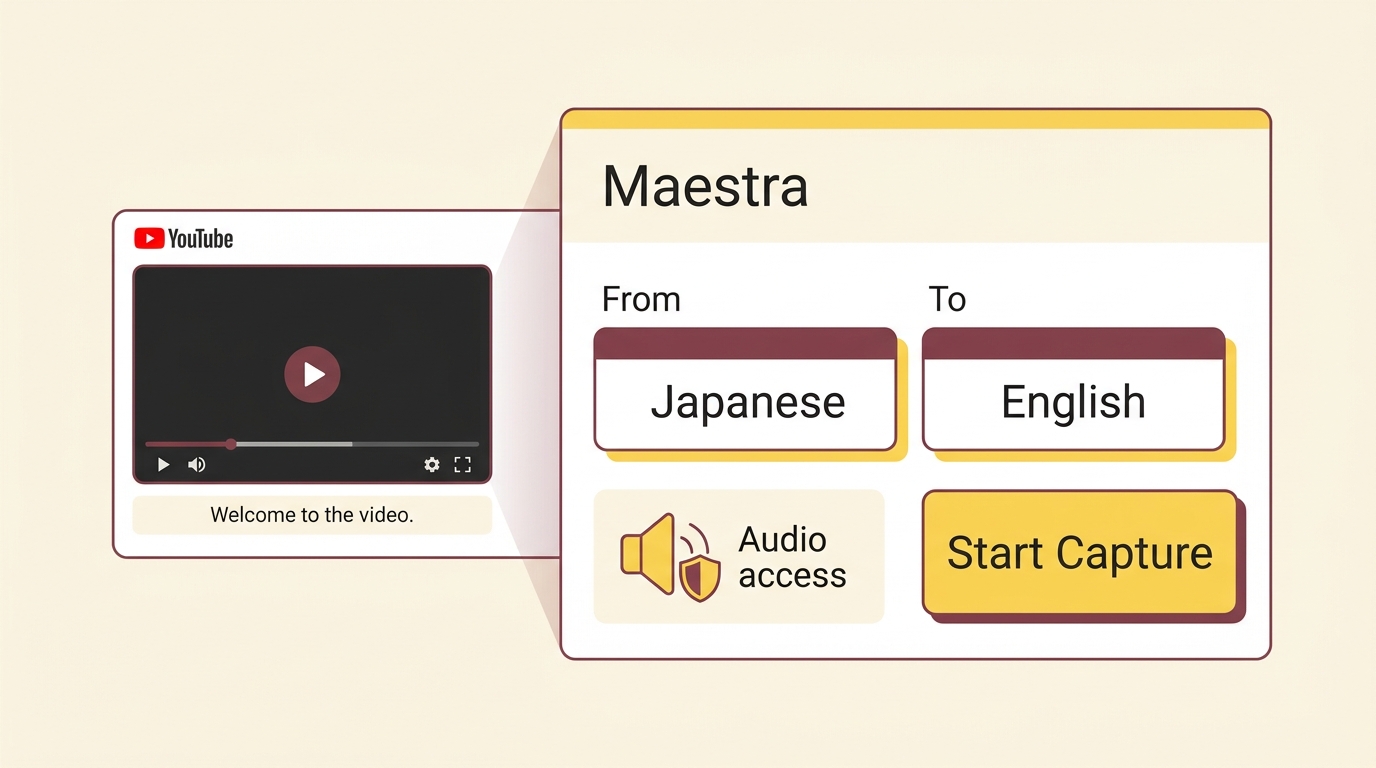
Maestra Live Voice Translation & Transcription captures playing audio to produce translated captions, with optional translated speech. This desktop Chrome route fits a video without source captions, but it is not the same task as exporting a complete translated video.
You need desktop Chrome, the official Chrome Web Store extension, a Maestra account, permission to access the audio, and access to its translation features. Original-language live transcription is free; live translation and voiceover require a Maestra subscription. Do not mistake the transcription offer for translated playback.
Set Up Capture and Review the Translation
Keep the YouTube tab and extension controls within reach during setup:
- Install Live Voice Translation & Transcription from the Chrome Web Store and open the extension.
- Sign in to your Maestra account and open the YouTube video you want to follow.
- Choose the source language, enable live translation, and select the target language; enable voiceover if you want translated speech.
- Allow the requested audio access, select Start Capture, and play the video.
- Compare the source and translated captions as playback continues, then select Stop Capture when finished.
This gives you a way to review meaning during playback. If a name looks wrong in the source transcription, treat the translated name cautiously too. I would pause at an unfamiliar technical term rather than let a plausible sentence stand in for a checked instruction.
Use third-party capture or saving only for lawful personal use or backup, in line with YouTube’s and the service provider’s terms; you are responsible for the necessary content permissions. Do not redistribute or resell saved material.
The extension suits desktop viewing when missing captions block the built-in route. It is less suited to a deliverable that must be a standalone video file. Saving captions to a service dashboard, where enabled, is also different from saving the video itself.
If you only need to understand the current video, stop after playback. If you manage the channel and want future viewers to have a translated subtitle track, use the publishing route below.
Add Translated Subtitles in YouTube Studio
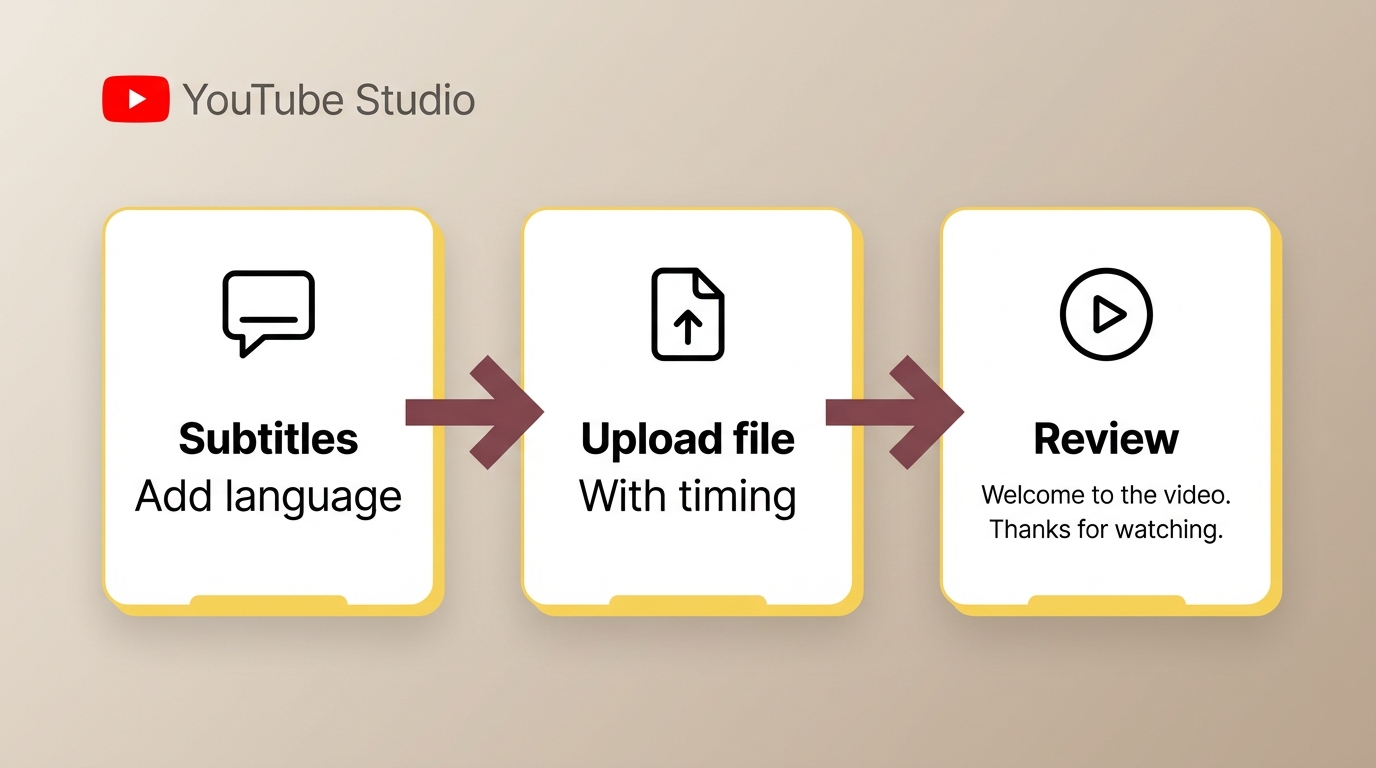
Use YouTube Studio to publish translated subtitles on a video you manage. Prepare translated text with timing, or enter the subtitles manually; automatic source-language captions are not a finished translation.
You need channel access that permits subtitle editing and the correct video selected. A viewer cannot use these controls to edit someone else’s upload. Translating the title and description is a separate task from adding subtitles.
Add a Language, Upload Timed Subtitles, and Review
For a prepared translated subtitle file, use this sequence:
- Sign in to YouTube Studio and select Subtitles.
- Choose your video, select Add language, and pick the translated language.
- Under Subtitles, select Add.
- Select Upload file → With timing, then choose the translated subtitle file. Alternatively, use Type manually to enter the text and set its timing.
- Review the preview, correct text and timing, and save or publish through the selected workflow.
Review names and numbers before publication. I would prioritize a correctly translated instruction over making every subtitle line equally short. A missed negative or misplaced measurement changes what the viewer does; a slightly uneven line length usually does not.
Text already drawn into the picture remains part of the picture. A poster in r/VideoEditing explained, “I created a video that primarily uses text on screen in my language, but I'd like it to be translated in Youtube's closed captioning, without English users seeing the text twice.” A separate caption track does not erase that original on-screen text.
Automatic dubbing has its own creator, video, and language eligibility. Publishing subtitles does not activate it. If a published caption track is your deliverable, Studio completes the task; if you need a separate translated video from your source footage, consider a file-based workflow.
UniFab Video Translator AI: File Translation Boundaries
Video Translator AI-Fabcloud fits a Windows workflow for translating video files you own or are authorized to process, when the translation feature is available in your setup. It addresses a different deliverable from YouTube’s viewing controls: a translated video file rather than a player setting.
Match Windows, Language, and Output Requirements
Video Translator AI-Fabcloud supports Windows, 23 languages, and MP4 or MKV video output up to 4K, giving you a file-based route for a separate translated version. The language set includes English, Spanish, French, German, Japanese, Chinese, and Korean; subtitle-language options also include Traditional Chinese and Brazilian Portuguese.
Match the output to its destination. MP4 or MKV determines the video container you hand off, while the target language determines who can follow it. The resolution ceiling describes the video output, not translation accuracy. I would choose this route for a separate video deliverable, rather than move a caption-only viewing task out of YouTube.
New FabCloud accounts receive 30 cloud credits. For your project, identify the source file, target language, and required video container before starting the available translation workflow.
Standalone subtitle downloading is not supported, so a caption-track publishing task belongs in the Studio workflow above. Explore the UniFab tools for your video workflow when you need to work with a separate video file.
YouTube Video Translation FAQ
Mobile viewing, saved files, and account access each have different requirements. I would keep the destination clear: an on-screen translation does not by itself give you an offline video or channel-editing access.
Can I Use a YouTube Video Translator on iPhone or Android?
Yes, for supported viewing features. The YouTube app on iPhone and Android offers caption controls, with language selection and Auto-translate where available. This is different from running a desktop Chrome extension inside the mobile app. For a phone-only viewing task, use the player’s available language options; the Windows file workflow described above serves a different device and output need.
Can I Save a Translated YouTube Video for Offline Viewing?
A translated overlay is not a saved video. For footage you own or are authorized to process, use the source file and a workflow that exports a translated video. A saved transcript or caption record is a separate text asset, and changing a playback language does not create an MP4. If the file must work without a connection, open the exported file offline and check the translated content before relying on it.
Do I Need to Give a Translation Tool My YouTube Password?
Not for the audio-capture route described here. A Maestra account signs you into Maestra; it is distinct from your YouTube account. Audio-access permission is another separate control. Install the named extension from its official store listing, review the requested permissions, and use the service’s own sign-in flow. I would avoid an unrelated password form claiming that a YouTube password is required to translate already-playing audio.