AI lip sync translation combines translated speech with adjusted mouth movements, so a dubbed video looks closer to what you hear. If your video translation sounds convincing but the face looks wrong, replacing the audio alone is not enough. You need visual lip-sync processing, then a review of the finished clip.
I treat a close-up of the speaker as the approval shot. A readable transcript and a pleasant voice do not settle whether that face belongs in the finished video. My recommendation is to approve a representative sample before committing the full edit. The workflow below carries that decision from preparation through export.
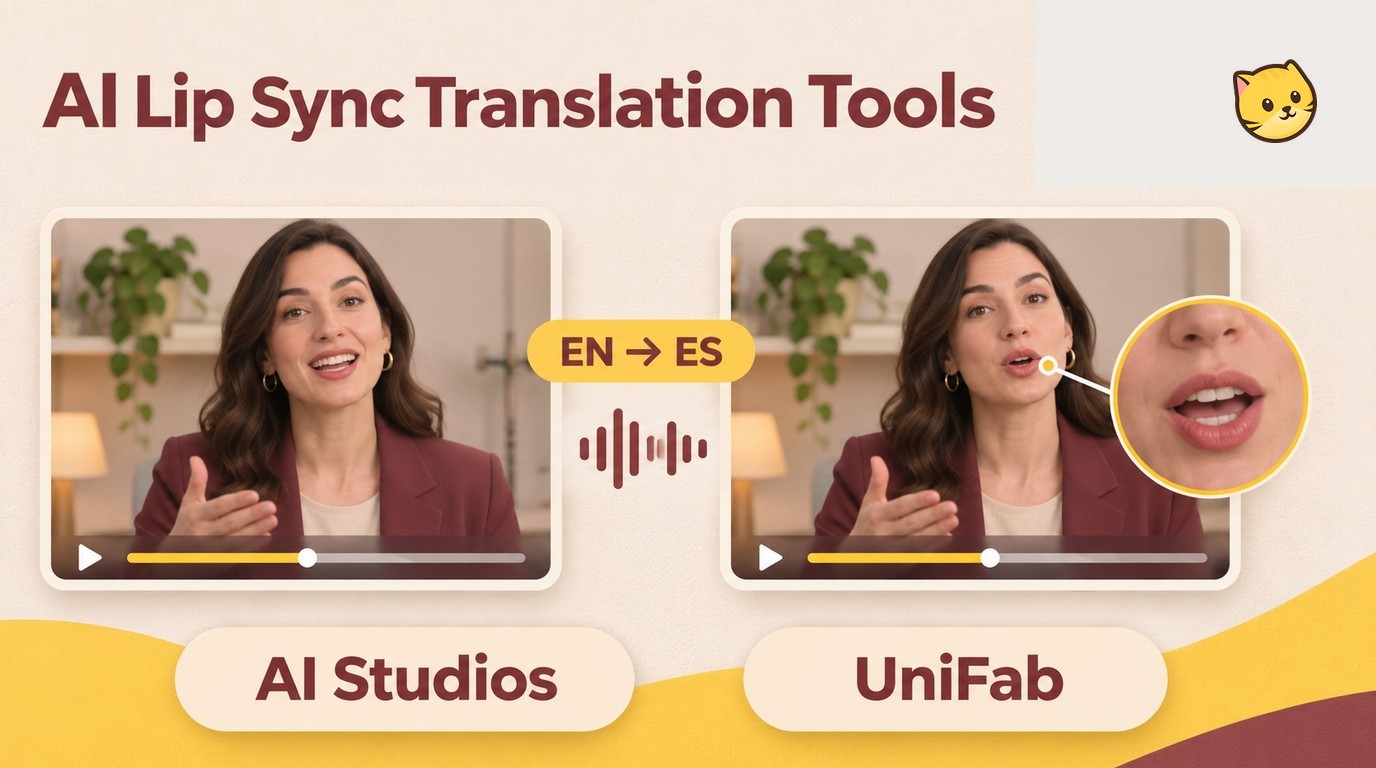
What AI Lip Sync Translation Changes in a Video
Translating a video does not necessarily change the speaker’s mouth. Subtitles change what you read, dubbing changes what you hear, and visual lip sync changes the visible speaking performance.
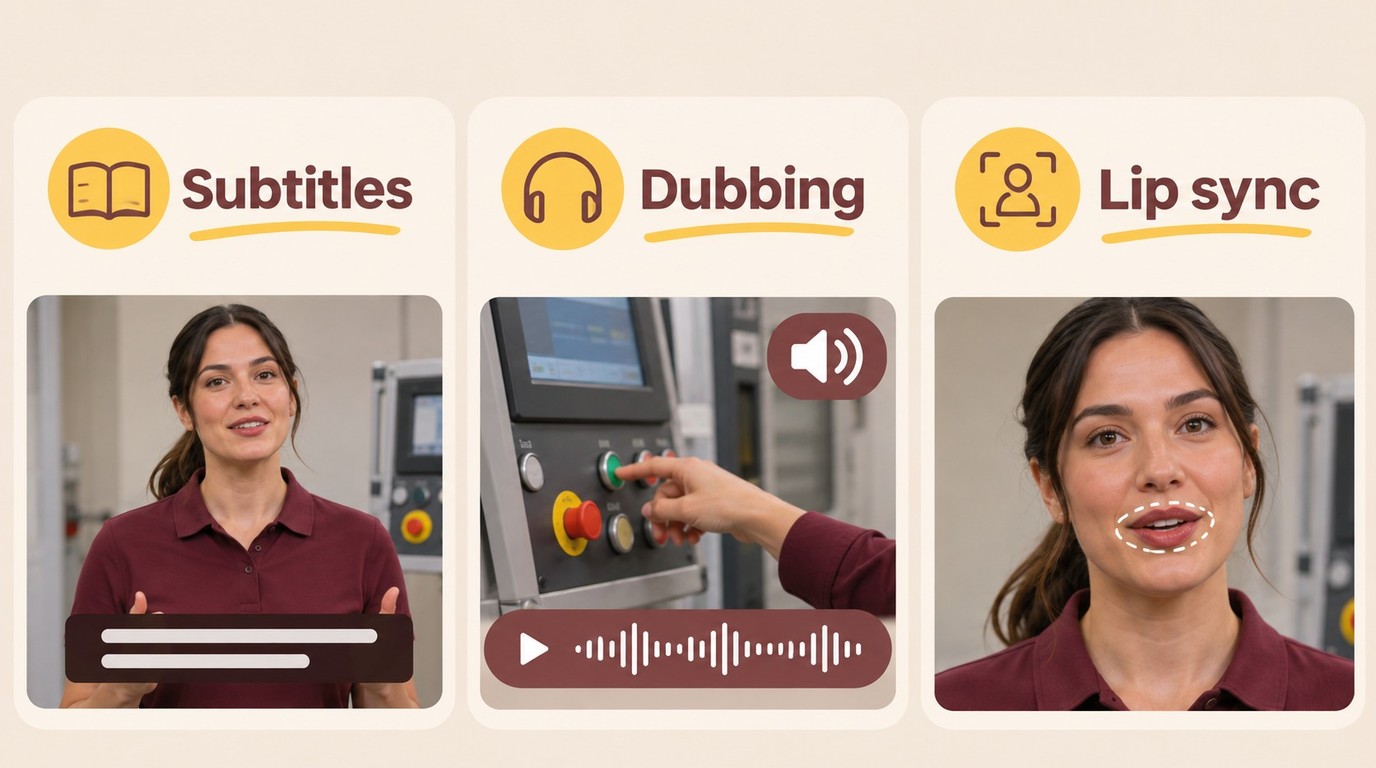
Subtitles, Dubbing, and Visual Lip Sync
Choose the output your audience needs. If viewers need to read a translation while hearing the original speaker, subtitles fit. If they need to listen in another language, dubbing fits. When the presenter’s face remains prominent, translated speech and visible mouth movements need separate attention.
| Output | Audio | Visible Mouth | Fits |
|---|---|---|---|
| Translated subtitles | Original | Original | Reading the translation |
| Translated dubbing | Translated speech | Original | Listening in another language |
| Lip-synced translation | Translated speech | Adjusted to new speech | Matching speech and face |
For a narrated screen recording, I would keep the original visuals. A face-to-camera introduction creates a different task: the viewer sees the speaker forming words.
The distinction is visible in a question from r/aitubers: “How are people translating videos while keeping lip sync accurate? Audio only sound fine but look off once you watch the face closely.” That describes the viewer’s experience, not a quality score.
A familiar voice is not proof of matching lips. Voice preservation concerns the audio; mouth adjustment concerns the image. Built-in publishing features suit eligible platform uploads, while a separate editor suits a file you need to review and deliver elsewhere. Neither route removes the need to watch the face.
How to Translate and Lip-Sync a Video with AI Studios
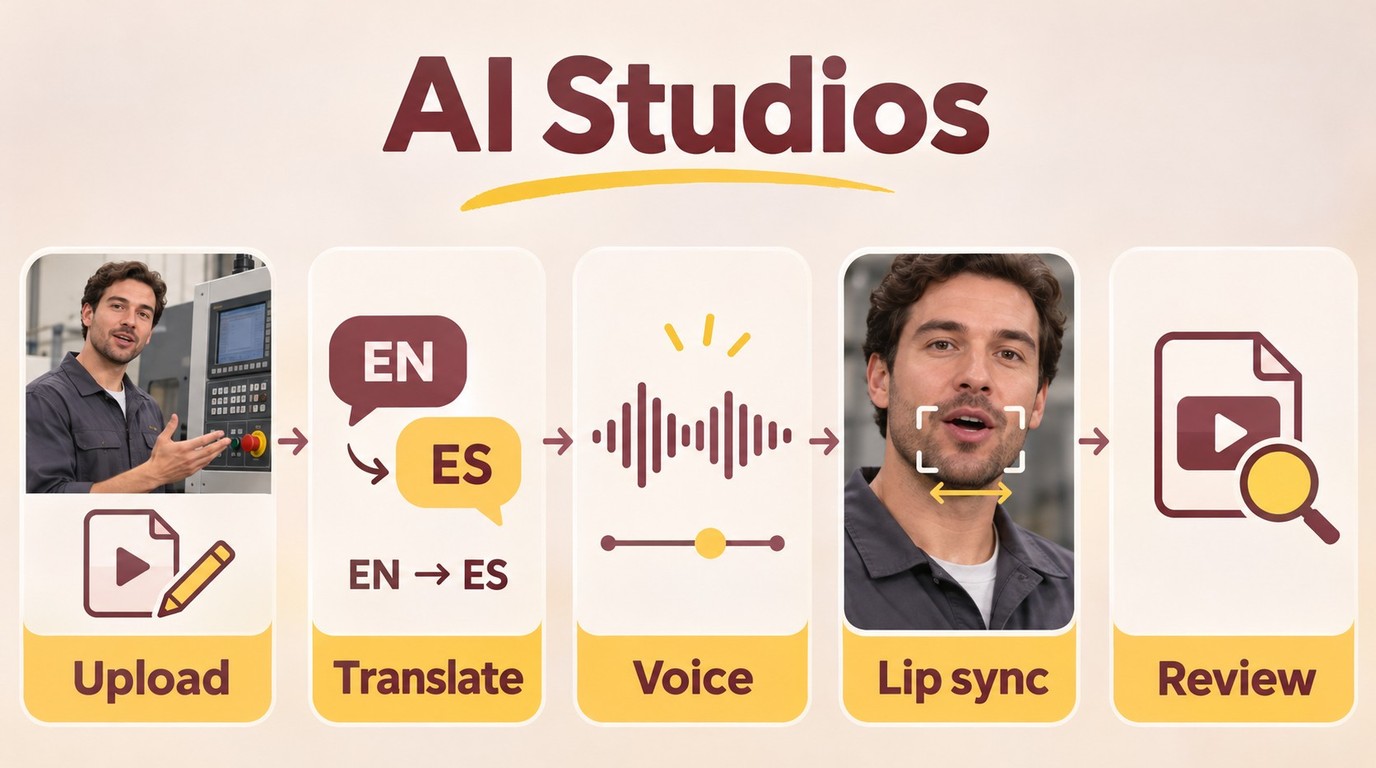
In AI Studios, a translated script feeds the dubbed voice, while lip-sync processing adjusts the visible mouth for the export. Approve a short sample before processing the full video.
As of November 2026, use this workflow when your AI Studios account includes dubbing and lip sync for your chosen languages. Before uploading, have a source clip, the intended source and target languages, a terminology list, and someone able to review the target language.
For the example throughout this guide, imagine an English training video being localized into Spanish. Its presenter explains a machine setting, then the edit cuts to the control panel. This is an illustrative production scenario.
Prepare the Clip and Upload It
- Upload a representative source clip in AI Studios. Include a clear view of the presenter’s mouth, the machine-setting explanation, and the cut to the panel. Inspect the automatically extracted script before translating it.
The sample should expose the difficult part. Choose a passage containing the actual technical term rather than an easy greeting. A greeting tells you little about whether the training instruction survives translation.
Clear speech makes the transcript easier to inspect. Listen for music covering words, clipped syllables, or another person speaking over the presenter. A single clearly visible speaker is a useful starting point, not a mandatory upload specification.
Correct the source transcript before translating it. If the machine’s name is wrong there, a polished Spanish voice will merely read the wrong name convincingly. Keep the original wording beside the correction so the language reviewer understands the intended instruction.
Translate the Script and Check the Voice
-
Choose Spanish and revise the translation in AI Studios. Check the setting name, the action the viewer must perform, and any warning. Keep repeated terms consistent across the clip.
-
Choose the voice and refine the pacing. Use the available script and segment controls to adjust wording and pauses. AI Studios supports segment editing; use it to keep a complete instruction together.
Meaning comes before mouth movement. In this example, the translated instruction must still tell the viewer which control to change. Ask the reviewer whether it is natural Spanish and operationally correct. Those are separate questions.
A longer translation needs editing, not hurried delivery. Shorten unnecessary wording before squeezing an instruction into the presenter’s pause. Preserve the action and warning; remove repetition. Preview the voice for names and technical terms before moving on.
Voice choice also affects the handoff. A calm training explanation should remain easy to follow, even if the selected voice differs from the original speaker. Do not make voice similarity the acceptance criterion for the image.
Generate Lip Sync, Review, and Export
-
Generate the dubbing and apply lip sync in AI Studios. Keep audio generation and visual mouth adjustment distinct. Work with the controls available in your account rather than assuming a particular button label.
-
Preview the result and export the approved version. Confirm that the clip contains Spanish speech and that the visible mouth has changed to follow it. Save the export to your project’s delivery folder and play that file.
The cut to the control panel matters. Check whether the instruction continues naturally across it and whether the face looks consistent when the presenter returns. The next section explains what to fix when that review fails.
Approve the sample before expanding the job. AI Studios fits a workflow where you want editable translation, dubbing, and lip sync together; a file needing subtitles alone does not require this visual step.
Use third-party services in accordance with their terms and applicable law; keep personal-use output for yourself, without unauthorized redistribution or resale. You are responsible for content and speaker permissions, and personal-use access does not grant permission to process a client’s commercial footage.
How to Judge Lip-Sync Quality Before Publishing
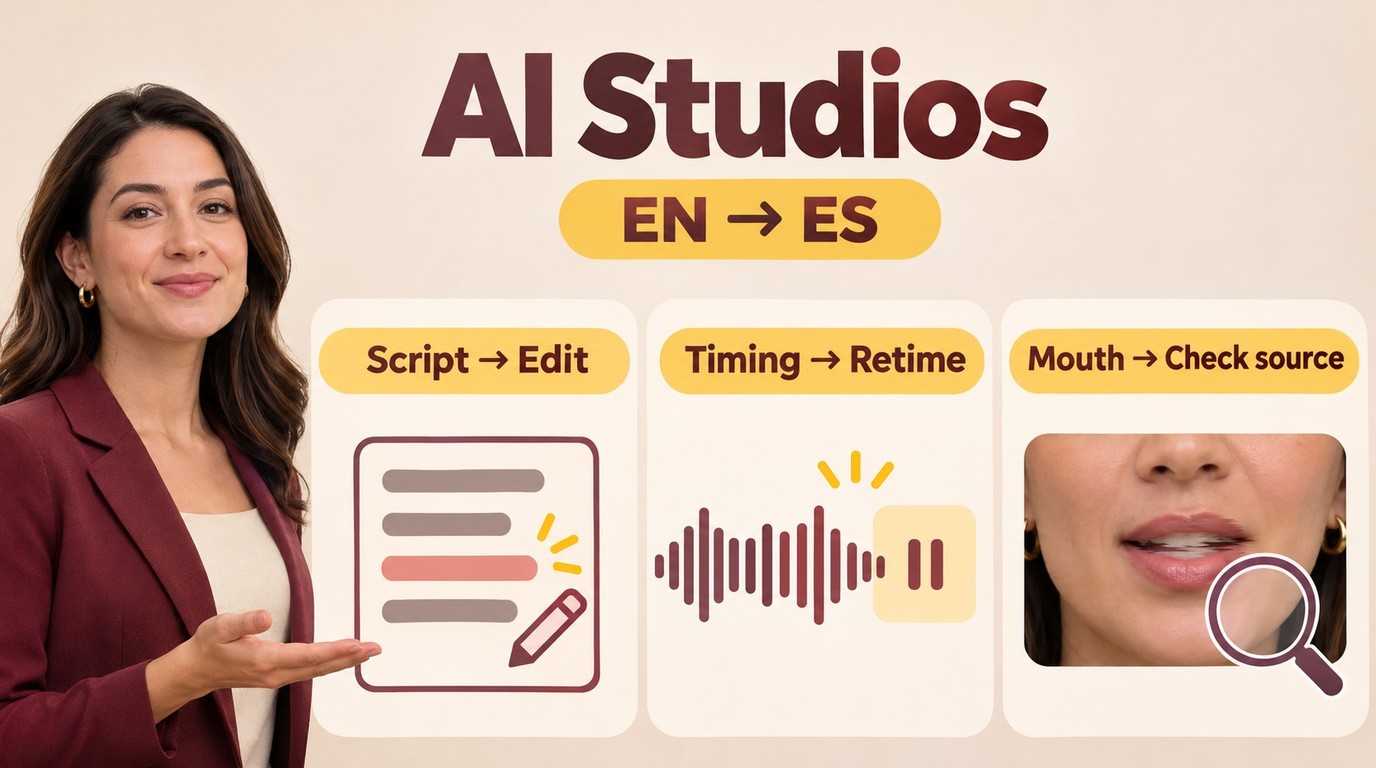
A lip-synced translation is ready when the meaning, speaker assignment, audible pacing, and visible face all survive review. A fluent voice alone is not enough to approve a training video.
Match the Review to the Delivery Scenario
For the training example, reject the clip if the machine-setting instruction is wrong, even when the mouth looks convincing. Give the Spanish reviewer the source instruction and the translated script. Ask them to confirm the action, terminology, and warning before judging the animation.
Match the repair to the failure. Wrong wording calls for a script correction. Speech that overruns a pause calls for shorter phrasing or a timing adjustment. A distorted mouth calls for another look at the source shot and the generated image, rather than another translation of an already correct sentence.
The editor’s handoff is a useful checkpoint. A poster in r/AIToolTalks described the problem this way: “the audio sync is just poor every time we hand off translated audio to the editor.” Resolve that handoff with the exported sample, so the reviewer and editor approve the same file.
A practical review should cover these points:
- Meaning: names, technical terms, and instructions retain their meaning.
- Speakers: each line belongs to the right person.
- Face: mouth shapes follow the translated speech without distracting distortion.
- Continuity: pauses, head turns, and cuts do not expose an obvious mismatch.
For the training clip, that means replaying the sentence across the control-panel cut. Watch at normal speed, then inspect the transition if something looks wrong.
Change the emphasis for other deliverables. In an interview, listen to each speaker separately before approving the exchange. In a marketing clip, review tone as well as meaning. Accents and dialects deserve a reviewer familiar with the intended audience, not a generic accuracy label.
Keep ordinary dubbing when it serves the edit. If the training presenter’s close-up still distracts after revision, use the control-panel footage with approved narration instead of publishing a flawed face.
Where UniFab Video Translator AI Fits, and Its Limits
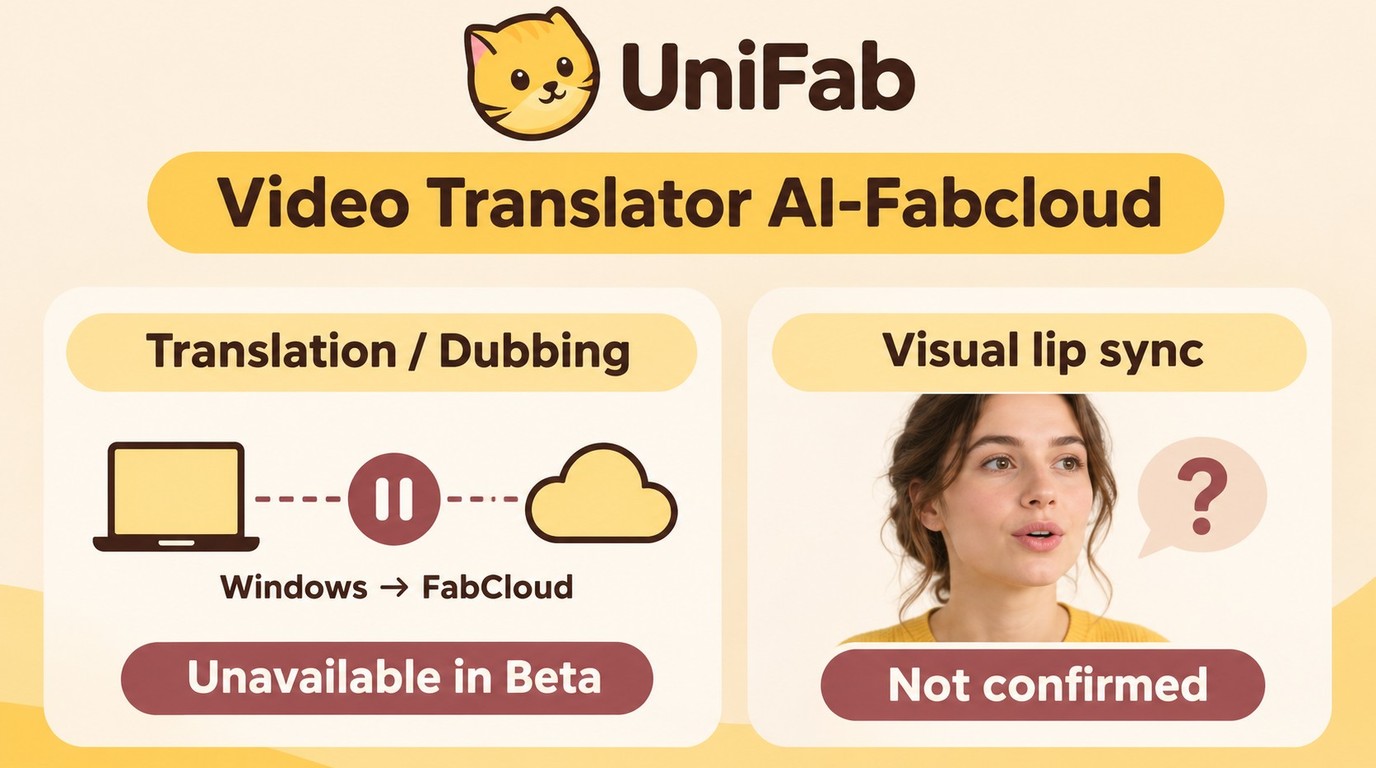
Video Translator AI-Fabcloud is UniFab’s Windows module for video translation and dubbing. I would place it in a translation workflow rather than treat it as a confirmed solution for rebuilding a speaker’s mouth movements.
Documented Capabilities and Availability Limits
Translation is currently unavailable in the Beta release; follow module availability updates through the official page linked above. For the training-video example, this places the module outside the immediate lip-sync delivery path.
Video Translator AI-Fabcloud is a Windows video-translation module documented for 23 languages and MP4 or MKV output up to 4K; translation is currently unavailable in the Beta release. Source-audio-track selection lets you identify the language track to translate when a file contains more than one. These are translation specifications, not a lip-sync quality rating.
The module uses FabCloud credits for cloud processing. It is not an offline translation workflow, so plan the upload and cloud-processing stage into the project. FabCloud plans start at 199.99 USD per year for the 600-credit annual plan.
Visual mouth reconstruction is not a confirmed capability, and subtitle-file download is outside the module’s scope; use its published module information to follow capability updates. I would keep the training project’s translation requirements distinct from its visual lip-sync requirement.
Frequently Asked Questions
Cost, platform eligibility, and client approval affect whether a translated clip reaches publication. I would settle the delivery requirements before expanding a sample into several language versions.
Can I Get AI Lip-Sync Translation for Free?
A: Free AI video translation access can cover an initial sample without covering a finished multilingual project. AI Studios offers free starting access, but that is not an unlimited lip-sync export allowance.
For a quote, identify the source duration, target languages, revision rounds, and required export. Ask whether voice generation and lip-sync processing share an allowance or consume separate credits. The useful comparison is the cost of your approved deliverable, including revisions, rather than the cost of the first upload.
Does YouTube Automatically Lip-Sync Translated Videos?
A: Not for every channel or video. YouTube’s automatic-dubbing help describes experimental lip sync for selected channels and eligible videos and languages.
On desktop, enable automatic dubbing before looking for the experimental-features setting. If that setting remains absent, the documented access route is not available to your channel. Separately, YouTube’s multi-language audio feature accepts prepared dubbed tracks; uploading an audio track does not itself regenerate the face.
What Should I Check Before Uploading a Client’s Video?
A: Obtain approval for the intended translation, voice use, and alteration of the speaker’s visible performance. A general editing assignment should not substitute for that conversation.
Agree on the cloud service, who controls the project account, who can access the footage, and how files will be removed after delivery. Give the client a sample showing the actual proposed use. I would also name the person responsible for language approval, so a visually convincing export does not become the default approval of the script.
Choose the Workflow That Matches Your Video
Use subtitles when reading the translation is enough, dubbing when the image can stay unchanged, and visual lip sync when the speaking face needs to match the new language. A built-in option fits when your channel and video are eligible; otherwise, an editor with lip-sync controls gives you a separate delivery route. For the training example, approve the terminology and exported sample before processing the full video. If ordinary narration over the control panel meets the brief, keep that simpler edit.