For a Spanish clip you need in English, choose a video translator app that delivers your required output: captions, a transcript, or dubbed speech. Free video translation access is useful when it includes the export you need; a playable preview alone does not finish the job.
I would judge that project by the file you can hand off. A readable preview is a poor substitute for editable captions when someone still needs to correct names or timing. Consider an example throughout this guide: your own short Spanish interview, prepared for an English-speaking audience. I'll separate the available outputs, then walk through a subtitle or dubbing workflow and the final export.
Choose by Output: YouTube, HeyGen, or HappyScribe
Choose captions when viewers should read a translation, a transcript when you need text, and dubbing when they should hear translated speech. For watching a YouTube video, an existing translated audio track is enough; creator-side automatic dubbing has eligibility requirements and does not translate arbitrary local files.
The request is often simpler than a full localization project. One reader in r/machinetranslation wanted an app that “adds subtitles (CC) from Spanish to English.” I would keep that interview in a subtitle workflow unless spoken English is part of the handoff.
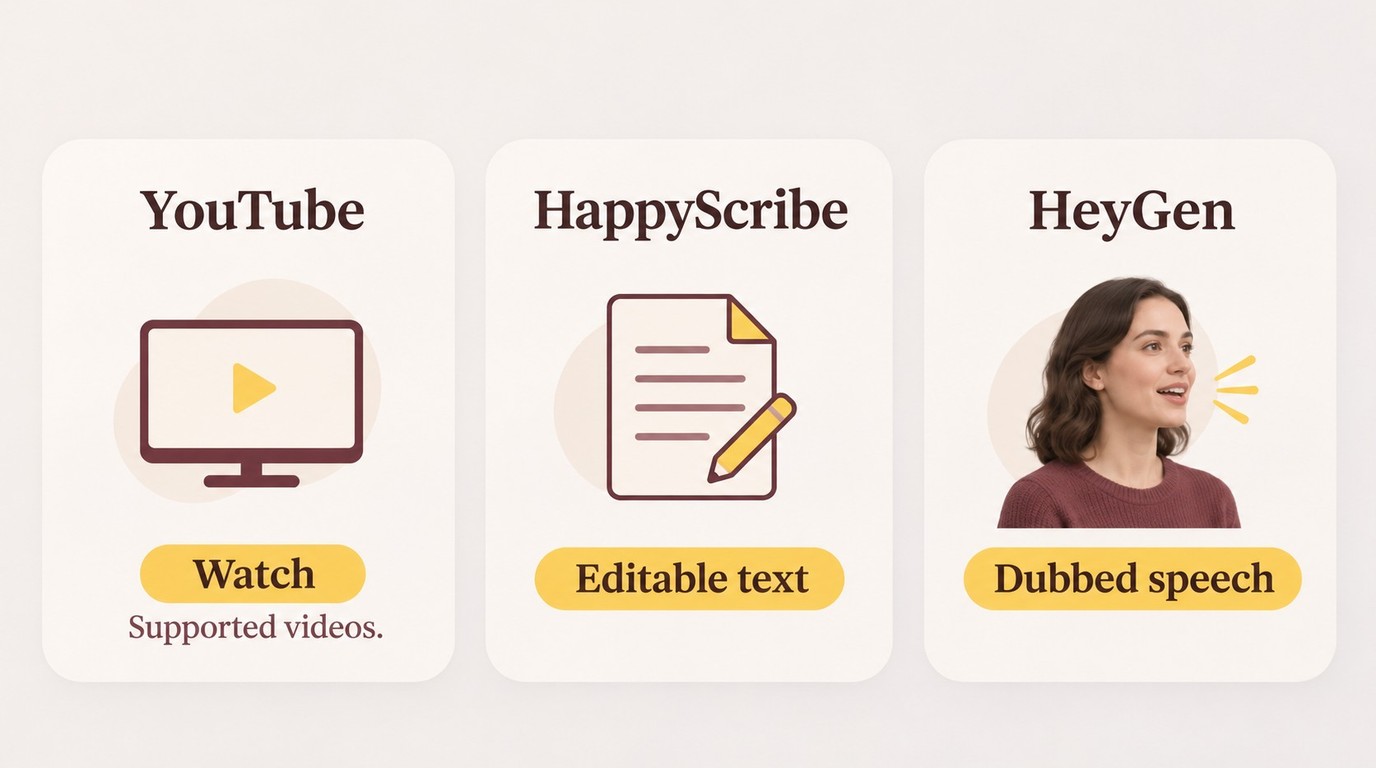
| Option | Output | Best fit | Advantage | Limitation |
|---|---|---|---|---|
| YouTube built-in | Available translated audio | Watching supported videos | No separate translation upload | Track or creator eligibility required |
| HeyGen | Dubbed video, lip sync | Spoken localization | 175+ advertised languages and dialects | Generated text needs review |
| HappyScribe | SRT, TXT, burned-in captions | Editable subtitle delivery | Separate text files | Subtitle workflow is not dubbing |
YouTube playback availability is described in YouTube Help. Capabilities as of November 2026.
For our interview example, an SRT handoff points toward subtitle editing; a translated presenter points toward dubbing. The best video translation app for those jobs need not be the same.
HeyGen for Dubbed Speech and Lip Sync
HeyGen fits a presenter-led interview that needs translated speech and matching lip movements. Its translation workflow combines voice generation with an Edit & Review stage, so you can correct the script before finalizing. I would use that review stage for names and technical terms.
- Import your video file or a supported video link.
- Select the target language and start translation.
- Open Edit & Review, proofread the translated script, and finalize.
That puts speech and visual delivery in one workflow. Generated wording still needs checking, and a free entry point does not mean unrestricted project capacity. HeyGen is a better fit for spoken localization than for a job whose sole deliverable is editable captions.
HappyScribe for Editable Subtitles and Transcripts
HappyScribe fits you when the handoff is translated text. Its workflow offers separate subtitles, a transcript, or captions burned into the picture. SRT preserves caption timing; TXT suits reading and text editing. For the interview, I would keep timed subtitles editable until the wording is approved.
- Upload the video or import a supported link.
- Set the original language and target language.
- Review the text, then choose subtitles, a transcript, or burned-in captions.
The advantage is control over the text handoff. This subtitle workflow does not create a lip-synced dub, and free access does not establish unlimited long-video processing. Choose it for caption revision or a written translation; choose a dubbing workflow when the audience needs to hear English.
Translate a Video with VEED in 3 Steps
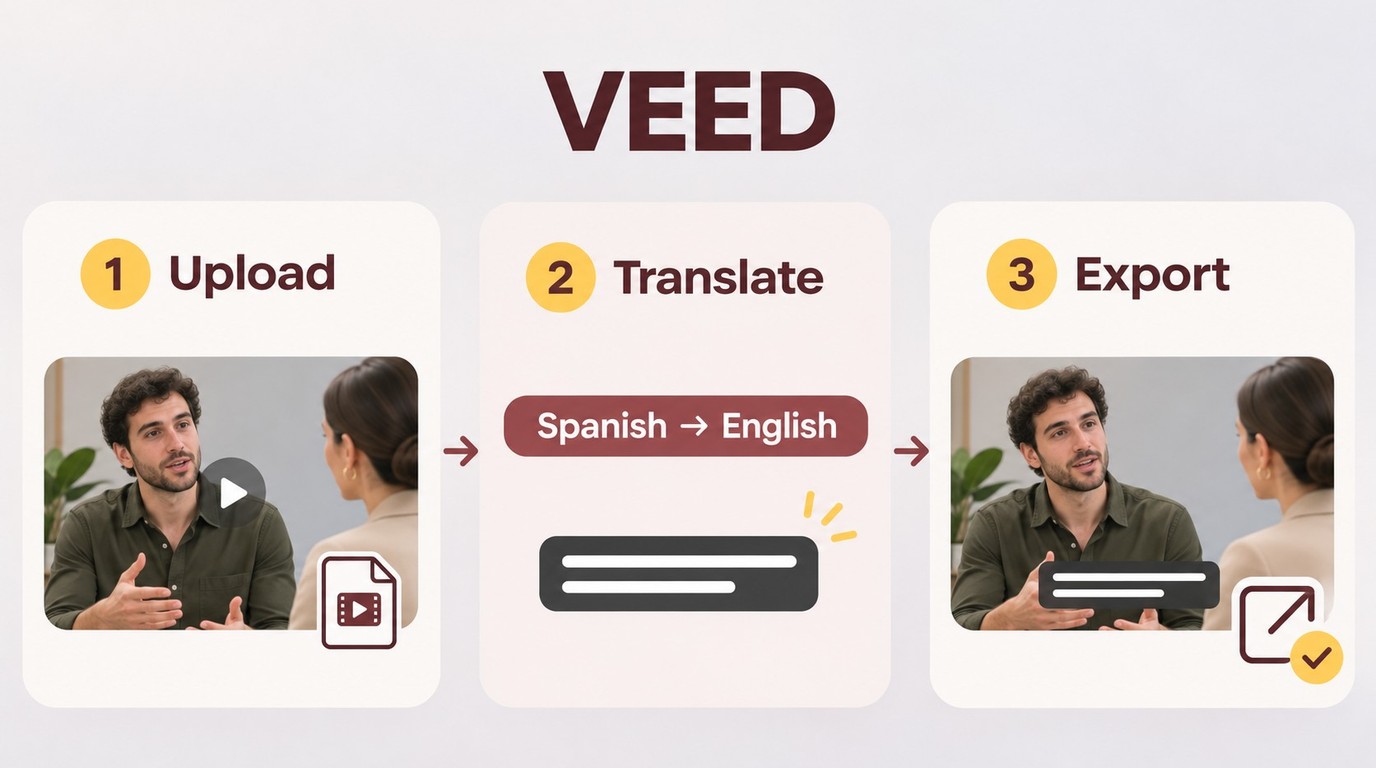
To translate a video with VEED, upload the clip, set its source and target languages, and choose subtitles or dubbed speech. Review the translation, then export the file type your account makes available.
- Upload your source video.
- Choose the source language, target language, and subtitle or dubbing output.
- Review the translation and export the required file.
The export is the finish line. I use VEED for this walkthrough because its editor supports both subtitles and dubbing, which lets the same interview example branch into either output without changing the source footage.
Have these ready: your source clip, its spoken language, the target language, an account with sufficient translation allowance, and access to the required export format. For a voice-matched dub, include the speaker's permission. For confidential interview material, establish that your organization allows uploading it to an online editor.
A small sample should include the difficult part. Choose a passage with a name, a technical term, and a speaker change if the interview has one. A clean introduction alone tells you little about the rest.
Step 1: Upload Your Video
Start with the correct interview file in VEED. Open the video translator and upload the clip from your device. Keep the original file unchanged so you can compare the translation against it.
Set Spanish as the source language and English as the target for this example. The source setting describes what is spoken; the target setting describes what you want to deliver. If the clip contains mixed-language passages, mark those passages for manual review rather than assuming one language setting resolves them.
Listen to the source before generating text. If background music masks a surname, find the correct spelling in your interview notes. AI video translation still needs that context. Give the reviewer a short glossary of names and terms so corrections stay consistent across the clip.
Keep the sample attached to its delivery requirement. Write “English SRT for further editing” or “English-speaking video” in your project notes. Those are different jobs.
Step 2: Choose the Language and Output
Use VEED's subtitle tools when you want captions. In the editor, open Subtitles, use Auto Transcribe to create source text, then use Translate and select English. Speech recognition supplies text when the video has no existing captions.
For dubbing, use the voice-translation path and choose the target language and an available voice option. VEED also offers voice matching, lip sync, and background-audio controls. Choose the features that serve the interview; a caption-only handoff does not require a replacement voice.
Keep subtitle coverage separate from voice coverage. A language offered for written captions is not proof that the same voice or lip-sync option exists. Select the actual target in the relevant control.
Decide how viewers will receive the captions. Separate subtitles remain editable and selectable in a compatible player; burned-in captions become part of the picture. A transcript serves a written handoff. For our interview, I would retain editable text through approval and burn captions in when the destination calls for visible text.
Step 3: Review the Translation and Export
Review meaning before styling the captions. One editor in r/VideoEditingTips wrote that “the accuracy and editing workflow haven’t always been great.” That is a reason to reserve time for corrections, not a verdict on every translation tool.
Compare the English with the Spanish sentence by sentence. Focus on these checks:
- Names and technical terms match your glossary.
- Numbers, dates, and negations preserve the speaker's meaning.
- Speaker changes do not attach a statement to the wrong person.
- Caption timing follows speech without hiding important on-screen text.
- Dubbed speech remains understandable at scene changes.
For the interview, an incorrect “did” versus “didn't” matters more than caption color. If you cannot assess the Spanish meaning yourself, have a bilingual reviewer approve those passages before release.
Export the deliverable your account makes available. VEED offers subtitle downloads including SRT, VTT, and TXT, alongside video export. Choose SRT for timed caption editing, TXT for a written transcript, or video output for the finished presentation. Treat successful text generation and permission to download as separate checks.
Open the exported sample outside VEED. For subtitles, load them with the matching interview file; for a dub, play the video and listen. My acceptance rule is simple: the English must make sense, stay in time, and arrive in the requested format before the full interview goes through.
Use only content and voices you own or are authorized to process, follow the tool's and hosting platform's terms, and take responsibility for how you use the result. Keep any backup for your own lawful personal use; do not redistribute or resell material without permission.
UniFab Video Translator AI: Windows Fit and Limits
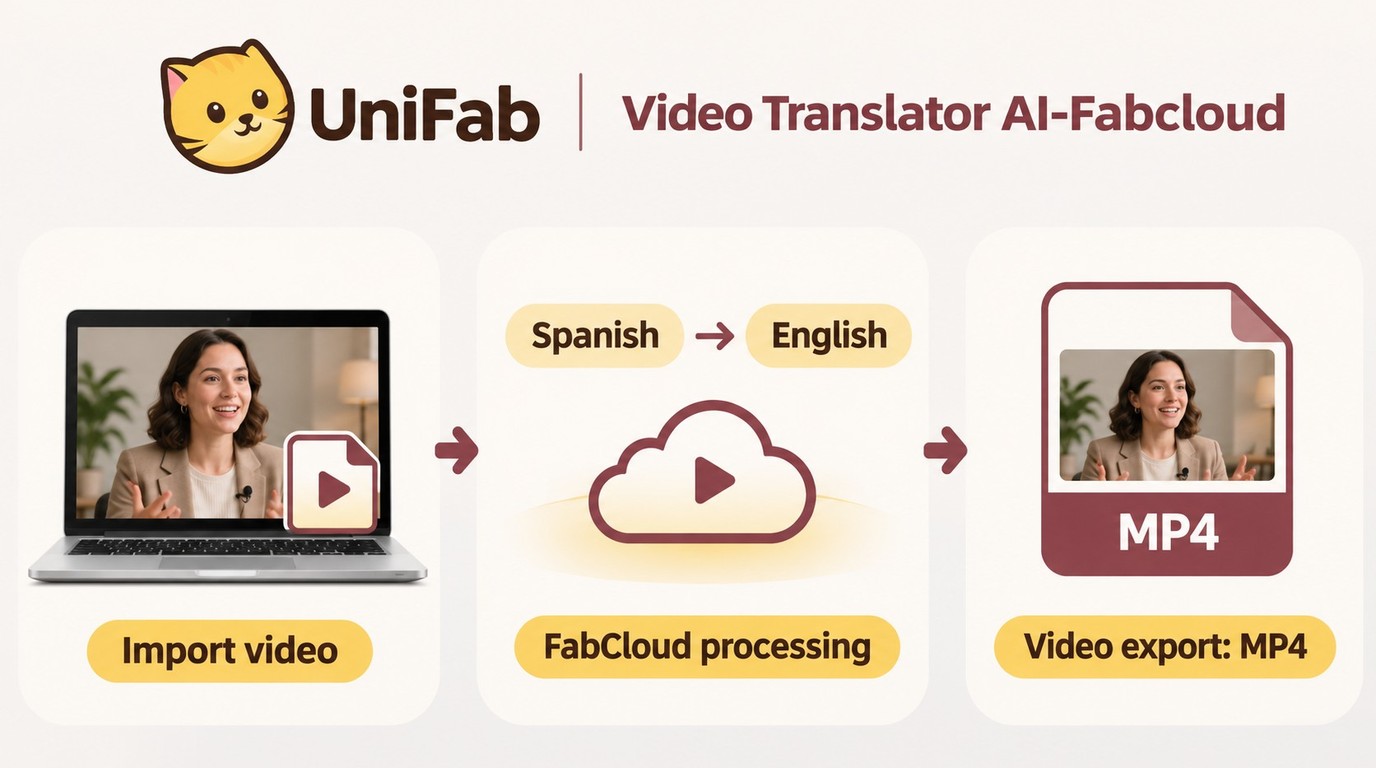
Video Translator AI-Fabcloud uses a Windows client with FabCloud processing, supports 23 languages including Spanish and English, and exports translated video in MP4 or MKV at up to 4K.
- Open Video Translator AI-Fabcloud in UniFab and import the interview.
- Select the Spanish source audio and choose English as the target language.
- Run translation and review the exported video.
I would use it for video delivery. Standalone subtitle downloads aren't supported; use video export instead. If translation is unavailable, use UniFab's update and troubleshooting resources for access, system, or credit issues.
Start from UniFab's official site, then open the translation module in your Windows client.
Video Translator App FAQs
Burned-in text, long projects, and phone apps require different checks from a short desktop edit. Keep the same deliverable in view; a phone playback translation is not automatically an exported subtitle file.
Can an app translate subtitles burned into a video?
A: Translating speech does not extract text already baked into the picture. One reader in r/androidapps asked about “the hard coded Chinese subtitles in a video.” That task needs optical character recognition (OCR) before the text is translated. If the clip also contains speech, a speech-based workflow translates what is said, which might differ from those captions. I would identify which content you need before choosing the app.
Can I translate an hour-long video without running out of credits?
A: An hour-long project needs an allowance that covers the selected operation and output. Read whether the account meters source minutes, generated minutes, or credits, and whether extra languages or reruns consume more. Credits are not automatically equivalent to minutes. For planning, note the charge shown for your sample and the allowance left in the account. I would leave room for corrections instead of spending the entire balance on the first generation; sample consumption is a planning aid, not a guaranteed full-project price.
Which video translator app can I use on an iPhone?
A: Lingvotube: Video translator is an iPhone option in the US App Store. Its developer describes translated captions and voiceovers generated from text or captions. That suits a subtitle-led viewing task, but it does not establish the same file-editing workflow as a desktop editor. The listing includes in-app purchases. For your interview, confirm that the app accepts the source and produces the file you need rather than treating translated playback as a completed export.
Which video translator app can I use on Android?
A: Video Voice Translate & AI Dub is listed on Google Play for Android. Its developer describes speech translation, dubbing, subtitle editing, SRT export, and live overlays. An overlay helps you read during playback; SRT export provides a separate subtitle file. Choose according to that distinction. The listing includes ads and in-app purchases, so installation alone does not establish unrestricted translation access. I would use a file export for an editing handoff and an overlay for on-screen reading.
Choose Your Output, Then Your App
Choose the output that finishes your task: readable captions, editable text, or translated speech. For the Spanish interview, I would approve the English meaning and timing in an exported sample before committing the full clip. Account allowances and export access still determine whether that workflow will deliver the handoff. Start with the file you need, and carry that requirement through to the finished result.