An automatic subtitle generator turns speech into timed text, saving you from typing a video word for word. Use YouTube Studio for captions on your channel; use an SRT file generator such as Clipchamp when you need a reusable file or captioned video.
I count subtitles as finished when they work in the intended player, not when words appear in an editor. Avoiding manual transcription and another app installation is a reasonable starting point. The catch comes when you need to move those words elsewhere. I'll walk through choosing an output, generating it, and checking the delivered file.
Choose an Automatic Subtitle Generator by Output
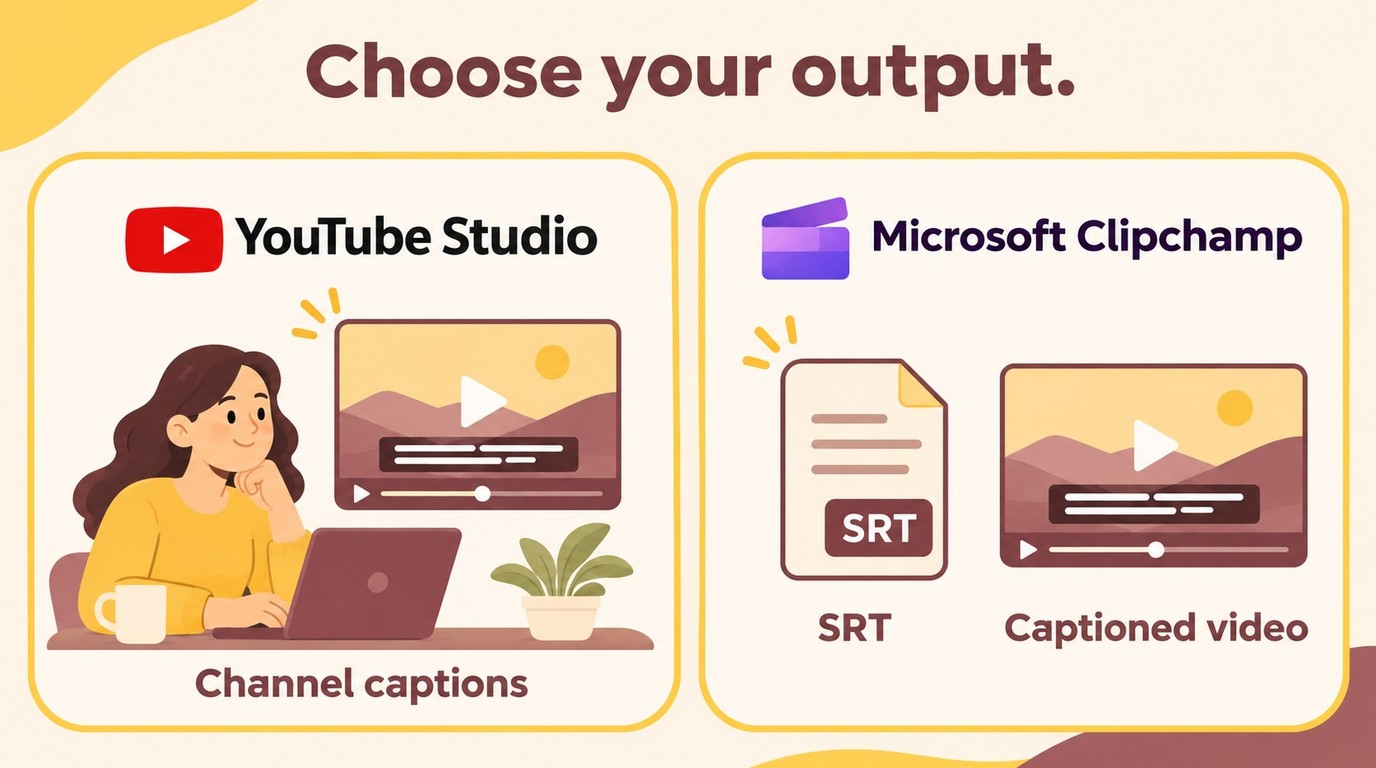
YouTube Studio suits captions for videos uploaded to your channel. Microsoft Clipchamp's personal version suits a separate SRT file or a video with visible captions, with free caption features for those tasks.
YouTube Studio or Clipchamp: Match the Tool to the Output
A browser workflow saves an installation, but it still involves online processing. Both options need an account and internet access; Clipchamp's speech recognition uses Azure services. For confidential footage, I would use a workflow approved for that material rather than treating browser convenience as a privacy guarantee.
One Reddit poster in r/EditingVideo captured the appeal: "Bonus points if I don't have to download anything." That fits an occasional clip. A reusable subtitle file adds another requirement: getting the text out of the editor.
| Tool | Fits | Input | Output | Access |
|---|---|---|---|---|
| YouTube Studio | Captions on your channel | Uploaded video | Platform captions; caption download | Creator account |
| Microsoft Clipchamp | Reusable SRT or captioned video | Video or spoken audio | SRT; captioned video | Free personal caption features |
Source: YouTube Help on automatic captioning, caption editing and downloads, and adding subtitles, plus Microsoft Support on personal autocaptions and plan features, as of November 2026.
YouTube Studio keeps caption editing beside your uploaded video. It also supports caption downloads, so platform captions aren't trapped there. Its constraint is the channel workflow: it is less direct when you want subtitles for footage you aren't uploading. Automatic captions use the default audio language on videos with multiple language tracks.
Clipchamp separates the subtitle file from the video export. That makes the free subtitle generator useful for a presentation, interview, or short social clip. Its personal-account interface also differs from work and school versions; use the personal workflow below. I would choose Studio for channel publishing and Clipchamp for a file you need to reuse.
Generate Subtitles and Export an SRT File with Clipchamp
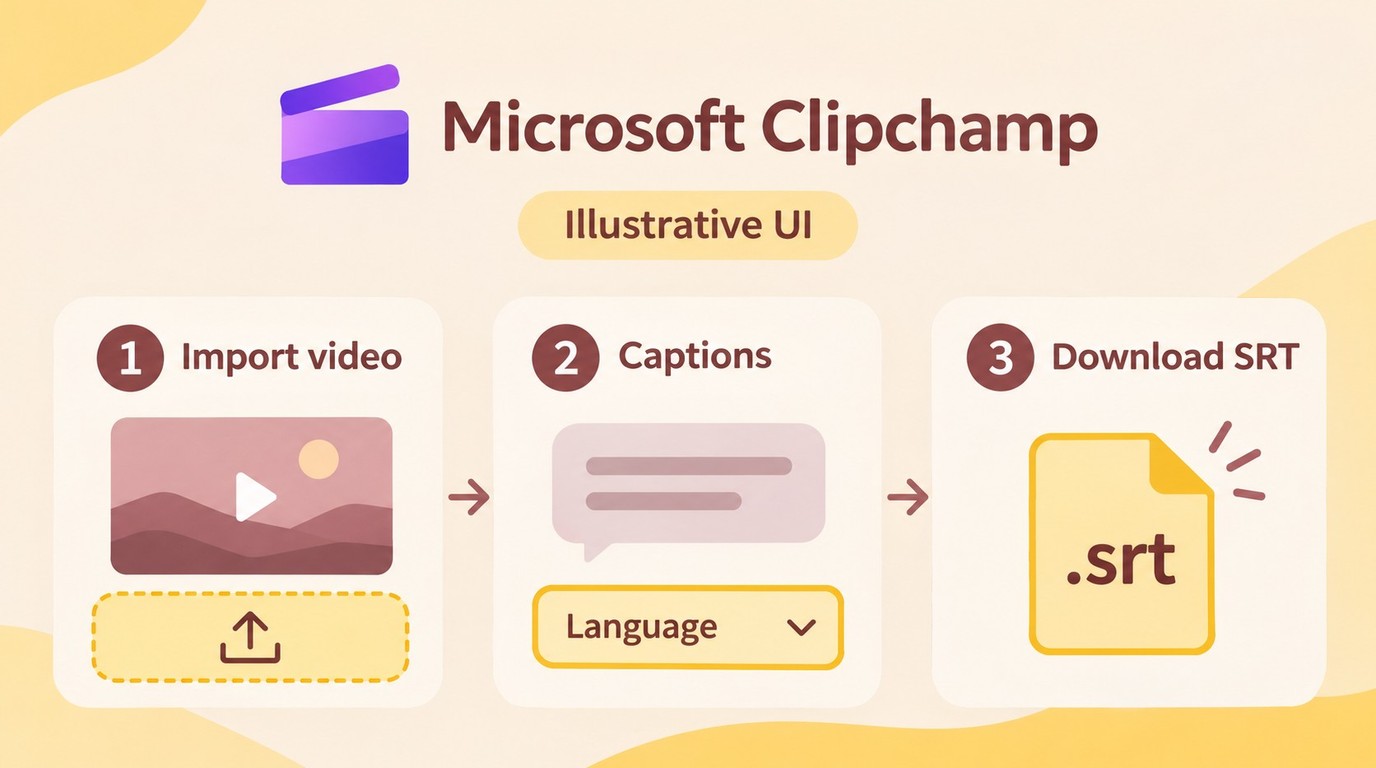
To generate an SRT file from video in Clipchamp, transcribe the spoken audio, correct the transcript, and download captions. You don't need to export a finished video to obtain that subtitle file.
Import Your Video and Generate Captions
Start in Clipchamp for personal accounts with a Microsoft account, an internet connection, and a video containing speech. Use Edge or Chrome on a desktop computer, or the Windows app. The personal version provides a browser-based free SRT file generator; the transcription itself isn't an offline operation.
- Import the video and add it to the timeline. Open a project in Microsoft Clipchamp, use My media to import your file, and drag it onto the timeline. Play enough of the clip to identify the speech you want captioned.
- Open the captions controls. Select the captions icon in the video preview or the Captions tab in the properties panel. Turn on autocaptions to open the transcription options.
- Choose the spoken language and transcribe. Select the language heard in the recording, then choose Transcribe media. Clipchamp generates a transcript in one language per video. Choosing English here tells recognition what to listen for; it doesn't translate Spanish dialogue into English.
The audio track and recognition language are different choices. A file containing commentary, a dubbed track, or music needs the intended speech to be audible in the timeline. Listen before starting transcription. Selecting a language doesn't select a different recording inside the file.
Review the Transcript and Save the SRT
- Correct the words in the transcript. Read the text in the captions panel while replaying the audio. Double-click a misspelled word to rewrite it, or delete text that wasn't spoken. The timestamps help you find the relevant passage without replaying the whole clip for each correction.
- Download the captions. Select Download captions to save the
.srtfile to your computer. Keep it with the matching video and give the pair recognizable names, such asinterview-final.mp4andinterview-final.srt. Those are naming examples, not a requirement imposed by Clipchamp.
Save the subtitle file after correcting the wording. A text correction made later in the project won't change an earlier download sitting on your drive. I would treat the corrected SRT as the deliverable, with the editor project retained for revisions. A styled preview alone doesn't complete that handoff.
Choose a Subtitle File or a Captioned Video
- Preview the intended delivery. For a subtitle file, load the SRT alongside the matching video in your target player or upload it to the destination's caption controls. Check synchronization near the beginning and end. For visible captions in a social clip, keep captions shown in Clipchamp, adjust their appearance, and export the video. Play that exported file to confirm the text appears as intended.
The output determines what travels with your video. An SRT contains caption text and timing; don't expect the editor's font, placement, or animation to travel with it. The receiving player controls presentation. Captions embedded in the video picture travel with the picture, but viewers cannot switch them off as a separate track.
A separate file gives you room to revise. When you add subtitles to a video, preserve the SRT if you expect another language version or a later correction. For a short clip that must display text wherever it is shared, inspect the exported picture instead of relying on a caption toggle in the editor.
Process only material you own or are authorized to use, and keep any saved third-party content for your own lawful personal use without redistribution or resale. Follow the relevant platform and tool terms; you remain responsible for the content you process and share.
Check Caption Accuracy, Watermarks, and Export Limits
Review generated captions for wording, synchronization, and readability before publishing. Check subtitle-file access separately from the video's watermark, resolution, and duration limits; a free generation button doesn't answer those export questions.
Review Words, Timing, and the Final Export
Recognition saves typing, but it leaves editing work. A Reddit poster in r/VideoEditingTips described the problem as "accuracy drops when people talk fast, or there’s an accent, or background noise". That is a reason to inspect difficult passages, not an accuracy score for a particular tool.
- Names and numbers: Compare names, dates, amounts, and technical terms with the recording.
- Overlapping speakers: Check who said each line when voices interrupt each other.
- Silence and music: Remove invented dialogue from passages without speech.
- Synchronization: Confirm captions arrive with the words and haven't drifted later in the video.
- Reading and sound cues: Check line breaks, contrast, and meaningful sounds needed to understand the scene.
I would budget review time around difficult audio, not just video length. An interview with clear turn-taking needs a different review from a noisy group conversation. YouTube's automatic-caption guidance identifies accents, background noise, and overlapping speech as recognition problems.
A watermark concerns the video picture. An SRT is a text file, so downloading one doesn't establish whether the video export will carry branding or require an upgrade. Clipchamp personal's free plan includes automatic captions and SRT download, plus video exports through 1080p; 4K export belongs to its other personal plans.
A long video also needs a workable allowance. Before committing a movie-length project, establish the account's transcription allowance, accepted duration, and download access. No-watermark, no-sign-up, and unlimited-length claims describe different conditions. Carry those same output and audio checks into a desktop workflow, rather than assuming installation settles them.
When UniFab Subtitle Generator AI-Fabcloud Fits
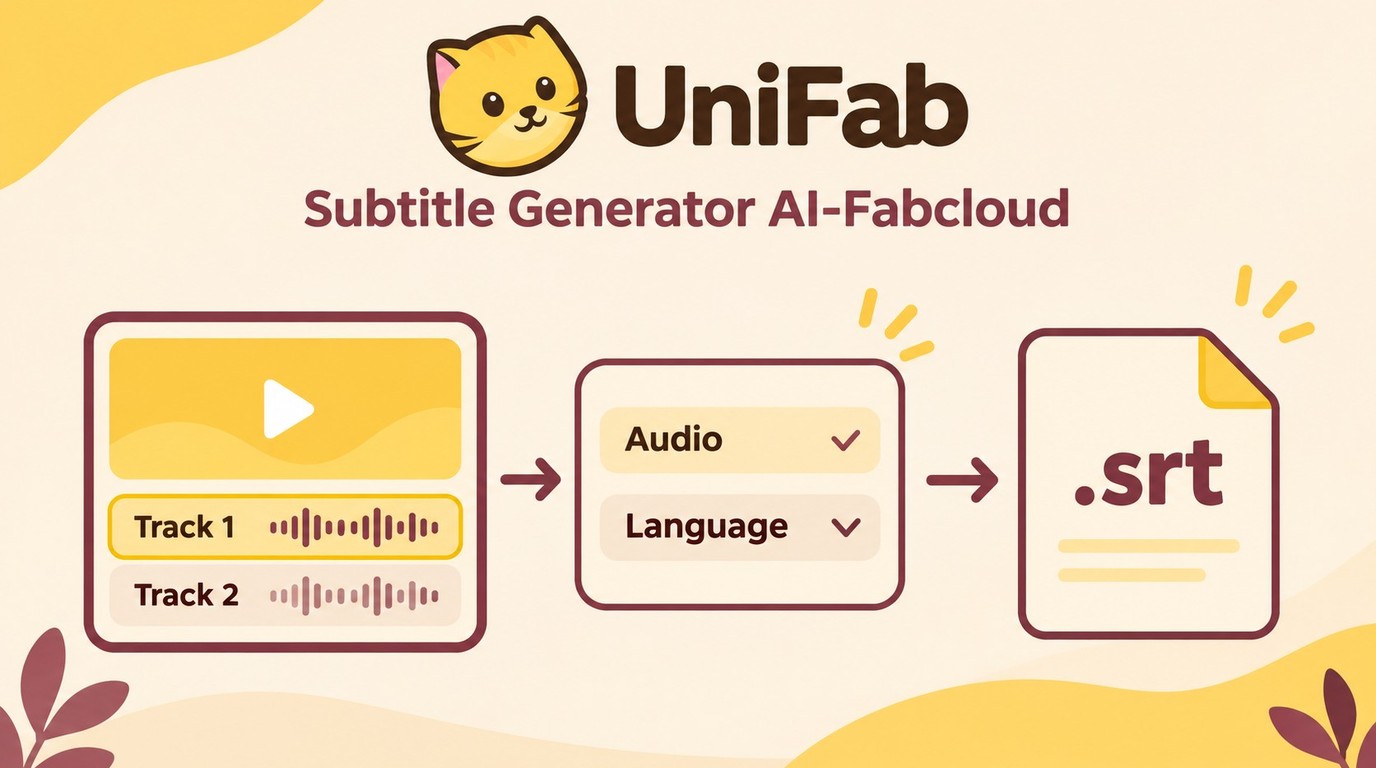
UniFab Subtitle Generator AI-Fabcloud fits a Windows or macOS project that needs downloadable SRT subtitles and audio-track language selection. That suits you when the task is preparing a subtitle file to use alongside video.
Match the Confirmed Capabilities to Your Project
Subtitle Generator AI-Fabcloud supports Windows and macOS, SRT subtitle downloads, and video resolution up to 4K, so you can prepare a separate subtitle file for a desktop video project. The resolution describes video, not the text file. SRT remains timed text regardless of the picture's resolution.
Audio-track language selection helps match the subtitle task to the dialogue you intend to use. Keep that choice distinct from translation: selecting a track's language isn't a promise to produce subtitles in another language. I would match the source audio and required subtitle format before making the handoff to a player or publishing platform.
Use the downloaded SRT as a reusable companion to the matching video. Batch download support concerns downloading files, rather than a promise of batch transcription. Likewise, a desktop installation doesn't establish offline recognition.
Advertisement editing sits outside this subtitle module; prepare a cut without unwanted segments before generating subtitles. That keeps the text aligned with the video you actually intend to deliver.
For a Windows or Mac project needing SRT output and audio-language selection, get started with Subtitle Generator AI-Fabcloud.
Automatic Subtitle Generator FAQ
Audio-only recordings and existing transcripts need different starting points. Neither removes the need to deliver captions that preserve the meaning of the recording, including important sounds beyond speech.
Can I Generate Subtitles from an Audio File Instead of a Video?
Yes. Clipchamp personal’s free plan can generate captions from spoken audio and lets you download them as an SRT file. The result is timed text linked to that recording, so you don't need to shoot a video just to obtain a transcript with caption timing. I would keep the SRT beside the original audio and check it against the final recording. Music without speech isn't a spoken transcript, and changing the audio edit afterward will require another synchronization check.
Can I Turn an Existing Transcript into Timed Subtitles?
Yes, with a transcript-alignment workflow. YouTube Studio's Auto-sync accepts a transcript in a supported language that matches the spoken audio and aligns it with the video. That is different from recognizing speech from scratch or translating it. If you already have corrected text, I would preserve it and align it rather than introduce fresh recognition errors. Review the resulting timing, particularly around pauses and changes of speaker, before publishing the caption track.
Are Automatic Subtitles Enough for Accessible Videos?
Treat them as a draft. Spoken words alone don't capture an off-screen speaker, an alarm, or a sound that explains a character's reaction. Add speaker identification and meaningful sound cues where they help someone understand the video without hearing it. I would judge the result with sound muted: does the captioned version still communicate the scene? Finish by checking file compatibility, accurate wording, and essential sound information in the version your audience will actually watch.