You can turn spoken dialogue into editable, timed captions with an AI subtitle generator, then export an SRT file. If you need subtitles for a finished video, use an SRT file generator that lets you correct words and timing before downloading, rather than delivering only a video with text attached.
I treat the correction pass as the dividing line between generated captions and usable subtitles. An interview can have recognizable words yet still be awkward to read when phrases break in the wrong places. My focus here is getting that draft ready for delivery, without confusing a transcript with a timed file. I'll walk through generation, review, export, and the handoff to YouTube.
Before You Generate Subtitles: Check Outputs and Free Limits
Choose a timed SRT file when you need editable captions for YouTube or a video editor. Choose a captioned video when the words must remain visible, and a plain transcript when you need text without playback timing.
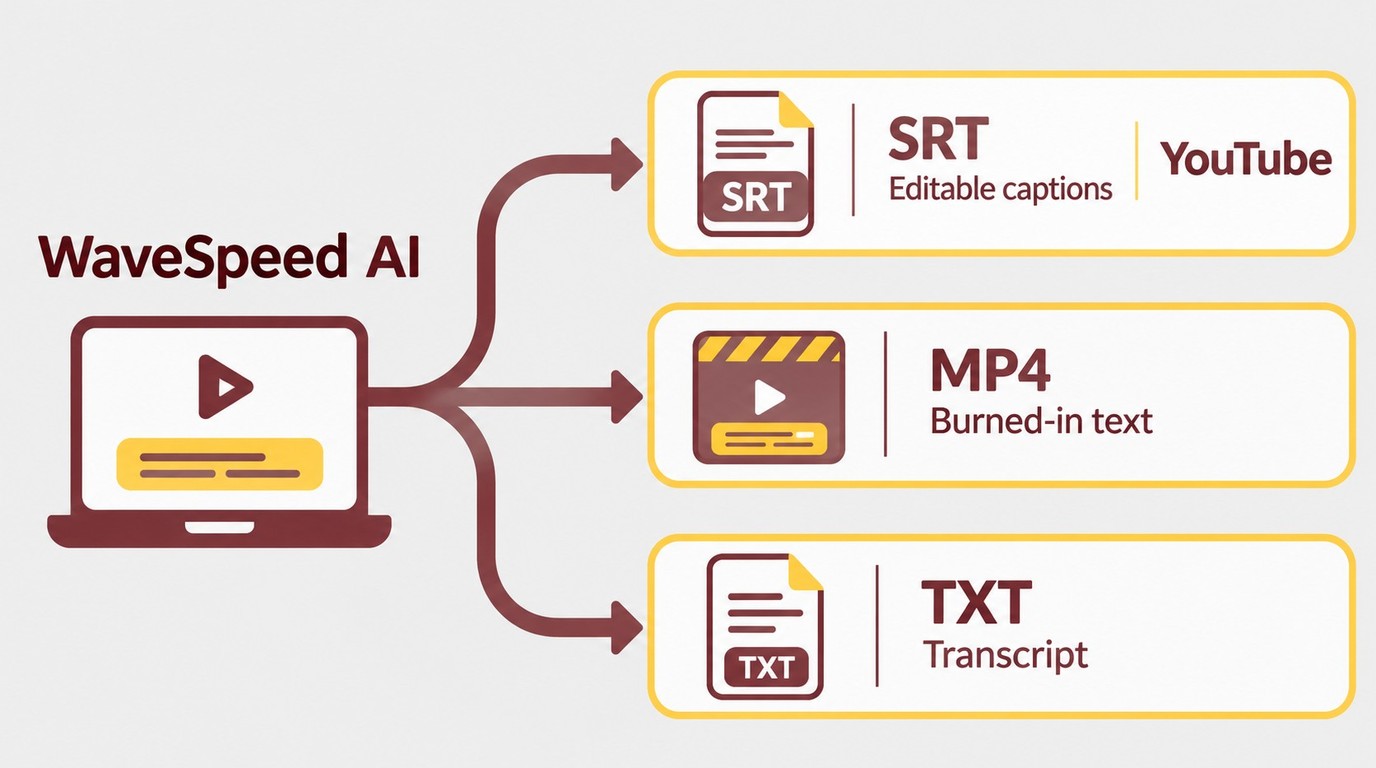
Start with a video or audio file containing the speech you want transcribed. Listen to its audio and decide where the finished subtitles will go. A silent clip needs written captions added by an editor; speech recognition has no dialogue to transcribe.
| Output | Keeps Timing | Editable Text | Fixed Visual Style | Use Case |
|---|---|---|---|---|
| SRT file | Yes | Yes | No | YouTube caption upload |
| Captioned MP4 | Rendered into video | Requires editing project | Yes | Sound-off social video |
| Plain TXT transcript | No | Yes | No | Text review |
I would keep the SRT when you expect wording changes after approval. Replacing a caption file avoids rendering the video again. For a branded social clip, adding subtitles to a video also involves choosing whether viewers should be able to turn the text off.
Free generation and free export are separate conditions. Before committing a long interview to a free subtitle generator, inspect its download options, minute allowance, file restrictions, and video watermark rules. A watermark concerns a rendered picture; an SRT contains text and timing, not video pixels. It has no video resolution.
Captions also need to work without sound. Include meaningful audio cues and speaker identification when the scene needs them, rather than treating a dialogue transcript as a finished accessibility track. Font and color choices belong to the styled-video branch; readable wording and useful timing matter on either path.
Generate an SRT File with WaveSpeed AI
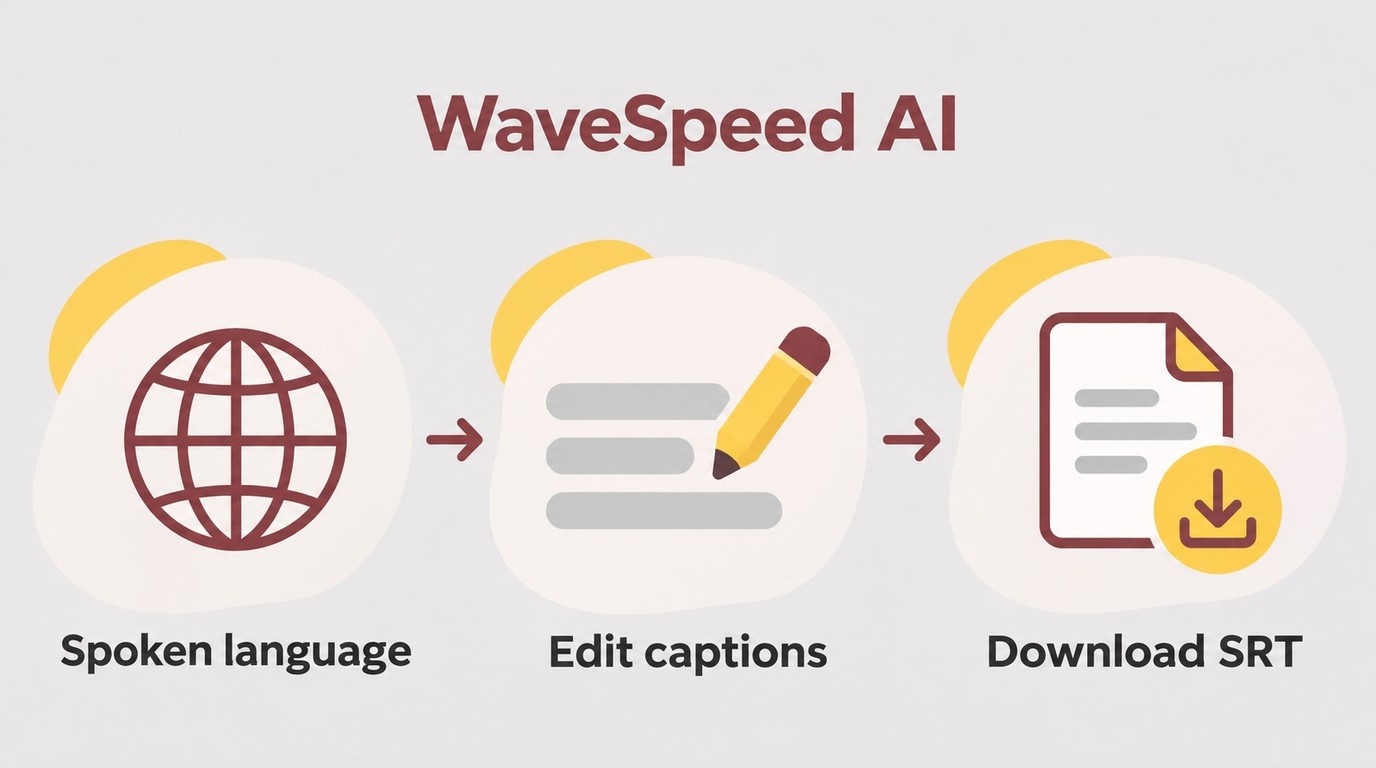
Use WaveSpeed AI Subtitle Generator to import your file, generate and edit captions, then download SRT. The browser workflow fits an individual file you can review yourself; a long interview still needs a full correction pass.
Have your source file ready and allow the browser to download its speech model on first use. The browser must be able to run that model. For a deadline, I would start with an excerpt containing the hardest speech before committing the entire recording.
As of November 2026, this subtitle tool is listed as free, with no account, watermark, minute limit, or file-count limit. Those conditions describe this tool, rather than the site's other services. No stated minute cap is different from a promise that a lengthy file will finish on your device.
Add Your File and Choose the Spoken Language
Match the language setting to the speech, not the audience. That avoids asking the recognizer to interpret English dialogue as another language.
- Open WaveSpeed AI Subtitle Generator and choose your local video or audio file.
- Set Spoken language to the language you hear.
- Choose Fast or Accurate under Quality.
Keep this first pass focused on transcription. If you need translated subtitles, review the original-language text before translating it; a mistaken name or amount otherwise carries into the next version. For a recording with multiple audio tracks, listen to the track presented in the preview and confirm it is the intended dialogue.
Generate Captions and Correct Words and Timing
Read against the audio, rather than correcting from context alone. A sentence that sounds plausible on the page can still reverse a speaker's meaning.
- Select Generate subtitles and wait for the caption draft.
- Correct words, especially names, amounts, abbreviations, and missing negatives.
- Split or merge captions around complete phrases.
- Drag caption edges on the timeline to adjust when each appears and disappears.
I count that review as part of generation, not optional cleanup. One Reddit poster in r/editors described the remaining work: "I still end up spending a lot of time fixing small errors, adjusting breaks, and cleaning things up manually."
Replay unclear passages instead of filling gaps by guesswork. Pay particular attention to overlapping voices, background music, and words at the beginning or end of a sentence. A wrong number deserves correction before a decorative caption style does.
Break lines where the thought pauses. Keep a name with its title and avoid separating a short preposition from the phrase that follows it. If a caption disappears before you can comfortably read it, revisit the wording and its time window together. Longer display time should not leave an old sentence over the next speaker.
Download the SRT File and Check Playback
Save the timed file rather than a plain transcript. Renaming a TXT file to SRT does not add the missing timestamps.
- Select Download SRT and save the file alongside the matching video.
- Load that SRT with the same video in your intended player or editor.
- Review playback, including the opening, speaker changes, and ending.
The separate captioned-video download is for text rendered into the picture. It does not replace the editable subtitle file for a YouTube caption upload. Keep filenames tied to the video version and language so that a later edit does not silently inherit old timing.
Use the file with the final cut. Removing an introduction after captioning shifts everything that follows; fixing isolated words will not repair that mismatch. I would resolve an incorrect video version before nudging individual captions.
Process only content you own or are authorized to use, and keep personal use lawful under the tool's and destination platform's terms. You remain responsible for content rights and any permission required to distribute the result.
Upload Your SRT File in YouTube Studio
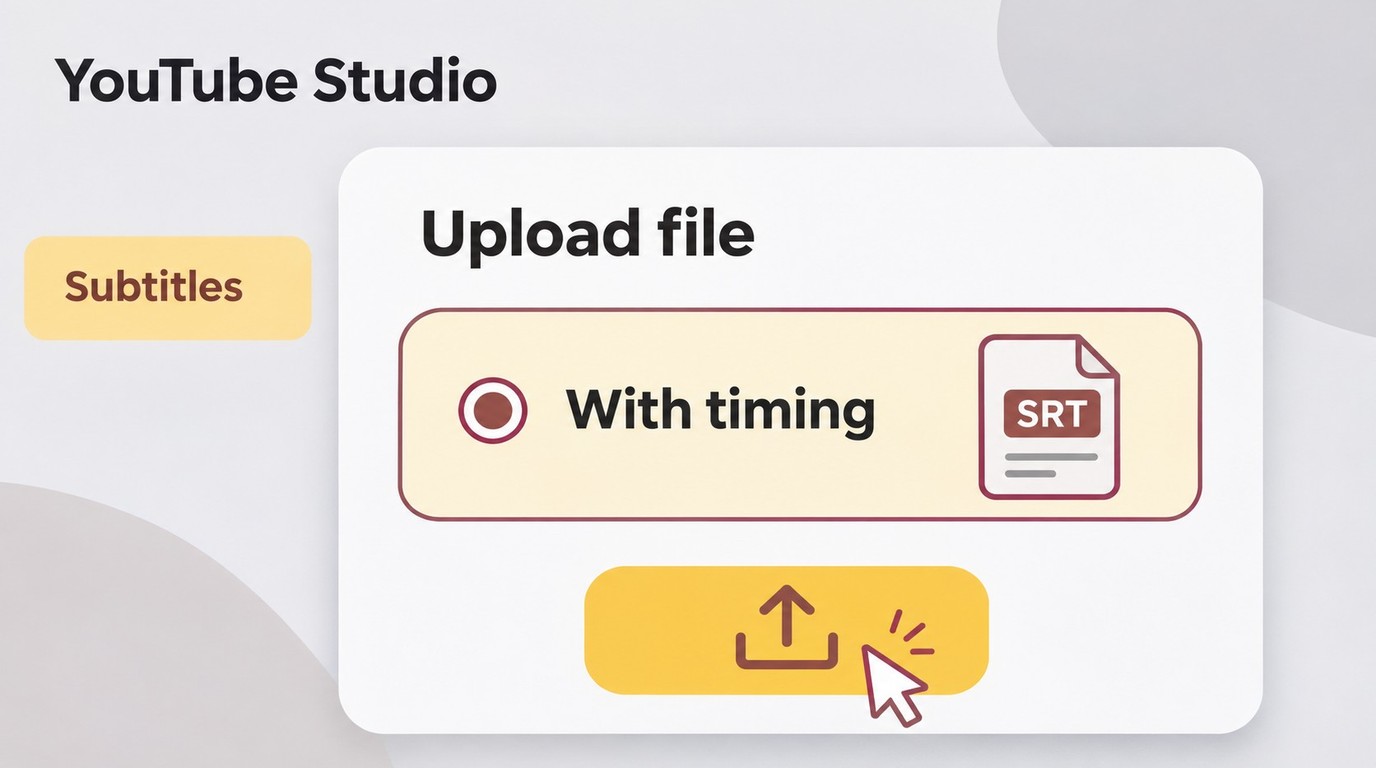
Upload a timed SRT through YouTube Studio using Upload file and With timing. You need access to manage subtitles for the target video and a file in the correct language.
- Sign in to YouTube Studio and select Subtitles from the left menu.
- Select the video you want to caption.
- Choose Add language, select the caption language, and select Add under subtitles.
- Choose Upload file, select With timing, and continue.
- Select your SRT file, review it, and save.
I would preserve reviewed timestamps by uploading the timed file. Auto-sync is a separate route for transcript text that needs alignment. YouTube's caption-upload instructions distinguish these options; generating a draft again is unnecessary when your corrected file is ready.
Check Encoding, Language, and Caption Playback
Use plain UTF-8 for basic SRT. YouTube's supported subtitle-file requirements specify this encoding and explain that SRT style markup is not recognized. If a name contains accented characters, inspect it after upload. Keep the caption-language label consistent with the text inside the file.
Check for doubled text during playback. A Reddit poster in r/davinciresolve described this symptom: "it renders both my updated subtitles and the original SRT subtitles." That example concerns an editing project, but the distinction matters here too: words already rendered into the picture remain visible when you turn a separate caption track off.
For YouTube, toggle captions during your final review. If text remains with captions off, inspect the uploaded video itself. If the wrong words disappear with the toggle, inspect the selected caption track. This separates a picture problem from a subtitle-file problem before you make changes.
Once that upload works, your YouTube handoff is complete. A desktop subtitle workflow becomes relevant when you want generation, audio-language selection, and downloadable files within that environment.
When UniFab's Subtitle Generator Fits Your Workflow
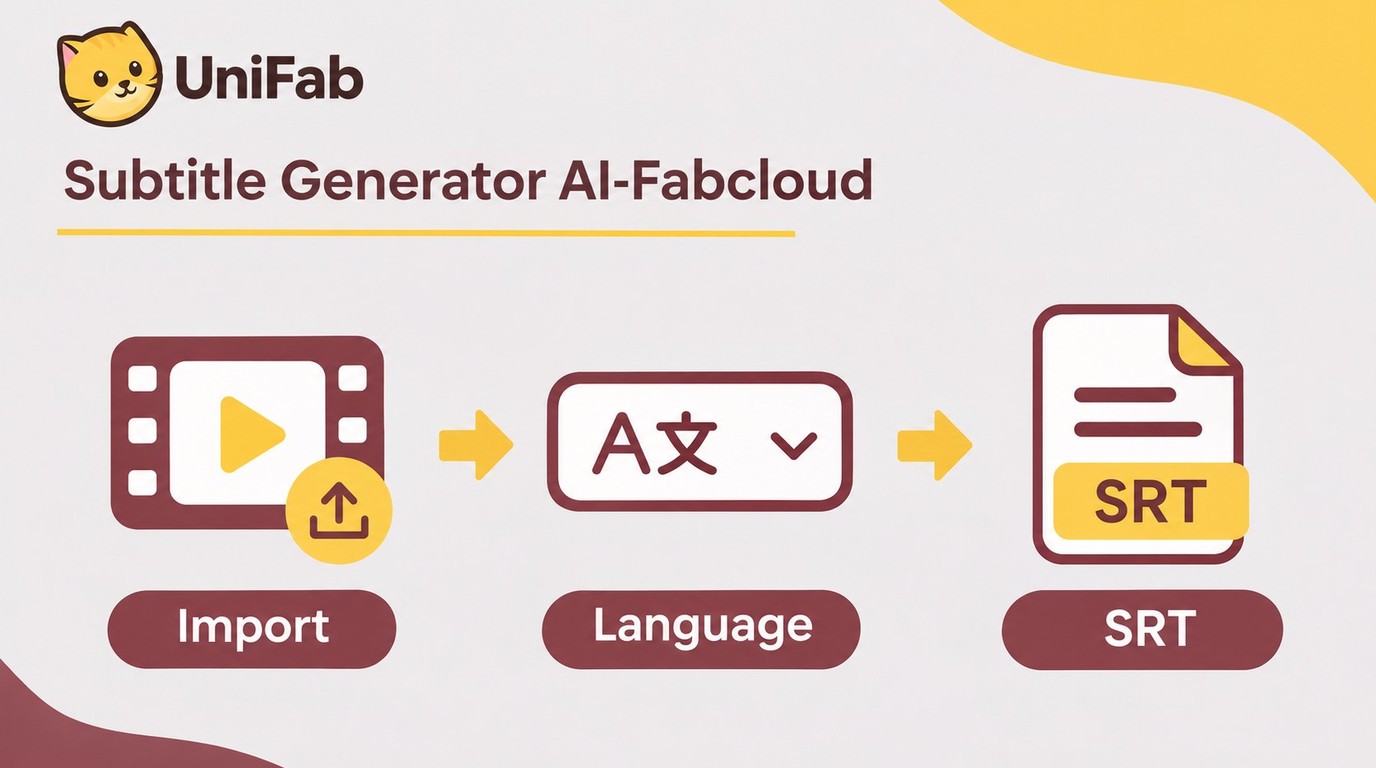
Subtitle Generator AI-Fabcloud fits you if you work on Windows or macOS and need downloadable SRT subtitles with audio-track language selection. Its SRT output carries editable text and timing, so it fits the caption-file handoff described above.
Match the Confirmed Capabilities to Your Project
I would use the desktop workflow for a project where selecting the intended audio language and keeping a separate subtitle file are part of delivery. Audio-track language selection identifies the source dialogue; it is a different choice from translating that dialogue into another language.
Keep the workflow short:
- Open UniFab's Subtitle Generator module and import your video.
- Choose the language settings for your subtitle task and start generation.
- Export the SRT and review it against the matching video.
The subtitle output is SRT rather than a video with styled captions rendered into the picture; the subtitle file can move into a video editor for that finishing step. That makes this a caption-file workflow rather than a phone-first styled-video workflow. Batch download support helps collect the resulting files, without implying that recognition of every file happens together.
New FabCloud accounts receive 30 cloud credits to try cloud tasks, and the FabCloud annual plan starts at USD 199.99. For a desktop project that needs an editable subtitle deliverable, start with Subtitle Generator AI-Fabcloud.
AI Subtitle Generator FAQ
Translation, account access, and on-device recognition are different capabilities. I would resolve the one that changes your project before generating a full subtitle draft.
Can an AI Subtitle Generator Translate into Another Language?
A: Transcription writes the spoken language; translation changes it. Selecting a Hindi audio track is not the same as translating English captions into Hindi. Check that your chosen tool supports the required direction, then open the exported file and inspect its language. One Reddit poster in r/SubtitleEdit asked, "For some reason, it still tries to export the original version, not the translated." I would keep the corrected original and translated file separately so the wrong version does not reach upload.
Can I Generate Subtitles Without Creating an Account?
A: Yes. The browser subtitle tool used above lists no signup requirement for this function. That does not describe every service on the same website. You still need the first speech-model download, so account-free use does not mean an offline first launch. If signup is your main obstacle, stay within that subtitle function rather than assuming the site's other creation tools follow the same access rules.
Can Subtitle Generation Run on My Device Instead of Uploading the Video?
A: Yes. The browser tool used above describes on-device recognition with video and audio kept on your device. A model download and cloud media upload are different transfers. For a long recording, local processing still uses your device's resources; for a multi-track source, verify the intended dialogue before starting. I would not infer local-only processing from a desktop interface alone, because installed software can also use cloud services.
Choose Your Subtitle Workflow
Keep an SRT when you need editable, timed captions; render text into the video when its appearance must travel with the picture. For YouTube, upload the corrected timed file through Studio rather than rebuilding it from a transcript. I would call the job finished after checking the words, caption boundaries, and actual playback, because a successful export is a file, not proof that the subtitles are ready for viewers.