Here’s the short answer: a blurry video fixer can improve resolution, compression artifacts, and noise, but it cannot perfectly restore detail that was never captured. Start by identifying the blur type, then choose the matching fix before applying an AI blurry video fixer or exporting a new MP4.
This guide maps six common causes of blurry footage to the right treatment, explains where UniFab fits, and walks through previewing and exporting a repaired file without adding unnecessary blur.
Why Videos Look Blurry
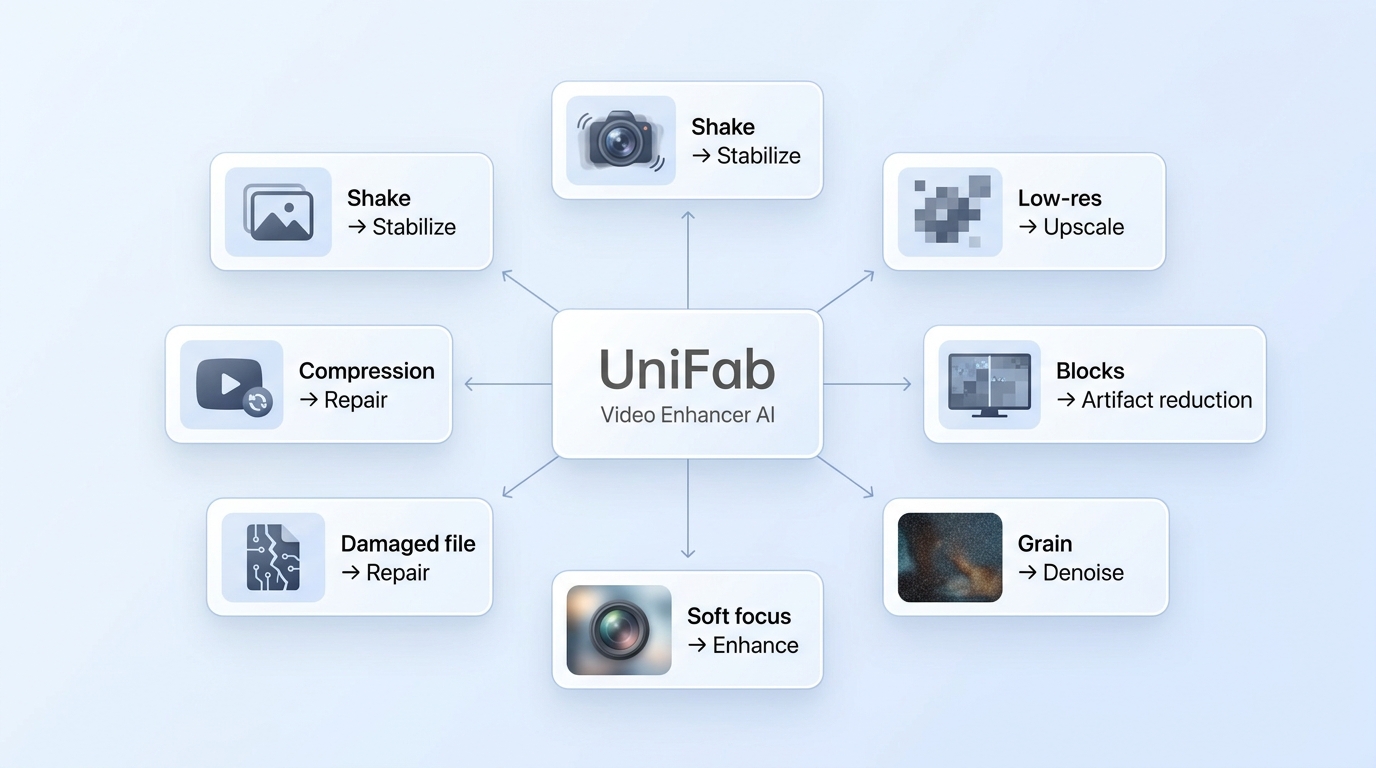
Before reaching for a blurry video fixer, it helps to understand what caused the problem. Here are the most common reasons videos turn out blurry:
| Symptom | Likely cause | Best first action | Key limitation |
| Blur during movement | Camera shake | Stabilize, then test deblurring | Heavy motion blur may remain |
| Soft, blocky image | Low resolution | Upscale with an AI model | New detail is reconstructed |
| Blocks or smearing | Compression | Reduce artifacts before sharpening | Use the best source available |
| Grainy dark footage | Low light or noise | Denoise cautiously | Too much reduction removes texture |
| Soft subject | Focus loss | Use modest enhancement | Severe focus loss cannot be recreated perfectly |
| Playback errors | File corruption | Repair the file first | Sharpening will not fix corruption |
Different video blur types need different treatments. Diagnosing the symptom before choosing a tool helps avoid over-sharpening, which can make faces, text, and edges look artificial.
UniFab as a Blurry Video Fixer
Best fit: Desktop users who want model-based restoration, local video processing, and more export control. It is less suitable for someone who needs a quick browser-only edit.
UniFab Video Upscaler AI is available for Windows and Mac and can process supported video files locally. Its four models target different source types, and it supports batch processing with output options up to 16K. Results still depend on the source, especially when footage has severe focus loss, motion blur, or compression damage.
Key Features and Fit
UniFab Video Enhancer AI's key offerings are worth a discussion. Take a look at the key features that highlight the strengths of this software.
- Four source-specific models: Equinox is general-purpose, Vellum targets texture, Kairo is tuned for anime, and Titanus is intended for cinematic footage.
- Resolution options: Output can be set from 720p and 1080p through 4K, 8K, and 16K.
- Batch and local processing: Supported files can be processed in batches on a Windows or Mac computer.
The model depth is most useful when you work with varied footage and can compare previews. For an occasional one-click touch-up, that level of control may be more than you need.
Which UniFab Model Fits Your Footage?
Match the model to the footage and preview more than a single still frame. Check faces, fine text, backgrounds, edges, and motion before committing to a full export.
| Source type | Blur problem | Recommended model | Trade-off | Preview checkpoint |
| Textured landscapes | Soft detail | Vellum | May add texture | Foliage and edges |
| Compressed clips | Blocks and smearing | Equinox | Can reveal artifacts | Faces and moving edges |
| Anime footage | Soft lines | Kairo | Check for flicker | Line art and subtitles |
| Movies and TV footage | Low-resolution detail | Titanus | Compare across scenes | Faces and backgrounds |
| Models | Features |
| Vellum Model | Boosts surface details and fine textures — perfect for photos that need improved clarity and depth |
| Equinox Model | Upscales quickly with a balance of quality and performance—great for faster results with decent visual output |
| Titanus Model | Designed for movies, TV series, and other cinematic content, this model focuses on quality and accuracy rather than speed |
| Kairo Model | Tuned explicitly for anime-style images, it preserves clean lines, vivid colors, and stylistic accuracy during upscaling |
Model choice matters more than a headline resolution setting: prioritize natural detail retention and video artifact reduction over an aggressively sharpened result.
Evaluating UniFab Models for Blurry Footage
A useful AI blurry video fixer evaluation checks more than sharpness. Compare the source and preview across foreground and background detail, faces, text, edges, and motion, then look for halos, smearing, texture loss, or frame-to-frame inconsistency.
Vellum on Low-Resolution Footage
For low-resolution landscape footage, Vellum is the model to preview when texture and surface detail are the main concern. Compare foliage, building edges, and distant backgrounds across several frames; excessive settings can create artificial texture or halos.
Fit verdict: Vellum is worth considering when texture is present in the source and natural detail retention matters more than maximum sharpness.
Equinox on Compressed Footage
Equinox is the general-purpose option to preview for compressed clips or mixed footage. Check blocky backgrounds, faces, fine text, and moving edges, since pushing sharpness too far can make compression artifacts more visible.
Fit verdict: Use Equinox as a starting point when the source has several mild problems rather than one clearly defined defect.
Kairo on Animation
Kairo is tuned for anime-style footage. Preview line art, flat color areas, subtitles, and fast movement to confirm that the original style remains consistent and that outlines do not flicker or look overly processed.
Fit verdict: Kairo is the most relevant starting point for animation, but a short preview remains important for preserving the intended artwork.
Fix and Export a Blurry MP4
30-day Free Trial for full feature, without watermark!
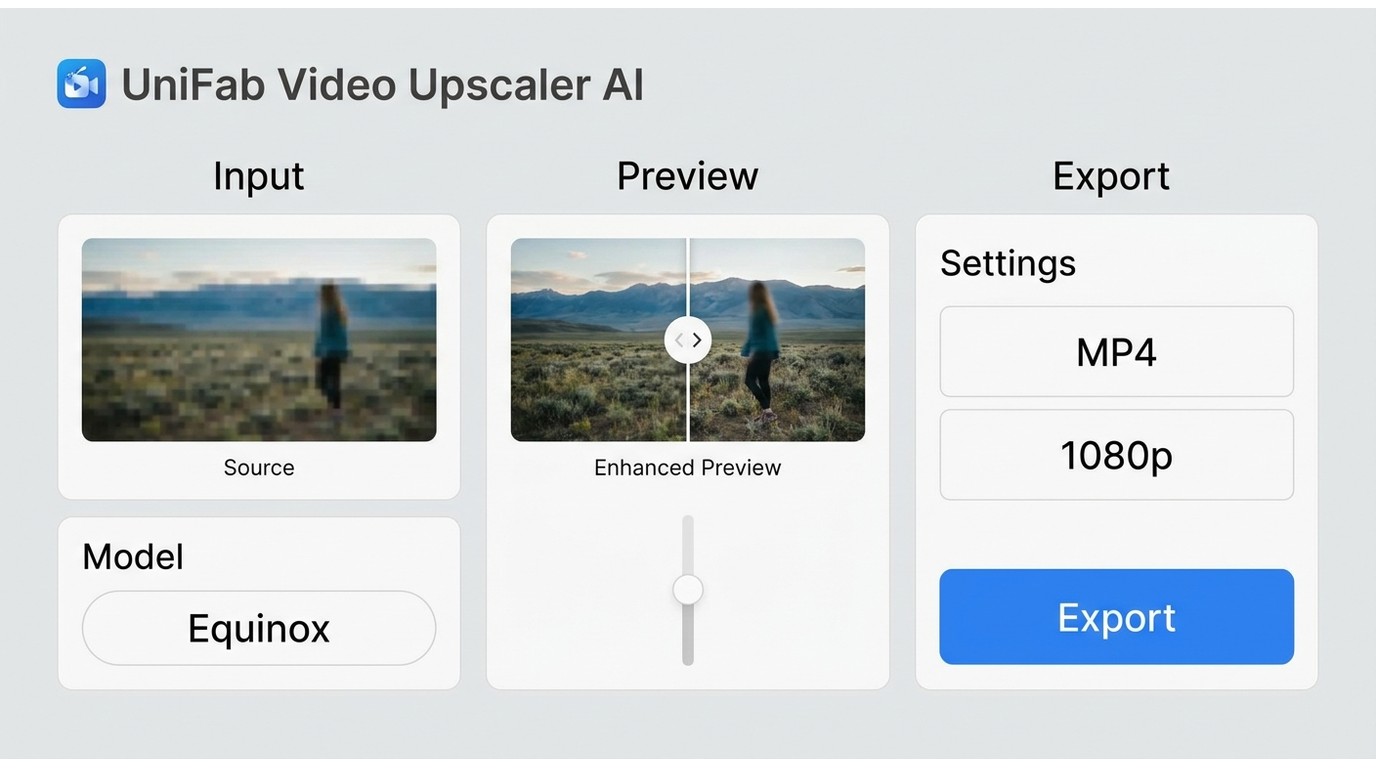
- Step 1Launch UniFab and Import a Low-res Video
Download and run UniFab on your PC or Mac computer from the official site. Once done, click All Features in the left sidebar. And tap the Video Upscaler AI module. Find and select the low-res videos you want to make sharper. Now, just hit the Add Video button to bring in your footage.
- Step 2Begin the Blur Removal and Video Upscaling
Select 4K resolution, quality, etc., to tailor the output video. Tap Start. Now, you’ll get a sharper, higher-quality video.
If an export fails, confirm available storage, try a shorter clip, select another model, and test a different supported source format. If local hardware is the constraint, consider the cloud-processing option described below.
UniFab Plans and Pricing
Video Upscaler AI includes three processing attempts. The yearly plan is $99.99 per year, and the lifetime license is $129.99 as a one-time purchase. A Titanus Model DLC is also available for $39.99 as a one-time purchase.
| Option | Duration/Prices | Features and Highlights |
| Processing attempts | 3 attempts | No-watermark processing |
| Lifetime license | $129.99 one-time | Four models; output up to 16K |
System Requirements and Processing Options
Video Upscaler AI supports Windows and Mac. For local video processing, hardware affects processing time and the practical size of a project. Supported inputs include MOV, MP4, AVI, MPEG, WMV, F4V, MPG, TS, and FLV; output is available in MP4 or MKV, with selectable resolution and codec settings.
For a reliable export, select a resolution that fits the source and destination, choose the codec deliberately, and set a bitrate appropriate to the output. These controls affect the final file as much as the enhancement model does.
Choose local processing when you prefer to keep files on your computer and have suitable hardware for repeat workflows. FabCloud is the better fit when local hardware is limited, although it is less suitable for footage you do not want to upload. Browser-based convenience is useful for small jobs, while readers comparing online video quality enhancer tools should expect fewer desktop-style controls.
Platform Parameters | Requirements/Specifications |
Operating System | Windows or Mac |
RAM | Windows: Hardware needs vary by project Mac: Hardware needs vary by project |
GPU | Windows: A compatible GPU can improve processing Mac: Processing capability varies by hardware Apple Silicon and Intel-based systems can differ in processing capacity |
CPU (Mac) | Intel Macs: Capability varies by configuration Apple Silicon: Capability varies by configuration |
What UniFab Users Report
On Trustpilot, UniFab is rated 4.2/5 from 168 reviews, as of August 2026. Feedback commonly mentions the interface and enhancement features, while performance can depend on the source file, export settings, and available hardware.
For longer projects, use a short preview and verify an export before processing the complete file. That step is especially important when local hardware is limited or the footage includes difficult motion and compressed detail.
Tips for Avoiding Blurry Videos
Good tools can fix blurry footage, but it’s always better to avoid blur when filming. Correct filming practices, regardless of device, help prevent blurry footage that needs fixing later. To create clear and sharp videos, it all starts with the right setup and technique.
Use these practical tips to prevent blur and record sharp videos before considering post-production fixes.
Tips | Description |
Quality Camera Gear | For stunning, professional-quality videos, choose a high-quality camera and lens |
Clean Camera Lens | Cleaning your lens before every shoot can prevent unwanted blur in your footage |
Good Lighting Conditions | Good lighting is key—record in bright spaces to reduce grain and keep your video clear |
Proper Settings Usage | To avoid pixelation and motion blur, resolution and focus must be appropriately set to match the environment |
Use a Tripod or Stabilizer | A tripod keeps your camera steady and helps prevent motion blur when filming |
Choose the Right Blurry Video Fixer
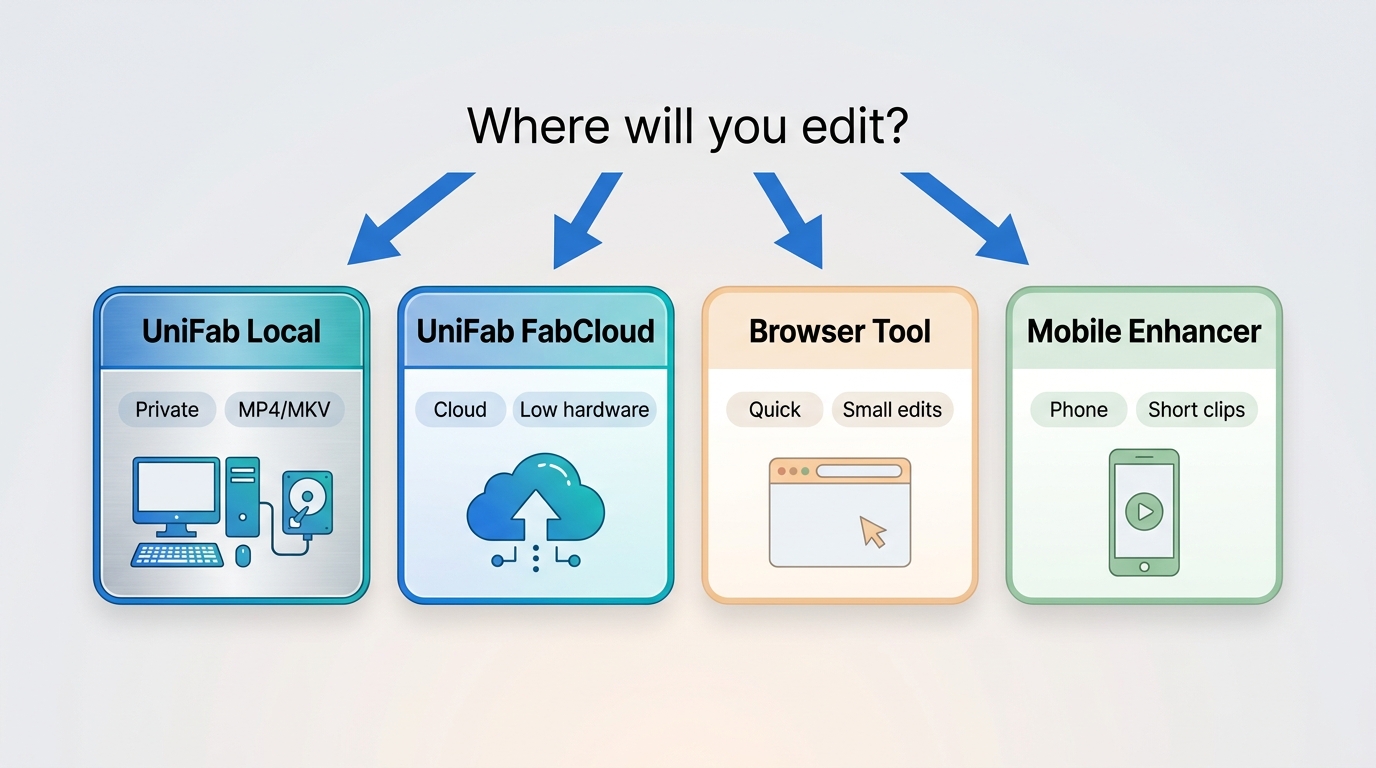
Choose a workflow based on where processing happens, how much control you need, and how sensitive the file is. A desktop tool provides more control, while browser and mobile options prioritize convenience.
| Workflow | Best fit | Processing location | Preview and export | Main limitation |
| UniFab local processing | Repeat desktop projects | Your computer | Detailed MP4 or MKV control | Needs capable hardware |
| UniFab FabCloud | Limited local hardware | Cloud | Convenient processing | Requires uploading files |
| Browser-based clearer | Small, quick edits | Browser | Simple export choices | Fewer desktop controls |
| Mobile enhancer app | Short phone clips | Phone or tablet | Fast sharing workflow | Limited preview control |
For a practical decision, choose local processing when control and file sensitivity matter, FabCloud when local hardware is the constraint, a browser tool for a quick unblur video task, and a mobile app for a short clip. Readers comparing lower-cost desktop options can also review free AI video upscaling software before committing to a larger workflow.
Factor | What it Does |
| Powerful AI Enhancement | Crucial for intelligently restoring details and effectively sharpening blurry visuals |
| Upscaled Resolution | Enables low-quality videos to look great on HD and larger displays |
| Noise Reduction & Frame Repair | Helps remove grainy effects and repair broken frames, significantly improving video quality |
| User-Friendly Interface | Makes the tool approachable and simple, even for those new to it |
| Speed and Format Compatibility | Delivers efficient processing and seamless support for numerous file types and batch workflows |
When UniFab Is the Right Fit
UniFab is a reasonable fit when you need local processing, model choices for different source types, and controlled MP4 or MKV export. It is not the natural choice for a quick browser-only correction or footage with detail that was never captured. Diagnose the blur first, then use a representative short clip to check faces, text, backgrounds, and motion before committing to a long export.
Blurry Video Fixer FAQs
Can AI recover detail that was never captured?
AI can reconstruct plausible detail and reduce visible defects, but it cannot guarantee recovery of information absent from the source. Preview faces, text, backgrounds, and motion before exporting, especially when the original footage is severely blurred or compressed.
Can a messaged phone video be improved?
Yes, but start with the least-compressed original you can find. Messaging apps often discard detail before an enhancer sees the file, so AI can reduce visible compression and improve clarity without restoring every lost detail. A free video enhancer app can be convenient for a short phone clip, while desktop processing offers more preview and export control.
Why does my fixed MP4 look blurry after upload?
A platform may recompress an otherwise clear file. Match the exported resolution and frame rate to the source, use an appropriate codec and bitrate, and avoid uploading a file that has already been recompressed several times. Compare the local MP4 with the uploaded version to separate export issues from platform compression.
What should I do when an AI export fails?
First, confirm that the destination drive has space and retry with a short section of the project. Then test another supported source format, change the model, and review local hardware compatibility. If the problem is tied to local processing capacity, cloud processing can be an alternative for files you are comfortable uploading.