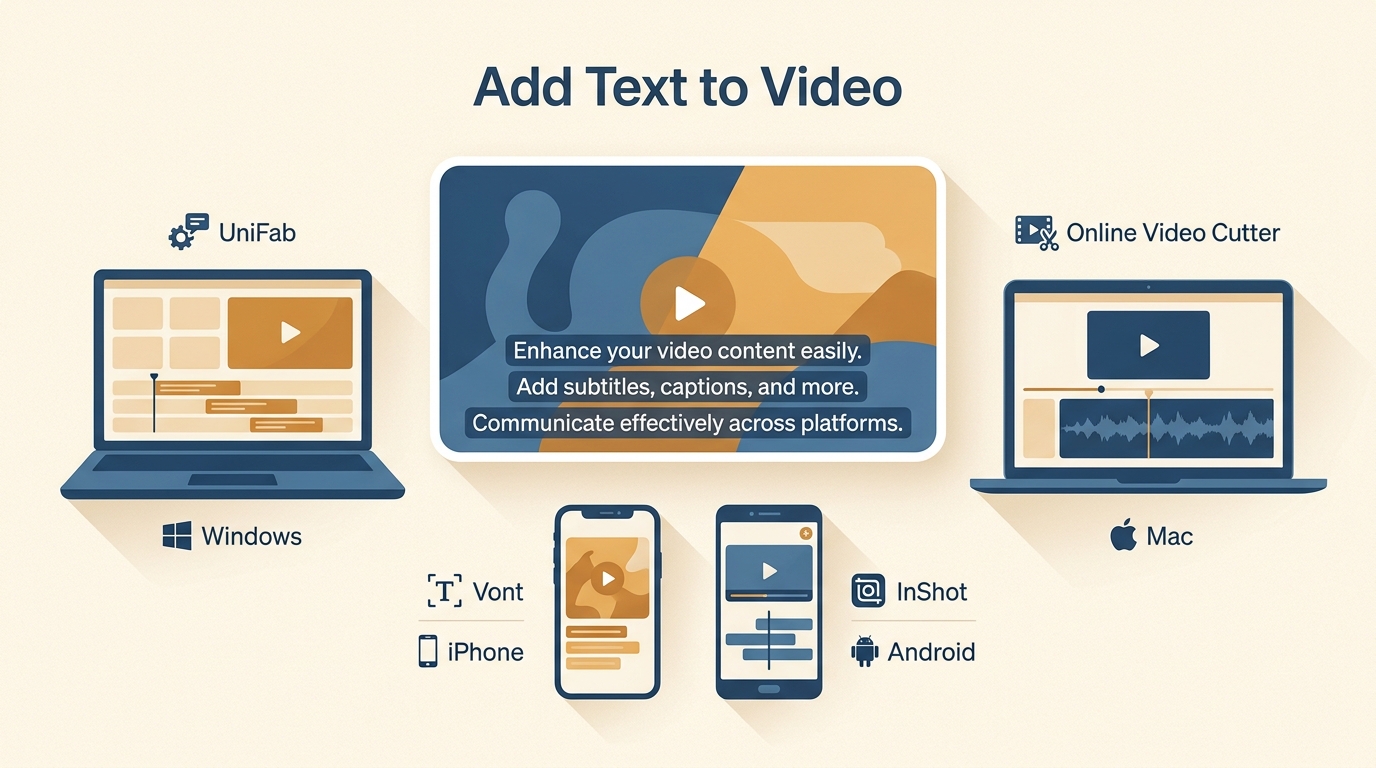
To add text to video, start by deciding whether your existing clip needs a short title or speech captions. Import the clip, add text or captions, set the timing, and export the finished video. If you simply want to add words to a video, Harper Seven recommends choosing the output first: use a text layer for visible labels, or an editable subtitle file when spoken dialogue needs review before rendering.
Why Text Helps Viewers Follow a Video
Clear on-screen text can emphasize key points, identify speakers, and help viewers follow a video without sound. Choose the text type by purpose: overlays highlight visual information, subtitles present dialogue, and captions add accessibility context.
The two linked clips show different presentation styles. Compare their text placement, emphasis, and silent-viewing context rather than treating view totals as evidence that text caused an engagement difference.
| Reference | What to observe |
| Podcast video with on-screen text | Placement, emphasis, and how text competes with faces and graphics |
| Podcast video without added text | How much context remains clear when the viewer watches without sound |
Text Overlays, Subtitles, and Captions Compared
Choose the text type before choosing the app. Decorative overlays, dialogue subtitles, and accessibility captions solve different problems even when they appear in the same part of the frame.
| Text type | Main purpose | Speech transcription | Typical output |
| Text overlay | Titles, labels, calls to action, and emphasis | No | Editable layer while working, then burned into the exported video |
| Subtitle | Spoken dialogue, often translated | Yes | SRT sidecar file, soft subtitle track, or burned-in text |
| Closed caption | Dialogue plus useful sound cues for accessibility | Yes | Toggleable caption track or platform caption file |
If detailed subtitle-file workflows are the main goal, use the guide to add subtitles to a video. This page stays focused on choosing and placing text.
Add Text in Four Simple Steps
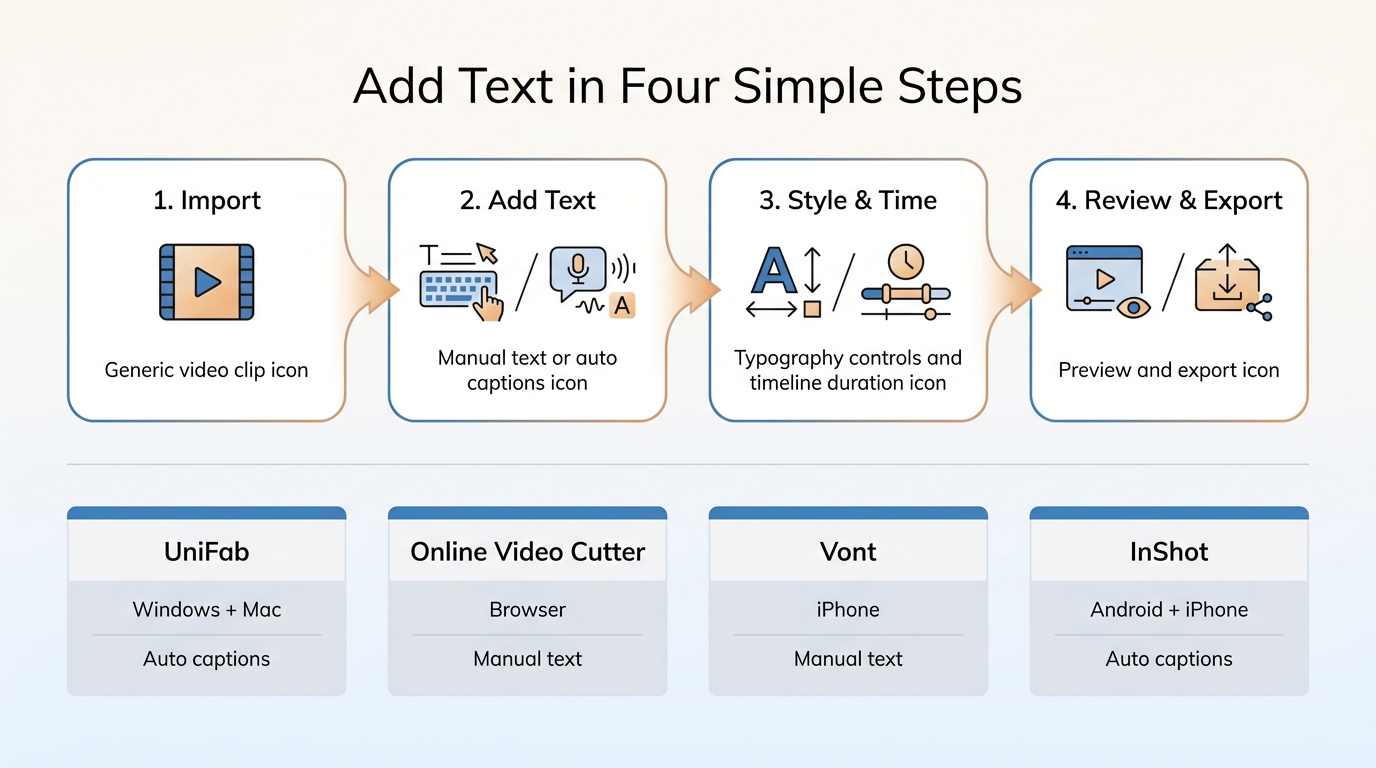
The basic process is the same whether you add words to video manually or add text automatically from speech. Start with the output you need, because a separate SRT file and visible text baked into the picture are not interchangeable.
Saving an editable project keeps its text layers available for later changes, while exporting or rendering creates the finished delivery video.
- Import or upload the video. Use only video, audio, and other material you own or are authorized to edit; you are responsible for the rights to the content you upload. Use the original file when possible so the editor has enough detail for a clean export.
- Add text or generate captions. Type a title, label, or callout, or let a caption tool transcribe the spoken audio.
- Set appearance and timing. Adjust font, color, position, line breaks, and each text block's start and end points.
- Review and export. Check names, punctuation, safe-zone placement, and synchronization before saving the editable project, rendered video, or subtitle file you need.
The editorial priority is readability. Effects can support a message, but they should not make the viewer work harder to read it.
1. Add Text to a Video on Windows & Mac
For Windows and Mac, use a manual text layer in an editor such as Microsoft Clipchamp for titles and labels: place the title above the clip, style it, trim its duration, preview, and export. For spoken dialogue, Subtitle Generator AI-Fabcloud creates time-aligned subtitles rather than freely positioned animated titles.
Subtitle Generator AI-Fabcloud
Subtitle Generator AI-Fabcloud uses Local+Cloud hybrid processing to create editable, time-aligned subtitles for multilingual projects and exports SRT files. For visible captions in a delivered video, proofread the SRT and render it separately with UniFab Video Converter. I recommend this route when repetitive dialogue timing makes manual captioning inefficient.
Suitable for: automatic captions, editable desktop subtitle work, and SRT output.
Less suitable for: freely positioned animated titles; use manual text layers for those visuals while the generator handles speech captions.
The Converter step runs locally, handles conversion at no cost, and supports video output up to 4K. Batch download remains a separate function.
Import the video, select the spoken language, generate captions, review the timing and wording, and save the SRT.
Translation belongs in a separate workflow: readers primarily converting spoken content between languages can continue with the dedicated online video translator resource. A broader comparison of automatic caption options also belongs in the free subtitle generator roundup.
2. Add Text to Video Online
A browser-based free video text editor is convenient for a quick manual overlay because it works without installing desktop video text software. The tradeoff is that uploads, previews, account rules, and export limits depend on the service and connection.
Online Video Cutter
Online Video Cutter adds manually styled or animated titles, labels, and short captions in a browser. It suits quick visual overlays, not automatic transcription for dialogue-heavy projects.
Suitable for: quick browser edits, short labels, and projects where installing software is inconvenient.
Less suitable for: long spoken videos, unstable connections, or projects that need automatic captions and a reusable SRT file.
- Upload the source clip from the device or a supported cloud location.
- Select Add Text, type the copy, and adjust font, color, size, and animation.
- Place the text on the frame and set its start and end points on the timeline.
- Preview the full clip, paying attention to text near player controls and screen edges.
- Open the gear or export-settings control, select MP4 when offered, render the edited clip, and download the finished file to the device.
For text without a watermark, inspect the export conditions before a long edit because resolution, file-size, signup, and watermark limits can change.
3. Add Text to Video on iPhone
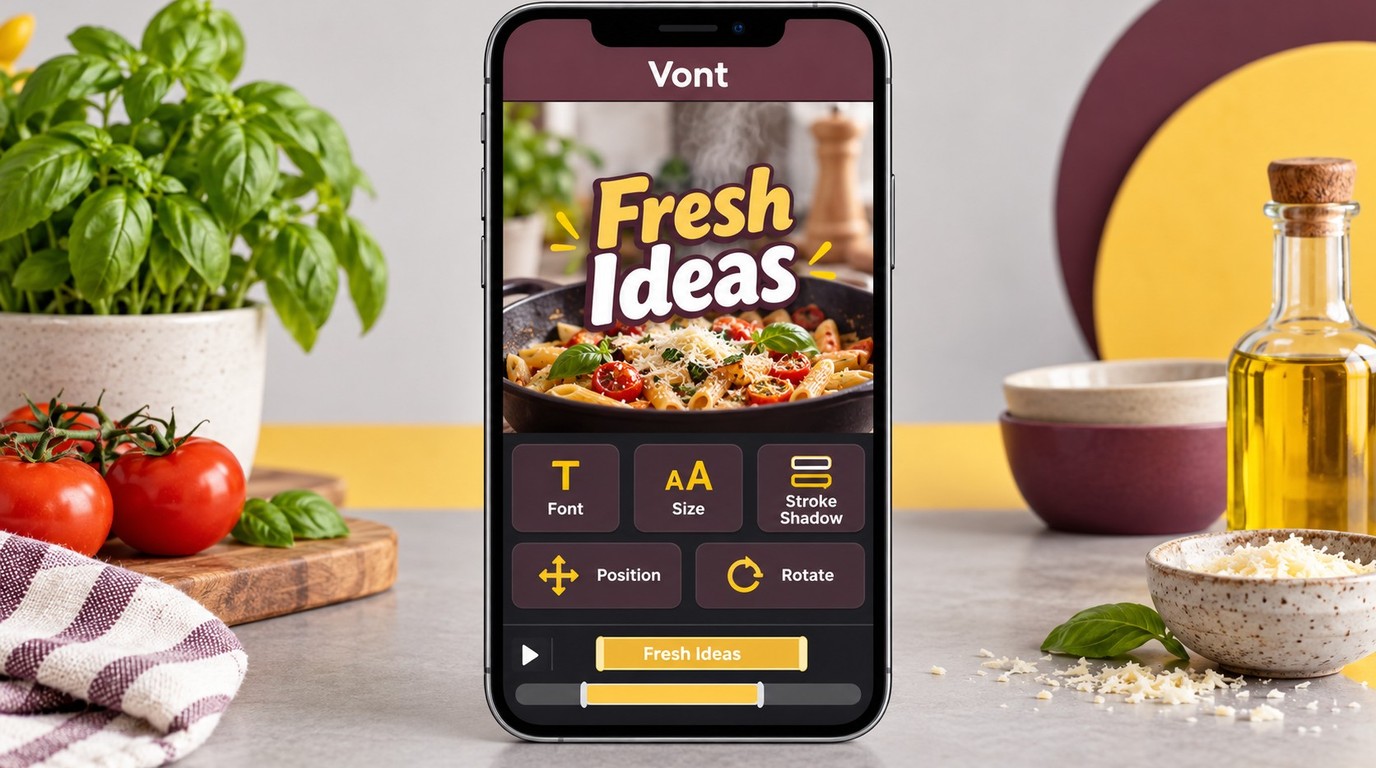
Vont is a current video text app for iPhone users who want typography controls and manual placement. For a new installation, choose Vont rather than Apple Clips.
Vont for iPhone Text Overlays
Vont is designed to add words to video with control over font, size, color, stroke, shadow, position, and rotation. It is a practical fit for titles, labels, and stylized short-form text rather than automatic speech transcription. Vont is available in the US App Store under app ID 857842841.
Suitable for: typography-led social clips, manually timed callouts, and users who want more font control on iPhone.
Less suitable for: long dialogue, automatic captions, or a workflow centered on editable subtitle files.
- Open the video in Vont and create a new text layer.
- Type the wording, choose a readable font treatment, and position it inside the safe area.
- Set the text duration and repeat for any additional callouts.
- Preview the clip and export after checking that the text remains readable on a phone screen.
Clips is no longer being updated and has been unavailable to new users since October 10, 2025. Previous users can still use or redownload it on supported systems.
4. Add Text to Videos for Android
InShot combines manual overlays with AI auto captions in a mobile video text app. Captions in InShot still need a human review for wording, timing, and line breaks before the final export.
InShot
InShot supports text overlays, timeline placement, font and color controls, animation presets, and automatic captions. It works well for short mobile edits where visual text and basic video changes happen in one project.
Suitable for: reels, shorts, quick explainers, and creators who want overlays and captions in the same mobile editor.
Less suitable for: long multilingual projects where desktop review, reusable subtitle files, and batch handling matter more than mobile effects.
- Open InShot, choose Video, and import the clip.
- Select Text for a manual overlay, or use auto captions for spoken dialogue.
- Edit the wording, drag the text into position, and adjust the timeline handles.
- Preview every caption change, then export with the required resolution and watermark setting.
Compare Four Video Text Tools
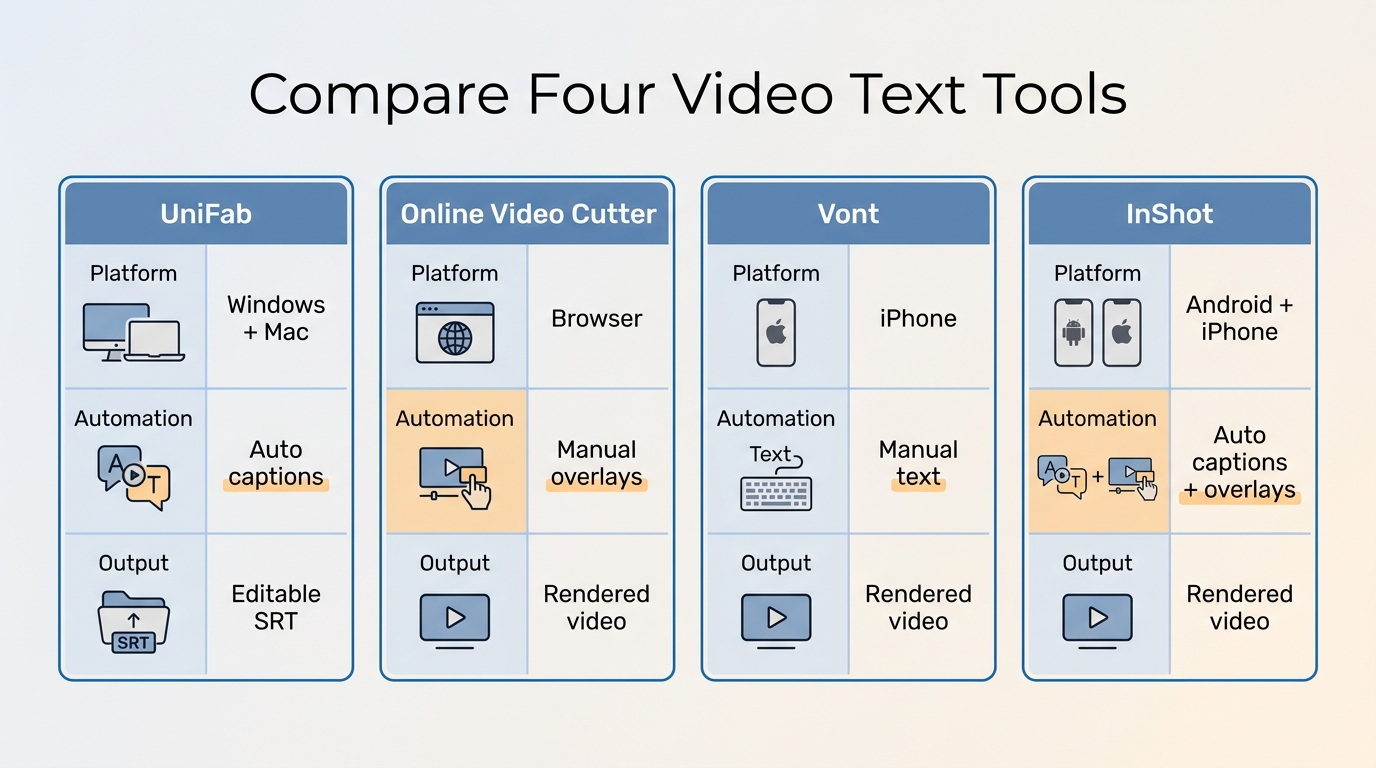
The useful comparison is operational: platform, text workflow, and saved output. Ratings are omitted because store and review figures change faster than the workflows.
| Tool | Platform | Text workflow | Saved output |
| Subtitle Generator AI-Fabcloud | Windows, Mac | Automatic speech captions with editable timing | SRT file |
| Online Video Cutter | Modern browser | Manual overlays and animation | Rendered video |
| Vont | iPhone | Manual typography and placement | Rendered video |
| InShot | Android, iPhone | Manual overlays and auto captions | Rendered video |
Vont availability: US App Store, app ID 857842841. Tool details are based on the official UniFab, Online Video Cutter, Vont, and InShot pages, as of October 2026.
Online Video Cutter, Vont, and InShot are suited to visible overlays, while UniFab focuses on speech captions and SRT output. Subtitle Generator AI-Fabcloud does not create freely positioned animated titles, and visible captions require a separate rendering step with UniFab Video Converter.
The practical takeaway is that no row wins every category. Choose the output and level of control first, then pick the editor that matches it.
Make On-Screen Text Easier to Read
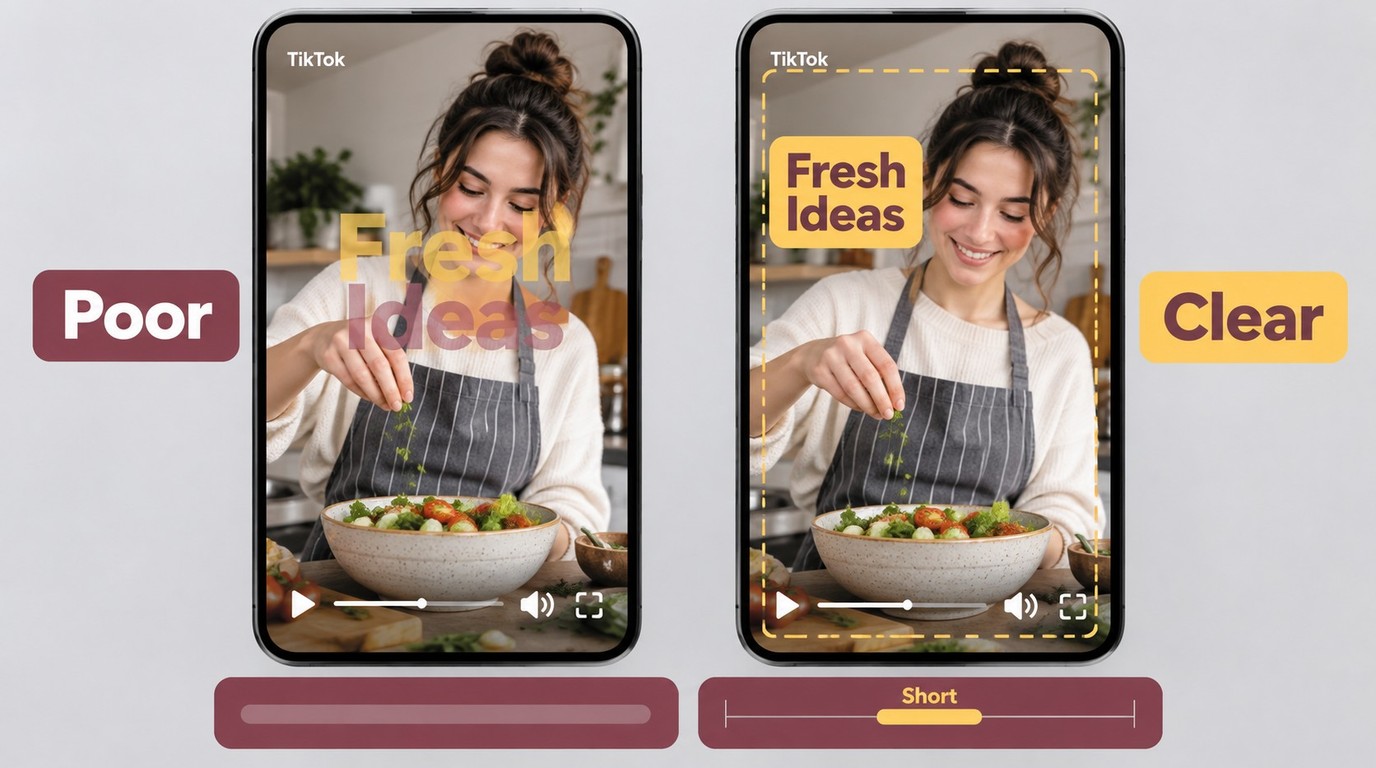
Readable text depends more on contrast, placement, pacing, and restraint than on elaborate effects. A good video text editor should make those basics easy to check before export.
- Social clips: use short phrases, fast visual hierarchy, and safe-zone placement that avoids app controls. For platform-specific placement, see the guide to subtitles and captions on TikTok.
- Marketing ads: keep the message focused on one action, use restrained animation, and leave enough screen time for a first read.
- School and tutorial videos: label the exact object or step being discussed, keep terminology consistent, and time each callout to the demonstration.
- Brand content: use a consistent font, color system, capitalization style, and position instead of changing the design from scene to scene.
- Accessibility: use strong contrast, readable line lengths, and accurate captions. Include meaningful sound cues when the text functions as closed captions.
For example, a label can remain visible from 0:02 to 0:05 while the named object is on screen. Repeated labels reuse a visual treatment, animation changes how text enters or moves, and motion tracking keeps a label attached to a moving subject. Duplicate a text style only when the selected editor supports that function.
Readability should take priority over effects. If an animation delays recognition or a label covers the subject, the design is working against the message.
Choose the Right Text Workflow
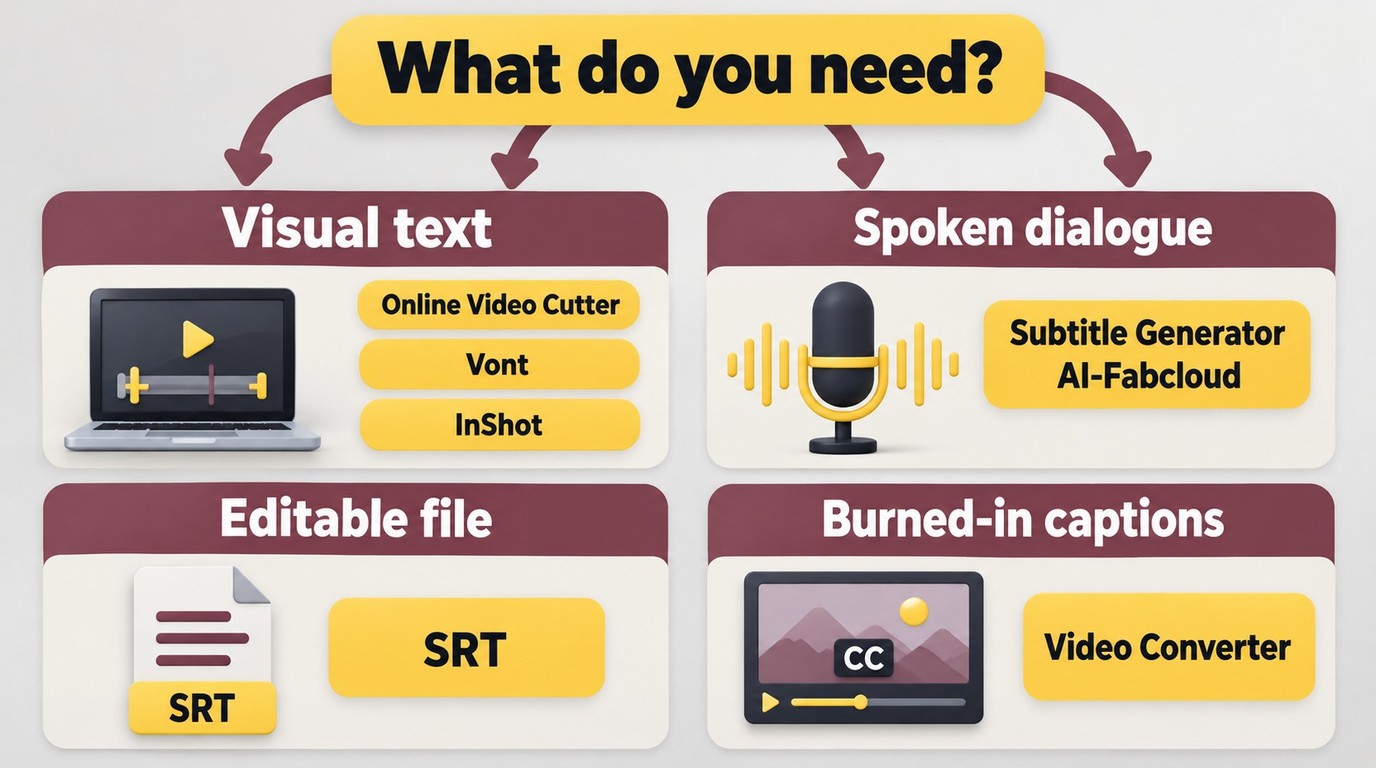
The central choice is automation versus visual control. Manual overlays offer precise placement and styling, while auto captions reduce transcription and timing work but still require editorial review.
- Choose manual overlays for titles, lower thirds, labels, and marketing calls to action.
- Choose auto captions for spoken content when speed matters and corrections can be reviewed before export.
- Choose an SRT sidecar when a platform or viewer should be able to toggle, restyle, or translate the subtitle track. Readers focused on file creation can use the dedicated SRT generator guide.
- Choose soft subtitles when the subtitle track should travel inside a compatible media container but remain selectable.
- Choose burned-in text when the words must remain visible in every player. This makes the text part of the picture, so later wording changes require another export.
An editable project preserves its text layers, timing, and styling for later changes, while rendering creates the delivery video. An SRT sidecar stores timed text separately and is not a rendered picture. Text already rendered onto a background becomes part of the image, but an editable text layer can still be revised inside its original project. I recommend keeping the project until the wording and timing are final.
Watermark and free-access rules can shift between versions and devices. Confirm the export result with a short sample before committing a long project, especially when a free video text editor is central to the workflow.
Choose a Method That Fits Your Project
Use an online or mobile editor for visual text that needs manual placement. For speech captions on Windows or Mac, Subtitle Generator AI-Fabcloud is the more focused option: generate and proofread the SRT, then use a separate rendering step to place the captions in the delivery video. My recommendation is to choose by the text type and final output, not by the longest feature list.
Questions About Adding Text to Video
Can I add text to an MP4 without a watermark?
Yes. The MP4 format itself does not add a watermark; the editor or selected export option does. Before editing the full video, open the export settings, check the watermark option, render a short sample, download it, and inspect the finished file.
Can I edit AI-generated captions before exporting them?
Yes. Review names, accents, punctuation, line breaks, and synchronization before saving the subtitle file or rendering visible captions into the video.
Should I save captions as an SRT file or burn them into the video?
Use SRT when viewers or platforms should control the subtitle track. Use burned-in text when the words must be visible everywhere; the full tradeoff is summarized in the workflow section above.
Can ChatGPT add text directly to a video?
ChatGPT can help draft titles, captions, and scripts, but a video text app or editor is still needed to position the words, set timing, review the result, and export the finished video.