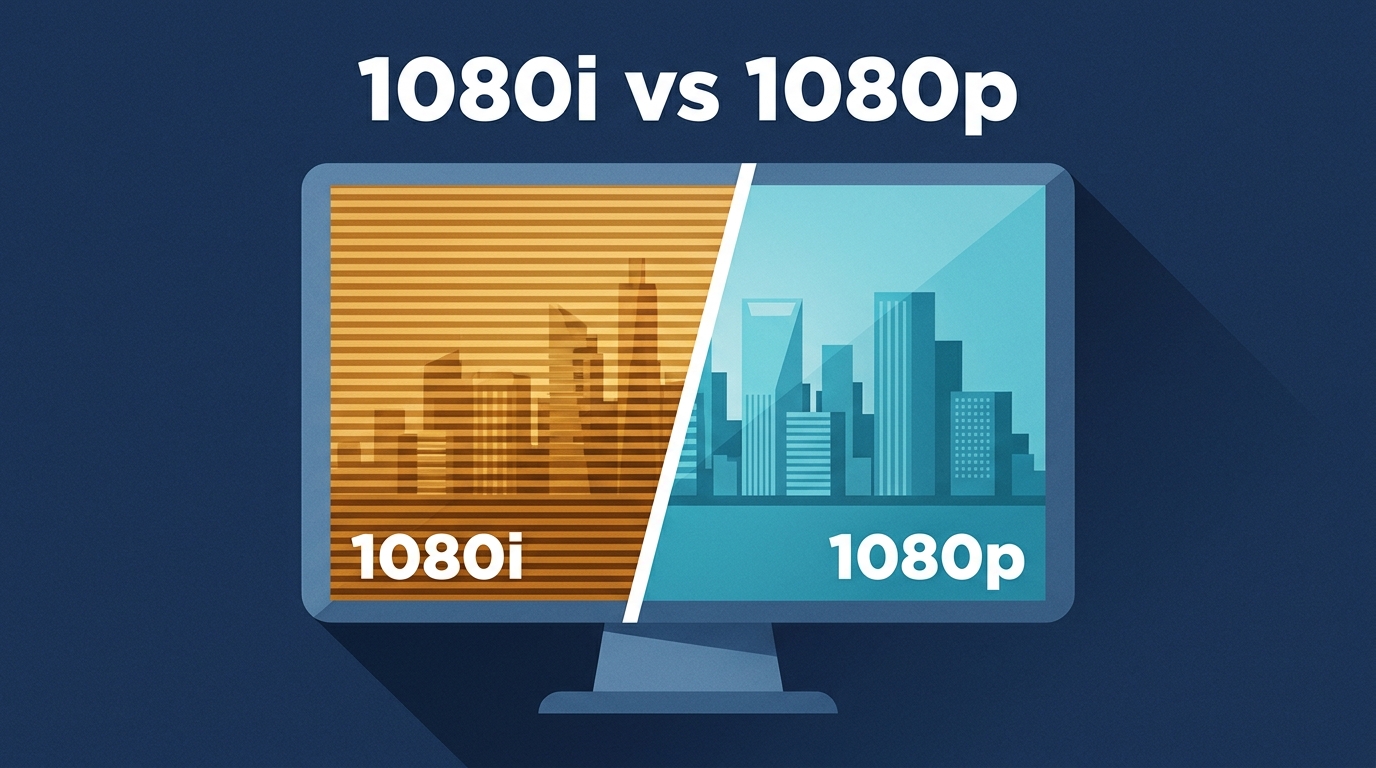
The 1080i vs 1080p choice is mainly a motion and compatibility decision, not a contest between two resolution labels. When rates and source quality are comparable, 1080p usually looks cleaner in motion; when they are not, a stable 1080i signal can look better than a heavily compressed or unsupported progressive one.
This 1080p vs 1080i guide separates scan method from field rate, frame rate, device limits, and conversion. That distinction matters because the same 1,920 × 1,080 image dimensions can produce different results depending on how the picture is captured, delivered, and displayed.
1080i vs 1080p: The Short Answer
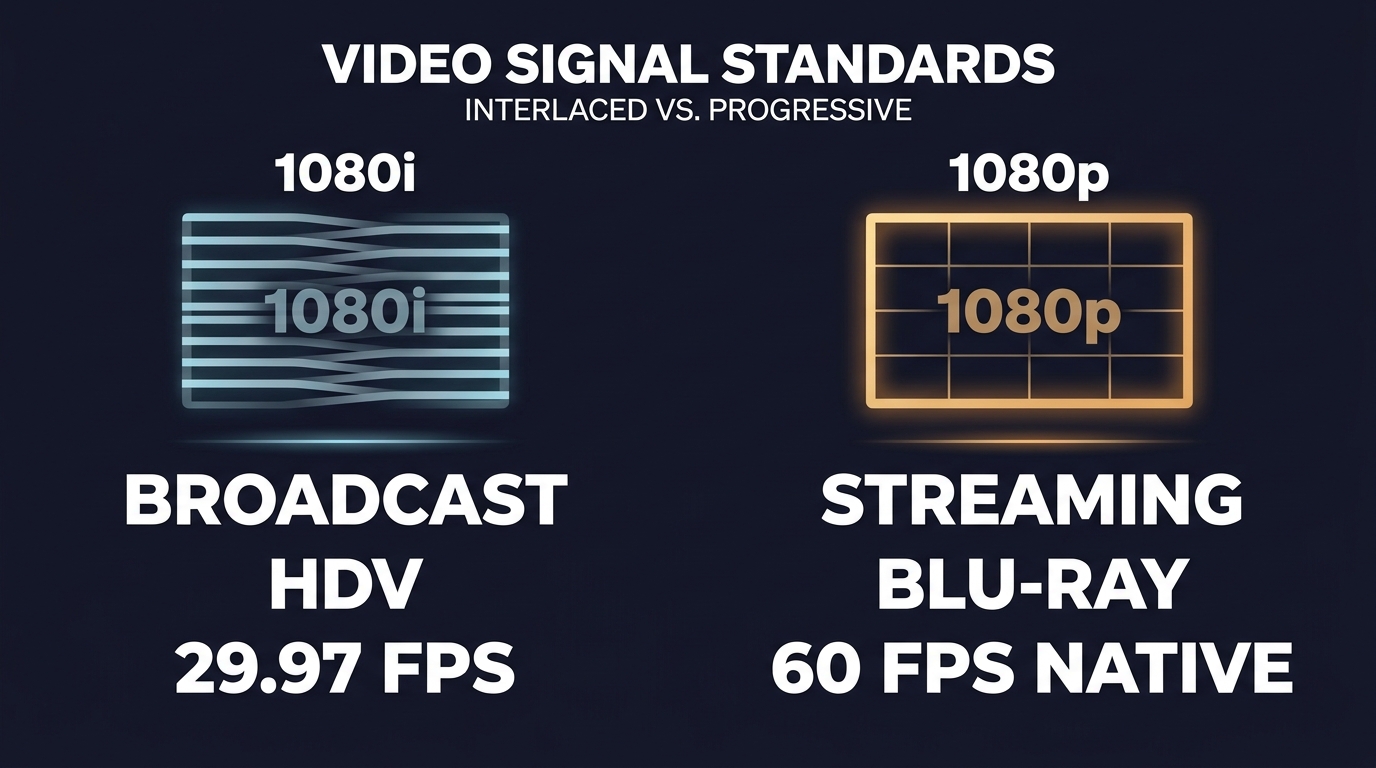
Choose supported 1080p for gaming, computer displays, editing, and other motion-sensitive uses. Keep 1080i when it is the native format of a broadcast or legacy HD source and your playback device handles deinterlacing well.
The practical answer to “1080i or 1080p?” is to compare the complete signal: scan type and rate, compression, source quality, port capability, and display processing. A higher-looking label is not useful if the cable, port, source device, or screen cannot carry it reliably.
| Format | Stored dimensions | Scan and rate | Best fit | Main trade-off |
| 1080i | Usually 1,920 × 1,080 | Interlaced; 50, 59.94, or true 60 fields per second | Native broadcasts and legacy HD workflows | Requires deinterlacing on progressive displays |
| 1080p | Usually 1,920 × 1,080 | Progressive; 24 to 59.94/60 frames per second | Gaming, editing, and motion-heavy playback | Higher rates may exceed older device limits |
| 720p | 1,280 × 720 | Progressive; commonly 50 or 59.94/60 frames per second | Motion fallback when 1080p is unstable | Lower spatial resolution |
The useful comparison is therefore conditional: 1080p is the stronger default for modern playback, while 1080i remains valid when it matches the source and workflow.
1080i and 1080p Use Different Scans
The key 1080i and 1080p difference is how each moment reaches the screen. In genuinely interlaced motion footage, successive fields represent different capture times, while progressive video stores each picture as a complete frame.
Interlaced Fields in 1080i
A typical 1080i resolution is 1,920 × 1,080, but each field carries alternating horizontal lines captured at a slightly different time. A progressive display must combine or reconstruct those fields before showing the picture.
The interlaced vs progressive distinction explains why stationary detail can look similar while moving edges expose combing, line twitter, or softness when field handling is weak.
Progressive Frames in 1080p
A typical 1080p resolution is also 1,920 × 1,080, but every frame contains the full picture. Progressive frames are easier for modern displays, editors, browsers, and game engines to present without an added field-combination step.
That cleaner structure does not rescue a poor source or excessive compression. Scan method explains one part of image quality, while capture quality, bitrate, scaling, and display processing explain the rest.
Frame Rate Changes the Comparison
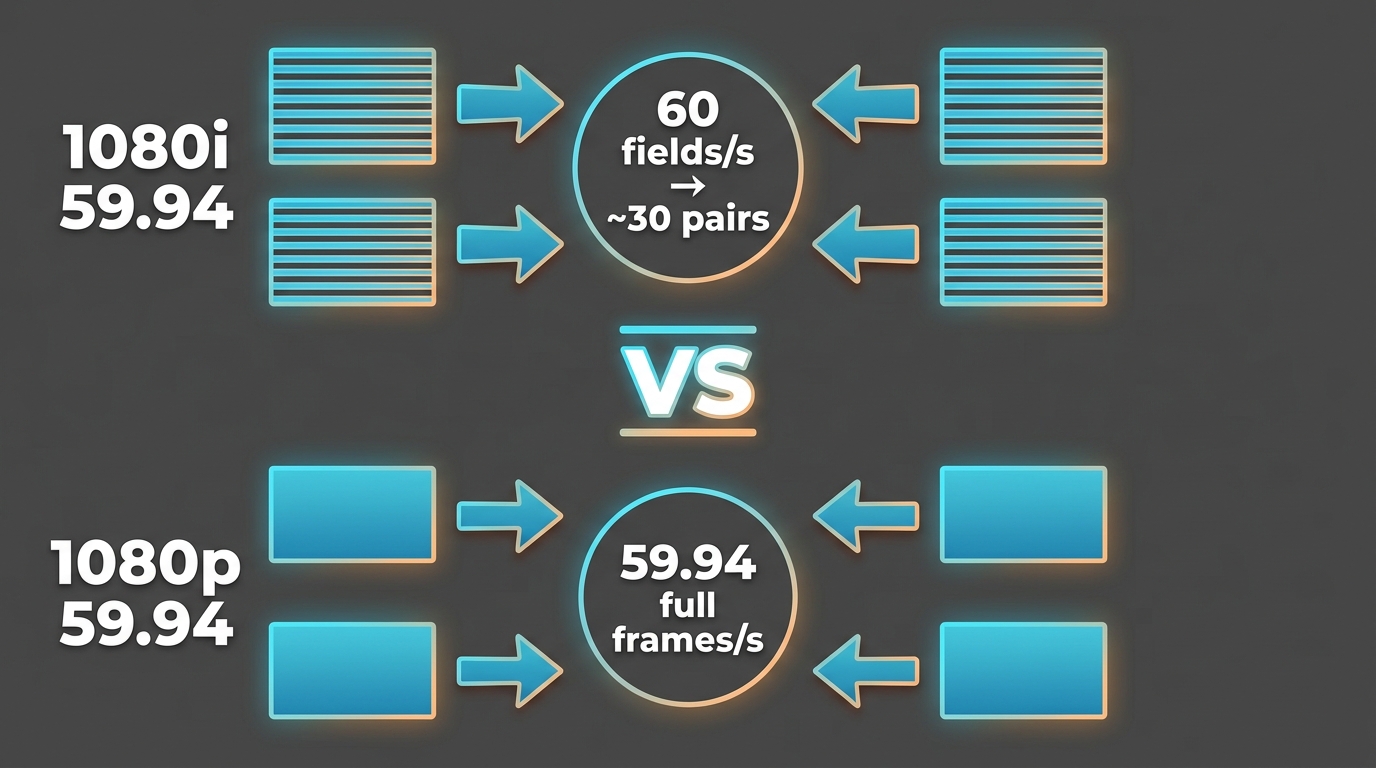
Field rate and frame rate are not interchangeable, so 1080i60 and 1080p60 should not be treated as equivalent labels. The exact field, frame-pair, and motion-sampling differences are explained below.
What 1080i60 Actually Means
In common North American notation, 1080i60 usually refers to about 59.94 fields per second, while a true 60-field signal contains exactly 60 fields per second. Two fields form each frame pair, so 59.94-field video has about 29.97 field pairs per second. Because successive fields in genuinely interlaced motion represent different capture times, deinterlacing to one progressive frame per field can preserve about 59.94 motion samples per second. By contrast, 1080p59.94 contains about 59.94 complete progressive frames per second.
- 1080i59.94: about 59.94 interlaced fields and 29.97 frame pairs each second.
- True 1080i60: 60 interlaced fields and 30 frame pairs each second.
- 1080i50: 50 fields and 25 frame pairs each second.
- 1080p29.97: about 29.97 complete frames each second.
- 1080p59.94: about 59.94 complete frames each second.
Checking this notation before judging quality prevents confusing the field-pair count with temporal sampling or comparing 59.94-field interlaced video with 59.94p as though their only difference were scan type.
Bandwidth Depends on More Than Scan Type
There is no universal bandwidth or file-size percentage for 1080i versus 1080p. Codec, bitrate, frame or field rate, encoder settings, image complexity, and the intended quality all affect the result.
A 1080p stream can use fewer bits than a 1080i broadcast if it uses different compression or targets a different quality level. Conversely, high-rate progressive video can require more data. Compare matched sources and delivery settings before drawing a conclusion.
1080p Usually Wins, With Exceptions
1080p usually wins when the source, rate, compression, and playback chain are comparable. The exceptions matter because a clean 1080i source can outperform a delayed, heavily compressed, badly scaled, or unstable 1080p feed.
Gaming and Fast Motion
For 1080i vs 1080p gaming, use a progressive signal at a refresh rate supported throughout the chain. Complete frames preserve moving HUD text and object edges more predictably, and they avoid the added display processing required for interlaced input.
Fast sports and camera pans follow the same logic. If 1080p is unavailable, 720p at a supported progressive rate can be a better motion-sensitive fallback than 1080i, though it carries less spatial detail.
Broadcast and Streaming Quality
A strong 1080i broadcast can look better than a weak 1080p stream. Streaming compression, connection stability, scaling, and latency can outweigh the scan label, while a television with capable deinterlacing can present broadcast 1080i cleanly.
The practical judgment is simple: favor progressive output when conditions are comparable, but judge the picture and responsiveness delivered by the full chain rather than assuming the “p” label guarantees a better experience.
Blu-ray and Camera Sources
Blu-ray commonly supplies progressive HD material, while older HDV cameras may store interlaced 1080 footage, including anamorphic 1,440 × 1,080 files. Inspect scan type, field order, pixel aspect ratio, and rate instead of relying on a filename or library badge.
Standard DVD-Video is a separate SD case, typically 480i or 480p in the United States. A DVD can need deinterlacing, but it is not a 1080i HD source, and converting it to 1080p does not create native HD detail.
Choose the Best Device Setting
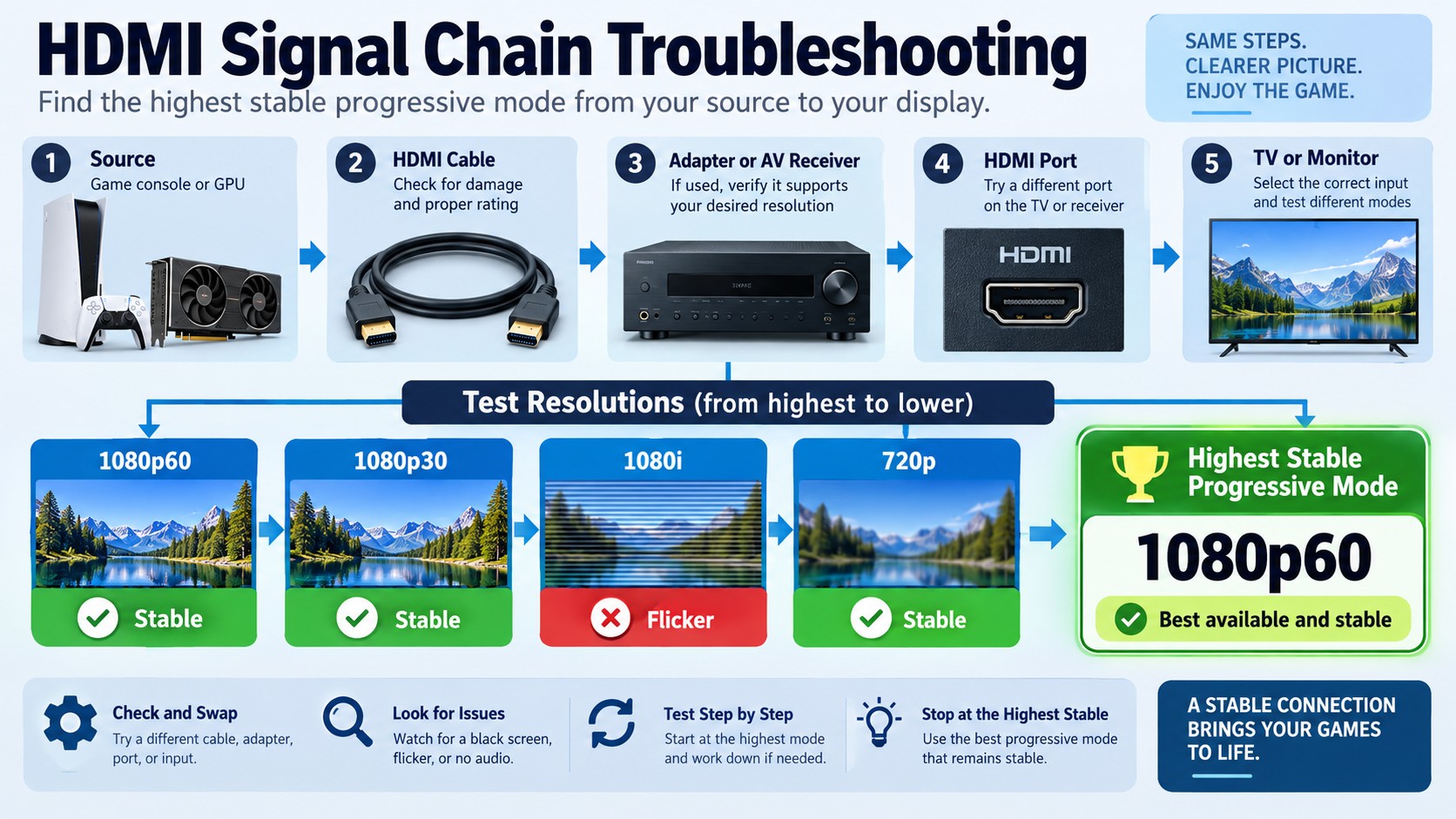
The right TV or device setting is the highest native progressive mode that every part of the signal chain supports reliably. If 1080p flickers, drops out, or falls back, diagnose the chain before assuming 1080i is inherently superior.
Check Native Output and Refresh Rate
- Check the source device’s native output and the display’s accepted resolutions.
- Match a refresh rate supported by the source, cable path, port, receiver, and display.
- Prefer 1080p when the full chain supports the intended rate.
- When 1080p is unavailable, compare stable 1080i with 720p for motion-heavy content.
- Use the setting that stays stable without unwanted scaling or repeated format changes.
A stable supported signal is more valuable than a higher label that the chain cannot carry consistently.
Troubleshoot Flicker and Port Limits
When 1080p flickers but 1080i works, the likely issue is compatibility somewhere between the source and screen. Older HDMI ports, adapters, receivers, cable capability, GPU settings, console output, or an unsupported refresh rate can trigger the failure.
- Connect the source directly to the display to isolate an adapter or receiver.
- Try another display input and a cable rated for the selected mode.
- Lower the progressive refresh rate while keeping 1080p resolution.
- Review GPU, console, and display scaling settings.
- Return to the last stable mode if the full chain cannot support the target signal.
1080i Still Appears in Legacy Workflows
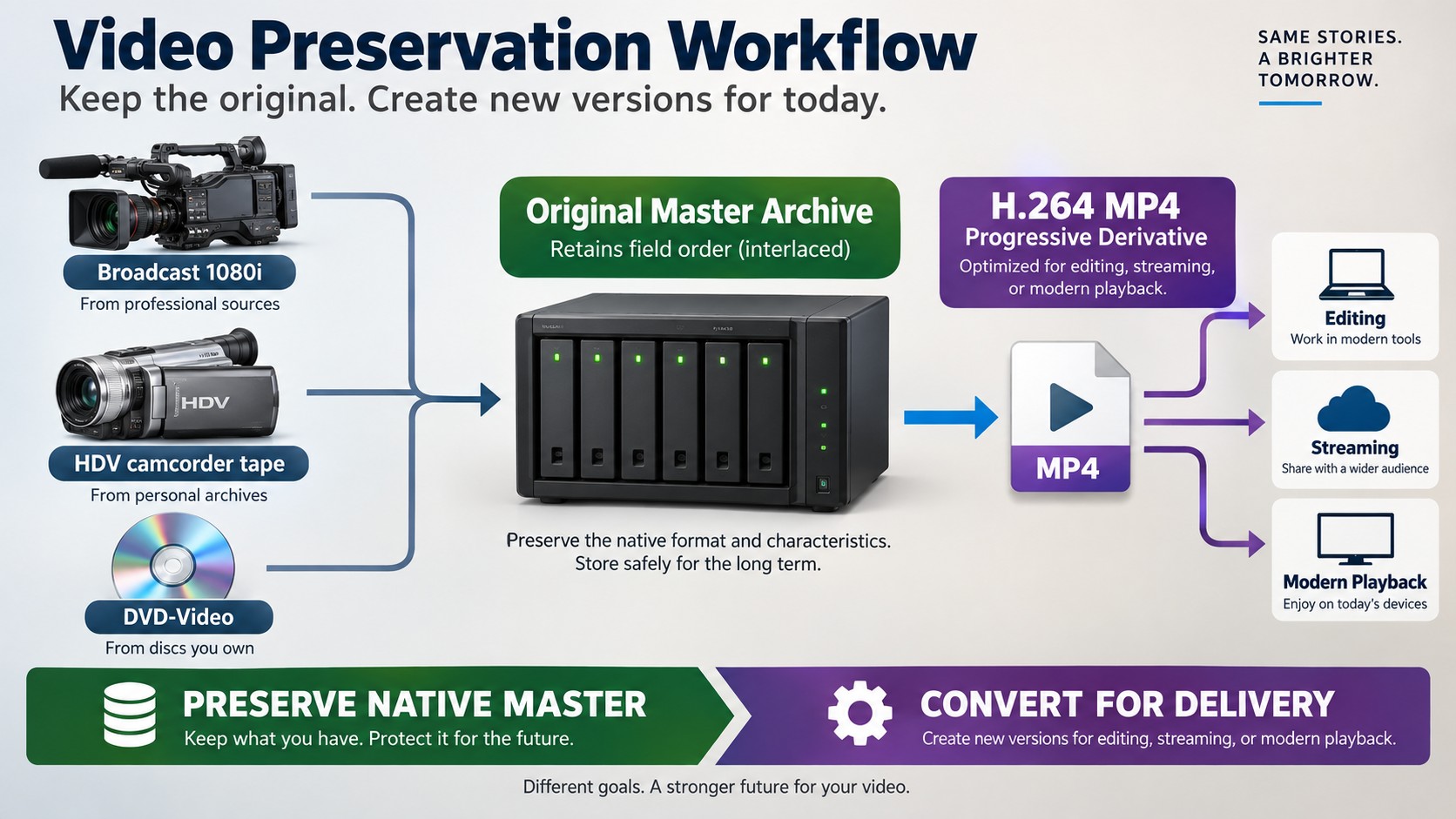
1080i persists because broadcast and production systems were built around it, not because their operators missed a modern setting. Preserving the native format can be the sensible choice until a defined editing, streaming, or archive deliverable requires progressive output.
- Broadcast chains: Cameras, switchers, contribution links, and station infrastructure may remain synchronized around an interlaced standard.
- HDV camcorder archives: Original tapes and captures can retain 1080i timing and field order that should be interpreted correctly before editing.
- SD legacy media: Standard DVDs and some older tape formats may also be interlaced, but their source resolution is below 1080 and should not be mislabeled as 1080i.
The defensible workflow is to preserve the original master, document its scan and field order, and create a progressive derivative only for a delivery path that benefits from it.
Convert 1080i for Modern Playback
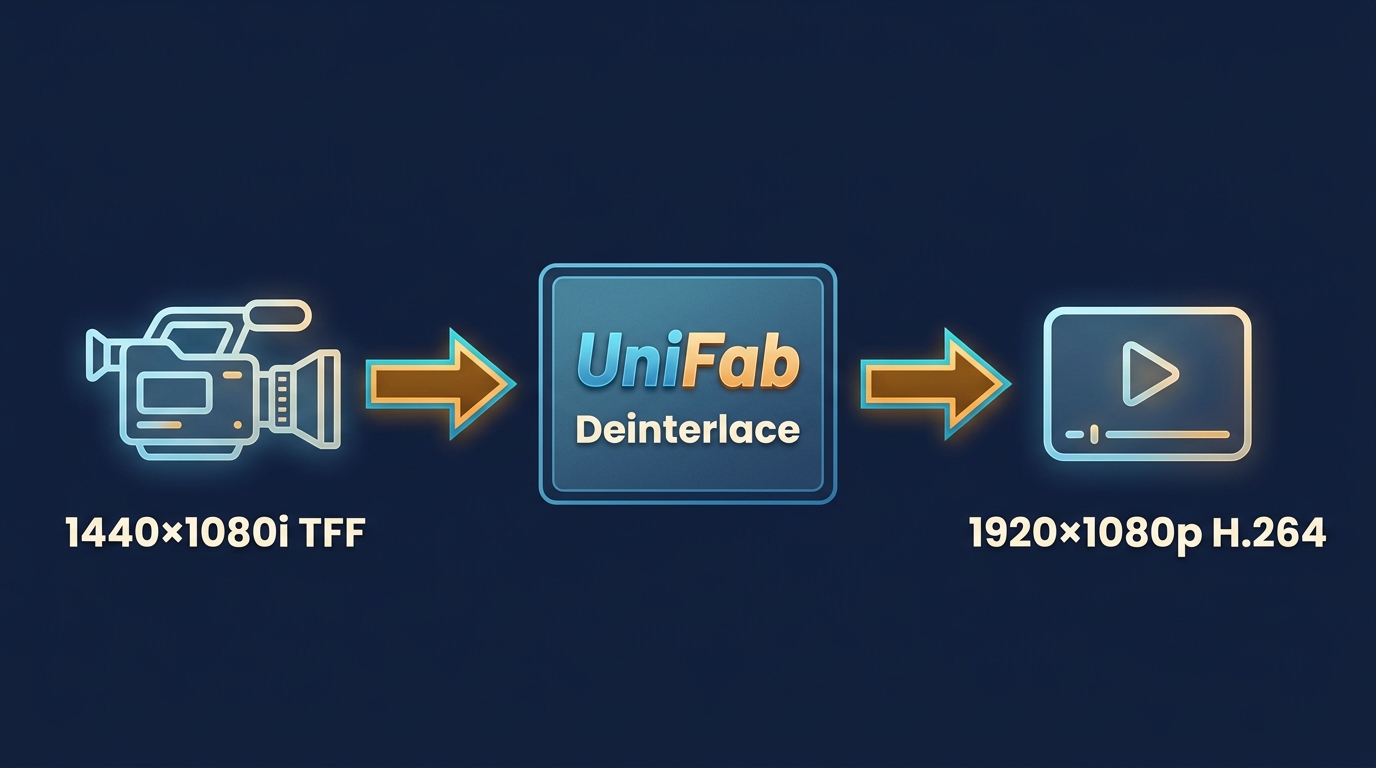
Converting 1080i to 1080p requires deinterlacing first, followed by deliberate choices about frame rate, pixel aspect ratio, dimensions, codec, and delivery. Upscaling is a separate operation and should not be confused with scan conversion.
Different deinterlacing methods handle motion and detail differently, so preserve the source and inspect a short representative section before committing an archive or upload.
Export 1440×1080i Correctly
A 1,440 × 1,080 interlaced camera file may use non-square pixels to display as 16:9. Deinterlacing changes the scan structure, but it does not automatically change stored width or pixel aspect ratio.
For genuinely interlaced motion, producing one progressive frame per field preserves field-time motion. Producing one frame per field pair reduces temporal sampling. This cadence choice is part of deinterlacing, not AI frame interpolation.
| Source cadence | Progressive output options |
| 59.94 fields/s | 59.94p or 29.97p |
| 50 fields/s | 50p or 25p |
| True 60 fields/s | 60p or 30p |
| Setting | Example for 1440×1080i59.94 |
| Source scan and field order | Interlaced; match the recorded field order |
| Source cadence | 59.94 fields/s; 29.97 field pairs/s |
| Output cadence | 59.94p for motion; 29.97p for that deliverable |
| Source pixel aspect ratio | 4:3 for a 16:9 display image |
| Output geometry | 1,920 × 1,080; square pixels |
| Output packaging | H.264 in MP4 for common playback |
Preview the exported file to confirm smooth motion, correct field handling, and the intended aspect ratio.
These decisions apply in any editor or transcoder that exposes field order, pixel aspect ratio, frame rate, and output dimensions. They are parameter decisions, separate from choosing a specific tool.
Deinterlace with UniFab
If you only need to watch an interlaced source, built-in playback processing can handle viewing without creating another file. When you need a progressive file for later playback or editing, Deinterlace AI provides a desktop workflow for converting interlaced video into progressive video.
- Add the interlaced source file.
- Confirm its scan type, field order, and source rate.
- Choose a progressive cadence that matches the motion and delivery needs.
- Create the progressive file and inspect its motion, edges, and aspect ratio.
Check field order and output rate before processing; those two choices have more bearing on a sound conversion than an aggressive output preset. Process only material you are authorized to use, and follow applicable law and service terms. Do not copy, convert, or redistribute material without authorization; doing so may be illegal.
Frequently Asked Questions
These answers address Edge cases that format labels and device menus often hide.
Why can a 1080p signal look worse than 1080i on my TV?
A cable, port, receiver, GPU, console, refresh-rate setting, scaler, or compressed source can weaken the 1080p result. Check the full signal chain and compare stable modes before changing the media format.
Why does my 1440×1080i video stay 1440 pixels wide after deinterlacing?
Deinterlacing changes fields into progressive frames; it does not inherently change stored dimensions or pixel aspect ratio. Export square-pixel 1,920 × 1,080 only when the delivery format calls for it.
Can a media library label 1080i content as 1080p?
Yes. A library or release profile may group both under a generic Full HD label. Inspect the file’s scan type, field order, frame rate, and pixel aspect ratio to identify the actual format.
Does deinterlacing improve a standard DVD to 1080p quality?
Deinterlacing can clear field artifacts from an interlaced SD DVD source, but it does not create native 1080 detail. Converting or enlarging the frame is a separate step with limits set by the original image.