Choose a model from the source problem and delivery device, then use a short preview to check faces, texture, and motion before exporting. UniFab organizes its options by content type, while Topaz Video centers on restoration models with adjustable settings. Topaz Video AI is the legacy product name; this comparison uses the current Topaz Video product.
Product Lines and Positioning
- UniFab: Offers a comprehensive platform covering video upscaling, noise reduction, HDR, and color enhancement, catering to a wide range of video enhancement and post-production needs.
- Topaz: Specializes in visual quality improvement, particularly video upscaling and detail restoration, powered by strong AI algorithms. Topaz Video is its actively developed video restoration product.
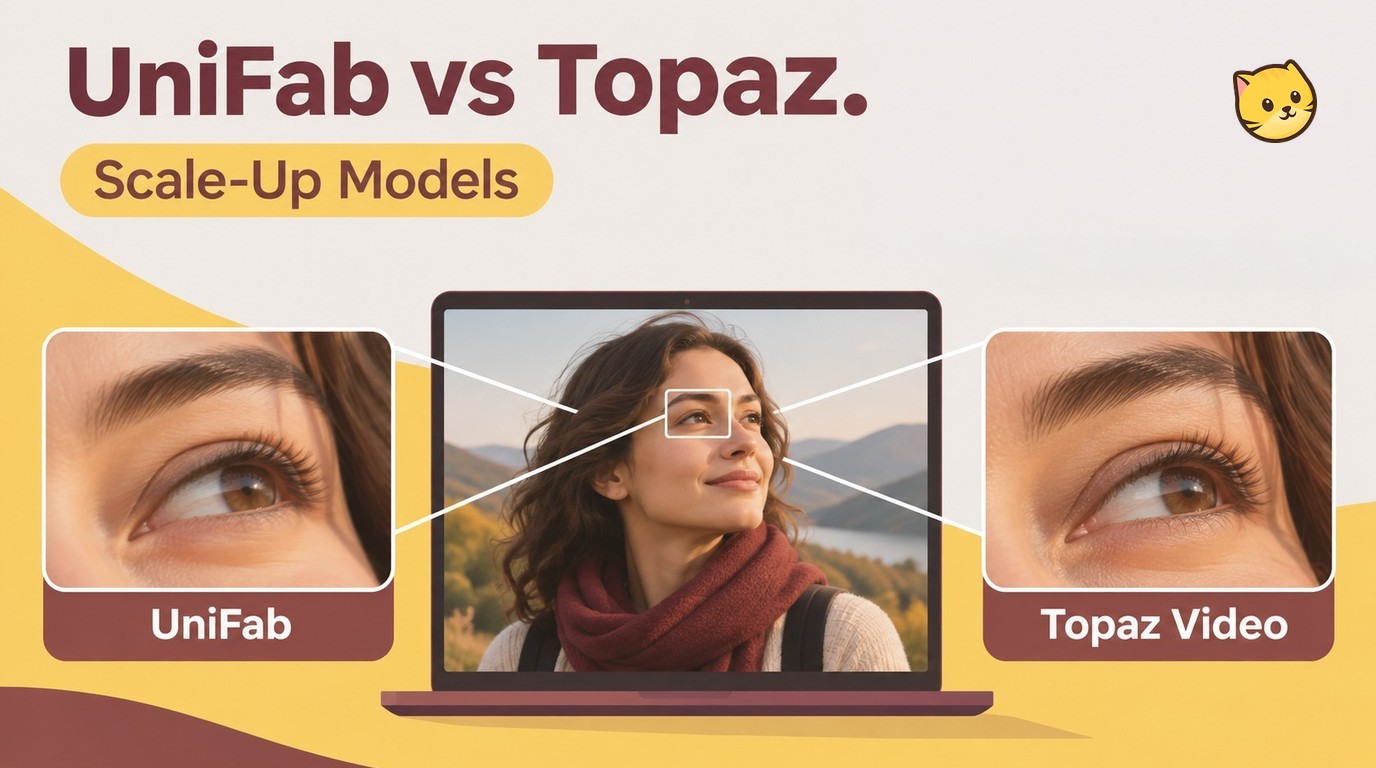
Comparison of Topaz and UniFab Model Systems
Start with the footage rather than a model name. For compressed faces or noise, Topaz Video offers restoration models and adjustable settings; for mixed footage, anime, dense texture, or film and television material, UniFab offers content-specific starting points. In either workflow, the preview—not the model label—should decide the final choice.
Topaz Video model path
- Proteus: General restoration with adjustable noise-reduction and sharpening settings.
- Iris: A face-focused option for compressed or noisy footage.
- Starlight: Availability depends on the installed version, license, and local or cloud workflow.
- Rhea, Theia, Nyx, and Artemis: Options for different restoration needs, including noise and compression artifacts.
UniFab model path
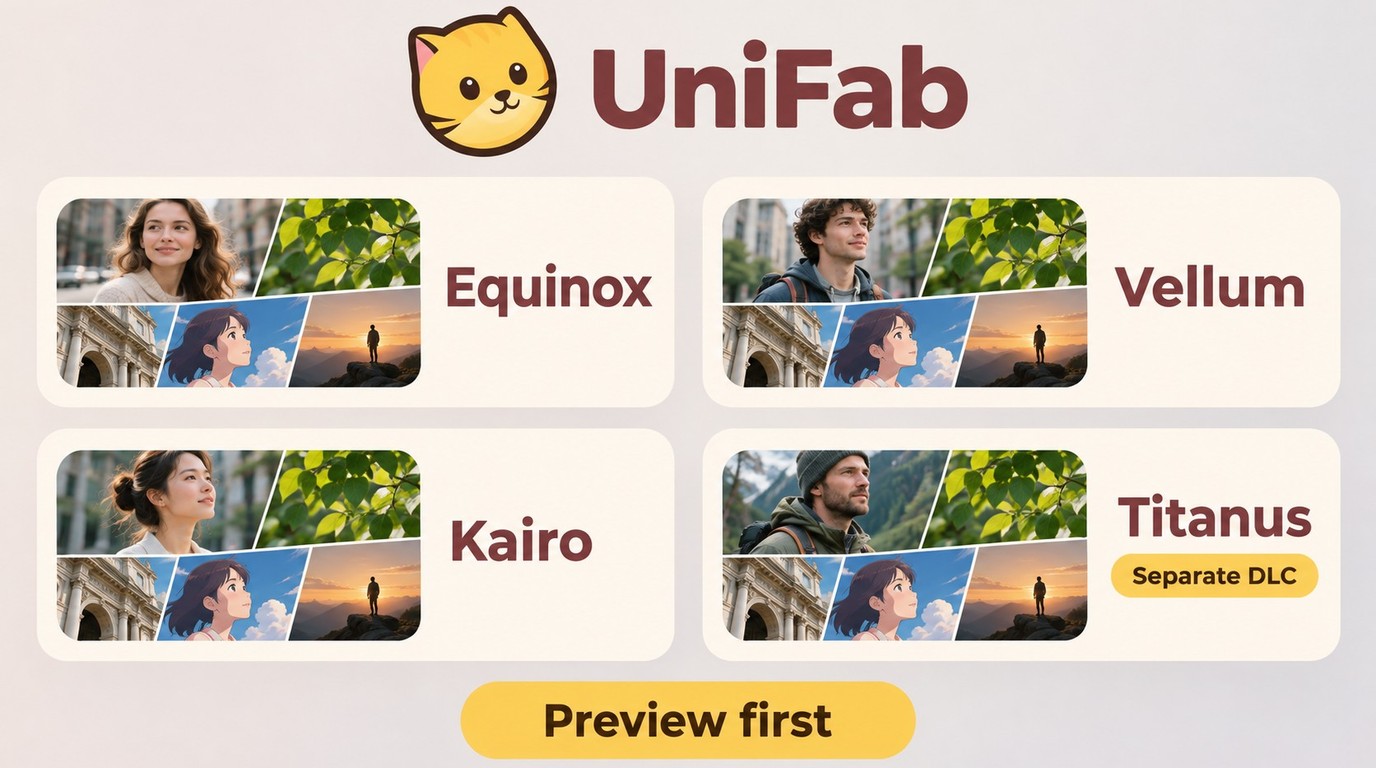
- Equinox: Start here for general and mixed footage.
- Vellum: Use for texture-heavy material such as architecture and landscapes.
- Kairo: Use for anime lines and color blocks.
- Titanus: A film and television option available as a separately entitled DLC model.
UniFab’s four-model overview is also available in UniFab Video Upscaler Technology Analysis: Innovations in Four Models. The trade-off is practical: Titanus needs separate entitlement, and higher output dimensions add processing workload and can take longer. Topaz Video may suit readers who want to adjust restoration settings; UniFab may suit readers who prefer to begin with a content-specific model.
Overview and Technological Innovations of UniFab's Four Upscaler Models
The useful distinction between these models is not their internal architecture; it is what to inspect in a preview. Use the same representative segment for each option, including a face, a detailed background, and movement.
Equinox — general and mixed footage
Start with Equinox for everyday or mixed content. Check whether faces remain natural and whether general compression or softness is reduced without making edges look forced. If the clip contains a more specific problem, move to the model matched to that material rather than increasing output resolution first.
Vellum — dense texture
Use Vellum for texture-heavy footage such as architecture, landscapes, and creative photography. Its texture enhancement approach is the relevant starting point for those sources. In the preview, inspect brick, foliage, grass, and other repeated detail for artificial patterns or over-smoothed areas; keep the original treatment if the new texture looks less natural.
Kairo — anime lines and color blocks
Use Kairo for anime material. Its anime-specific model design focuses on lines and color consistency. Check line edges for halos or breaks, flat color blocks for banding, and motion for flicker. Change the model or reduce the available processing-strength settings when these defects appear.
Titanus — film and television footage
The film-focused design described in Titanus Model Video Super-Resolution Technology Analysis makes Titanus a starting point for movies, TV shows, and documentaries. Titanus is available as a UniFab Video Upscaler DLC model and requires separate entitlement. Preview a representative clip before choosing it, especially when the delivery requires a high-resolution export.
These are starting points, not automatic fixes. A model that looks sharper in one frame can still create waxy faces, artificial texture, or unstable motion across a clip. Higher output dimensions also increase the processing workload, so confirm the preview before committing to a long export.
Performance Comparison between UniFab and Topaz
Compare results by scene, not by a single sharp frame
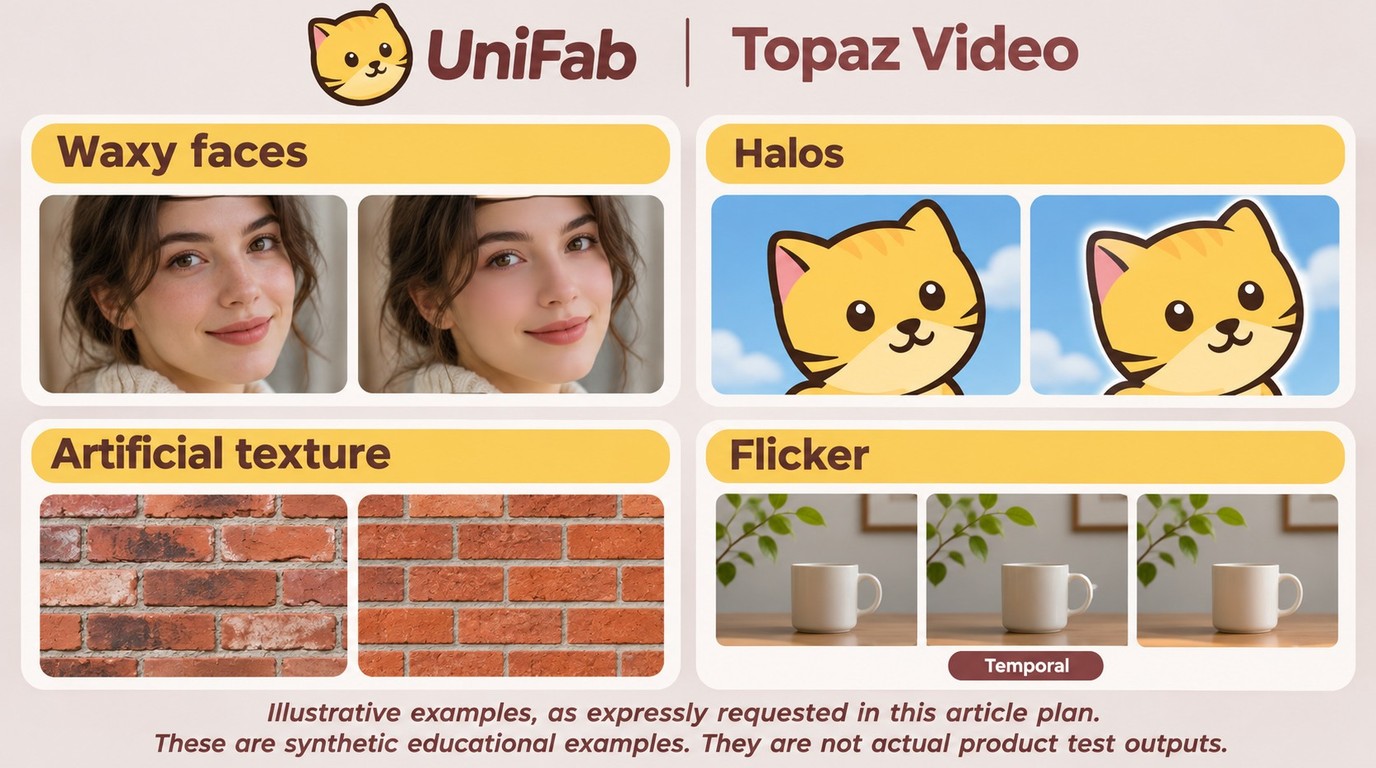
For compressed portraits, begin with a face-focused or general restoration option and inspect both foreground and background faces for waxiness. For anime, inspect line edges, flat color blocks, and motion for halos, banding, or flicker. For dense texture such as brick, foliage, or grass, inspect repeated detail for artificial patterns. Stop or change the model when the processed clip looks less natural than the source.
Render time depends on the selected model, input and output dimensions, GPU performance, available VRAM, and export settings in both workflows. GPU acceleration helps with inference, while increasing output dimensions increases processing workload. Preview a representative segment using the intended model and output settings before starting a long export.
Function Coverage Comparison
Topaz Video is the current comparison product, with a modular workflow centered on visual restoration. It includes restoration models, SDR-to-HDR workflows, frame interpolation, stabilization, and motion deblur.
UniFab groups Video Upscaler AI (Equinox/Titanus/Kairo/Vellum), HDR Upconverter AI, Face Enhancer AI, Denoiser AI (Silens), Smoother AI, Video Colorizer AI, Deinterlace AI, Video Stabilizer AI, Video Converter, Subtitle Generator AI, Video Translator AI, TV Show Converter, Compress, Video Background Remover AI, Audio Upmix AI, and Vocal Remover AI into its desktop workflow. UniFab All-In-One supports MP4 and MKV output, and its desktop Video Upscaler supports output up to 16K.
Price Comparison
As of November 2026, Topaz Video lists three Personal options: $254 promotional first year billed annually, $33/month with a 12-month commitment, or $59 month-to-month. The annual promotion does not specify renewal pricing.
| Comparison dimension | UniFab | Topaz Video |
|---|---|---|
| Model selection | Content-specific starting points: general, texture, anime, and film/television | Restoration models with adjustable settings |
| HDR | SDR-to-HDR workflow | SDR-to-HDR workflow |
| Workflow and export | Desktop audio/video tools; MP4 and MKV output; Video Upscaler up to 16K | Visual-restoration workflow |
| Desktop authorization and updates | Desktop license; Titanus requires separate DLC entitlement | Subscription; renewal required |
GPU Requirements and Local Processing
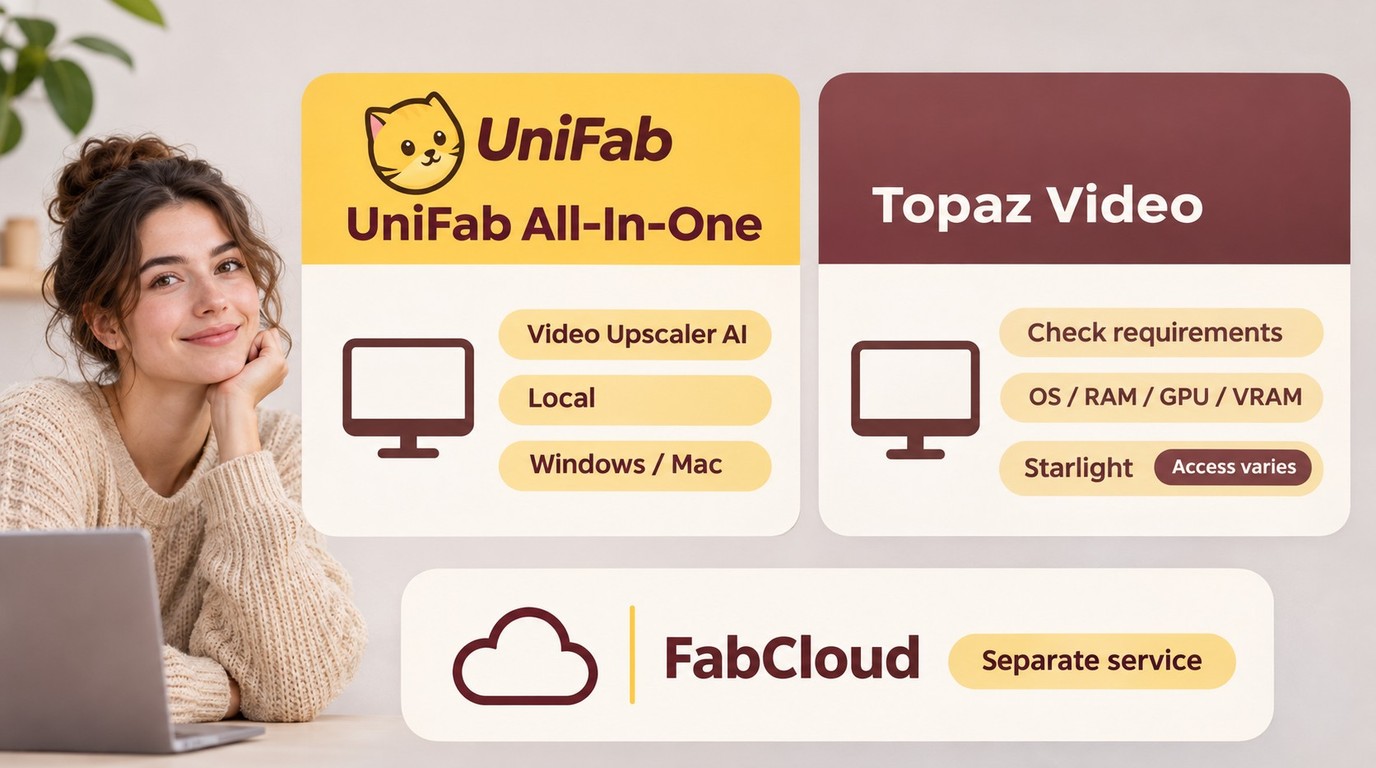
UniFab All-In-One supports Windows and Mac. Its desktop Video Upscaler processes footage locally, without uploading it for cloud processing. Before a long export, use UniFab’s compatibility guidance to match your system to the selected model, then preview a short representative segment in the app. FabCloud is a separate cloud workflow with separate limits and entitlements.
Topaz Video uses GPU acceleration for model processing, while the CPU also contributes to the workflow. Match the selected model’s requirements to your operating system, system RAM, GPU architecture, and available VRAM. Starlight variants have model-specific hardware and access requirements; local or cloud availability depends on the variant, installed version, and license.
Choose a Model, Preview, and Export
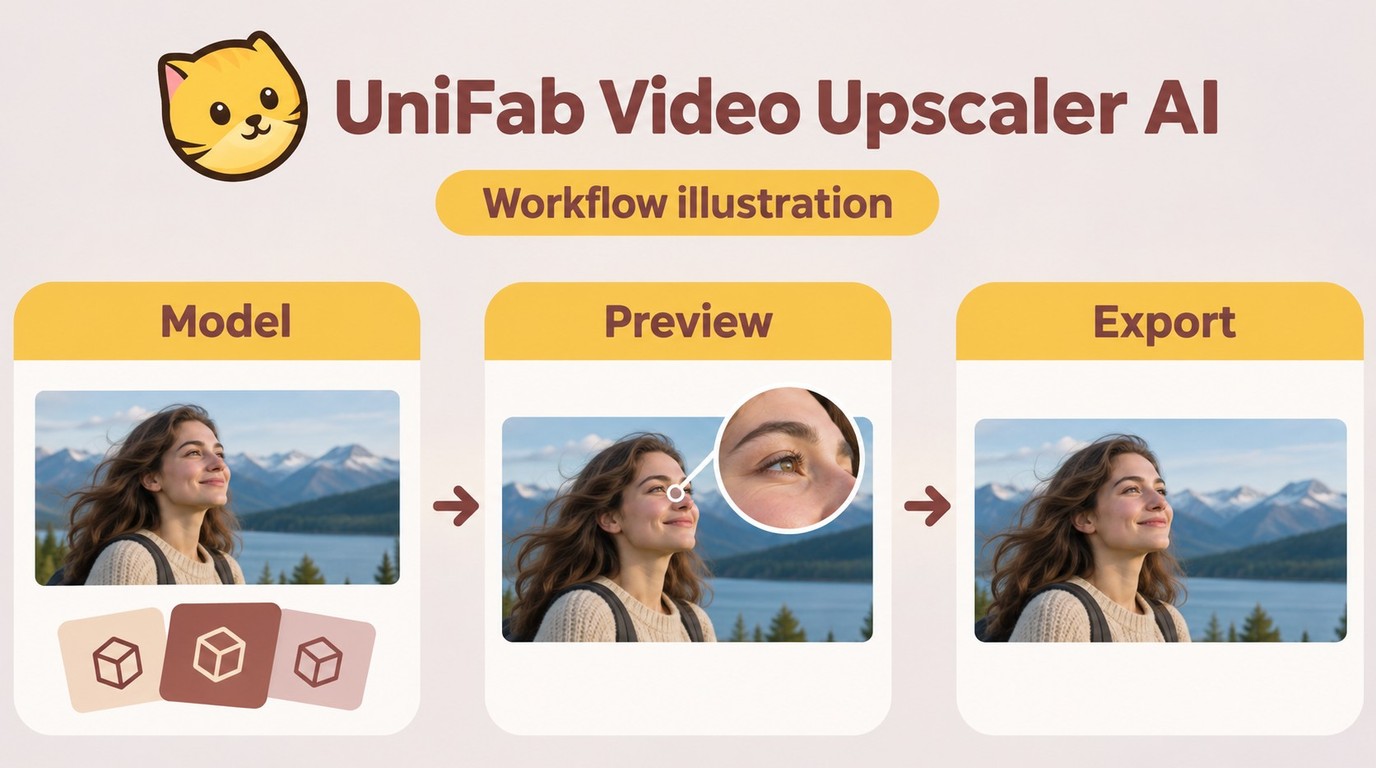
- Identify the source and defect. Look for compression artifacts, noise, soft faces, damaged texture, or unstable anime lines. Decide whether the video needs restoration or simply a larger export.
- Choose a model for the footage. Start with Equinox for general sources, Vellum for texture, Kairo for anime, or Titanus for film and television footage. Titanus requires separate DLC entitlement; use its DLC option if it fits your source.
- Preview a representative segment. Include faces, detailed backgrounds, and movement. Inspect foreground and background faces for waxiness, line edges for halos, texture for artificial patterns, and motion for flicker. If artifacts appear, change the model or reduce the available processing-strength settings, then preview again.
- Set the delivery dimensions. Preserve the source aspect ratio and choose an output resolution suited to the screen or editing project. A higher resolution is not a guarantee of more natural detail.
- Export and review. UniFab All-In-One supports MP4 and MKV output. Choose the format and available codec settings your playback device or editor supports, then review the exported clip on that device before processing the full video.
Process only content you are authorized to use, and keep this workflow within personal use without unauthorized redistribution. Your specific use must follow the relevant service terms and applicable local law.
Future Outlook and Upgrade Plan
For a current project, the upgrade plan is simple: identify the source defect, compare a short preview, and export only after checking the result on the intended device. Do not treat a future model or a higher output setting as a substitute for that review.
For background on earlier releases and model topics, consult the historical UniFab 4.0 announcement, UniFab Anime Model Iteration, New Features | UniFab RTX RapidHDR AI Features in Detail, The Iterations of UniFab Face Enhancer AI, and UniFab Texture Enhanced: Technical Analysis and Real-World Data Comparison.
UniFab vs Topaz: Common Questions
Is Topaz Video AI discontinued?
Yes. Legacy Topaz Video AI ended at version 7.1.5, but owners can continue using versions they own. Topaz Video is the actively developed subscription product, not a sign that Topaz Labs has shut down.
Does Topaz Video use the CPU or GPU?
Topaz Video uses GPU acceleration for model processing, while the CPU also contributes to the workflow. Hardware suitability is model-specific: a configuration that supports one restoration model does not necessarily support a demanding Starlight variant locally.
Will upscaling a good 1080p video improve TV playback?
Not necessarily. Software upscaling creates a new file, while your TV's upscaling changes how the original appears during playback. Compare a short exported clip with the original on the intended TV, paying attention to faces, texture, and motion. Keep the original if it looks more natural.
Can I keep a video’s original aspect ratio when upscaling?
Yes. Scale both dimensions proportionally to preserve the original ratio, including nonstandard frame sizes. Cropping removes picture area, padding adds borders, and forcing a different ratio stretches the image. Retain the source ratio when choosing export dimensions.