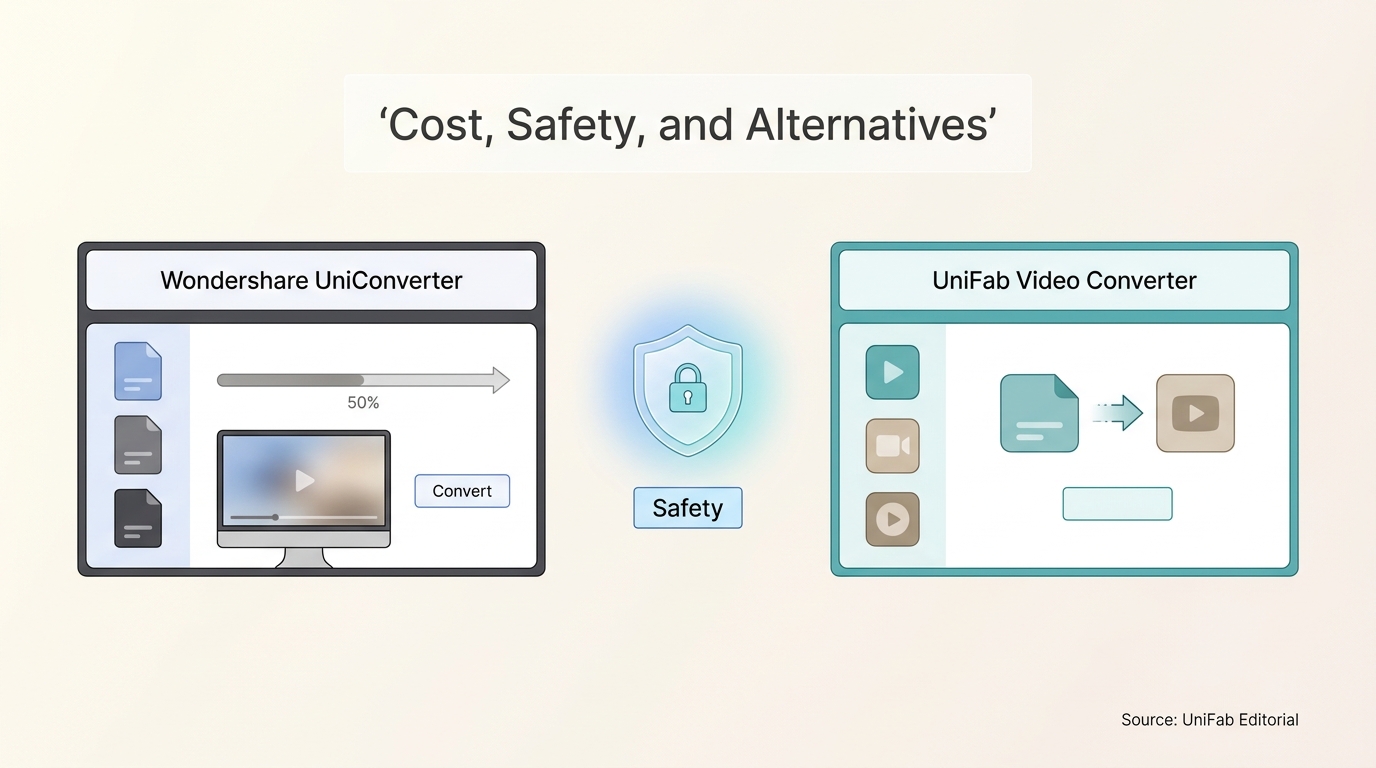
If you need to know whether Wondershare Video Converter free access can finish an authorized local-video-to-MP4 job, the answer depends on its feature-specific limits and the output you need. Wondershare Video Converter: Cost, Safety, and Alternatives covers those limits, pricing, safe installation, and local conversion options for this Wondershare Video Converter software.
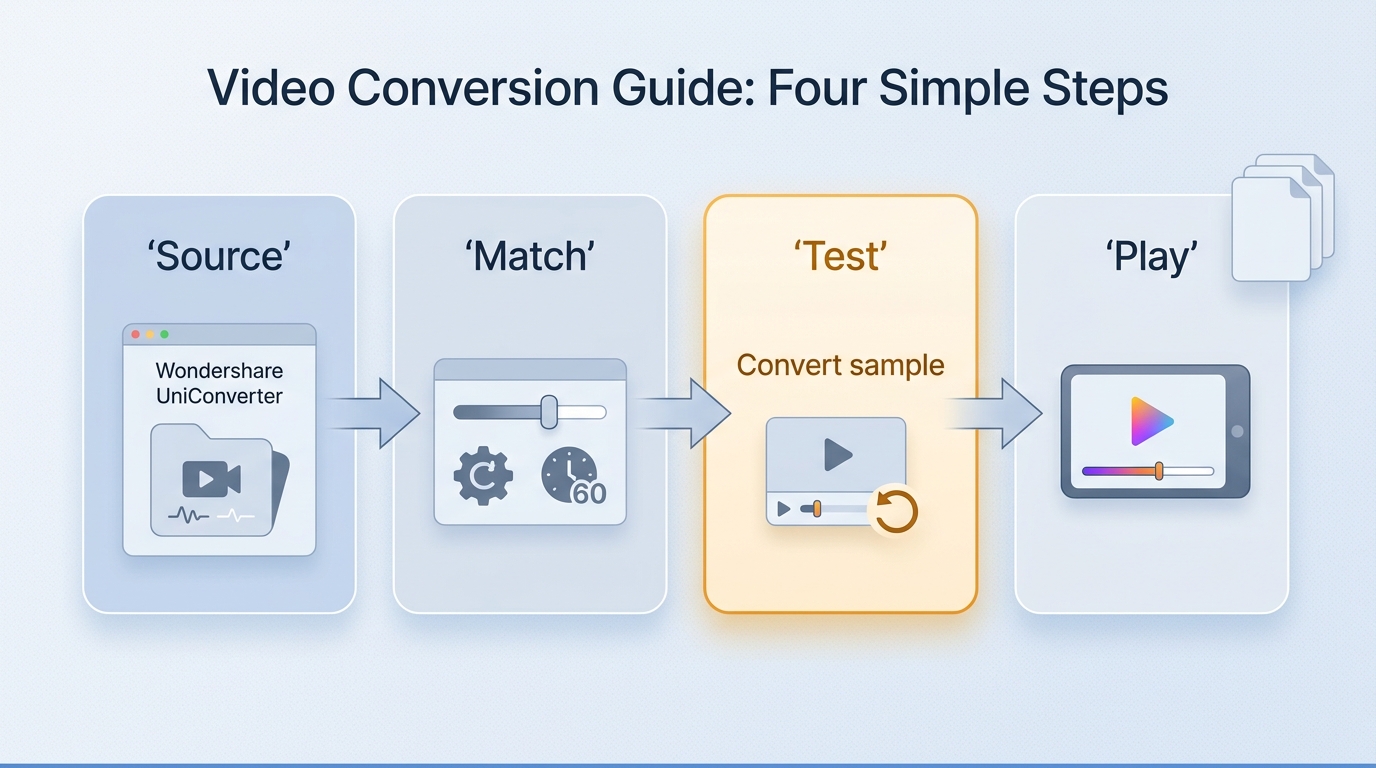
The decision should come down to one usable file: check the cost, install from the official source, convert a representative sample, and play the saved output on its target device before choosing an all-in-one toolbox or a focused local converter.
What Wondershare UniConverter Does and How to Use It
Wondershare Video Converter, now branded as UniConverter 17, converts local video files and combines conversion with editing, compression, recording, and DVD tools on Windows and Mac. If a TV rejects a file, choose the output profile for that device and check one sample for picture, audio, subtitles, and frame rate before starting a large batch.
Before You Start: Check the Source, Device, and Output Goal
Have these prerequisites ready:
- A current Windows or macOS installation
- A source file you own or are authorized to process
- The target TV, phone, editor, browser, or media server
- A required container and codec, if the device specifies them
- A target resolution and frame rate
- Enough storage for the source and converted copy
MP4, MKV, and MOV are containers; playback support also depends on the video and audio codecs inside them.
The practical upshot is to define the destination first. A living-room TV may accept an MP4 container but reject a newer codec, while an editing app may open the video and mishandle its audio track. If the source is MKV, the distinction between repackaging and re-encoding is central to a sound MKV-to-MP4 workflow.
Step 1: Add the File and Choose an Output Profile
Work through the initial setup in this order:
- Drag the source file into UniConverter or use the file picker.
- Choose the output container, such as MP4, MOV, or MKV.
- Select a device profile when the destination has strict playback requirements.
- Confirm the output folder before adding more files.
For example, to make an authorized local video playable on a TV, choose MP4 with H.264 when the TV supports that codec, then select the folder where you want the saved MP4 to appear.
A device profile is useful when you do not want to research codec support manually. A custom profile is better when a production workflow requires a specific codec, frame size, or audio format. For phone-shot media, the container and orientation issues covered in a MOV-to-MP4 conversion workflow are often more important than the product name on the converter.
Step 2: Set Quality, Codec, and Hardware Acceleration
The settings that deserve attention are the ones that change compatibility or the amount of re-encoding:
- Match the output resolution to the source or target screen.
- Preserve the source frame rate unless the destination requires another value.
- Choose a video codec and audio codec the target device accepts.
- Enable supported hardware acceleration when processing a larger queue.
- Keep bitrate or quality controls conservative for the first sample.
A practical rule is to avoid raising resolution without a clear output need. Format conversion can change the container and encoding, but it cannot recreate detail that is absent from the source. AI enhancement is a separate task, with different processing costs and expectations.
Step 3: Convert, Inspect, and Troubleshoot the Result
Do not treat a completed progress bar as proof that the file is ready. Check one output before processing the rest:
- Play motion-heavy scenes and look for stutter or dropped frames.
- Check speech at the beginning, middle, and end for audio sync.
- Confirm subtitles, language tracks, chapters, and metadata when they matter.
- Open the file in the destination editor or player.
- Compare the sample with the source before starting the batch.
Open the selected output folder and play the saved MP4 on the target device or in the intended application.
If the output skips, match the source frame rate and try a codec supported by the target device. If audio drifts, avoid unnecessary frame-rate conversion and inspect whether the source uses variable frame rate. If the file plays on the computer but not the TV, simplify the codec and audio settings rather than repeating the same export.
This sample-first workflow is slower for a few minutes and faster for the project. It prevents an overnight queue from producing files that look valid in a folder but fail in the place they were meant to play.
What the All-in-One Toolbox Adds Beyond Conversion
Usage note: Use downloading or recording tools only for media you own or are authorized to save, and follow the source platform’s terms. Do not use these tools to evade access, payment, or content protections. Doing so may be illegal and may violate platform terms.
UniConverter 17 advertises 4K and 8K video conversion and also groups editing, compression, downloading, screen recording, and DVD-Video authoring into one desktop application. Authoring DVD-Video for a disc player is a different workflow from saving a local video as an MP4 file. Its value is consolidation: a creator who routinely trims clips, compresses deliveries, records a screen, and converts formats may prefer one interface and one license history.
That breadth is not automatically useful to everyone. For an occasional file-format problem, a large toolbox can add cost and choices without improving the result. UniConverter fits multi-step media workflows; it is less compelling when the task begins and ends with local format conversion.
Is Wondershare UniConverter Free? Pricing and Limits
People searching for a Wondershare free Video Converter can download UniConverter, but video conversion is limited to one-third of the video length during free access. The US Windows yearly plan is $49.99 per year, and the two-year plan is $69.99 with automatic renewal. The optional AI Creation Tools add-on has a seven-day trial followed by automatic renewal at $19.99 per month.
What Free Access Includes and Restricts
Wondershare Video Converter free access lets you assess the interface, profiles, and workflow. UniConverter limits video conversion to one-third of the video length. Compression is limited to one file of up to five minutes, screen recording is limited to one minute, and batch image conversion carries a watermark. These feature-specific restrictions matter when you need to complete a client delivery or archive copy.
The distinction is easy to miss in a branded download search. The word “free” is therefore less useful than checking whether the limit for the feature you need will cover the intended job.
Current Plans and Version Choices
The main choices are recurring access or a perpetual license:
| Access route | US Windows offer | Practical meaning |
| Video conversion access | $0 download | Up to one-third length |
| Yearly plan | $49.99/year | Recurring plan |
| Two-year plan | $69.99 | Recurring plan |
| AI Creation Tools | Seven-day access | Then $19.99/month, auto-renews |
US Windows offers as of September 2026, with recurring billing where noted.
Annual access can make sense for a short production cycle that needs several toolbox functions. A perpetual license remains an option when the same computer and workflow will be used repeatedly, but it should not be assumed to include ongoing access to AI Creation Tools. In both cases, read the included features and billing terms as closely as the headline price.
Quality, Batch, and Billing Checks Before Purchase
Before committing, use a representative file and record what the workflow actually requires:
- Export a short sample in the intended format and resolution.
- Check picture quality, frame pacing, and audio sync.
- Confirm the queue can handle the size of the planned batch.
- Inspect add-on selection, renewal intervals, cancellation controls, and refund terms in your Wondershare account.
- Save the order receipt and dated confirmation of any account change.
The total cost should be measured against the exact output and queue you need. Toolbox breadth can justify a license; a one-third-length conversion limit or recurring charge can also end the decision quickly.
Wondershare UniConverter vs. UniFab Video Converter
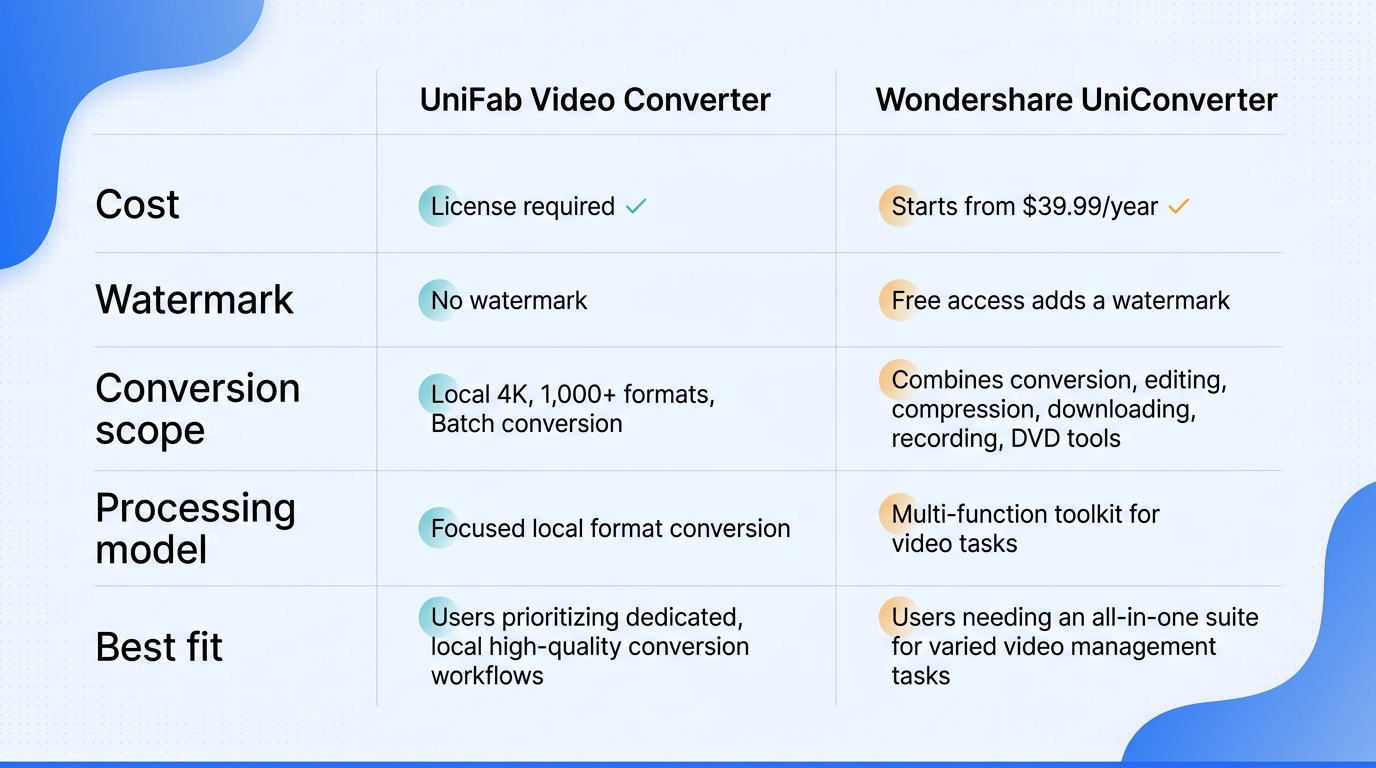
For this Wondershare Video Converter review, the practical split is workflow scope rather than overall superiority. UniFab Video Converter includes local format conversion and built-in editing. Compatible H.264 streams can be remuxed without re-encoding. With those boundaries clear, choose Wondershare UniConverter for a broader media toolbox and UniFab for focused local conversion with editing controls.
Side-by-Side Decision Table
| Product | Access | Local workflow | Output scope | Suits |
| Wondershare UniConverter | Recurring or perpetual plans | Desktop media toolbox | Free conversion: one-third video length | Multi-tool workflows |
| UniFab Video Converter | $0 | Local batch conversion | Editing; compatible H.264 remuxing | Focused local workflows |
| HandBrake | Free and open source | Local desktop transcoding | MP4, MKV, and WebM | Standard video encoding |
Choose HandBrake for straightforward open-source encoding, or UniFab for local batch conversion with built-in editing.
Choose Wondershare for a Broader Media Toolbox
Wondershare suits creators who want conversion beside editing, compression, downloading, recording, and DVD functions. It is the more coherent fit when several of those tasks recur in the same project. It is not ideal when the one-third video-length limit prevents a complete conversion during free access or when most of the toolbox will sit unused.
Choose UniFab for Free Local Format Conversion
UniFab Video Converter is a free local converter for Windows and macOS that supports batch output up to 4K across 1,000+ formats with no watermark. It suits repeat format changes when local batch processing, built-in editing, and compatible H.264 remuxing matter more than a broader media toolbox.
Trade-Offs to Keep in View
UniFab Video Converter does not include AI enhancement, ad removal, or subtitle downloading. For authorized local files, its strengths are batch conversion, built-in editing, and compatible H.264 remuxing. Wondershare is a better fit when broader recording, downloading, or DVD tools belong in the same workflow, while HandBrake suits straightforward standard encoding.
Wondershare Video Converter FAQ
For installer safety, download the current UniConverter installer from Wondershare’s official site, confirm the publisher name during setup, and avoid modified installers. The FAQ also covers product naming, Android packages, browser use, and legacy builds.
Is Wondershare Video Converter safe to install?
Install the current desktop build from Wondershare’s official UniConverter site, then confirm the publisher name during setup. Avoid modified installers from download archives.
Is Wondershare Video Converter Ultimate the same as UniConverter?
Wondershare Video Converter Ultimate is the former product name associated with today’s UniConverter line. An old review may describe familiar conversion and editing functions, but it should not be treated as documentation for the current interface, pricing, codec support, or license terms.
Is there a Wondershare Video Converter app or APK for Android?
UniConverter’s main product is a desktop application for Windows and Mac. Do not assume a file labeled “Wondershare Video Converter APK” is an official mobile release. For Android, use a listing published through a recognized app store and confirm that the publisher matches Wondershare before installation.
Can you use Wondershare Video Converter online without installing it?
Wondershare offers UniConverter Online Free alongside its desktop UniConverter application. The desktop UniConverter 17 application supports 4K and 8K video conversion. Online tools require file upload and depend on connection speed, file-size policies, and server-side privacy practices. Desktop conversion is usually the clearer fit for large, private, or repeated local jobs.
Should you install an old version of Wondershare Video Converter?
An old build may lack current codec support, operating-system fixes, and security updates. Use the current official release unless a controlled legacy workflow requires a specific build.
Bottom Line: Which Converter Fits Your Workflow?
Choose Wondershare UniConverter when a project needs conversion alongside editing, compression, recording, downloading, or DVD tools. Choose UniFab Video Converter when the job calls for local format conversion with built-in editing while keeping source files on the computer. In either case, convert one representative file and play it on the target device before queuing a library. Compatibility, not the length of the feature list, should decide.