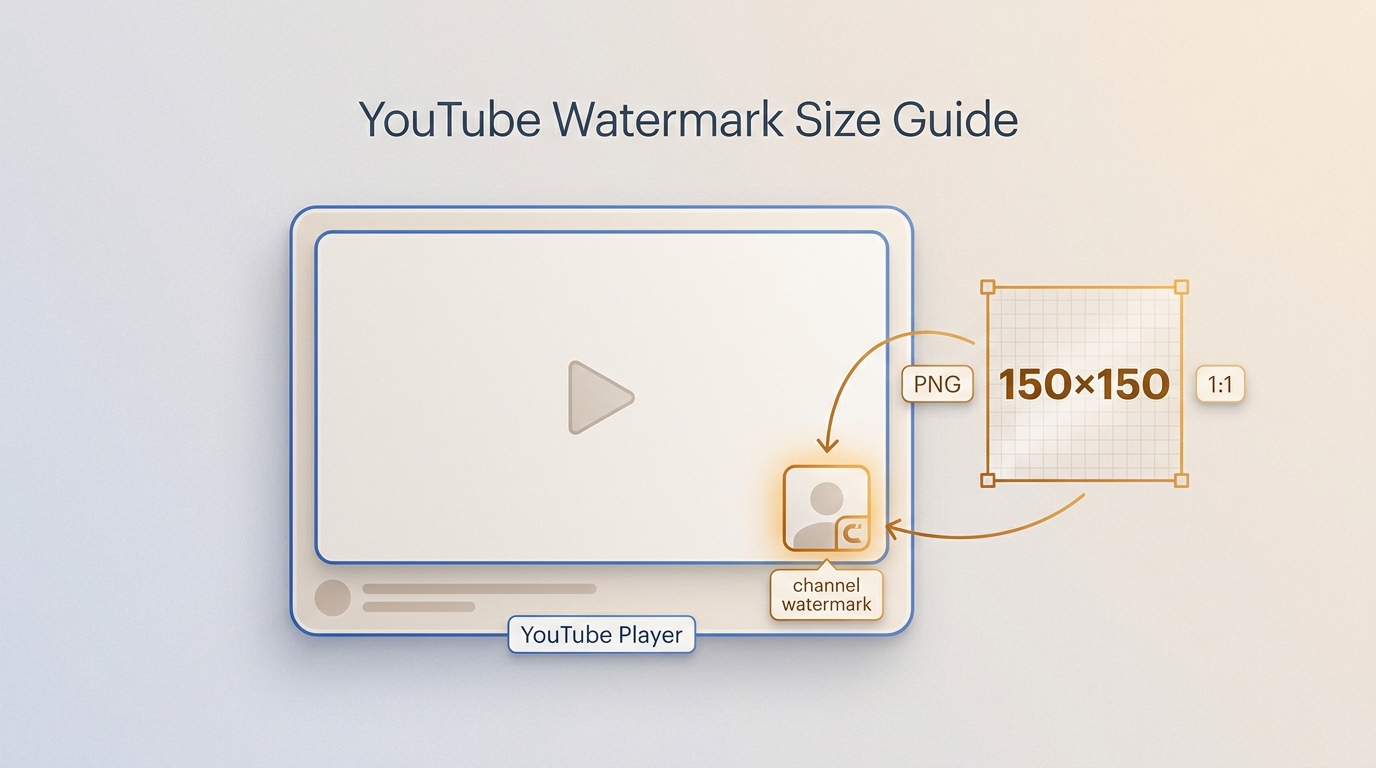
What a YouTube Watermark Does
A YouTube branding watermark is a small channel image that YouTube places in the bottom-right area of eligible videos. It supports channel recognition and subscription interaction on supported desktop players, but it is not a persistent ownership mark embedded in the video itself.
If your goal is a clickable subscription cue, use YouTube’s channel watermark. If you need visible attribution that remains part of the video wherever it is shared, render a watermark into the video during editing instead.
This feature helps content creators:
- Support channel recognition with a consistent on-player mark
- Build brand recognition through consistent visual identity
- Support subscription interaction on eligible desktop players
- Reinforce channel identity across eligible videos
- Showcase creativity through custom designs
Official YouTube Watermark Size Requirements
Official Upload Requirements
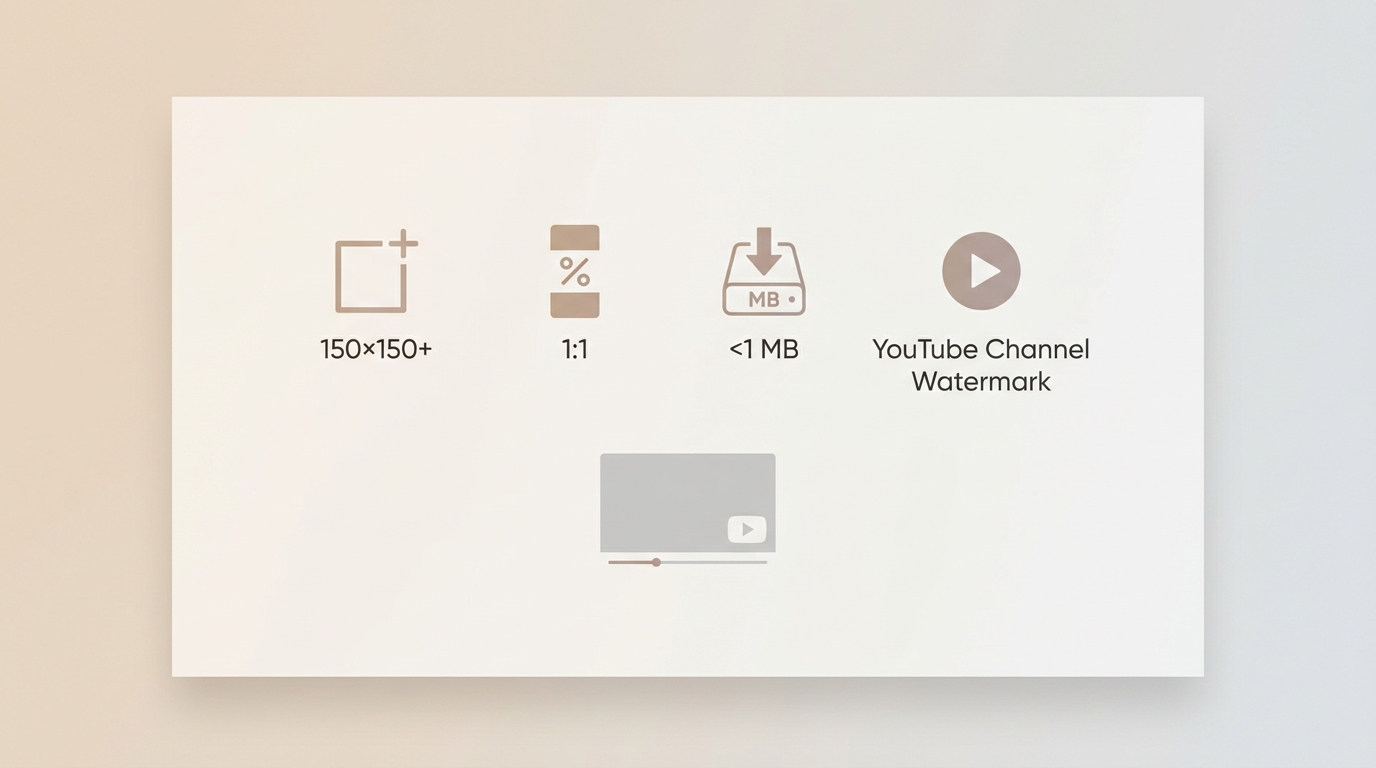
For YouTube watermark size and dimensions, upload a square watermark image that is at least 150 × 150 pixels and under 1 MB (as of July 2026).
| Specification | Requirement |
| Image dimensions | At least 150 × 150 pixels |
| Aspect ratio | 1:1 (square) |
| Maximum file size | Under 1 MB |
| Player position | Bottom-right area, controlled by YouTube |
Upload Size vs Player Display Size
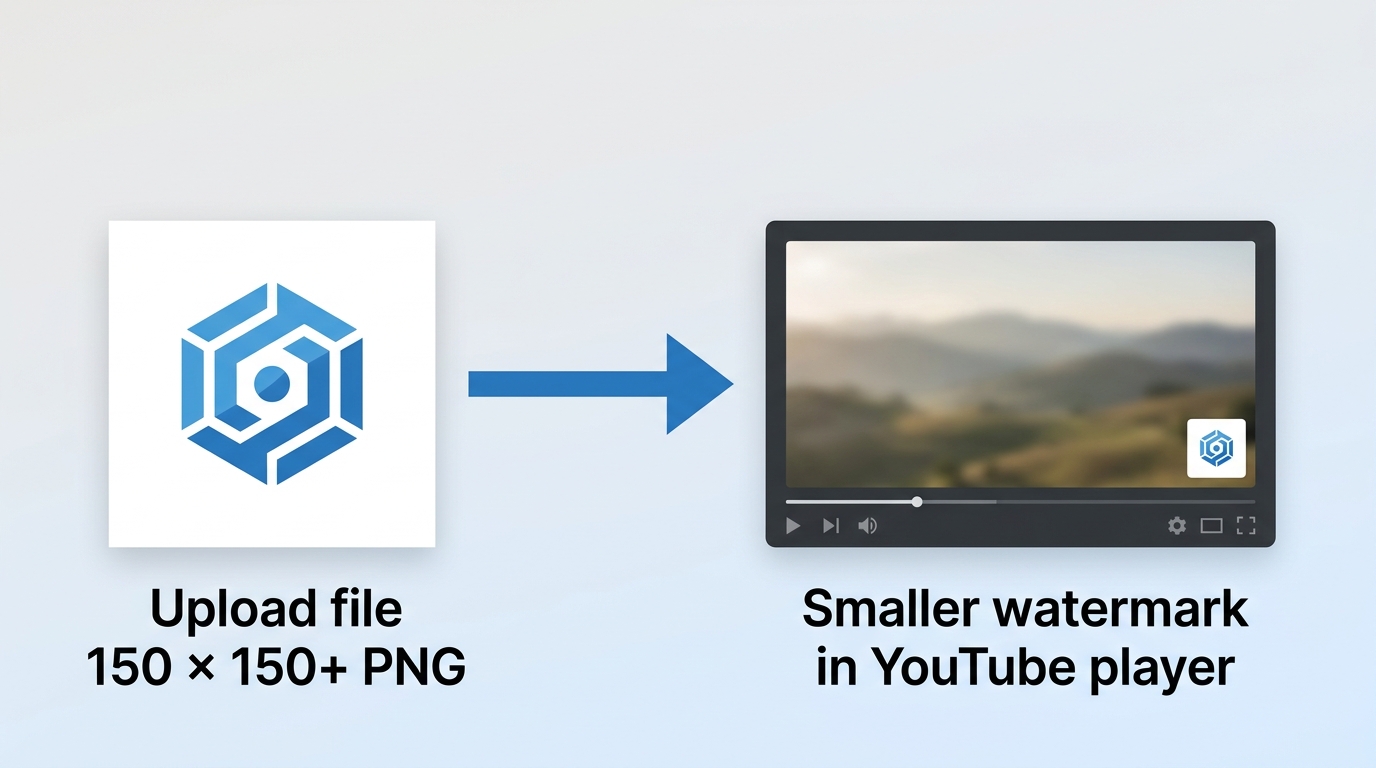
The upload file and the watermark display size are different. YouTube controls how large the watermark is rendered in its player, so a larger source image does not give you control over the on-player overlay size.
| Dimension | Upload file | On-player display |
| Image dimensions | At least 150 × 150 pixels | Controlled by YouTube |
| Aspect ratio | Square | Rendered by the player |
| File size | Under 1 MB | Not creator-controlled |
| Creator control | Choose a clear, simple source image | Choose display timing, not overlay size |
| Practical implication | Use padding instead of stretching a logo | Design for recognition at a small size |
This distinction is where many creators go wrong: adjusting the upload dimensions will not make the player overlay larger. Prioritize a simple mark that remains recognizable after YouTube renders it.
Where Watermarks Appear and Work
Video watermarks are unavailable on made-for-kids videos, are not clickable on mobile, and may not appear in certain players. A visible watermark without a Subscribe interaction can therefore be normal behavior rather than a setup error.
Best File Formats for YouTube Watermarks
Choosing the right file format is crucial for maintaining quality while meeting YouTube's requirements.
Format Comparison
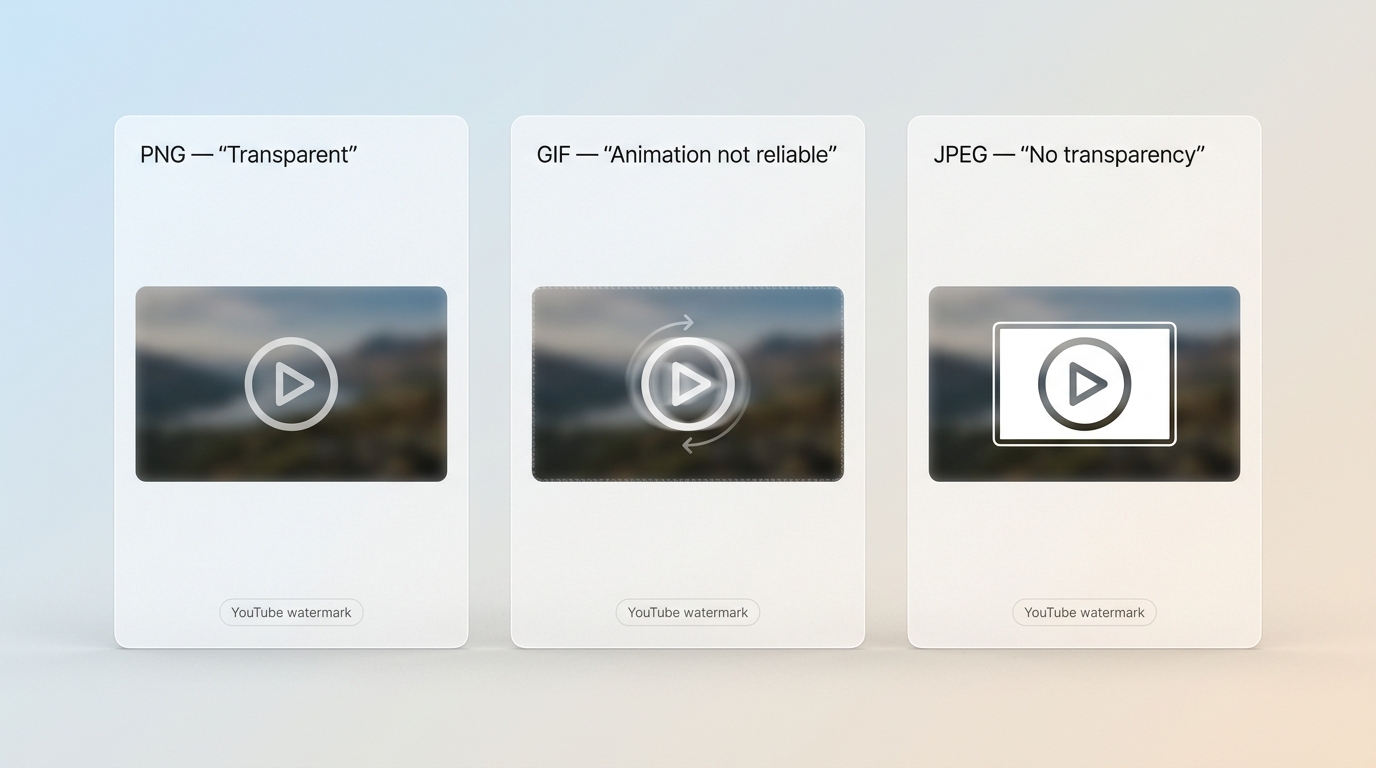
| Format | Transparency | Practical use for a channel watermark |
| PNG | Yes | A clear logo or simple Subscribe cue on a transparent background |
| GIF | May be limited | Treat it as a static image; do not rely on animation playback |
| JPEG | No | A design with an intentional solid background |
PNG for Transparent Logos
PNG is a practical choice for a transparent YouTube watermark because it supports:
- Full transparency (alpha channel)
- Lossless compression for crisp edges
- Small file sizes for simple graphics
- Universal compatibility
Pro tip: Save your PNG with the "Save for Web" option in Photoshop or similar tools to ensure the file stays under 1MB.
Static GIF Limitations
Treat a YouTube channel watermark as a static image. Do not rely on a pulsing effect, a Subscribe animation, or other GIF motion to play in the video player. If you use a GIF source file, keep the design simple and within the upload-size limit.
JPEG for Solid Backgrounds
Only use JPEG if your watermark has:
- A solid colored background
- Complex photographic elements
- No transparency requirements
JPEG compression can cause artifacts around text and logos, making PNG the superior choice for most creators.
Create a 150 × 150 Watermark
Method 1: Using Adobe Photoshop
Step 1: Create a new document (File > New)
- Set a square canvas that meets YouTube’s minimum upload requirement
- Resolution: 72 pixels/inch
- Color mode: RGB Color
- Background: Transparent
Step 2: Design your watermark
- Import your logo or create text
- Ensure the design is readable at small sizes
- Leave some padding around edges
Step 3: Save your file
- File > Export > Save for Web (Legacy)
- Select PNG-24 format
- Check "Transparency"
- Verify file size is under 1MB
Canva
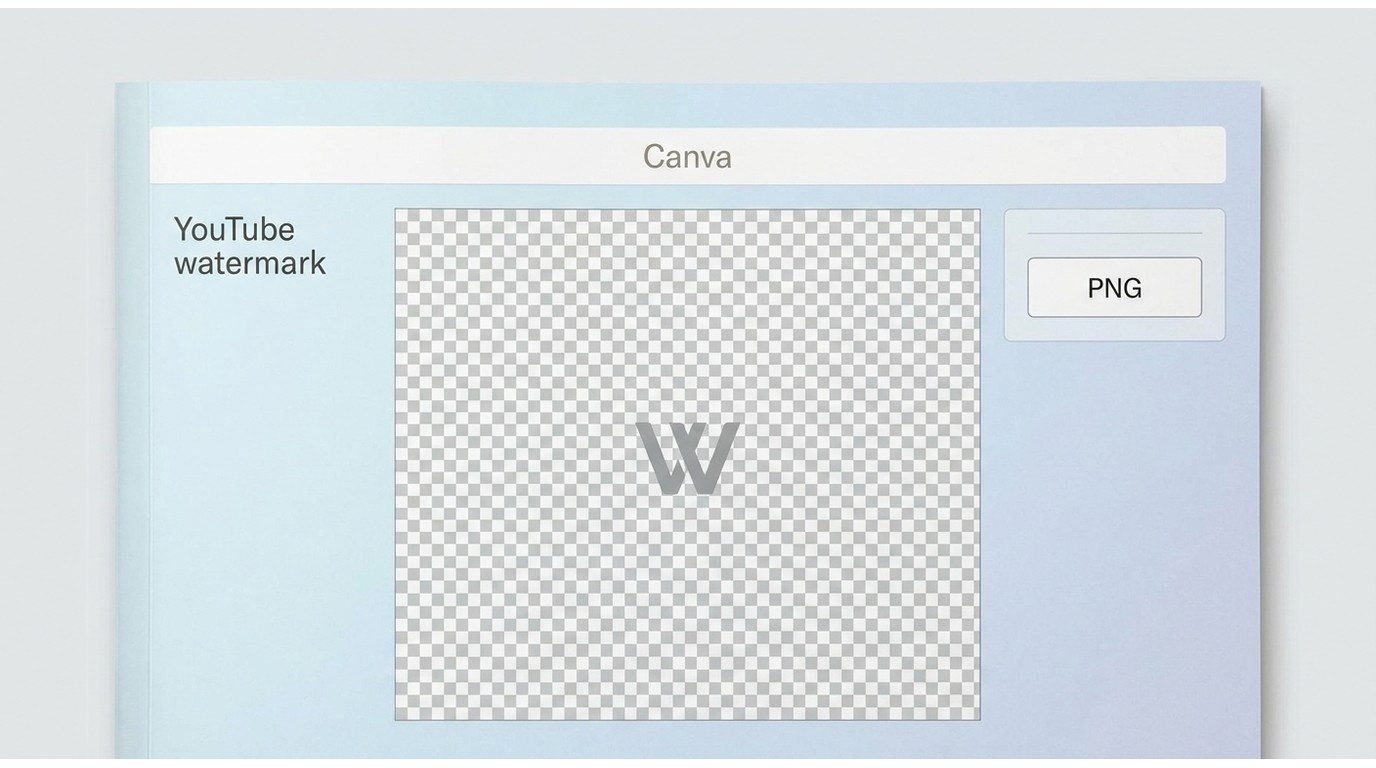
Canva is a simple template-based option for creating a channel watermark:
- Visit Canva.com and search "YouTube watermark"
- Select a square template that is at least 150 × 150 pixels
- Customize with your logo, colors, and branding
- Download as a transparent PNG that meets YouTube’s upload requirements
Mobile Editors
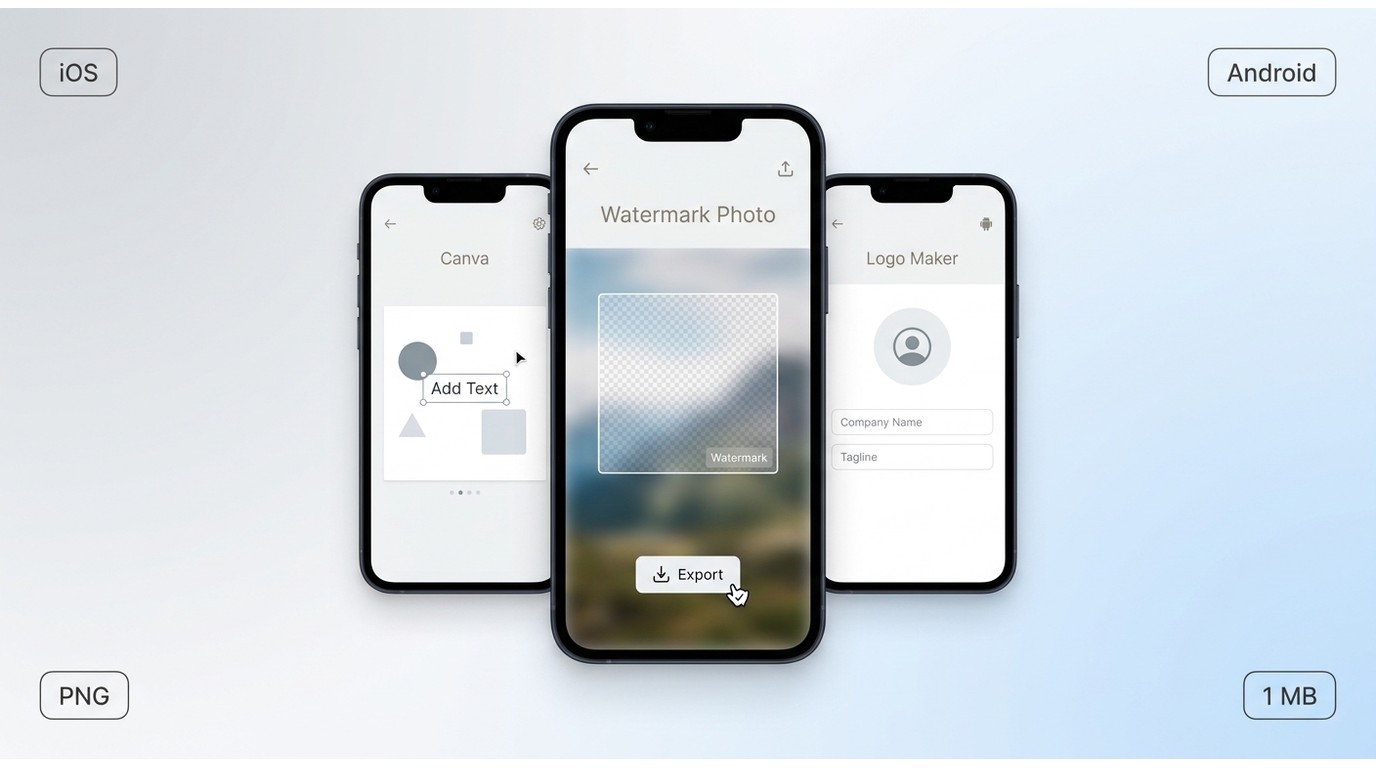
For on-the-go watermark creation, choose a mobile editor that can create a square canvas, preserve a transparent background, and export a file under 1 MB. Template tools work well for quick, simple marks; a layer-based editor is more useful when exact padding and clean logo edges matter.
| App | Platform | Useful capability |
| Canva | iOS/Android | Templates |
| Logo Maker | iOS/Android | Simple interface |
| Watermark Photo | iOS/Android | Image editing |
Resize an Existing Logo
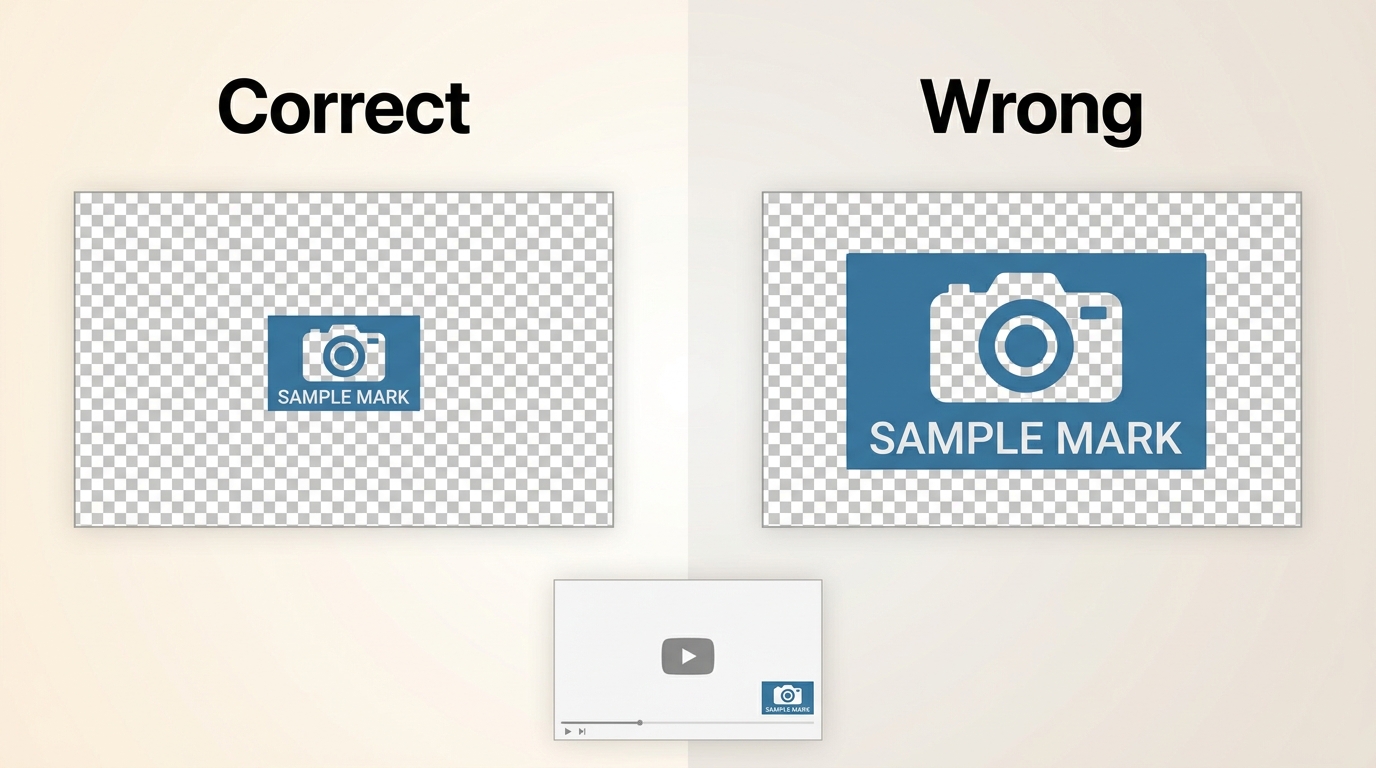
To resize an existing logo for a YouTube watermark, place it on a square canvas that is at least 150 × 150 pixels. Keep the logo’s original proportions, then add transparent padding around it if needed. Stretching a rectangular logo to fill the square canvas usually makes it look worse at the small player display size.
Add a Watermark in YouTube Studio
Follow these steps to upload and configure your watermark in YouTube Studio. Watermarks are unavailable on made-for-kids videos, are not clickable on mobile, and may not appear in certain players.
Step 1: Access YouTube Studio
- Go to studio.YouTube.com
- Sign in to your channel
- Click "Customization" in the left menu
- Select the "Branding" tab
Step 2: Upload your watermark
- Scroll to "Video Watermark" section
- Click "UPLOAD"
- Select your prepared square image that meets YouTube’s upload requirements
- Wait for upload and processing
Step 3: Configure display timing Choose when your watermark appears:
| Option | When It Displays | Best For |
| End of video | Last 15 seconds | Keeping viewers focused on content |
| Custom start time | Your chosen timestamp | Promoting subscription at peak engagement |
| Entire video | Throughout entire video | Maximum brand exposure |
Step 4: Publish changes
- Click "Publish" in the top right
- Allow time for YouTube to apply the change across eligible videos
- Check an existing video to verify the watermark appears
YouTube Watermark Design Best Practices
1. Keep It Simple
Your watermark will appear very small on screen. Follow these guidelines:
- Use minimal text (1-2 words maximum)
- Choose a simple, recognizable logo
- Avoid intricate details that won't be visible
- Ensure high contrast for visibility
2. Use Transparent Backgrounds
A transparent background makes your watermark appear integrated with the video rather than sitting on top of it. This creates a more professional appearance and is less distracting to viewers.
3. Maintain Brand Consistency
Your watermark should match your channel's:
- Color scheme
- Typography
- Logo style
- Overall aesthetic
4. Test at Different Sizes
Before finalizing, view your watermark at:
- 150×150 pixels (original)
- a reduced desktop preview
- a small player preview
If it's not recognizable at the smallest size, simplify your design.
5. Consider the Subscribe Call-to-Action
On eligible desktop playback, a channel watermark can support subscription interaction. Design with this in mind:
- Include a subtle "Subscribe" element if space allows
- Use colors that stand out against various video backgrounds
- Place important elements in the center
Troubleshoot Tiny, Missing, or Unclickable Watermarks
Watermark Not Showing
Possible causes:
- File size exceeds 1MB
- Dimensions not square (1:1 ratio)
- File format not supported
- The video is made for kids or is playing in a location where watermarks are unavailable
Practical check: Confirm that the file is square, at least 150 × 150 pixels, under 1 MB, and that the video is eligible to show a watermark.
Watermark Appears Blurry
Possible causes:
- Original image resolution too low
- JPEG compression artifacts
- Enlarged from a smaller size
Practical check: Export a clean PNG from a square canvas at least 150 × 150 pixels, without enlarging a smaller logo.
Watermark Looks Too Small
YouTube controls the watermark display size in the player. If the overlay feels tiny, the most likely issue is that the design contains too much detail, not that the upload file is too small.
Practical check: Simplify text, thicken fine lines, and make the central logo or Subscribe cue recognizable at a small size.
Subscribe Button Does Not Appear
A channel watermark is not clickable on mobile and may not appear in certain players. On eligible desktop playback, check that the video is not made for kids and that the watermark is enabled in YouTube Studio branding.
Watermark Blocking Content
YouTube places the watermark in the bottom right corner. If this blocks important content:
- Reconsider your video framing
- Keep the bottom right corner clear during editing
- Use the "End of video" display option instead of "Entire video"
Channel Watermark vs Burned-In Watermark
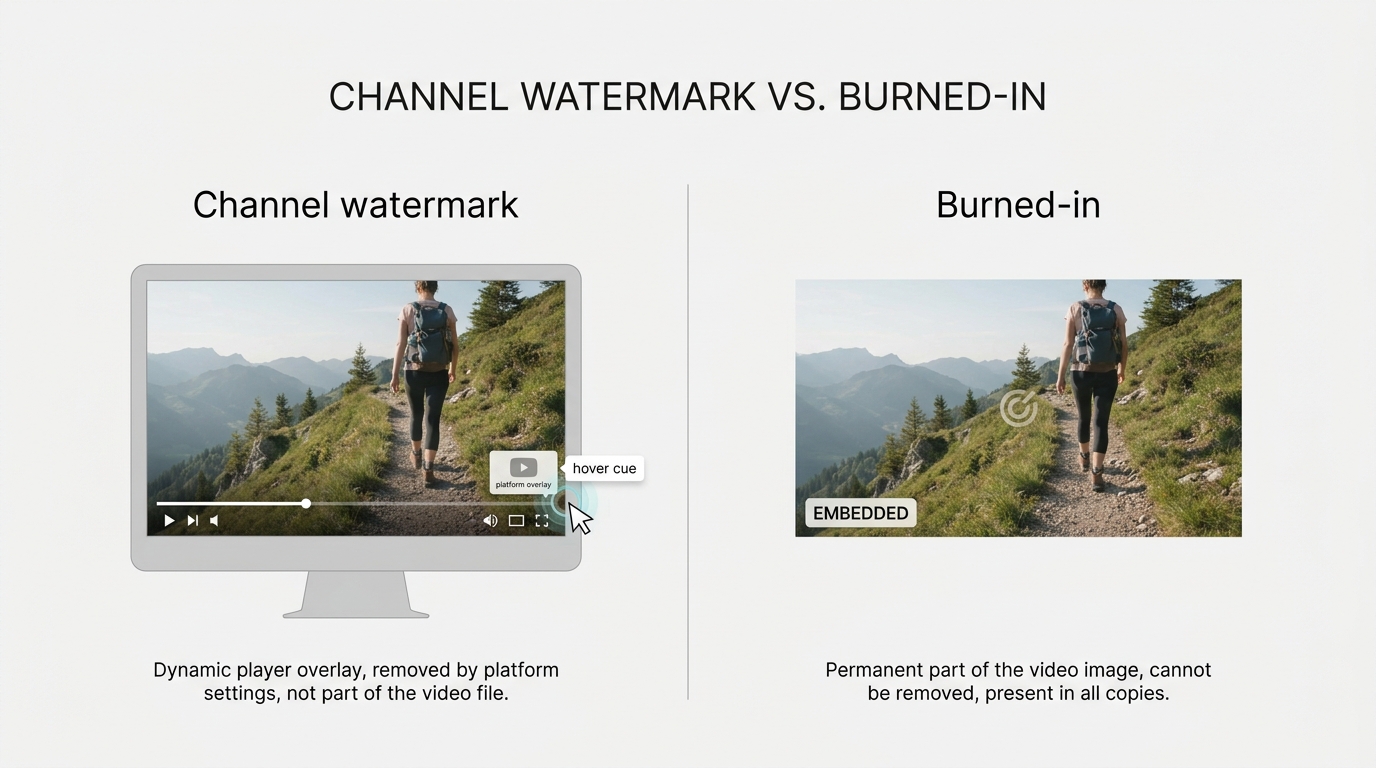
Use a channel watermark when you want YouTube’s branding overlay and a subscription cue on eligible desktop playback. Use a burned-in video watermark when visible attribution must remain part of the video image after export or sharing.
For authorized videos that need a visible mark rendered into the image, UniFab All-In-One can be considered as an editing option. It is not needed for YouTube Studio channel branding, which YouTube applies separately in the player.
UniFab All-In-One
- All-in-One Video & Audio Enhancement Solution
- 30-day free trial with full features—no watermark
UniFab All-In-One
UniFab All-In-One
- All-in-One Video & Audio Enhancement Solution
- 30-day free trial with full features—no watermark
UniFab All-In-One for Mac
Add a Visible Watermark During Editing
A burned-in watermark can be placed where it will not cover important content. If you also need to change video resolution during the editing workflow, resize the project without stretching the watermark artwork.
30-day Free Trial for full features, without watermark!
- Step 1
Launch UniFab and select your desired module from "All Features" on the left side of the interface. Then, import your video or audio file to enhance.
- Step 2
Adjust the video's output preferences by selecting the desired resolution, model, codec, format, and more.
- Step 3
Click the Start button to initiate the enhancement process and instantly upgrade your video quality.
YouTube Watermark Size Checklist
Before uploading a YouTube watermark, use this quick checklist:
- Use a square image at least 150 × 150 pixels
- Save as PNG with transparency for best results
- Keep file size under 1MB
- Design for clarity at small sizes
- Remember that YouTube controls the watermark’s on-player size and bottom-right placement
For a channel watermark, recognizability at a small display size matters more than fine detail. Keep the mark simple, use transparency when it helps, and choose a burned-in watermark instead when persistent attribution is the real goal.
YouTube Watermark Size FAQs
Can I upload a YouTube watermark larger than 150 × 150 pixels?
Yes. You can use a larger square image as long as it remains under 1 MB. Its upload dimensions do not determine the exact player display size, because YouTube controls how the overlay is rendered.
Can I move the YouTube watermark away from the bottom-right corner?
No. YouTube controls the position of its channel watermark in the player. If you need a mark in a different location, add a burned-in watermark while editing the video before upload.
Should my watermark use a logo or a Subscribe graphic?
Use a logo when brand recognition is the priority. Use a simple Subscribe graphic when you want a more direct cue on eligible desktop playback. In either case, choose the design that remains recognizable at a small size and avoid fine details.
Will a new channel watermark appear on my older videos?
Channel branding changes can apply across eligible videos on your channel, including older uploads. Made-for-kids videos and playback locations where watermarks are unavailable remain exceptions.