A video to subtitle generator turns spoken audio into timed text you can review and export. If you need captions for an interview, tutorial, or social clip, choose an editable SRT file or text embedded in the video; a free subtitle generator must support the deliverable you need.
I would treat an export you can actually use as the finish line, rather than the moment captions appear in a preview. An export paywall is especially unwelcome after you have corrected the whole transcript. That is why this guide follows the same video from output choice through generation, corrections, and playback. I’ll also explain where a desktop subtitle workflow fits, without turning the task into a tool ranking.
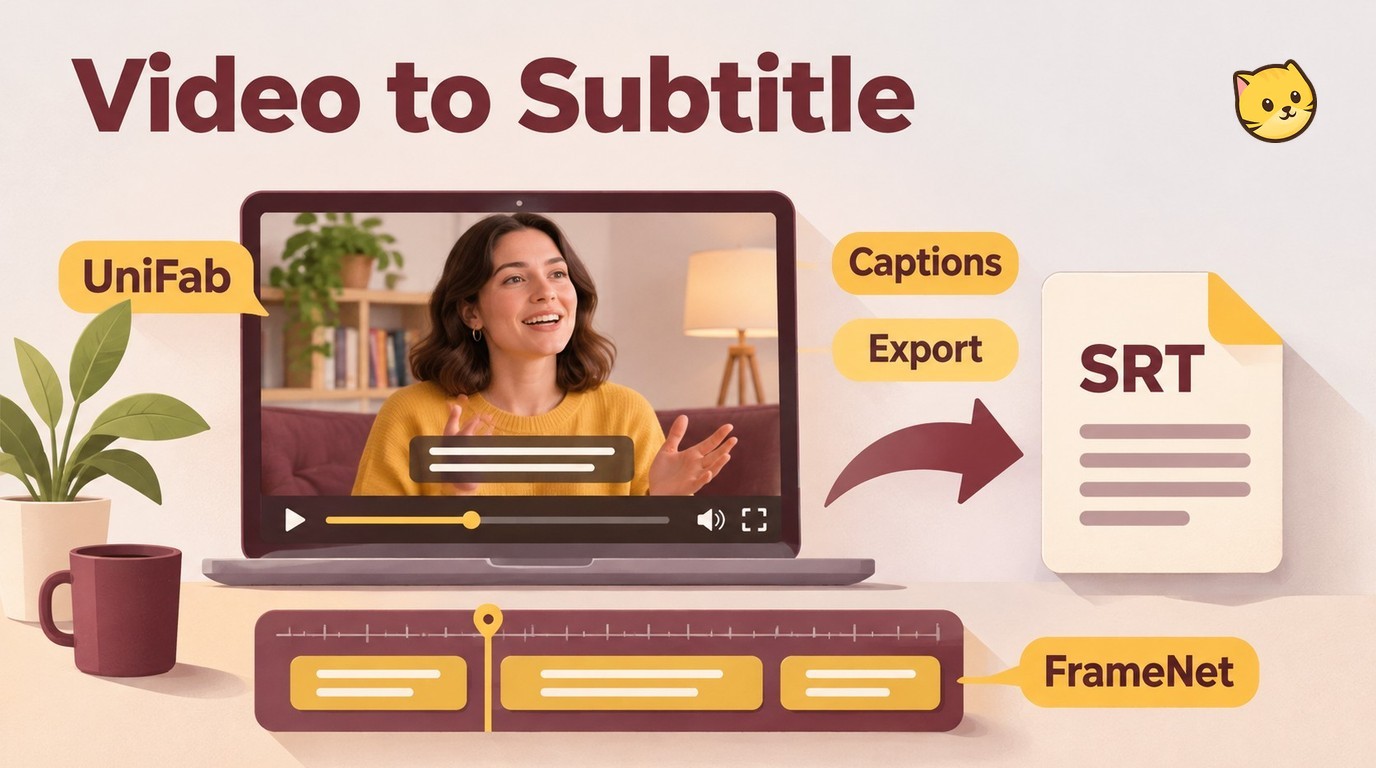
Choose an SRT File or Captions Embedded in Video
Choose SRT when you need an editable subtitle track for a compatible player or publishing platform. Choose captions embedded in the video when the words must stay visible with a fixed appearance, such as a social clip watched without sound.
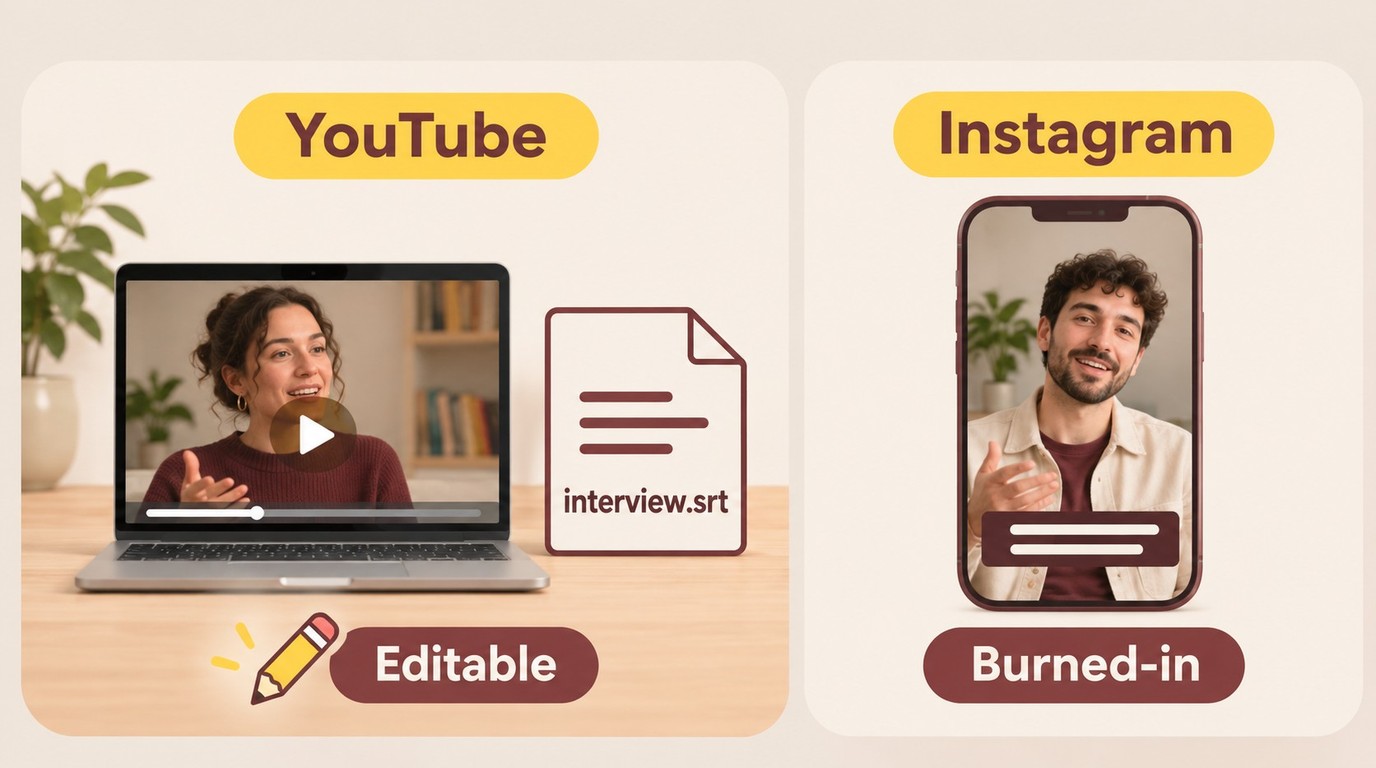
Match the Output to Where the Video Will Be Watched
An SRT file preserves text and timing separately from the picture. That makes a spelling correction easier: you edit the subtitle file rather than render the video again. The player or publishing platform controls how that separate track appears. For a business training video, keep an editable SRT master so company and product names can be corrected without rendering the video again.
| Output | What It Contains | Editing Later | Viewer Control | Suitable Use |
|---|---|---|---|---|
| SRT file | Text and timecodes | Edit the text file | Toggle in compatible players | Reusable subtitle track |
| Captioned video | Text rendered into frames | Edit project and render again | Captions remain visible | Fixed on-screen styling |
Format reference: YouTube Help’s supported subtitle formats, as of November 2026.
I would keep an SRT master when the same interview needs later corrections or another language track. For a finished Instagram clip with a fixed caption design, embedded text suits that delivery better. For an Instagram marketing clip that needs fixed on-screen captions, use the captioned-video export and check the saved result before sharing it. Neither output replaces the other.
YouTube accepts basic SRT files in plain UTF-8 and ignores their styling markup. A font or colored background shown in an editor therefore does not travel with an SRT upload to YouTube. Keep that distinction in mind when you add subtitles to a video with a particular visual design.
The need for editable text is concrete. In a July 2026 r/VideoEditingTips post about interview captions, one Reddit user wrote, “i just need timecodes + text, i’ll fix the wording myself.” That is an SRT task, rather than a request for animated captions.
Check the Full Export Before Choosing a Free Generator
“Free to generate” does not tell you what you can take away. Look at the full video’s duration allowance, subtitle-file download access, and any watermark on the rendered video. A watermark is a video-image issue; SRT is a text file.
An October 2026 r/VideoEditingTips post described wanting to “export it without a paywall or infinite friction”. That complaint is a reason to inspect the export options early, not proof that a particular service blocks downloads.
For your project, the best free subtitle generator is one that delivers the complete output you need. A short preview is insufficient when your interview needs a full-length SRT; an SRT download alone is insufficient when your brief calls for styled text baked into the picture.
Generate and Export Subtitles with FrameNet
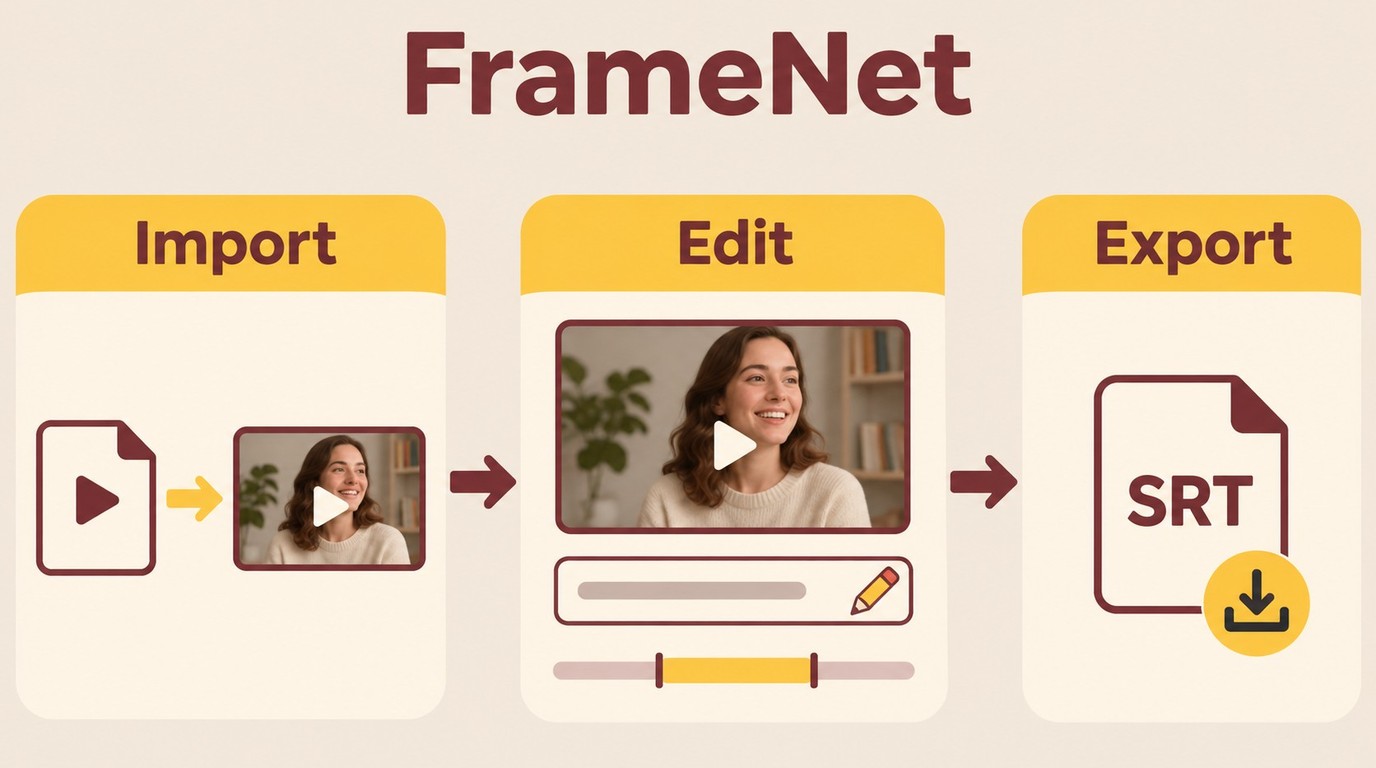
FrameNet provides a browser workflow for generating subtitles, editing words and timing, and downloading SRT or VTT files. Its subtitle pages also describe applying captions to video; choose the output that matches your publishing task and check the saved result.
FrameNet labels its core subtitle tool free and watermark-free, with use subject to fair-use conditions. This suits a browser-based captioning task when the available export covers your video. It is not a promise of unlimited processing for a production queue.
Prepare the Video and Generate the Subtitle Draft
Have your source ready before importing it. You need a video you have permission to use, audible speech, an internet connection, and a browser. Decide whether this job ends with a subtitle file or a captioned video; keep the original video unchanged while you work.
- Open FrameNet’s free subtitle generator and import your video. The entry address is www.framenet.ai/tools/free-subtitle-generator. Use the upload flow to select your source file. Play the source and make sure the intended dialogue is audible, rather than relying on a filename to identify the right version.
- Generate subtitles from the spoken audio. Use FrameNet’s automatic subtitle function. If a language choice appears, match it to the speech you hear. Selecting English for an English interview is transcription; requesting English text from German speech is a separate translation task.
- Inspect the draft before styling it. Compare the opening dialogue with the generated text. If the words do not match the speech, revisit the source and language setting before correcting individual lines. A wrong-language draft is a poor starting point for detailed editing.
The draft is your working copy. For an interview, keep a small reference list of names, organizations, and specialist terms beside the player. It gives you a consistent spelling reference as the same person or topic returns later in the recording.
Correct the Words and Align the Timing
I would correct meaning before choosing a caption style. A polished overlay still communicates the wrong thing if a price, name, or negation is incorrect. In a July 2026 r/AI_Agents discussion, one Reddit user put the priority plainly: “Accuracy is the priority over editing features.”
- Review the wording against the audio. Correct names, numbers, punctuation, and misheard words in FrameNet’s editor. Replay accented speech, background noise, and overlapping speakers with extra care. Where you cannot hear a phrase clearly, do not invent dialogue to make the sentence look complete.
- Adjust timing and line breaks in the editor. Align each cue with its spoken phrase, then check that the line stays readable before the next cue arrives. Split a crowded caption at a natural phrase boundary. If your deliverable needs accessibility cues, add speaker labels or meaningful sounds, such as “[applause],” where the editor permits text changes.
Timing needs a listening pass. Read along at normal playback speed, especially around interruptions and quick exchanges. A line that looks tidy while paused might disappear before you finish reading it. Styling controls change presentation; they do not correct the transcript.
Export the SRT or Captioned Video and Check Playback
- Save the chosen deliverable from FrameNet. For a reusable subtitle track, download SRT. For captions fixed in the picture, use FrameNet’s captioned-video export when that option is available in your session. Keep the corrected text available so you do not need to start over if the video export offers different conditions.
- Open the downloaded result outside the editing preview. Load the SRT with its matching video in a compatible player, or play the rendered captioned video directly. Check the beginning, middle, and end, including the final spoken line. If the subtitle file is empty or ends early, the job is unfinished.
- Check for duplicate caption layers. When text is embedded in the video, disable a separately loaded subtitle track during playback. If you see two different versions of the same words, compare the video image with the player’s subtitle controls before changing your transcript again.
I would call this job complete when the saved output plays correctly and the wording has been reviewed. Keep the source, corrected subtitle file, and final video together; a later video edit needs a fresh timing check, even if the dialogue remains unchanged.
Use content you own or are authorized to process, and follow the provider’s terms and applicable law; you are responsible for the content permissions. Keep material licensed for personal use within that scope, and do not redistribute or resell it without permission.
When UniFab Subtitle Generator Fits a Desktop Workflow
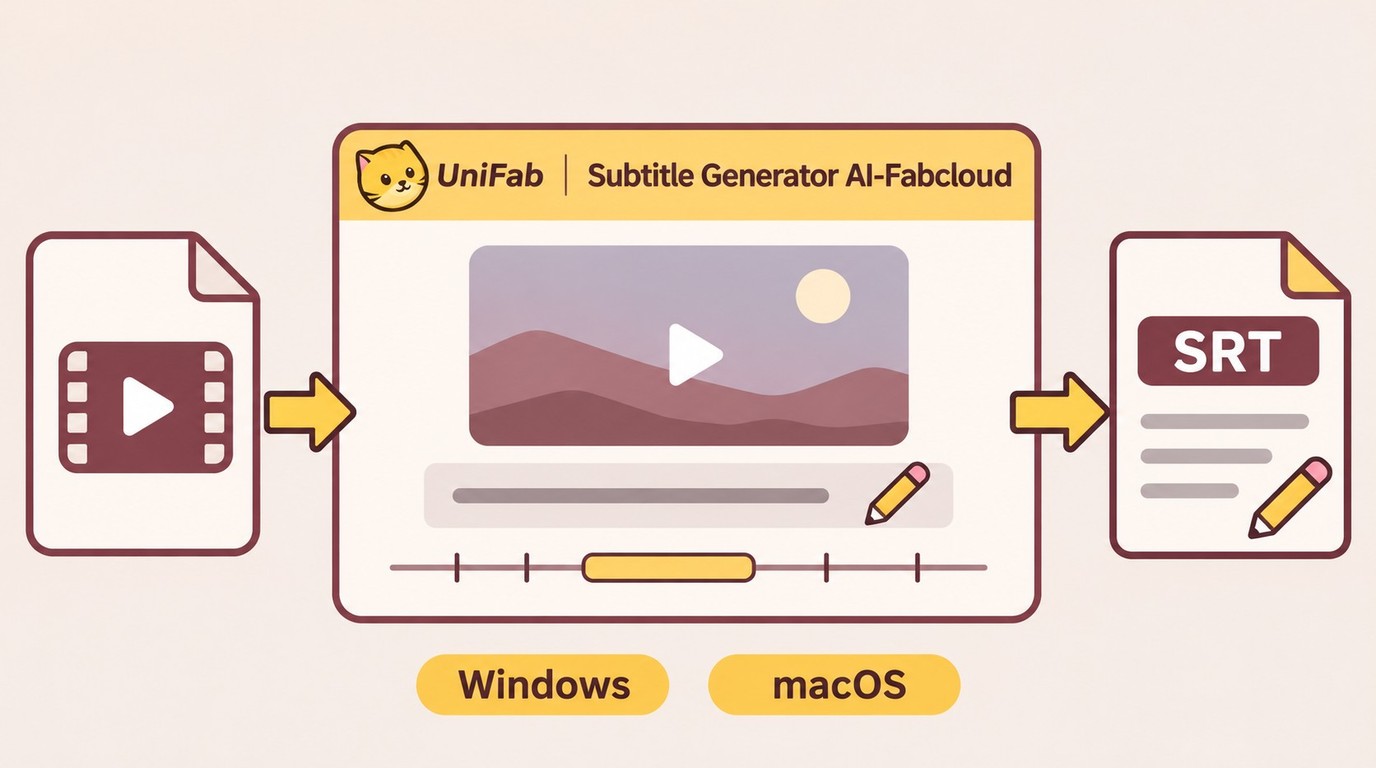
UniFab’s Subtitle Generator AI-Fabcloud is a Windows and macOS subtitle app that accepts video up to 4K and exports editable SRT files. Choose it when you need a separate subtitle track for editing or publishing.
Get an SRT File for Your Desktop Project
I would choose this module for a workflow that needs the subtitle text back as a file. SRT gives you a track to review, revise, and carry into your video project. The 4K input ceiling describes the video it accepts; the text file itself has no picture-resolution grade.
- Open the Subtitle Generator module in UniFab and import your video.
- Select the relevant audio-track language for the speech you want subtitled, then run generation.
- Download the subtitles as SRT and review them with the matching video before publishing.
Audio-track language selection helps you target the dialogue you need when preparing the subtitle file. Keep the generated SRT with the matching video version so later corrections stay attached to the right edit.
The module exports SRT rather than a finished video with styled captions; use the SRT in your video-editing stage when you need text embedded in the picture. The FabCloud 600-credit annual plan starts at 199.99 USD per year. Open Subtitle Generator AI-Fabcloud to begin the SRT workflow on your computer.
Video Subtitle Generator FAQ
Translation, long-video processing, and local generation are separate capabilities, so a subtitle generator does not automatically provide all three. I would match the next task to the specific output you still need, rather than regenerate a corrected transcript unnecessarily.
Can generated subtitles be translated into another language?
Yes, with a workflow that includes translation. First obtain a corrected transcript in the spoken language, then translate it into the audience’s language and review the result. Audio-track selection identifies what to transcribe; it does not itself translate the words. Translated sentences also need a timing and readability pass because their length changes. A dedicated video translation workflow suits a project that needs another language after the original captions are ready.
Can I generate subtitles for long videos or a batch of files?
Yes, when the tool supports that duration or generation queue. A long-video job needs enough processing allowance for the entire recording. Batch transcription means generating subtitles across multiple source videos; downloading several existing subtitle files is a different operation. For a series of interviews, I would finish a representative file through export before queuing the rest. Keep each SRT paired with its source, and review recurring names consistently across the project. Do not assume a free plan covers the whole queue because it accepted the first upload.
Can I generate subtitles without uploading my video?
Yes, with a local tool that runs transcription on your computer. A desktop interface alone does not establish that processing stays local, and open-source software still needs a locally configured model and dependencies for an offline workflow. Browser tools can also send jobs to a server. If avoiding uploads is a requirement, choose a documented local-processing setup and confirm that generation works with the network disconnected after setup. That checks the behavior you need without treating the installer format as proof.
Choose Your Next Step
Choose an SRT file for an editable track, or a captioned video for text that stays visible in the picture. Then carry your own video through the matching export and reopen the result before publishing.
My recommendation is to finish the same job you started: keep the output matched to its destination, preserve the corrected text, and check any later video edit against the subtitle timing. Automatic generation gets you a draft, but a downloaded file with reviewed wording and working playback is the deliverable; if the words are wrong or the last lines are missing, return to that point in the workflow before sharing it.