How Video Stabilization Software Works (and the Crop-Factor Trade-off)
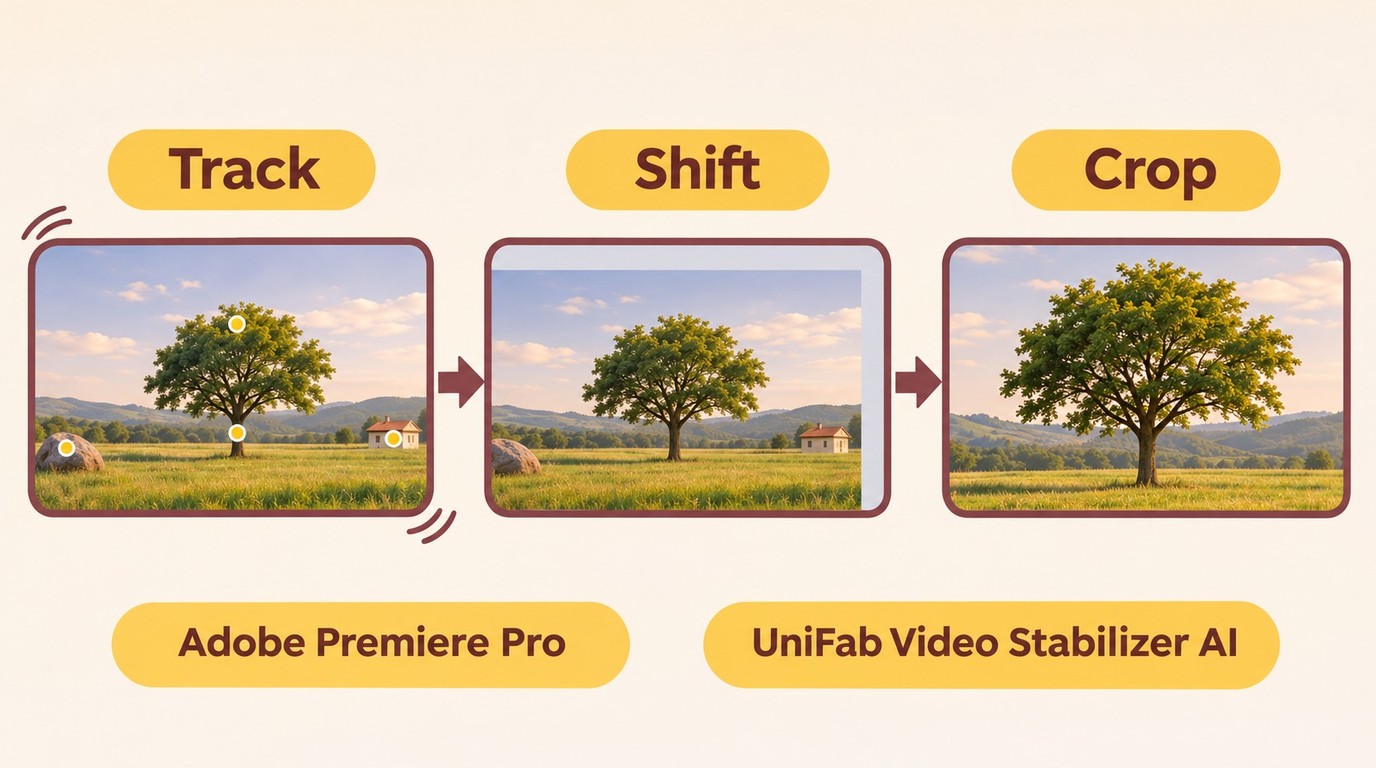
Before comparing tools, it helps to understand what every video stabilization software program is doing under the hood. Video stabilization software tracks hundreds of reference points across your frames, calculates how the camera moved between them, and then digitally counter-moves each frame so the subject stays locked in place. Traditional editors do this with warp or point-tracking algorithms; modern AI video stabilization software predicts motion trajectories frame by frame for smoother, more natural results.
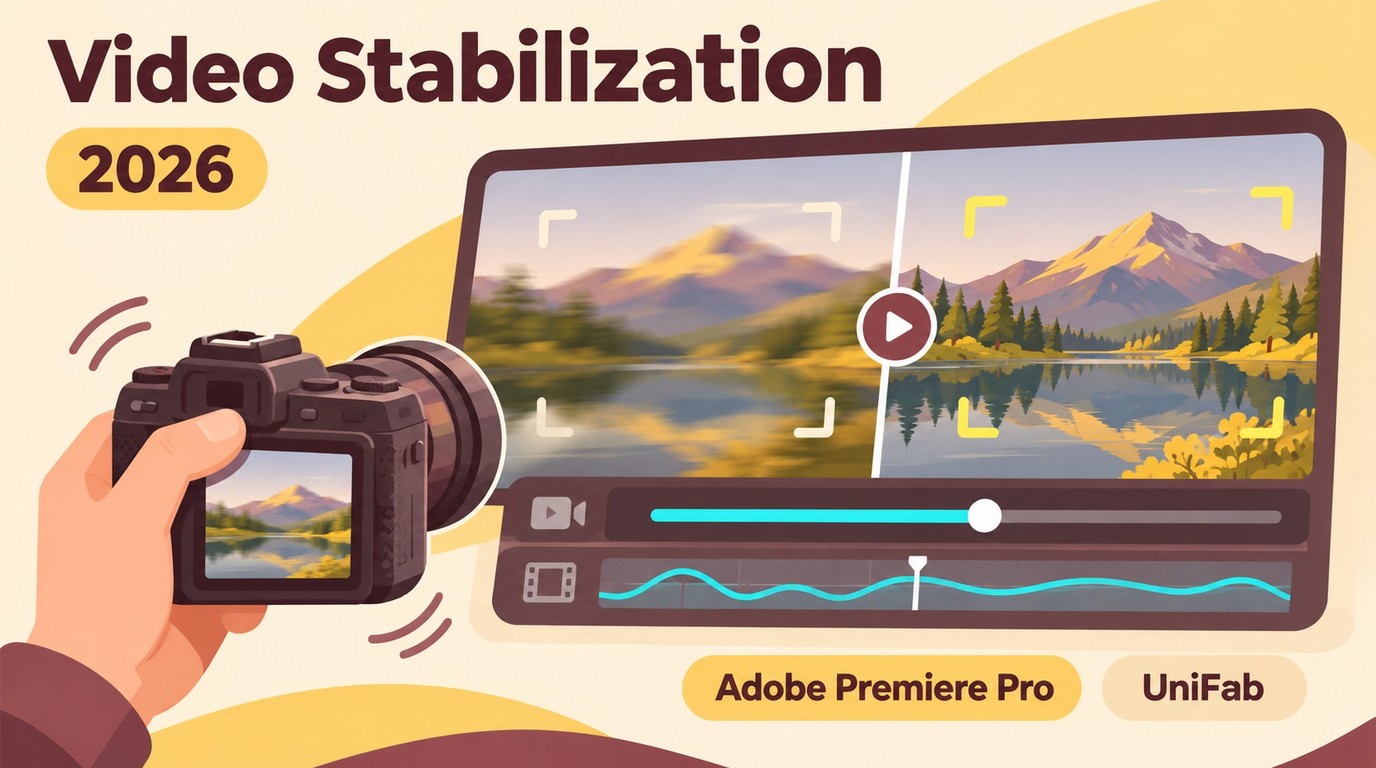
One important trade-off is the crop factor. Reframing and scaling can hide empty edges after stabilization; stronger smoothing can require more reframing. Stronger shake can require a deeper crop, depending on the correction and framing settings. Scaling the corrected image can soften detail; an AI label alone does not mean the tool includes upscaling. If you want the underlying mechanics in plain English before you commit, our guide on how to stabilize shaky video walks through the process step by step.
The other thing to watch for is rolling shutter, or the "jello" wobble common on smartphone and action-cam clips. Aggressive stabilization can amplify that warping instead of removing it. If shake remains, increase smoothing slightly; if edges warp, lower smoothing or select a less deforming method when available.
Quick Comparison: Best Video Stabilization Software in 2026
| Software | Stabilization Workflow |
|---|---|
| UniFab Video Stabilizer AI | Dedicated stabilizer with selectable modes and models |
| Adobe Premiere Pro | Warp Stabilizer with fine controls |
| DaVinci Resolve | Built-in stabilization in a full editor |
| PowerDirector | Stabilization alongside timeline editing |
| CapCut | Short-form editing and online stabilization |
| Movavi Video Editor | Stabilization alongside everyday editing |
| Pinnacle Studio | Manual stabilization controls and timeline editing |
| VideoProc Converter AI | AI stabilization within a converter |
Plan and trial details as of November 2026.
1. UniFab Video Stabilizer AI: For Dedicated Stabilization
UniFab Video Stabilizer AI is video stabilization software for a dedicated camera-shake correction workflow. It provides selectable stabilization modes and models before processing. I would choose this workflow when the task is shake correction rather than assembling a full edit.
Recommended operating system: Windows 11 or Windows 10 (64-bit only)
Pros
- Selectable stabilization modes and models before processing
- Clean, minimal interface suitable for any skill level
- 30-day trial with three uses per module. Try a representative clip in the Stabilizer module.
Cons
- Windows only (no macOS or Linux build yet). Use the Windows trial for a representative clip on your intended system.
- Focused stabilizer, not a full timeline editor for cuts and effects. Use the Stabilizer trial for shake correction and keep timeline assembly in your editor.
Trial: 30 days with three uses per module. Use the trial workflow described above.
Best for: Windows users who want a dedicated stabilization workflow.
Why choose this workflow: The UniFab Video Stabilizer AI trial lets you apply its dedicated stabilization workflow to a representative clip. Choose it for a separate shake-correction task; Premiere Pro and DaVinci Resolve also provide full timeline editing.
2. Pinnacle Studio: Best for Hands-On Hobbyists
Pinnacle Studio is video stabilization software that offers a solid stabilization module alongside a broad editing feature set. It appeals to hobbyists who enjoy fine-tuning every parameter themselves rather than relying on full automation.
Platform: Windows
Pros
- Supports 360-degree video editing and stabilization
- Rich creative effects and transitions library
- Flexible manual stabilization controls
Cons
- Interface can feel cluttered for newcomers
- Stabilization requires more hands-on adjustment than AI tools
- Slower processing on longer clips
Pricing: From $49.99 (one-time) | 15-day free trial
Best for: Hobbyists and intermediate editors who value manual precision.
How it compares to UniFab: Pinnacle gives you more editing tools but less stabilization automation. Choose Pinnacle for hands-on timeline editing, or UniFab for a dedicated shake-correction task.
3. Adobe Premiere Pro -- Best for Professional Workflows
Adobe Premiere Pro remains the industry standard for professional video editing, and as video stabilization software its Warp Stabilizer effect is one of the most configurable on the market. Editors can dial in smoothness, choose between smooth motion and no motion modes, and nest stabilized clips inside complex timelines.
Platform: Windows, macOS
Pros
- Granular stabilization parameters (smoothness, method, framing)
- Deep integration with After Effects, Audition, and the wider Adobe ecosystem
- Constant updates and a massive community of tutorials
Cons
- Steep learning curve for beginners
- Subscription-only pricing adds up over time
- Stabilizing long 4K files can be slow without high-end hardware
Pricing: From $22.99/month | 7-day free trial
Best for: Professional filmmakers, broadcast editors, and post-production studios.
How it compares to UniFab: Premiere Pro offers deeper manual control, but its stabilization workflow involves multiple panels and render passes — see our walkthrough on how to stabilize footage in premiere pro. Choose UniFab for a separate stabilization task, or keep correction in Premiere Pro when the clip is already part of an Adobe editing timeline.
4. DaVinci Resolve -- Best Free Professional Stabilizer
DaVinci Resolve pairs Hollywood-grade color grading with capable video stabilization software. The free edition of DaVinci Resolve 21 includes camera stabilization on the Edit and Color pages, providing a no-cost stabilization option alongside its editing and color-grading tools.
Platform: Windows, macOS, Linux
Pros
- Free version includes full stabilization tools
- Excellent quality, especially in the Color page tracker
- Cross-platform with Linux support
Cons
- Resource-hungry -- benefits from a dedicated GPU
- Complex UI takes time to master
- Some advanced stabilization modes locked behind the paid Studio 21 license
Pricing: DaVinci Resolve has a free edition; the DaVinci Resolve Studio 21 promotional offer is $236, reduced from $295.
Best for: Colorists, indie filmmakers, and editors who want pro features at no cost.
How it compares to UniFab: The DaVinci Resolve stabilizer keeps shake correction alongside timeline editing and color grading. Choose UniFab when you want a separate stabilization workflow instead.
5. PowerDirector -- Best Budget All-in-One Editor
PowerDirector bundles video stabilization software inside a full-featured consumer editor. It is designed for users who want to stabilize, trim, add effects, and export -- all in one affordable package.
Platform: Windows, macOS
Pros
- Intuitive drag-and-drop timeline
- Comprehensive editing suite beyond stabilization
- Regular updates with new AI features
Cons
- Stabilization is part of a broader editor rather than a dedicated correction workflow
- Free version has limited export options
- PowerDirector offers Essential, a 365 subscription, and a one-time-purchase edition.
Pricing: From $59.99/year
Best for: Budget-conscious beginners who need an all-in-one editor.
How it compares to UniFab: PowerDirector combines stabilization with timeline editing, trims, and effects. Choose UniFab when you want a dedicated shake-correction workflow rather than a full editor.
6. CapCut: Stabilizer for Social Media
CapCut advertises free online video stabilization for short-form editing. Its built-in stabilization toggle works well for typical smartphone clips destined for TikTok, Instagram Reels, or YouTube Shorts. If you prefer to work in a browser rather than install software, an online video stabilizer can handle quick jobs without a download.
Platform: Windows, macOS, Web
Pros
- CapCut advertises free online stabilization. Access to specific features and export options can differ by device, account, region, and export path. Open your intended export settings to see whether the selected features require a paid plan.
- Available on desktop, browser, and mobile
- Simple one-toggle stabilization
Cons
- Limited accuracy on high-motion or 4K footage
- Fewer fine-tuning options than professional tools
- Cloud-based processing may raise privacy concerns
Pricing: Free online stabilization is advertised; feature and export access follow the conditions above.
Best for: Social-media creators who want stabilization within a short-form editing workflow.
How it compares to UniFab: The CapCut stabilizer keeps correction within short-form editing, while UniFab provides a dedicated stabilization workflow.
7. Movavi Video Editor: Best for Everyday Fixes
Movavi Video Editor is consumer video stabilization software that targets everyday users who want a polished result without reading a manual. Its stabilization module smooths out handheld shake and minor vibrations effectively enough for family videos and casual projects.
Platform: Windows, macOS
Free exports are watermarked, capped at 60 seconds, and exclude 4K.
Pros
- Clean, beginner-friendly interface
- One-time purchase option alongside subscription
- Adequate stabilization for low-to-moderate shake
Cons
- Stabilization quality falls short on extreme shake
- Fewer AI-driven enhancements than competitors
- Export can be slow at higher resolutions
Pricing: From $29.95/month | One-time license available
Best for: Casual editors who prioritize simplicity.
How it compares to UniFab: Movavi is approachable but cannot match UniFab's AI precision on challenging footage. For serious stabilization work, UniFab is the stronger pick.
8. VideoProc Converter AI -- Best for Action Camera Footage
VideoProc Converter AI is video stabilization software tailored for action-camera users. For action-camera footage, inspect the camera model, recording mode, and available motion-data file before choosing between a gyro-data workflow and image-based stabilization.
Platform: Windows, macOS
The AI stabilization trial includes five watermark-free exports.
Pros
- Optimized for GoPro, DJI, and other action cameras
- Fast batch processing
- Simple three-step workflow
Cons
- Stabilization is a secondary feature inside a broader converter tool
- Less effective on non-action-camera footage
- Interface feels dated compared to newer competitors
Pricing: Premium 365 costs $34.95 for the first year on three PCs, with a $39.95 annual renewal. Lifetime offers cost $54.95 for one PC or $79.95 for three to five PCs. Licenses are platform-specific.
Best for: GoPro and action-camera enthusiasts.
How it compares to UniFab: The VideoProc Converter AI combines stabilization with conversion tools, while UniFab focuses on a dedicated stabilization workflow.
Best Software to Stabilize Video: Choosing Your Workflow
Picking the right video stabilization software depends on three factors: your skill level, your footage type, and your budget.
- Professionals who already work inside a full NLE should consider Premiere Pro, DaVinci Resolve, or Final Cut Pro for deep integration with color grading and effects.
- Beginners and general users who want a dedicated shake-correction workflow can choose UniFab Video Stabilizer AI without building a full editing timeline.
- Budget-conscious creators can start with the free edition of DaVinci Resolve. For CapCut, use the export-access guidance in its entry above.
- Action-camera users can shortlist VideoProc Converter AI alongside UniFab for image-based correction, but should inspect their recordings for usable motion data before choosing a workflow. All-in-one editors like Filmora suit those who also want quick trims and effects.
A local-file workflow processes footage on your computer, while a browser-upload workflow sends the selected file to an online service.
Gyro Data or Image Analysis?
A gyro-based workflow needs usable recorded camera motion data, synchronization with the video, and a suitable lens profile. Before choosing a tool such as Gyroflow, inspect your camera model, recording mode, and motion-data file. If your recording lacks usable motion data, choose an image-analysis workflow that estimates motion from the recorded frames.
UniFab and Other Stabilizers: Workflow Fit
UniFab is a dedicated stabilization workflow; Premiere Pro and DaVinci Resolve combine stabilization with full timeline editing. I recommend UniFab when the task is correcting camera shake in an existing clip. It is not a full timeline editor; use its trial to process a representative clip for that stabilization task.
If your project already lives in an Adobe editing timeline, Premiere Pro's Warp Stabilizer keeps correction within that project. CapCut suits short-form editing, with feature and export access depending on device, account, region, and export path.
Bottom line: Choose UniFab Video Stabilizer AI for a dedicated stabilization task, or stay in your existing editor when stabilization is part of a larger edit.
Stabilize Video with UniFab in Three Steps
Step 1: Open UniFab and Select Stabilizer
Launch UniFab and click the Stabilizer module on the home screen.
Step 2: Import Your Shaky Video
Drag your video file into the workspace or click Add Video to browse. UniFab supports all major formats including MP4, MOV, MKV, and AVI.
Step 3: Start Stabilization and Export
Select a suitable stabilization mode or model, then click Start to let the AI analyze and correct camera shake. Once processing finishes, preview the result and export to your preferred format and folder.
Process only footage you own or are authorized to use, and follow applicable law and the relevant tool and service terms. You are responsible for how you use the content.
FAQs About Video Stabilization Software
Which video stabilization software works on a Mac?
Several video stabilization software tools in this guide support macOS: Adobe Premiere Pro, DaVinci Resolve, PowerDirector, CapCut, Movavi Video Editor, and VideoProc Converter AI. DaVinci Resolve's free edition includes built-in stabilization and color-grading tools. Premiere Pro fits an existing Adobe editing timeline, while Resolve combines stabilization with editing and color correction in one application.
Can I export stabilized video for free without a watermark?
Yes. DaVinci Resolve's free version includes built-in stabilization without a watermark. VideoProc Converter AI offers five watermark-free AI stabilization trial exports. Movavi's free exports are watermarked, capped at 60 seconds, and exclude 4K. For CapCut's free-export conditions, follow the export-access guidance in its entry above. If you want a lightweight browser option, our roundup of the best free video stabilizer tools covers no-download choices too. UniFab Video Stabilizer AI offers a 30-day trial with three uses per module. Start the trial from the UniFab product page and process a representative clip.
How is software stabilization different from optical image stabilization?
OIS is a hardware feature built into camera lenses or sensor modules that physically compensates for shake during recording. AI video stabilization is a post-production software process that analyzes recorded footage and corrects shake after the fact. The two are complementary: OIS reduces shake at capture time, while AI stabilization refines the result further in editing. For a gyro-based workflow, use the capture settings recommended for your camera and stabilization tool rather than assuming OIS should be enabled.
Can software rescue footage with severe vibration or motion blur?
Software can reduce visible shake, but severe vibration may leave distortion and require a larger crop. Stabilization reframes recorded images; it cannot recover detail lost to motion blur or content outside the frame. Trim to shorter usable segments to reduce the correction needed. For future recordings, steadier camera support can reduce vibration before it reaches the footage.
Why does stabilized footage still look wobbly?
That warped, jiggling look can come from rolling-shutter distortion, often called the "jello effect," moving subjects, or overly strong correction. When a stabilizer pushes correction too hard on smartphone or action-cam footage, it amplifies the skew instead of removing it, and the background appears to pulse. The fix is to lower the stabilization strength, enable any dedicated rolling-shutter repair option your tool offers, and avoid stacking stabilization on top of already-processed clips. Try a less deforming stabilization method if available; general stabilization does not guarantee rolling-shutter repair.
Should I stabilize footage before or after editing?
Trim your clip to the section you need before analyzing motion, so the tool does not waste time analyzing frames you will discard. In an editor, analyze the source clip before adding transitions or changes that alter its motion; effect order and nesting depend on the editor's workflow. If you stabilize after adding effects, the stabilizer may misinterpret motion introduced by transitions or speed ramps, leading to unwanted artifacts.
Final Verdict
Among these 8 video stabilization software options for 2026, I recommend UniFab Video Stabilizer AI for a dedicated shake-correction workflow. Its selectable stabilization modes and models let you choose how to process a clip without building a full editing timeline. For travel vlogs, short films, or action-camera clips, choose a suitable mode or model, then review the corrected framing and remaining shake.
For editors already embedded in a professional NLE, Premiere Pro and DaVinci Resolve remain excellent choices. For a no-cost editing workflow, DaVinci Resolve's free edition includes stabilization. CapCut advertises free online stabilization, but feature and export access vary by device, account, region, and export path; open your intended export settings to see whether the chosen features require a paid plan. Choose a gyro-based workflow when your footage has usable motion data and a suitable lens profile; otherwise, choose image-based stabilization, and review the crop before exporting. Process only footage you own or are authorized to use, follow applicable law and the relevant tools' and services' terms, and take responsibility for how you use the content.