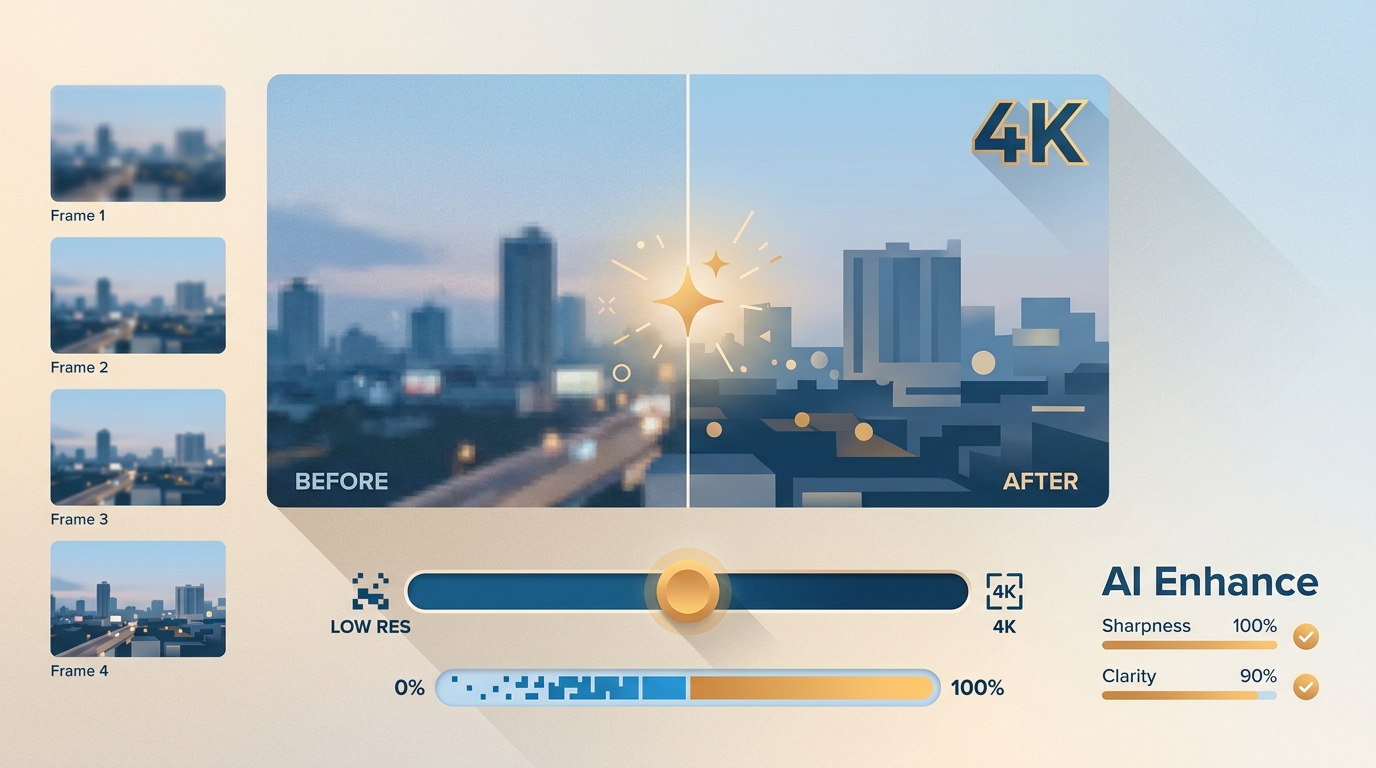
In short, a video quality increaser can make soft or compressed footage easier to watch, but it cannot recover details the camera never captured. The most reliable choice is the workflow that improves clarity while keeping faces, text, and motion believable.
This comparison covers 12 AI video enhancer tools across desktop, mobile, and browser workflows. It focuses on source condition, visible artifacts, MP4 export, privacy, batch work, and realistic 4K targets rather than unsupported speed or quality rankings.
What a Video Quality Increaser Actually Does
A video quality increaser enlarges frames and reduces visible defects such as compression noise, soft edges, and uneven color. AI video upscaling can improve presentation, but newly generated texture is an estimate, not recovered evidence.
Three processes are often grouped under one label:
- Classic super-resolution maps low-resolution pixels to a larger frame while reconstructing edges and recurring texture.
- Frame-aware enhancement compares neighboring frames to reduce flicker and keep moving details more consistent.
- Diffusion restoration can synthesize plausible texture when the source is badly damaged, but that texture may not match the original scene.
My editorial rule is simple: conventional enhancement is the safer choice when identity, signage, product detail, or historical accuracy matters. Generative restoration is more appropriate when the goal is a visually pleasing interpretation and the audience understands that some detail is synthetic.
Classic Upscaling vs Diffusion Restoration
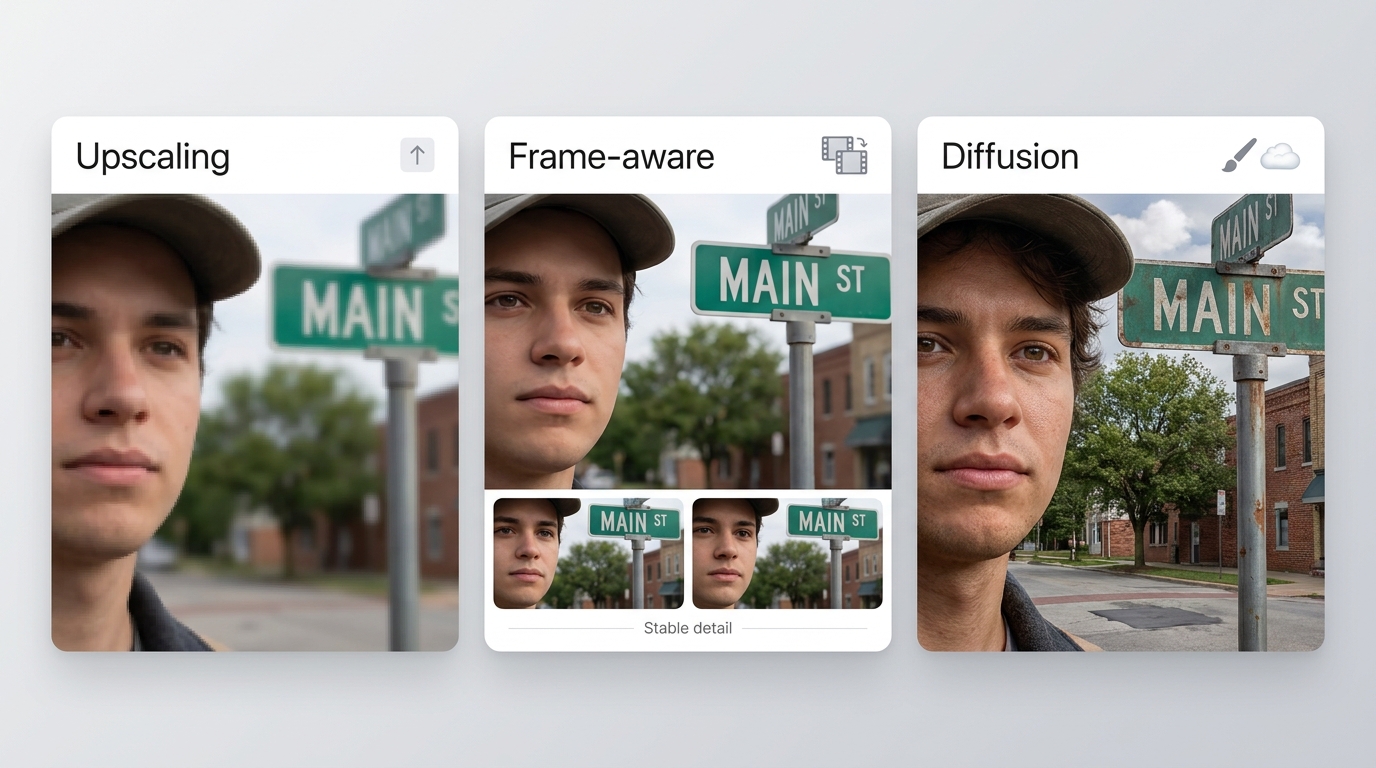
Classic enhancement is usually more restrained, while diffusion restoration can make a severely degraded frame look more complete. The trade-off is evidence: the more a model invents, the less confidently the result can be treated as a faithful record.
| Method | Useful for | Main risk | Editorial judgment |
| Classic upscaling | Moderate softness, compression, resizing | Halos or sharpened noise | Prefer when fidelity matters |
| Frame-aware enhancement | Motion, flicker, temporal consistency | Ghosting around fast movement | Inspect several moving frames |
| Diffusion restoration | Severely degraded or stylized footage | False texture and changed facial detail | Use as interpretation, not proof |
How Video Quality Enhancement Works
To increase video resolution without wasting time or storage, define the source defect and target before choosing a model. A larger frame alone does not enhance MP4 quality; the model, codec, bitrate, and source condition all affect the export.
Prerequisites: identify the source resolution, focus or compression problem, desired display size, privacy level, available hardware, and final container before processing.
- Inspect the source. Check faces, text, foliage, fine lines, motion, and block noise at 100% view.
- Choose one primary correction. Start with denoise, deblur, deinterlace, or upscaling rather than stacking every available effect.
- Set a realistic target. A moderate increase is less likely to magnify defects than an extreme jump from a very small source.
- Preview a short segment. Compare still details and motion, especially eyes, hair, subtitles, signs, and high-contrast edges.
- Choose the export path. Select MP4 or another required container, then match the codec and bitrate to playback needs.
- Export and verify. Play the finished file from beginning to end, check audio sync, and compare file size with the source.
Common Sources and Realistic Targets
A 480p-to-1080p upscale can improve viewing size and reduce distraction when the source retains usable edges. It cannot turn severe blur or heavy blocking into native 1080p detail. Pushing 480p or 720p footage directly to 8K can magnify artifacts or create false texture; even a moderate 720p-to-1080p target depends on focus, motion, compression, and model behavior.
| Source condition | Realistic target | Inspect before a full run |
| Clean 720p with mild compression | 1080p, or a cautious 4K presentation export | Fine edges, skin texture, moving backgrounds |
| 480p with visible but stable detail | 1080p with restrained sharpening | Text shapes, faces, ringing around edges |
| Interlaced tape capture | Deinterlace first, then upscale | Comb lines, ghosting, cadence |
| Severe blur or pixelation | Improved legibility, not factual reconstruction | Invented letters, facial changes, false texture |
| Security footage | Viewing aid only | Any detail that could affect identification |
A broader video enhancer app comparison can help when device support matters, while the source-first target here remains the better safeguard against exaggerated resolution promises.
MP4 Export Settings That Preserve Quality
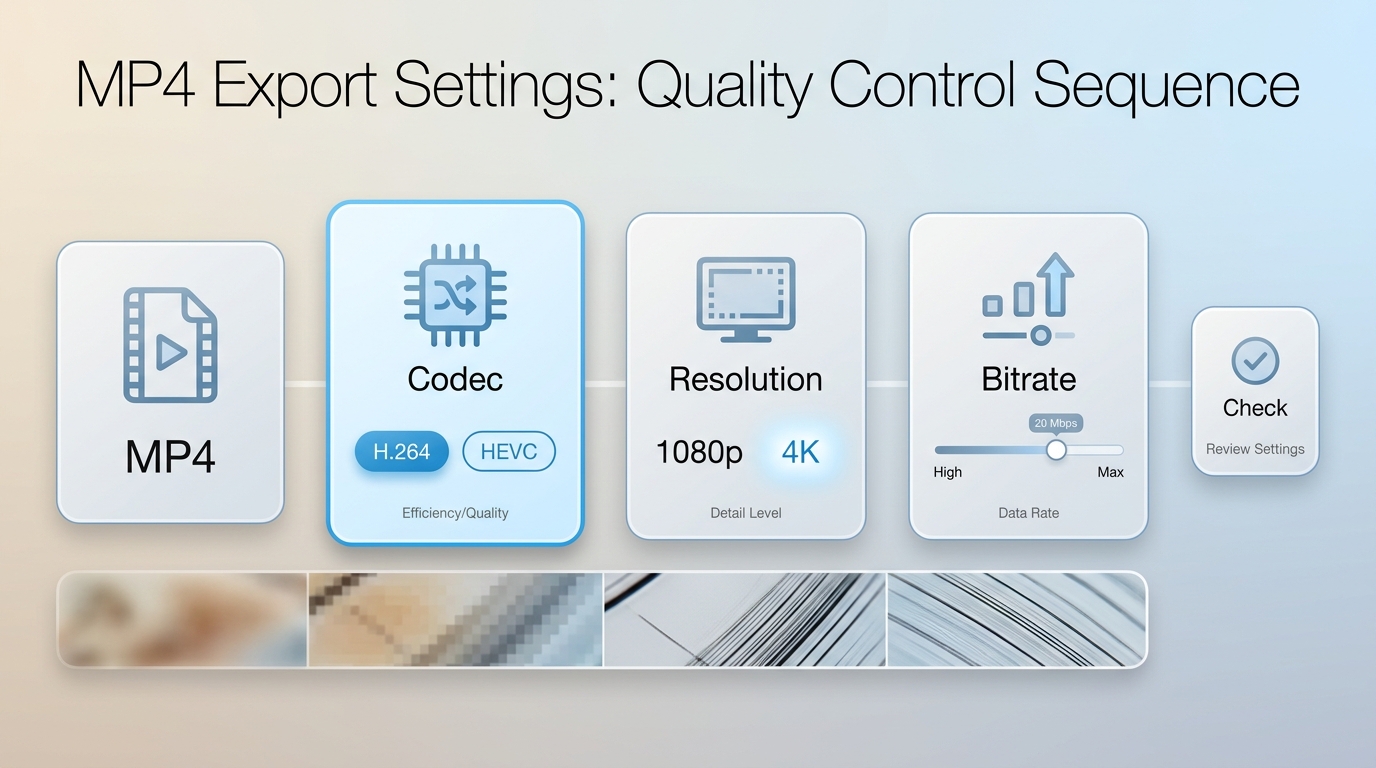
MP4 is a container, not a quality setting. An H.264 MP4 export favors broad playback compatibility, while an HEVC video export can reduce file size at similar visual quality when the target devices support it.
- Choose MP4 as the container when broad device playback is the priority.
- Select H.264 for compatibility or HEVC for more efficient compression.
- Match resolution to a realistic target rather than choosing the largest menu option.
- Set a bitrate that preserves motion and texture without inflating the file unnecessarily.
- Preview a short segment containing motion, text, faces, and dark gradients.
- Export, verify playback, and compare the final size and visible artifacts.
I would rather keep a clean 1080p export than produce a larger file with stronger halos, unstable texture, or distorted text. Resolution is useful only when the frame remains believable in motion.
Features That Matter for Real Footage
Useful video enhancement software should help diagnose a source, preview changes, control export, and repeat settings across clips. A long feature list matters less than predictable behavior on the defects present in the footage.
- Source-aware models: separate options for compression, blur, interlacing, animation, and low-light noise.
- Short previews: a way to inspect faces, text, edges, and motion before committing a long clip.
- Artifact control: adjustable sharpening, denoise, and texture strength rather than one fixed result.
- Batch queues: reusable settings for multiple clips with similar sources.
- Export control: container, codec, resolution, frame rate, and bitrate choices that match the destination.
- Processing location: clear local or cloud handling for private and unreleased material.
Desktop, Mobile, and Browser Trade-Offs
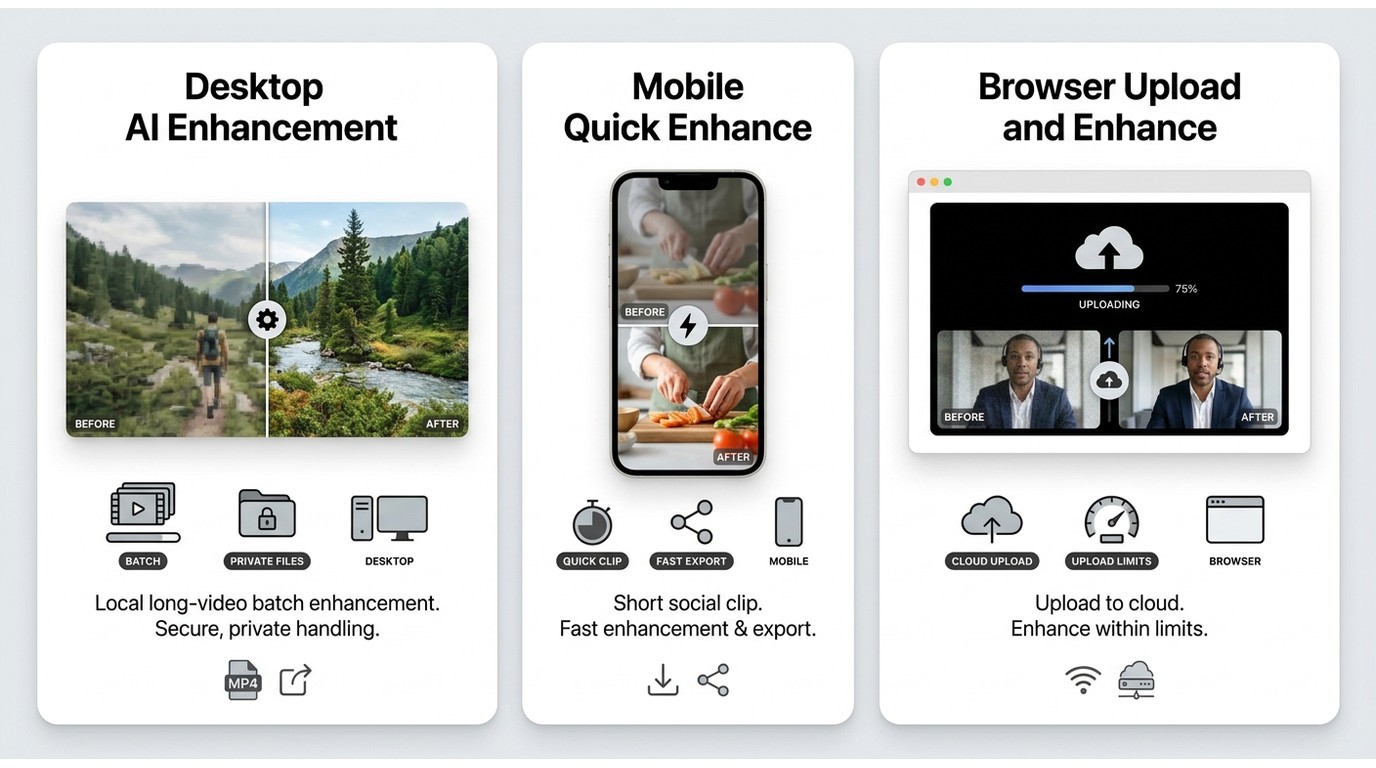
A desktop video enhancer usually offers stronger batch control and local processing. Mobile and browser video enhancement can be faster to start for a short, low-risk clip, but upload, duration, watermark, and export controls vary.
| Tool class | Best for | Not ideal for | Key decision |
| Desktop | Long clips, repeated presets, private material, batch work | One quick edit on a device without installation access | Hardware capacity and desired control |
| Mobile | Short social clips and simple corrections | Large archives or close artifact inspection | Export limits and screen-size constraints |
| Browser | Short, non-sensitive files and occasional use | Confidential footage or unreliable connections | Upload policy, queue, watermark, and limits |
The practical distinction is fit, not a universal winner. A desktop workflow is often the better video quality enhancer path for batches, while a browser service may be more efficient for a disposable clip.
How We Tested the 12 Tools
A fair comparison uses the same source clips, targets, viewing scale, and artifact checklist. Render-time rankings are useful only when the hardware, model, source, and export settings are reported together.
The evaluation framework uses three representative source types: a compressed 720p camera clip, a 480p tape capture, and a clean 1080p action clip. Each tool should be judged on a moderate target, a higher-resolution target, export behavior, processing location, and visible defects across still frames and motion.
Benchmark Method and Visual Evidence
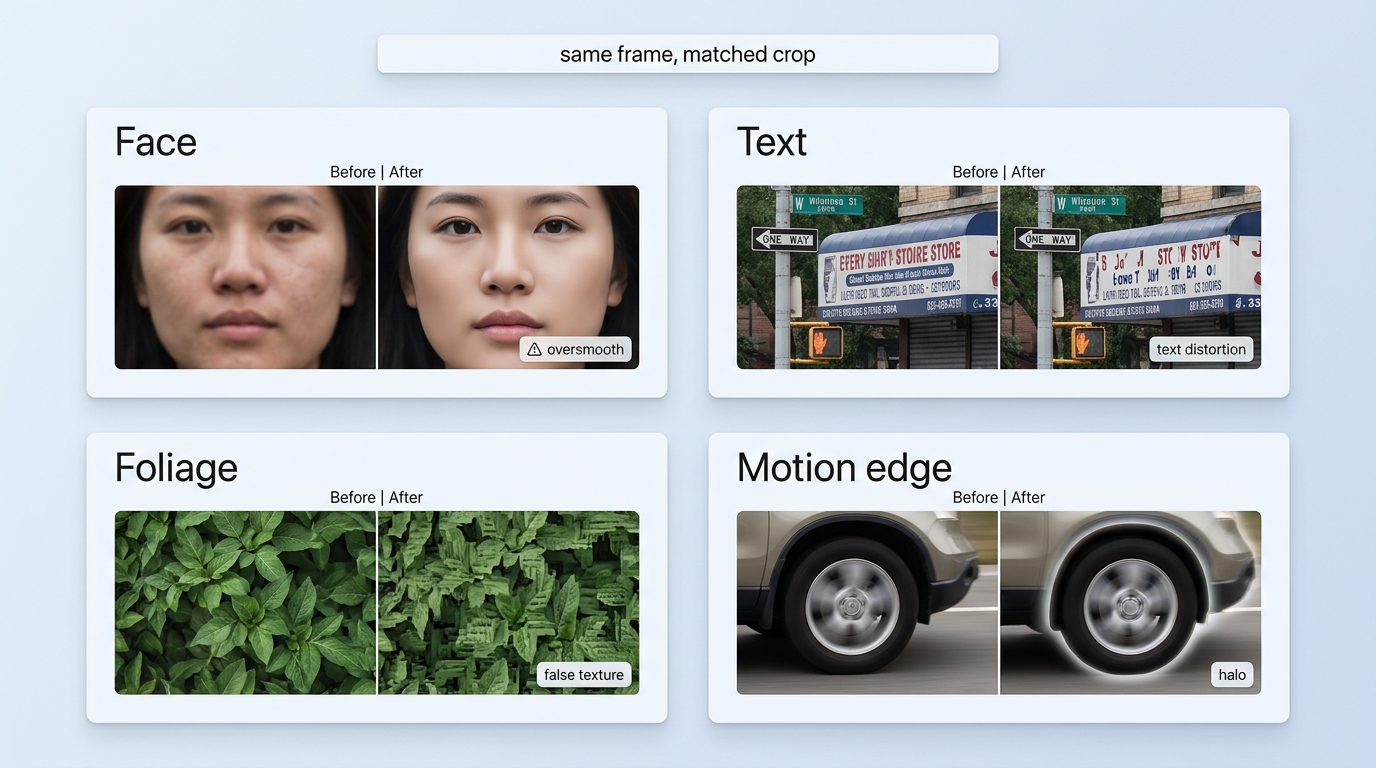
Matched before-and-after crops are the most useful evidence for a video artifact comparison. Without matched assets, claims such as finer hair, cleaner text, or faster rendering should be treated as provisional rather than proof.
| Benchmark field | What to record | Why it matters |
| Source clip | Resolution, codec, motion, and primary defect | Results cannot be separated from source quality |
| Target | Resolution, frame rate, container, and codec | Prevents mismatched comparisons |
| Tool and model | Named model and strength settings | Different models can behave differently in one app |
| Hardware | Operating system, CPU, GPU, and memory | Render time depends heavily on the machine |
| Output | Render time and final file size | Shows workflow and storage cost |
| Artifact notes | Haloing, oversmoothing, false texture, text distortion, flicker | Visible defects often matter more than pixel count |
Useful crops include a face, small text, foliage, and a high-contrast moving Edge. Each crop should use the same frame and scale, with labels that distinguish sharpening halos from real source detail.
12 Video Quality Increasers Compared
These video quality enhancer apps cover different jobs. The table prioritizes established workflow differences and avoids unsupported quality scores. Prices checked in July 2026; where a precise specification is not independently established, the table describes the workflow rather than implying a fixed limit.
Resolution, Formats, Limits, and Pricing
| Tool | Type and platform | Maximum verified output | Export | Limits or watermark | Processing | Price | Best fit | Not ideal for |
| UniFab All-In-One | Desktop, Windows / Mac | 16K | MP4, MKV | Standard paid functions allow three evaluation uses; export has no evaluation watermark | Local desktop workflow | $319.99 Windows lifetime; $219.99 Mac lifetime | Batch enhancement and multi-step processing | A one-off browser edit |
| Topaz Video AI | Desktop, Windows / Mac | 4K in the verified comparison data | Desktop export controls | Hardware-dependent workflow | Local | $299 yearly | Model-focused restoration control | Users seeking a broad all-in-one workflow |
| HitPaw VikPea | Desktop, Windows / Mac | Varies by model and license tier; maximum output not independently established | Desktop file export | License-dependent | Local | Plan-dependent | Preset-led desktop enhancement | Detailed manual grading |
| AVCLabs Video Enhancer AI | Desktop, Windows / Mac | Varies by model; maximum output not independently established | Desktop file export | License-dependent | Local | $39.95 monthly; $119.95 yearly; $299.90 lifetime | Desktop AI enhancement workflows | Users prioritizing the simplest interface |
| Vmake AI | Browser | Varies by service tier; maximum output not independently established | Browser download | Upload and plan limits | Cloud | Varies by service tier and region | Short visual touch-ups | Sensitive or long footage |
| Picwand | Browser | Varies by service tier; maximum output not independently established | Browser download | Upload and plan limits | Cloud | Varies by service tier and region | Simple short-clip upscaling | Batch archives |
| HDConvert | Browser | Varies by service tier; maximum output not independently established | Browser download | Upload and queue limits | Cloud | Varies by service tier and region | Occasional browser conversion | Private source files |
| Canva Video Enhancer | Browser and app ecosystem | Varies by project settings; maximum output not independently established | Project export | Account and plan limits | Cloud | Varies by service tier and region | Social design plus light correction | Restoration-focused work |
| Fotor Video Enhancer | Browser | Varies by service tier; maximum output not independently established | Browser download | Upload and plan limits | Cloud | Varies by service tier and region | Short browser enhancements | Confidential footage or batch work |
| Adobe Premiere Pro | Desktop, Windows / Mac | Varies by project and export settings; maximum output not independently established | Detailed professional export | Subscription workflow | Local, with connected services available | Varies by subscription tier and region | Manual editing, grading, and finishing | Users wanting an automated one-model workflow |
| HiQuality | Mobile | Varies by app version and service tier; maximum output not independently established | Mobile export | App and plan limits | Mobile app workflow | Plan-dependent | Quick phone edits | Inspectable long-form restoration |
| InShot | Mobile, iOS / Android | Varies by project settings; maximum output not independently established | Mobile project export | App and plan limits | Mobile app workflow | Plan-dependent | Social edits and basic adjustments | Dedicated AI restoration |
Best Fit by Tool Class
Desktop tools fit long clips, repeated presets, local processing, and careful export control. They are less suitable when the job is a single short clip and installation time matters more than batch consistency.
Mobile apps fit quick edits made near the point of capture. They are less suitable for frame-by-frame inspection, large archives, or projects that need repeatable settings across many files.
Browser tools fit short, non-sensitive clips when fast access matters. They are less suitable when upload policies, duration caps, queue delays, or uncertain retention create operational or privacy concerns.
Best Video Quality Increaser
30-day Free Trial with full feature access!
Designed for fast and efficient video enhancement.
Export videos without ant watermark!
You can purchase each function individually.
UniFab All-In-One
Best Video Quality Increaser
30-day Free Trial with full feature access!
Designed for fast and efficient video enhancement.
Export videos without ant watermark!
You can purchase each function individually.
UniFab All-In-One for Mac
Why UniFab Fits Batch Enhancement
UniFab All-In-One is a Windows and Mac desktop workflow with verified 4K output, MP4 and MKV containers, and batch processing. It fits users who need several related enhancement steps without sending source files through a browser upload.
UniFab All-In-One is most relevant here for three reasons: batch queues, local processing, and SDR-to-HDR10 conversion. Those capabilities serve repeated enhancement work more directly than unrelated feature counts.
Where UniFab Is Strong and Less Ideal
The verified maximum output for this product is 16K. Keeping that ceiling consistent matters more than repeating a larger number that conflicts with the product specification used for this comparison.
- Suitable for: Windows or Mac users processing multiple clips, combining enhancement steps, or keeping private source files in a local desktop workflow.
- Less suitable for: someone who needs one quick browser edit, a mobile-only workflow, or highly manual model stacking for a specialized restoration project.
- Practical advantage: batch processing and SDR-to-HDR10 can reduce handoffs between separate applications. Readers who need audio upmixing should treat it as a separate workflow.
- Practical limitation: users who want highly manual model stacking or a mobile-only edit may prefer a more specialized workflow.
For systems without suitable local resources, UniFab also offers a separate cloud processing route; usage terms depend on the selected service.
Mac users can keep the compatibility check concise and compare the broader AI video enhancer for Mac landscape when hardware or app availability is the deciding factor.
Free Online Options and Their Trade-Offs
Browser video enhancement is most useful for short, non-sensitive clips. The main trade-offs are upload time, retention policy, duration or file caps, watermark behavior, and less control over model strength or export settings.
Fast Browser Tools for Short Clips
Vmake, Picwand, HDConvert, Canva, and Fotor represent the browser class in this comparison. A focused video quality enhancer online comparison is useful when upload limits and browser exports are the primary concern, while a free AI video upscaler shortlist fits readers comparing no-cost routes. Here, suitability depends on the exact file, queue, export, and privacy requirements.
- Use a browser tool when the clip is short, replaceable, and not confidential.
- Read the service's retention and training-use terms before uploading personal, client, medical, or security footage.
- Check the downloaded result for watermarking, audio sync, frame-rate changes, and text distortion.
- Move to a local workflow when repeated uploads or batch volume become the main bottleneck.
I treat online convenience as a workflow benefit, not a quality guarantee. A browser result is acceptable when it meets the target with clean motion and readable detail; the delivery method does not prove that the model reconstructed the source faithfully.
Choosing the Right Tool for Your Footage
The right tool depends first on the source defects, realistic output target, privacy needs, clip length, batch volume, hardware, export format, budget, and tolerance for generated detail.
Decision Checklist by Source and Goal
- Describe the defect. Is the problem low resolution, compression, motion blur, interlacing, noise, color, or unstable frames?
- Set the target. Decide whether the goal is cleaner 1080p, a cautious 4K presentation, smoother motion, HDR conversion, or a smaller MP4.
- Classify the footage. Mark it as public, personal, confidential, medical, security-related, or unreleased client work.
- Estimate scale. One short clip favors convenience; many related clips favor reusable presets and a batch queue.
- Match the hardware. Local AI processing needs suitable system resources, while cloud processing needs stable uploads and acceptable handling terms.
- Choose control depth. Presets suit beginners; model tuning and manual editing suit restoration specialists and professional finishers.
- Confirm export needs. Pick MP4 or MKV, H.264 or HEVC, playback devices, and an acceptable file-size range.
- Preview the failure points. Inspect faces, lettering, thin lines, foliage, dark gradients, and motion before processing the full job.
| Scenario | Recommendation | Reason |
| Quick, non-sensitive short clip | Browser tool | Low setup cost and simple delivery |
| Beginner desktop batch | Preset-led local enhancer such as UniFab or HitPaw | Reusable settings and batch handling |
| Archival restoration | Model-focused desktop tool such as Topaz or AVCLabs | More restoration-specific control |
| Manual professional edit | Premiere Pro or another full editor | Timeline, grading, audio, and finishing control |
| Sensitive footage | Local desktop processing | Keeps the source within the local workflow |
A Best Way to Increase Video Quality
One-stop AI-powered solution for video & audio enhancement, featuring 4K/8K/16K upscaling, SDR to HDR, noise reduction, colorization, subtitle generation, audio upmixing, 1,000+ formats conversion, and more.
UniFab All-In-One
A Best Way to Increase Video Quality
One-stop AI-powered solution for video & audio enhancement, featuring 4K/8K/16K upscaling, SDR to HDR, noise reduction, colorization, subtitle generation, audio upmixing, 1,000+ formats conversion, and more.
UniFab All-In-One for Mac
AI Enhancement Limits, Privacy, and Evidence
AI enhancement has three boundaries: it can invent plausible detail, it can demand substantial processing resources, and cloud workflows can create privacy or retention concerns. These limits should be considered before a model is chosen.
Hallucinated Detail and Forensic Limits
Sharpened edges and generated texture may look convincing without being historically or factually accurate. AI-enhanced frames can aid viewing, but they are unsuitable as forensic proof of information absent from the source.
- False texture: skin, fabric, foliage, and walls may gain patterns that were not captured.
- Text distortion: signs and license plates may become more legible-looking while changing character shapes.
- Temporal flicker: a detail may appear in one frame and change in the next.
- Identity risk: faces can become smoother or more specific in ways that alter distinguishing features.
For evidence-sensitive material, preserve the source file, document every processing step, and keep the enhanced copy clearly labeled as an interpretation.
Local, Cloud, and Sensitive Footage
Local video processing is the safer default for personal recordings, medical material, security footage, and unreleased commercial work because the source remains within the desktop workflow.
If cloud processing is necessary, compare encryption, retention duration, deletion controls, account access, upload limits, and whether submitted media can be used for service training. A vague deletion policy is a reason to choose a different workflow, not a minor footnote.
Video Quality Increaser FAQs
These answers cover decisions that are not fully resolved by a tool ranking.
Can ChatGPT directly improve the quality of a video file?
ChatGPT can help plan a workflow, explain settings, or create a checklist, but it does not directly render and export an enhanced video in this comparison. A video quality increaser or editor still performs the frame processing and final export.
Which MP4 settings improve quality without creating a huge file?
Use H.264 for broad compatibility or HEVC for more efficient compression, match the resolution to the source, and preview a representative segment before export. Bitrate should preserve motion and texture without creating storage cost that the visible result does not justify.
Is AI video enhancement worth using on very blurry footage?
It can be worthwhile when the goal is easier viewing, reduced noise, or a more stable presentation. Severe pixelation and defocus cannot become verified detail, so inspect faces, text, and edges for synthetic texture before accepting the result.
Should I use an online enhancer for private or sensitive footage?
I would default to local processing. If an online service is necessary, compare its encryption, retention, deletion, account access, upload limits, and training-use policy before sending the file.