
An AI video sharpener can improve mild softness, compression damage, and noisy edges, but the right choice depends on whether you need same-resolution MP4 output, video upscaling, local privacy, or a quick browser workflow. Severe defocus and motion blur still have hard recovery limits.
9 Video Sharpener Options for Desktop, Web, and Mobile (2026) follows one practical rule: diagnose the blur first, then choose the least aggressive workflow that solves it. The nine active options are organized by desktop, browser, and mobile use rather than by an unsupported performance ranking.
Traditional vs AI Video Sharpeners
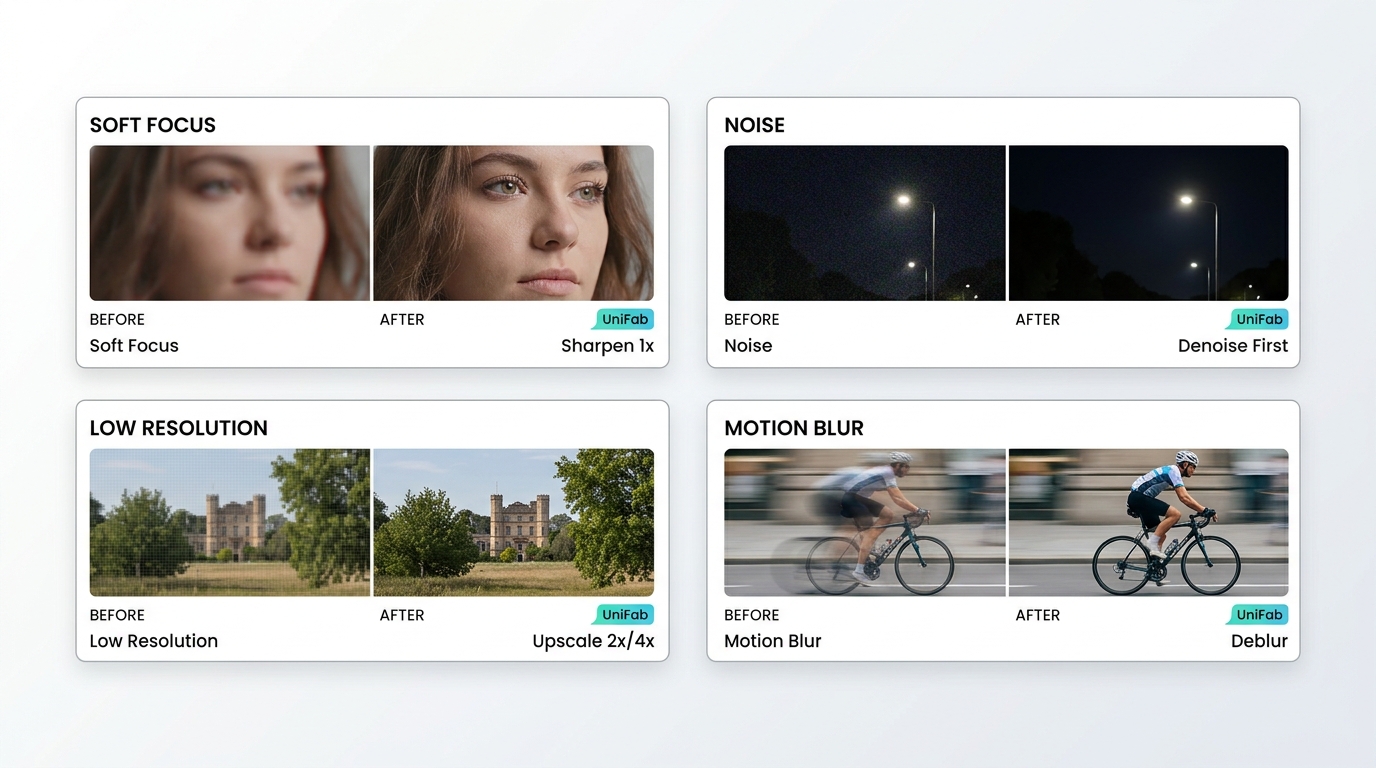
A traditional video sharpener increases edge contrast, while an AI video sharpener may also analyze noise, compression artifacts, faces, or missing-looking texture. Neither approach can faithfully restore information that the camera never captured.
The guide on how to sharpen video quality follows a practical route: diagnose the blur, apply mild sharpening to a short authorized sample, and verify the saved file before processing the full video.
Match the Blur to the Right Fix
To sharpen blurry video without creating new defects, match the symptom to the correction before choosing software.
| Visible problem | Start with | Reason |
| Mild soft focus | Conservative sharpening | Edge contrast may improve clarity without changing pixel dimensions. |
| Motion blur | Motion deblurring | Ordinary sharpening often outlines the blur trail instead of correcting it. |
| Compression blocks or ringing | Artifact removal, then light sharpening | Sharpening first can make block boundaries and mosquito noise more visible. |
| Sensor noise or film grain | Video denoising, then light sharpening | Noise is high-frequency detail, so a sharpener can amplify it. |
| Pixelation or low resolution | Video upscaling, then a restrained finishing pass | The source needs more output pixels before edge refinement becomes useful. |
| Severe defocus | Set a realistic recovery limit | AI may create plausible texture, but that texture is not proof of original detail. |
My editorial rule is simple: diagnosing the blur is more reliable than choosing a tool by its maximum resolution claim.
Sharpen at 1x or Upscale First?
A 1x sharpening pass preserves video width and height; frame rate is a separate export setting. Upscaling is a separate workflow that increases pixel dimensions, so it should come first when the source is genuinely too small for the target display.
For an already adequate 1080p source, a 1x pass may be enough. For SD, VHS, old recordings, anime, or other low-resolution sources, an AI video enhancer may combine cleanup with enlargement. If the output dimensions need to increase, this how to upscale video workflow explains the process, while the existing video upscaling guide covers dedicated enlargement options.
- Preserve the original source file.
- Import a short MP4 sample that you own or are authorized to process.
- Apply mild 1x sharpening without changing the output dimensions.
- Preview faces, text, and moving edges for halos, noise, or flicker.
- Export as MP4 at the original dimensions and source frame rate.
- Reopen the saved file and check playback, audio, dimensions, and frame rate.
MP4 is a container, while codec, bitrate, duration, and resolution influence file size.
Video Sharpener Evaluation Criteria
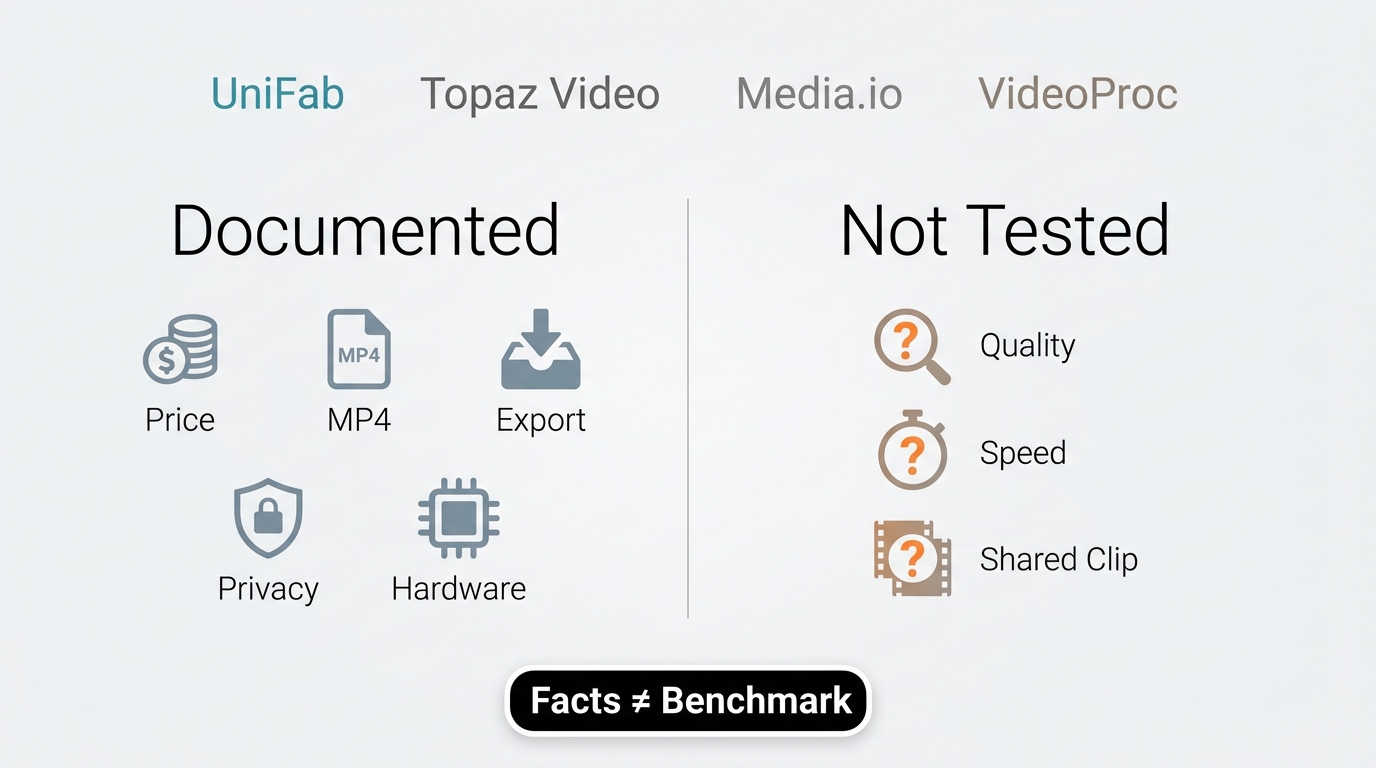
A useful video sharpener comparison considers source rights, export settings, moving-frame stability, hardware needs, privacy, processing time, and cost. The practical choice depends on whether the footage calls for same-resolution sharpening, enlargement, a local desktop workflow, or a short browser upload.
Clip Rights, Hardware, and Export Settings
Start with a short MP4 excerpt that you own, license, or are otherwise authorized to process. Use compatible Windows or Mac hardware, keep output dimensions and frame rate aligned, and compare equivalent sharpening strength when assessing more than one tool.
- Choose a clip containing a face, hair, text, motion, fine texture, compression damage, and a static high-contrast edge.
- Export at the source dimensions first, then run a separate upscale only where the workflow requires it.
- Keep frame rate, clip duration, codec target, and audio handling aligned.
- Record upload time separately from processing time for browser tools.
- Inspect faces, text, grain, edges, and moving frames rather than relying on a selected still image.
Quality, Artifacts, Speed, and Value
Sharpening quality can be assessed by edge definition, halos, noise, skin texture, and stability across moving frames. Ease of use, export options, privacy, hardware demand, processing time, and price determine whether a workflow offers practical value for a specific scenario.
The most meaningful trade-off is not maximum sharpness. It is how much apparent detail a workflow adds before faces, grain, and moving edges stop looking natural.
Video Sharpeners at a Glance
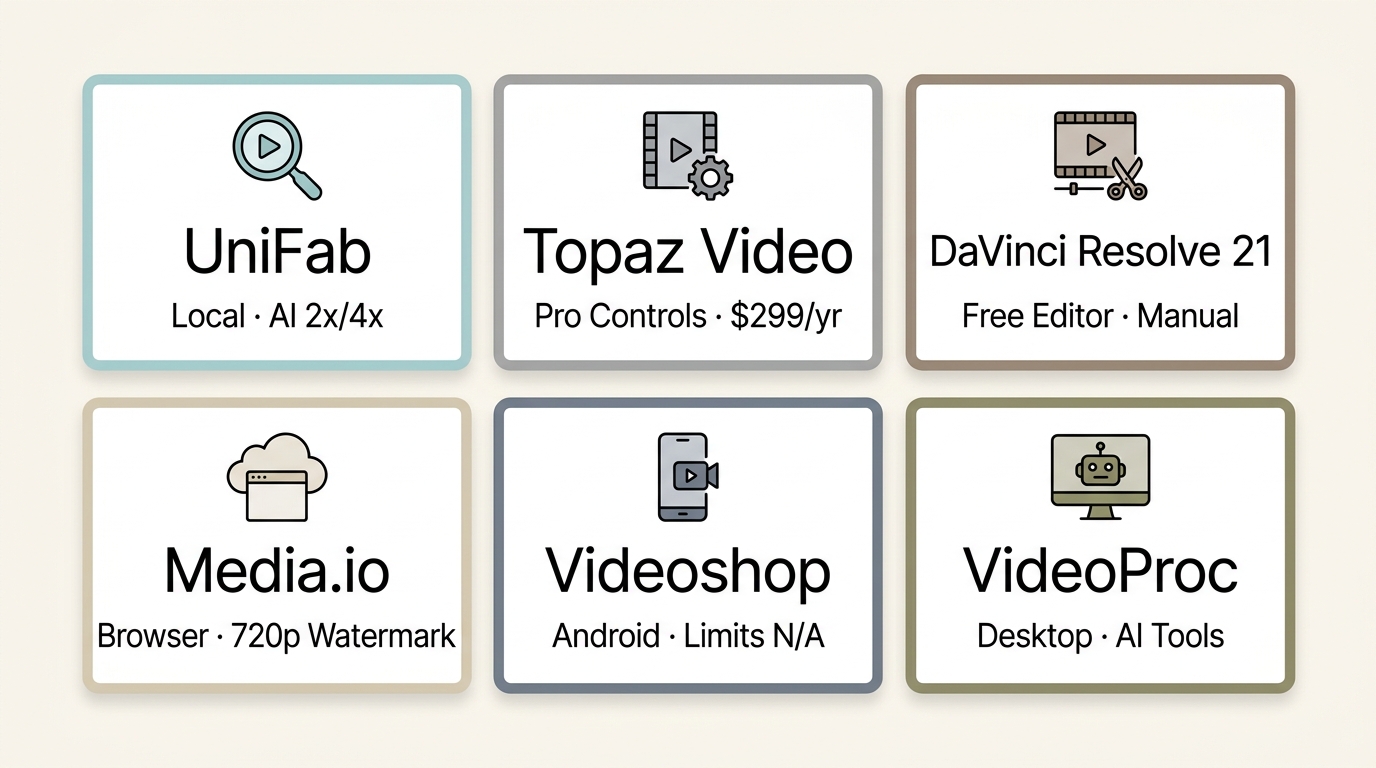
These scenario-based picks separate convenience from control and avoid treating one workflow as suitable for everyone.
| Scenario | Practical pick | Main constraint |
| Local desktop sharpening plus optional AI enlargement | UniFab Toolkit with Video Upscaler AI | Three free attempts; compatible desktop hardware required; no phone editor. |
| Detailed professional controls | Topaz Video | High annual cost and substantial hardware demand for local work. |
| No-cost full editing suite | DaVinci Resolve 21 | Manual workflow and a steeper learning curve than a one-click sharpener. |
| Browser convenience | Media.io Video Enhancer | AI enhancement clips are limited to five minutes. |
| Quick Android edits | Videoshop | The official listing does not publish exact sharpening-export limits. |
| No-cost desktop evaluation | VideoProc Converter AI evaluation | AI tools allow five watermark-free exports, so it is an evaluation route rather than an unrestricted plan. |
Desktop Video Sharpeners (Windows & Mac)
Desktop video sharpening software is the stronger fit for long clips, batch work, local processing, and repeatable MP4 output. Hardware requirements and evaluation limits matter as much as the model name.
UniFab Video Upscaler AI and Toolkit
UniFab Toolkit handles same-resolution Sharpen/Unsharpen work, while Video Upscaler AI covers enlargement workflows for SD, VHS, old recordings, anime, and other low-resolution footage.
Video Upscaler AI runs on Windows and Mac, supports MP4 and MKV output, offers batch processing, and provides 1080p, 4K, 8K, and 16K output choices. Its four documented models are Equinox for general footage, Kairo for anime, Vellum for texture, and Titanus for film and television sources. In the local Windows/Mac workflow, processing stays on the computer.
UniFab offers three free attempts. The local Windows/Mac workflow requires compatible desktop hardware and does not include a phone editor; FabCloud uses a separate cloud workflow. Use the official desktop download and three free attempts to assess compatibility and output.
The Toolkit workflow is straightforward:
- Open the Sharpen/Unsharpen module and import the source clip.
- Preview a mild sharpening setting at the intended output dimensions.
- Use denoising first if grain or compression noise becomes more visible.
- Queue compatible clips for batch output after checking one representative sample, then reopen a saved file to verify playback and audio.
Fits: users who want a local desktop workflow with separate choices for 1x sharpening and AI enlargement.
Topaz Video
Topaz Video targets editors who want model selection, detailed controls, and local rendering, with optional cloud rendering when local hardware is not suitable.
As of October 2026, Topaz Desktop Personal costs $299 prepaid annually, $39 per month with a 12-month commitment, or $59 on the monthly plan; Web Video is a separate product. Local rendering keeps files on the computer; some newer models have narrower local GPU support, making hardware compatibility part of the buying decision.
Fits: experienced editors who value granular controls. Less suitable for: occasional users who want a low-cost or lightweight workflow.
AVCLabs Video Enhancer AI
The AVCLabs Video Enhancer AI review covers a Windows and Mac tool with output up to 8K. The output ceiling does not determine how much authentic detail can be recovered.
Its Windows one-PC plans are $39.95 monthly with auto-renewal, $95.96 annually on promotion, or $149.90 for a promotional perpetual license. These prices apply to the Windows SKU; Mac purchase terms are separate.
Fits: Windows and Mac users who want sharpening inside a broader enhancement workflow. Less suitable for: users seeking a low-cost occasional editor.
TunesKit AceMovi Video Editor
TunesKit AceMovi Video Editor approaches sharpening as part of a conventional editing timeline, alongside color correction, keyframing, cropping, and other manual adjustments.
It is more useful when sharpening is one step in a larger edit than when the goal is automated restoration. As of October 2026, the Windows one-PC sale options are $14.95 monthly, $49.95 annually, and $79.95 for a one-time license.
Fits: editors who prefer timeline control. Less suitable for: users who want batch AI sharpening or a one-click cleanup model.
VideoProc Converter AI
The VideoProc Converter AI review covers its combination of video sharpening, conversion, compression, editing, and batch processing on Windows and Mac.
It supports MP4 output, enhancement up to 4K, and GPU acceleration on NVIDIA, Intel, and AMD hardware. Its evaluation allows five watermark-free AI exports. VideoProc sale plans are $34.95 annually for three PCs, $59.95 for a one-PC one-time license, and $79.95 for a three-to-five-PC family one-time license.
Fits: users who also need format conversion and batch jobs. Less suitable for: users focused only on high-control restoration models.
Notable no-cost desktop alternative: DaVinci Resolve 21
DaVinci Resolve 21 is a supplemental desktop alternative rather than one of the nine primary options. Its no-cost edition supports output up to Ultra HD 3840×2160 at 60 fps, while DaVinci Resolve Studio costs $236 on sale, regularly $295, and adds UltraSharpen, Super Scale, and AI noise reduction. It suits editors who want manual control and a full editing suite, but it is not the quickest route for a single blurry clip.
Online Video Sharpeners
An online video sharpener is convenient for a short clip, but anyone looking to sharpen video online for free should compare upload limits, watermarks, credits, login behavior, and cloud privacy before choosing a service. Before a larger upload, use a short authorized sample and keep confidential footage in a local workflow. You are responsible for having the right to upload and process the footage and for following applicable law and the service terms. Treat a preview, a credit allowance, and a completed saved export as different offers.
Media.io Video Enhancer
Media.io Video Enhancer accepts browser uploads, can retain original resolution or apply 2x or 4x enlargement, and supports MP4 and MOV input with output up to 4K.
The AI enhancement page limits clips to five minutes. Media.io's general editor and dedicated video-enhancement workflow use separate export conditions. Because processing begins with an upload, it is less private than a local desktop workflow.
Fits: short, non-sensitive clips when installation is inconvenient. Less suitable for: confidential footage or users who require a no-cost, watermark-free full export.
Neural.love: Service Status
Neural.love announced an asset and intellectual-property sale on March 12, 2026 and said meaningful new investment was no longer planned. The announcement did not state that the service had shut down, but Media.io or Cutout.pro is the more practical choice for a current browser upload workflow.
Cutout.pro AI Video Enhancer
Cutout.pro AI Video Enhancer provides a browser workflow with MP4 delivery, output options up to 2K and 30 fps in the active interface, and support for short preview processing.
The interface lists MP4 or MOV uploads up to 500 MB, 2K input, and ten minutes, while a three-second preview uses three credits. The separate video-pricing page lists allowances up to 2 GB and 4K, which do not replace the active interface limits. The three-second preview is not a completed full-video export.
Fits: short browser-based experiments. Less suitable for: long videos, sensitive footage, or users who need a clearly documented no-cost full export.
Mobile Video Sharpeners (Android & iOS)
A mobile video sharpener works for short social clips and quick adjustments. Longer footage, repeated exports, and high-resolution processing are usually easier to manage on a desktop.
Videoshop
Videoshop is an active Android editor with brightness, contrast, saturation, trimming, effects, and other general editing controls for quick phone-based work.
Fits: short Android edits and social content. Less suitable for: long clips or controlled restoration workflows.
Sharpen Video: Enhance Quality
Sharpen Video: Enhance Quality has an active US App Store listing and supports iPhone and iPad devices running iOS or iPadOS 15.6 or later.
The app provides two sharpening algorithms plus exposure, gamma, saturation, brightness, contrast, hue, rotation, zoom preview, and saving to Photos or Files. It supports MP4, MOV, FLV, and other common formats. The download is no-cost, with Weekly Pro at $4.99, Monthly Pro at $9.99, and Lifetime Pro at $29.99. The developer reports no data collection.
Fits: iOS users who want direct manual sharpening controls. Less suitable for: batch work or longer desktop-scale workflows.
Full Comparison Table
These tables compare the nine active primary options by platform, sharpening approach, and the constraint most likely to affect the workflow. DaVinci Resolve 21 is a supplemental desktop alternative, not one of the nine primary options.
| Tool | Platform | Sharpening approach | Practical constraint |
| UniFab Toolkit and Video Upscaler AI | Windows, Mac | Toolkit 1x; Video Upscaler AI enlargement | Three free attempts |
| Topaz Video | Windows, Mac | Model-based enhancement | Annual and monthly billing differ |
| AVCLabs Video Enhancer AI | Windows, Mac | AI enhancement | Windows and Mac purchase terms differ |
| TunesKit AceMovi Video Editor | Windows, Mac | Manual timeline editing | Manual workflow |
| VideoProc Converter AI | Windows, Mac | Enhancement and conversion | One-PC and family licenses differ |
| Tool | Platform | Sharpening approach | Practical constraint |
| Media.io Video Enhancer | Browser | AI enhancement | Five-minute AI clips |
| Cutout.pro AI Video Enhancer | Browser | AI enhancement | 500 MB interface upload limit |
| Videoshop | Android | General video editing | Phone editing workflow |
| Sharpen Video: Enhance Quality | iOS, iPadOS | Two sharpening filters | iOS or iPadOS 15.6+ |
For a buying decision: choose local software for sensitive or long footage, a browser service for short non-sensitive clips, a mobile app for quick edits, and a full editor when sharpening must fit into a larger timeline.
Avoid Artifacts and Get Better Results
A natural result is more useful than the sharpest-looking frame. Reduce the setting when outlines, skin, grain, or moving textures start attracting more attention than the subject.
Halos, Grain, Flicker, and Plastic Skin
Before applying more sharpening, compare the original file in a neutral local player with image enhancement disabled, because player-side processing can create halo-like outlines.
| Symptom | Likely cause | Practical fix |
| Bright or dark halos | Edge strength is too high | Lower sharpening radius or intensity and inspect at 100% scale. |
| Video looks grainy | Noise was sharpened with real texture | Apply a restrained video denoising pass before sharpening. |
| Temporal flicker | Detail changes from frame to frame | Use a model with temporal processing or reduce enhancement strength. |
| Plastic skin | Denoising or face enhancement removed natural texture | Restore a lighter setting and compare moving facial areas. |
| Texture loss | Cleanup was too aggressive | Preserve a small amount of grain instead of flattening the image. |
| Invented detail | The source lacks enough recoverable information | Use a lower output target and present the result as enhancement, not authentic recovery. |
My preference is to stop one step before the effect becomes obvious. A restrained frame that remains stable in motion is more credible than a dramatic still with ringing or artificial texture.
When Sharpening Cannot Recover Detail
Severe defocus, long motion trails, clipped highlights, and large compression blocks may not contain enough original information for faithful recovery. AI can generate plausible detail, but plausible is not the same as historically or visually authentic.
When sharpening fails, use motion deblurring for directional blur, artifact removal for block damage, and upscaling only when the output dimensions need to increase. If faces or text remain ambiguous, lowering the claim and preserving the original is the honest choice.
FAQs About AI Video Sharpeners
Can I sharpen a video without increasing its resolution?
Yes. Same-resolution sharpening changes edge contrast while retaining the source width and height. Choose a 1x or original-resolution output, then confirm the export dimensions before processing the full clip.
Why can a video look worse after sharpening?
Sharpening can amplify noise, create halos, make skin look synthetic, or cause details to flicker between frames. Start with denoising when the source is grainy, use a mild setting, and judge motion rather than a single still.
Can I sharpen a video online for free without a watermark?
Free access, preview credits, and a completed download are different offers. Cutout.pro documents a three-second preview that uses three credits, while EaseMate advertises credit-funded access for clips up to 120 seconds with watermark-free downloads. Media.io applies separate conditions to its AI enhancement workflow, including a five-minute clip limit.
Can I sharpen a video on my phone?
Yes. Download Videoshop through Google Play for quick Android edits, and use the App Store for Sharpen Video: Enhance Quality on iOS and iPadOS. A desktop is a better fit for long clips, batch work, sensitive media, or high-resolution AI processing.
Will the sharpened file stay MP4 and keep its original dimensions?
MP4 is a container, not a codec, so select MP4 explicitly in the export settings. UniFab supports MP4 and MKV, VideoProc supports MP4, and Cutout.pro delivers MP4. To keep the original dimensions, select same-resolution or 1x processing, preserve the source frame rate as a separate export setting, and reopen a short saved sample to check playback and audio.
Can the best video sharpening software fix severely blurry footage?
There is no single best tool for every type of blur. Mild softness, compression damage, noise, and some low-resolution material can improve, but severe defocus, long motion trails, and missing detail cannot be faithfully recovered. Generated texture is not original evidence of a face, text, or scene.