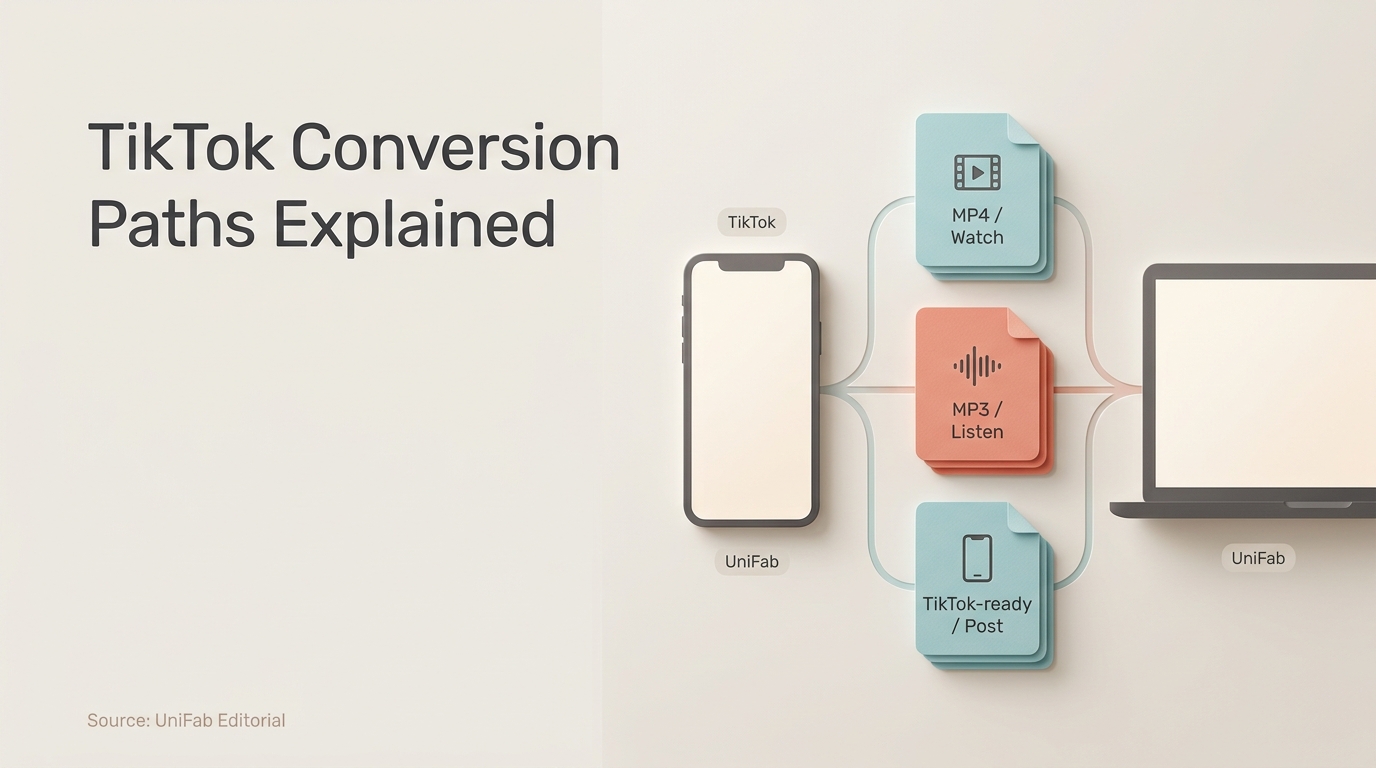
People reach for a TikTok Video Converter for three different jobs: save a permitted TikTok as MP4, extract permitted audio as MP3, or prepare an owned video for TikTok. Choose the workflow by input first: a TikTok link and a local source file are not interchangeable.
The choice often feels worse than it should, with ad-heavy web pages at one end and oversized desktop software at the other. My editorial judgment is that TikTok's Save video option should come first when available; an online link converter can handle one permitted public clip when native saving is unavailable. For owned files and repeat jobs, a local video format converter with batch support gives you more control over the source and settings. This guide separates those paths, then explains the quality and rights limits that apply to each.
Choose the Right TikTok Conversion Path
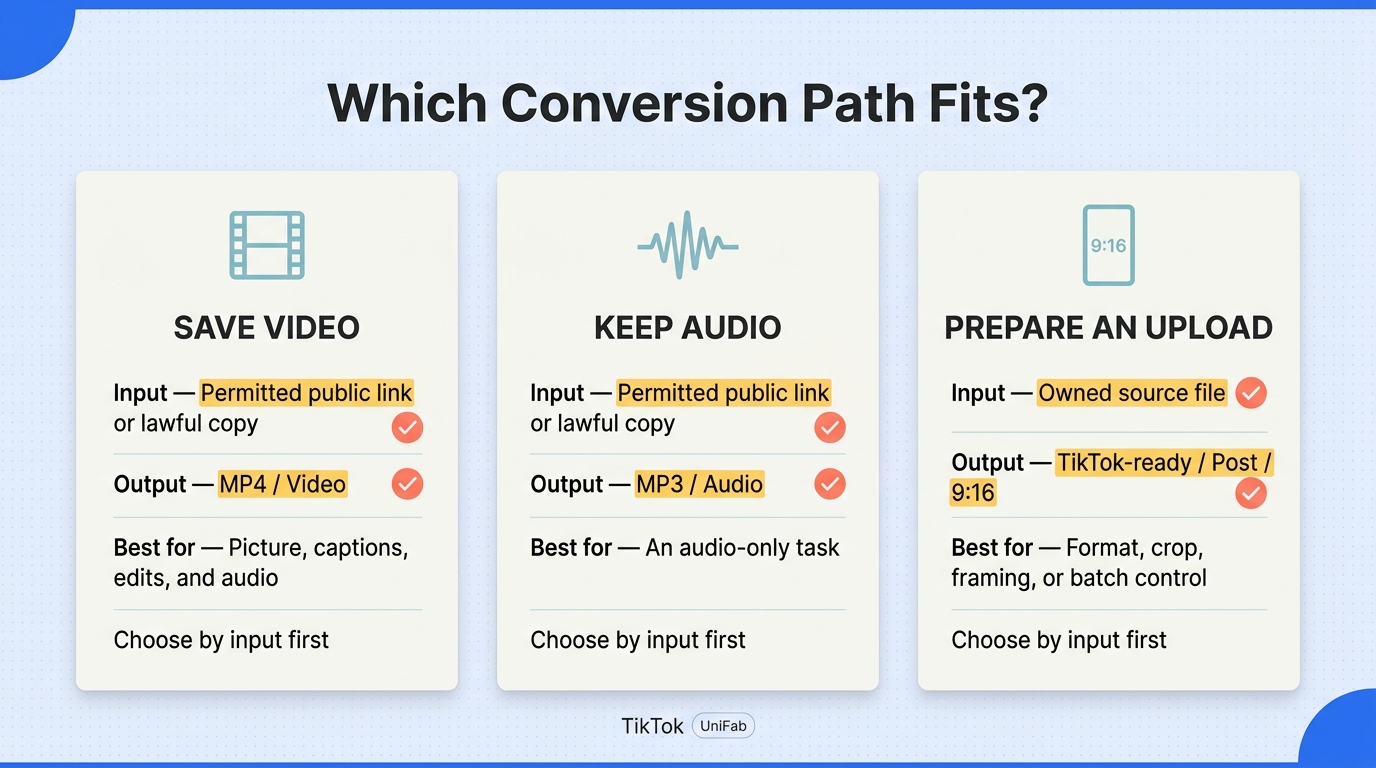
A TikTok Video Converter can mean three workflows: saving a permitted public clip, extracting its audio, or preparing your own source file for upload. Use TikTok's Save video option when available, or an online link workflow for a permitted public TikTok when native saving is unavailable. Use a local converter when the source file is yours and you need format, framing, or batch control.
| Task | Input | Output | Use when |
| Save the video | Public link or lawful copy | MP4 | One clip or simple playback |
| Keep the audio | Public link or lawful copy | MP3 | Video is unnecessary |
| Prepare an upload | Owned source file | TikTok-ready video | Framing or format needs work |
The difference is control. Link tools start from what TikTok serves, while local conversion starts from the file you provide and preserves more of your editing intent.
TikTok to MP4: Keep the Video
Choose TikTok to MP4 when you need the picture, captions, edits, and audio together. MP4 is widely playable and is usually the most useful result for personal reference, a permitted archive, or an editing handoff.
An online TikTok to MP4 converter is a reasonable fit for one public video when the creator permits saving. It is not a good place for private media or a source file you would not willingly upload to an unfamiliar service. If you already have the clip locally, another download step adds no value.
TikTok to MP3: Keep Only the Audio
Choose TikTok to MP3 when the visual track adds nothing to the intended use. A TikTok video to MP3 converter discards the picture and creates an audio file, but it does not change who owns the speech, music, or performance.
That distinction matters because personal listening and republication are different uses. Confirm permission before extracting creator audio or commercial music, and keep the MP4 instead when attribution, captions, or visual context may matter later.
Video to TikTok-Ready: Prepare Your Own File
Preparing a video for TikTok is an upload problem, not a TikTok download problem. Start with your own MOV, MP4, or other source; if needed, convert MOV to MP4, then adjust the format, crop, framing, and file size before uploading.
Aspect ratio is often the real issue. A Reddit user in r/VideoEditorForHiring described the reverse task this way:
“I have a vertical TikTok video (9:16) that I want to upload to YouTube, but I need it reformatted to fit a 16:9 YouTube screen properly. I’m not looking for basic resizing with black bars on the sides.”
The same principle applies in the other direction. Changing the container alone does not fix composition.
Convert TikTok to MP4 in Four Steps
If TikTok's Save video option is unavailable, convert a permitted public TikTok to MP4 by copying its share link and pasting it into a reputable browser converter. Choose MP4 and an available quality, then save and inspect the file. The converter can preserve available detail, but it cannot restore detail missing from TikTok's source.
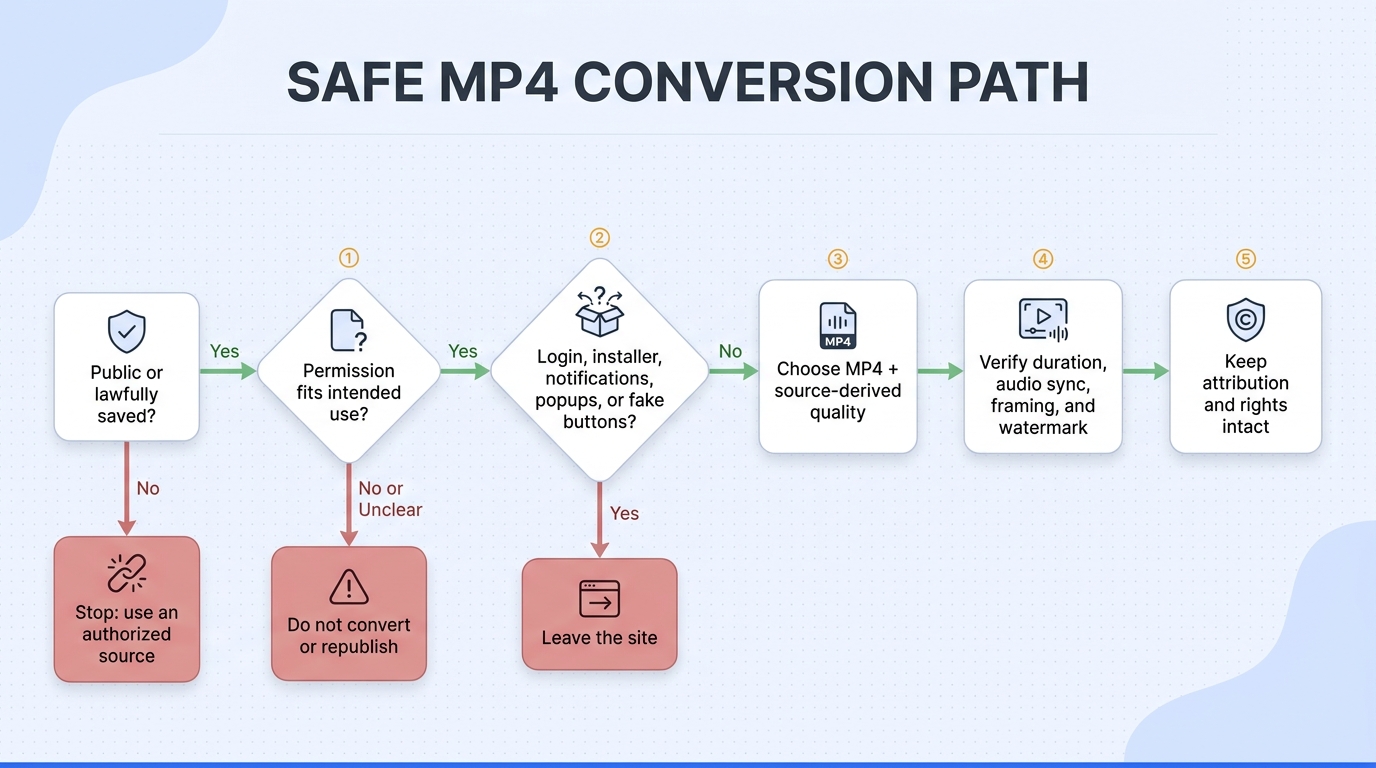
Use-rights note: Convert only content you own, have permission to save, or may otherwise lawfully use. Follow TikTok's applicable terms. Keep personal copies personal unless broader rights are clear, and do not redistribute someone else's work without authorization.
Work through these steps in order:
- Copy the public TikTok share link.
- Paste it into the chosen converter.
- Select MP4 and the available quality.
- Save the file and check playback.
This route is for a one-off, permitted public clip. It is not ideal for private content, repeated batch jobs, or files that need editing before upload.
Before You Start: Source, Permission, and Output
Before opening a converter, confirm that the video is public or already lawfully saved. TikTok offers Share > Save video for posts whose creators allow downloads. Creators control whether their posts can be downloaded. If Save video is unavailable, ask the creator for an authorized original or use an owned local file. Make sure you have permission for the intended use and that MP4 is the right output. Choose a storage folder in advance, especially on a phone where browser downloads can be easy to misplace.
Do not treat a public link as automatic permission to republish. Public availability describes access; ownership and reuse rights are separate.
Step 1: Copy the Public TikTok Link
Open the video's Share menu and copy its link. A straightforward link workflow should not require a workaround for TikTok account access, and it should not ask you to expose a private profile or someone else's restricted content.
If you already have a lawful local copy, skip the link workflow and work from that file.
Step 2: Paste the Link into a Converter
Paste the URL into the converter's input field, then pause before clicking any button. Fake download controls, repeated popups, forced sign-up, browser-notification requests, and executable installers are warning signs for a task that should run in the browser.
The developer of AnyVidSave described popup ads and forced accounts as frustrations behind building the tool.
That complaint captures the useful safety test. A simple conversion should not demand unrelated permissions or credentials.
Step 3: Select MP4 and the Available Quality
Choose MP4, then select the highest sensible quality the service derives from the source. “HD” is a label, not proof that lost detail has been recovered. A direct MP4 download copies the existing file, while compatible remuxing repackages its encoded streams without re-encoding. If the service decodes and re-encodes the clip, the result may be slightly softer or larger without looking better.
The restrained choice is usually to avoid unnecessary conversion passes. Keep the original available resolution unless a device or editing app requires something else.
Step 4: Save and Check the File
Save the MP4 and play it before closing the page. Locate the MP4 through your browser's download list: on iPhone, open Files; on Android, open Downloads; on desktop, open the configured download folder. A clip saved through TikTok's Save video option may appear in Photos instead, which is different from a browser download. Check the full duration, audio sync, resolution, frame rate, and file size. Make sure the picture is not stretched and the file opens in your intended player or editor.
Inspect the visible watermark rather than trusting a button label. Watermark handling depends on the source and service. Here, input control sets the limit: if you own the local source, keep it instead of adding another online conversion pass. Creator ownership and attribution duties do not change with the exported frame.
Convert TikTok to MP3 Without Wasting Quality
Converting TikTok to MP3 cannot be lossless because MP3 is compressed and TikTok has already processed the source. The goal is to avoid an unnecessary extra quality hit. Begin with the clearest lawful source, convert once, and do not mistake a larger bitrate label for recovered detail.
Check the Audio and Usage Rights First
Listen to the TikTok before converting. If the voice is distorted, the music is clipped, or background noise is already baked in, a TikTok to MP3 converter will carry those problems into the audio file.
A post in r/TiktokHelpers illustrates the source-quality problem:
“Hi everyone, I’m dealing with a very frustrating issue with TikTok’s audio compression destroying my video quality after upload, and I'd really appreciate some insight. When I record my footage and edit it in CapCut, the audio sounds perfectly clear with good levels and no distortion.”
Conversion after platform processing cannot recreate the earlier master. Use the creator's original audio file when you own it. Obtain permission before saving or reusing someone else's audio.
Use the Same Four-Step Link Workflow
The MP3 route follows the MP4 workflow above, with one change: select MP3 as the output. Copy a permitted public link, use a converter that does not request unrelated access, save the result, and listen for missing sections, level changes, or distortion. If the link is not supported, reopen the post in TikTok, copy the share link again, and check that the post is still accessible and MP3 output is supported. If conversion still fails, use an authorized local source or request the original, and stop if the site asks for a password or unrelated installation.
A page described as a TikTok to MP3 converter free of charge may still show ads, limit file handling, or apply another encode. Cost language does not answer the quality or safety questions, so judge the workflow by permissions, output behavior, and the saved file.
Choose Bitrate by Source Quality, Not by Label
Bitrate is the amount of data used for each second of audio. A higher setting can reduce damage from the new MP3 encode, but it cannot restore frequencies or detail TikTok removed earlier.
This is where converter marketing often reverses the logic. The largest available number is not automatically the most faithful choice. It may only create a larger file from the same compressed source. Select a sensible quality setting and convert once. Compare the result with TikTok playback using headphones if speech clarity or music texture matters.
When MP4 Is the Better Archive
Keep MP4 when the video contains captions, visible attribution, edits synchronized to music, or context you may need later. You can use an MP4-to-MP3 converter to extract audio again from a lawful local copy, but an MP3 cannot reconstruct the discarded picture.
For that reason, my editorial preference is MP4 over MP3 for archiving: MP3 discards the picture and adds another lossy encode. Keep the permitted video when context matters. Make an audio copy only for a specific listening or editing task.
Convert TikTok-Ready Files Locally with UniFab
For an owned or lawfully saved local file, a TikTok to MP4 converter workflow can use UniFab Video Converter before upload. It processes local files on Windows and macOS and requires desktop installation and local processing resources. UniFab does not fetch TikTok URLs, run on phones, or enhance source detail with AI.
When Local Processing Is the Better Fit
Local processing keeps an owned source off a web converter. UniFab accepts MOV, MP4, AVI, MPEG, WMV, F4V, MPG, TS, and FLV, covering common camera and editor exports. This path also suits several clips that need the same settings.
For one permitted clip, use TikTok's Save video option when it is available. Use UniFab when owned or lawfully saved files need local batch conversion, consistent settings, or framing before upload.
Convert a Saved Clip or Source Video
Use the desktop workflow for a lawful saved clip or original source:
- Add the local video to UniFab Video Converter.
- Choose the required output profile.
- Crop or trim with the built-in editor.
- Add more files if settings should match.
- Start conversion and choose the output folder.
- Inspect framing, playback, and audio sync.
Cropping fills a vertical frame by cutting the edges, padding retains the whole image with borders, and stretching changes the video's proportions. Keep the owned master and export a separate upload copy, checking faces, captions, and framing in the preview.
For repeat upload preparation, I would choose UniFab's local batch workflow over an online link converter when the files are mine. One output profile can be applied across the batch, while the built-in editor handles framing or trimming.
Capabilities and Boundaries
UniFab Video Converter handles 1,000+ format conversions and up to 4K output on Windows and macOS. For TikTok preparation, those limits matter when the source is not already MP4 or the upload should retain available resolution.
These capabilities support the task rather than define it. Broad format support resolves mismatched source files, while batch processing serves repeated upload preparation. As of September 2026, UniFab Video Converter is available at no charge.
Format conversion and AI enhancement are separate functions; conversion does not restore detail missing from the source.
TikTok Video Converter FAQ
Before using a TikTok converter, check five boundaries: permission, site behavior, device storage, content access, and watermark expectations. These limits determine whether a workflow is merely convenient or inappropriate for the file in question.
Is It Legal to Convert a TikTok Video to MP4 or MP3?
Use only content you own or are authorized to access and convert. Do not redistribute someone else's video or music without permission. Follow applicable law and TikTok's terms; the permissions required depend on the content and intended use.
Is It Safe to Use an Online TikTok Converter?
Safety depends on the site and what it asks you to do. A link converter should not need your TikTok password, a sideloaded APK, or an executable installer. It should not request browser-notification access or permission to upload private media. Leave if popups obscure the real download control or the page forces unrelated sign-up steps.
Can I Use a TikTok to MP3 Converter on iPhone or Android?
Many browser-based converters can run on iPhone and Android when they support the copied TikTok link. File handling is the main difference. iPhone downloads commonly appear in the Files app or Safari's Downloads area. Android browsers commonly save to the Downloads folder. Confirm the MP3 plays before closing the page.
Can a Converter Process Private TikTok Videos or LIVE Streams?
Do not assume it can. Private videos require authorized access, and a public-link converter should not reach restricted content. LIVE streams are a separate technical task. Support can be inconsistent, and a tool that handles regular posts may not capture a livestream reliably. Use official creator tools or a lawful source file when available.
Does Converting a TikTok Video Remove the Watermark?
Not necessarily. Watermark behavior depends on how the source was obtained and how the converter processes it. Format conversion alone does not guarantee removal. Keep an existing watermarked copy when visible attribution or source context matters. More importantly, a file without a visible watermark is not ownerless. Keep attribution where required. Do not remove a watermark to hide authorship, and do not redistribute the result without permission.