For real-time video translation while a foreign-language talk is playing, Chrome Live Translate provides translated captions from supported speech. If you need translated audio, an audio-capture extension offers a separate route. Live video translation helps you follow playback; producing a translated video file is a different task.
A talk that needs Spanish captions during the stream cannot wait for a translation made after the event. I would choose a readable live caption over a polished dub that arrives too late for the audience. That distinction shapes the routes below. I'll cover browser setup, an optional speech workflow, and the point at which a saved-video project makes more sense.
Use Chrome Live Translate for Real-Time Video Captions
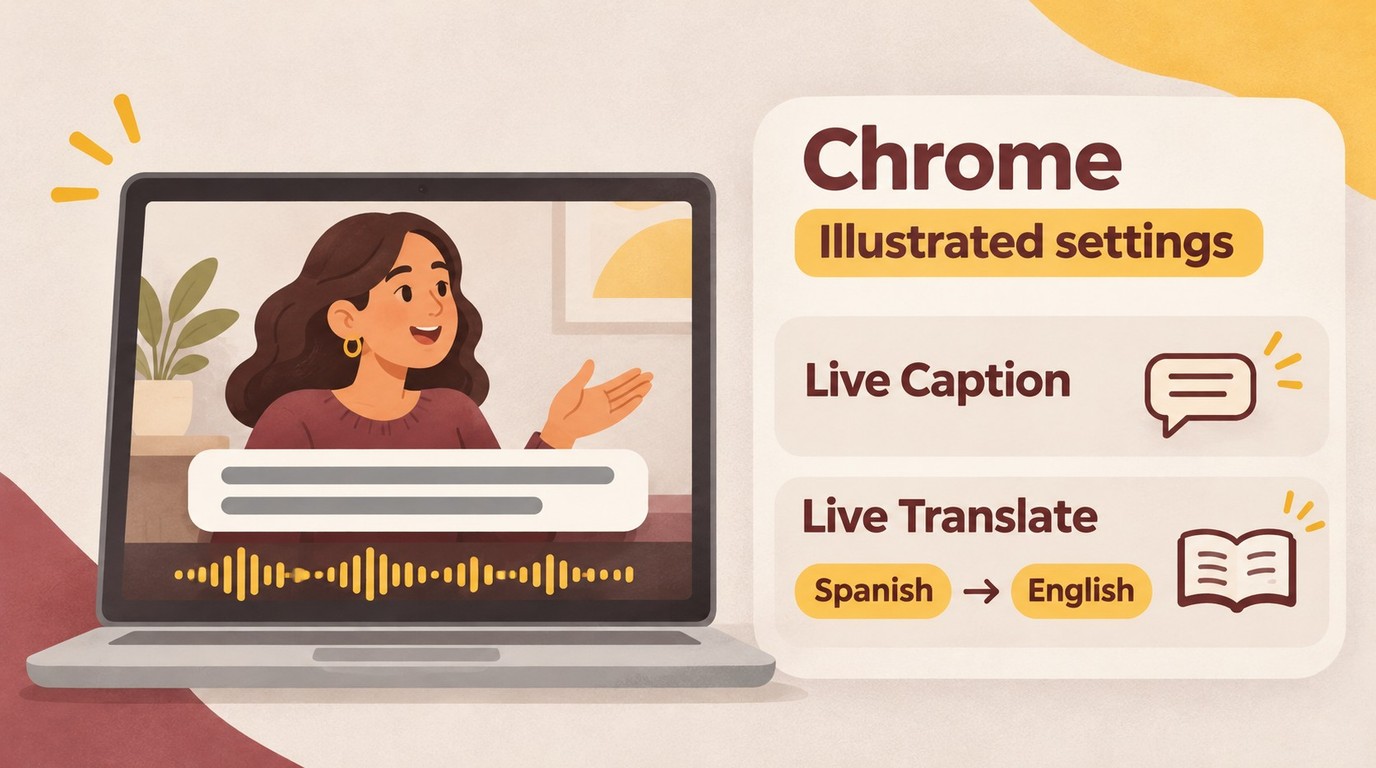
Chrome Live Translate displays translated captions in a floating bubble while supported audio plays. On Windows and Mac, its controls are under Settings > Accessibility, alongside Live Caption.
Check the Audio Language and Available Captions
Start with the video's own language options. On YouTube, an available CC button gives you access to captions, and some videos offer alternate audio tracks. A track in your language lets you listen directly. It must already be offered for that video.
Chrome is useful when you need readable text from browser audio. Have the video playing audibly, an internet connection for translation, and a supported source language selected. For a Spanish talk translated into English, Spanish is the speech to recognize; English is the language you want to read. Swapping them changes the task.
The output matters more than the label. One Reddit poster in r/VIDEOENGINEERING stated the requirement plainly: "I need English subtitles as output." For a viewer following a lecture, I would treat captions as a complete result, rather than an inferior substitute for dubbing.
Enable Live Caption, Then Live Translate
Use this sequence in desktop Chrome:
- Open Chrome's three-dot menu, choose Settings, and select Accessibility.
- Turn on Live Caption to generate text from the video's speech.
- Under Manage languages, add the supported source language and select the matching caption language.
- Turn on Live Translate and choose your reading language under Translate to.
- Return to the video and play it with the volume on. Read the caption bubble to confirm that translation is active.
- Move or expand the bubble so it stays readable without covering the part of the video you need.
You should now have text you can follow, while the original audio continues. This setup fits watching and reading; it does not replace the video's soundtrack with translated speech.
The entry point differs on other desktop systems. Linux adds a Captions submenu under Accessibility; Chromebook Plus uses system Settings > Accessibility > Audio and captions for Live Translate. These are desktop instructions, rather than a phone setup.
Separate missing captions from missing translation when troubleshooting. If no text appears, check audible playback and the source-language selection. If original-language text appears but no translation does, inspect Live Translate and its destination language. I would fix recognition before judging the translation: a wrongly recognized name gives the translator the wrong input.
Review important details against the video. Accents, background noise, and overlapping speech affect automatic captions, as YouTube's caption guidance explains. For a lecture, pause at names, figures, and specialist terms instead of treating each caption as a transcript.
Keep local captioning distinct from online translation. Chrome processes Live Caption audio and text locally; Live Translate sends captions to Google for translation. Also, Microsoft's US Edge video-translation page now redirects to a feature-unavailable notice, so an older Edge tutorial is a poor substitute for the Chrome controls above.
Translate Video Audio With Maestra’s Chrome Extension
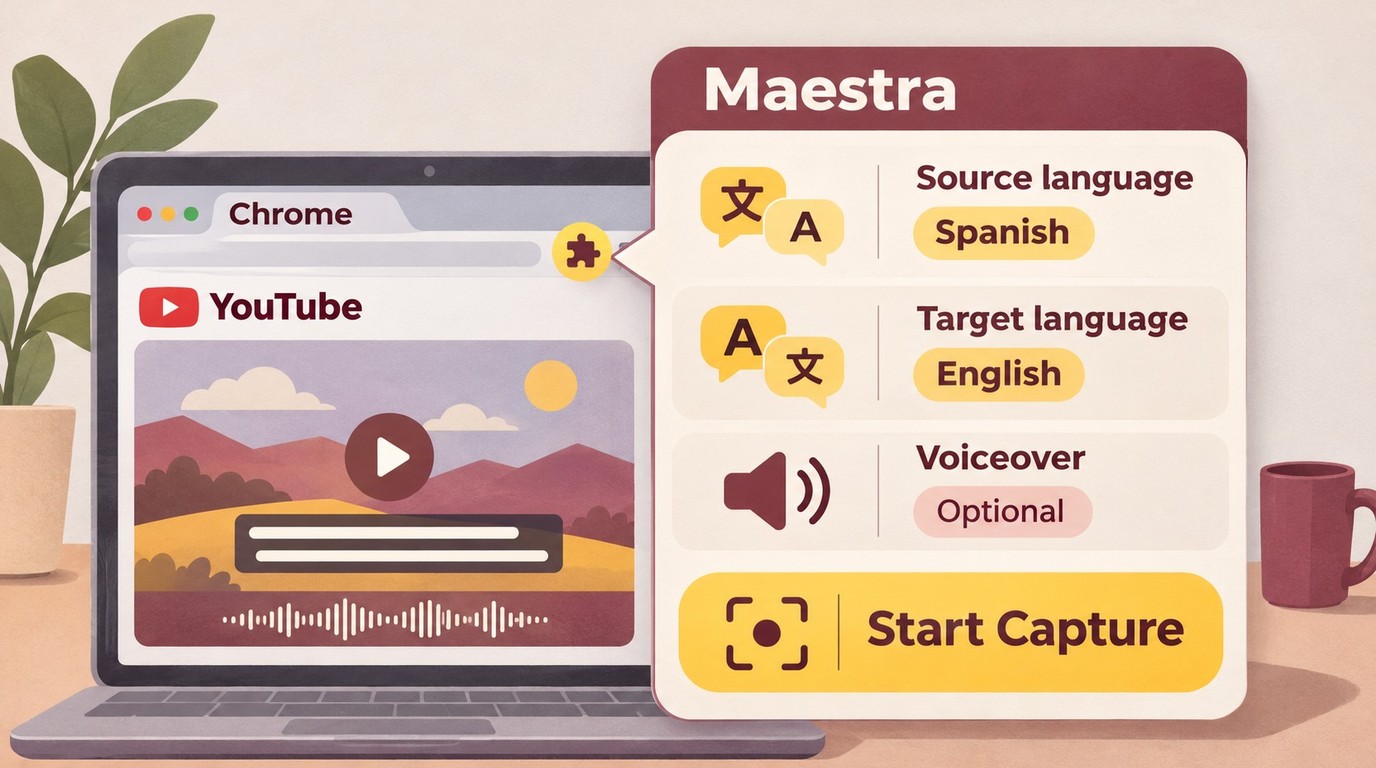
Maestra's Live Voice Translation & Transcription extension captures browser audio for captions and optional translated speech, including videos without original subtitles. Translation and voiceover require its paid subscription; free original-language captioning is a separate feature.
Check Account Access and Translation Features
This route fits a lecture you want to hear in translation. You need desktop Chrome, a Maestra account, access to the translation features, and video audio the extension can capture. A missing YouTube subtitle track is different from inaccessible audio.
I would use an audio-capture extension when translated speech changes how you can follow the video, such as listening while consulting a worksheet. If translated text already meets your need, adding voiceover introduces another output to monitor.
The extension's name does not make its features interchangeable. Original-language transcription writes what was said; translation changes the language; voiceover reads the translated result aloud. Make sure the feature you enable matches the result you want.
Set the Languages and Start Audio Capture
Keep the setup inside Maestra's extension:
- Add Live Voice Translation & Transcription from the Chrome Web Store, matching the Maestra name and developer.
- Open the YouTube video you want to follow and start playback.
- Open the extension from Chrome's toolbar and sign in to your Maestra account.
- Select the source language, enable live translation, and select the target language.
- Enable the optional voiceover if you want spoken translation, then select Start Capture.
- Confirm that the captions or translated speech match your selection. Select Stop Capture when you finish.
Treat the opening passage as a playback check. Listen for the translated voice and read a complete caption before leaving the video running. If capture is empty, confirm the selected video is playing audibly; if text appears in the wrong language, revisit the source and target settings.
Maestra describes this workflow for translating during playback. It is useful for following a video without an existing subtitle track, but it is not a guarantee of instant speech, accurate technical vocabulary, or compatibility with every website.
Use only content you own or are authorized to process, for lawful personal use, and follow applicable law and the platform's and translation service's terms; you remain responsible for the content you process.
Choose a Translation Tool by Output and Caption Availability
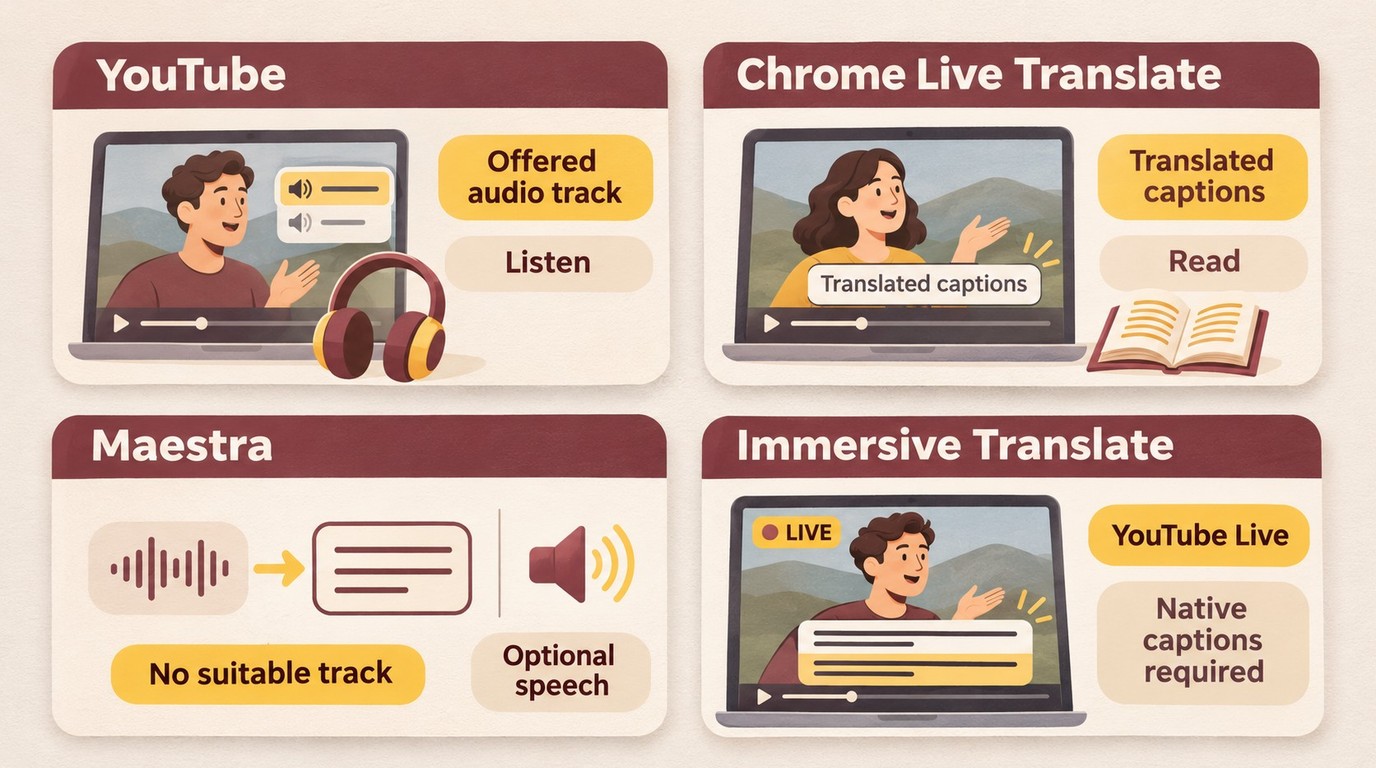
Chrome fits translated reading, an available YouTube audio track fits direct listening, and Maestra adds optional translated speech through audio capture. Immersive Translate offers bilingual captions, with native captions required for its YouTube Live workflow.
| Option | Output | Required condition | Access or cost | Trade-off |
|---|---|---|---|---|
| Chrome Live Translate | Translated captions | Supported speech language | Built in | No translated soundtrack |
| YouTube audio tracks | Existing alternate audio | Video offers your language | No translation-tool purchase | No on-demand translation |
| Maestra extension | Captions; optional voiceover | Account; accessible browser audio | Translation requires subscription | Audio capture required |
| Immersive Translate | Bilingual live captions | YouTube Live has native captions | Free and paid access | Live-caption dependency |
Native-feature documentation: Google Chrome Help and YouTube Help. Extension descriptions: Maestra and Immersive Translate. Access information as of November 2026.
I would choose Chrome for reading a talk and an existing audio track for listening without an added translation layer. Chrome and Maestra's setup steps are above. Maestra suits missing-subtitle videos that need speech translation; it is unnecessary if an offered track already meets your needs.
For an available YouTube audio track:
- Open the video's settings.
- Select Audio track.
- Choose an offered language.
That selects an existing track rather than commissioning a translation.
For Immersive Translate's caption route:
- Open a supported video.
- Enable its bilingual-caption feature.
- Select a supported target language.
Immersive Translate suits side-by-side reading, but a YouTube livestream without native captions misses its live-workflow prerequisite. These playback routes address viewing; a finished video belongs in a file workflow.
When UniFab Video Translator AI Fits a Saved-Video Project
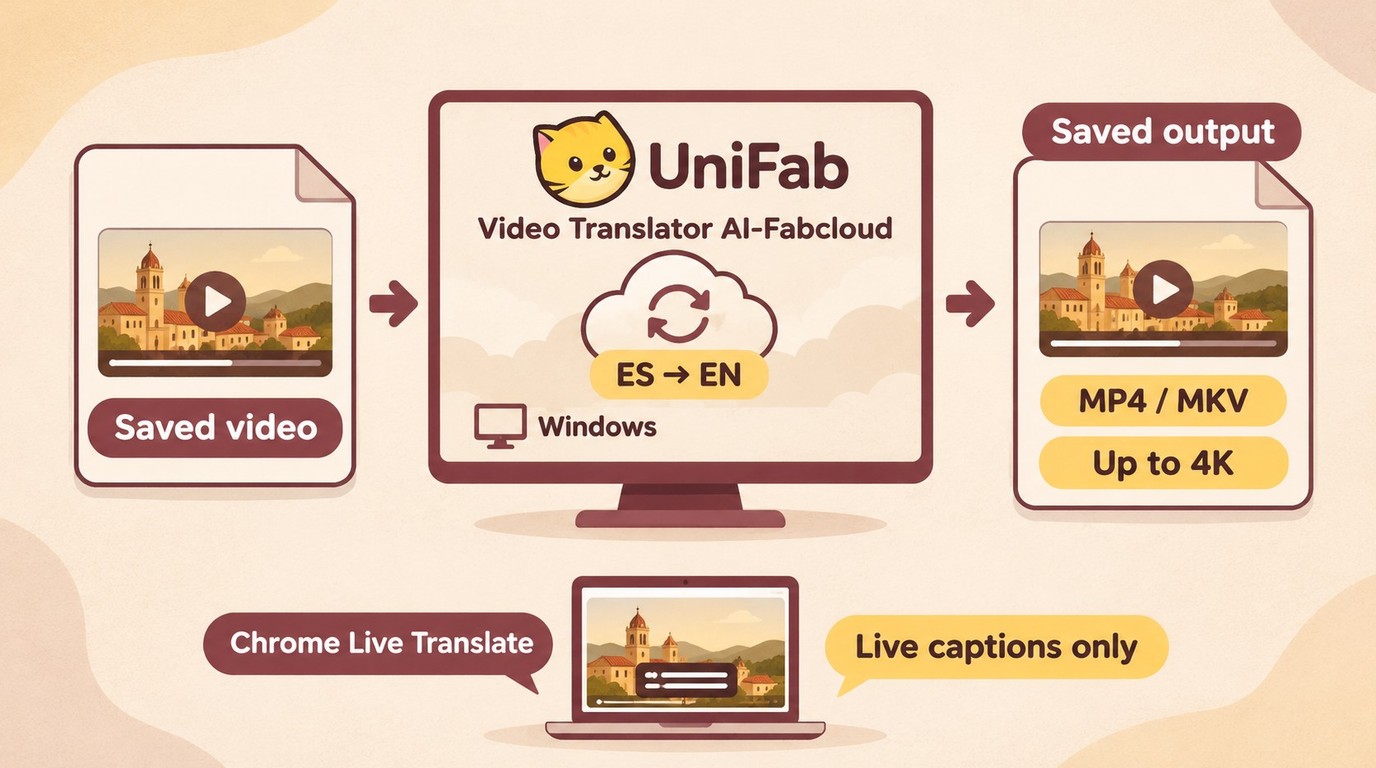
UniFab's Video Translator AI-Fabcloud fits you if you need a translated video for a later viewing or delivery project on Windows. I would put it in a file-production workflow, separate from a browser caption bubble.
Video Translator AI-Fabcloud supports Windows video translation with MP4 and MKV output up to 4K, giving you video files for a saved-video project. Its 23-language range includes English, Spanish, French, German, Japanese, Chinese, and Korean, so matching the spoken and destination languages is a concrete starting point.
Prepare your project before processing:
- Identify the video's spoken language and the language your audience needs, then match them to the translator's supported choices.
- Choose MP4 or MKV for the intended delivery and set a resolution within the supported range.
- Review the translator's beta availability, your Windows system's eligibility, and the account's credit status before starting the project.
Use those choices to keep the project focused on its final video. A language match and suitable file format are more useful here than unrelated restoration features.
The supported system listed for this workflow is Windows; use UniFab's official site as the entry point for exploring the Windows offering.
Frequently Asked Questions
Account handling and device support need separate checks. A desktop extension's playback features do not establish compatibility with phone apps or video calls.
Is it safe to sign in to a third-party video translation extension?
Answer: Use a service with an identifiable developer and a sign-in page belonging to that service. Maestra's workflow asks for a Maestra account, not your video-platform password. Review audio-capture permissions and how captured material is stored. Chrome illustrates why data flow matters: local speech recognition and online translation are distinct operations. I would favor a traceable service over an anonymous extension, without treating a store listing as a blanket security guarantee.
Can I translate a FaceTime video call on my iPhone?
Answer: Yes, where Live Translation is available for your device, region, and language. During an active FaceTime call, the More menu contains Live Translation; it displays translated live captions as both callers speak. Apple's FaceTime instructions describe captions, while the Phone app has a separate spoken-translation workflow. I would use FaceTime's own feature for a supported call rather than try to transfer desktop extension instructions to the iPhone.
Does a live video translator work in every Android app?
Answer: No single desktop workflow establishes that. Check the exact Android app, language pair, and audio-access support you need. A Reddit poster in r/apps wrote, "I can find translators that will translate a frame of a video!" Translating a still frame answers a different need from following continuous speech. For a phone video, look for explicit support for that app's audio rather than assuming a screenshot translator or desktop Chrome extension provides it.
Choose the Output You Need
Use translated captions when you want to read along, an offered audio track when it already matches your language, and audio capture when you need generated speech during playback. For a translated video you intend to keep working with, choose the saved-video route. I would keep the viewing task separate from the delivery task: understanding a talk now and producing its translated file are different outcomes.