If you need an MP3 in WAV form for a DAW, sampler, or editor, the conversion is straightforward: decode the MP3 and export it as uncompressed WAV. It can improve compatibility and editing convenience, but it cannot restore detail that MP3 encoding already removed.
I read the request for a free, simple converter as a request for a predictable path, not a bigger file. I treat MP3-to-WAV as a compatibility decision, not a restoration step. I’ll compare an online route with local Windows and Mac workflows, then explain the settings that keep an export honest. I’ll finish with batch checks so you can choose a repeatable process when one track becomes a library.
Can You Turn an MP3 into a WAV?
Yes. Any tool that can decode MP3 audio can write the decoded samples into a WAV container, and you can do it for free with an online video converter, Audacity, or FFmpeg. The important distinction is that this is a format conversion, not a restoration process.
The short answer
An MP3 stores audio with lossy compression. WAV commonly stores uncompressed PCM samples. When you convert, the decoder expands the MP3 data into PCM and the exporter writes those samples to WAV. The result may work better in a sampler or production app, but it carries the same source limitations.
That answers the practical question behind the search. If a project rejects MP3, make a WAV. If you expect the WAV to sound like a newly recorded lossless master, conversion alone cannot deliver that.
Which workflow this guide covers
For one small, non-sensitive file, an online converter is the shortest route. Audacity adds a visual editor, FFmpeg gives repeatable command-line jobs, and a desktop converter can make a local batch easier to manage. The right choice depends on privacy, file count, and whether you need to edit before export.
What Changes When You Convert MP3 to WAV?
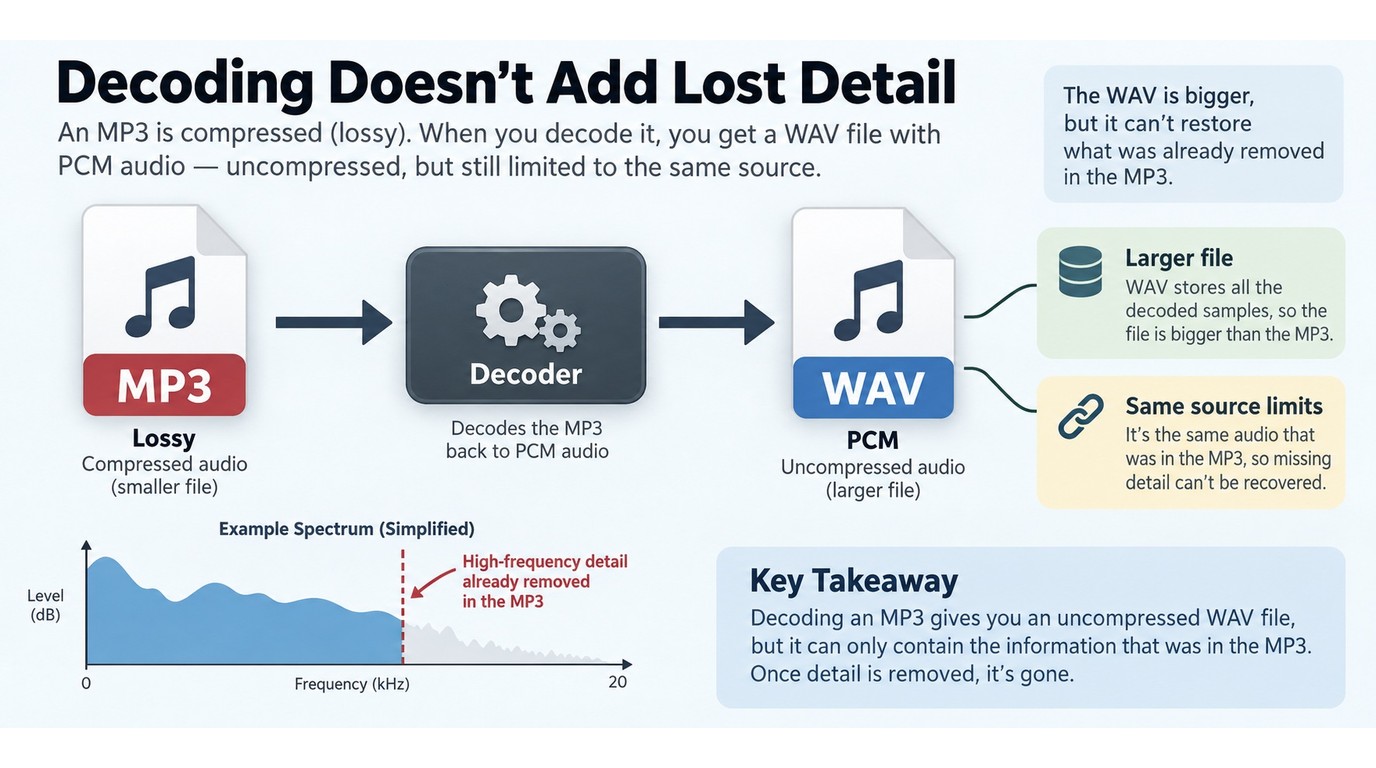
Converting MP3 to WAV changes storage and increases file size; it does not recreate detail discarded during MP3 encoding. WAV helps when an app expects PCM or a production hand-off needs an uncompressed file. I treat it as a working format, not an archive upgrade.
MP3 compression versus WAV storage
MP3 is lossy, so its encoder removes information for the chosen bitrate. A WAV export commonly uses PCM, preserving decoded samples without another lossy stage. PCM stores every sample per channel, making the WAV larger even when audible content is unchanged.
When a WAV export still makes sense
WAV is a sensible hand-off for a DAW, editor, sampler, or stem workflow that expects PCM. It avoids another lossy encode during trimming or layering. For a DJ library that already plays MP3 correctly, keeping the MP3 is often more efficient.
As one Reddit user in r/Rekordbox put it: “About half my library is 320kb mp3. I realize it sounds -fine- but I'd like to slowly start upgrading the files to lossless for stems quality, etc.”
What conversion cannot fix
A WAV export will not undo clipping, spectral loss, or artifacts already present in the MP3. A spectral view can expose a cutoff in a file that only appears lossless. Keep the original and label the WAV derivative.
How to Convert MP3 to WAV on Windows or Mac
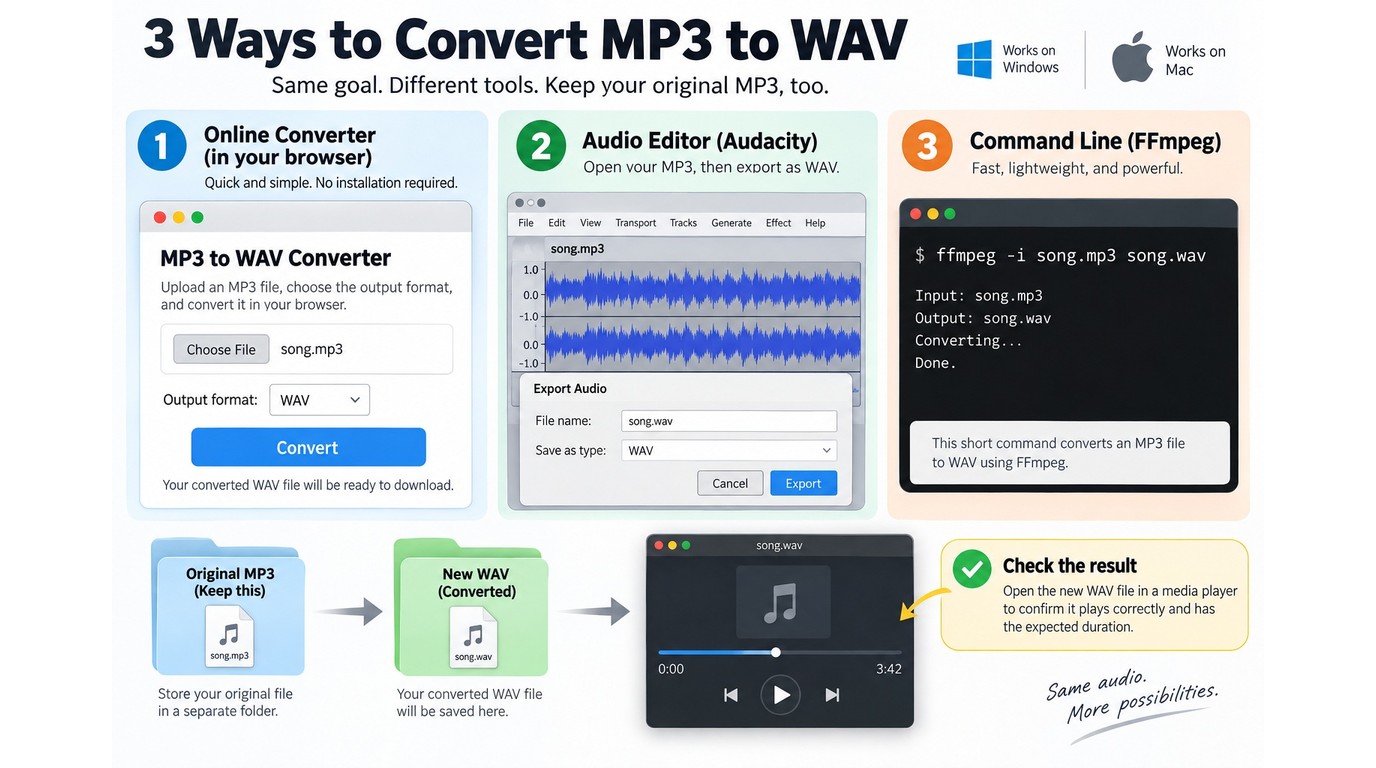
To convert MP3 to WAV free on Windows or Mac, use a repeatable pattern: keep the source, choose a WAV export, write to a new destination, and inspect the result. Online tools remove installation, while local apps keep the audio on your device and make repeat jobs easier to control.
Prerequisites and a safe file copy
Before converting, check that the file opens and plays through its full duration. Keep the original MP3 unchanged, create a destination folder with enough free space, and use a filename that preserves the track name and version. If the audio came from YouTube or another platform, use only material you own or have permission to process, and follow that platform’s Terms of Use.
A no-install online route
Please note: Upload only audio you are allowed to process, and keep the result for your own lawful use. Online services may retain files under their own policies, so local conversion is the safer fit for private recordings.
For a one-off file, the browser path is simple:
- Open a reputable MP3-to-WAV converter and select the MP3 from your device.
- Choose WAV as the output, leaving advanced settings at source-matched values unless you have a specific editing requirement.
- Start the conversion, wait for the job to finish, and download the WAV to a named folder.
- Play the new file from start to finish and compare its duration with the MP3.
This route suits a short, low-sensitivity file when convenience matters most. It is not ideal for a private archive, a large library, or a job that must be repeatable without uploading each file.
Audacity for an editable desktop workflow
Audacity works well when conversion is only one part of the job. Import the MP3, make any cuts or level changes, then use the export command to select WAV and the needed encoding subtype. Check the metadata dialog before saving because tags and project markers do not always map perfectly between applications.
Use Audacity when you want to see the waveform and edit manually. It is less attractive for hundreds of files because every export still needs a human-controlled project or macro workflow.
FFmpeg for repeatable command-line jobs
FFmpeg is the better fit when the same conversion must run across a folder or be documented for a team. The conceptual sequence is:
- Identify the input MP3 and confirm its sample rate, channels, and duration.
- Set the output container to WAV and choose PCM encoding that matches the source or the target application.
- Run the command for one file, inspect the output, then apply the same pattern to the remaining files.
The command line offers control, not automatic quality improvement. It suits technical users who value repeatability and scripts; it is not the easiest starting point for someone who wants a visual editor.
Choose WAV Settings That Match the Source
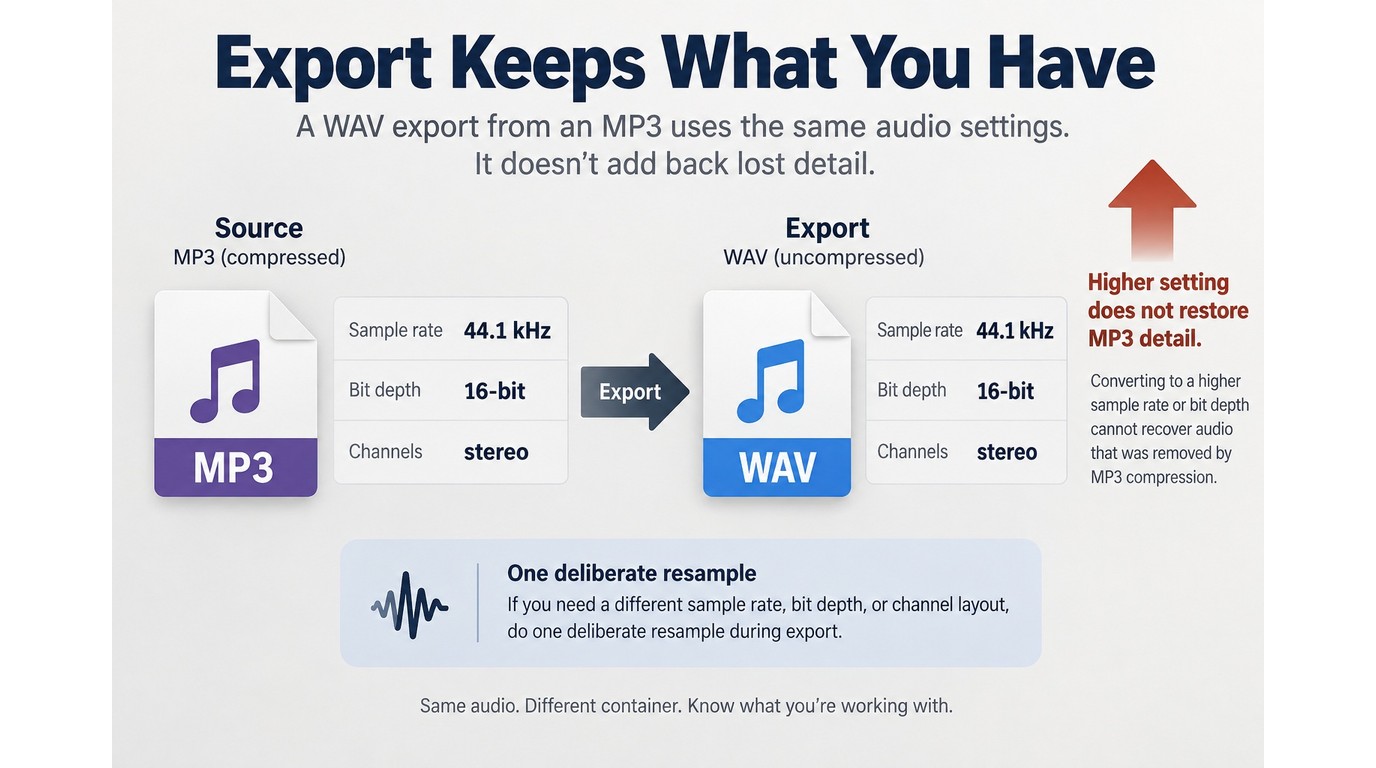
For an MP3 source, keep the source sample rate, bit depth, and channel layout unless the destination requires something else. Higher settings may satisfy an app or delivery specification, but they do not restore information removed by MP3 encoding.
Sample rate and bit depth
Keep the source sample rate and choose the bit depth required by the destination app or delivery specification. A higher numeric setting can support later processing, but it cannot restore detail removed by MP3 encoding. Avoid repeated resampling; make one deliberate export to the destination's required setting.
Metadata, cues, and channel layout
Tags such as artist and album may transfer, but cue points, DJ grids, and application-specific markers often need a manual check. Treat replacement as a library-management task as much as an audio task.
Confirm stereo versus mono, verify the duration, and open the WAV in the destination app before deleting anything. For batches, retain a mapping between each MP3 and its WAV so a missing tag does not become a lost track.
Mobile and downloaded-source caveats
Android browsers and apps can convert a small file, but storage permissions, advertising, and upload handling vary. For a private recording, a local desktop workflow gives clearer control. If the source was downloaded from YouTube, process it only when you have the rights or permission, and do not treat conversion as permission to redistribute it.
Online or Offline: Which MP3-to-WAV Workflow Fits?
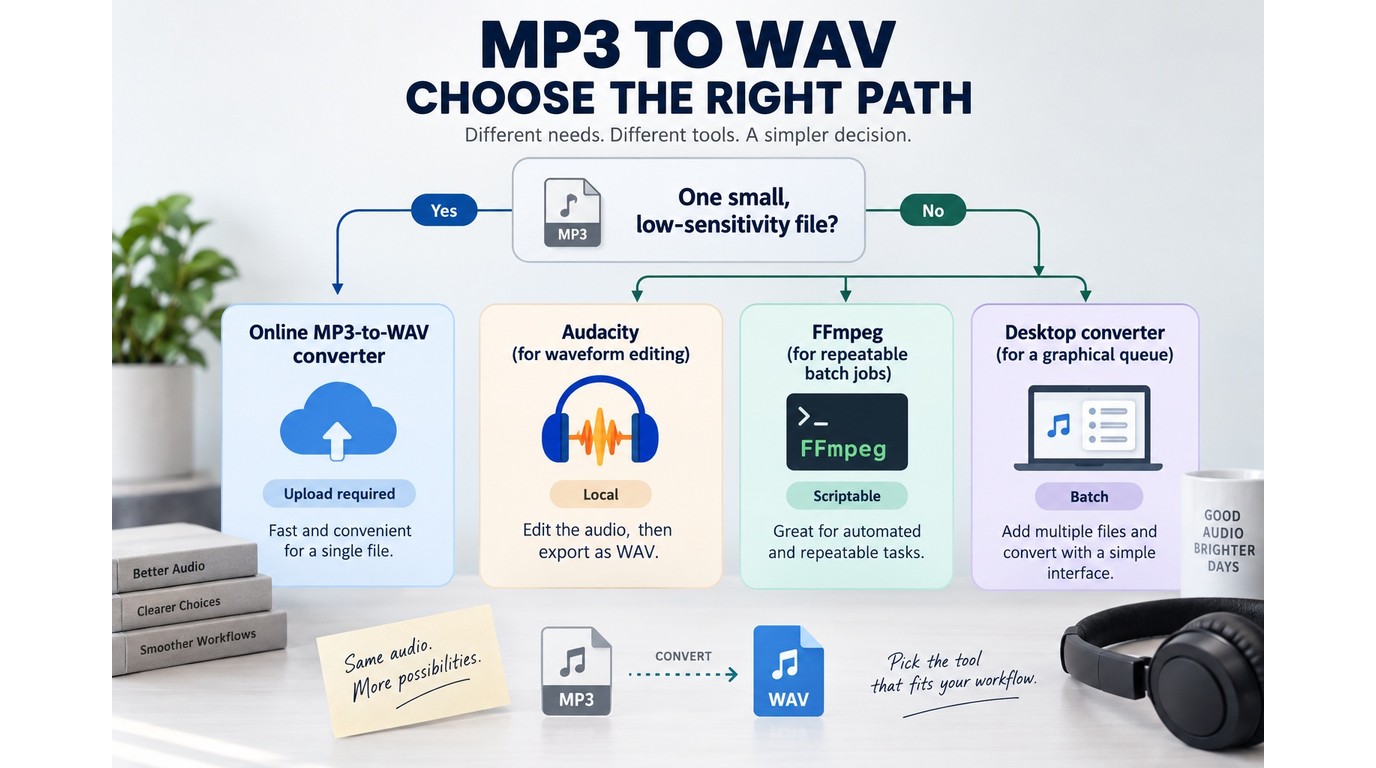
Use an online converter for one small, low-sensitivity file when zero setup matters; use Audacity when you need visual edits; use FFmpeg for repeatable batches. For private or recurring work, local processing is the stronger default because the files stay on one machine and the workflow can be repeated.
| Workflow | Setup | Privacy | Batch fit | Good fit |
| Online converter | No install | Audio uploaded | Small one-off jobs | Convenience |
| Audacity | Desktop app | Local processing | Manual or limited | Editing plus export |
| FFmpeg | Command line | Local processing | Strong scripting | Repeatable jobs |
| Desktop converter | Desktop app | Local processing | Batch-capable when supported | GUI batch workflow |
One-off online conversion
Online tools minimize setup for a single track you are comfortable uploading. Trade-offs include upload time, service limits, and retention control. They suit convenience-first one-offs, not sensitive or recurring work.
Offline desktop and command-line conversion
Audacity gives you an editable waveform; FFmpeg gives you a repeatable script; a desktop converter can bridge both with a graphical batch queue. Local processing keeps files on the computer, but naming and disk space need checks. This fits a private library or documented hand-off, not zero-setup work.
Batch planning and failure checks
For a batch, use Artist - Title - WAV, preserve the MP3 folder, and spot-check the first, middle, and last export. Verify cues, tags, channel layout, and duration before replacing links. The practical win is workflow control.
Where UniFab Video Converter Fits in a Local Workflow
UniFab Video Converter is a Windows and Mac desktop app for local batch video conversion across 1000+ formats, with a built-in editor, no watermark, and NVIDIA, AMD, or Intel GPU acceleration up to 50×. Its verified input list covers video formats, so MP3 input and WAV output must still be confirmed before it is used for this exact conversion.
Verified workflow advantages
If a project folder mixes video assets with files that still need separate audio handling, a local desktop tool with batch processing and a built-in editor can reduce app switching. UniFab’s Video Converter is listed at $0 and includes no-watermark conversion, so it can suit a graphical local workflow when the formats are within its confirmed scope.
The limitation is decisive: the verified input list names MOV, MP4, AVI, MPEG, WMV, F4V, MPG, TS, and FLV, not MP3. UniFab therefore suits confirmed video-format jobs and is not ideal as an assumed audio converter.
The MP3/WAV capability boundary
Before selecting UniFab for MP3 to WAV, confirm both the audio input and WAV output on the current product page or in the installed build. If either is absent, use Audacity or FFmpeg for this conversion and keep UniFab in the workflow where its verified video conversion scope applies.
MP3 to WAV Questions Readers Still Ask
These six answers cover devices, privacy, metadata, batching, and quality limits. The central answer is consistent throughout: MP3 to WAV changes compatibility and storage, not the source quality.
Can I convert MP3 to WAV on Windows or Mac?
Yes. Use Audacity for a visual workflow, FFmpeg for repeatable jobs, or an online converter for a one-off file on either platform. Keep the original MP3 and export the WAV to a separate folder; choose the method based on editing needs and file count, not expected sound improvement.
Can I convert MP3 to WAV on Android?
Usually, a browser-based tool or compatible audio app can handle a small file. Check the app’s storage permissions and avoid uploading recordings that contain private or sensitive material.
Is it safe to use an online MP3-to-WAV converter?
Safety depends on the service’s file-handling policy and the sensitivity of your audio. Use a reputable service for non-sensitive files, avoid uploading confidential recordings, and delete the downloaded copy from shared devices when appropriate. Local tools remove the upload step.
Does converting MP3 to WAV improve sound quality?
No. It changes compatibility and storage, but it cannot restore detail removed by MP3 encoding. Use WAV when the next app needs PCM or when editing calls for an uncompressed working file.
Will tags and cue points survive conversion?
Basic tags may transfer, but cue points, DJ grids, and project markers can be application-specific. Verify them in the destination app before replacing the original library links.
Can I convert a whole music library at once?
Yes, but a local batch workflow is usually easier to repeat and audit. FFmpeg is suited to scripting; a desktop converter may be more comfortable if it supports batch queues. Test one file first, then spot-check the batch before archiving or deleting anything.