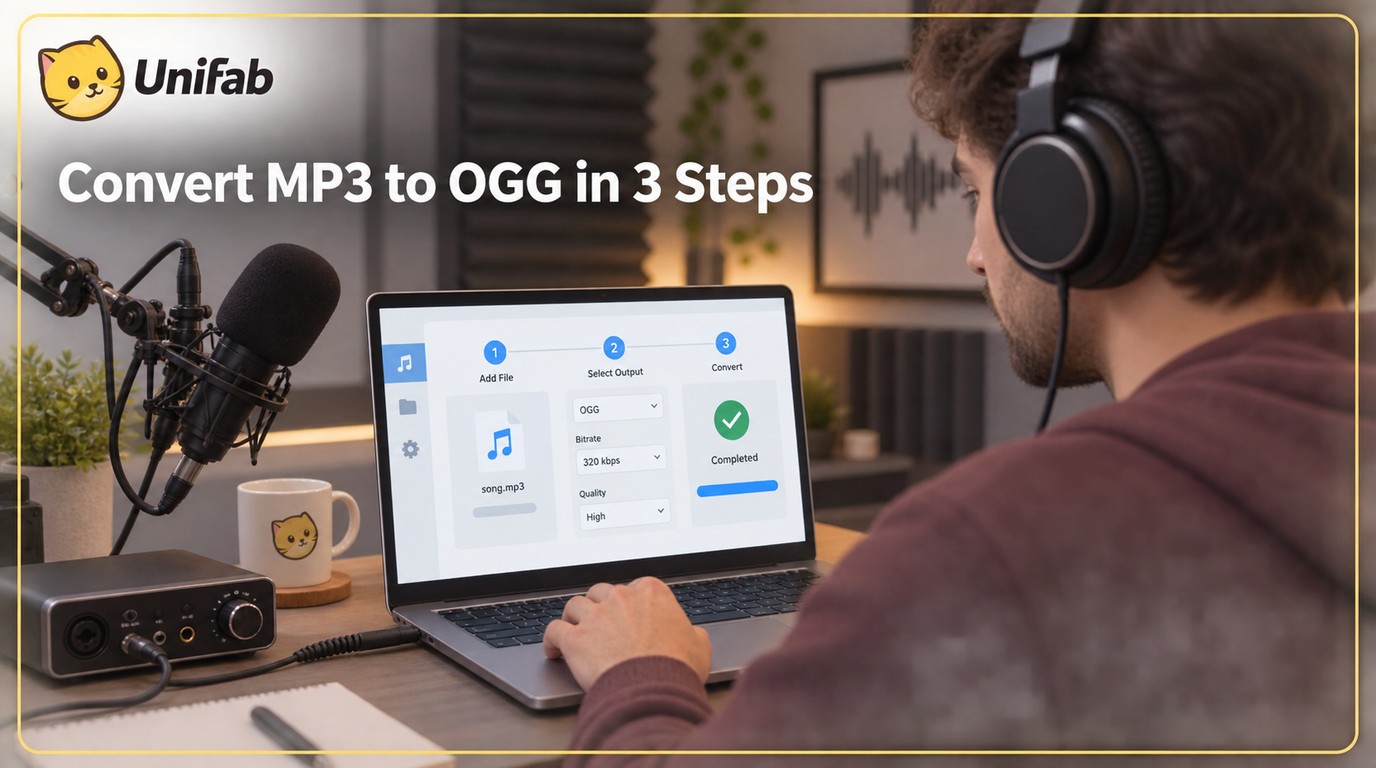
If a converted file plays with crackle, one-channel audio, or a broken loop, the export technically finished but the job did not. MP3 to OGG conversion re-encodes an already-lossy source, so the practical goal is a compatible OGG Vorbis file with controlled additional loss, not restored detail.
The destination app should be treated as part of the conversion workflow, not as a final formality. A file that looks correct in a folder can still fail when a game, voice-message app, or web player handles its channels or seeking differently. The route below moves from format limits to a three-step workflow, then matches online, desktop, batch, and local options to the job in front of you.
OGG vs MP3: What Changes When You Convert
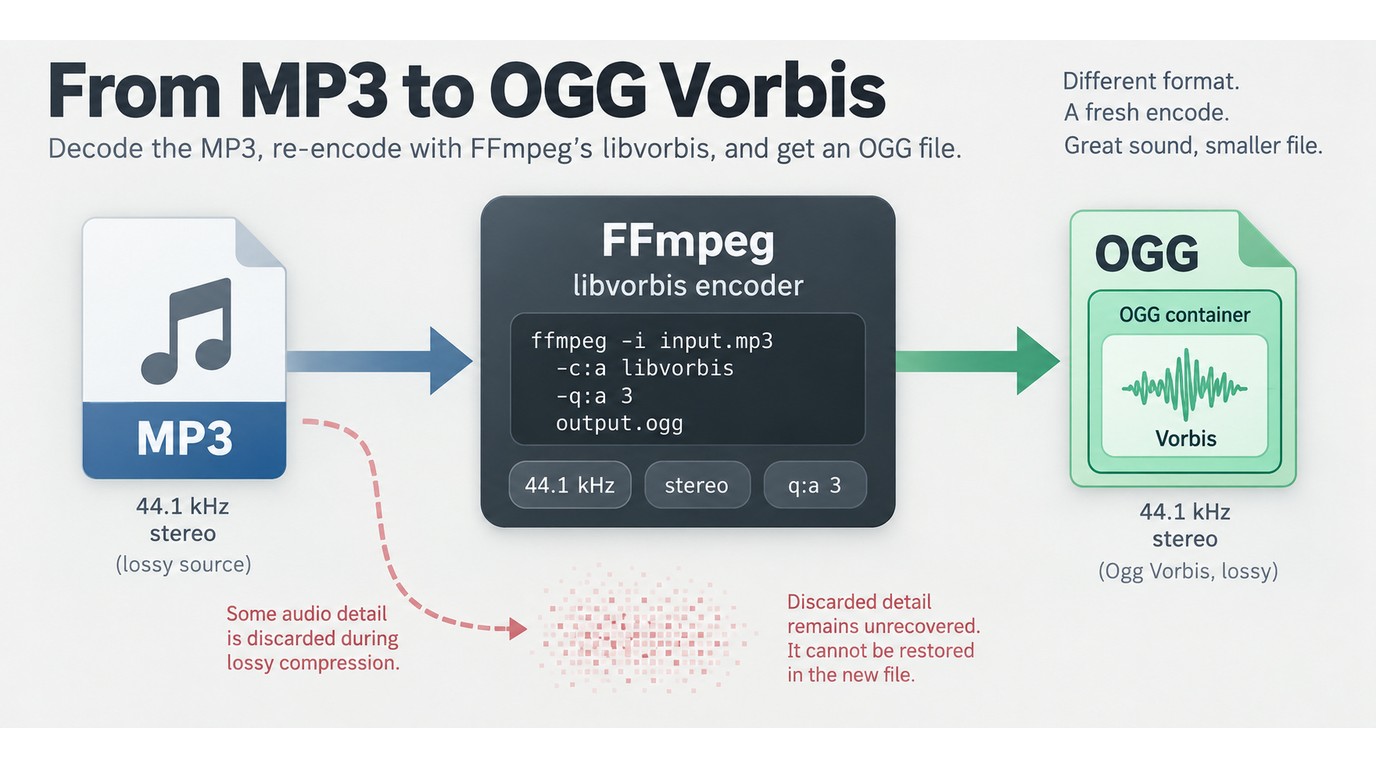
OGG is a container, while Vorbis is one audio codec that can sit inside it. Converting MP3 to OGG therefore changes the encoded stream and may change compatibility, but it cannot recreate information removed when the MP3 was made.
OGG Is a Container; Vorbis Is the Audio Codec
Think of OGG as the box and Vorbis as the audio encoding inside that box. Vorbis is an open, compressed format suited to music and other general audio, while “OGG” alone does not tell you which codec a destination expects. Some apps accept Ogg Vorbis but reject Ogg Opus or another combination.
Why Lossy-to-Lossy Conversion Cannot Restore Detail
MP3 already discards parts of the original signal. Encoding that MP3 again as Vorbis creates a new approximation, so a higher output bitrate can reduce added damage but cannot recover the discarded detail. Any promise that transcoding leaves the signal unchanged sets the wrong expectation for an MP3-to-OGG job.
Bitrate, Sample Rate, Channels, and Normalization
Start with the source. Keep its sample rate unless the destination specifies another value; upsampling a 44.1 kHz MP3 does not add information. Keep stereo when the target needs left and right channels, and choose mono only when the destination explicitly calls for it. Normalize only when matching loudness is part of the project, because normalization changes level rather than detail.
Quality controls vary by encoder. In FFmpeg’s libvorbis wrapper, the variable-bitrate q control runs from -1.0 to 10.0, with 3.0 as the documented default. See FFmpeg Codecs Documentation: libvorbis. Treat that control as a quality choice, not a way to turn a lossy source into a master.
Why a Valid OGG File Can Still Fail
A playable file can still be wrong for its destination. Common symptoms include a tiny distorted output, no seeking, a loop that stops, or sound from only one speaker. As one Reddit user in r/Parappa put it, “The audio being all messed up. It wouldn't loop, it only played through 1 speaker, and it was all crackly.”
Check the output in the actual target application. Full playback, a seek near the end, both channels, and one complete loop reveal more than a green conversion bar.
How to Convert MP3 to OGG in 3 Steps
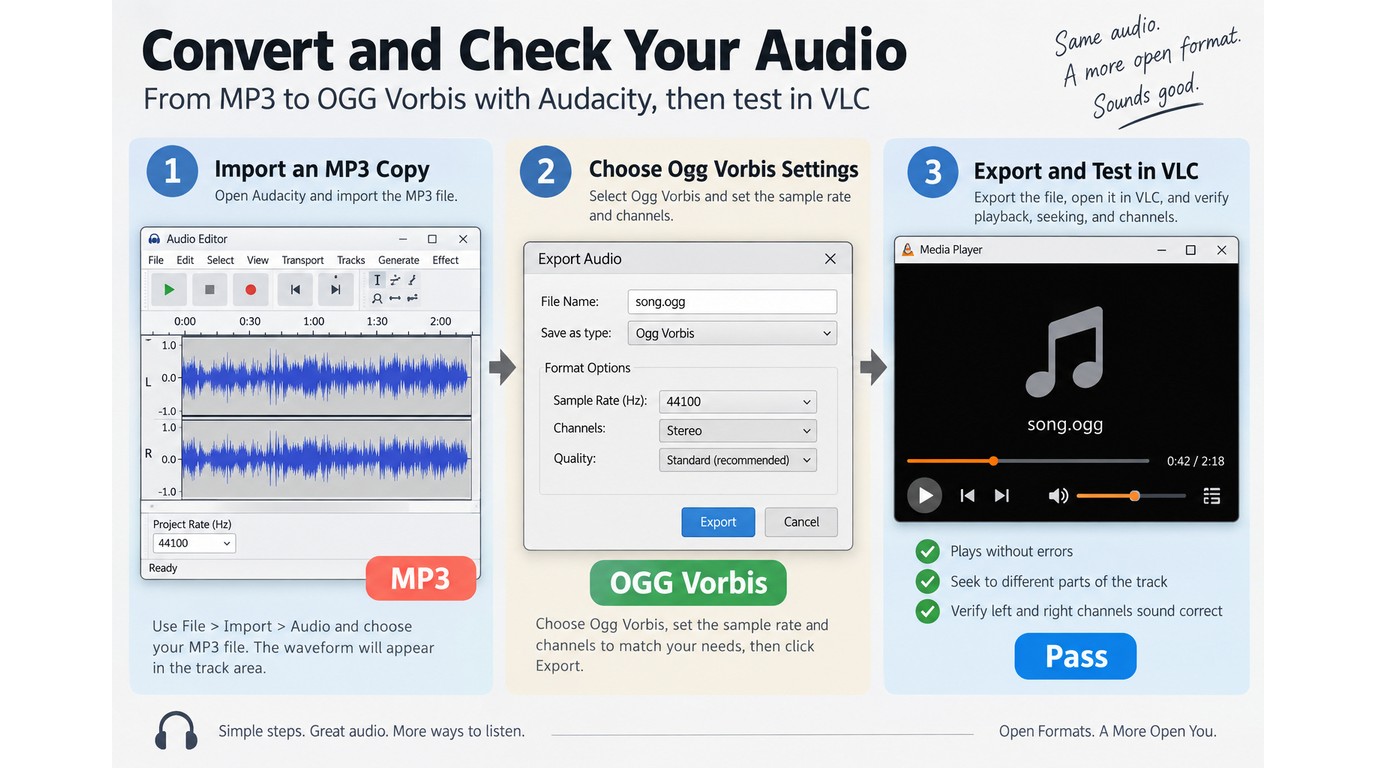
The same three actions apply to an online MP3 to OGG converter and a local desktop tool:
- Add a copy of the MP3.
- Select OGG Vorbis and destination-ready settings.
- Convert the file and test it in the target application.
Please note: Use third-party converters only for audio you own or are authorized to process. Before uploading, read the service terms and privacy policy, including retention period and processing location, and keep the output for lawful personal or otherwise permitted use.
Prerequisites: Keep the Source and Check the Destination
Make a copy of the original MP3 before changing anything. Then write down the destination requirements: Ogg Vorbis or another codec, stereo or mono, sample rate, looping behavior, metadata needs, and any file-size limit. Decide whether the audio is suitable for upload; private recordings and unreleased work usually belong in a local workflow.
Step 1: Add the MP3 to a Trusted Converter
Select the copy, not the master, and confirm that the tool identifies it as MP3 audio. Renaming .mp3 to .ogg changes only the label; it does not encode a new stream and can leave the file unusable. For an online tool, note whether the browser sends the file to a server. For a desktop tool, note the output folder so the original and new file do not get confused.
Step 2: Choose OGG Vorbis and Sensible Settings
Select OGG Vorbis when that is the destination requirement. Keep the source sample rate and channel layout unless the target specification says otherwise. Use a moderate quality setting first, then compare the result in context; pushing every control upward mostly increases size after the source has already lost detail.
Step 3: Convert, Download, and Test the Output
Export the file, give it a clear name, and run a short acceptance check:
- Play it from start to finish and seek near the end.
- Confirm left and right channels, or confirm mono when mono is required.
- Test one complete loop if a game or app will repeat it.
- Check duration, tags, and cover art in the destination application.
If a command-line conversion produces a file that will not seek, do not assume the extension is at fault. As one Reddit user in r/ffmpeg put it, “Using the following command, conversion and seeking do not work for some mp3 files.” Try a different source file, inspect the encoder options, and repeat the destination test.
When the Source Is MP4 Instead of MP3
MP4-to-OGG is an audio-extraction job: first choose the audio stream inside the video, then encode that stream as OGG. It is not the same source path as MP3-to-OGG, so check the video’s audio track and channel layout before exporting.
Choose an Online, Desktop, or Batch Workflow
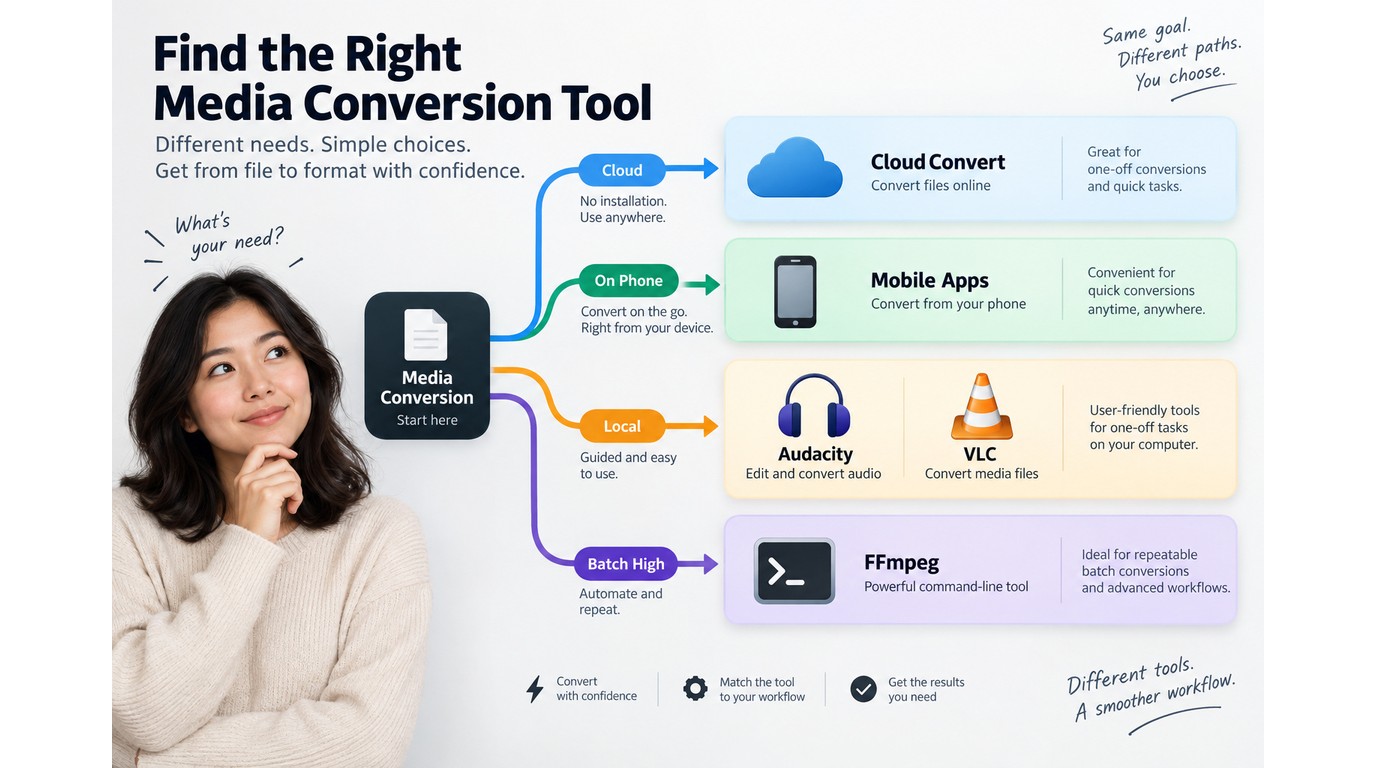
For one low-sensitivity file, a browser converter minimizes setup. For private audio, a local desktop tool keeps the source on your machine. For a library, repeatable naming, logs, and a pilot batch matter more than a single quick upload.
Audacity is the stronger choice for private or metadata-heavy files because it keeps the workflow local and exposes tag controls; for repeatable folders, FFmpeg is the stronger fit because its documented libvorbis command can be scripted. In both cases, the deciding result is not an OGG extension but stable playback in the target application.
| Method | File location | Setup | Batch fit | Scenario |
| Online converter | Uploaded to a service | None | Low | Low-sensitivity one-off |
| Audacity | Local | Desktop install | Medium | Guided export and tags |
| FFmpeg | Local | Command-line install | High | Repeatable automation |
| VLC | Local | Desktop install | Low | Occasional conversion |
| Mobile app | Not verified; check on-device vs cloud processing | App install | Low | Phone-only, low-sensitivity file |
Documentation: Audacity Manual, FFmpeg documentation, and each listed tool’s official site, as of September 2026.
Online Converters and CloudConvert for Low-Sensitivity One-Offs
Browser tools provide the shortest path: upload an MP3, select OGG, download the result. CloudConvert follows this browser model. The tradeoff is explicit: the file leaves your device, the job depends on your connection, and limits or retention rules differ by service. As one Reddit user in r/MySummerCar put it, “Online MP3 to OGG websites always limited me (only 5 files at once, slow, etc.).”
| Pros | Cons |
| No install; quick for one file | Upload, retention, file caps |
Use it in three moves:
- Upload a copy and read the service’s file and privacy controls.
- Select OGG Vorbis and match the destination channels.
- Download, play, seek, and delete the cloud copy when the service allows it.
Fit verdict: this route suits a low-sensitivity one-off. It is a poor match for unreleased recordings or a large folder.
Audacity for Guided Local Export
Audacity keeps the project local and exposes format, quality, sample-rate, channel, metadata, and multiple-file export controls. Its guided interface is useful when you want to see each choice rather than maintain a command. The limitation is that a large, already-organized library takes more hands-on setup than a scripted folder job.
| Pros | Cons |
| Local controls; metadata editing | More clicks for large folders |
The local path is concise:
- Open the MP3 copy and choose Export Audio.
- Select Ogg Vorbis, set channels and sample rate, then edit tags if needed.
- Use Multiple Files for labeled tracks, export, and test a sample.
Fit verdict: Audacity suits a guided local export and tag cleanup. It is less suitable when the same conversion must run unattended every week.
FFmpeg for Repeatable Commands and Automation
FFmpeg places the workflow in a repeatable command. Its libvorbis encoder exposes a quality control, so the same source pattern can be applied to a folder or script. The cost is a command-line setup and a larger compatibility burden if you do not inspect the output.
| Pros | Cons |
| Repeatable; easy to automate | Command syntax; manual validation |
ffmpeg -i input.mp3 -c:a libvorbis -q:a 3 output.ogg
Use the command path like this:
- Run one file and inspect duration, channels, and seek behavior.
- Add consistent names and an output folder to the script.
- Process a pilot group, review errors, then run the remaining files.
Fit verdict: FFmpeg suits repeatable jobs and automation. It is not the comfortable choice for a one-off if command syntax is unfamiliar.
VLC for Occasional Desktop Conversion
VLC is convenient when it is already installed and you want a desktop dialog rather than a browser upload. Its conversion interface is a reasonable occasional route, but it offers less structure for a large, logged library than a script or batch-oriented editor.
| Pros | Cons |
| Already familiar to many users | Manual for repeated folders |
The practical sequence is:
- Open Media and choose Convert/Save.
- Add the MP3, select an OGG audio profile, and choose a destination.
- Start the job and test the saved file in its target app.
Fit verdict: VLC suits an occasional local conversion. Choose another route when you need metadata rules or repeatable batch logs.
Converter Apps When Mobile Is the Only Device
Mobile apps remove the desktop requirement, but an app-based workflow does not necessarily process audio on the phone. Check the developer identity, requested permissions, data-safety wording, ads, and whether processing happens on the device or in a cloud service. Output controls may also be narrower than on a desktop encoder.
| Pros | Cons |
| Works without a computer | Permissions and processing vary |
On a phone, keep the check short:
- Review developer and permission details before importing audio.
- Select OGG and confirm channels and destination folder.
- Play the file in the receiving app, then remove temporary uploads if applicable.
Fit verdict: a mobile converter app fits a phone-only job with low-sensitivity audio. It is not a default choice for private recordings or a large collection.
Batch Conversion for a Music or Game-Audio Library
Batch work needs a repeatable folder plan, not a giant upload. As one Reddit user in r/Adobe put it, “I'm looking to batch convert .mp3 files to .ogg. I already have Adobe Media Encoder so I'm wondering how I can use that instead for the conversions instead of using web apps.”
Use this six-part control loop:
- Copy the source folder and define a naming pattern.
- Convert a small pilot group.
- Record failures and skipped files.
- Check duration, channels, tags, and looping on samples.
- Compare file names with the destination project.
- Run the remaining folder only after the pilot passes.
Fit verdict: this workflow suits music or game-audio libraries where repeatability matters. It is excessive for one throwaway clip.
Where UniFab Video Converter Fits, and What to Verify
Local batch conversion is useful only when the resulting OGG files work reliably in the destination app, so exact format-pair support matters more than a broad format count. As of September 2026, UniFab Video Converter is a $0 local desktop app for Windows and macOS with batch processing, no-watermark output, and a documented scope of 1,000+ format conversions; its public format list does not name MP3 input or OGG output, so use it for this pair only when both appear in the current build.
Verified Capabilities Relevant to Local Conversion
Those capabilities address three practical needs: keeping files local, processing a folder, and avoiding a watermark. They do not prove every format pair.
Confirm MP3 Input and OGG Output Before Converting
UniFab’s public input list names MOV, MP4, AVI, MPEG, WMV, F4V, MPG, TS, and FLV rather than MP3. OGG is not individually listed as an output. Open the current format menus or an authoritative UniFab help entry and confirm both directions before importing a library.
Fit Verdict and Limitations
Use UniFab when the current build shows MP3 input and OGG output and you want a local batch workflow without a watermark. Do not choose it solely because “1,000+ formats” sounds like a guarantee for this pair, and expect a video-focused desktop tool to be more setup than a tiny one-file audio utility.
MP3-to-OGG Conversion FAQ
The remaining choices are about source quality, file size, and metadata rather than another conversion recipe. These answers keep the distinction between a compatible delivery file and a higher-quality master clear.
Is OGG Higher Quality Than WAV?
No. Ogg Vorbis is compressed and lossy, while WAV can contain uncompressed PCM or other audio formats. OGG can sound good at a smaller size, but it is not a replacement for a lossless or uncompressed master.
Why Can an OGG File Be Larger Than the Original MP3?
The new encoder’s quality setting, bitrate mode, sample rate, and channel count determine size. A higher Vorbis setting can produce a larger file even though it cannot restore detail the MP3 discarded. Size is an encoding result, not a quality-recovery score.
Should You Keep the Original MP3 After Converting?
Yes. Keep the MP3, and keep a WAV or FLAC master when one exists. Future formats should come from the highest-quality source available, because repeated lossy conversions add another generation of change.
Does MP3-to-OGG Conversion Preserve Titles, Artists, and Cover Art?
Not automatically. Tag fields and cover-art support depend on the converter and the target application. Check artist, title, album, duration, and artwork in the destination app after export, especially when a game or voice-message workflow reads only a subset of tags.