To convert OGG to MP3, use a browser converter for one non-sensitive file, Audacity for a guided local export, or FFmpeg for repeatable batches. Keep the original OGG, then choose 192, 256, or 320 kbps based on listening needs rather than assuming the highest number restores quality.
An OGG-to-MP3 converter online can solve a one-file compatibility problem, but it may also require an upload, an account, or a size-limited queue. Those concerns are why a simple conversion often turns into a choice between unfamiliar sites and command-line tools. My view is that file sensitivity should decide the workflow before convenience does. This guide moves from the quickest decision to local desktop methods, bitrate choices, and a cautious batch-app checklist.
How to Convert OGG to MP3: Start With the Right Workflow
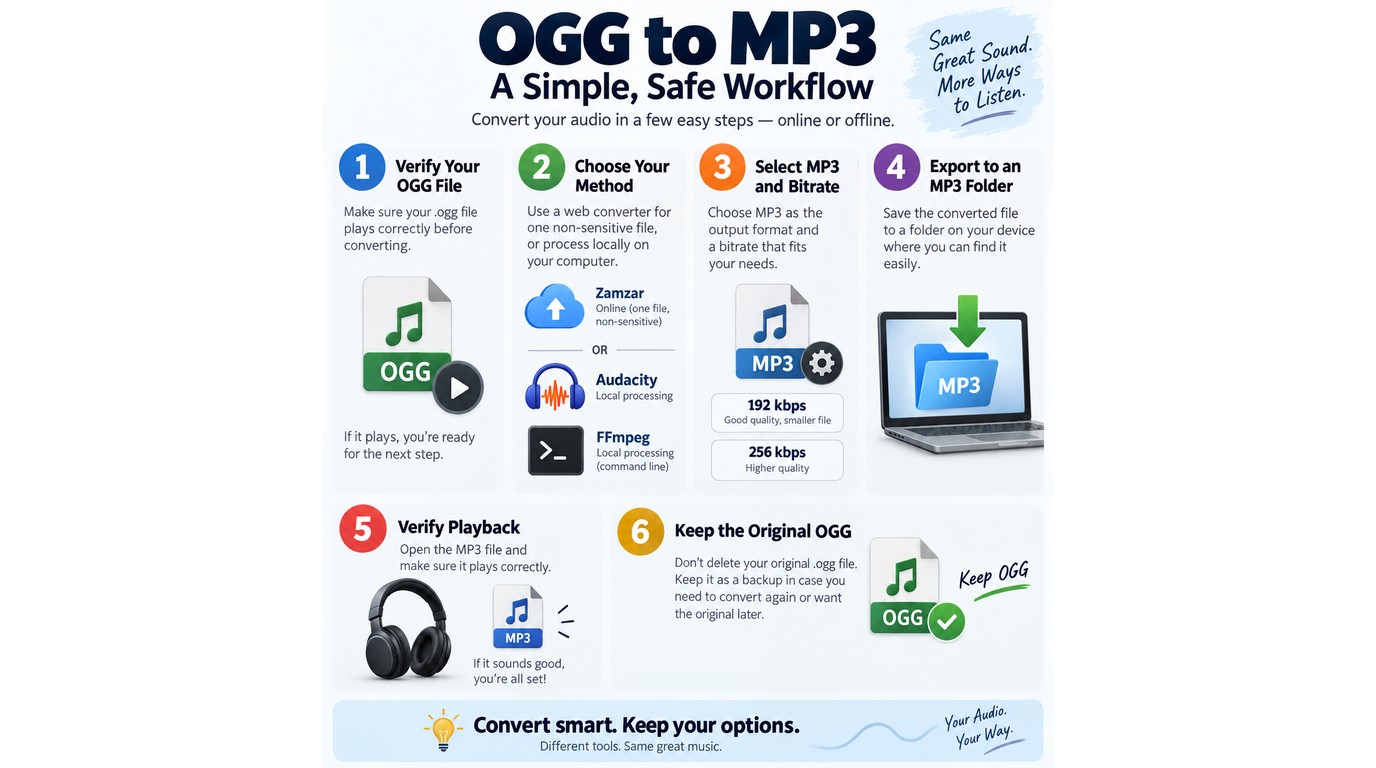
For one ordinary OGG file, the simplest reliable path is to open it in a compatible converter, select MP3, set a bitrate, export, and play the result. Use local software when the recording is private or when more files are waiting.
Use-rights reminder: Convert only audio you own or have permission to process. If the file came from a service, follow that service's terms; changing its format does not grant new rights to reuse or distribute it.
As one Reddit user in r/audio put it, "Do you have a reliable way to do that without downloading a bunch of virus software? (Checking online and websites look dodgy). I've been trying to use ffmpeg but I'm not technical enough to make that work." That concern points to the real first step: decide where the file should be processed.
Check the file and choose online or local conversion
Start with a playable .ogg file and enough free storage for a second copy. If the source will not play, converting it is unlikely to fix the underlying damage. A browser service suits a disposable sound effect or other non-sensitive file; a desktop tool is the better fit for voice notes, interviews, client audio, or a folder of tracks.
Set the output format and destination
Work through the conversion in this order:
- Open or upload the OGG file.
- Choose MP3 as the output format.
- Select a bitrate or quality mode.
- Choose a new output folder and filename.
- Start the conversion and wait for completion.
- Play the MP3 before deleting or moving anything.
My practical rule is to export into a separate folder named MP3, not beside dozens of originals with similar names. That small choice makes a failed batch easier to undo.
Verify playback and keep the source file
Listen at the beginning, middle, and end of the MP3. Check that the duration matches, speech is not clipped, and left and right channels sound normal. Keep the OGG source because MP3 is another lossy copy, not a replacement master.
Online vs. Local OGG to MP3 Conversion: Which Fits Your File?
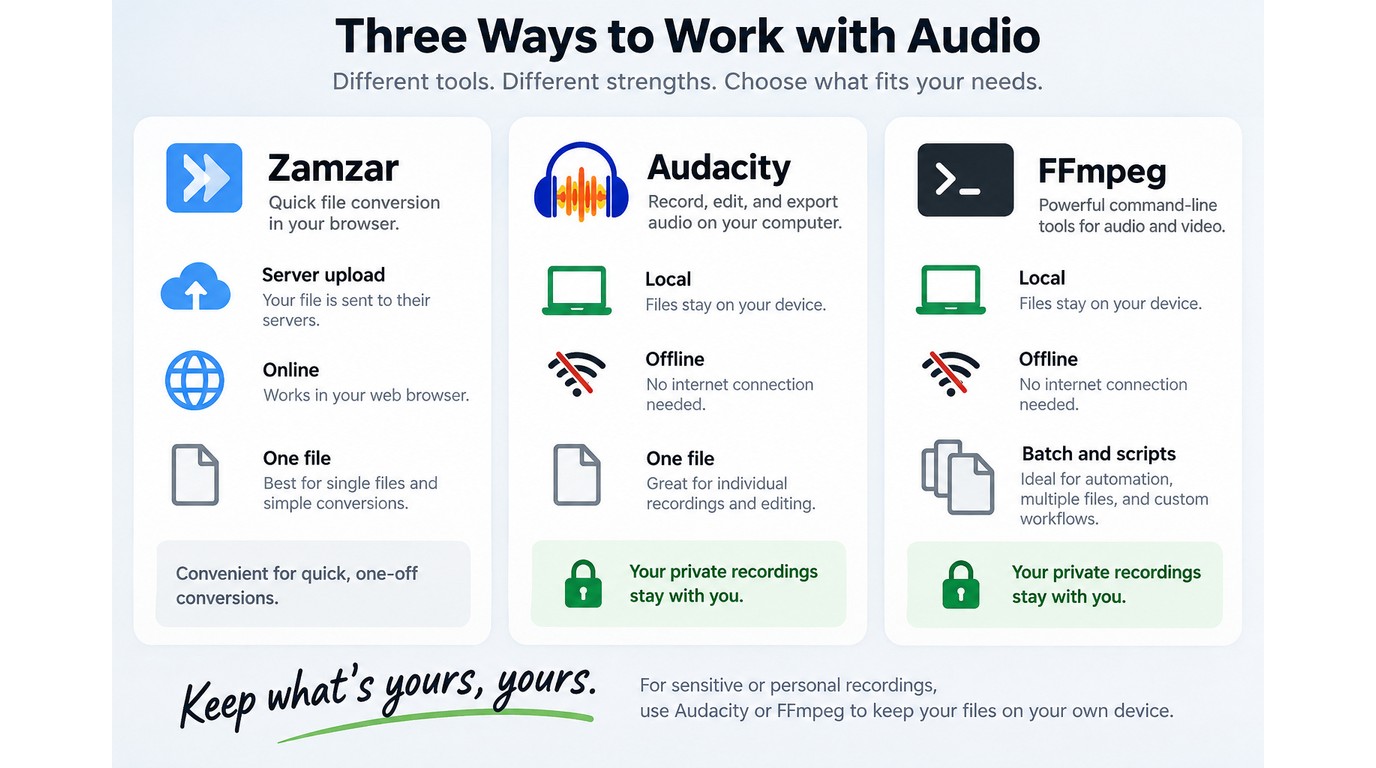
An free online video converter is acceptable for one small, non-sensitive file when you want no installation. Keep private recordings, large files, and repeat jobs on your computer with a local GUI or FFmpeg.
| Method | Server upload | Works offline | Batch handling | Best fit |
| Online converter | Yes | No | Service-dependent | One non-sensitive file |
| Local GUI | No | Yes | App-dependent | Private files; verify OGG input |
| FFmpeg | No | Yes | Scriptable | Repeat or recursive jobs |
The table's dividing line is simple: an upload creates another copy outside your device. One Reddit user in r/audio described online options this way: "Most of them either require an email sign-up, have file size limits, or upload your personal audio to a random server, which feels super sketchy."
What online converters make easy
Online tools remove installation and usually reduce the workflow to upload, select MP3, and download. That convenience is useful on a borrowed computer or phone. It is less convincing when the audio contains a private conversation or the upload is large enough to fail midway.
If you search for Zamzar OGG to MP3, apply the same test before using any upload service: identify whether an account is required, how the file is handled, and whether the stated size limit fits your source. My verdict is narrow: browser conversion is a one-off convenience, not the default home for a personal audio library.
Where local conversion has the advantage
Local tools keep the working file on the device and can repeat the same settings across a queue. FFmpeg also makes subfolder jobs scriptable. The trade-off is setup: a GUI needs installation, while a command line needs careful paths and filenames.
Why OGG-to-MP3 Quality Changes, and Which Bitrate to Choose
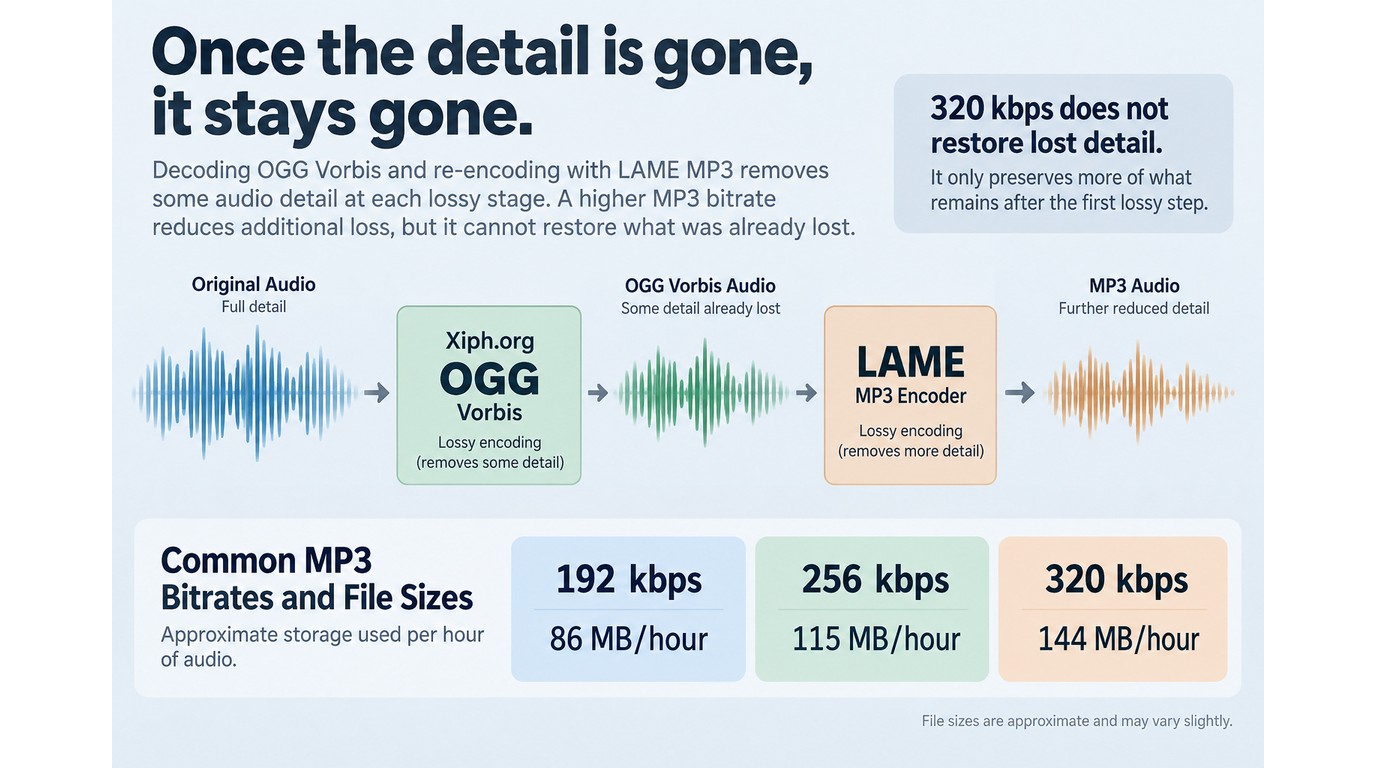
Converting OGG to MP3 can reduce quality because the audio is decoded and compressed again with another lossy codec. A 320 kbps MP3 can limit additional damage, but it cannot recover detail already removed from the OGG.
As one Reddit user in r/audio asked, "What export settings should I use to keep the best quality? I noticed that the ogg file ends up taking more storage than the original mp3 file when I export with the quality meter at 10. Is that normal?" Yes, a converted file can be larger without sounding better.
Lossy-to-lossy conversion in plain language
An OGG file commonly contains Vorbis audio, which Xiph.org describes as an open audio compression format. MP3 is also compressed. During conversion, the decoder reconstructs playable audio from the OGG, and the MP3 encoder removes information again according to its own model.
That second pass is why “lossless OGG to MP3” is the wrong expectation. My sharper take is that the original file matters more than the output badge: keep the OGG, then make an MP3 for compatibility.
192, 256, and 320 kbps trade-offs
The right bitrate depends on where the MP3 will be used. These approximate sizes come directly from bitrate math and exclude small container overhead:
| MP3 bitrate | Approx. MB per minute | Approx. size per hour | Sensible use |
| 192 kbps | 1.44 MB | 86 MB | Speech; casual listening |
| 256 kbps | 1.92 MB | 115 MB | Music; balanced storage |
| 320 kbps | 2.40 MB | 144 MB | Maximum MP3 bitrate |
Choose 192 kbps when size matters and the source is speech. Choose 256 kbps as a balanced music setting. Choose 320 kbps when compatibility matters more than storage, but do not treat it as repair. Variable bitrate (VBR) spends more bits on complex passages; constant bitrate (CBR) holds one rate throughout and can suit older workflows that expect a fixed number.
Desktop OGG to MP3 Methods: Audacity, FFmpeg, and Adobe
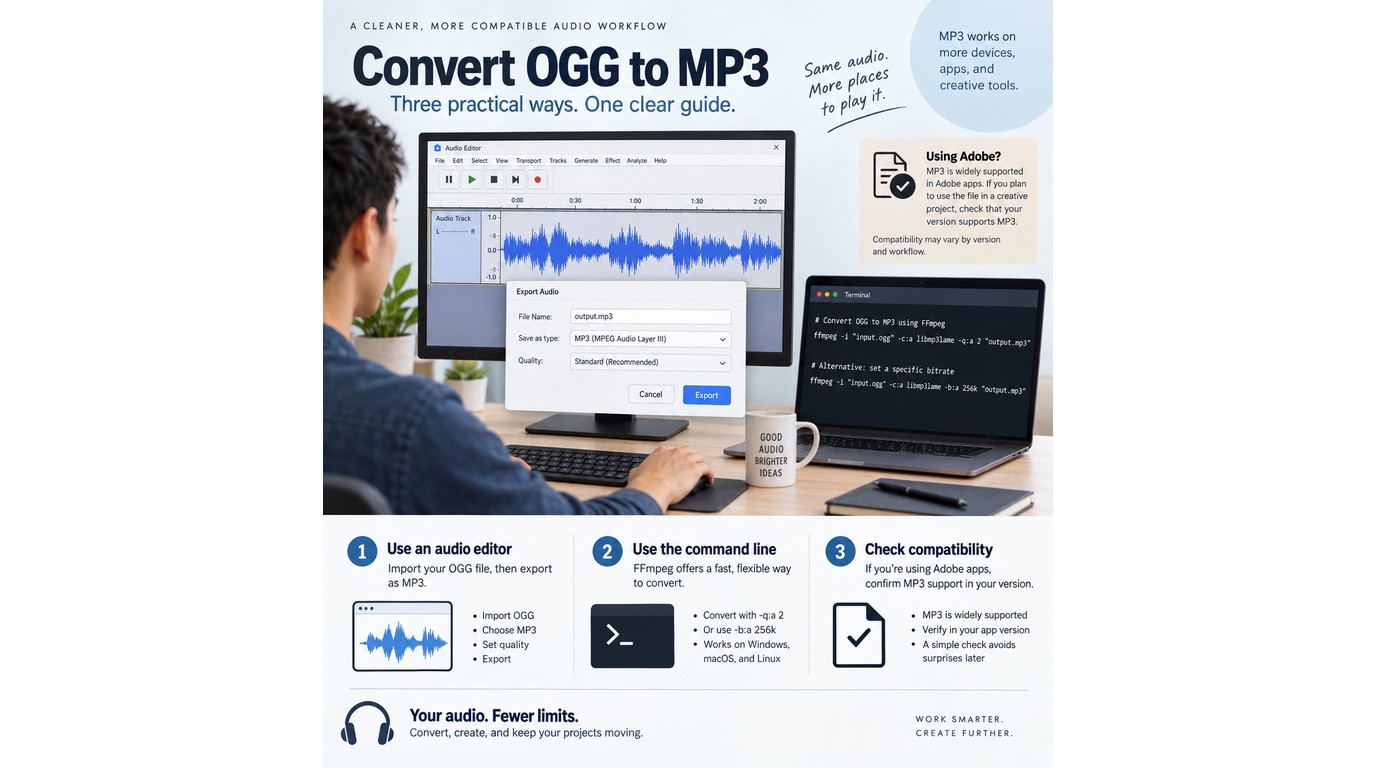
Audacity is the clearer desktop choice for a beginner because it exposes import, listening, metadata, and export in a GUI. FFmpeg makes more sense for repeat jobs, scripts, or folders; an Adobe-centered search needs a one-file compatibility check before you commit to that workflow.
Audacity export workflow
The official Audacity Manual lists Ogg Vorbis among the formats Audacity can import and documents its MP3 export options. That makes Audacity the most straightforward documented GUI path in this guide for Windows or macOS.
- Install Audacity from its official site and open the app.
- Use File > Import > Audio and select the OGG file.
- Play a short section and confirm the waveform and channels look normal.
- Choose File > Export Audio, then select MP3.
- Set the bitrate mode and quality, review metadata, and choose a destination.
- Export, then play the saved MP3 in a second player.
Audacity fits you if visual confirmation matters or tags need manual review. It is less efficient for a deep folder tree unless you build a repeatable macro or process files in smaller groups.
FFmpeg for repeatable conversions
FFmpeg is the stronger route when the job must be repeatable. For a VBR MP3, run this command in a terminal after installing FFmpeg:
ffmpeg -i "input.ogg" -c:a libmp3lame -q:a 2 "output.mp3"
For a fixed 256 kbps file, replace -q:a 2 with -b:a 256k. The quoted paths protect filenames containing spaces, and the new extension leaves the OGG intact.
- Copy one OGG into a test folder.
- Run the command with explicit input and output names.
- Read the final terminal lines for errors.
- Play the MP3 and inspect its duration.
- Apply the pattern to the remaining files or a script.
FFmpeg suits you if a batch convert OGG to MP3 job must cover many folders with consistent settings. It is not ideal when terminal syntax is itself the obstacle; a GUI is the more efficient choice in that case.
What Adobe-related searches usually mean
An “OGG to MP3 Adobe” search often reflects a wish to stay inside an existing editing setup, not a guaranteed conversion path. Try one representative OGG in the current Adobe app: if the file opens and MP3 appears among the export choices, complete a one-file playback check before batching. If either option is absent, use Audacity or FFmpeg instead of forcing the project through an uncertain route.
UniFab Video Converter for Local Batch Jobs: Fit and Limits
Audacity and FFmpeg make the next requirement clear: before choosing another OGG-to-MP3 app for Windows or Mac, check four items in the current build:
- It accepts the
.oggsource. - It offers
.mp3output. - It queues multiple files.
- It writes the results locally.
Batch and privacy checks for a desktop app
A useful batch app should let you add several files, keep a predictable naming scheme, choose one output folder, and review failures without starting over. Local processing is a strong fit for private audio because it avoids a server upload. For nested folders, run a small sample first so duplicate filenames do not overwrite one another.
Where UniFab fits, and where it does not
UniFab Video Converter fits local batch work on Windows or macOS when the source format appears in its supported list. It queues multiple files, writes output locally, and is priced at US$0 as of September 2026, with that price effective since December 2024.
OGG is not among the listed input formats, so UniFab should not be recommended for an OGG folder until a representative file imports and MP3 appears as an output. It also does not suit a phone-only workflow. For this guide, Audacity remains the clearer documented Mac GUI route for OGG, while FFmpeg suits automated batches.
OGG to MP3 FAQ: Mobile, Metadata, File Size, and Safety
Mobile conversion is practical for a small file, while metadata, output size, and source damage require separate checks. The answers below cover those edge cases without changing the central rule: preserve the OGG and match the workflow to the file's sensitivity and quantity.
Can I convert OGG to MP3 on an iPhone or Android phone?
Yes. For a non-sensitive file, a browser converter can work on either platform without creating separate iPhone and Android procedures. For private audio, use a trusted local app that explicitly lists OGG input and MP3 output, then review its storage and network permissions before importing the file.
Why is the converted MP3 larger than the original OGG?
Bitrate explains most size differences. A 320 kbps MP3 uses about 144 MB per hour, so it can be larger than an efficiently encoded OGG even though it contains no restored detail. Lower the MP3 bitrate if the larger file does not serve a listening or compatibility need.
Will tags and album art carry over to the MP3?
Not necessarily. Titles, artist names, track numbers, and cover art live in metadata fields that converters handle differently. Review the export metadata before a batch, then inspect one MP3 in your music player before converting the rest of the library.
Can conversion repair a damaged or artifact-heavy OGG file?
Format conversion does not reconstruct missing audio. If the OGG already clicks, skips, or sounds watery, the MP3 will usually preserve those defects and can add new compression artifacts. Find a clean source when possible; otherwise keep expectations limited to compatibility.
Can I convert OGG to MP3 for free without creating an account?
Yes, some local open-source tools such as Audacity and FFmpeg do not require an upload account for conversion. A no-account website still receives the audio file, so signup status is not a complete safety test. Convert only material you own or are authorized to use, and do not redistribute copyrighted audio without permission.