A long, private, or iPhone-only MOV file turns a simple audio extraction into a method choice. To convert MOV to MP3, use a desktop converter, browser tool, or iPhone app to remove the video and encode its audio as MP3; choose by file size, privacy, and batch needs.
The 4GB problem is a method question, not a missing button: a browser upload cap can decide the workflow before audio settings matter. The practical dividing line is simple: online tools fit a small, non-sensitive clip, while local conversion earns its place for long recordings or repeat jobs. This guide moves from the container-versus-format distinction to each route, then checks channels and edge cases so the final MP3 is usable, not merely created.
MOV and MP3: What Changes During Conversion
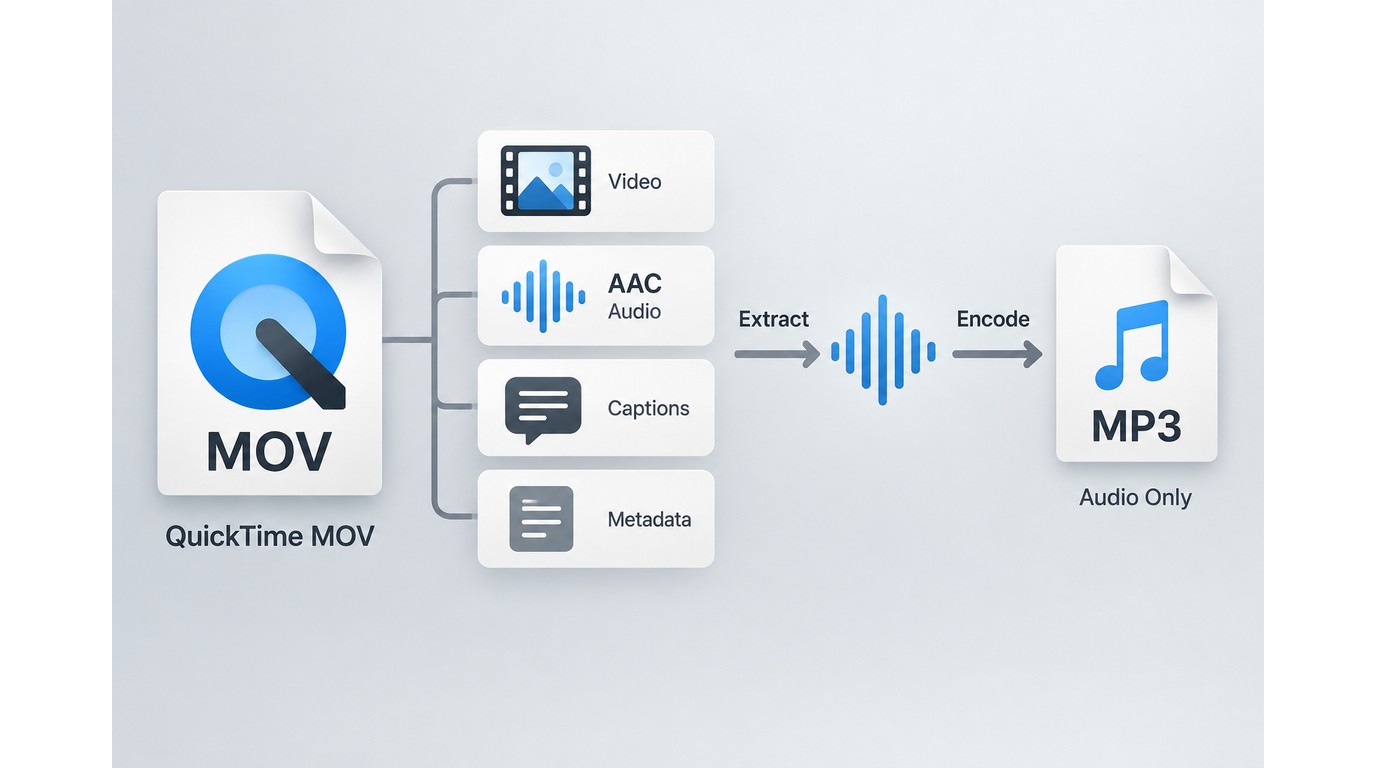
Converting MOV to MP3 removes the video stream and produces an audio file. The audio may also be re-encoded into MP3, so this is usually an extraction-plus-compression job rather than a quality upgrade.
MOV is a container; MP3 is an audio format
MOV is a container, similar to a box that can hold video, audio, captions, and metadata. MP3 is an audio format that stores compressed sound without a video track. A phone camera can therefore place a stereo AAC track inside a MOV file, while the finished MP3 contains only the audible program.
That distinction explains why changing the extension from .mov to .mp3 does not work. The contents have to be decoded and written in a format that MP3 players understand. If you only need the existing audio stream in its current encoding, a demuxing workflow is different; it keeps the stream instead of making a new MP3.
What the output keeps and removes
The MP3 keeps whatever the source audio contains: speech, music, silence, channel layout, and the limits of the original microphone. It drops the picture and may lose some metadata, such as camera-specific tags. It cannot restore a clipped voice or add detail that the MOV never captured.
If your next step is video editing rather than audio-only playback, keep the source MOV. The MOV-to-MP4 conversion guide covers cases where the picture still matters. For an audio-only delivery, MP3 is convenient, but remember that it is a lossy format and should not be treated as a lossless archive.
Choose a Method: Desktop, Online, or iPhone
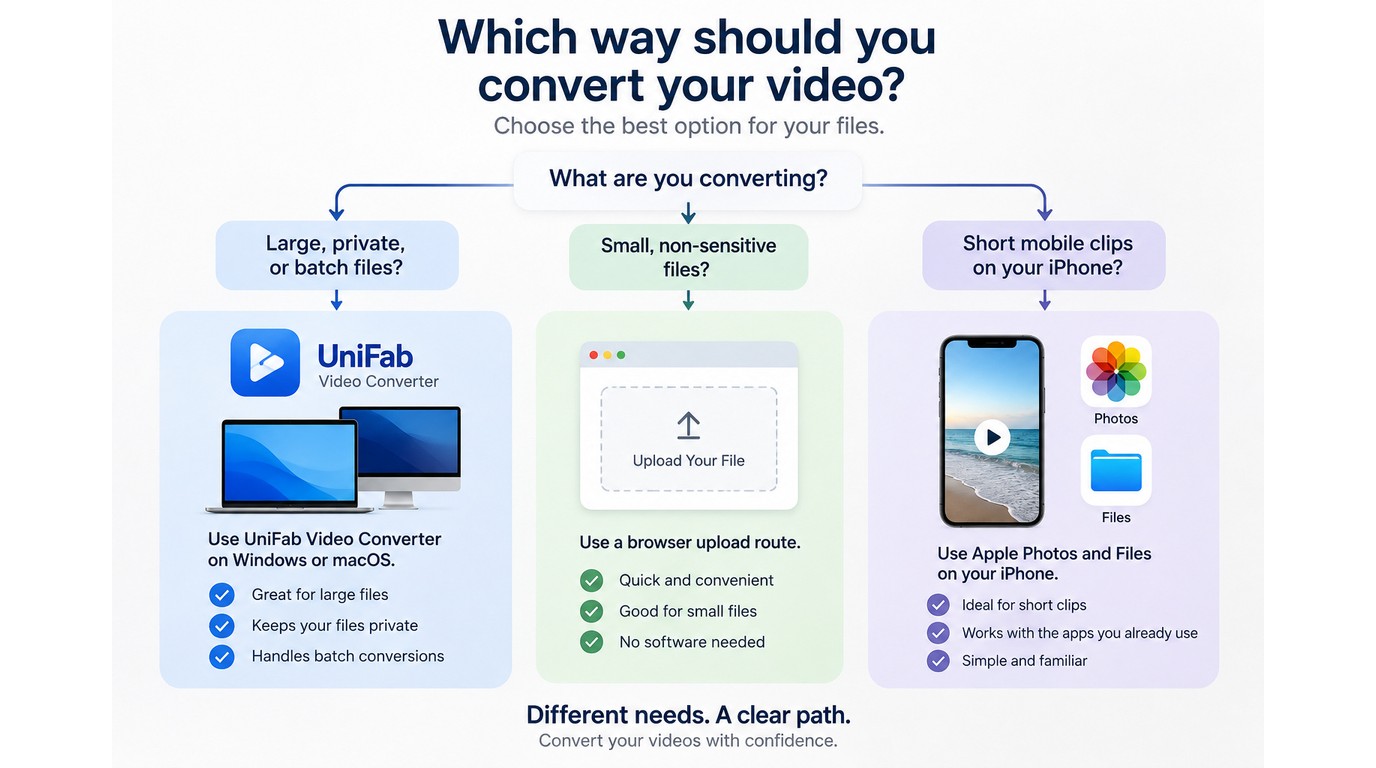
Use a desktop converter for large, private, or repeated jobs, an online converter for one small non-sensitive file, and an iPhone workflow when the clip needs to stay on the phone. No route wins in every situation; storage, upload handling, and repeat volume decide the fit.
The practical distinction is clearer than the usual “online is easiest” advice: once a recording is private or multi-gigabyte, avoiding the upload is more important than avoiding an install.
| Method | Suited to | Leaves device? | Main constraint |
| Desktop converter | Large, private, multiple files | No | Windows or macOS needed |
| Online converter | One small, non-sensitive file | Yes | Upload caps and wait time |
| iPhone workflow | Mobile-only access | Browser route: uploaded; app route: local or cloud | Storage and long clips |
Table note: Desktop capabilities reflect UniFab Video Converter's official product page. The online and iPhone rows describe their handling model.
Desktop: suited to large, private, or multiple files
Local software keeps the source on your computer and avoids an upload step. That makes it a practical choice for interviews, family recordings, or a folder of clips. It is not ideal when you only have a phone or cannot install software.
Online: suited to a small, non-sensitive file
A browser tool removes installation and works across operating systems. It becomes less convenient as the file grows, the connection slows, or the recording contains material you do not want to send to a remote service. It suits a one-off clip, not necessarily a long archive.
iPhone: suited when the source stays on the phone
An iPhone app or mobile browser can finish a quick conversion without a computer. The tradeoff is tighter storage and file-handling limits, especially when Photos, Files, and a third-party app all need a copy. Move to a computer when you have several clips or a long recording.
How to Convert MOV to MP3 with UniFab Video Converter
To convert MOV to MP3 with UniFab's Video Converter, add the MOV, choose MP3, set the bitrate (the amount of audio data used per second) and channel layout, choose an output folder, then convert and audition the result. UniFab Video Converter runs on Windows and macOS, processes files locally, and supports batch conversion, so it fits large or private clips and repeat jobs without sending the source to a browser service.
Prerequisites and MP3 output settings
You need a readable MOV file, a Windows or macOS computer, and an output folder with room for the MP3. Set the destination before you start.
Choose MP3 as the output format, then select a bitrate and channel layout that match the source. Stereo is appropriate when the MOV contains two useful channels; mono is sensible for a single-speaker recording. A higher setting cannot recreate detail that the microphone did not capture.
Four-step desktop workflow
- Open UniFab Video Converter and add the MOV file.
- Select MP3 as the output format and choose the destination folder.
- Trim the source or adjust audio settings if the clip needs cleanup.
- Start conversion, then play the MP3 and check its channels before deleting anything.
As of September 2026, UniFab lists the Video Converter module at no charge and without a watermark; this status applies to the conversion module, not every UniFab product or feature. The source MOV remains separate unless you deliberately replace or delete it.
When local batch conversion is the better fit
Local processing keeps private files off an upload queue, while batch mode handles folders of interviews, lectures, or camera clips. For MOV-to-MP3 work, those two features matter more than the product's GPU ceiling.
UniFab is not the right fit if you need a browser-only or iPhone-only tool, or a device outside Windows and macOS. It is a practical fit for recurring local or batch jobs.
How to Convert MOV to MP3 Online
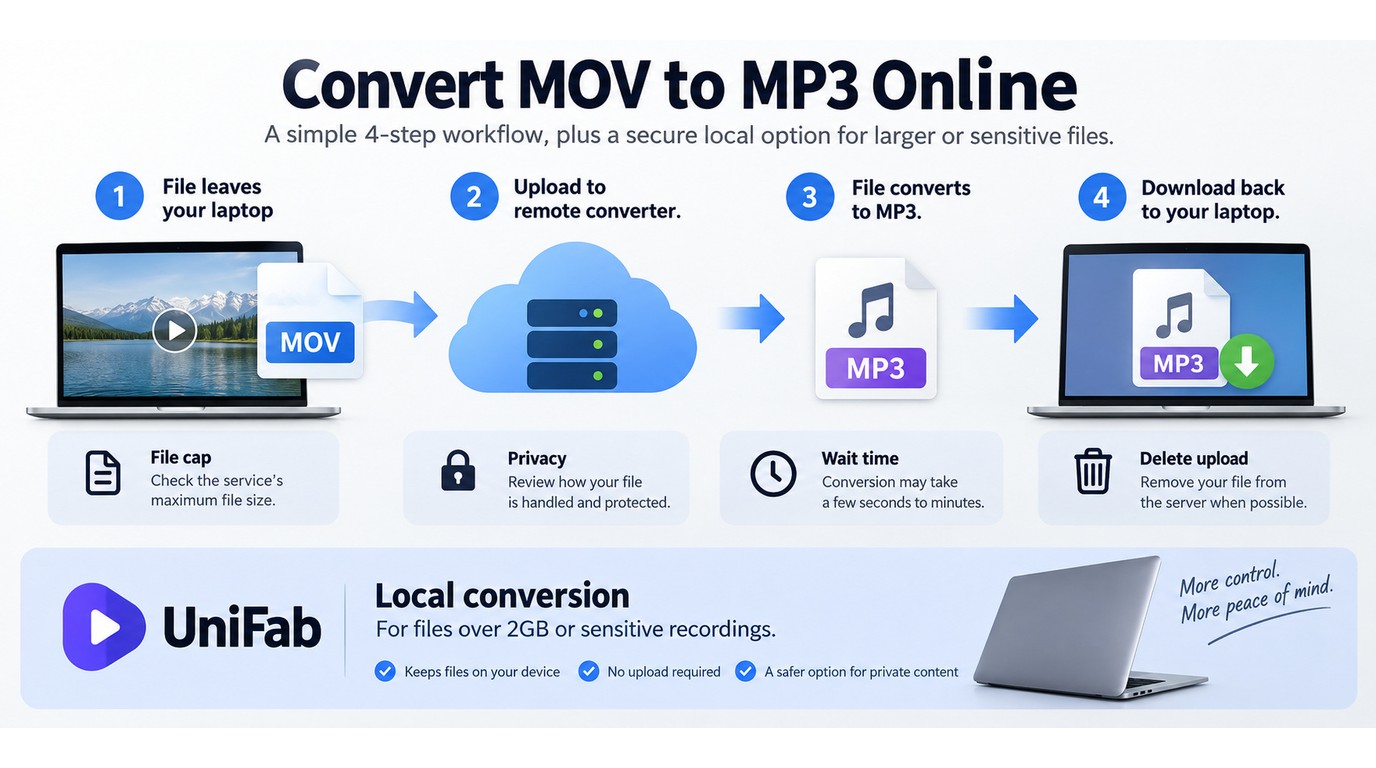
Browser conversion works when the MOV is small enough to upload and contains no material you need to keep local. The basic flow is short, but the remote handoff adds file-size, wait-time, and retention questions that do not exist in a local workflow.
Please note: Upload only MOV files you own or are authorized to process. Review the service's terms, retention rules, and privacy policy before sending a file; remote handling and deletion windows differ by provider.
Check the file before uploading
Confirm the clip plays from start to finish, note its size, and make sure your connection can handle both the upload and the final download. A browser converter may impose a cap, require an account, or limit queue time. Upload caps, account requirements, and queue limits differ across services, so an online route is a poor match for a long or irreplaceable recording.
As one Reddit user in r/answers put it, “I need help converting a 14 hour MOV file over 4GB into an MP3 file. On most websites, even the most expensive paid options allow around a maximum of 2GB.” That is not a codec problem. It is an upload-policy problem, and a local converter avoids it.
Browser conversion steps
- Open the converter in your browser and choose the MOV file.
- Set the output to MP3 and pick the available quality option.
- Start the upload and wait for the remote conversion to finish.
- Download the MP3, play a representative section, and remove the uploaded copy if the service provides that control.
Upload, privacy, and file-size tradeoffs
The file leaves your device during a browser conversion. That does not prove a service is unsafe, but it does mean the service's storage, deletion, and encryption practices matter. A small voice memo may be an acceptable upload; a private interview, client recording, or multi-hour archive deserves a local path.
Online conversion is suited to convenience, not scale. If the upload stalls, the cap blocks the file, or the downloaded MP3 sounds wrong, stop repeating the attempt and switch to desktop processing. That hand-off is usually faster than fighting a remote queue.
How to Convert MOV to MP3 on iPhone
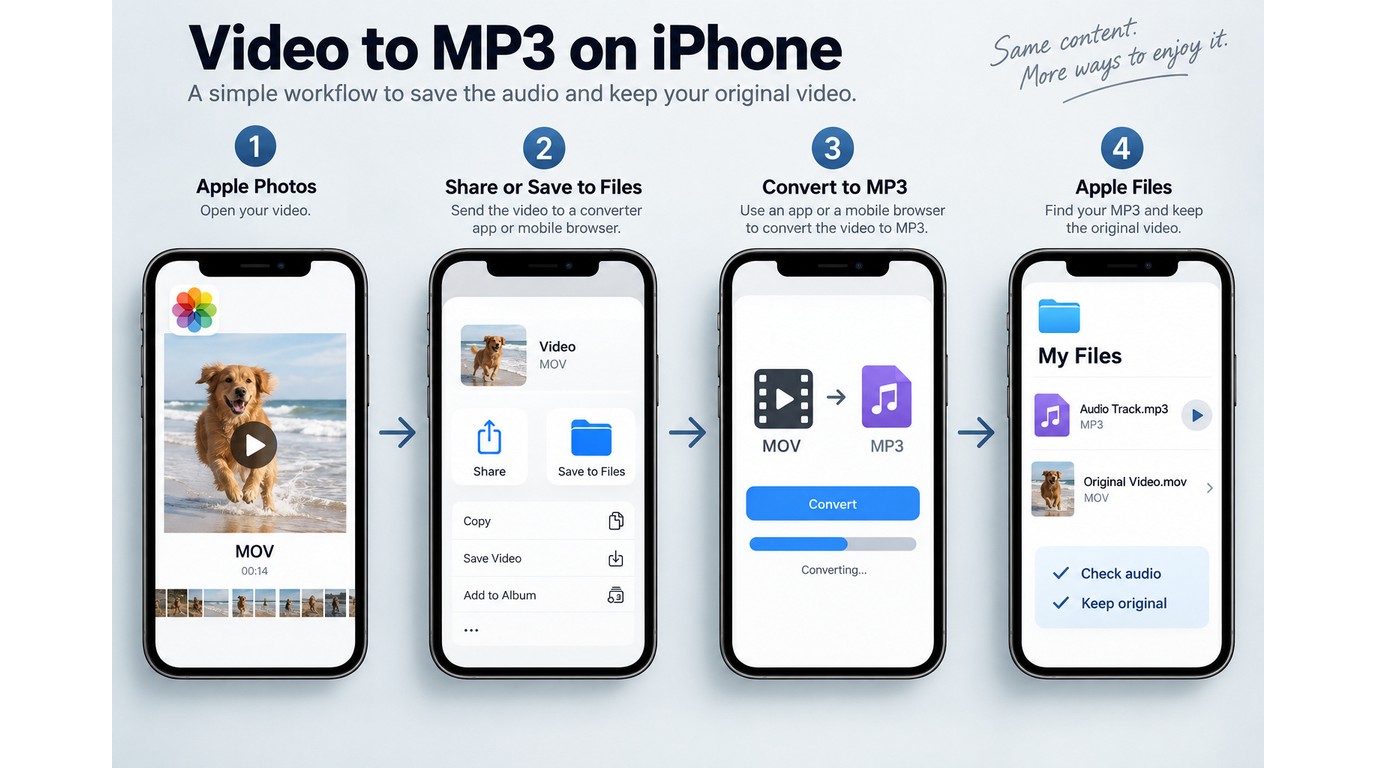
On iPhone, the practical route is to place the MOV where an app or mobile browser can read it, choose MP3, and save the result to Files. Stay on the phone for a short clip; move to a Mac or Windows PC when storage, transfer time, or repeated jobs becomes the bottleneck.
Please note: Use this route for footage you own or are authorized to convert, and keep the app or browser service's terms and privacy policy in view.
Find and prepare the MOV file
Start in Photos and trim the clip if you do not need the full recording. Saving a copy to Files can make it easier for a converter app to find, but it also uses additional storage. Keep the original in Photos until the MP3 has passed your listening check.
Convert with an iPhone app or browser tool
- Open the converter app or mobile browser page and grant access to the selected MOV.
- Choose MP3, then select the available channel or quality setting.
- Wait for the conversion to complete without closing the app.
- Save the result to Files, play it, and share it only after confirming the audio is complete.
Menu names differ across apps, and a browser tool may upload the file rather than process it locally. The phone route is therefore convenient, but it is not automatically private. If the source is sensitive, use a local computer workflow instead.
When to move the job to a Mac or Windows PC
The hand-off point can arrive sooner than expected. A Reddit user in r/techsupport wanted about 30 minutes of audio from an iPhone video and found that AirDrop and a third-party converter both failed because the file was too large. A long clip can also fill the phone's temporary storage when the app keeps both the MOV and MP3.
Move to desktop when the clip is long, the source is private, or you have more than one file. That choice keeps the phone available for normal use and gives you a clearer place to inspect channels and retain the original.
Prevent Missing Channels and Muddy Audio
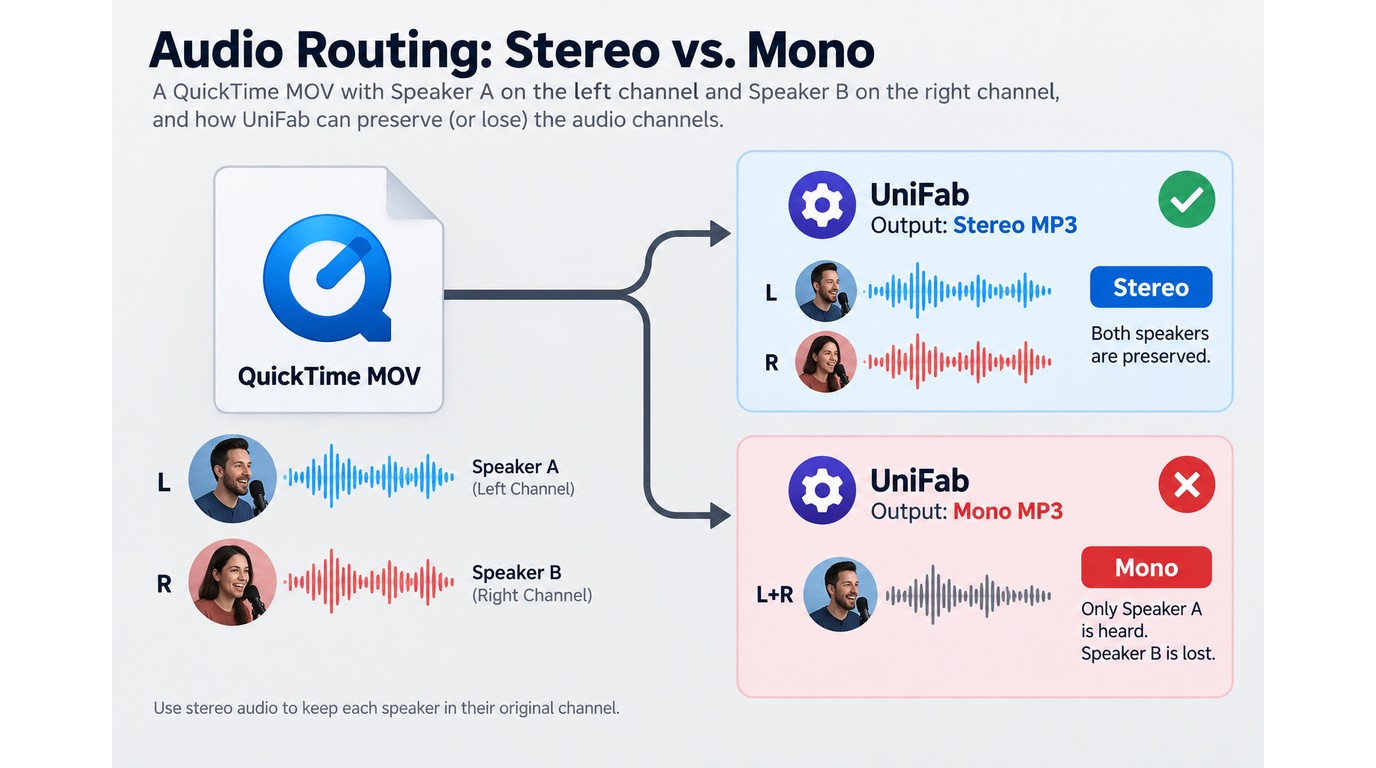
Clear MP3 audio starts with the source channels, not the largest bitrate number. Check the channel map, match the output to the recording, and test a short representative segment before committing to a long file or batch.
Correct stereo mapping matters more than a higher MP3 bitrate because extra bitrate cannot restore a speaker lost during downmixing.
Check stereo and channel mapping
Play the MOV with a channel meter or a player that can switch left and right channels. If a two-person conversation loses one speaker, the source may use separate channels and the conversion may have downmixed or selected one side. As one Reddit user in r/MacOS put it, “I have a .mov file (QuickTime) of a conversation between two people that I need converted to mp3. But when converting, it deletes one side of the conversation.”
Keep stereo when both channels carry useful speech. Choose mono only when the source is already single-channel or you intentionally want a centered voice. Do not use a bigger bitrate to hide a missing channel; it cannot bring that speaker back.
Match bitrate and sample rate to the source
MP3 is lossy, so a second encode can remove more detail from audio that was already compressed inside the MOV. For speech, intelligibility and channel completeness matter more than chasing a large number. For music, preserve the source's balance and listen for cymbal smear, pumping, or harsh high frequencies after conversion.
Test a short segment before a long job
Use a representative passage with speech, music, and any quiet sections that matter. Listen for clipping, silence, channel loss, and a muddy center image. A short check catches a wrong channel setting before it affects an entire lecture or a batch of camera files.
MOV-to-MP3 FAQ
These answers cover tool-specific and file-safety questions that the main workflows do not settle. Use any converter only for files you own or are authorized to process. Adobe Express and Canva menu labels can change with app versions or regions, so treat their current export choices as part of the decision rather than as universal behavior.
Can VLC convert a MOV file to MP3?
Yes. VLC's Convert/Save workflow can open a MOV, choose an audio MP3 profile, and write a separate file. It offers control, but the menu path is less direct than a dedicated converter and still requires you to check channels and the result.
Can Adobe Express convert MOV to MP3?
Adobe Express has a browser-based MOV-to-MP3 workflow in supported regions. It suits a short clip when you are already working in a web editor; it is not a local route, so the upload and retention terms still matter.
Can Canva convert MOV to MP3?
Canva's projects are built around visual and video exports, so an MP3-only output is not a dependable default for every MOV upload. If you need a standalone audio file, use a converter that explicitly offers MP3 and verify the downloaded result.
Can I extract the original audio without converting it to MP3?
Yes, when the tool can demux the existing stream. That preserves the original codec and sample rate, unlike MP3 encoding. As one Reddit user in r/editors put it, “I've had trouble finding a way to extract audio from a video WITHOUT changing the audio in any way.” Choose demuxing when preservation matters more than MP3 compatibility.
Does converting a MOV file to MP3 delete the original video?
Normally, no. A converter writes a new MP3 beside the MOV unless you choose the same name and replace the source yourself. Keep the MOV until you have checked the MP3, especially when the recording is difficult to recreate.
Bottom Line
Choose the browser for one small, non-sensitive file, the iPhone route for mobile convenience, and a local desktop converter for large, private, or batch work. Whichever path you take, inspect the channel layout and audition a short segment because MP3 removes video and may re-encode audio without repairing a weak source. For recurring Windows or macOS jobs, UniFab Video Converter keeps processing local and, as of September 2026, adds no watermark.