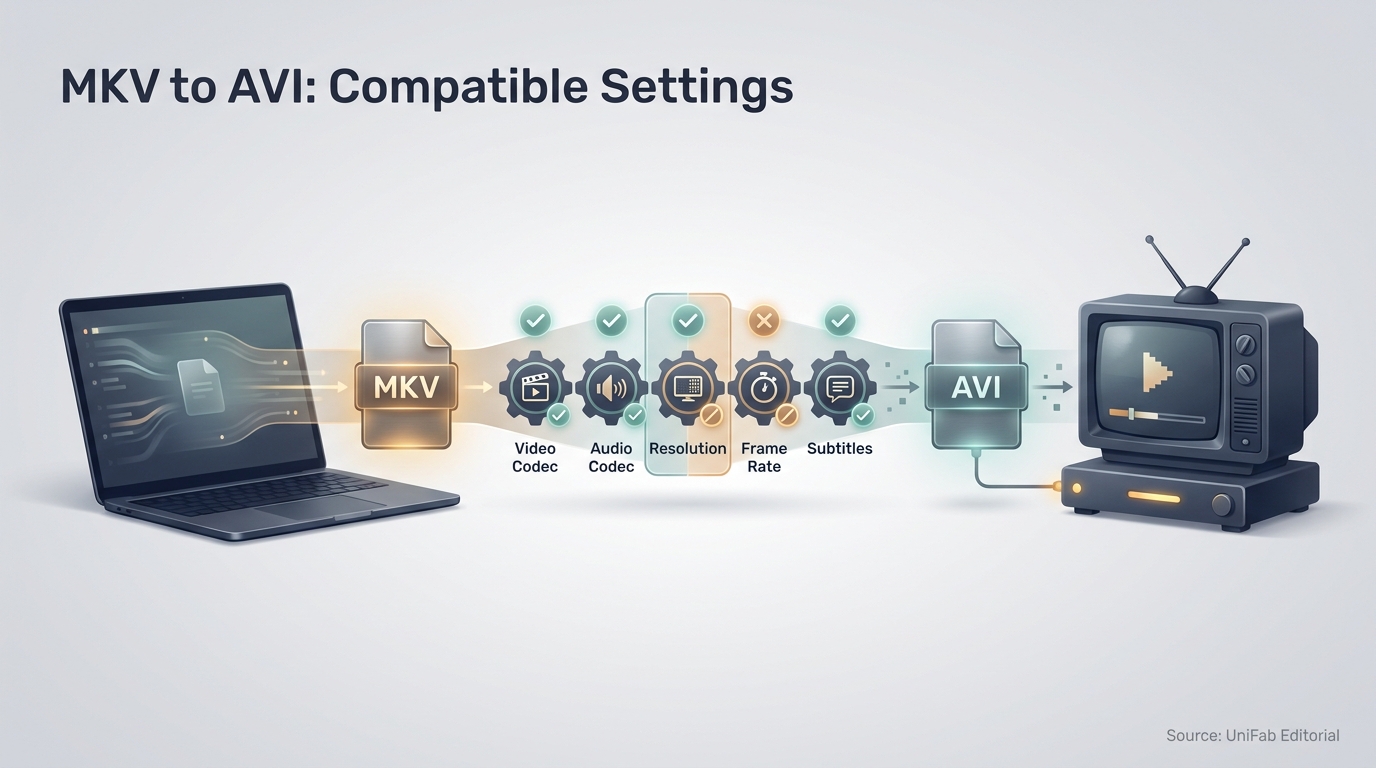
If an older TV, DVD player, car head unit, or editor rejects an MKV, convert MKV to AVI only after checking which video and audio codecs the device accepts. The safest method changes no more than compatibility requires, because an AVI filename alone does not guarantee playback.
My editorial rule is simple: inspect the player's limits before choosing a converter. A multi-gigabyte source can expose softer video, drifting audio, or unnecessary size growth when the output profile is guessed. I treat AVI as a compatibility target, not a quality upgrade, and use the least destructive workflow that meets the device's documented limits.
Convert MKV to AVI with Device-Compatible Settings
Use VLC for a graphical local workflow, FFmpeg for explicit codec control, or a browser converter when its processing model, file limits, memory requirements, and codec controls fit the job.
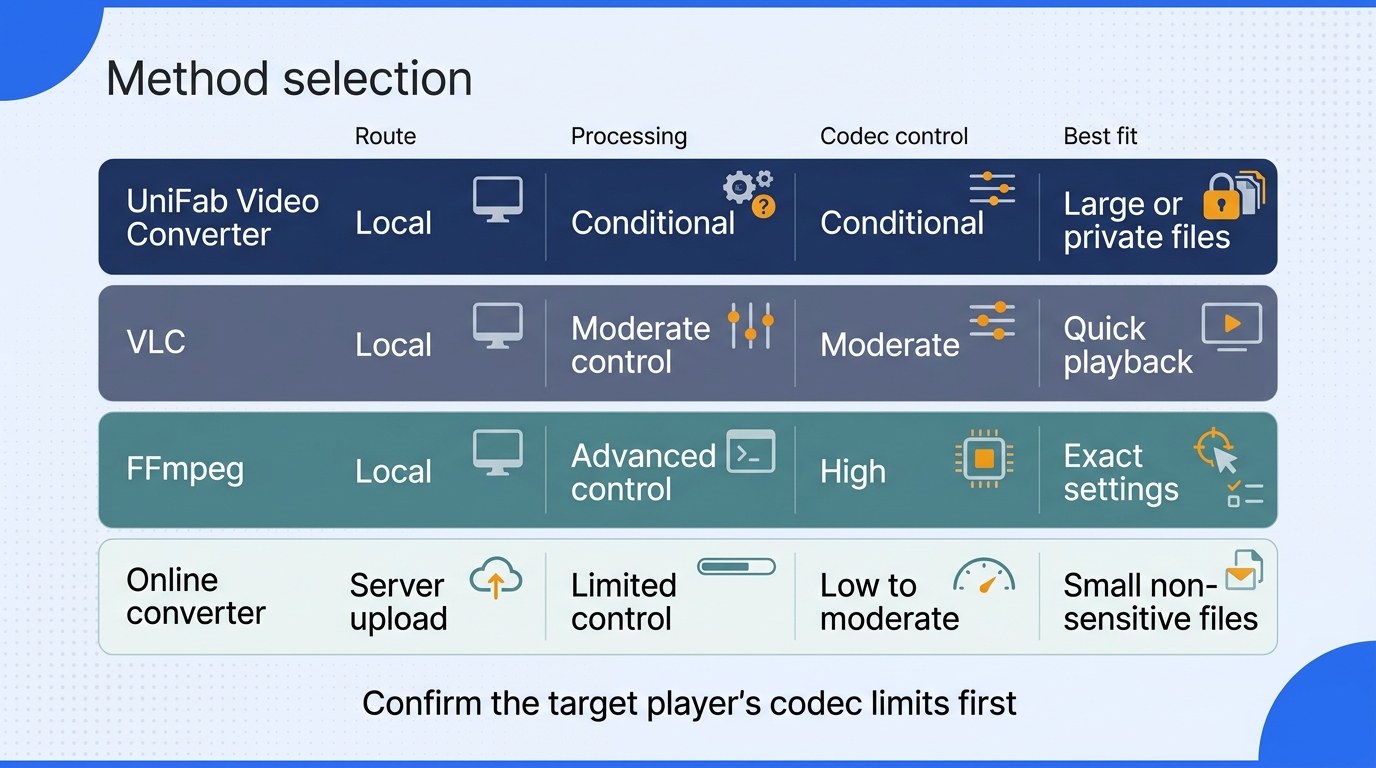
| Method | Processing | Codec control | Practical fit |
| VLC | Local desktop | Profile controls | Graphical desktop conversion |
| FFmpeg | Local desktop | Explicit codec settings | Legacy-player troubleshooting |
| Browser converter | Server upload or local browser | Service-specific controls | Occasional files within processing limits |
Compare local desktop, server-upload, and local-browser workflows before choosing a method.
Check the Target Player Before You Start
MKV and AVI are containers: they hold video, audio, subtitles, and metadata. A codec is the method used to encode a stream inside that container. Remuxing moves compatible streams into another container without encoding them again; re-encoding creates new streams and may change quality, size, or playback behavior.
Before conversion, check the device manual or support page for:
- Accepted video codecs, such as MPEG-4 Part 2 or DivX/Xvid
- Accepted audio codecs and channel layouts
- Maximum resolution and frame rate
- Subtitle support, including embedded versus burned-in subtitles
- Available storage and file-system size limits
- File sensitivity and whether cloud upload is appropriate
Large conversions can produce softer video, audio-sync problems, or unexpectedly large output files when the settings do not match the source and target player, as one r/Windows10 user experienced with online converters.
Inspect the MKV with MediaInfo or ffprobe -hide_banner input.mkv. Record its codecs, resolution, frame rate, and stream count before choosing an output profile.
Method 1: Convert with VLC's Desktop Interface
VLC suits readers who want a free, local interface and do not need to script many variations. The selected profile still determines whether the older player accepts the result.
- Open VLC and select Media > Convert / Save.
- Add the MKV file, then choose Convert / Save again.
- Select an AVI-compatible profile, or create one through the profile editor.
- Set the encapsulation to AVI and choose video and audio codecs from the device manual.
- Confirm that the selected profile uses AVI encapsulation, choose a destination ending in
.avi, then start the conversion. - Play the output from beginning to end on the target device and check sync.
If VLC creates a file that opens on your computer but not the old player, check the manual again. Lower the resolution or frame rate to the documented ceiling, then choose a broadly supported audio codec. For modern hardware that accepts MP4, an MKV to MP4 workflow usually preserves more current codec and subtitle options.
Method 2: Use FFmpeg for Codec-Level Control
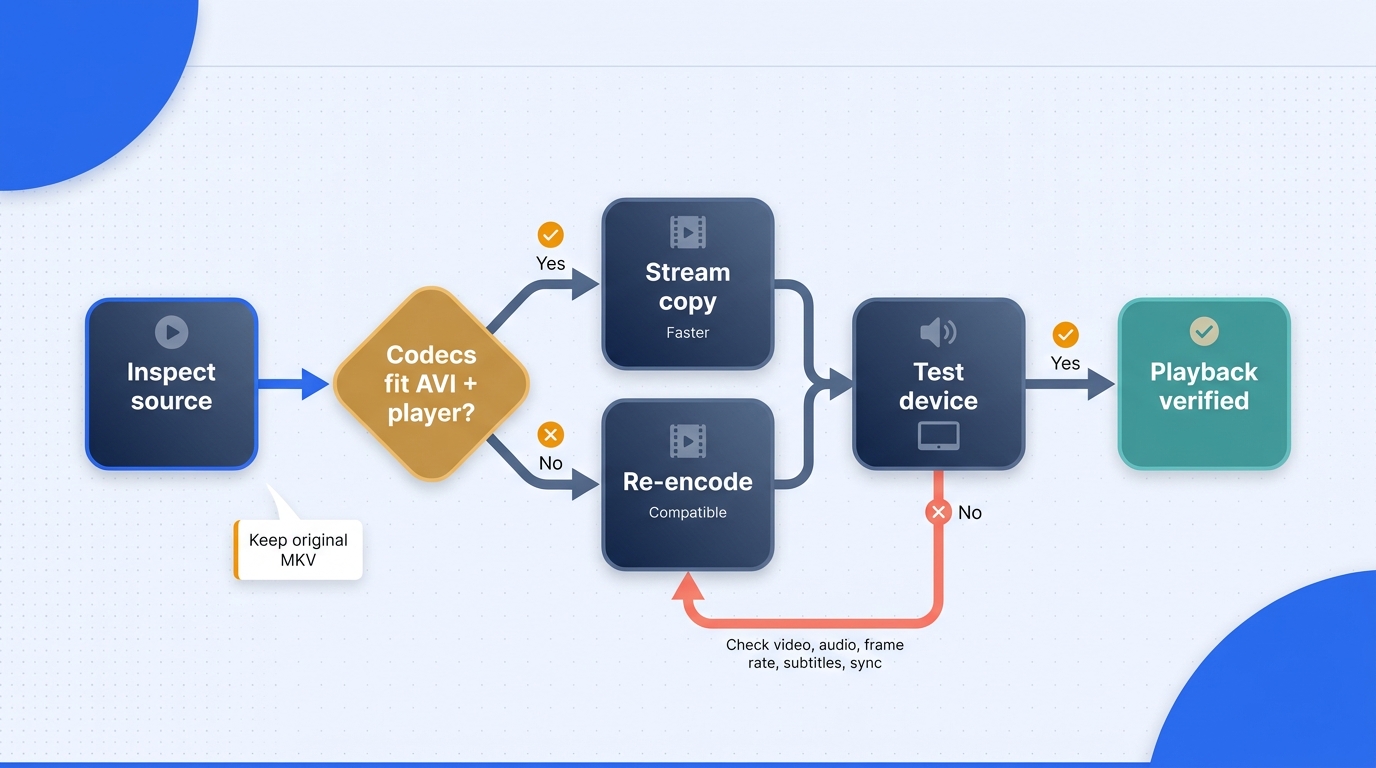
FFmpeg is the better diagnostic route when a preset hides too much. Inspect the streams, try stream copy when both the container and device accept them, and re-encode when they do not.
- Run
ffprobe -hide_banner input.mkvand note the first video and audio streams. - Compare those codecs with the target player's documentation.
- For compatible streams, try
ffmpeg -i input.mkv -map 0:v:0 -map 0:a:0 -c copy output.avi. - Test the output on the actual player, not just on the computer.
- If stream copy fails, run
ffmpeg -i input.mkv -map 0:v:0 -map 0:a:0 -c:v mpeg4 -vtag XVID -c:a libmp3lame output.avi. - Add resolution, frame-rate, bitrate, or channel settings only when the manual requires them.
As an r/software poster found, an incompatible stream-copy attempt can fail with an “H.264 bitstream malformed, no startcode found” error. That error is a reason to stop forcing stream copy and create AVI-friendly streams instead. Re-encoding can reduce quality, so keep the original MKV as the archive copy.
I prefer FFmpeg over preset-driven converters when an old player rejects the output, because explicit stream mapping makes the container-codec mismatch visible instead of hiding it behind a profile.
Method 3: Use an Online Converter for Smaller Files
An online converter can handle a one-off file without installing desktop software. Browser-based conversion can run on a remote server or locally on the device; an upload-based service sends the source file to a server. The steps below describe the upload-based workflow. Choose between the two approaches based on upload requirements, file limits, available device memory, and the codec controls required by the target player.
Use reminder: Convert only content you own or are authorized to process, where permitted by applicable law and platform terms. Do not redistribute content without permission. Keep private or confidential footage in a local workflow.
- Upload the MKV to the service.
- Select AVI and open any available codec or resolution controls.
- Start the conversion and keep the browser session open if required.
- Download the AVI, scan it, and test it on the target player.
For a multi-gigabyte source, compare the upload time and file limits of a server-based tool with the memory requirements of local-browser processing. If you need a local batch workflow, confirm the converter's MKV input and AVI output before moving a library.
Choose AVI Settings That the Device Can Actually Play
Match the output to the device's documented ceiling rather than preserving source settings automatically. Begin with its accepted video codec, then set resolution, frame rate, audio codec, channel layout, and subtitle handling.
Blocks or smearing usually point to an unsuitable video setting or aggressive bitrate reduction. Missing sound points to an unsupported audio codec or channel layout. Audio drift can come from timing or frame-rate handling, while a larger-than-source AVI often reflects inefficient settings.
Subtitles require a separate decision. AVI has less flexible track and styling support than MKV. Keep a compatible text track, export it separately, or burn subtitles into the picture when the destination cannot select embedded subtitles. A concern raised by an r/anime user is that subtitle appearance and placement can change during conversion.
Finish with a playback check: opening credits, dialogue, fast motion, picture proportions, subtitle scenes, seeking, and the final minutes; if the image appears stretched, select a matching aspect ratio or padding control when available. Success means the intended device plays it correctly, not merely that it ends with .avi.
UniFab Video Converter Keeps Batch Processing Local
UniFab Video Converter provides a graphical Windows and macOS workflow that keeps processing local and supports adding folders for batch conversion. Output settings should still follow the receiving device's documented codec, resolution, frame-rate, and audio limits.
Local folder batching combines graphical setup with output settings chosen for the receiving device.
Set Up Your UniFab Conversion
Open Video Converter on Windows or macOS, then add the MKV source file or a folder of files. Inspect the available output profiles, select the AVI option, and match its codec, resolution, frame-rate, and audio settings to the receiving device.
Use Local Batch and Output Controls
Add a folder when converting a collection instead of loading each file separately. UniFab processes the files locally, supports output up to 4K, and can use GPU acceleration for supported tasks on compatible hardware. For an older player, set the resolution no higher than the device's documented limit. The workflow requires desktop installation, and acceleration availability depends on the task and hardware.
Who This Desktop Workflow Would Suit
This workflow suits large, private, or multi-file collections when you want a graphical interface for folder batching and device-specific output settings. It also works for an occasional single file, but its main advantage here is organizing a local batch through one graphical workflow.
MKV-to-AVI Conversion FAQ
The format decision comes down to compatibility and stream retention. AVI can solve a legacy-device problem, but may discard capabilities that make MKV useful on modern software.
Is AVI Better Than MKV for an Older Player?
Answer: AVI may be the better match when the device manual explicitly supports an AVI profile and rejects MKV. MKV remains more flexible for modern codecs, multiple audio tracks, chapters, and subtitles, so keep the original when possible.
Can I Convert MKV to AVI Without Re-Encoding?
Answer: Stream copy can preserve the existing video and audio quality only when both codecs fit the AVI container and the target player supports them. If either condition fails, re-encoding is required and can reduce quality.
Why Is AVI Less Common Today?
Answer: AVI was designed for an earlier generation of Windows video workflows. Newer containers handle modern codecs, variable frame rates, metadata, multiple streams, and subtitles more cleanly. Older TVs, DVD players, car systems, and applications may still expect AVI.
Can AVI Keep Multiple Audio Tracks and Styled Subtitles?
Answer: Sometimes, but not with MKV's flexibility. The FFmpeg examples above map only the first video stream and first audio stream, and they do not map subtitles. Map additional tracks separately when the receiving player supports them; for subtitles, use a supported external file or burn them into the video, which requires re-encoding. Keep the original MKV when additional tracks or subtitle styling matter.
Why Doesn't Renaming .MKV to .avi Convert the File?
Answer: Renaming changes the extension, not the container structure or codecs. Software still reads the original MKV data, so an application or player that cannot parse that data may reject the renamed file.