If your Japanese video has no English captions, choose a Japanese video translator that generates text from speech. For English subtitles, transcribe the Japanese, translate it, and export a timed subtitle file. Video translation for dubbed speech requires a different output workflow.
I would treat readable English as a draft, not proof of meaning. A missing caption track leaves you without text to check, while a polished translation can hide a mistaken speaker or name. My route here starts with the file you need and follows one Japanese video through transcription, translation, and subtitle review. Video output is a separate choice afterward.
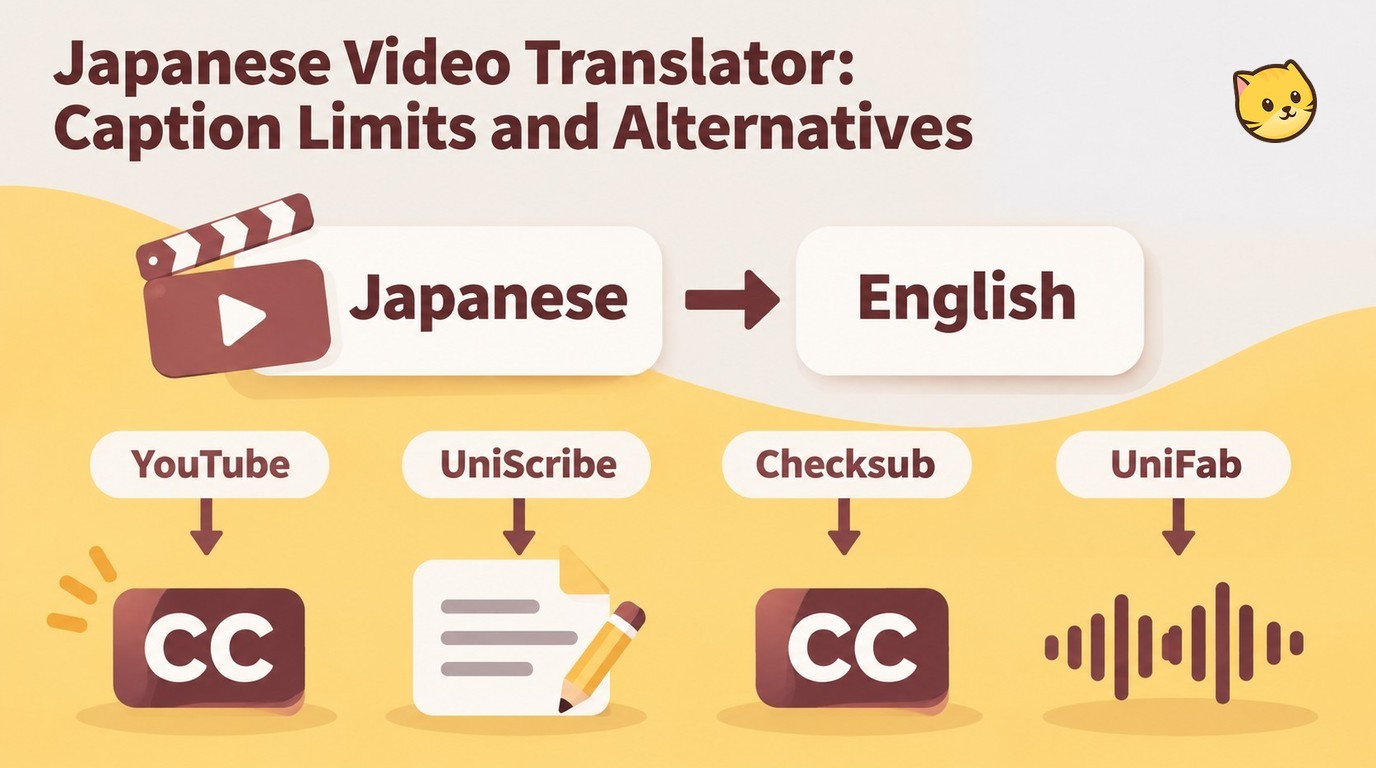
Choose English Subtitles, Text, or Dubbed Audio
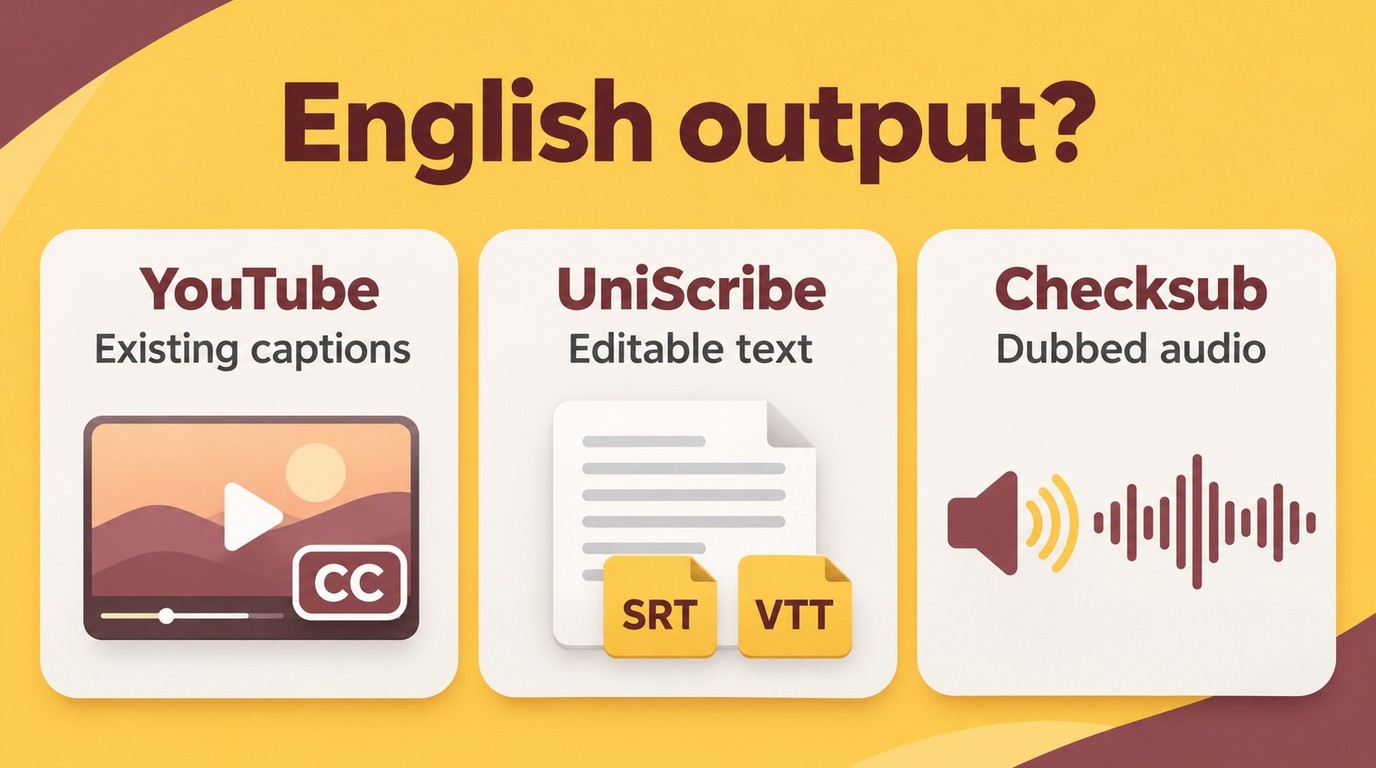
Choose subtitles to keep Japanese speech, a transcript to read or edit, and dubbing when you need English speech. Watching an existing English caption track does not require creating a new translation file.
Missing captions change the task. As one Reddit user in r/Japaneselanguage put it, "I'd like to watch various Japanese YouTube videos (like comedy shows, documentaries etc.) that have only Japanese audio and no subtitles at all." That is a speech-to-text problem, not simply a language setting.
| Starting Point | Tool | English Output | Fits | Key Limit |
|---|---|---|---|---|
| Existing English caption track | YouTube | Playback captions | Watching without creating a file | Available caption track |
| Spoken Japanese video | UniScribe | SRT, VTT, or text | Japanese audio with English subtitles | Free plan: 30 minutes per file |
| Video for localization | Checksub | Subtitles or dubbed video | Projects needing English speech | Generated script needs review |
As of November 2026.
I would keep Japanese audio when reading subtitles meets your goal. Dubbing changes the listening experience; it is unnecessary for a transcript. On YouTube, caption controls work on videos that have captions, so an existing English track suits immediate viewing, not a separate editable deliverable.
Burned-in Japanese text needs another route. Letters drawn into the image are not a selectable subtitle track. Speech recognition handles spoken words; visual text requires optical character recognition or manual transcription. A silent title card, for example, will not become English through audio transcription alone.
For AI video translation with lip sync, choose a tool that explicitly synchronizes mouth movements with translated speech; SRT or VTT export alone does not provide that feature.
Translate Japanese Video to English Subtitles with UniScribe
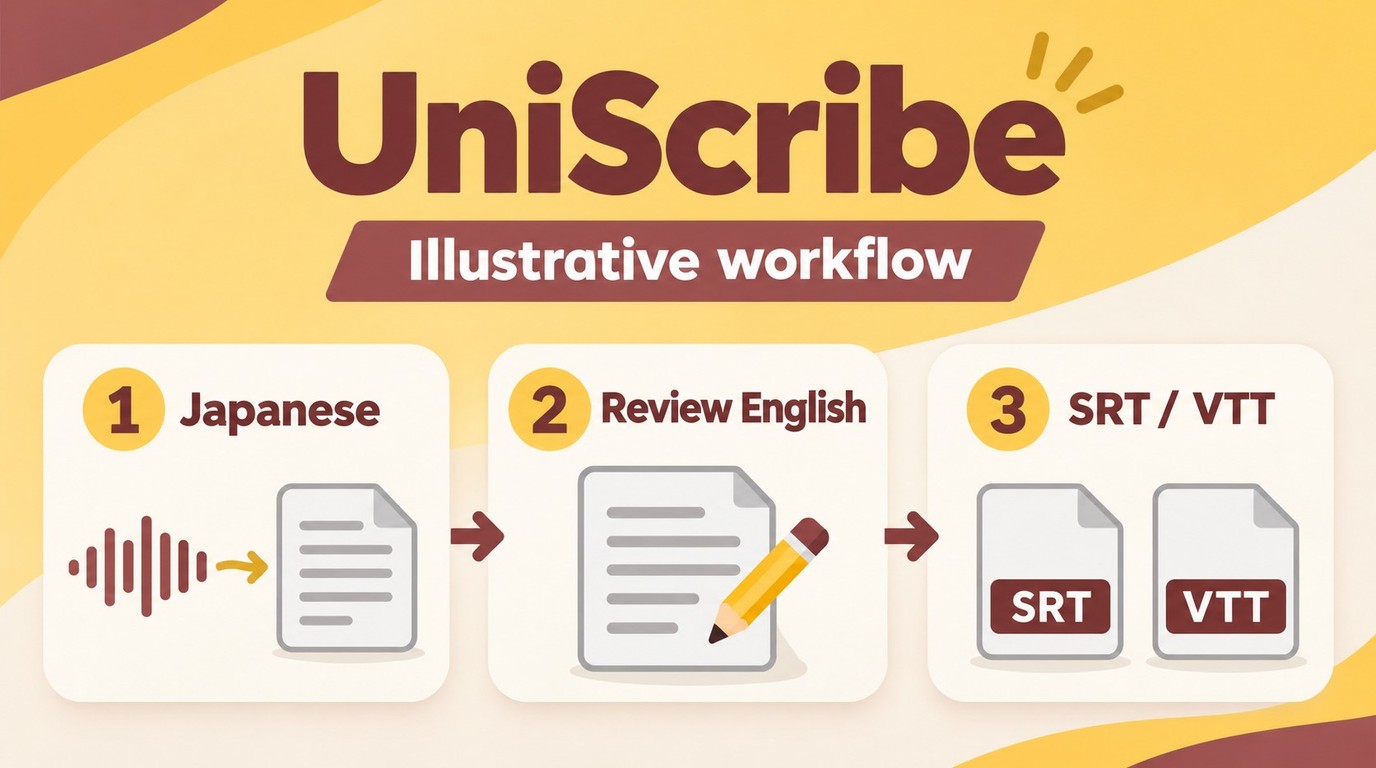
UniScribe turns spoken Japanese into a transcript, translates that text into English, and exports timed SRT or VTT subtitles. This route suits you when you need an editable subtitle file while preserving the original Japanese audio.
Upload the Video and Generate the Translation
Start with a local video you have permission to process, with audible Japanese speech. Keep the original. For a first pass, choose a short excerpt containing the voices and vocabulary that matter to your project, rather than a silent opening or music-only introduction.
The $0 plan includes 120 transcription minutes per month, up to 30 minutes per file, and three files per day. Its export options include SRT and VTT. Those limits suit short clips; a long recording needs a different processing schedule or allowance.
- Open UniScribe's Japanese-video-to-English-text page and upload your local video. Use the copy containing the Japanese dialogue you want to translate.
- Confirm Japanese as the source and English as the target. Generate the Japanese transcript, then the English translation; the page presets this language direction.
I would keep the Japanese transcript beside the translation. It gives you something specific to inspect when an English sentence seems unrelated to the scene. If the source transcript has the wrong name, revise that text before polishing the English wording.
Clear dialogue is the useful prerequisite. If music obscures a sentence, listen to that passage in the original and mark unresolved words for review. Guessing a name from the translated sentence compounds the problem. For an interview, keep a short reference list of speaker names and technical terms alongside the transcript.
Review and Export SRT or VTT
- Review the Japanese transcript and its English translation together. Correct names and references using the audio and surrounding conversation.
- Export the English version as SRT or VTT. Save it beside the source video with a recognizable matching filename.
- Load that subtitle file with the original video in your existing subtitle-capable player or editor. Preview dialogue near the beginning and end, and across scene changes.
The result is a separate text file with timing. Exporting it does not replace the video's Japanese audio or create an English voice track. As one Reddit user in r/VideoEditing put it, "I'm not looking to dub or anything like that (that would just be extra, great but not needed)." That distinction is exactly what this workflow preserves.
Keep the delivery pair together. If you send a collaborator the video without its subtitle file, they will not receive the English text you prepared. Plain text works for reading; SRT or VTT carries the timing needed to place lines against playback.
Process only content you have the right to use, for lawful personal purposes, and follow the tool's and source platform's terms, which may restrict third-party processing. You remain responsible for content rights; do not redistribute or resell material without authorization.
Review Japanese Context and Subtitle Timing
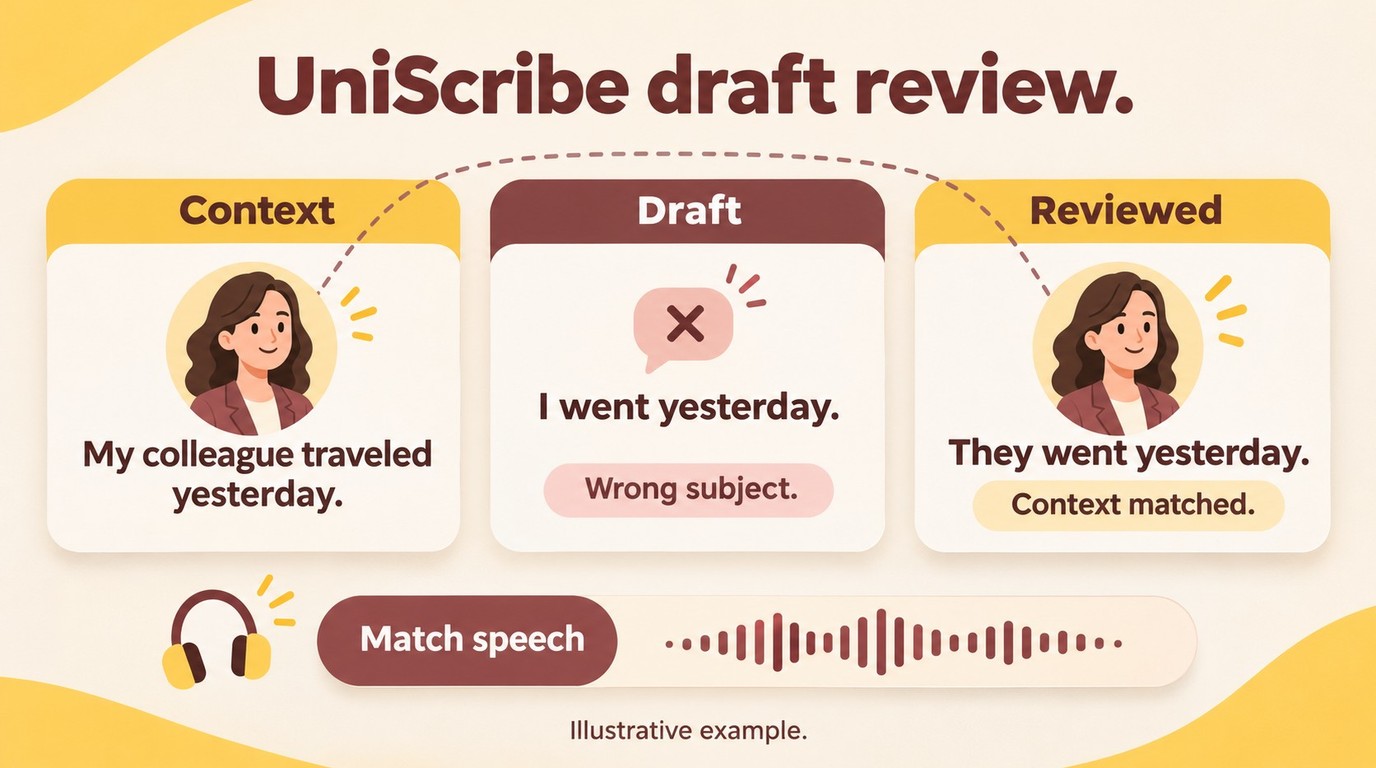
Check the Japanese transcript and intended meaning before polishing English or adjusting subtitle timing. For publication, have a qualified Japanese-to-English reviewer check the dialogue in context; automatic output is a starting point.
Check Meaning, Then Readability and Timing
I would fix a wrong speaker before shortening a long subtitle. Fluent English with the wrong subject misrepresents the scene, even when the line fits neatly on screen. Japanese often leaves the subject unstated, so the surrounding exchange matters.
An illustrative example makes the risk clear. Imagine a speaker describing a colleague's trip, then saying the equivalent of "went yesterday" without naming the traveler again. An English draft that supplies "I" changes who traveled. Check the preceding exchange before accepting that pronoun; this is an example, not a reported tool result.
Use this review order:
- Check recognition against speech. Resolve names, specialist terms, and apparent repetitions in the Japanese transcript.
- Check meaning across the exchange. Confirm who acts, what pronouns refer to, and whether polite speech is a request or a statement.
- Check English readability and timing. Split lines at natural phrase boundaries and preview them against the relevant speech.
That order prevents polishing a mistranslation. As one Reddit user in r/Tokusatsu described a transcription problem, "The problem is that the software will work fine up until it suddenly freaks out and starts generating looping phrases and then it never recovers." Treat repeated text as a passage to inspect, not dialogue to accept automatically.
Timing needs a playback check. Read the captions at normal speed and watch speaker changes; a line arriving during the next person's response creates confusion. Once meaning and synchronization are checked, your independent-subtitle route is complete. You do not need another video tool merely to finish it.
When UniFab Video Translator AI Fits a Windows Workflow
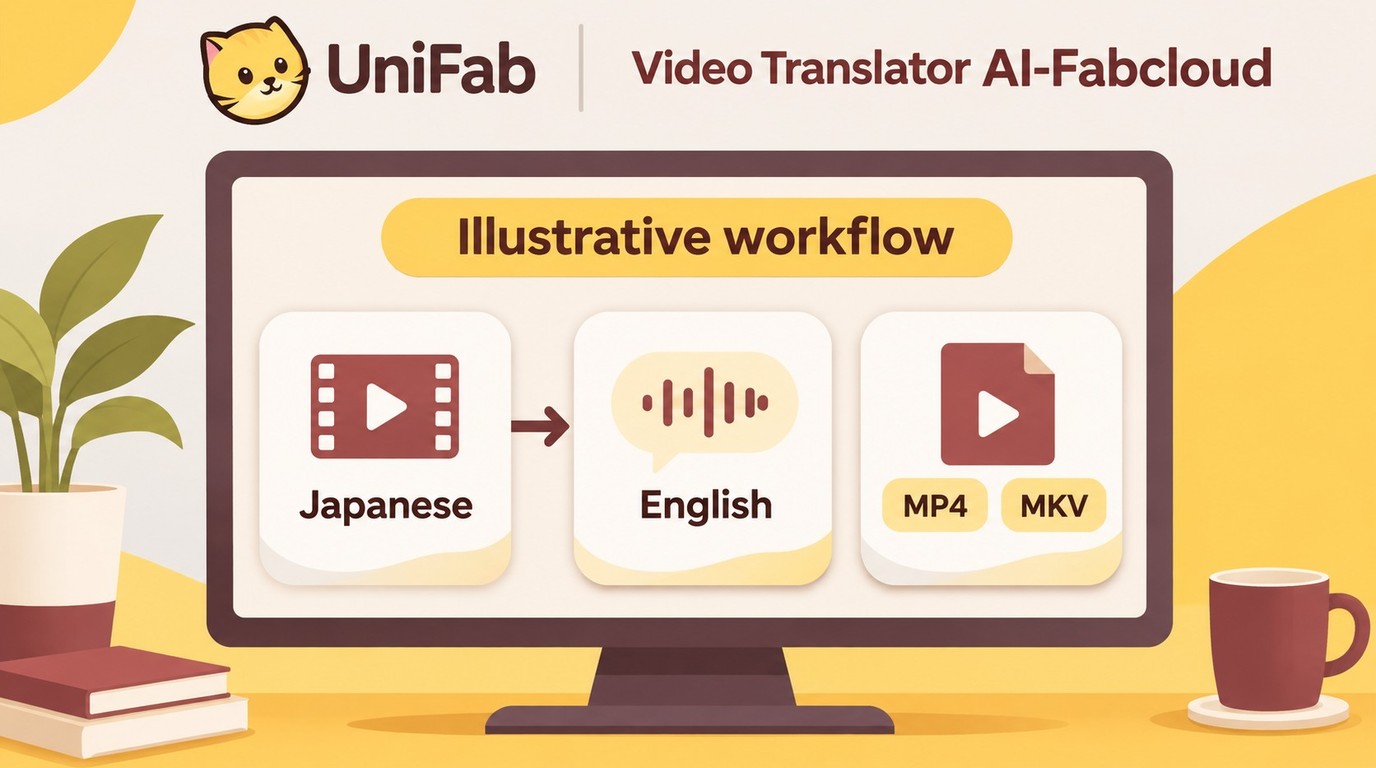
Video Translator AI-Fabcloud is a Windows video translation tool that supports 23 languages, including Japanese and English, and exports MP4 or MKV video at up to 4K. Its MP4 and MKV output options serve video-file delivery; this is a separate route from the completed subtitle workflow above.
Match MP4 or MKV Delivery to Your Requirements
For a Windows video-output project, I would match the required file format before starting translation. Higher resolution does not establish translation accuracy.
Keep the workflow focused on your video deliverable:
- Open the translation feature on Windows and review its availability, hardware requirements, beta notices, and task credit cost before loading the full project.
- Load your Japanese video and set the language direction to English. Choose MP4 or MKV to match your delivery requirement.
- Review the resulting video for meaning, playback, and synchronization before using it as your final copy.
I would use this route for video-file delivery, not an independent subtitle handoff. Subtitle downloading is not supported; retain the SRT or VTT route above when the recipient needs editable subtitles. New FabCloud accounts receive 30 cloud credits, giving you a starting allowance for a video-output project.
Continue through the approved UniFab official page to access the available tools for your Windows project.
Japanese Video Translation FAQ
Free allowances, language direction, and live processing need separate answers. A tool that handles an uploaded Japanese recording does not automatically meet a longer project or live-viewing requirement.
Can I translate a full-length Japanese recording without paying?
Answer: A free allowance is not an unlimited-length allowance. For the free plan described above, splitting a recording still uses its transcription budget, and the daily file cap still applies. I would plan around natural breaks between topics or scenes so that each part keeps enough context for translation. If you divide the video, retain each part's position in the original timeline before assembling the subtitles again.
What changes if I need Japanese subtitles for an English video?
Answer: Reverse the language direction: English is the source and Japanese is the target. Confirm that the chosen tool supports that pair and the subtitle export you need. Do not reuse the Japanese-to-English page settings unchanged. Japanese subtitles also need their own readability review; a finished English transcript is the input, not the finished Japanese deliverable.
Will this workflow translate a Japanese live stream as I watch?
Answer: No. The upload, transcription, and export workflow here handles recorded files. Watching a live stream needs a feature that explicitly supports live Japanese speech recognition and translation. I would choose for that live requirement directly; a file-transcription language list does not establish real-time support or a particular delay.
Choose Your Next Step
Use an existing English caption track for watching, or the transcript-to-SRT/VTT workflow when you need your own subtitle file. I would keep Japanese audio unless English speech is part of the delivery requirement, and consider the Windows video-output route separately when you need a video file. Before calling the project finished, check the Japanese meaning and preview the English captions against playback: a readable sentence still needs to match the speaker and the scene.